
A 403 Forbidden error appears when your request reaches a website’s server, but the server refuses to provide the content. Unlike a 404 (not found) or a 500 (server error), a 403 usually means the page exists, but access is restricted by permissions, login rules, IP/location filters, or security settings. The key is to identify whether the restriction is on your side (browser, network, account) or on the website’s side (server configuration and access control).
Key Takeaways
- A 403 Forbidden error means access is denied, not that the page is unavailable
- The cause may be client-side, server-side, or permission-related
- Identifying where the restriction occurs helps determine the correct fix
Table of Contents
Part 1. What Is a 403 Forbidden Error?
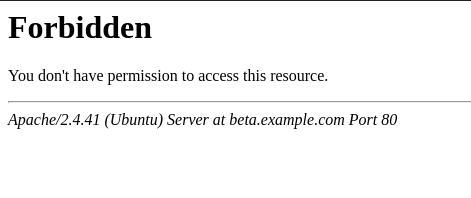
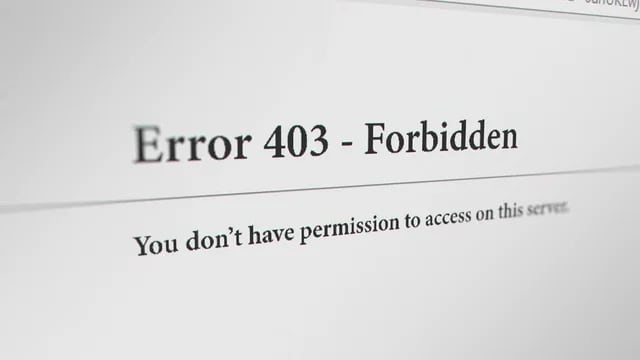
A 403 Forbidden error is an HTTP status code returned when a server understands your request but refuses to authorize it. In plain terms: the server is reachable, the content likely exists, but you don’t have permission to access it under the current conditions (account, location, IP, security rules, or server permissions).
It is commonly displayed as one of the following messages:
- “403 Forbidden”
- “HTTP Error 403 – Forbidden”
- “You don’t have permission to access this resource”
Part 2. Common Causes of 403 Forbidden Errors
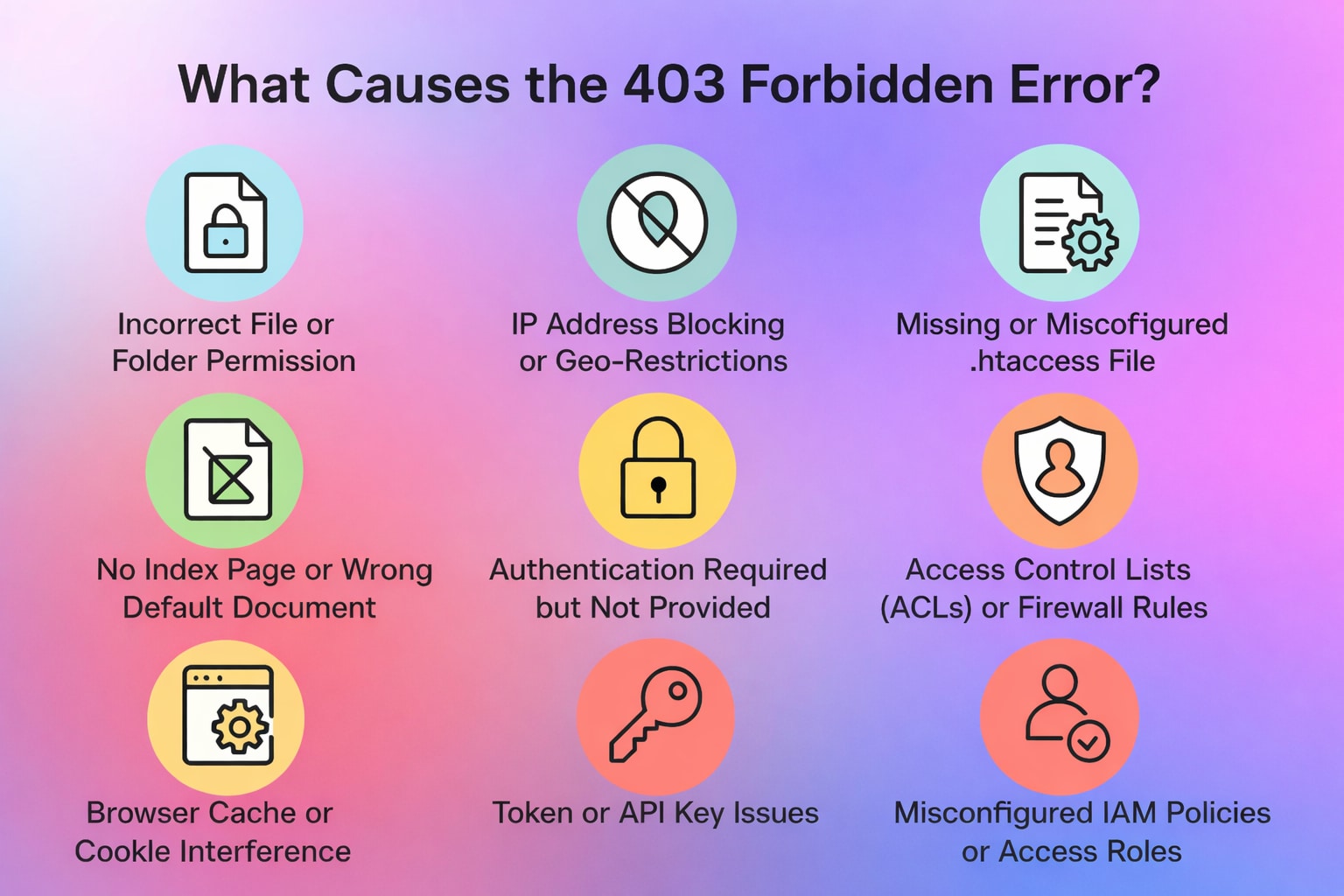
A 403 Forbidden error occurs when either the visitor or the website server implements access restrictions. Identifying where the block happens matters because it determines whether you can fix it locally or if the site owner (or hosting provider) needs to make changes.
Quick clue (helpful hints, not guarantees):
- Works on mobile data but not on Wi-Fi → possible IP/network restriction
- Works in Incognito but not in normal mode → likely cookies/cache or extensions
- Only fails on one specific folder/page → likely permissions, .htaccess, or security rules
Visitor-Side Causes
- Browser cache, cookies, or credential issues: Outdated cookies, cached data, or stored sign-in tokens can cause a server to reject your request—even if the page is normally accessible.
- IP address or geographic restrictions: Some sites block certain regions, VPN/proxy IPs, or flagged IP ranges. If your request matches a restricted IP/location rule, the server may return 403.
Website or Server-Side Causes
- Incorrect file or folder permissions: Overly restrictive permissions on the server can prevent visitors from accessing files or directories.
- Blocked access by website firewall or security plugin: Security systems (WAF/firewalls, rate limiting, threat rules) can mistakenly block valid requests—especially if rules are too aggressive or misconfigured.
- Missing or misconfigured index files: If directory listing is disabled and the server can’t find a default index file (for example, index.html or index.php), it may respond with 403 instead of showing content.
- Corrupted or incorrect .htaccess rules: On many servers, .htaccess controls access rules. Invalid directives or conflicting rules can unintentionally block access to specific paths or resources.
Part 3. Why Does a 403 Forbidden Error Happen?
A 403 Forbidden error happens when a server intentionally prevents users from accessing its resources. Your request successfully reached the server, but the server has chosen not to deliver the requested content.
Servers evaluate requests based on permissions, user roles, and authentication tokens. Access is denied when your request fails to fulfill these requirements.
There are two main types of failures:
- Authentication issues: The server cannot verify your identity (e.g., accessing a password-protected page without logging in).
- Authorization issues: You are identified, but your account lacks permission to view the resource.
To fix it efficiently, identify what’s blocking you: authentication (not logged in), authorization (no permission), or security controls (firewall/IP/rate limits).
Part 4. How to Fix 403 Forbidden Based on the Cause
Before troubleshooting the 403 Forbidden error, it’s important to identify your role:
- If you are a visitor trying to access a website, focus on browser, login, and network-related fixes.
- If you own or manage the website, server permissions and security rules are the most common causes.
The steps below follow this order, starting with the lowest-risk visitor-side fixes.
Step 1: Try Basic Visitor-Side Fixes First
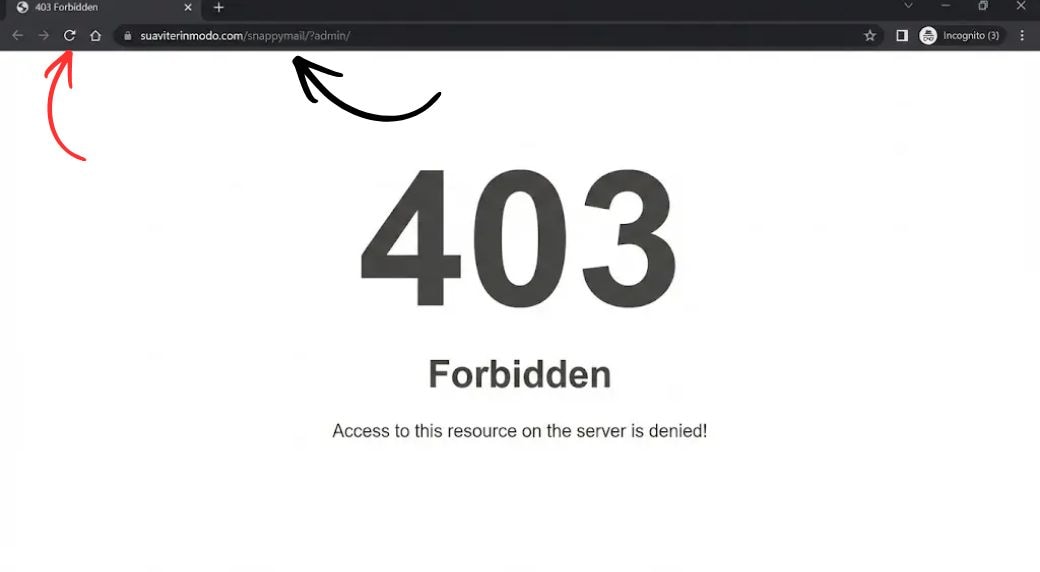
Sometimes the error is caused by simple issues in your browser or device. Start with these quick checks:
- Refresh the page to ensure it’s not a temporary glitch.
- Check the URL for typos or mistakes.
- Clear your browser cache and cookies to remove outdated data.
- Try accessing the page in a different browser or device.
- Temporarily disable VPNs or proxies that might trigger access restrictions.
How to confirm it worked: the page loads normally without the 403 message.
Step 2: Check Access Restrictions
If basic fixes don’t work, the issue may be related to login or account permissions:
- Log in if the page requires authentication.
- Confirm your account has permission (some pages require paid plans, roles, or verified accounts).
- If you’re on a work/school network, check whether the domain is restricted by policy.
How to confirm it worked: the same URL loads after you log in or after switching accounts/networks.
Step 3: Website or Server-Level Fixes (If You Own the Site)
If you manage the website, the problem may be caused by server settings.
If you don’t manage the website, skip this section—changing permissions or .htaccess applies only to site owners:
- Review file and folder permissions to ensure legitimate access is allowed.
- Check your .htaccess file for misconfigured rules that might block visitors.
- Temporarily disable security plugins or firewalls to see if they are causing the block.
How to confirm it worked: visitors can access the page from different networks/devices without getting 403.
If you still see 403 after Step 1–3
- Test the URL from another network (mobile hotspot).
- Capture the exact URL + timestamp + screenshot of the error.
- Contact the site owner/support and ask whether your IP/account is being blocked, or whether a security rule is denying access.
Part 5. When a 403 Error Interrupts Downloads or Local Files
A 403 Forbidden error itself is caused by server-side access restrictions and cannot be fixed by repairing local files. However, in some cases, a 403 error may interrupt file downloads or prevent resources from being saved correctly on your device.
Examples include:
- Downloaded files that fail to open because the request was blocked midway
- Cached resources or saved pages that became incomplete due to access denial
- Media files that stopped downloading when a 403 error occurred
In these situations, the server block remains unchanged, but the locally saved file may be damaged. File repair tools are not designed to fix 403 Forbidden errors or bypass website access restrictions. Instead, they can be helpful only when a file already exists on your device but becomes corrupted due to an interrupted download or blocked request.
Repairit File Repair can be used in cases where:
- A downloaded file exists locally but will not open
- The file shows format or corruption errors after a 403 interruption
- The download stopped before completion due to access denial
What it cannot do:
- It cannot remove server restrictions
- It cannot restore access to blocked websites
- It cannot repair files that were never downloaded
Step-by-Step: Using Repairit File Repair
Step 1: Visit Repairit File Repair. Click Add File and select the corrupted or problematic file you suspect is causing the error.

Step 2: Click Repair to let the software analyze and restore the file.
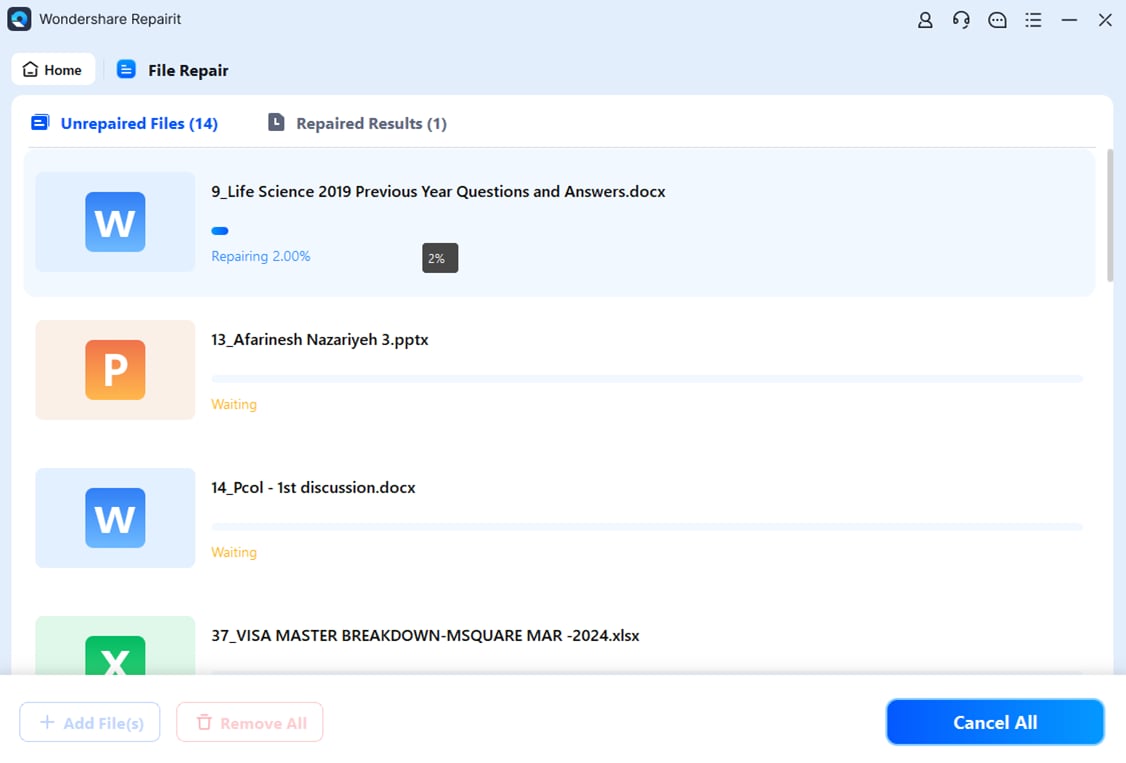
Step 3: Once the repair is complete, save the file to a new location.
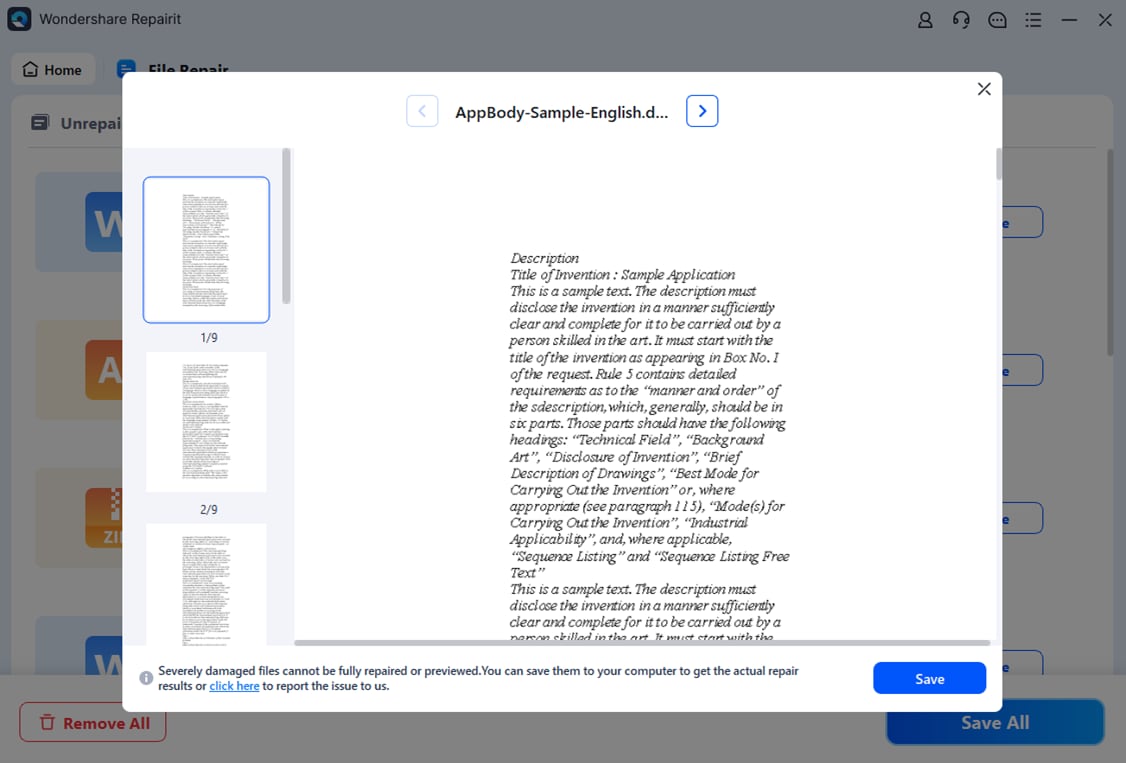
Note: If a file is severely incomplete or missing critical data, repair may not be possible because the information never existed in the file.
Part 6. How to Prevent 403 Forbidden Errors in the Future
While not all 403 errors can be avoided, following best practices helps minimize their occurrence.
Tip 1. Best Practices for Website Owners
- Regularly review site access rules and permissions.
- Keep security measures balanced to prevent accidental blocks of legitimate users.
Tip 2. Proper Permission Management
- Assign file and folder permissions carefully, ensuring users only have the access they need.
- Avoid overly restrictive settings that could unintentionally trigger 403 errors.
Tip 3. Security Configuration Guidelines
- Configure firewalls, plugins, and other security tools to allow legitimate traffic while blocking threats.
- Test any new security rules to confirm they don’t block authorized visitors.
Tip 4. Avoiding Accidental Access Blocks
- Ensure that .htaccess files or server directives do not unintentionally deny access.
- Regularly check for misconfigured IP restrictions, VPN blocks, or outdated authentication rules.
- Implementing these measures helps prevent future 403 errors and ensures a smoother experience for visitors while maintaining security.
Conclusion
A 403 Forbidden error is an access-related issue, not a sign that a website is down. It happens when the server refuses a request due to permission, authentication, or security rules. The fastest way to fix it is to first determine whether the issue is visitor-side (browser, network, login) or server-side (permissions, .htaccess, firewall rules).
For visitors, start with cache/cookies, VPN/proxy checks, and login verification. For site owners, review permissions, .htaccess, and security configurations.
If a 403 interrupts a download and you end up with a file that exists locally but won’t open, file repair tools may help restore that file’s usability. However, fixing the 403 restriction itself always requires resolving access rules on the browser/network/account level or on the server.
FAQs
-
Q1: Is a 403 Forbidden error always permanent?
No. A 403 can be temporary depending on the cause (for example, security rules, session issues, or IP-based blocks). -
Q2: Can browser issues cause a 403 error?
Yes. Corrupted cookies, outdated cache, or stored credentials can trigger a 403. Trying Incognito mode is a quick way to test this. -
Q3: When should I contact the website owner?
If the error persists across multiple devices and networks, it likely indicates a server-side block. The site owner can review permissions and security rules. -
Q4: Is a 403 error the same as being banned?
Not necessarily. A ban is only one possible cause. A 403 can also result from login requirements, permissions, firewall rules, or IP/location restrictions.




