
When my SD card is not showing in my phone, it can be a hassle to access important photos, videos, or files. The problem may show up in several ways, such as the SD card not being detected at all, not showing in storage settings, or appearing but not allowing you to open its contents.
Whether you're using an iPhone, Android, or another smartphone, this issue is often caused by incorrect insertion, compatibility issues, file system errors, or even physical damage to the SD card. In some cases, the phone may recognize the card but fail to read it, while in others, it may not detect it at all.
This guide explains why my SD card is not showing in my phone, how to identify the issue, and provides step-by-step solutions to help restore access.
In this article
Part 1. What Happens When My SD Card Is Not Showing in My Phone
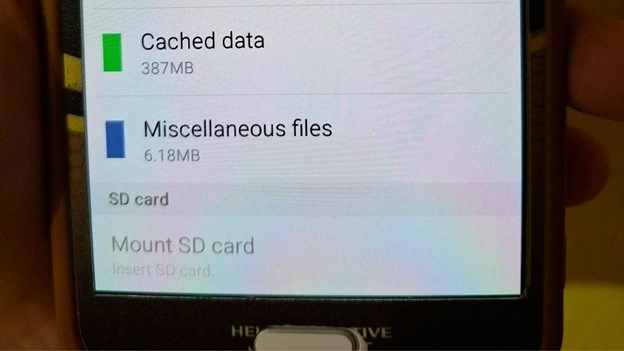
If my SD card is not showing on my phone, it doesn't always mean the card is broken or unusable. In many cases, the problem is related to how the phone reads or recognizes the card rather than a complete failure.
How the Issue Usually Appears:
- The phone fails to recognize the SD card after insertion.
- The SD card is inserted, but missing from storage or file settings.
- An error message appears when trying to access the SD card.
- The SD card is detected, but files cannot be opened or are missing.
- The SD card is not visible anywhere on the device.
These situations can point to different underlying problems. Understanding how the issue appears can help you choose the right solution more effectively.
Part 2. Common Causes Why My SD Card Is Not Showing in My Phone
There are several possible reasons why my SD card is not showing in my phone. Here are some of the most common ones:
- Improper Insertion or Loose Connection -- If the SD card is not inserted properly, your phone may fail to detect it. Even a slightly loose connection can prevent recognition.
- Compatibility Issues -- Some phones do not support certain SD card types or capacities. If the card is not compatible, it may not show up at all.
- File System Errors or Corruption -- If the SD card becomes corrupted due to improper removal or system errors, your phone may not be able to read it.
- Outdated Software or System Glitches -- Software bugs or outdated system versions can sometimes prevent your phone from detecting external storage devices.
- Unmounted or Disabled SD Card -- The SD card may be detected but not mounted, making it invisible in your phone's storage.
- Physical Damage or Wear -- SD cards can wear out over time. Damage from heat, moisture, or frequent use can cause detection failure.
Part 3. Practical Ways to Fix My SD Card Is Not Showing in My Phone
Detection issues and system glitches can cause my SD card not to show up in my phone. The following methods can help fix common problems related to system settings, storage configuration, and SD card errors that may affect detection:
Fix 1. Turn the SD Card Off and On (Remount It)
Sometimes the phone fails to properly refresh the SD card connection.
Step 1. Open Settings on your phone
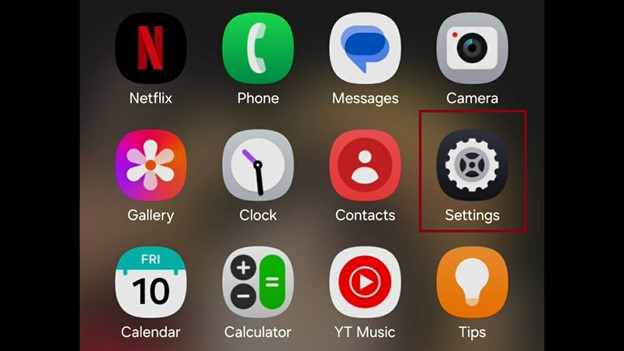
Step 2. Go to Storage or Device Care (depending on your device)
Step 3. Select the SD card option
Step 4. Tap Unmount or Eject
Step 5. Wait a few seconds, then tap Mount again
Fix 2. Restart the Phone in Safe Mode
Some apps may interfere with how your phone reads external storage.
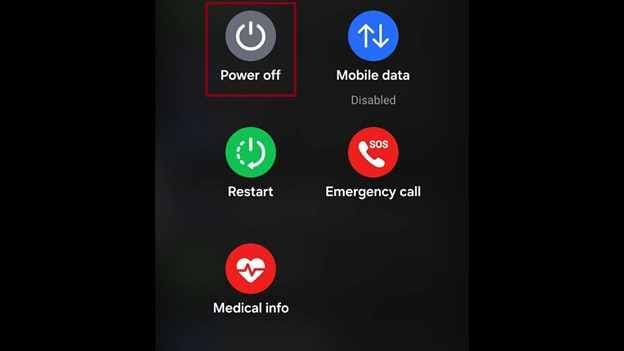
Step 1. Press and hold the Power button
Step 2. Tap and hold Power off until Safe Mode appears
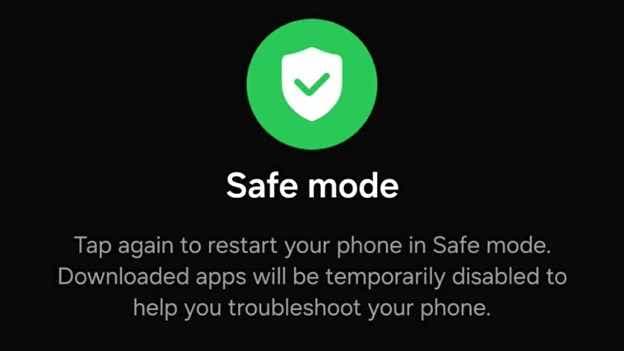
Step 3. Select Safe Mode and wait for the phone to restart
Step 4. Check if the SD card is detected while in Safe Mode
Fix 3. Clean the SD Card and Slot Carefully
Dust or debris can prevent a proper connection between the phone and the SD card.
Step 1. Turn off your phone completely
Step 2. Remove the SD card carefully
Step 3. Wipe the metal contacts using a soft, dry cloth
Step 4. Clean the SD card slot gently if needed
Step 5. Reinsert the SD card securely and turn the phone back on
Fix 4. Check Storage Settings and Permissions
In some cases, the SD card is detected but not displayed correctly due to settings issues.
Step 1. Open Settings
Step 2. Go to Storage
Step 3. Check if the SD card is listed
Step 4. Ensure it is enabled and set as active storage
Fix 5. Try the SD Card in Another Phone
This helps determine whether the issue is with the SD card or your phone.
Step 1. Remove the SD card from your phone
Step 2. Insert it into another compatible phone or card reader
Step 3. Check if it is detected and accessible
Step 4. If it works elsewhere, your phone may need troubleshooting
Fix 6. Format the SD Card (Only If Necessary)
If the SD card is corrupted, formatting may be the only solution to make it usable again, but it will erase all stored data.
Step 1. Go to Settings. Open Storage and select the SD card
Step 2. Tap Format or Erase SD card. Confirm the action and wait for completion.
Part 4. Signs That An SD Card Is Corrupted or Damaged
Not all SD card detection issues are caused by phone settings or minor glitches. Many problems that look like simple detection errors are actually signs of corruption or physical damage.
Common Signs Include:
- The phone repeatedly asks to format the SD card.
- Files suddenly disappear or cannot be opened.
- The SD card is detected but shows errors when accessed.
- The phone displays messages like "SD card corrupted" or "SD card not supported."
- The SD card works inconsistently, appearing and disappearing from storage.
- Slow loading or freezing when accessing files on the SD card
- The SD card is not recognized on multiple devices.
If several of these signs appear, the SD card may already be damaged or corrupted and may require repair or data recovery.
Part 5. How to Recover Data from an SD Card
Losing access to files on an SD card can be stressful, especially if important photos, videos, or documents are involved. Fortunately, data can still be recovered in many situations using built-in tools, a computer, or specialized recovery software, depending on the severity of the issue.
Fix 1. Use Built-in Phone Recovery Options (If Available)
Some phones offer basic recovery or backup features that may help restore lost files.
Step 1. Open your phone's File Manager or Gallery app
Step 2. Check the Recently Deleted or Trash folder. Restore any files that are still available
Fix 2. Connect the SD Card to a Computer
A computer can sometimes read files even when a phone cannot detect them properly.
Step 1. Insert the SD card into a card reader and connect it to a PC. Open File Explorer (Windows) or Finder (Mac)
Step 2. Check if the SD card appears and try copying your files to a safe location. If accessible, immediately back up important data
Fix 3. Use Data Recovery Software

-
Repair damaged videos with all levels of corruption, such as video not playing, video no sound, out-of-sync video or audio, playback errors, header corruption, flickering video, missing video codec, etc.
-
Repair full HD, 4K, and 8K videos and support 20+ popular formats, including MOV, MP4, M2TS, MDT, RSV, WMV, MPEG, DAT, etc.
-
Repair damaged or corrupted videos caused by video compression, system crash, video format change, etc.
-
Repair critically damaged or corrupted RAW/Log/HDR videos from professional cameras such as Blackmagic Design, RED Digital, and ARRI, etc.
-
Repairit has a quick and advanced scanning mode. You can use either depending on the level of corruption the video file has undergone.
-
No limit to the number and size of the repairable videos.
-
Repaired videos are more compatible with professional editing software such as DaVinci, Composer, Final Cut Pro, and Premiere Pro.
-
Support Windows 11/10/8/7/Vista, Windows Server 2003/2008/2012/2016/2019/2022, and macOS 10.12~macOS 15.
When files cannot be accessed normally, recovery tools can help retrieve lost or damaged data. This is useful when the SD card is detected, but files are missing, corrupted, or unreadable.
One recommended tool is Repairit Video Repair, which can help restore and repair videos from storage devices.
⚠️ Note: Avoid formatting your SD card before attempting recovery, as formatting can permanently reduce the chances of restoring lost files. Always try recovery methods first to maximize data retrieval success.
Part 6. Tips to Prevent the SD Card from Not Showing in the Phone Again
To avoid experiencing the same issue in the future, it's important to follow a few simple but effective habits. These tips help maintain SD card performance and ensure stable detection on your phone:
- Always Safely Eject The SD Card Before Removing It -- Before physically removing the SD card, always unmount it from your phone's settings. This helps prevent file corruption and ensures all processes are properly completed.
- Avoid removing the SD Card Frequently -- Repeated removal and reinsertion can weaken the connection between the card and the device over time, increasing the chance of detection issues.
- Keep Your Phone Software Updated -- System updates often include improvements for storage handling and device compatibility, which can help prevent SD card errors.
- Use a Compatible and High-Quality SD Card -- Make sure your SD card matches your phone's supported type and capacity. High-quality cards are also less likely to experience errors or corruption.
- Protect the SD Card from Physical Damage -- Avoid exposing the card to heat, moisture, dust, or physical impact, as these can damage internal components and affect performance.
- Regularly Back Up Important Files -- Always keep a copy of important data on cloud storage or another device to prevent permanent loss in case the SD card fails unexpectedly.
Conclusion
Common problems, like when my SD card is not showing in my phone, are often caused by simple issues like improper insertion or unexpected system errors, but they may also point to deeper problems, such as file system errors or physical damage. The good news is that most of these issues can be fixed with basic troubleshooting steps like remounting the SD card, checking settings, or testing it on another device.
If the SD card is corrupted or unreadable, recovery tools may help restore important files before taking further action like formatting. By understanding the possible causes and following the solutions in this guide, you can quickly identify the problem and improve the chances of getting your SD card working properly again.
FAQS
-
Why is my SD card not showing up on my phone?
Your SD card is not showing in your phone due to issues like not being inserted correctly, software glitches, storage system problems, or incompatibility with the device. In some cases, physical damage to the SD card may also prevent it from being detected. -
How do I fix an SD card that is not detected on my phone?
You can try simple fixes such as remounting the SD card, restarting your phone, cleaning the card and slot, checking storage settings, or testing it on another device. These steps often resolve detection issues. -
Can a corrupted SD card be fixed?
A corrupted SD card may sometimes be repaired using formatting or recovery tools. However, formatting will erase all data, so it is best to try data recovery methods first before proceeding. -
Why does my phone say the SD card is corrupted or unsupported?
This usually happens when the file system is damaged, the SD card is incompatible with the phone, or the card has physical wear or errors that prevent proper reading. -
Will I lose my data if my SD card is not showing in my phone?
Not always. In most cases, files can still be recovered using a computer, recovery software, or built-in phone recovery options, depending on the condition of the SD card. -
How can I recover files from an SD card that is not showing up?
You can insert the SD card into a computer using a card reader or use data recovery software to scan and restore lost or inaccessible files.




