
If your SD card is not showing up on your computer, it can be frustrating, especially when you need to access important files. This issue can appear in different ways, such as the SD card not appearing in File Explorer, not being detected in Disk Management, or showing up but being inaccessible.
Whether you're using Windows 10 or Windows 11, this problem is usually caused by connection issues, driver problems, file system corruption, or even hidden partition errors. In some cases, the SD card is detected but cannot be opened, while in others, it is not recognized at all.
This guide explains why an SD card does not show up, how to diagnose the issue, and provides step-by-step fixes to restore access.
In this article
Part 1. What Does "SD Card Not Showing Up" Mean?
When an SD card fails to appear, it does not always mean the card is completely broken. The issue can occur at different levels of the system.
Common Scenarios:
- The SD card is not visible in File Explorer
- The SD card appears in Disk Management, but has no drive letter
- The SD card shows as "Unknown" or "Not Initialized."
- The SD card is detected, but cannot be opened
- The SD card does not appear anywhere in the system
Each scenario points to a different underlying cause, which is why proper diagnosis is important before applying fixes.
Part 2. Why SD Card Does Not Show Up (Main Causes)
If your SD card isn't showing up in Windows 10 or Windows 11, several underlying issues could be responsible. Here are some:
- Faulty Card Reader or USB Port - A malfunctioning or incompatible card reader can prevent Windows from detecting the SD card. Loose USB connections, worn-out ports, or insufficient power delivery may also disrupt communication between the card and the system.
- Missing, Outdated, or Corrupted Drivers - Windows uses drivers to interface with external devices. If these drivers are missing, outdated, or corrupted, the SD card might not be recognized at all. This is especially common after system updates or hardware changes.
- No Drive Letter Assigned - Even when the SD card is detected, it may not appear in File Explorer if no drive letter is assigned. Without a drive letter, Windows has no way to display the card as an accessible storage device.
- File System Errors or Corruption - If the SD card's file system is damaged, Windows may label it as RAW or fail to mount it properly. This often happens after improper ejection, formatting issues, or data corruption.
- Hidden or Unallocated Partition - Sometimes the SD card contains a hidden or unallocated partition, making it invisible in File Explorer. You'll need to check Disk Management to confirm if the card is present but not properly partitioned.
- Physical Damage or Wear - SD cards degrade over time, especially with frequent use. Physical damage, such as bent connectors or internal wear, can lead to complete detection failure. If the card has been exposed to moisture, heat, or impact, this could be the culprit.
Part 3. 4 Quick Checks Before Fixing
Before doing advanced troubleshooting, it's worth performing a few basic checks. These quick steps can help rule out simple issues and save you time.
1. Test the SD Card on Another Device - Insert the SD card into a different computer, camera, or smartphone. If it works elsewhere, the problem likely lies with your current system, not the card itself.
2. Try a Different Card Reader or USB Port - A faulty or incompatible card reader can block detection. Switch to another reader or port to confirm whether the issue is hardware-related.
3. Inspect for Physical Damage - Look closely at the SD card for signs of wear, such as scratches, cracks, or bent connectors. If the contacts are dirty, gently clean them with a soft cloth or cotton swab.
4. Restart Your Computer - Sometimes, a simple reboot is all it takes. Restarting your system can refresh device connections and resolve temporary glitches that prevent the card from showing up.
Part 4. 7 Fixes for SD Card Not Showing Up (Step-by-Step)
If your SD card still isn't showing up after basic checks, it's time to try targeted solutions. These step-by-step fixes address common system, hardware, and formatting issues.
Fix 1. Reconnect the SD Card Properly
Loose connections are one of the simplest but most overlooked causes of detection failure.
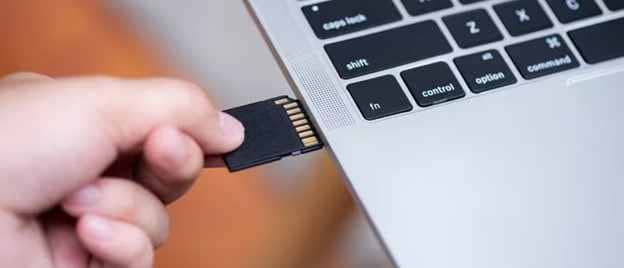
Step 1. Remove the SD card and reinsert it securely into the card reader.
Step 2. Plug the reader into a different USB port and check if it appears.
Fix 2. Assign a Drive Letter
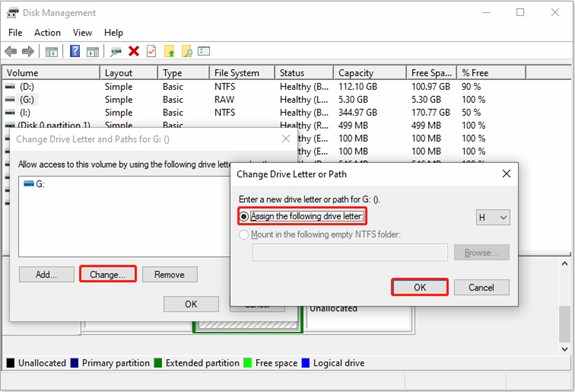
Without a drive letter, Windows won't display the SD card in File Explorer, even if it's detected.
Step 1. Open Disk Management, right-click the SD card, and select Change Drive Letter and Paths.
Step 2. Click Add or Change, assign a letter, and confirm.
Fix 3. Update or Reinstall Drivers
Driver issues often prevent Windows from recognizing external devices like SD cards.
Step 1. Open Device Manager, expand Disk drives, and right-click the SD card device, then click Update driver.
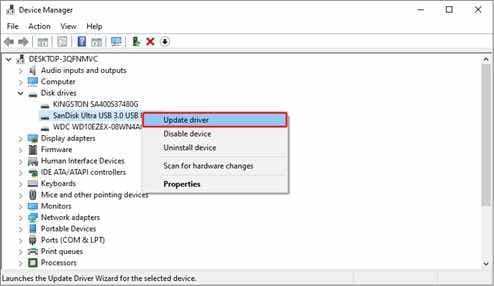
Step 2. If it still fails, uninstall the device and restart your computer to reinstall drivers automatically.
Fix 4. Enable SD Card in BIOS
In rare cases, the SD card reader may be disabled at the BIOS level, especially on laptops.
Step 1. Restart your PC and enter BIOS settings, then locate storage or device configuration.
Step 2. Enable the SD card reader and save changes.
Fix 5. Check Disk Errors (CHKDSK)
File system errors can make the SD card unreadable or invisible to Windows.
Step 1. Open Command Prompt and type chkdsk X: /f /r (replace X with your drive letter).
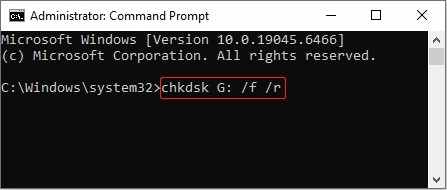
Step 2. Press Enter and allow Windows to scan and repair errors.
Fix 6. Format the SD Card (Last Resort)
Formatting can fix severe file system issues, but erases data.
Step 1. Open Disk Management, right-click the SD card, and select Format.
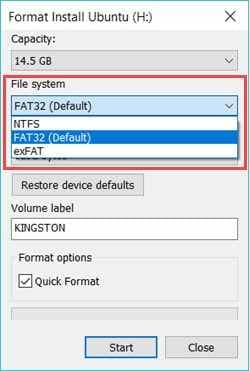
Step 2. Choose a file system (FAT32/exFAT) and start.
Fix 7. Check for Hidden or Unallocated Space
If the SD card has no active partition, it won't show up in File Explorer.
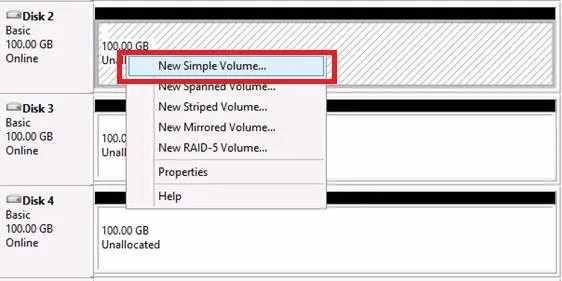
Step 1. Open Disk Management and locate the SD card.
Step 2. Right-click unallocated space and select New Simple Volume, then follow the setup.
Part 5. SD Card Not Showing Up on Windows 10 vs Windows 11
While the issue is similar across both systems, there are slight differences:
Windows 10
Windows 10 is generally more prone to compatibility issues, especially with older hardware and legacy drivers. Many users encounter problems due to:
- Outdated system updates that fail to include newer driver support
- Legacy card readers or USB controllers that aren't fully compatible
- Slower automatic driver installation, requiring manual updates more often
If you're using older peripherals or haven't updated Windows 10 recently, driver conflicts are a common culprit.
Windows 11
Windows 11 features improved hardware detection and tighter integration with modern devices. However, it also introduces stricter requirements that can block SD card access if certain conditions aren't met:
- Enhanced security protocols may prevent unsigned or outdated drivers from loading
- TPM and Secure Boot settings can interfere with legacy hardware
- Some older card readers may not be supported without manufacturer updates
While Windows 11 is better at recognizing newer devices, it demands up-to-date drivers and firmware to function smoothly.
Note: Regardless of the version, keeping your system and drivers updated is essential.
Part 6. When the SD Card Is Detected but Files Are Not Accessible
Sometimes the SD card appears, but files cannot be opened. This usually indicates file corruption rather than detection failure. Common signs include:
- Files are missing or unreadable
- Videos not playing
- Errors when opening files
- The media is showing as corrupted
This means the SD card is working, but the stored files are damaged.
Part 7. (Bonus) Repair Corrupted Files from SD Card
If your SD card files (especially videos) are corrupted, repairing them can restore usability. Repairit Video Repair can fix damaged media files caused by transfer errors or storage issues. It supports various video formats and allows you to preview repaired files before saving them, ensuring successful restoration.
Why File Corruption Happens on SD Cards
- Interrupted file transfers
- Sudden removal of the SD card
- Power failure during recording
- Storage sector damage
These issues can damage file structure, making them unplayable. Here's how to repair it:
Step 1. Add the corrupted video file by clicking Add in the repair tool.

Step 2. Click Repair to start the process.

Step 3. Preview and save the fixed file.

What the Tool CAN Do
- Repair corrupted video files from SD cards
- Restore playback functionality
- Fix audio-video sync issues
- Repair damaged file structure
What the Tool CANNOT Do
- Fix SD card hardware damage
- Recover deleted files
- Repair completely overwritten data
- Fix detection issues
⚠️ Note: This solution is only useful if the SD card is detected, but the files are corrupted.
Part 8. Prevent SD Card Not Showing Up Issues
To avoid future problems, it's important to follow a few simple but effective habits. These proactive steps help maintain the card's health and ensure your system can detect it reliably:
- Always Safely Eject the SD Card - Before removing your SD card, use the "Safely Remove Hardware" option (on Windows) or "Eject" (on macOS). This ensures all read/write operations are complete and prevents file system corruption.
- Avoid Interrupting File Transfers - Never remove the card or shut down your device while files are being copied. Interruptions during data transfer can damage the card's file structure and make it unreadable.
- Use High-Quality Card Readers - Cheap or poorly made card readers often fail to maintain stable connections. Invest in a reputable brand that supports your card type (SDHC, SDXC, etc.) and offers USB 3.0 or higher for faster, safer transfers.
- Keep Drivers and System Updated - Outdated drivers or system software can cause compatibility issues. Regularly check for updates to your operating system and SD card reader drivers to ensure smooth detection.
- Back Up Important Data Regularly - Even with precautions, SD cards can fail unexpectedly. Make it a habit to back up your files to cloud storage or an external drive to avoid data loss.
📌 These steps reduce the risk of corruption and detection issues.
Conclusion
When an SD card is not showing up, the issue is usually related to connection problems, missing drivers, or file system errors rather than permanent damage. Most cases can be resolved by simple fixes like reconnecting the card, assigning a drive letter, or updating drivers.
If the SD card is detected but files are corrupted, repair tools can help restore access to important data. By following the steps in this guide, you can diagnose the issue accurately and apply the correct solution efficiently.
FAQs
-
Why is my SD card not showing up on Windows?
This usually happens due to driver issues, connection problems, or file system corruption. Checking hardware and updating drivers often fixes the issue. -
How do I fix the SD card not showing up in Windows 10?
You can try reconnecting the card, assigning a drive letter, or updating drivers. Disk Management is useful for diagnosing the problem. -
Why is my micro SD card not showing up on Windows 11?
It may be due to driver compatibility or hardware issues. Updating the system and checking the card reader can help. -
Can a corrupted SD card still be detected?
Yes, but files may be inaccessible; recovery tools might help restore them. -
Should I format my SD card if it's not showing?
Only as a last resort, formatting can fix errors, but will erase all data.




