When you receive the 0x80070103 error, it may prevent Windows updates. This means that a computer can overlook significant fixes and enhancements. When you come across such an error, it can be frustrating, but it is rather easy to solve with easy solutions.
Thus, this guide outlines the nature of the mistake, its causes, and how to correct it in 8 easy ways, with simple, real examples. With these mentioned ways, you will be able to let updates run smoothly again. Additionally, it will help your system stay up to date, secure, and running without interruptions.
In this article
-
- Way 1. Restart Your Computer and Retry the Update
- Way 2. Temporarily Disable Third-Party Antivirus
- Way 3. Run Windows Update Troubleshooter
- Way 4. Skip or Hide the Problematic Update
- Way 5. Use Device Manager to Update or Roll Back Drivers
- Way 6. Update Drivers Manually from the Manufacturer's Website
- Way 7. Check for System File Corruption (SFC/DISM)
- Way 8. Clean Boot Windows Before Applying Updates
Part 1. Why Windows Detects 0x80070103 During Updates
Know that error 0x80070103 is a Windows Update issue that appears when a driver cannot be installed on your system. It appears as “Install error – 0x80070103” next to a driver in Windows Update, which means your PC is broken. So, to learn what the possible causes are for this Windows update 0x80070103 error, here are the 5 main reasons explained:
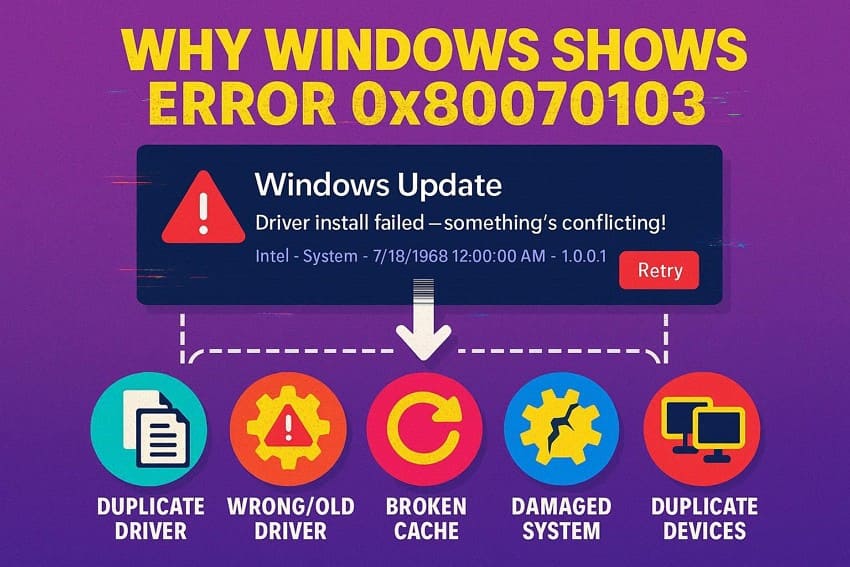
- Driver Already on Your PC: Windows shows error 0x80070103 when it tries to install a driver you already have. The system sees no change and stops the installation, so the update cannot complete.
- Older or Wrong Driver Offered: This error can appear if Windows offers an older or incompatible driver. So, such drivers may not work with your hardware or Windows version, so the update fails.
- Broken Update Cache: Corrupted or damaged update files can make Windows try the same update repeatedly. Hence, each attempt triggers the 0x80070103 error and prevents proper installation.
- Damaged System Files: If Windows system files or update services are damaged, driver installation may fail. This makes Windows think a driver needs updating even when it cannot install properly.
- Duplicate Devices Confuse Windows: Sometimes Windows detects the same hardware more than once and tries to update both entries. Optional or extra devices can also appear multiple times, causing conflicts and the error code.
Part 2. How to Fix 0x80070103 Windows Update Error Efficiently
After understanding the causes, here are 8 practical solutions that you can try to resolve the 0x80070103 error:
Way 1. Restart Your Computer and Retry the Update
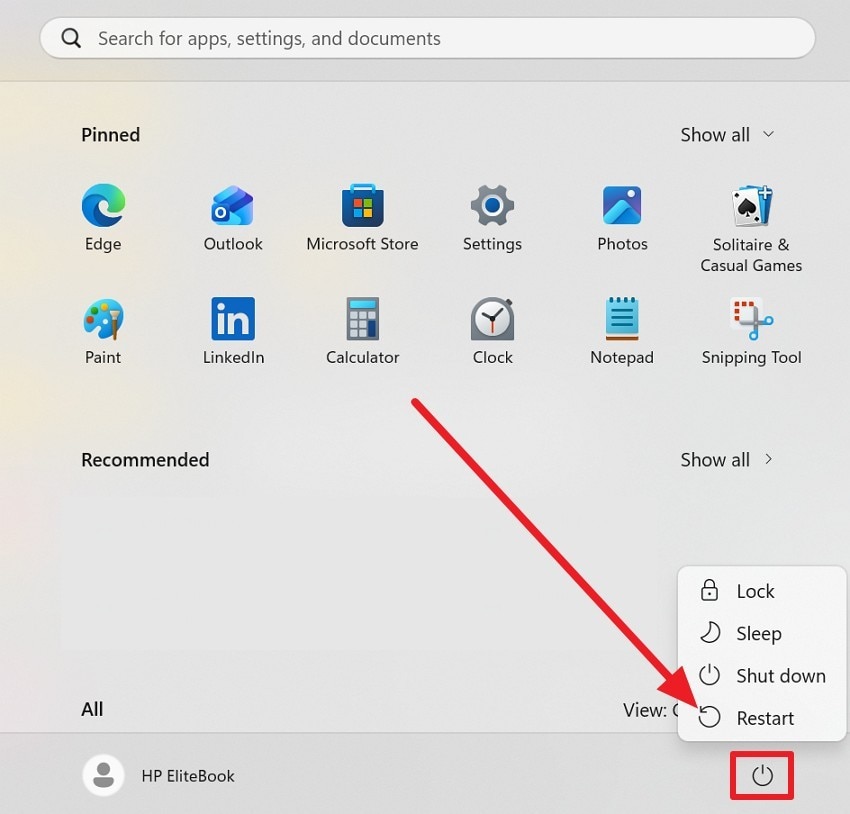
A quick reboot can fix this error and reset Windows Update services and driver systems, clearing glitches that may block a driver. Thus, after a restart, Windows can check drivers more cleanly, avoiding duplicate or wrong versions. Additionally, this process can clear stuck services, refresh update files, and indicate whether the error was temporary. Overall, this step is a safe, quick first step, and is guided below:
Instructions. Head to the Start menu, tap the “Power” icon, select “Restart,” then try updating again.
Way 2. Temporarily Disable Third-Party Antivirus
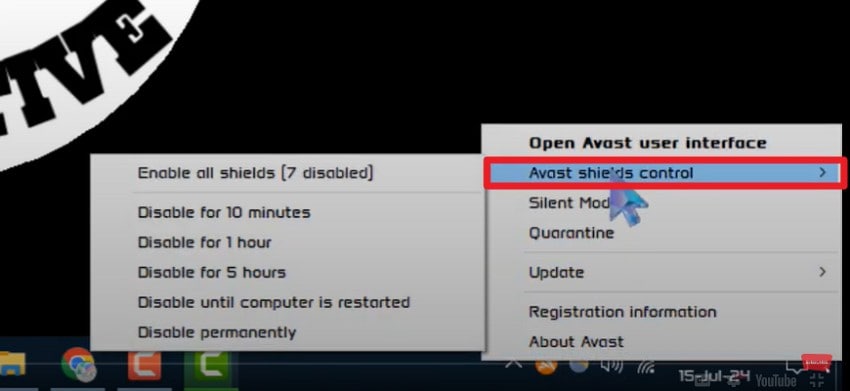
As another solution to the Windows update 0x80070103 error, it is suggested that you temporarily disable third-party antivirus software. It is effective as some antivirus programs block or interfere with Windows Updates and driver installation, causing updates to fail. This solution also lets Windows download and install drivers without interference. So, if the update works with antivirus off via the mentioned guide, know that the error was caused by the security software:
Instructions. Head to the System tray and tap the third-party antivirus icon, such as Avast. Then, choose the “Avast Shields Control” option and choose the listed time to disable it.
If There Is No Third-Party Antivirus:
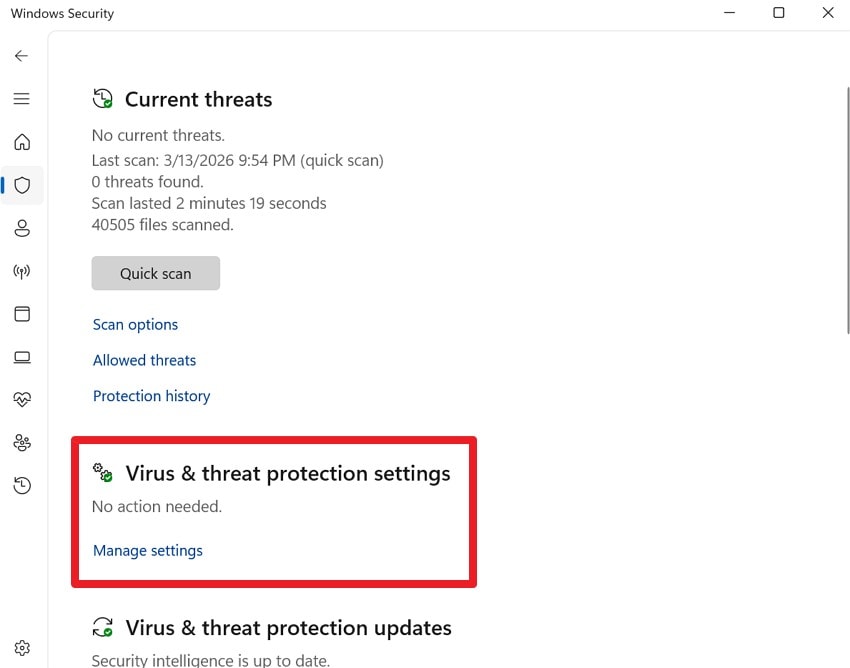
Step 1. Go to the “Virus & Threat Protection” tab in the “Window Security” and tap the “Manage Settings” option under the “Virus & Threat Protection Settings” section.
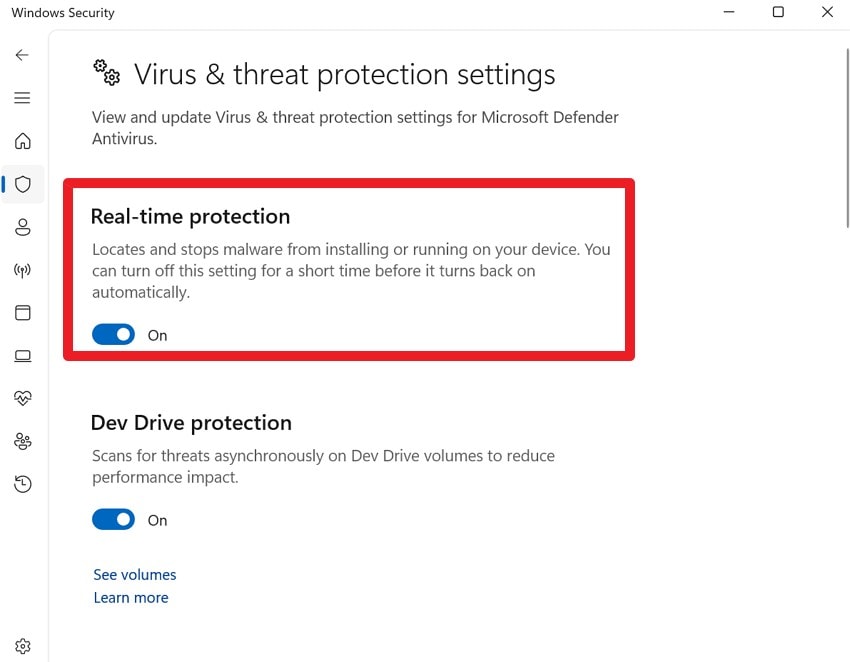
Step 2. Here, toggle off the “Real-Time Protection” option.
Way 3. Run Windows Update Troubleshooter
Automatically update and repair common update problems by running the Windows Update troubleshooter to fix the 0x80070103 error. It scans for issues with update services, settings, and the update cache that can block driver installs. Furthermore, the tool resets services and clears corrupted files so Windows can correctly handle drivers and stop repeating the same error, as guided:
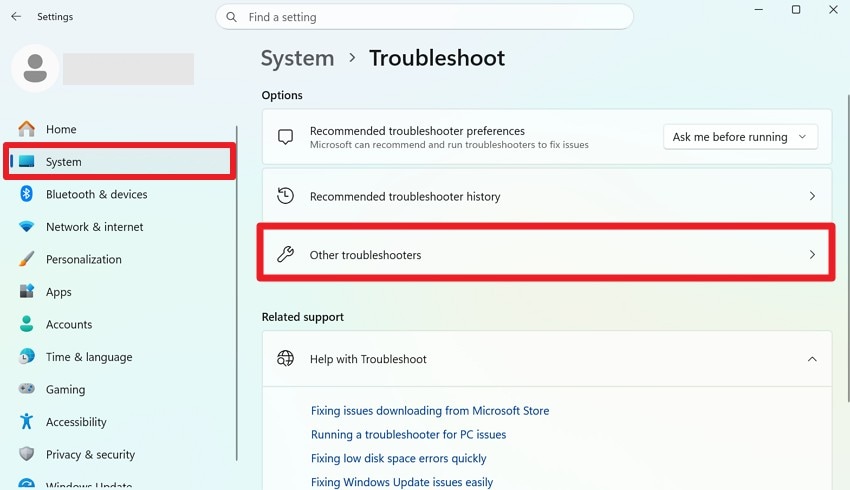
Step 1. In the settings, choose the “System” tab and choose the “Other Troubleshooter” in the “Troubleshoot” section.
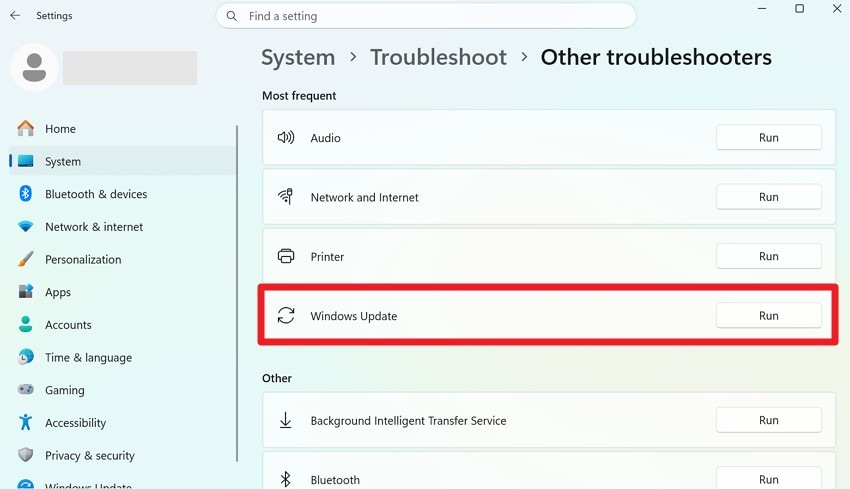
Step 2. There, locate the “Windows Update” troubleshooter and choose the “Run” option next to it.
Way 4. Skip or Hide the Problematic Update
For the persistent Windows update 0x80070103 error, know that Windows often tries to install a duplicate, outdated, or unsuitable driver. Thus, by hiding that specific driver update, Windows stops retrying the same package and allows other updates to install normally. In addition, this keeps your current working driver in place and avoids replacing it with one that may not work well, and the process is mentioned below:
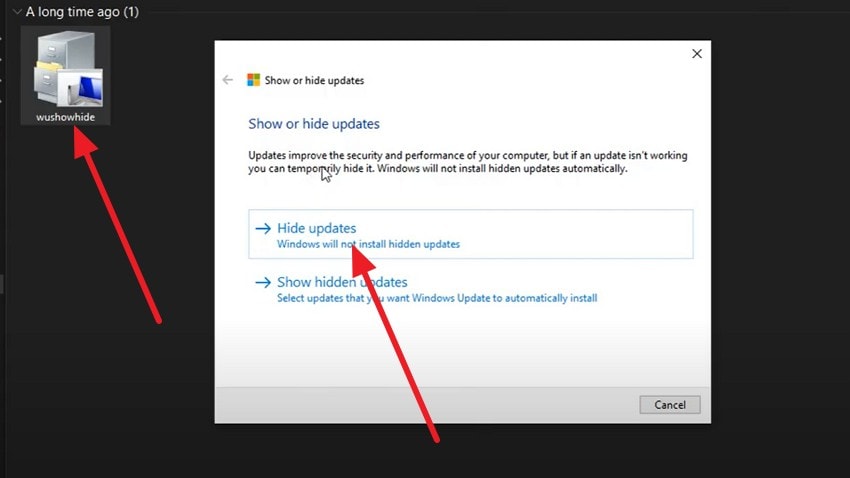
Method 1. Use the “Show or Hide Updates” Troubleshooter (Recommended)
Instructions. Download the Windows Update Show/Hide Troubleshooter from a trusted source and press on the “wushowhide.diagcab” file in the File Explorer. After that, tap on the “Next” button, choose “Hide Updates,” and check the box for the driver update causing the 0x80070103 error. Now tap “Next” and follow the prompts to hide it.
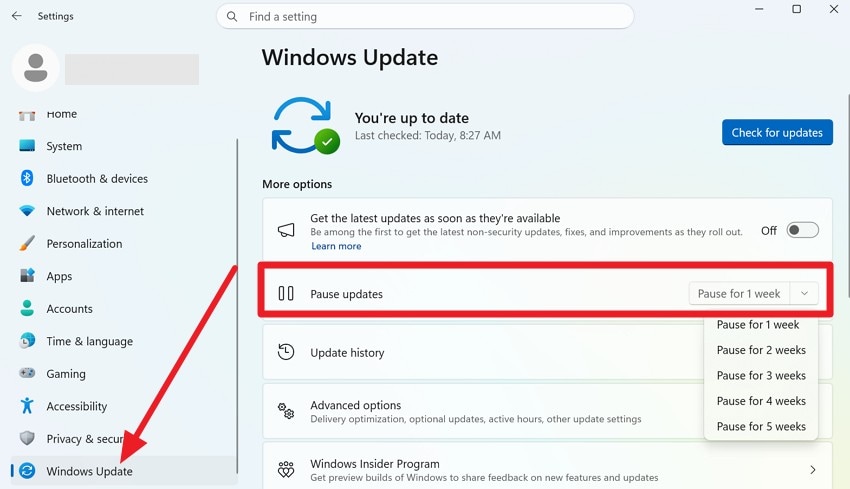
Method 2: Pause and Resume Updates
Instructions. Go to the “Windows Updates” section in the settings and expand the “Pause for 1 Week” option under “Pause Updates.” After the chosen time, resume updates, then check again; the problematic driver should no longer be listed.
Way 5. Use Device Manager to Update or Roll Back Drivers
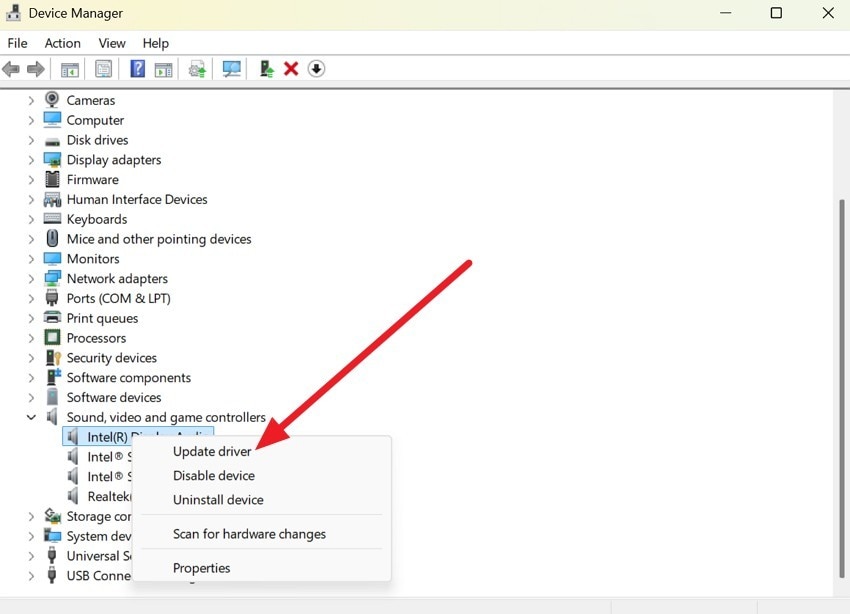
Using the Device Manager can also fix the 0x80070103 error because it lets you manually choose the correct driver instead of relying on Windows Update. Thus, in Device Manager, you can update to a known-good driver, roll back to a previous version, or reinstall a clean copy. This ensures the driver matches your hardware, fixes issues that Windows Update cannot handle, and restores stability if a recent driver causes problems, as guided:
Step 1. To update the driver, locate the driver's category in Device Manager. Let’s say you want to update the Sound, video, and game controller’s drivers. So, right-click on it and choose the “Update Driver” option.
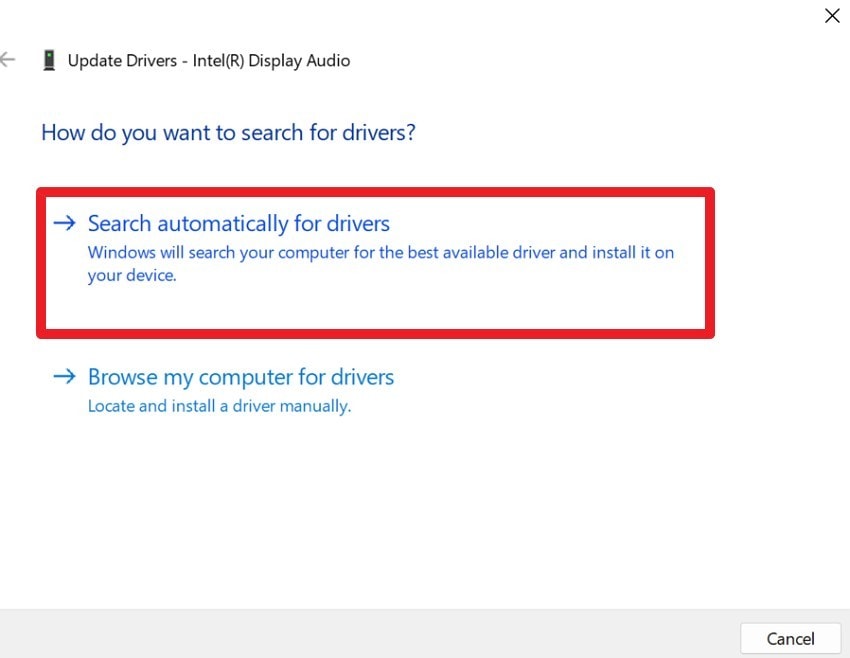
Step 2. When the popup menu appears, tap the "Search Automatically for Drivers” option and follow the prompts to install new or matching driver installs successfully.
Way 6. Update Drivers Manually from the Manufacturer's Website
In addition to Device Manager, you can update the drivers from the manufacturer’s website to resolve the Windows Update 0x80070103 error. Through this, you install a known-good driver instead of the one Windows Update tries to push. By downloading the latest driver for your exact device and Windows version from sites like Intel, NVIDIA, AMD, HP, or Dell, you ensure proper compatibility, as demonstrated ahead:
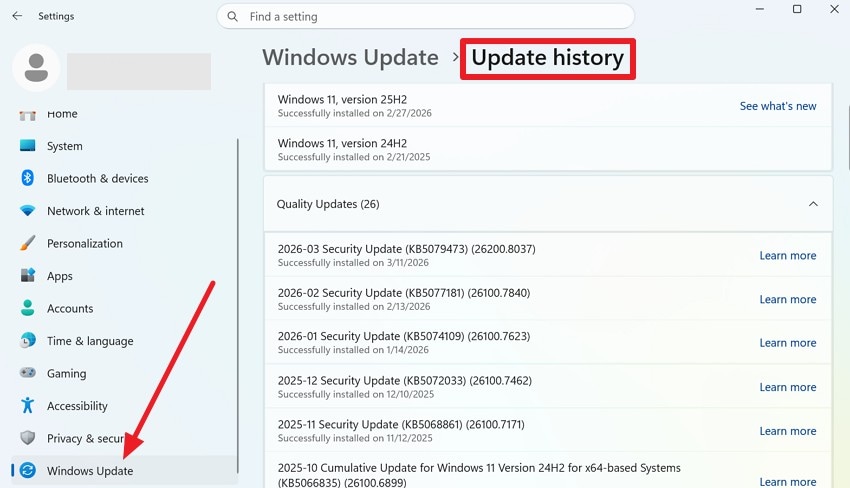
Step 1. In the “Windows Updates” tab, first go to the “Update History” section and see the name of the driver that failed with error 0x80070103.
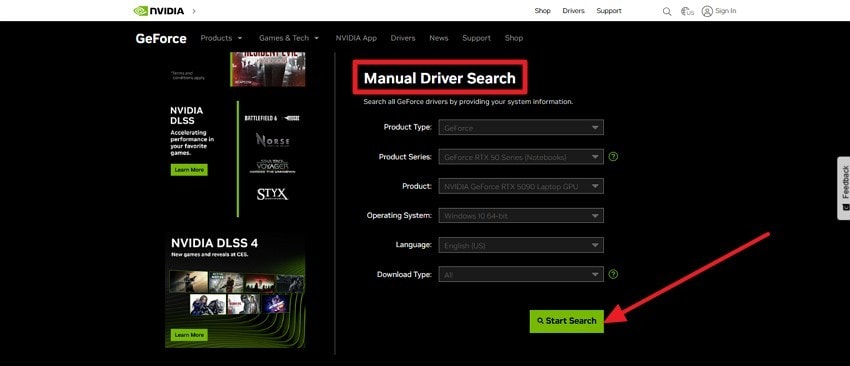
Step 2. Then, go to the driver download page, like NVIDIA, and head to the "Manual Driver Search” section. There, add the product type and other details, and press the “Start Search” option.
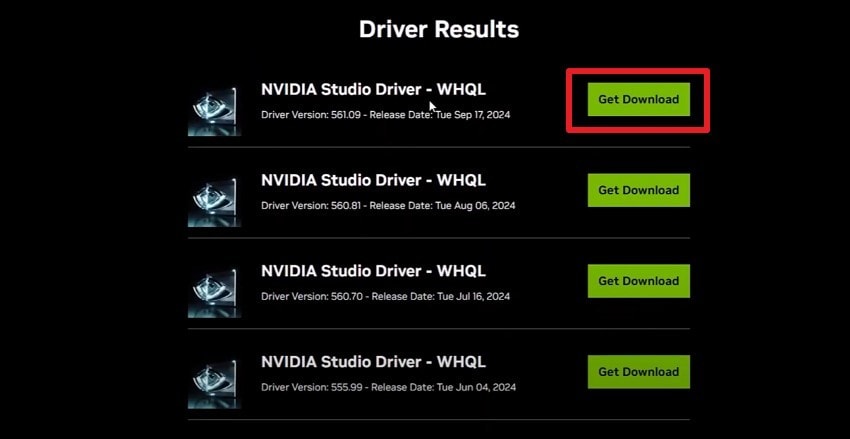
Step 3. When the list of certain drivers appears, tap on the “Get Download” button to install.
Way 7. Check for System File Corruption (SFC/DISM)
Checking system files with SFC and DISM can help fix the 0x80070103 error because damaged or missing Windows files can block driver installs. DISM repairs the Windows system image, and SFC scans and replaces corrupted files. In addition, it fixes broken components, restores missing files, and makes Windows Updates more reliable. The steps to perform this simple check are mentioned below in detail for guidance:
Repair the Windows image with DISM:
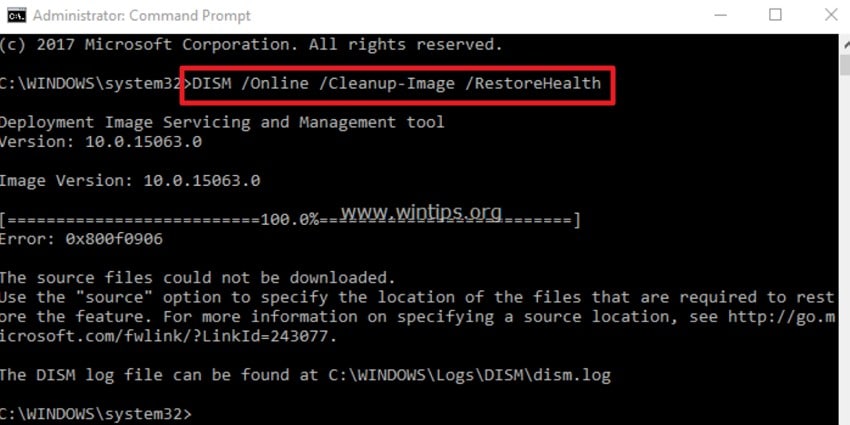
Instructions. Run CMD as administrator and enter the following commands one by one and press the “Enter” key:
DISM /Online /Cleanup-Image /CheckHealth
DISM /Online /Cleanup-Image /ScanHealth
DISM /Online /Cleanup-Image /RestoreHealth
Now wait for the commands to end and avoid closing the Window.
Run System File Checker (SFC):
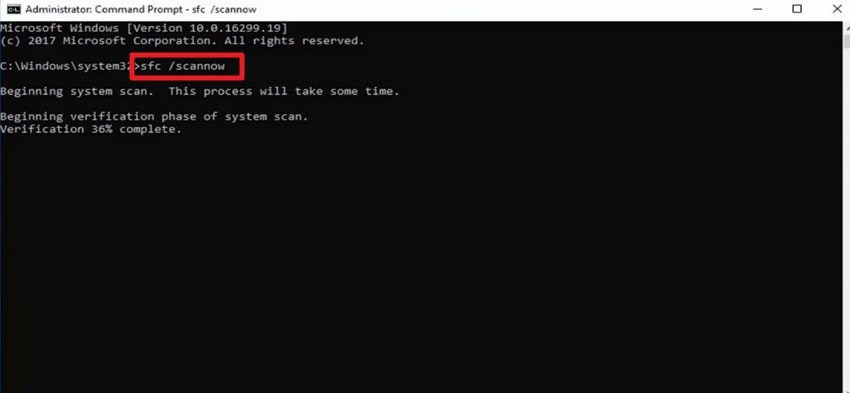
Instructions. In the same window, type “sfc /scannow,” and when the SFC reach 100%, it will automatically repair any corrupted files it finds.
Way 8. Clean Boot Windows Before Applying Updates
This solution fixes Windows update 0x80070103 by starting the system with only essential Microsoft services, removing third-party programs that may block driver installs. A clean boot creates a minimal environment, letting Windows detect and install drivers correctly. So, if the update works in a clean boot but fails normally via the listed steps, it shows that a third-party program is causing the problem.
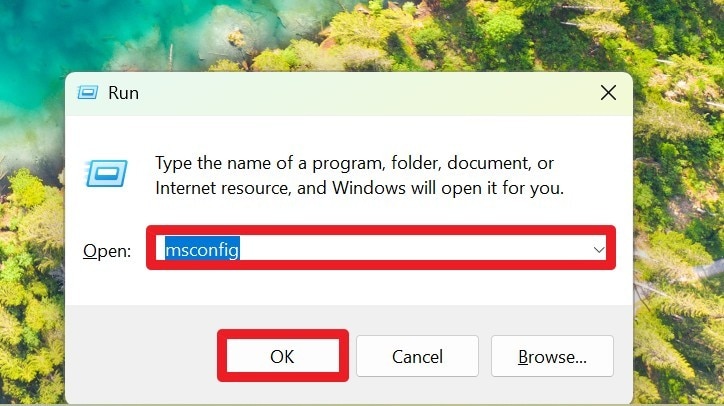
Step 1. After pressing the “Win +R” keys, type “msconfig” and choose the “Ok” option.
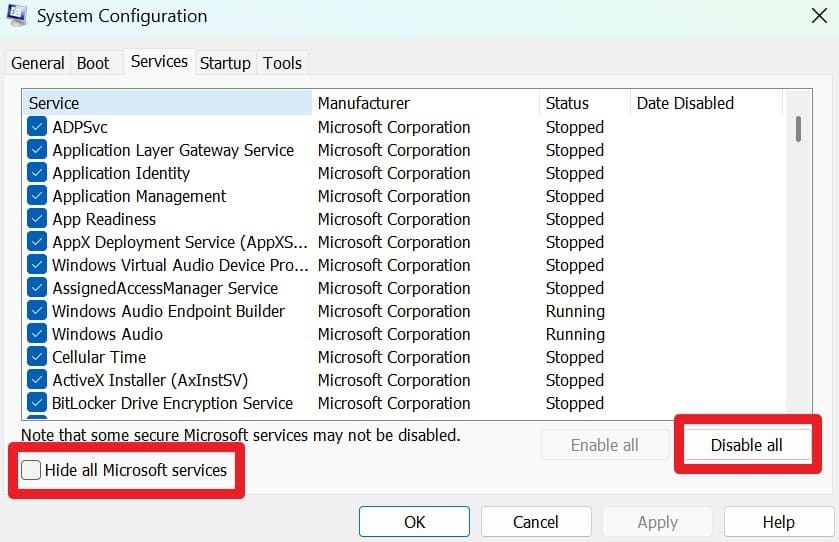
Step 2. Go to the “Services” tab in System Configuration, and tap on the “Disable All” option as you tick “Hide All Microsoft Services.”
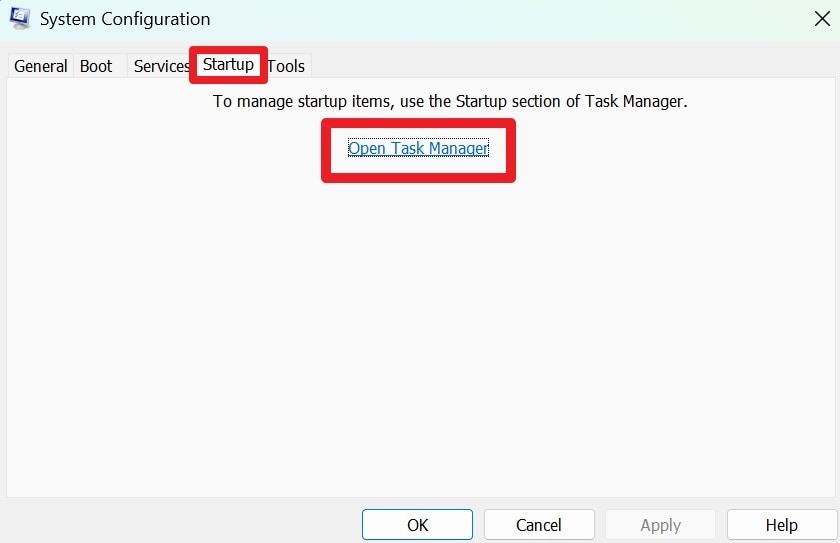
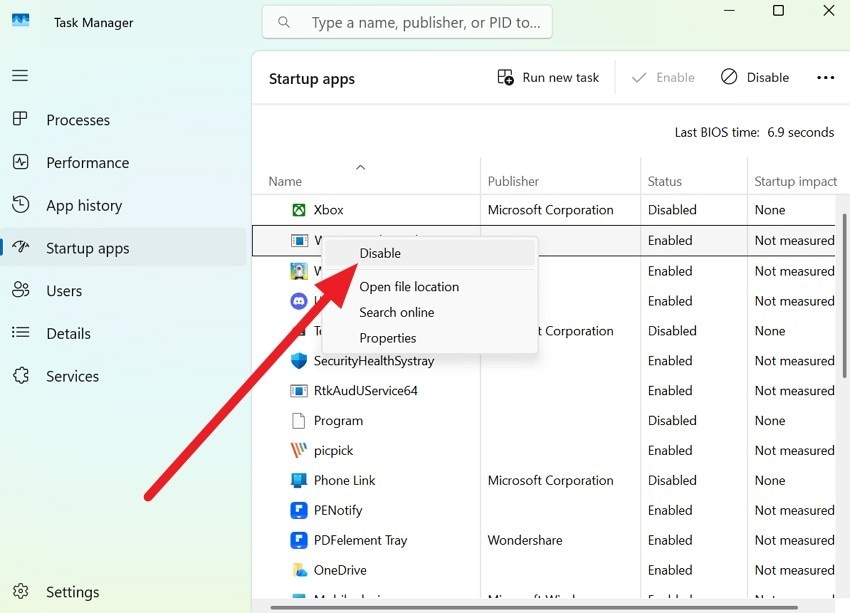
Step 3. Now go to the “Startup” tab and tap on the “Open Task Manager” option.
Step 4. Here, right‑click each Enabled startup item and choose “Disable.” Go back to System Configuration, click “OK,” then choose “Restart” when prompted.
Pro Tip. Repair Corrupted System Files Causing 0x80070103
When updates or driver installs fail repeatedly, including 0x80070103, they can make the system unstable, cause crashes, or restart suddenly, which may damage open or recently used files. Hence, Repairit allows users to fix damaged documents, videos, and photos in batches. This lets you recover your files even if Windows Update is still broken or has been fixed after damage.
To that end, this tool supports formats such as MP4, MOV, AVI, DOCX, XLSX, PPTX, PDF, JPG, PNG, and TIFF. Users can have their files repaired within a few seconds, without any formatting or data loss, achieving a 100% success rate. After repair, you can preview the fixed files in detail and confirm that the files are usable following Windows update-related corruption.
Key Features

-
Online Repair Option: It repairs documents, photos, and videos online in the browser, helping if updates make your system unstable without extra software.
-
Cross‑platform Availability: Repairit works on Windows and macOS, letting you fix files even if a Windows update problem forced you to use another computer.
-
Support for Multiple Corruption Scenarios: Fixes file corruption caused by unexpected shutdowns, crashes, disk errors, or interrupted writes, which often happen during failed Windows updates.
Guide: Fix The Corrupted Video Files Even If Windows Update Is Still Broken
While learning how to fix the Windows update 0x80070103 error, review the mentioned guide and know how Repairit handles corruption:
Step 1. Open the Video Repair Tool to Start the Quick Repair
Access the “Video Repair” tab and press “Start” to fetch the files corrupted during Windows Updates.

Step 2. Continue to Add Files and Let AI Scan
Tap on the “+Add Files(s)” button to add and repair video files in batches, and press the "Repair” button to commence.

Step 3. Export or Preview the Fixed Videos via Quick Repair
Now that the videos are repaired, choose the “Preview” option to check whether the file is usable, and tap “Save” to export.

Repair Corrupted Files
 Security Verified. Over 7,302,189 people have downloaded it.
Conclusion
In a nutshell, 0x80070103 can stop Windows from installing a driver properly, often due to duplicates, outdated, or incompatible versions. Thus, this comprehensive guide has explained 8 possible solutions to resolve this daunting situation. In this situation, if your file of any format gets corrupted, it is recommended to use Repairit Quick Repair mode for batch file repairs.
FAQ
-
1. Is 0x80070103 a serious error?
No, it is not a serious error and does not harm your system or important files in most cases. However, it may show update issues, but your computer can still work fine without major problems. -
2. Can I ignore error 0x80070103?
Yes, you can ignore this error if your device works fine and no driver issues appear on your system. Besides, this error often relates to unnecessary drivers, so it does not always need your attention or action. -
3. Does 0x80070103 affect system performance?
No, this error usually does not affect your system speed or overall performance in normal daily computer use. However, it may be related to driver updates, but your device can still run smoothly without major issues.




