
You have your design finished, and everything looks perfectly nice on your screen. But once you have sent your file to a client, teammate, or printer, things start to go wrong.
Images went missing, the fonts changed, and the layout no longer looks the same. In some cases, the file won't even open properly.
This is a common issue when working with InDesign (INDD), especially when there is no proper preparation for sharing the file.
In this guide, you will learn why these problems happen and how to package an InDesign file properly, including all fonts, images, and assets, so that they can be shared without errors.
In this article
Part 1. What is an InDesign File?
InDesign Document stands for INDD. Whenever someone works in Adobe InDesign, their work is saved as an InDesign File (INDD file). These files don't just store texts and images; they also keep fonts, colors, styles, and layout settings.
Because of this, INDD files are the preferred format for graphic designers, journalists, marketers, and publishers who use Adobe products. An INDD file is essentially used as the master copy of a project, so it can be edited later on, as it keeps everything organized without losing any design elements.
Part 2. How to Package an InDesign File?
Proper packaging prevents missing fonts, broken lines, and layout issues. Following these steps can make file sharing and printing seamless.
Before packaging, organize and clean your InDesign file to avoid issues later. This step ensures everything is complete before you package the file.
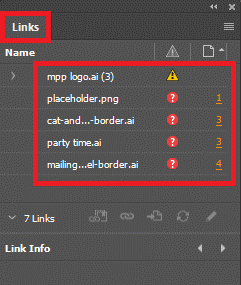
Step 1. Use a clear and descriptive file name. Remove unused layers and extra objects, and make sure all fonts are available and allowed to share. Check the Links panel to ensure no missing or broken images, then run a preflight check if needed.
Once the file is ready, this is where InDesign checks your file before collecting all assets.
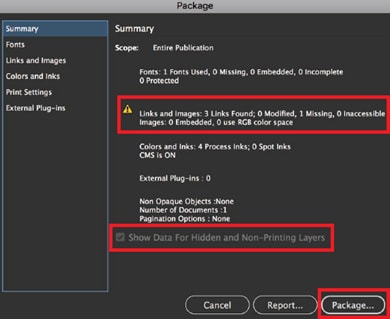
Step 2. Go to File. Click on Package. A summary window will appear showing fonts, links, and any errors. Review the information carefully and click Package to continue.
Part 3. Why Does InDesign Not Store Everything in One File? (Common Causes)
Before fixing the issue, it's important to understand why InDesign files don't include everything by default. Here are the common reasons files are linked instead of embedded:
- Better Performance - Putting big images directly into an InDesign file makes it slow, heavy, and more likely to crash.
- Easier Updates - Files that are linked like images, PDFs, or graphics stay in their original location. This will be easier for you to edit them outside InDesign, and the changes will automatically appear in your documents.
- Smaller File Size - What keeps your InDesign file smaller is linking. It helps the computer to run faster. Embedding everything can use a lot of memory.
- Flexible Workflow - Linking allows multiple people to work at the same time. For instance, while an editor works on the InDesign layout, a designer can edit a Photoshop file that uses it.
Part 4. What Can Go Wrong With An INDD File?
An INDD file can run into issues or behave unexpectedly due to several common triggers. Professionals can check these factors to troubleshoot or prevent problems before applying fixes:
- Missing Plugins - Errors will appear when opening the file if it was saved using a plugin that is not installed on the user's system.
- File Corruption - What prevents the file from opening properly are crashes, power outages, or improper saving, which can damage it.
- Cloud or Network Delays - Opening directly from cloud services like Dropbox, iCloud, or network drives can cause syncing delays or temporary locks.
- Locked Files - It creates a lock that blocks access for others when another user has already opened the file.
- External Asset Issues - What triggers broken links are Linked images, fonts, or other files that are moved, renamed, or deleted outside of InDesign.
- Missing Fonts - InDesign cannot include a font that isn't installed or activated on the user's system and will substitute a different font instead.
In doing this, users can save time and prevent delays in their workflow.
Part 5. How to Fix InDesign Files
What usually causes an InDesign file that won't package, saves slowly, or keeps crashing are hidden errors, broken links, or system issues. To safely fix this, professionals often clean the file, simplify it, or convert it into a more stable format.
Here are the most reliable ways to fix an INDD file:
Fix 1. The IDML "Safe Mode" Fix
This is one of the safest ways to fix a problem with how to package an InDesign file without losing its content.
Step 1. Open the INDD file in INDesign. Go to File. Choose Export, then choose InDesign Markup (IDML) as the file format.
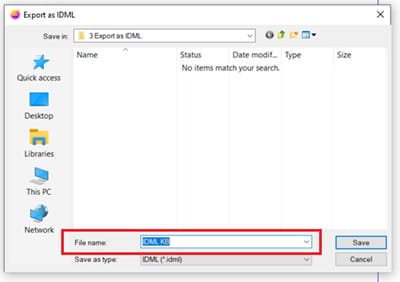
Step 2. Close the original INDD file after saving.
Fix 2. Check File Links and Structure
Problems with Links are one of the most common reasons that packaging an InDesign file fails.
Step 1. Open the Links panel and relink any missing or outdated files. Check the file names and make sure they do not contain special characters like /,, *, or ?.
Step 2. Move the INDD file and all linked assets to the local computer instead of working from cloud storage or a network drive.
Fix 3. Clear Cache and Reset Preferences
If InDesign is acting unstable, resetting it can help improve performance.
For Windows:
Step 1. Close InDesign completely. Restart InDesign while holding the shortcut keys Shift + Alt + Ctrl, then confirm resetting the preferences.
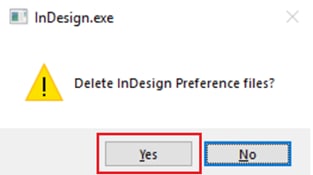
Step 2. Locate and delete any .idlk (lock) files if the file appears to be "already in use".
For Mac:
Step 1. Close InDesign completely. Restart InDesign while holding the shortcut keys Shift + Option + Cmd, then confirm resetting the preferences.
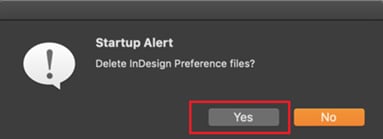
Step 2. Locate and delete any .idlk (lock) files if the file appears to be "already in use".
Fix 4. Adjusting Package Settings
Sometimes, packaging an InDesign fails because of certain settings.
Step 1. Open the Package dialog box in InDesign. Make sure the option to include all fonts and links (including hidden and non-printable) is checked.
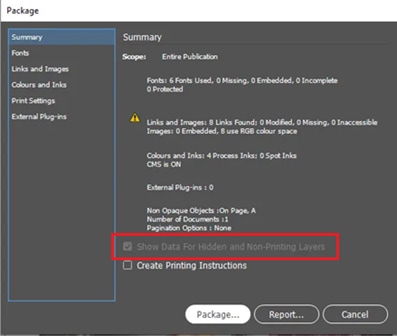
Step 2. If packaging fails, uncheck options like Create IDML or Create PDF, then export them separately after packaging.
Fix 5. Use INDD File Repair Tool
Sometimes, an INDD file may refuse to package, crash or behave unpredictably even after all standard fixes. These problems are often caused by hidden errors.
5.1 How to Tell if the Problem is Damaged
The user can check whether the packaging issue is specific to one file. Signs that corruption may be the cause include:
- The INDD file cannot be packaged, even after all standard fixes.
- Other INDD files are packaged normally on the same system.
- The file saves very slowly or freezes during the save or packaging process.
- Errors occur when interacting with certain pages, layers, or linked assets.
- Some linked images, fonts, or interactive content fail to be included in the package.
These indicators show that the problem is likely file-level, not caused by system settings or workflow.
5.2 What File Repair Tools Can and Cannot Fix
If file corruption is suspected, repair tools can help recover the INDD file.
It CAN:
- Recover corrupted or damaged INDD files into a usable format like IDML.
- Restore most texts, images, and layout elements from the damaged file.
- Allow the packaging of files that previously could not be packaged.
It CANNOT:
- Recover external assets that were deleted or moved before corruption.
- Fix missing or broken fonts that are not installed on the system.
- Guarantee full recovery of interactive content, scripts, or animations.
- Repair files damaged by incompatible or missing plugins.
Step 1. Add the corrupted file.

Step 2. Start the repair process.
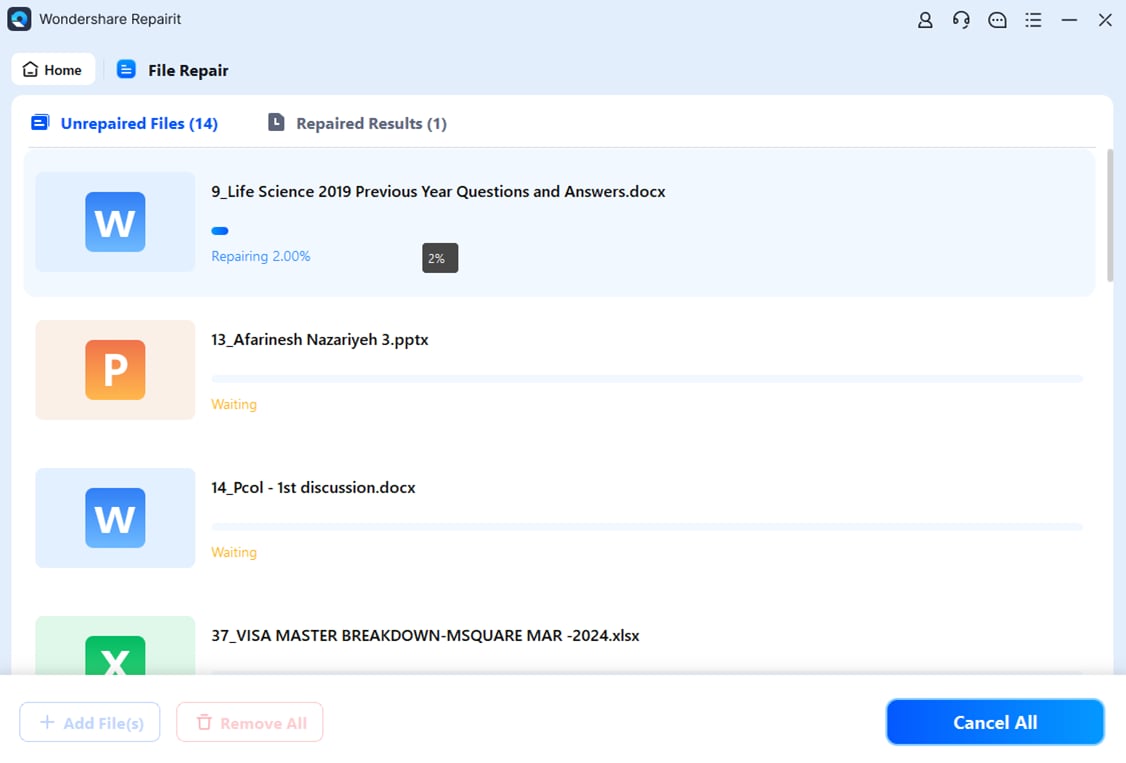
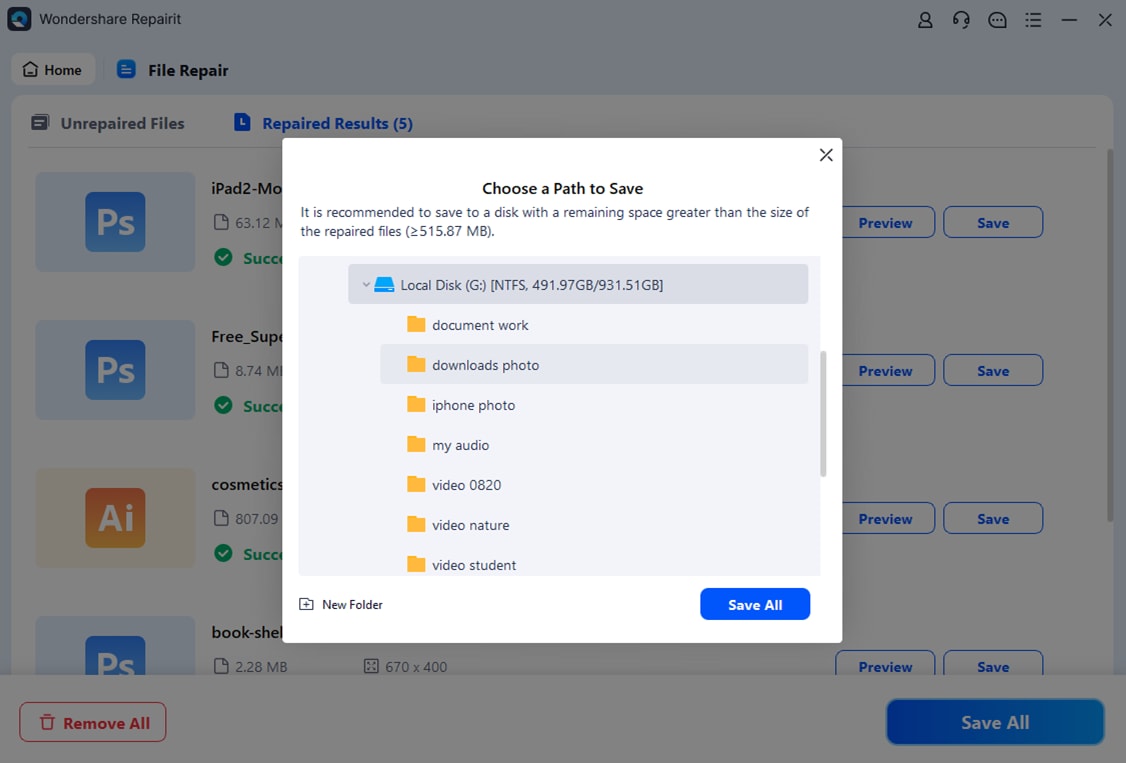
Step 3. Preview the repaired file and save it to a new location.
Conclusion
Knowing how to package InDesign files is an essential skill for any designer. Most issues like missing fonts, broken images, or layout changes, happen because files are shared without packaging.
By using the built-in packaging feature in InDesign, you can ensure your work stays complete and professional when opened on another device. It only takes a few extra minutes, but it saves you from major problems later on.
FAQs
-
How do I package an InDesign file?
Go to File, then Package (or press Ctrl+Alt+Shift+P on Windows / Cmd+Option+Shift+P on Mac). Check the summary, click Package, and follow the steps to save your folder. -
What should be included in the package?
Make sure to select Copy Fonts, Copy Linked Graphics, Include IDML, and Include PDF so everything needed is included. -
Why is the IDML file important?
The IDML (InDesign Markup Language) file lets your document be opened in older versions of InDesign. -
What are "linked graphics"?
Linked graphics are images that are not embedded in the InDesign file. They are just connected from a location on your computer. -
How do I send the packaged file?
After packaging, compress the folder by right-clicking and choosing Compress or Zip. This creates a single file that's easier to email or share.




