Choosing between Repairit Photo Enhancer vs Adobe Photoshop largely depends on whether you care more about fast, AI driven improvements or deep manual control. Repairit Photo Enhancer focuses on quick ways to enhance photo quality, sharpen blurry photos, and upscale image resolution with minimal effort. Adobe Photoshop is a broad professional editor that can deliver highly refined results but usually requires more time, skill, and configuration. This guide compares both tools on enhancement quality, workflow, learning curve, and pricing so you can match the software to your skills, budget, and day to day photo tasks.
Enhance Photo Quality with Repairit Photo Enhancer
 Security Verified. Over 7,302,189 people have downloaded it.
In this article
- Repairit Photo Enhancer vs Adobe Photoshop: Quick Verdict
- Repairit Photo Enhancer vs Adobe Photoshop: Key Differences
- Repairit Photo Enhancer vs Adobe Photoshop: Comparison Table
- What Repairit Photo Enhancer and Adobe Photoshop Are Best For
- Repairit Photo Enhancer vs Adobe Photoshop: AI Enhancement Features and Capabilities
- Repairit Photo Enhancer vs Adobe Photoshop: Output Quality and Real-World Results
- Repairit Photo Enhancer vs Adobe Photoshop: Workflow and Ease of Use
- Repairit Photo Enhancer vs Adobe Photoshop: Pricing and Trial Options
- Who Should Choose Repairit Photo Enhancer
- Who Should Choose Adobe Photoshop
- Pros and Cons of Repairit Photo Enhancer and Adobe Photoshop
- How to Enhance Photos After Choosing the Right Tool
Repairit Photo Enhancer vs Adobe Photoshop: Quick Verdict
In most situations, the choice between Repairit Photo Enhancer vs Adobe Photoshop comes down to speed versus full control.
Repairit Photo Enhancer is typically a stronger choice if you want to:
- Enhance photo quality quickly without learning a complex editor.
- Sharpen blurry photos, reduce noise, and enhance portraits in a guided way.
- Upscale image resolution for social media, web, or everyday projects.
Adobe Photoshop tends to fit better if you need to:
- Work with layers, masks, and precise local adjustments.
- Combine AI tools with manual retouching and compositing.
- Maintain a professional, multi app workflow across different file types and color spaces.
Many photographers and designers use both: Repairit for fast AI enhancement and Photoshop for detailed editing once the base image quality is improved.
Repairit Photo Enhancer vs Adobe Photoshop: Key Differences
The key difference is that Repairit Photo Enhancer focuses on AI driven improvements to clarity, sharpness, and resolution, while Adobe Photoshop is a complete editing environment that includes both enhancement and creative design tools.
- Focus: Repairit concentrates on enhancing photo quality; Photoshop spans editing, compositing, text, and graphics.
- Learning curve: Repairit is built for non experts with straightforward controls; Photoshop has a steeper learning curve with many panels, modes, and options.
- Workflow: Repairit uses a short, guided flow from import to export; Photoshop workflows often involve several layers, masks, filters, and export choices.
- Output control: Repairit emphasizes consistent, automated results; Photoshop supports fine grained tuning when you are comfortable with its tools.
- Pricing model: Repairit is typically offered as a focused standalone enhancer; Photoshop is commonly sold via a subscription that may include multiple Adobe apps.
Repairit Photo Enhancer vs Adobe Photoshop: Comparison Table
| Aspect | Repairit Photo Enhancer | Adobe Photoshop |
|---|---|---|
| Best for | Users who mainly want to enhance photo quality quickly with minimal manual editing. | Advanced users and professionals who need layered editing, compositing, and detailed retouching. |
| Ease of use | Guided AI modules and a simple interface aimed at non technical users. | Powerful but complex interface with many overlapping tools and panels. |
| AI enhancement | Dedicated AI models for upscaling, clarity, denoising, and portrait enhancement. | AI assisted tools and neural filters integrated into broader editing workflows. |
| Output quality | Strong, natural looking improvements for typical portraits, landscapes, and low quality images with minimal setup. | Can reach very high quality results when adjustments, layers, and masks are tuned manually. |
| Workflow speed | Short, repeatable steps for importing, enhancing, previewing, and exporting. | More steps and decisions, especially when combining RAW processing, layers, and export presets. |
| Pricing and trial | Standalone or bundle options with a limited trial or free usage tier in many cases. | Adobe Creative Cloud subscription with a time limited free trial period. |
What Repairit Photo Enhancer and Adobe Photoshop Are Best For
Understanding what each tool does best makes it easier to choose the right option for your photo enhancement tasks.
Repairit Photo Enhancer is best for:
- Improving clarity, reducing noise, and sharpening soft images from phones or casual cameras.
- Enhancing portraits and selfies before posting to social media or using them in marketing materials.
- Upscaling image resolution so small or older photos look better on modern screens or in slides.
- Batch enhancing sets of event, product, or travel photos with minimal manual work.
Adobe Photoshop is best for:
- Advanced retouching, including detailed skin work, dodging and burning, and local contrast control.
- Layer based composites, graphics, and designs that combine multiple images, text, and shapes.
- Color grading and print ready workflows that require precise control over color spaces and formats.
- Projects that must integrate with other Adobe apps such as Lightroom, Illustrator, or InDesign.
Repairit Photo Enhancer vs Adobe Photoshop: AI Enhancement Features and Capabilities
Both tools support AI powered photo enhancement, but they present and bundle these capabilities differently.
Repairit Photo Enhancer AI capabilities include:
- AI based upscaling to improve apparent resolution and detail in soft or small images.
- Sharpening tools that attempt to sharpen blurry photos while keeping details natural looking.
- Noise reduction aimed at improving image clarity in low light or high ISO shots.
- Clarity and detail enhancement for soft or low resolution photos.
- Portrait focused enhancement that can smooth skin and improve facial features with restrained settings.
Adobe Photoshop enhancement capabilities include:
- Layer based adjustments for contrast, sharpness, and local detail using curves, clarity, texture, and more.
- Manual sharpening and noise reduction, often combined with masks for selective application.
- Tools suitable for high quality print and commercial work when settings are tuned carefully.
- AI assisted features such as neural filters and content aware tools to support portraits and detail enhancement inside broader edits.
- Extensive color grading, retouching, and compositing features in the same project as enhancement.
In practice, Repairit leans on preconfigured AI models for you, while Photoshop expects you to choose and combine specific tools to reach the desired level of clarity and sharpness.
Repairit Photo Enhancer vs Adobe Photoshop: Output Quality and Real-World Results
Output quality depends on the source image, your settings, and how comfortable you are with manual controls.
- Repairit Photo Enhancer generally produces noticeable improvements in clarity, noise, and resolution with a few clicks. It is especially practical for portraits, landscapes, and low quality images where you want cleaner details quickly.
- Adobe Photoshop can match or exceed these results when you combine sharpening, noise reduction, local adjustments, and possibly AI filters. However, reaching this level usually takes more experimentation and familiarity with its toolset.
If you often work with smartphone photos, low light snapshots, or older low resolution files, Repairit can raise the base quality fast. If you handle client work or prints where every pixel matters, Photoshop offers the granular control needed to fine tune edges, textures, and tones.
Repairit Photo Enhancer vs Adobe Photoshop: Workflow and Ease of Use
Workflow affects how quickly you can move from raw capture to a shareable or deliverable image.
Repairit Photo Enhancer workflow and ease of use:
- Import or drag and drop photos into the app.
- Select an AI enhancement option such as upscaling, clarity improvement, denoising, or portrait enhancement.
- Adjust available sliders or presets when you need finer control.
- Preview before and after views to confirm that the result still looks natural.
- Export the enhanced image in your preferred format and resolution.
The interface is built for users who do not want to manage layers, channels, or multiple panels. Big, clear actions guide you through each step.
Adobe Photoshop workflow and ease of use:
- Open the image or RAW file, often via Camera Raw or from other Adobe tools.
- Apply global adjustments for exposure, color, and contrast.
- Use sharpening, clarity, and noise reduction tools with layers and masks for targeted enhancement.
- Optionally add AI assisted tools or neural filters to refine faces or specific details.
- Export using customized output settings for web, print, or further editing in other apps.
This workflow is extremely capable but aimed at users comfortable with multi step editing. For simple enhancement tasks, it may feel more involved than necessary.
Repairit Photo Enhancer vs Adobe Photoshop: Pricing and Trial Options
Cost can be a deciding factor, especially if you only need photo enhancement rather than a full creative suite.
Repairit Photo Enhancer pricing considerations:
- Typically available as a standalone product or within a bundle focused on enhancement features.
- Commonly offers a limited trial or free usage tier so you can test AI enhancement on your own images.
- Better suited for users who want to pay primarily for quality improvement tools instead of a broad design ecosystem.
Adobe Photoshop pricing considerations:
- Sold mainly through Adobe Creative Cloud subscription plans.
- Often available as a single app plan or as part of larger bundles that include Lightroom and other apps.
- More cost effective if you regularly use multiple Adobe tools or rely heavily on layered editing and compositing for professional work.
If your main need is to enhance photo quality quickly, a focused enhancer can be more economical. If you work professionally across many visual tasks, Photoshop subscriptions may make more sense in the long run.
Who Should Choose Repairit Photo Enhancer
Repairit Photo Enhancer is a good fit if your priority is to enhance photo quality without investing heavily in training or manual workflows.
- Content creators and social media managers who need better looking images in limited time.
- Marketers and small businesses that want to improve image clarity, sharpen soft photos, and upscale resolutions for web and presentation use.
- Photographers who want a companion tool to automate tedious enhancement steps so they can reserve editors like Photoshop for creative work.
- Users managing smartphone images, low light shots, or older low resolution files that need a quick visual boost.
If you often think in terms of "make this photo clearer" rather than "build a multi layer composition," Repairit aligns closely with your daily tasks.
Who Should Choose Adobe Photoshop
Adobe Photoshop makes sense when you need a full professional editing environment rather than only an enhancer.
- Photographers and retouchers who require advanced skin work, local contrast control, and complex masks.
- Designers building layouts, composites, and marketing visuals that mix images, text, and vector elements.
- Users who depend on RAW processing, color management, and print ready output for clients or studios.
- Teams already invested in the Adobe ecosystem, where Photoshop acts as the central hub for image work.
Many users still pair Photoshop with AI based enhancers: they use fast AI tools to boost clarity first, then rely on Photoshop for fine tuning, branding, and advanced creative steps.
Pros and Cons of Repairit Photo Enhancer and Adobe Photoshop
This section summarizes the main advantages and trade offs of each tool so you can weigh them side by side.
Repairit Photo Enhancer Pros and Cons
Adobe Photoshop Pros and Cons
How to Enhance Photos After Choosing the Right Tool
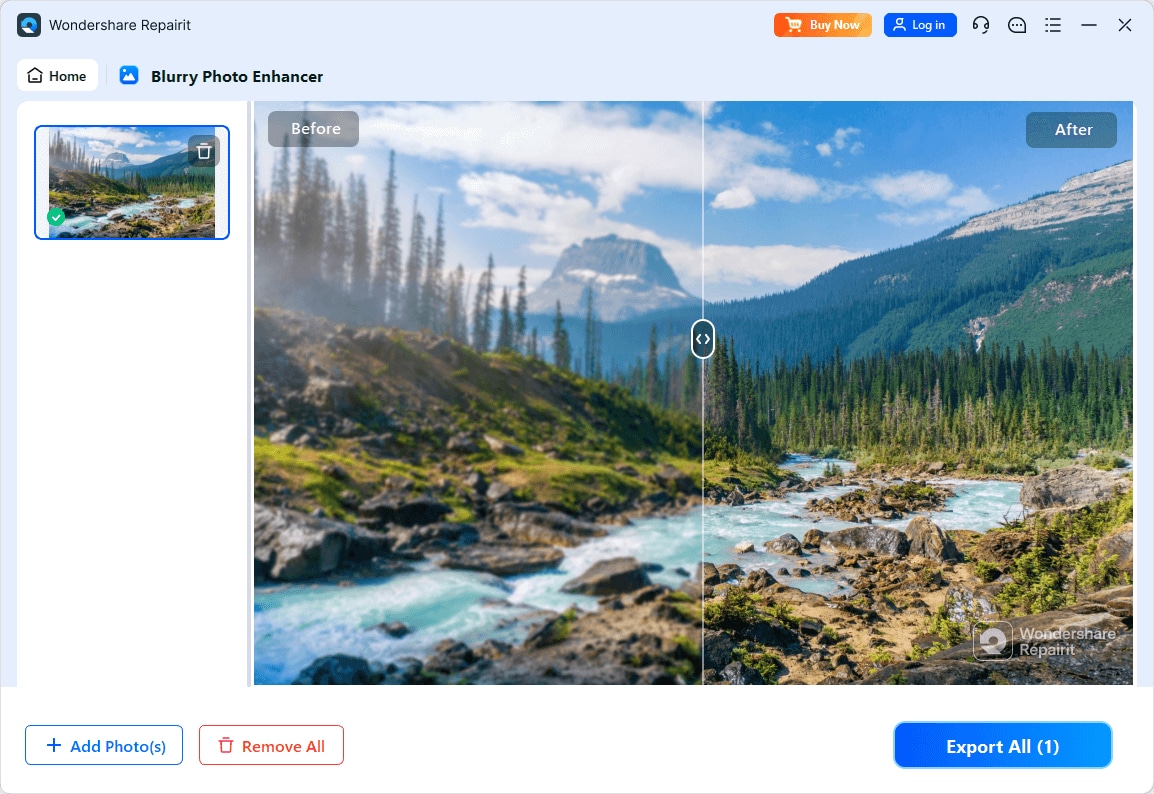
After weighing Repairit Photo Enhancer vs Adobe Photoshop, the next step is actually improving your images. Even if you plan to keep Photoshop for detailed editing, starting with a guided AI enhancer can simplify your workflow and raise base image quality before you fine tune. Below is how you can do this using Repairit in a practical, step by step way.
Key Features
- AI based upscaling to improve apparent resolution in soft or small photos.
- Noise reduction algorithms that help improve image clarity in low light or high ISO scenes.
- Sharpening and detail enhancement for soft or slightly blurry images.
- Portrait oriented modes that can improve facial details while aiming to avoid harsh over processing.
- Guided workflows for enhancing portraits, landscapes, and everyday images without deep editing knowledge.
Step-by-step guide
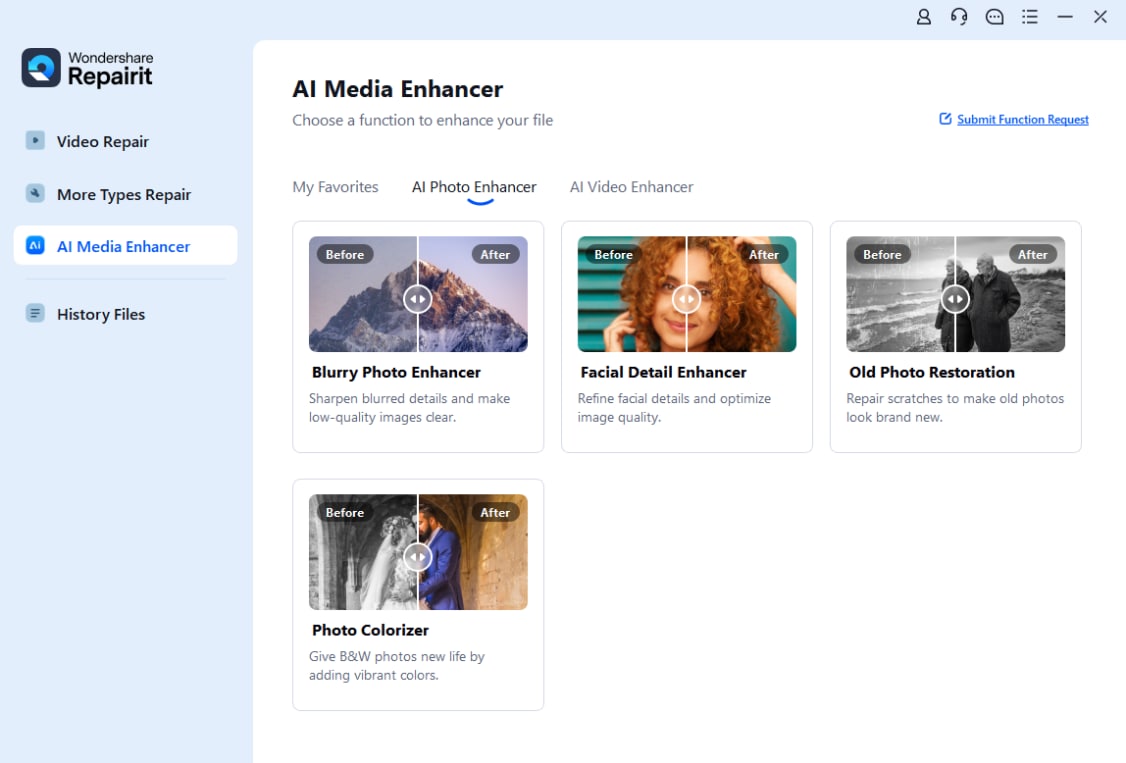
Step 1. Choose an AI enhancement model based on your needs, such as general enhancement, portrait improvement, or image upscaling.
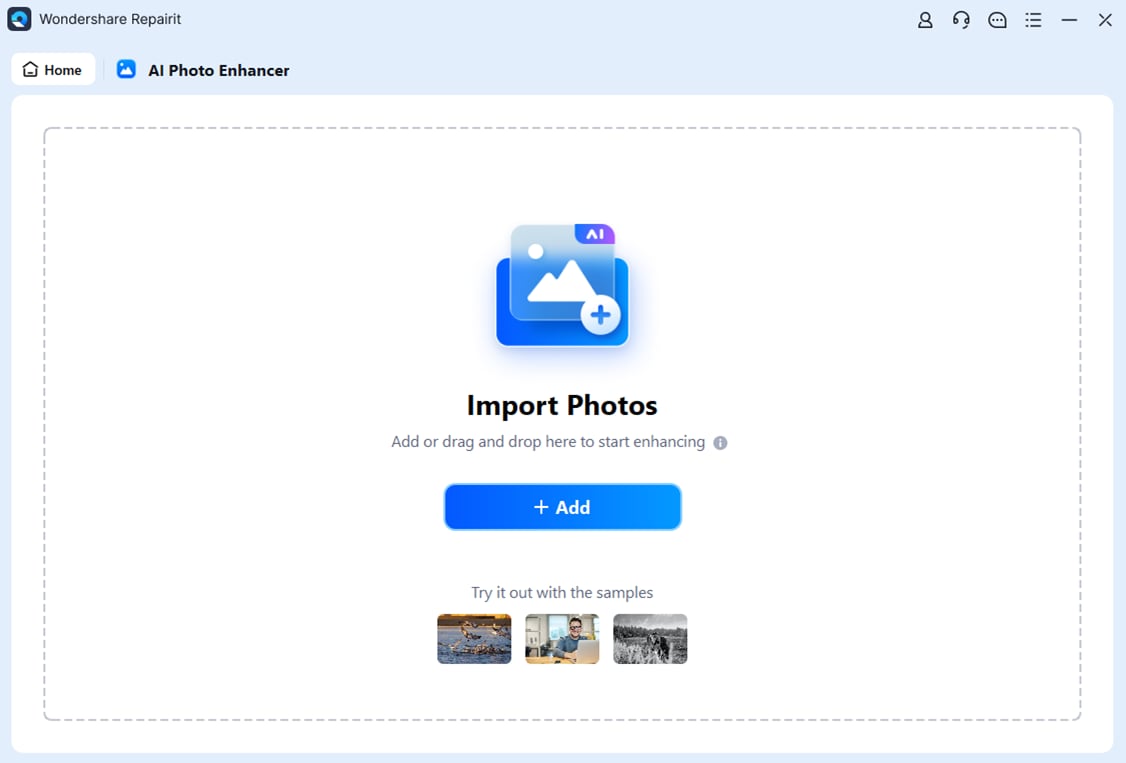
Step 2. Import your photo into Repairit Photo Enhancer to begin the enhancement process.
Step 3. Apply the enhancement settings and let the AI improve clarity, sharpness, and overall image quality.
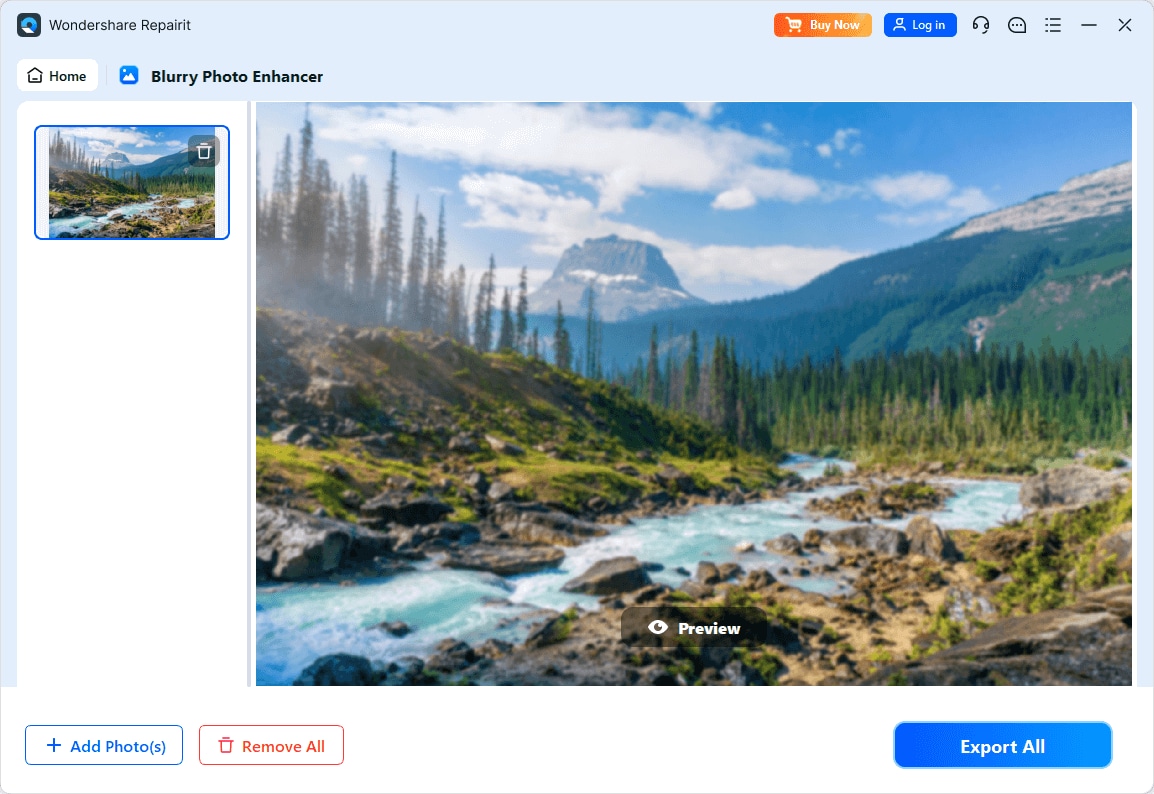
Step 4. Preview the enhanced result and save the improved photo to your device.
Final Verdict
Both Repairit Photo Enhancer and Adobe Photoshop can significantly improve photo quality, but they do so with different priorities.
- Repairit is oriented toward users who want to enhance photo quality quickly using AI, with minimal manual intervention. It is practical for portraits, social media images, and low quality photos that need a straightforward upgrade.
- Photoshop is better suited to advanced users and professionals who need layer based control, complex composites, and deep retouching capabilities. For them, enhancement is one part of a broader editing workflow.
For many workflows, the most balanced approach is to use Repairit to handle clarity, noise, and upscaling tasks first, then switch to Photoshop if you need detailed creative edits or compositing. Your final choice should reflect how much time you want to spend editing, how comfortable you are with complex tools, and whether you primarily need fast enhancement or a full creative platform.
Next: Repairit Photo Enhancer vs On1 Photo Raw
FAQ
-
1. Is Repairit Photo Enhancer a full replacement for Adobe Photoshop?
Repairit Photo Enhancer can stand alone if your main goal is to enhance photo quality, sharpen soft images, and upscale resolution. It does not replace Photoshop for complex tasks such as multi layer compositing, graphic design, or advanced retouching, so professionals may still keep Photoshop for those scenarios. -
2. Which gives better enhancement quality, Repairit Photo Enhancer or Adobe Photoshop?
In everyday use, Repairit often delivers strong, natural looking improvements with less effort, especially for portraits, low light photos, and low resolution images. Photoshop can match or exceed this quality when experienced users combine sharpening, noise reduction, masks, and AI tools, but that typically requires more time and practice. -
3. Do I need both Repairit Photo Enhancer and Adobe Photoshop?
You might benefit from both if you frequently enhance photos and also create complex edits. A common workflow is to run images through Repairit first to improve clarity and resolution, then open the enhanced files in Photoshop for detailed retouching, compositing, or design work.