Comparing Repairit Photo Enhancer vs ON1 Photo RAW comes down to one question: do you need a full RAW photo editor, or a focused AI tool that quickly improves image quality? This guide explains how each handles AI-powered enhancement, where they differ in workflow and output, and which option fits your typical photography or content tasks.
Enhance Photo Quality with Repairit Photo Enhancer
 Security Verified. Over 7,302,189 people have downloaded it.
In this article
- Repairit Photo Enhancer vs ON1 Photo RAW: Quick Verdict
- Repairit Photo Enhancer vs ON1 Photo RAW: Key Differences
- Repairit Photo Enhancer vs ON1 Photo RAW: Comparison Table
- What Repairit Photo Enhancer and ON1 Photo RAW Are Best For
- Repairit Photo Enhancer vs ON1 Photo RAW: AI Enhancement Features and Capabilities
- Repairit Photo Enhancer vs ON1 Photo RAW: Output Quality and Real-World Results
- Repairit Photo Enhancer vs ON1 Photo RAW: Workflow and Ease of Use
- Repairit Photo Enhancer vs ON1 Photo RAW: Pricing and Trial Options
- Who Should Choose Repairit Photo Enhancer
- Who Should Choose ON1 Photo RAW
- Pros and Cons of Repairit Photo Enhancer and ON1 Photo RAW
- How to Enhance Photos After Choosing the Right Tool
Repairit Photo Enhancer vs ON1 Photo RAW: Quick Verdict
Repairit Photo Enhancer is a focused AI tool that centers on fast, automatic improvements such as sharpening soft details, improving image clarity, and upscaling low-resolution photos. It suits users who want noticeable quality gains without learning a complex editor.
ON1 Photo RAW is a full RAW-centric editor that includes AI tools alongside cataloging, exposure and color control, local adjustments, and layers. It is more suitable when you already manage full shoots in a desktop workflow and want enhancement as part of a broader editing pipeline.
In most everyday enhancement cases, especially for JPEGs from phones, social content, or quick marketing visuals, Repairit Photo Enhancer tends to be the more direct option. If your work is built around large RAW libraries and detailed manual editing, ON1 Photo RAW may align better with your process.
Repairit Photo Enhancer vs ON1 Photo RAW: Key Differences
The main distinction between Repairit Photo Enhancer vs ON1 Photo RAW is scope. Repairit concentrates on AI-driven quality enhancement, while ON1 extends into full project management and editing.
- Positioning: Repairit Photo Enhancer is positioned as an AI-focused solution dedicated to improving image quality quickly, whereas ON1 Photo RAW is a complete photo editor with AI-powered tools inside a broader RAW workflow.
- Focus: Repairit emphasizes tasks like sharpening blurry photos, enhancing portraits, denoising, and upscaling images. ON1 places enhancement alongside color grading, layered edits, presets, and organizational tools.
- Complexity: Repairit offers a streamlined import, enhance, export flow. ON1 adds cataloging, multiple modules, and detailed controls that can take longer to learn.
- Best fit: For users who mainly want fast improvements to existing images, Repairit is usually more convenient. For photographers building full shoots from RAW capture through export, ON1 can be more complete.
Which route works better depends largely on whether you value speed and simplicity, or deep control within a full-featured editing environment.
Repairit Photo Enhancer vs ON1 Photo RAW: Comparison Table
| Aspect | Repairit Photo Enhancer | ON1 Photo RAW |
|---|---|---|
| Best for | Users who want fast, AI-driven enhancement to improve image clarity, sharpen blurry photos, upscale low-resolution images, and enhance portraits with minimal learning curve. | Photographers who need an end-to-end RAW editor with cataloging, layered editing, and integrated AI tools inside a full workflow. |
| Ease of use | Very easy; guided interface focused on choosing an AI model, previewing results, and exporting. | Moderate to complex; powerful, but the interface and options can feel dense, especially for new users. |
| Output quality focus | Strong improvements for portraits, low-light shots, and soft or low-resolution images with natural-looking AI adjustments in most everyday cases. | Consistent quality for RAW workflows where enhancement is one step alongside color, local, and layered adjustments. |
| Workflow style | Simple: import image, pick AI enhancement type, adjust intensity, preview, then export. | Full RAW workflow: import to catalog, organize, edit with multiple modules, then export; more steps but more control. |
| Main strengths | Focused AI enhancement tools; quick results; accessible for non-experts and busy creators. | Robust RAW management; integrated AI tools in a full editor; suitable for handling large shoots. |
| Main trade-offs | Not a full RAW catalog or layered editor; less suited to complex compositing or heavy retouching. | Interface complexity and learning curve can be high if you only need simple enhancement. |
What Repairit Photo Enhancer and ON1 Photo RAW Are Best For
Both tools can noticeably enhance photo quality, but they shine in different scenarios.
Repairit Photo Enhancer is usually best for:
- Quickly improving image clarity and sharpness in everyday photos without deep manual editing.
- Upscaling low-resolution images so they look better on modern screens or in marketing materials.
- Enhancing portraits where skin, facial details, and subject emphasis should look natural.
- Batch-enhancing small sets of images for web, social media, or presentations.
ON1 Photo RAW is usually best for:
- Managing and editing large RAW-based projects where cataloging, culling, and exporting are part of one system.
- Combining AI enhancement with detailed exposure, color, and local adjustments.
- Layered compositions or complex retouching that go beyond simple enhancement.
- Photographers who want a single desktop hub from import to final delivery.
In practice, some users may even mix the tools: ON1 Photo RAW for structured RAW projects, and Repairit Photo Enhancer when a specific image needs extra AI-driven clarity or upscaling.
Repairit Photo Enhancer vs ON1 Photo RAW: AI Enhancement Features and Capabilities
Both solutions use AI, but they use it in different ways and at different depths within the workflow.
Repairit Photo Enhancer AI capabilities focus on targeted quality improvement:
- AI upscaling to increase image resolution while aiming to preserve detail as much as possible.
- Sharpening tools designed to improve details in soft or slightly blurry photos.
- Denoising features to reduce visible noise while trying to keep natural texture.
- Clarity improvement for hazy or low-contrast shots so subjects stand out more clearly.
- Portrait enhancement models that adjust skin appearance, facial details, and overall subject emphasis.
- Modes tuned for low-quality or compressed images, including screenshots or social media downloads.
- Batch enhancement options so similar photos can be processed together with consistent settings.
ON1 Photo RAW AI capabilities are folded into a broader editing toolkit:
- AI-powered tools to enhance detail, adjust tones, and improve overall appearance alongside manual controls.
- Support for local adjustments and masking, helping you use AI selectively on specific areas.
- Layer support to combine AI results with other creative or corrective edits.
- Presets and styles that can leverage AI adjustments while keeping a consistent look across many images.
- A workflow that connects AI steps with traditional develop and export stages.
If you mainly want to let AI handle the heavy lifting to enhance portraits and low-quality images quickly, Repairit Photo Enhancer offers a more direct route. If you prefer to mix AI with detailed manual adjustments in a layered RAW environment, ON1 Photo RAW offers more room to refine.
Repairit Photo Enhancer vs ON1 Photo RAW: Output Quality and Real-World Results
Output quality is usually judged by how natural the enhancement looks and how well details hold up after sharpening or upscaling.
With Repairit Photo Enhancer, the emphasis is on visible improvements for everyday use:
- Portraits can look cleaner and sharper, with facial details brought out while trying to avoid harsh artifacts.
- Soft or slightly blurry photos can gain perceived sharpness, which is useful for event, product, or social images.
- Upscaled images often look more detailed than simple resizing, especially when starting from low-resolution sources.
- Denoising aims to balance smoothness and texture, which matters in low-light or high-ISO shots.
With ON1 Photo RAW, quality is closely tied to RAW editing and manual control:
- RAW files allow more latitude for exposure and color corrections before or alongside enhancement.
- AI sharpening and noise reduction are part of a larger adjustment pipeline, so you can fine-tune the final look.
- Local adjustments and masks can be used to keep key details crisp while leaving other areas smoother.
- Layered edits let you build complex looks gradually, which can help for print or high-end client work.
In many real-world cases, non-specialist users will find Repairit Photo Enhancer adequate or preferable because it gets them to a polished result quickly. Photographers who review images at 100 percent magnification and iterate on subtle changes may lean toward ON1 Photo RAW for its extra control.
Repairit Photo Enhancer vs ON1 Photo RAW: Workflow and Ease of Use
How each tool fits into your day-to-day workflow matters as much as raw feature lists.
Repairit Photo Enhancer workflow is intentionally simple:
- Import a single image or a batch of photos.
- Select an AI enhancement mode such as upscaling, sharpening, or portrait enhancement.
- Preview results and fine-tune sliders where available.
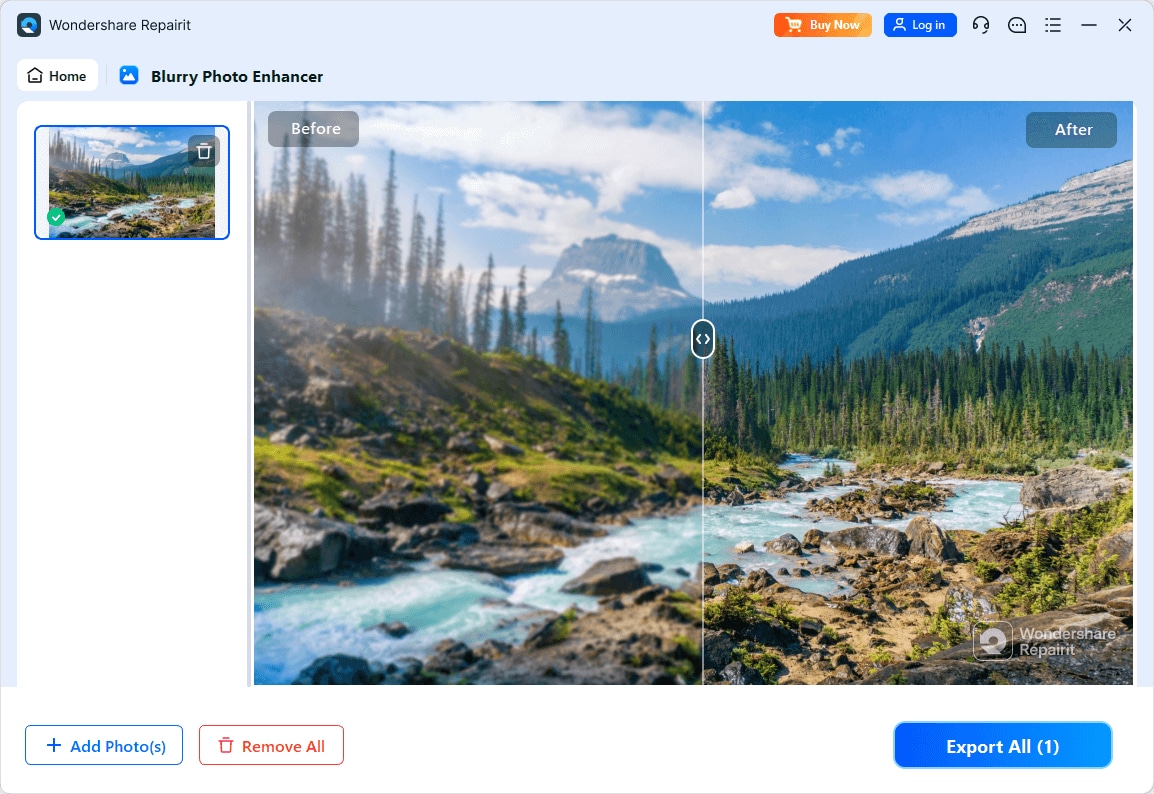
- Compare before and after views to confirm that details still look natural.
- Export in your preferred format and resolution.
The interface is purpose-built for enhancement, with fewer panels and options than a full editor. This typically means:
- Low learning curve for beginners and non-photographers.
- Short time from opening the app to exporting improved images.
ON1 Photo RAW workflow mirrors traditional RAW editors:
- Import or browse RAW files and other images.
- Organize using albums, flags, ratings, and metadata.
- Edit in develop or effects modules where you adjust exposure, color, and apply AI tools.
- Refine the image with local adjustments, masks, or layers if necessary.
- Export final files using presets tuned for print, web, or delivery platforms.
This approach offers more flexibility but also introduces a moderate to high learning curve, especially if you are not familiar with RAW processing. If you only need to sharpen blurry photos occasionally, the full ON1 interface can feel like more than you require.
Repairit Photo Enhancer vs ON1 Photo RAW: Pricing and Trial Options
Pricing structures change over time, so it is important to confirm details on official sites, but their general positioning is different.
Repairit Photo Enhancer pricing context:
- Offered as commercial software, typically reflecting its focus on AI enhancement rather than broad editing.
- Often provides a trial or limited version so you can test enhancement quality before purchasing.
- Can feel more approachable if you do not need cataloging, layers, or advanced color workflows.
ON1 Photo RAW pricing context:
- Sold as a full-featured photo editor, often via one-time license, subscription, or bundles, depending on current offers.
- Usually includes a trial period so photographers can test RAW performance and AI features.
- Pricing reflects its role as an end-to-end editor with management and effects tools, not just an enhancer.
Because discounts and trial conditions can shift, it is wise to verify up-to-date prices and limitations directly on each vendor website before deciding.
Who Should Choose Repairit Photo Enhancer
Repairit Photo Enhancer is generally a stronger choice when you value speed and simplicity over a full editing suite.
Ideal users include:
- Content creators, marketers, and social media managers who need better-looking visuals without spending time on complex edits.
- Users with older or low-resolution photos who want to upscale image resolution or improve details in soft images.
- Beginners who feel overwhelmed by layered editors but still want modern AI enhancement tools.
- Small businesses that regularly need sharper product or team photos without hiring a dedicated photo editor.
Typical use cases:
- Sharpening slightly blurry event or product images to make them presentable on websites or slides.
- Enhancing portraits from phones to appear cleaner and more polished for profiles or campaigns.
- Improving clarity for screenshots or compressed social media downloads before reusing them.
- Batch-enhancing a small set of promotional photos to a consistent level of clarity and resolution.
If your priority is to enhance photo quality efficiently and you are mostly working with JPEG or PNG files instead of large RAW catalogs, Repairit Photo Enhancer aligns well with those needs.
Who Should Choose ON1 Photo RAW
ON1 Photo RAW may be the better fit if you want AI tools inside a more traditional, feature-rich editing environment.
Ideal users include:
- Photographers who regularly shoot in RAW and manage archives across multiple sessions or clients.
- Advanced hobbyists and professionals who rely on layers, masks, and local adjustments for their style.
- Users who prefer to keep AI enhancement side by side with manual exposure, color, and lens corrections.
- Studios and freelancers that need an organized catalog and consistent editing across large sets.
Typical use cases:
- Managing thousands of RAW images, rating them, and applying consistent looks with presets and AI tools.
- Combining AI-based detail enhancement with nuanced manual corrections to achieve a signature look.
- Building layered compositions that mix multiple images, text, and effects.
- Preparing high-resolution files for print portfolios or client delivery where each stage is carefully controlled.
If you often need to move from ingesting RAW files, through culling, editing, and exporting in one application, ON1 Photo RAW is positioned to cover that entire lifecycle.
Pros and Cons of Repairit Photo Enhancer and ON1 Photo RAW
Understanding the trade-offs of each tool helps clarify which one aligns more closely with your expectations.
Repairit Photo Enhancer Pros and Cons
ON1 Photo RAW Pros and Cons
How to Enhance Photos After Choosing the Right Tool
Once you understand how Repairit Photo Enhancer vs ON1 Photo RAW compare, the next step is actually applying enhancement to your own images. For many users, starting with a guided, AI-focused tool makes this transition easier, especially when the goal is to improve clarity, sharpness, and resolution without setting up a full RAW workflow.
If you decide that a streamlined enhancement path suits you, Repairit Photo Enhancer offers a practical way to turn those comparisons into real-world results.
Key Features
- AI upscaling to boost image resolution while trying to keep important details intact.
- Sharpening and clarity tools that help soft or slightly blurry photos look more defined.
- Denoising controls to minimize noise in low-light or high-ISO shots.
- Portrait enhancement tuned to improve faces and skin without heavy manual retouching.
- Dedicated modes for improving low-quality or compressed images from phones or social platforms.
- Batch enhancement to process multiple images consistently for campaigns or reports.
- A predictable, step-based workflow that is easy to repeat across projects.
Step-by-step guide
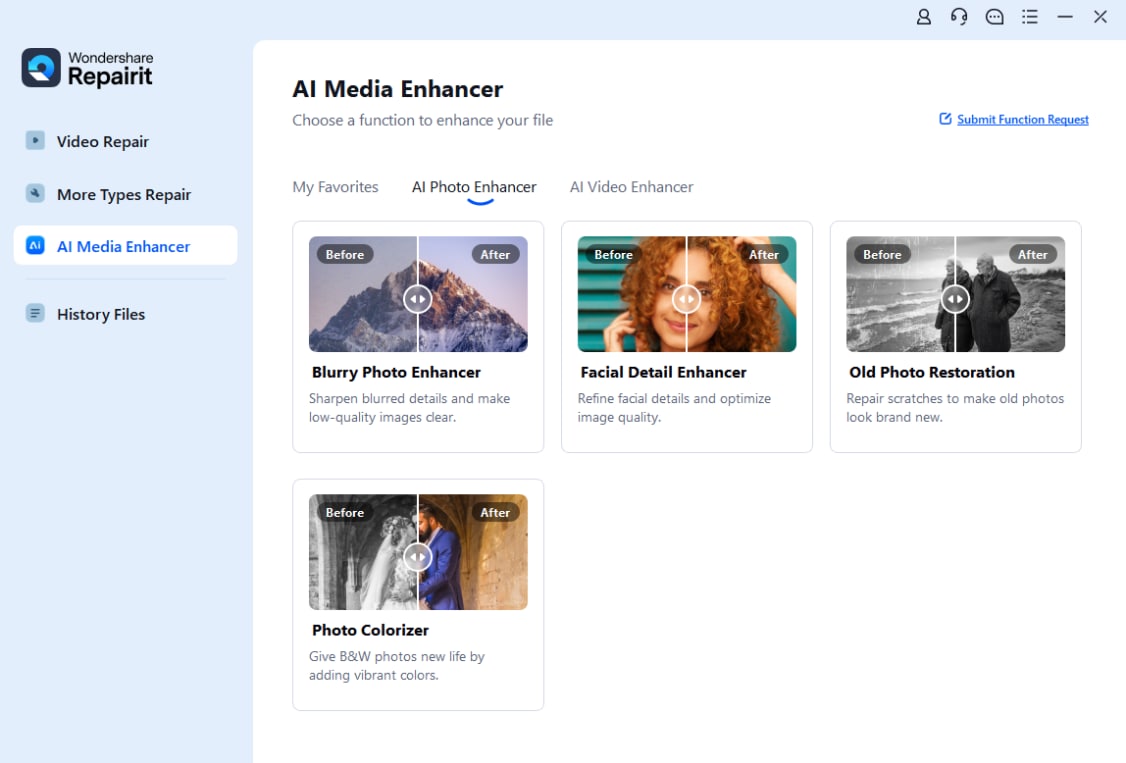
Step 1. Choose an AI enhancement model based on your needs, such as general enhancement, portrait improvement, or image upscaling.
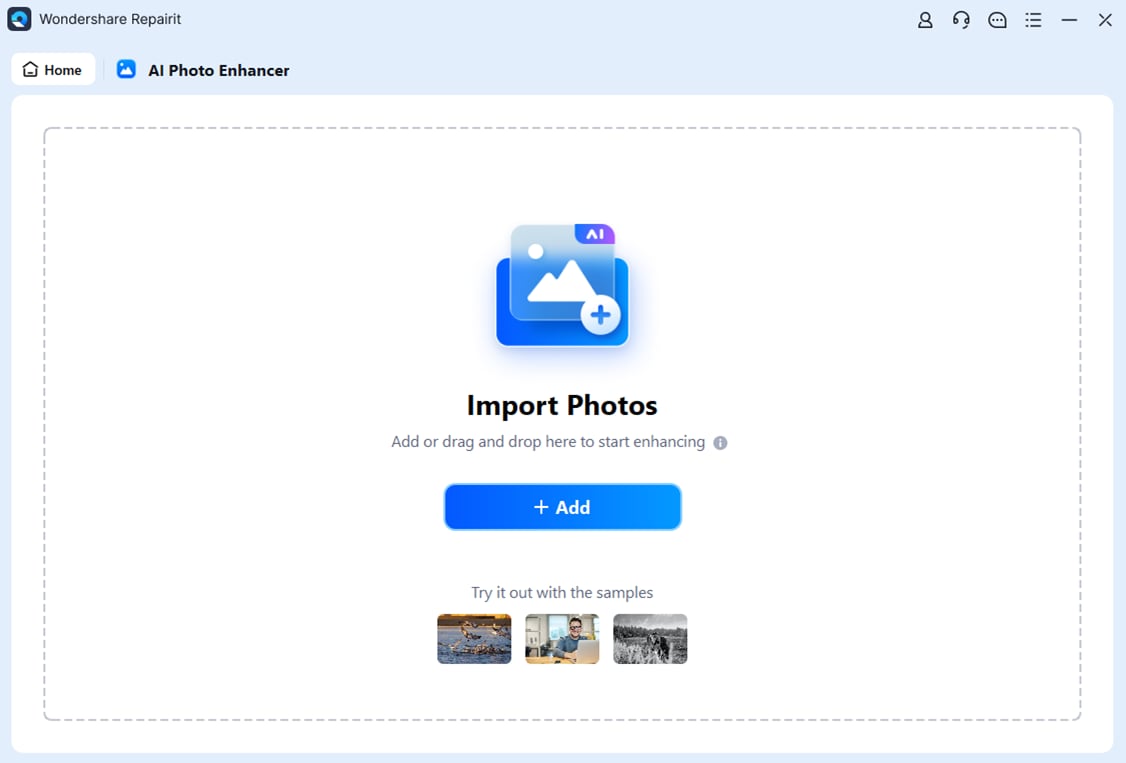
Step 2. Import your photo into Repairit Photo Enhancer to begin the enhancement process.
Step 3. Apply the enhancement settings and let the AI improve clarity, sharpness, and overall image quality.
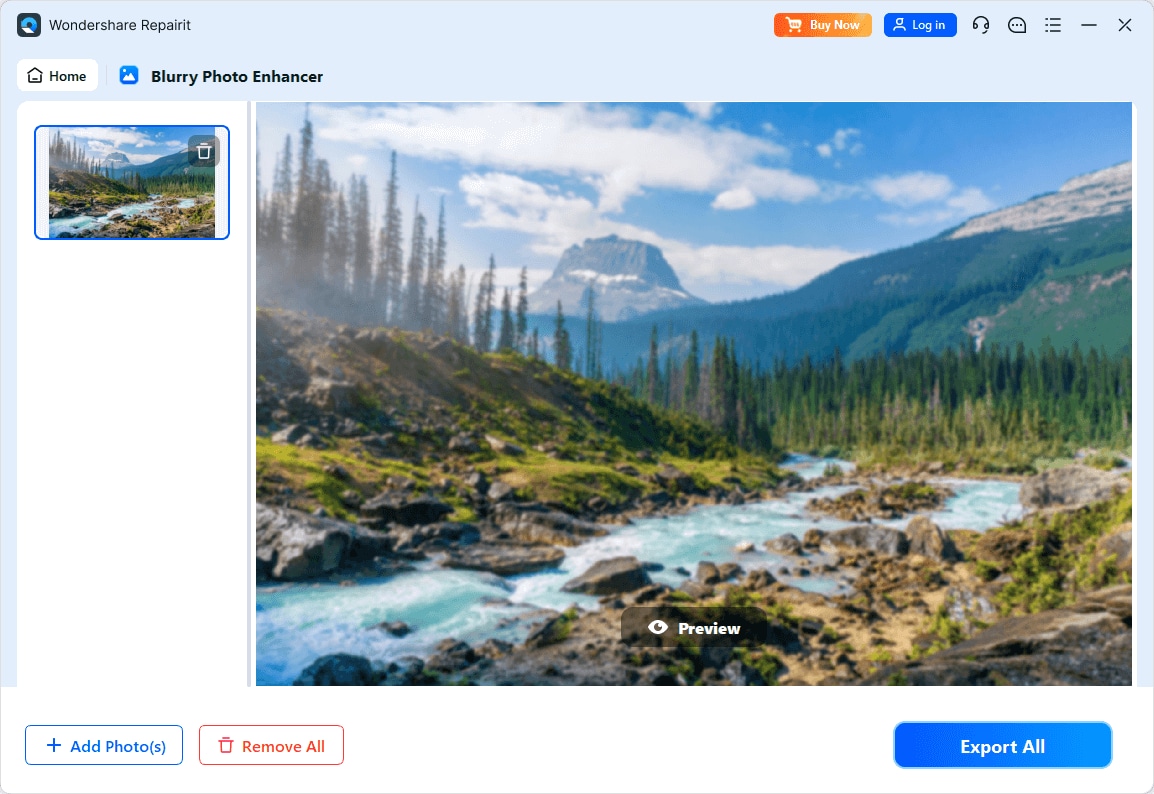
Step 4. Preview the enhanced result and save the improved photo to your device.
Final Verdict
Repairit Photo Enhancer and ON1 Photo RAW both use AI to enhance photo quality, but they serve different priorities. Repairit focuses on streamlined AI enhancement for clarity, sharpness, and upscaling, while ON1 Photo RAW wraps its AI tools into a complete RAW management and editing ecosystem.
If your main tasks involve improving portraits and low-quality images, sharpening soft details, or preparing visuals quickly for web and presentations, Repairit Photo Enhancer is usually the more efficient option. If you regularly handle full shoots, rely heavily on RAW processing, and want layered edits and cataloging, ON1 Photo RAW remains a solid and capable choice.
Depending on your workflow, the two can even complement each other: you might manage and edit RAW files in ON1 Photo RAW, then turn to a focused enhancer when specific images need additional AI-driven clarity or resolution gains.
Next: Repairit Photo Enhancer vs Cyberlink Photodirector
FAQ
-
1. Is Repairit Photo Enhancer a replacement for ON1 Photo RAW?
Repairit Photo Enhancer is not a direct replacement for ON1 Photo RAW. It focuses on AI-based enhancement rather than full RAW editing and cataloging. For many users, it can act as a simpler alternative when they only need to improve image quality, not manage entire photo libraries. -
2. Can Repairit Photo Enhancer work with images exported from ON1 Photo RAW?
Yes, in a typical workflow you can develop a RAW file in ON1 Photo RAW, export it as a JPEG or PNG, and then use Repairit Photo Enhancer to further sharpen, upscale, or enhance that exported image if needed. -
3. Which tool is better for sharpening slightly blurry photos?
For users who want a straightforward solution, Repairit Photo Enhancer is often more convenient because it provides targeted AI sharpening and clarity improvement with fewer settings. ON1 Photo RAW can also sharpen effectively, but it usually involves working within a fuller editing interface.