
“Hey there people. I've been having a problem with my computer recently. I'm trying to change my default app installation location from my SSD (C: drive) to my larger HD (D: drive), though every time I do that, it gives me error 0x80070005 (Commonly known as Access Denied).I'll try to be as clear as possible here so that you people can help me - Poprock360”
A lot of users encounter this error while updating Windows, installing apps, changing settings, or accessing protected files. All of a sudden, a prompt will appear saying that your access is denied. This particular error stops an important software installation or update. It happens when your computer lacks the right permissions to finish the task.
In such cases, users might feel stressed because their device blocks every single change they make. Yet, understanding why this happens is the first step toward fixing your broken system. So, this ultimate guide explores the main causes and covers simple solutions to fix this problem.
In this article
-
- Way 1. Run the App or Installer as Administrator
- Way 2. Temporarily Disable Antivirus or Security Tools
- Way 3. Check and Modify File or Folder Permissions
- Way 4. Use Windows Update Troubleshooter
- Way 5. Scan and Repair System Files (SFC and DISM)
- Way 6. Reset Windows Update Components
- Way 7. Check Group Policy Settings
Part 1. Common Situations That Trigger Access Denied Errors
You may encounter the 0x80070005 error while performing various daily computer tasks. The following points highlight the most frequent scenarios where this specific error occurs:
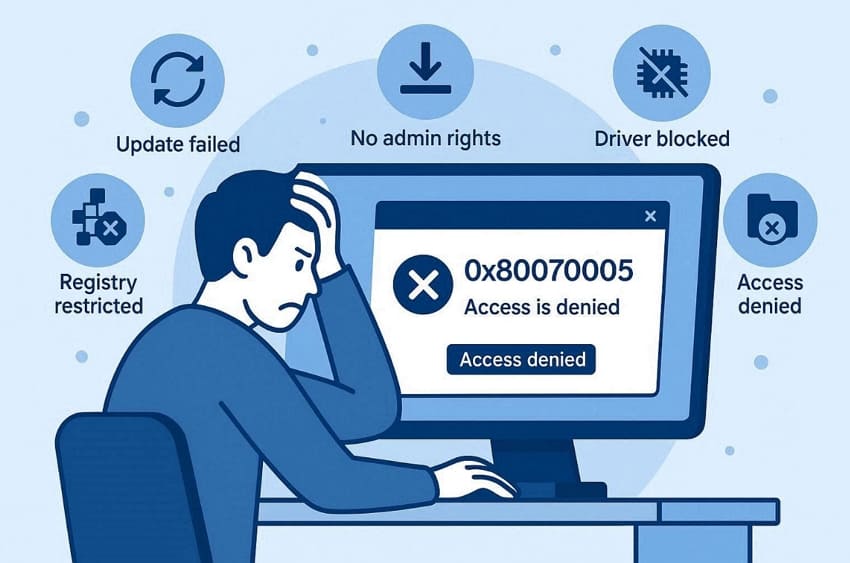
System Updates: Windows Update fails when the system cannot write new service files. This common issue prevents your computer from receiving the latest security patches.
App Installation: Many software installers require full admin rights to modify the drive. Without these high permissions, the setup process will stop and show an error.
Driver Updates: Hardware drivers may fail to install when Windows blocks changes due to missing permissions or policy restrictions. This security measure prevents unverified files from damaging your computer's components.
File Access: Trying to open or edit protected system folders also triggers this block. Your operating system protects core data by denying access to unauthorized users or accounts without the required permission.
Registry Changes: Editing the Windows registry may trigger errors when permissions are limited. System safeguards block unauthorized changes to protect critical configurations.
Part 2. System Issues That Lead to Error Code 0x80070005
System problems can also cause the “access is denied” error beyond simple user permission issues. Below, you will explore a few primary technical issues that cause this error code:
| System Issue | Description of the Conflict |
| Corrupt Files | Damaged system files block tasks and cause permission conflicts. |
| Update Components | Broken update services stop installations and trigger repeated errors. |
| UAC Settings | Strict controls prevent apps from getting admin access. |
| Group Policy | Misconfigured policies restrict access to system features or folders. |
| Registry Issues | Limited key permissions block configuration changes by applications. |
| Services Failure | Stopped services prevent system processes from running. |
| Disk Errors | Drive issues interrupt file access and system operations. |
Part 3. Step-by-Step Ways to Fix the Access Denied Error
Fixing error 0x80070005 requires applying targeted solutions based on the underlying issue. So, this part will help you discover the 7 solutions to fix these common system issues:
Way 1. Run the App or Installer as Administrator
Running an app with full administrative rights resolves the access is denied error. This method gives the software complete permission to modify your core system files. By using this feature, you bypass the standard security restrictions on your computer. Moreover, administrators can execute protected commands that regular user accounts cannot run. Thus, follow the specific steps below to launch your app as a system administrator:
Instructions. As you access the program or installer file, right-click on it and opt for “Run as Administrator.”

Way 2. Temporarily Disable Antivirus or Security Tools
Many times, such tools may also block trusted processes due to misleading threats. Therefore, you can resolve errors by deactivating your antivirus software. This solution allows your installer to modify protected folders without any interference. Moreover, it helps identify whether protection software is responsible for blocking system-level changes. Hence, adhere to these simple instructions to turn off your security software:
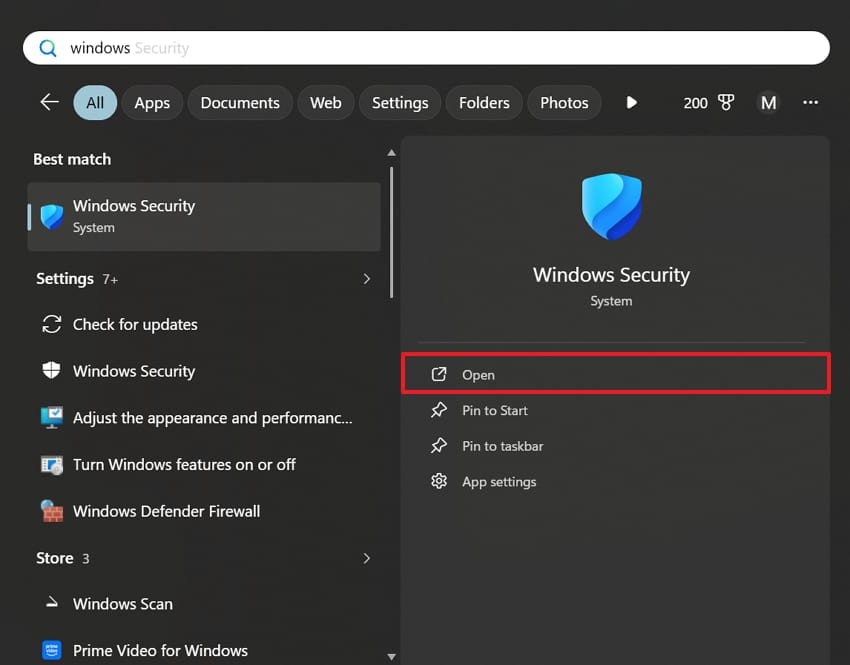
Step 1. Upon searching for “Windows Security,” you need to click the “Open” option.
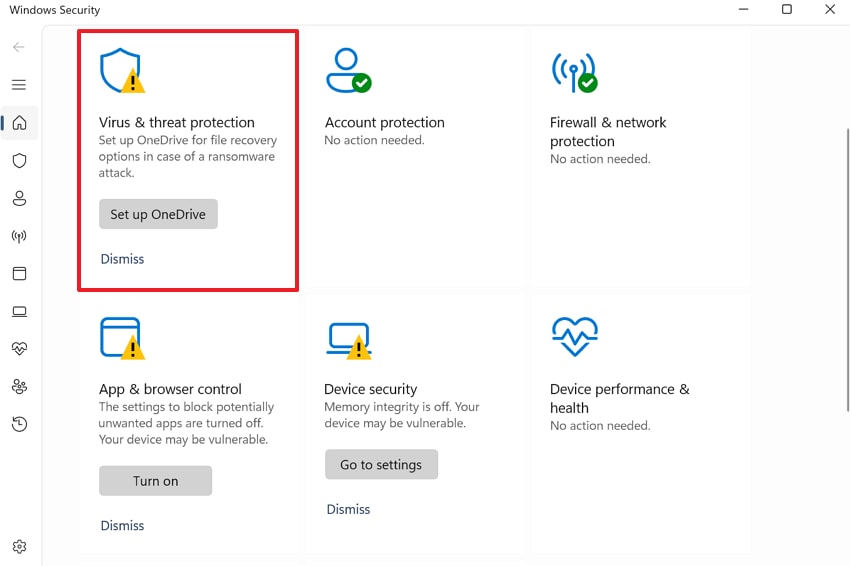
Step 2. From the upcoming display, head to the “Virus & Threat Protection” section.
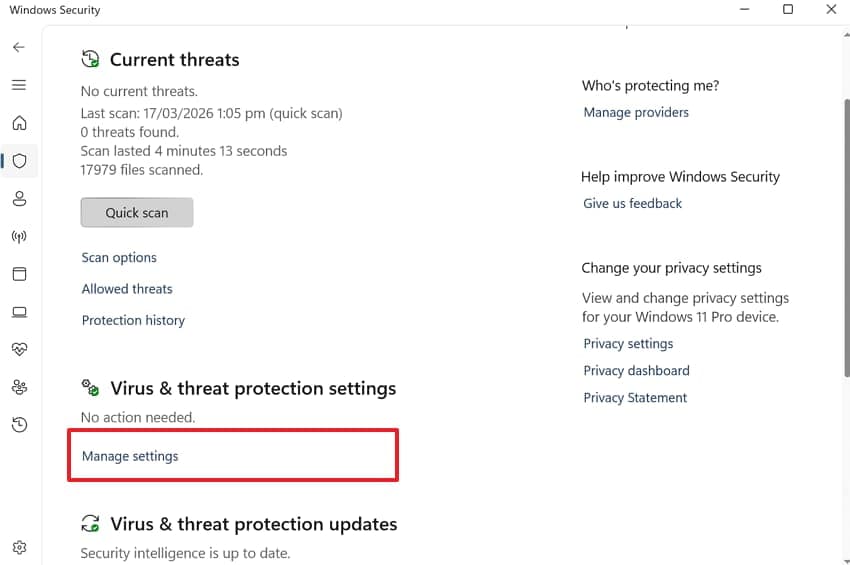
Step 3. Subsequently, opt for “Manage Settings” under “Virus and Threat Protection Settings.”
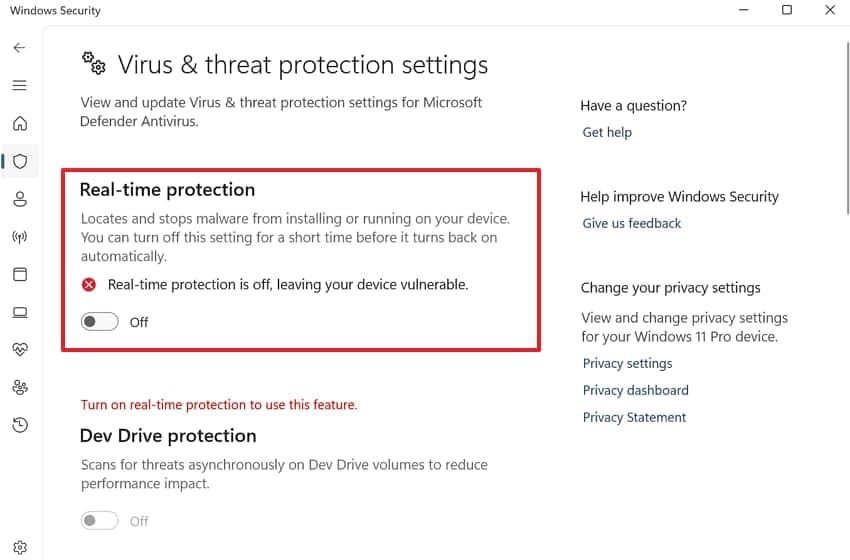
Step 4. Moving forward, you need to disable the “Real-time Protection” toggle.
Way 3. Check and Modify File or Folder Permissions
In various cases, your user account lacks ownership permissions for certain files or system data. As a result, this missing ownership often triggers the message that your access is denied. Modifying these settings ensures that Windows lets you edit or delete your files. This method allows you to grant full control to your current local profile. Thus, let’s dive into the steps below to check and modify file or folder permissions:
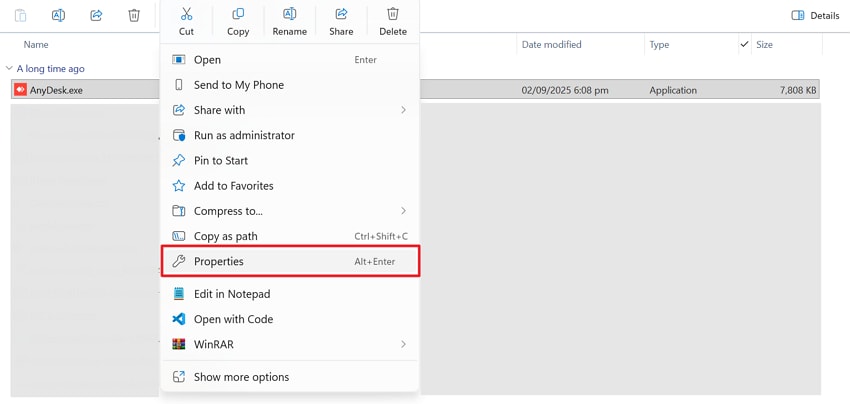
Step 1. When you right-click the program’s “.exe” file, choose “Properties.”
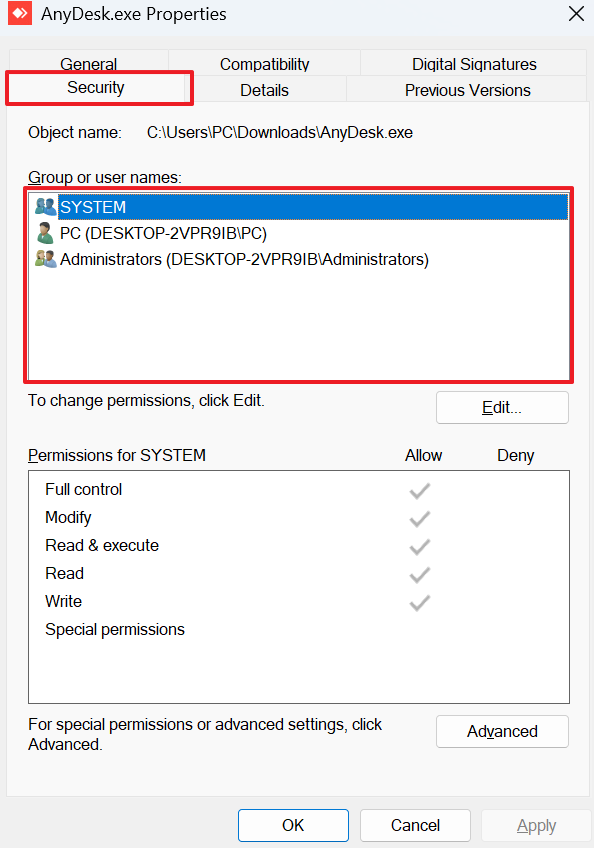
Step 2. Once a properties panel appears, access the “Security” tab. Here, click your account and check the “Permissions” list to see whether you have “Full Control.” If not, then press the “Edit” or “Advanced” button to modify the permissions.
Way 4. Use Windows Update Troubleshooter
This is a native tool designed to help users fix various system failures. It can automatically detect and resolve the underlying system issues. Furthermore, this utility tool scans your update services to find any broken files. It also resets the background components that often cause installation tasks to fail. Thus, go through the given steps to run this diagnostic tool on your computer:
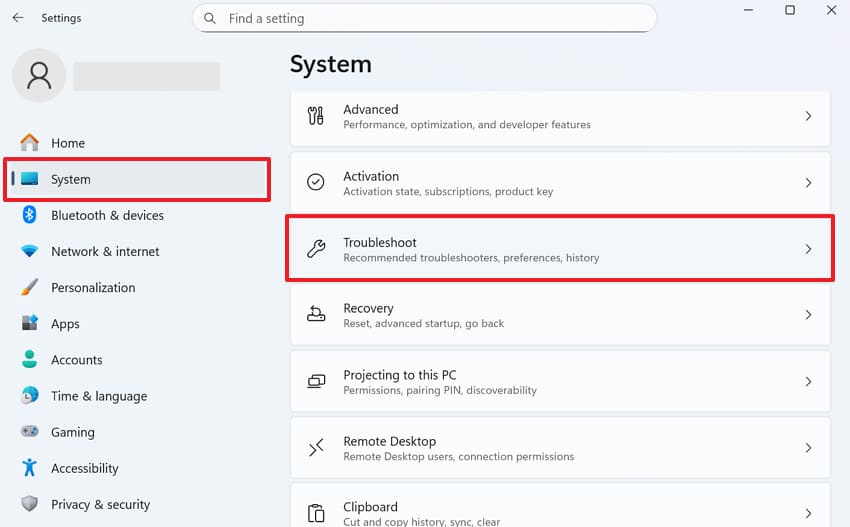
Step 1. After accessing the device’s “Settings “app, navigate to the “System” section. From the upcoming options, you need to select “Troubleshoot.”
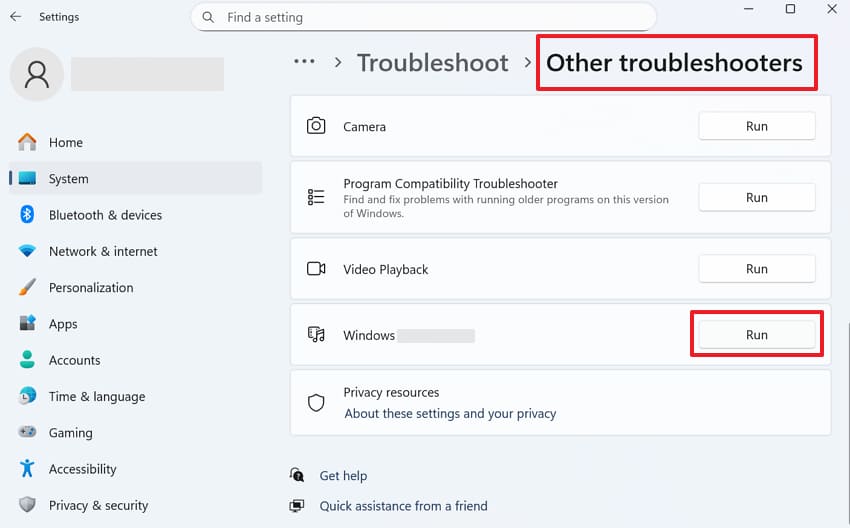
Step 2. Going forward, click on “Other Troubleshooters” and locate “Windows Update." Once found, click the "Run” button next to it to complete the process.
Way 5. Scan and Repair System Files (SFC and DISM)
Apart from the above, system file corruption is also the reason why access is denied appears. The SFC and DISM tools will be able to identify and fix these system files that are damaged. These commands are very secure, and by using them, you are certain that your operating system is stable. Such powerful utilities restore the original integrity of your core system's files. So, take guidance from below to use this method:
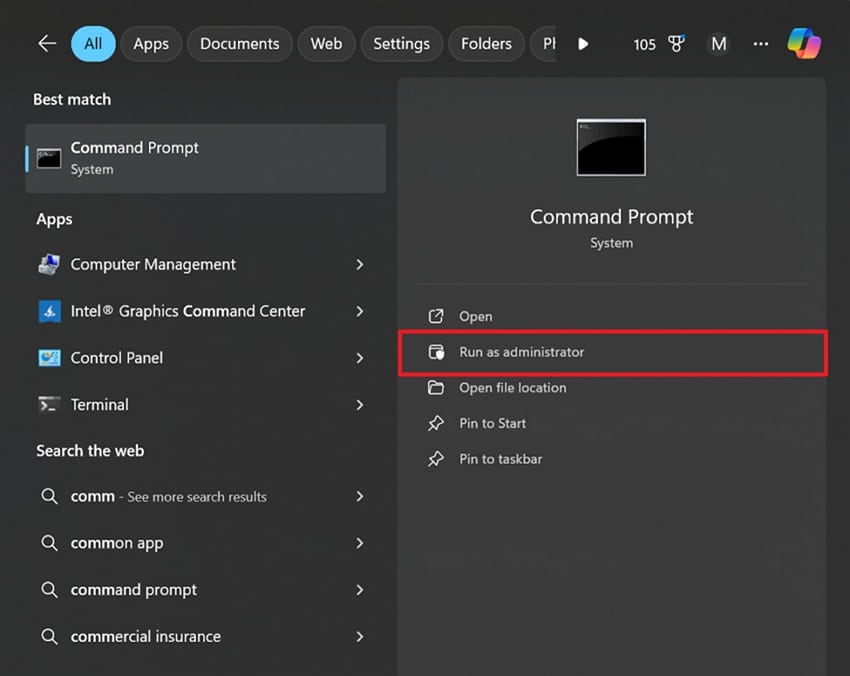
Step 1. To initiate, click “Run as Administrator” as you search for “Command Prompt.”
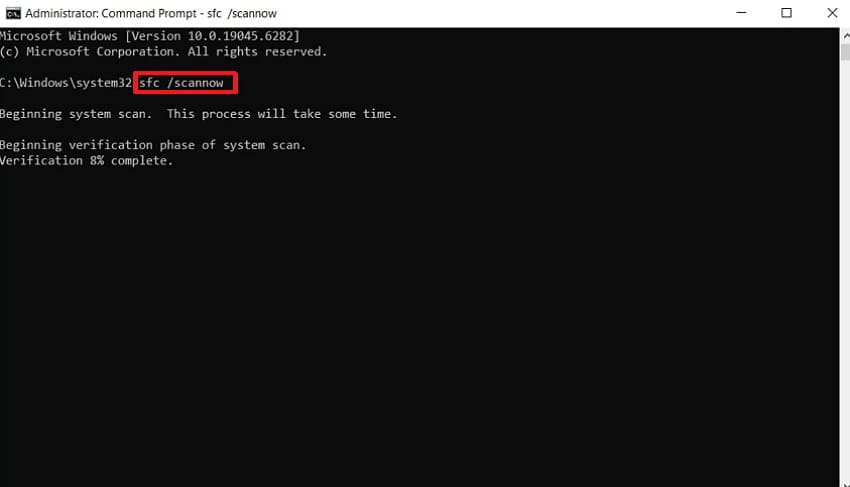
Step 2. In the “CMD Terminal” screen, you need to enter and run “sfc /scannow.”
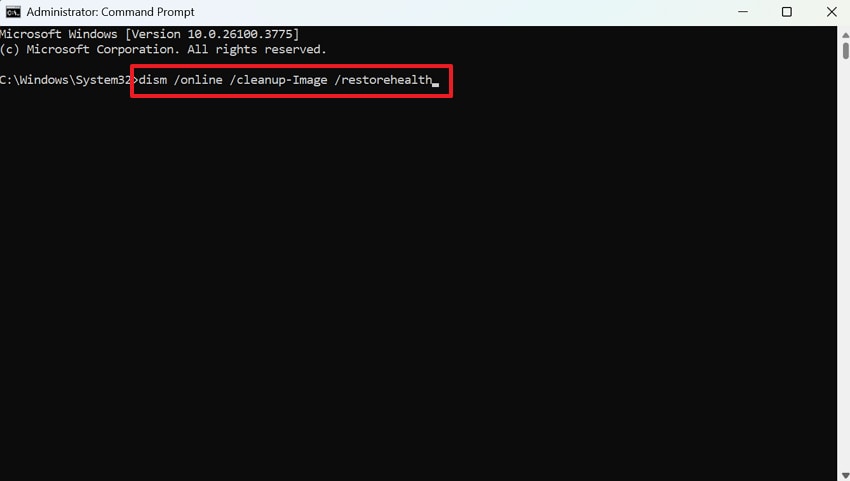
Step 3. Moving ahead, run the “dism /online /cleanup-image /restorehealth” command. After both commands finish running, restart your device to fix errors.
Way 6. Reset Windows Update Components
Resetting the update components is also a powerful way to solve error codes. This advanced process clears the download cache and restarts every background service. It helps when the standard troubleshooter cannot fix your broken update folders. The process ensures that your PC can communicate with the Microsoft servers again. Anyhow, review the given steps below to reset your device’s update components:
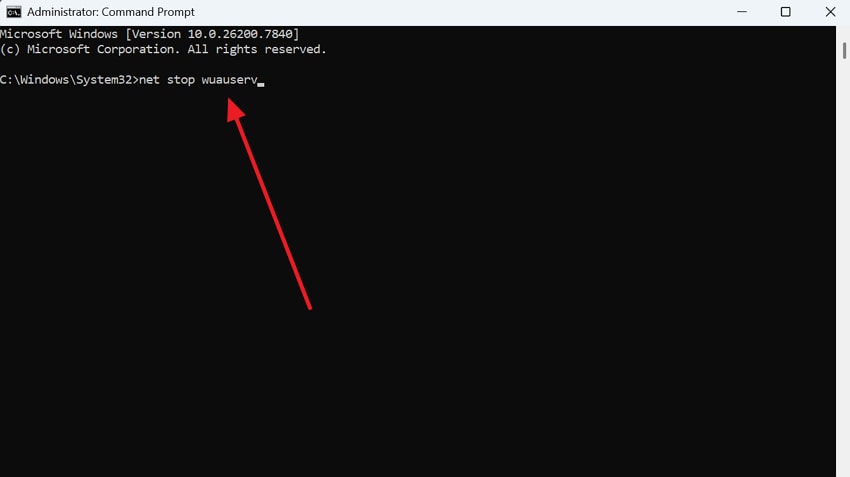
Step 1. Open “CMD” with admin rights to type “net stop wuauserv” and press the “Enter” key. Next, run the "net stop bits” and “net stop cryptsvc” commands individually.
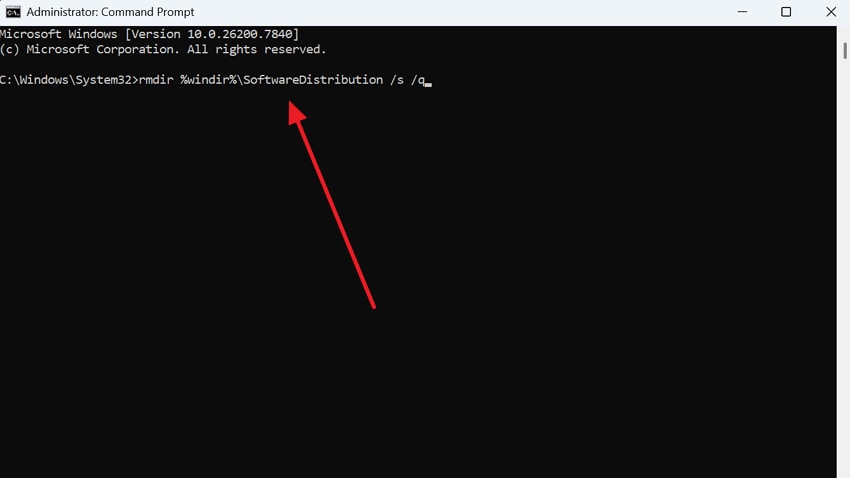
Step 2. Afterward, delete “SoftwareDistribution” using “rmdir %windir%\SoftwareDistribution /s /q.”
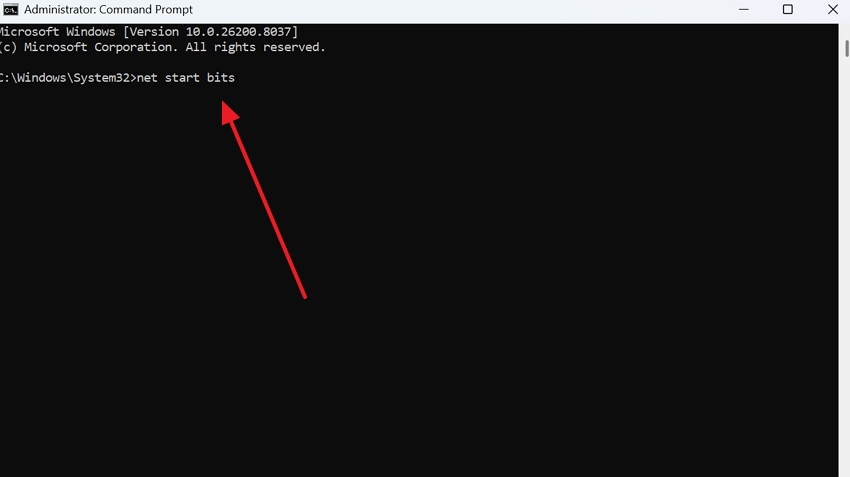
Step 3. Upon doing the above task, run these “net start wuauserv / net start bits / net start cryptsvc” commands again. After completing this step, restart your device to resolve the 0x80070005 error code.
Way 7. Check Group Policy Settings
The Group Policy Editor manages many hidden security rules within your Windows system. Incorrectly configured policies often cause the message that your access is denied. This solution allows you to review and adjust every specific administrative restriction. Therefore, it is an essential method for professional users who need system customization. Go through the clear instructions below to check your current group policy settings:
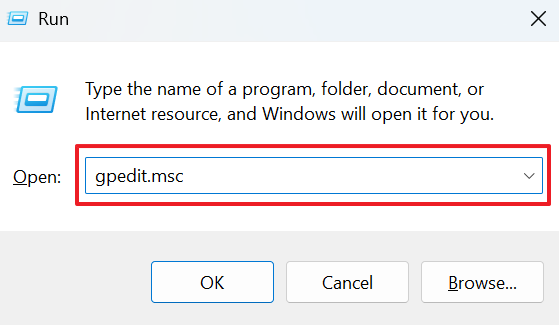
Step 1. After accessing the “Run” dialog box by pressing “Windows + R,” input “gpedit.msc.”
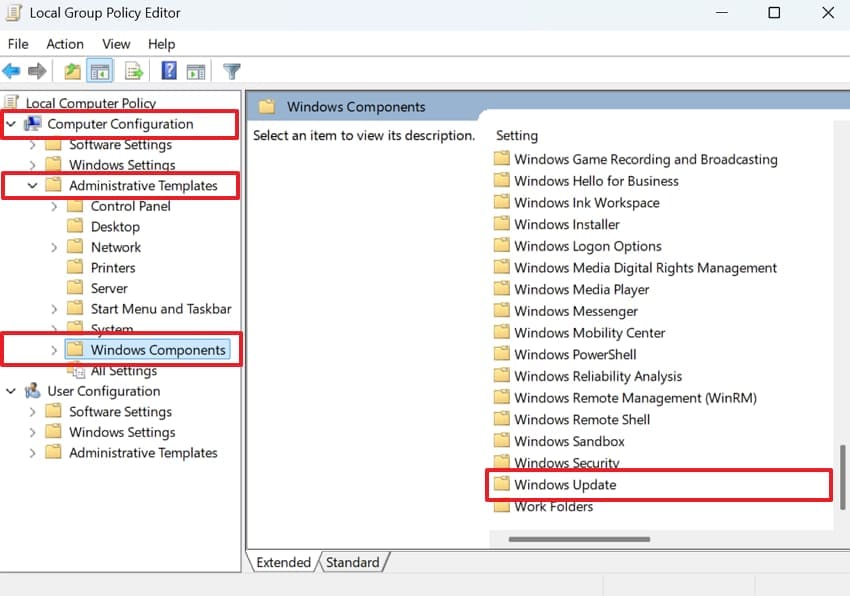
Step 2. Expand “Computer Configuration” and access “Administrative Templates.” Navigate to “Windows Components” and opt for the “Windows Update” folder.
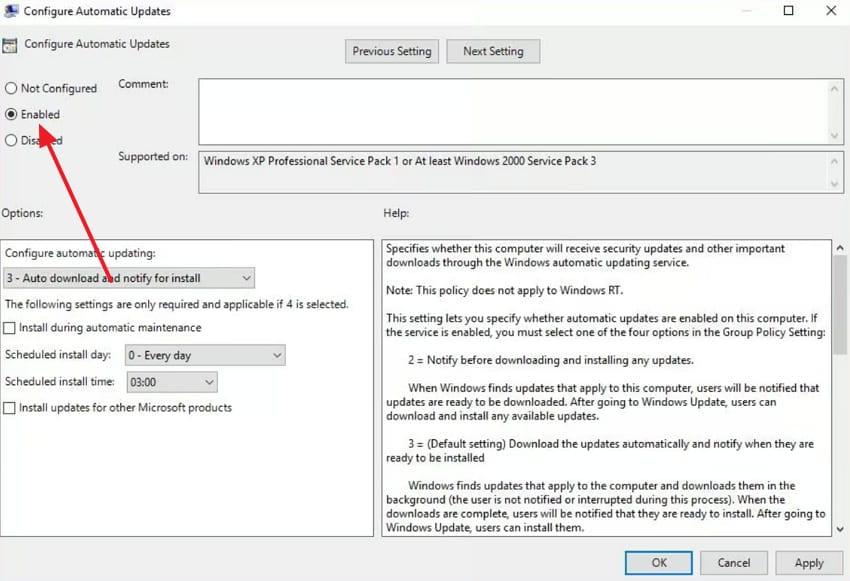
Step 3. Subsequently, look for update-related policies like “Configure Automatic Updates” and check whether they are set to “Enabled.”
Pro Tip. Fix Damaged System Files Behind Error 0x80070005
When system files become corrupted, even simple actions like installing programs can fail. Such corruption often triggers the 0x80070005 error, leaving essential features blocked. In these cases, a smarter repair solution becomes necessary for full stability restoration. So, Repairit’s File Repair feature provides a solution to repair damaged files. It scans internal file structures to detect hidden corruption causing permission errors.
Moreover, the tool supports over 30 common file formats, including DOCX and XLSX. Repairit's batch repair capability fixes multiple files to restore consistent system functionality. The deep analysis identifies the exact source of corruption within your critical Windows components. It's a safe process that ensures the original data remains unchanged during operation. While repairing, Repairit rebuilds file privileges that may cause repeated "Access Denied" messages.
Key Features
Binary File Reconstruction: Rebuilds damaged file headers so your operating system can properly detect and access corrupted files.
System Integrity Check: Fixes checksum errors to help Windows verify and maintain the accuracy of critical system files.
Update Component Rescue: Restores essential update files damaged during installation failures or interrupted system update processes.
Guide to Fix Damaged System Files Behind Error 0x80070005 via Repairit
The tool guides users through a clear and structured recovery process. Thus, you need to review the detailed guide below to complete the file repair process:
Step 1. Launch the File Repair Program
As you access the “More Types Repair” tab, choose “Document Repair” and click “Start.” Press the “+Add” button on the upcoming screen to import damaged files.

Step 2. Allow the Program to Fix Damaged Files
When your imported files appear in the tool, you need to click the “Repair” button.

Step 3. Download Your Fixed System Files
Upon completing the repairing process, click “Preview” next to each file to view the result. After that, press the “Save All” button to export all the repaired files to your PC at once.

Repair Corrupted Files
 Security Verified. Over 7,302,189 people have downloaded it.
Part 4. Tips to Stop the 0x80070005 Error from Returning
Preventing the 0x80070005 error is much easier than fixing a broken Windows system. Thus, the following tips explain simple habits that help keep this error away:
Regular Updates: Keep your device operating system updated with the latest security patches. This practice prevents many common permission errors from affecting your daily tasks.
Account Type: Use a standard user account for your daily activities to improve security. So, only switch to an administrator profile when you need to install new software.
System Backups: Users must also back up essential files to avoid data loss during system failures. Hence, having a restore point helps you recover if a system error occurs.
Manage Antivirus: Configure your antivirus to trust known device updates and system folders. Balanced protection prevents conflicts that may restrict access during usage.
Disk Cleanup: You should opt for the native disk cleanup tool to remove temporary system files. Thus, this habit keeps your storage drive organized and prevents data corruption.
Conclusion
To summarize, resolving the 0x80070005 error is essential for maintaining a stable computer. Following these simple steps helps you regain control when your access is denied. You can fix permission issues and repair broken system files with minimal effort. Moreover, always focus on regular maintenance to ensure that your device remains safe. Yet, if standard methods fail or show deeper file corruption, you should use Repairit.
FAQ
-
1. Is it safe to manually delete the SoftwareDistribution folder content?
Yes, deleting these temporary files is safe and helps reset broken Windows Update components. The folder only stores downloaded update data, and Windows will automatically recreate the necessary files during the next update process. -
2. Can corrupted user profiles lead to repeated system access errors?
Yes, a corrupted user profile may fail to properly authenticate administrative permissions. This can cause Windows to deny access to certain system settings or actions. Creating a new local user account often resolves this issue. -
3. Is there a way to detect hidden file corruption causing an error?
Hidden file corruption can impact system stability and lead to persistent access errors. While built-in tools may not detect all issues, specialized repair tools like Repairit can help identify and fix deeply corrupted system files.




