
An unexpected power cut or system crash can be stressful and may result in files corrupted after shutdown, causing data loss or files that won't open. When this happens, knowing how to recover and repair files after an unexpected shutdown can help you avoid losing your important work. This guide will show you simple and practical steps to restore your files and fix common errors quickly.
In this article
Why Files Get Corrupted After Unexpected Shutdown
When a computer suddenly shuts down, it interrupts the saving process. Data is being moved from temporary memory (RAM) to storage, and if this stops midway, files can become incomplete or damaged, often resulting in files corrupted after shutdown.
Common Causes of File Corruption
- Sudden Power Loss - A blackout or unplugging stops saving abruptly.
- System Crashes (BSOD) - Hardware or driver issues force an instant shutdown.
- Full Storage Drive - Not enough space can cause failed or incomplete saves.
- Software Freezes - A frozen app during saving may corrupt the file.
Transfer-Related Causes
- Removing USB or external drives during transfer can break files.
- Lost connection during network saves can lead to incomplete files.
Signs Your Files Are Corrupted After a Shutdown
It's important to spot file damage early so recovery is more successful. Some problems show up right away, while others only appear when you try to open certain files or folders.
Common Signs of File Issues
- Invalid File Format Error - The file won't open because its structure or header is damaged or missing.
- Unreadable Content - Documents open but show random symbols instead of real data.
- Slow or Freezing System - Your computer may lag when trying to preview or load a damaged file.
- Missing or Empty Files - Files or folders may appear, but show 0 KB or fail to open.
- CRC Errors - The system detects a mismatch between saved and read data, indicating corruption or read failure.
Simple Ways to Fix and Recover Files
Before using advanced recovery tools, try built-in system features first. These can often fix minor errors and help restore your files after a crash by repairing the file system or recovering earlier versions.
Fix 1. Use Check Disk (Chkdsk)
This tool scans your drive for errors caused by a sudden shutdown and automatically fixes problems in the file system.
Step 1. Open the Command Prompt as an Administrator by typing cmd in your system search bar.
Step 2. Input the command chkdsk C: /f (replace "C" with your specific drive letter) then click OK to schedule a repair on the next reboot.

Fix 2. Restore from Shadow Copies
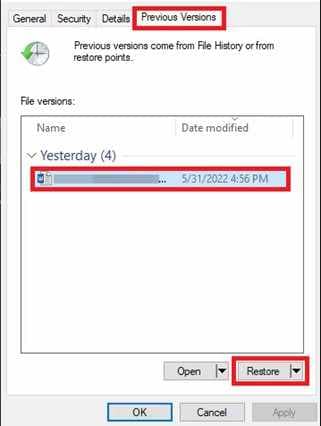
Windows may save earlier versions of files through Shadow Copies or restore points. You can use these to recover a working version of a damaged file.
Step 1. Right-click the corrupted file or folder and select Properties, then navigate to the Previous Versions tab.
Step 2. Choose the most recent stable version from the list and click Restore to overwrite the damaged file with a functional backup.
Fix 3. Check Auto-Recovery Files
Many apps like Microsoft Office or Adobe tools, save temporary backup versions. These can help you recover unsaved work after a crash.
Step 1. Relaunch the application that was active during the shutdown; look for a Document Recovery pane that usually triggers automatically.
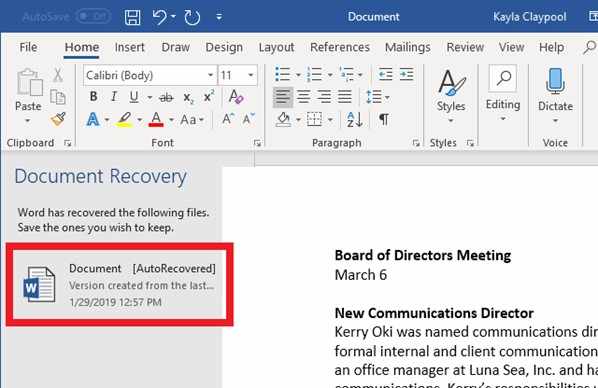
Step 2. If it doesn't appear, manually browse to the AutoRecover file location in the app settings to find .asd or .tmp files.
Fix 4. Run System File Checker (SFC)
If your system is acting strange after the shutdown, the SFC tool can scan and repair damaged Windows system files.
Step 1. In Command Prompt, type sfc /scannow and press Enter.
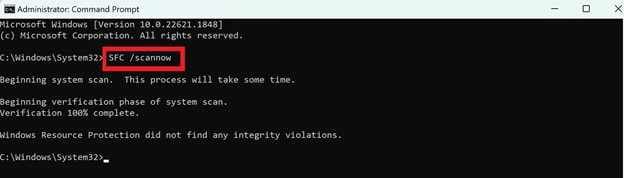
Step 2. Allow it to process and reach 100%, then restart your device to finalize any repaired system components.
Advance Fix to Restore Severely Corrupted Files
When built-in system tools can't fix a damaged file, you may need specialized file repair software. These tools go beyond basic fixes by analyzing the file's internal data and rebuilding missing or broken parts using reference data from healthy files.
It CAN:
- Restore the part of the file that helps programs recognize and open it.
- Attempt to restore data from partially saved or fragmented files.
- Allow batch fixing to save time when several files are affected.
If you confirm the file is corrupted, a repair tool can safely restore its functionality. One example is Repairit File Repair, which works with common file types like DOCX, PDF, and XLSX, as well as various media types.
Step-by-Step (Optional)
Step 1. Upload the corrupted file.

Step 2. Start the Repair process.

Step 3. Preview and save the restored file to a new location.

How to Prevent Future Data Loss
While recovery tools can help, the best approach is to prevent file damage in the first place. Having good habits and simple safety measures can greatly reduce the risk of losing your work during power failures or system crashes.
- Use a UPS (Uninterruptible Power Supply) - This provides backup power during outages so you can save your work and shut down safely.
- Turn On Auto-Save - Set your apps to automatically save every few minutes to reduce data loss if a crash happens.
- Follow the 3-2-1 Backup Rule - Keep 3 copies of your files, on 2 different storage types, with 1 copy stored in the cloud or off-site.
- Safely Eject Devices - Always use the Eject option before removing USB drives or external storage to avoid file corruption.
- Check Disk Health Regularly - Monitor your storage drive for early signs of failure so you can act before serious damage occurs.
Conclusion
Recovering files after a sudden crash is often possible if you act quickly. Built-in tools like CHKDSK and SFC can fix system errors that cause file corruption. For more serious damage, recovery software may help restore lost data. To prevent future issues, always use AutoSave and keep regular backups.
FAQs
-
Why does a sudden shutdown cause file corruption?
Because power loss can interrupt saving, leaving files incomplete or damaged. -
Can I recover a 0 KB file?
Sometimes. It may still be recoverable using previous versions or recovery tools. -
Is CHKDSK safe for SSDs?
Yes. chkdsk /f is safe and fixes file system errors. -
How do I find AutoRecover files in Office?
Go to File, Options, then Save, copy the AutoRecover path, and open it in File Explorer. -
Does System Restore delete personal files?
No, it mainly affects system settings and programs, not personal files.




