
Launching a PC game should feel simple, but Denuvo errors interrupt startup. The "Cannot Start Denuvo Service" error appears during protected startup checks. It may follow Windows updates, antivirus restrictions, blocked permissions, or corrupted files. Many players see the game close before the main menu appears.
Therefore, organized troubleshooting matters more than random fixes or unsafe system changes. This guide explains safe repair methods for Denuvo startup errors. It keeps the process practical without risking protected game files. Each fix follows a clear order, so the error feels manageable.
Table of Contents
-
- Fix 1. Run Game as Administrator
- Fix 2. Allow Game Through Firewall
- Fix 3. Disable Antivirus Temporarily
- Fix 4. Add Game Folder to Antivirus Exceptions
- Fix 5. Ensure Proper Admin Rights for Game Files
- Fix 6. Reinstall or Verify Game Files
- Fix 7. Repair Microsoft Visual C++ Redistributables
- Fix 8. Run System File Checker (SFC Scan)
Part 1. What Is the Denuvo Service Error and Why Does It Appear
Denuvo helps protect PC games from piracy, tampering, leaks, and cheating. During launch, it helps validate protected game files before gameplay begins. Denuvo’s official security page also describes protection across multiple gaming platforms.
Main Causes of the "Cannot Start Denuvo Service" Error
Before choosing a fix, it helps to see where the launch process breaks. The following causes explain why the "Cannot Start Denuvo Service" error blocks game launch:
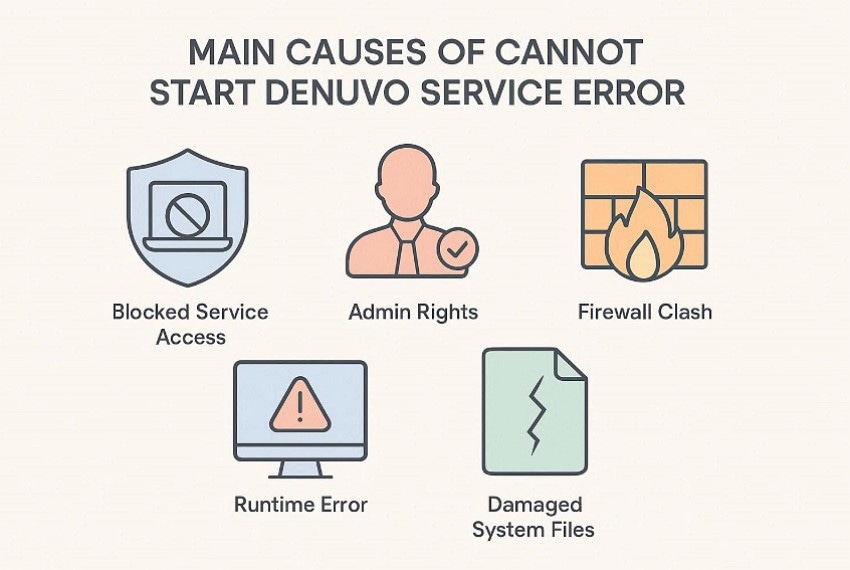
- Blocked Service Access: Windows can refuse service access when protected startup permissions look incomplete locally. The launch process stops before Denuvo completes its first validation check.
- Admin Rights: Some game folders need elevated control during early launch stages on Windows. Limited rights can block files before the launcher reaches the gameplay screen properly.
- Firewall Clash: Firewall rules sometimes block launcher contact with trusted game services. The game may close before the main menu fully finishes loading.
- Runtime Error: Visual C++ runtime files help many game engines start correctly on Windows. Damaged packages can stop protected checks without showing clear warning messages.
- Damaged System Files: Corrupted system files may affect background services that protected games need. The issue can remain even after reinstalling the affected game.
Common Triggers Behind the Error Message
Sometimes, the error appears after a recent change rather than long-term damage. These triggers explain what usually makes the message appear suddenly:
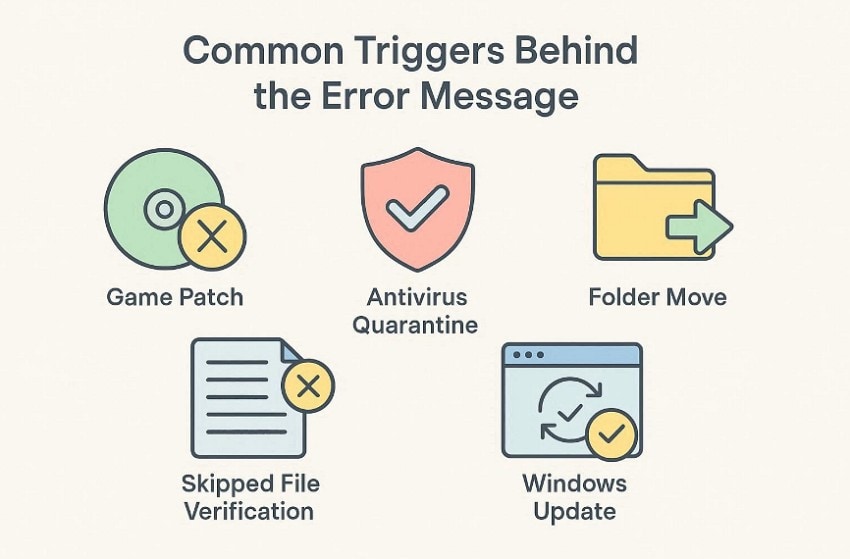
- Game Patch: A fresh update may replace protected files inside the installation folder. Broken patch downloads can leave Denuvo checks stuck during the next launch.
- Antivirus Quarantine: Security scans may isolate protected files after reading them as suspicious. Once a required file disappears, the launcher cannot complete validation.
- Folder Move: Changing drives can disturb ownership, file paths, and folder permissions. Later, Denuvo may fail while reading protected data from storage.
- Skipped File Verification: Skipping Steam verification can leave damaged files inside the game folder. The same startup error may return after every launch attempt.
- Windows Update: System updates can change permissions, drivers, or security behavior unexpectedly. Games that worked earlier may fail after another Windows restart.
Part 2. Denuvo Error: Cannot Start Service Issue Fix for Steam & PC Games
After identifying the likely cause, the next step is targeted repair. These fixes address the "Cannot Start Denuvo Service" error across Steam and Windows PC games:
Fix 1. Run Game as Administrator
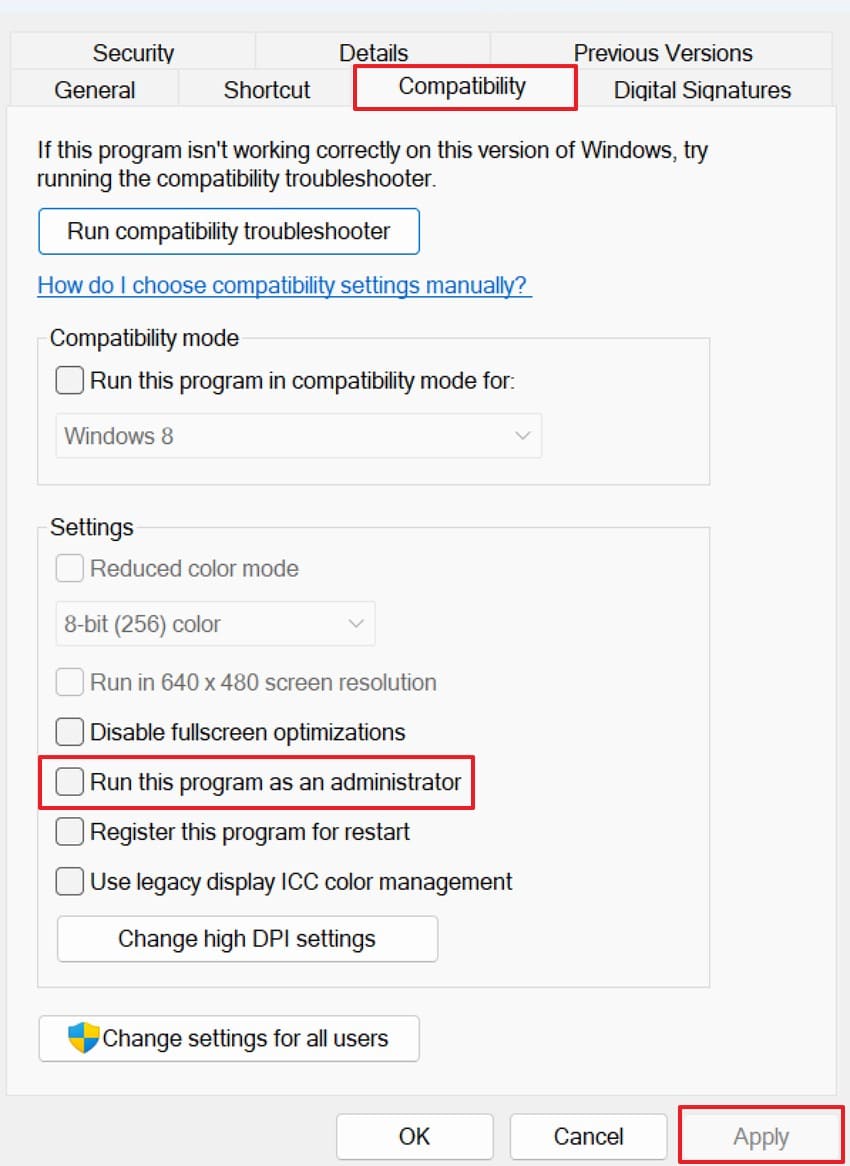
Admin access gives the game more control over protected folders, launch files, and startup tasks. Check this first when the game is installed in Program Files or another restricted folder. Some launchers open normally but still fail during protected checks, so elevated access can remove a simple permission block before deeper repair starts. Start with this access check before changing security settings with the steps mentioned below:
Step 1. Begin by right-clicking the game, then choose "Properties" from the list.
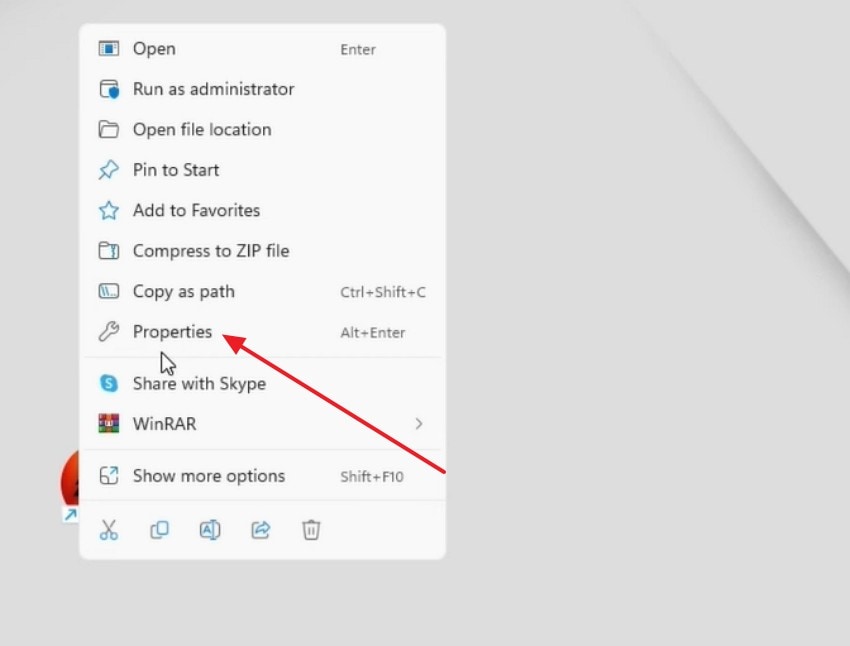
Step 2. Here, choose the "Compatibility" tab and enable "Run this program ad administrator" to run the game as administrator.
Fix 2. Allow Game Through Firewall
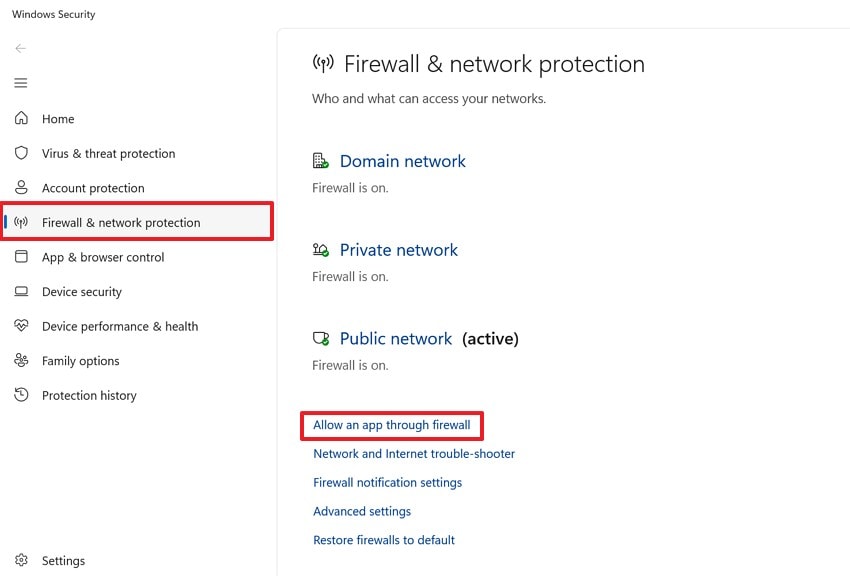
Firewall rules sometimes stop a trusted launcher from reaching required game services. In that case, the "Cannot Start Denuvo Service" error may appear before the opening menu. Adding the game to firewall permissions keeps Windows protection active while giving the launcher a clear network path. This is better than turning off firewall protection, so use the steps below to add:
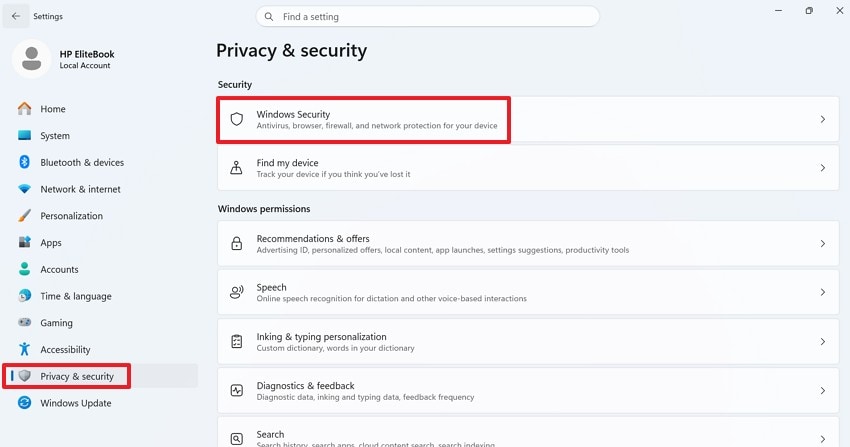
Step 1. Upon accessing "Settings," go to "Privacy & Security" and select ‘Windows Security." Then open "Firewall & Network Protection" and click "Allow an app through firewall."
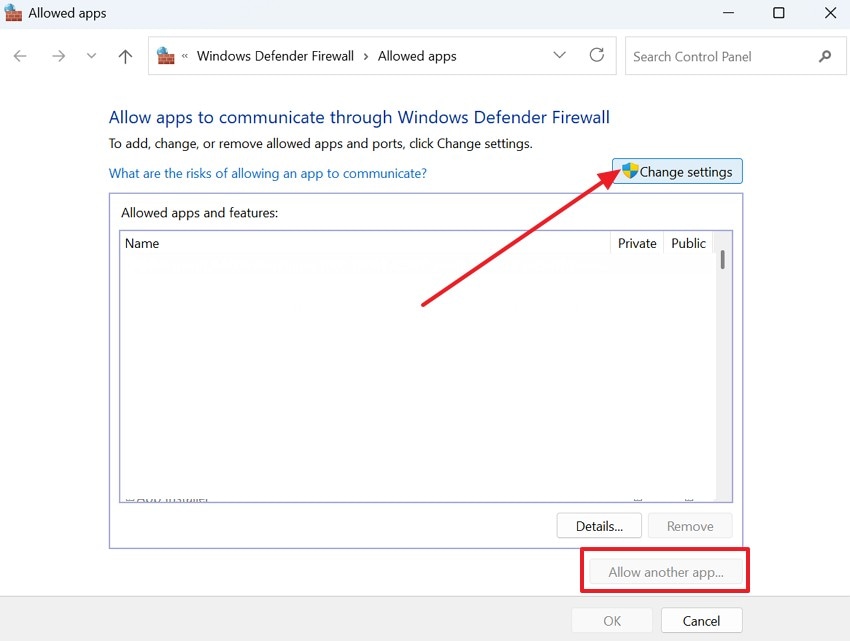
Step 2. Following that, press "Change Settings" in the allowed apps window. Then choose "Allow Another App" to add the game.
Fix 3. Disable Antivirus Temporarily
Security software may block protected files after a scan, patch, or fresh install. To confirm that conflict, antivirus protection can be paused for one short test only. If the game opens during that test, the problem is likely a security rule, not the game itself. After testing finishes, antivirus protection should be turned back on again. Follow the stepwise guide below to try this fix:
Step 1. First, open "Settings" and select "Privacy & Security" from the left sidebar. Then click "Windows Security" to reach the protection controls.
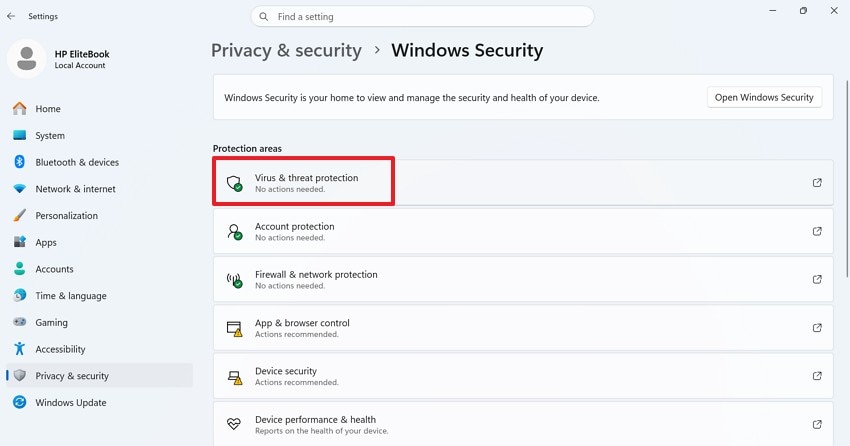
Step 2. Next, choose "Virus & Threat Protection" under the protection areas section to proceed further.
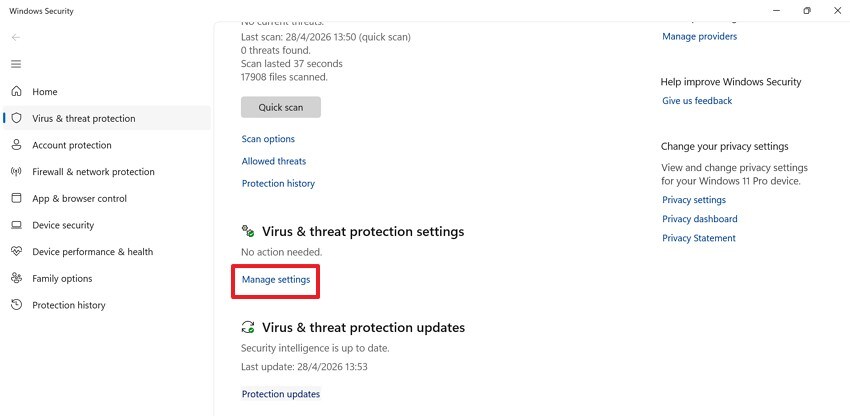
Step 3. After that, scroll to "Virus & Threat Protection Settings" and press "Manage Settings."
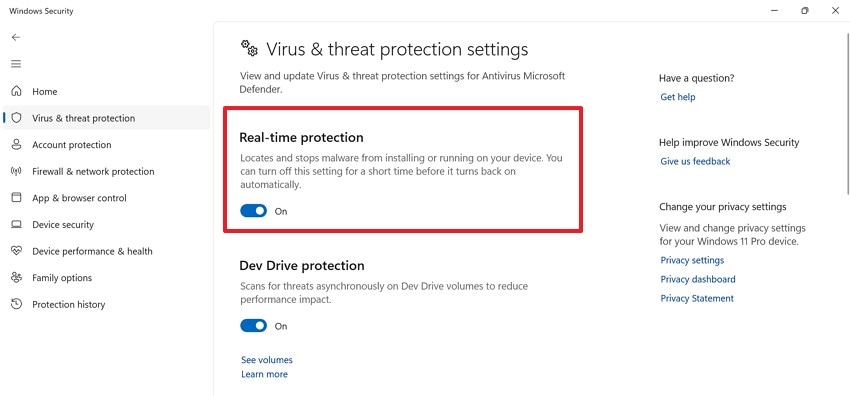
Step 4. At last, turn off "Real-Time Protection" for a short test only. Launch the game once, then turn antivirus protection back on.
Fix 4. Add Game Folder to Antivirus Exceptions
An antivirus exception is useful when security software keeps interrupting trusted game files. Instead of pausing protection each time, the official installation folder can be marked as trusted. This helps prevent the "Cannot Start Denuvo Service" error from returning after every scan. Only verified Steam or publisher folders should receive this treatment. Let's walk through the steps below to apply this fix:
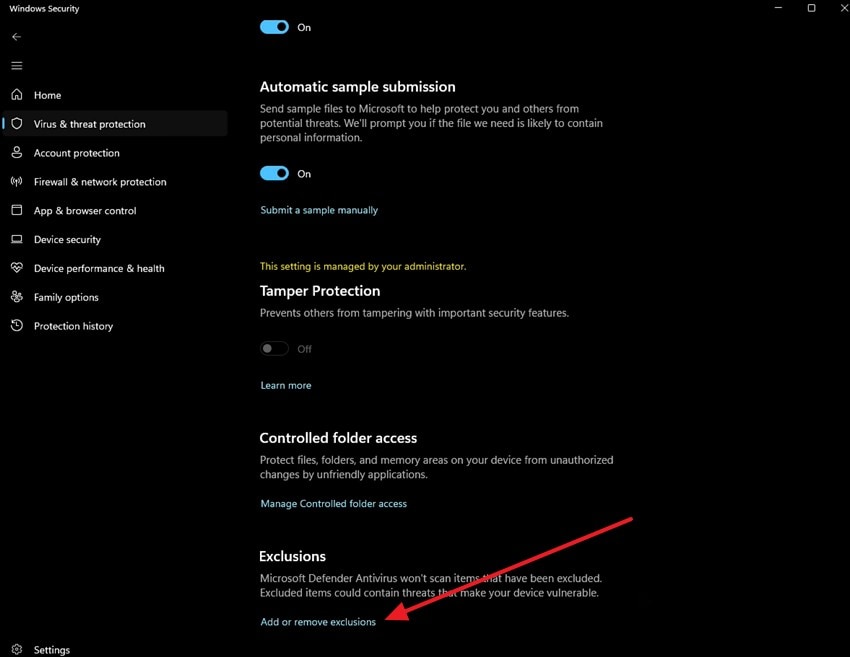
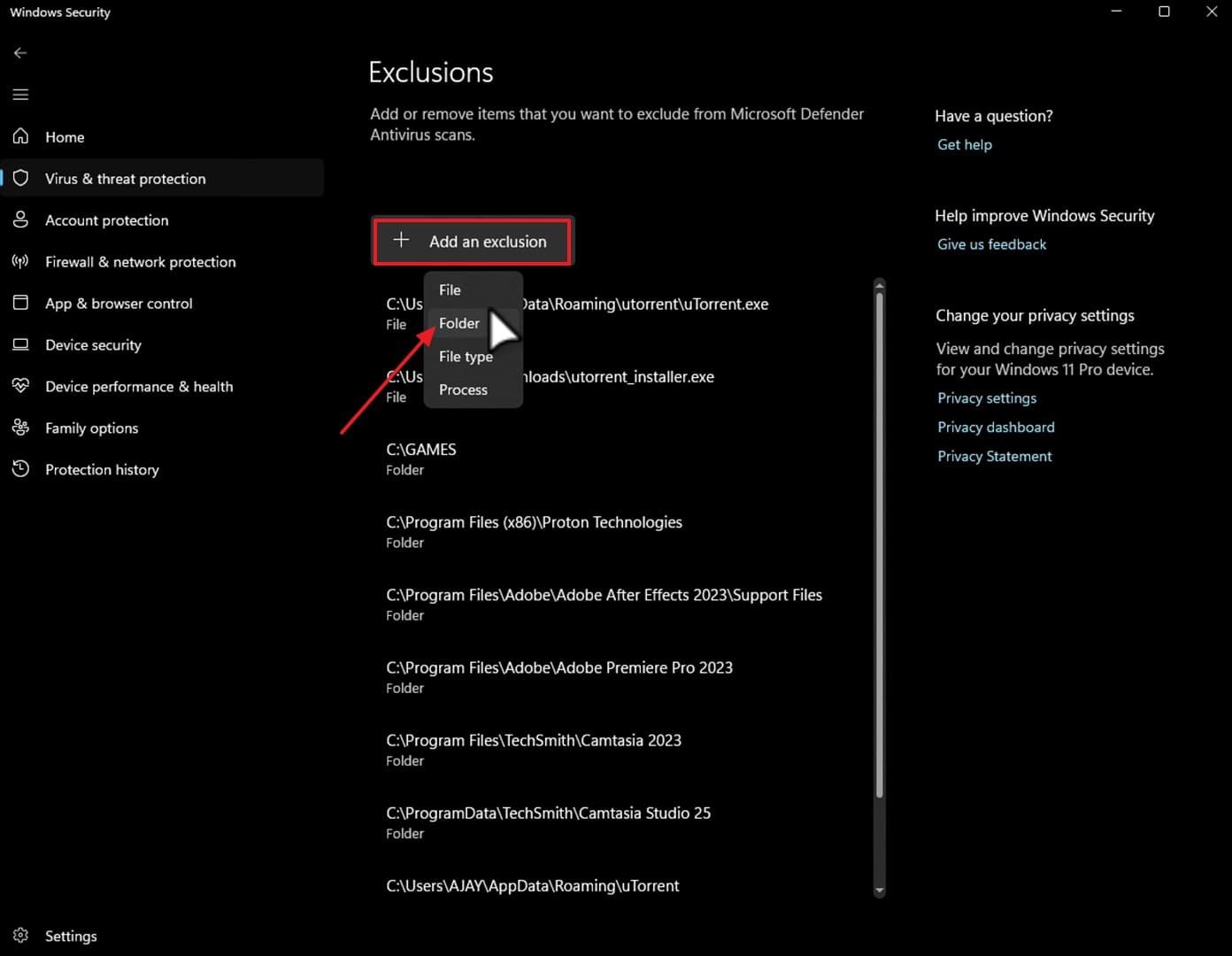
Step 1. To start, scroll down inside "Virus & Threat Protection Settings" until the "Exclusions" section appears. Then, press "Add or Remove Exclusions" to open the exclusion management page.
Step 2. Now, choose "Add an Exclusion" and select "Folder" from the drop-down menu. After that, select the trusted game installation folder and confirm the choice.
Fix 5. Ensure Proper Admin Rights for Game Files
Game folders can lose proper access after drive changes, backups, or Windows account updates. At this point, the launcher may open, yet protected files remain locked. Checking folder permissions helps confirm whether the active Windows account can read and write the required game data. This step fits cases where the admin launch alone does not work. Next, adhere to the guide below to ensure proper admin rights:
Step 1. To begin, access the game installation folder in "File Explorer." Then right-click the main game folder and choose "Properties’ from the menu.
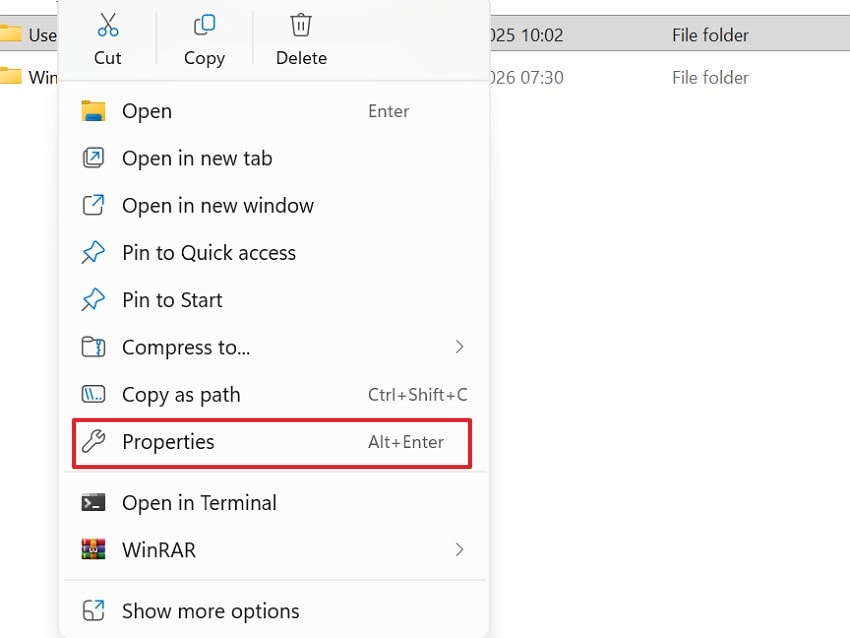
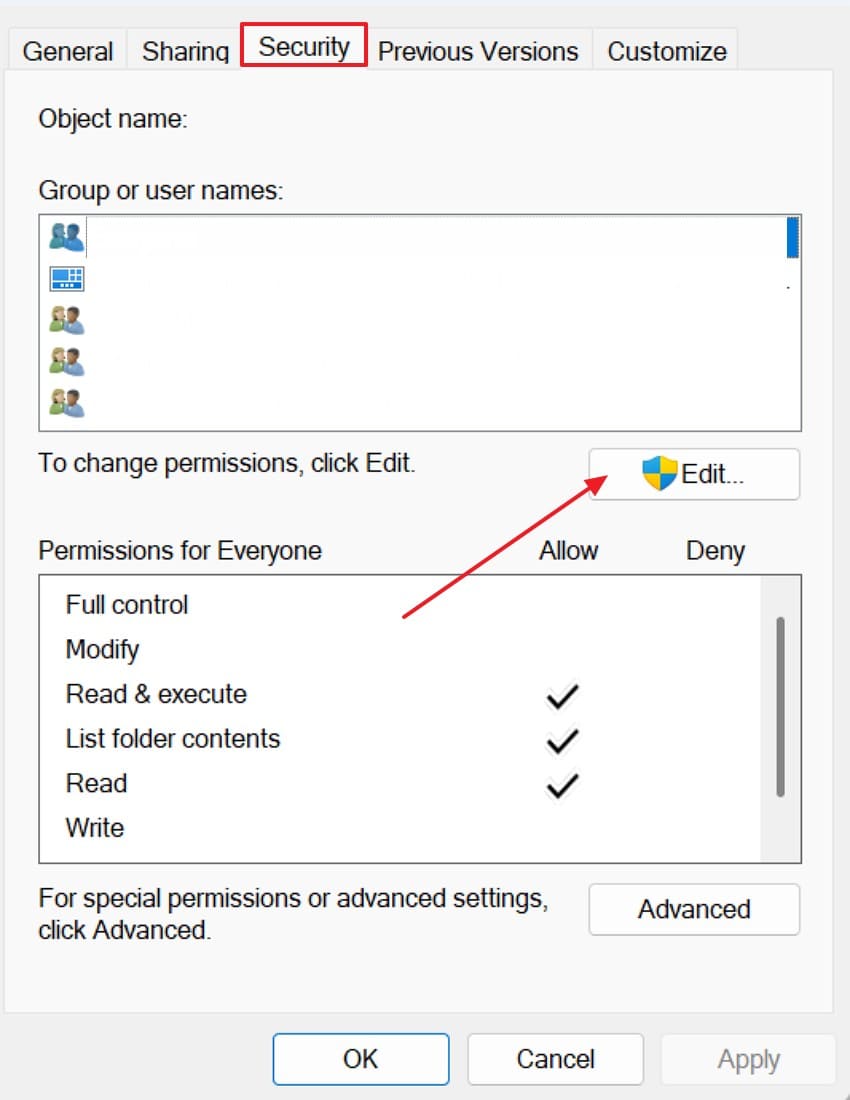
Step 2. Now, go to the "Security" tab and select the active Windows account. After that, check whether "Read," "Write," and "Modify" permissions are allowed.
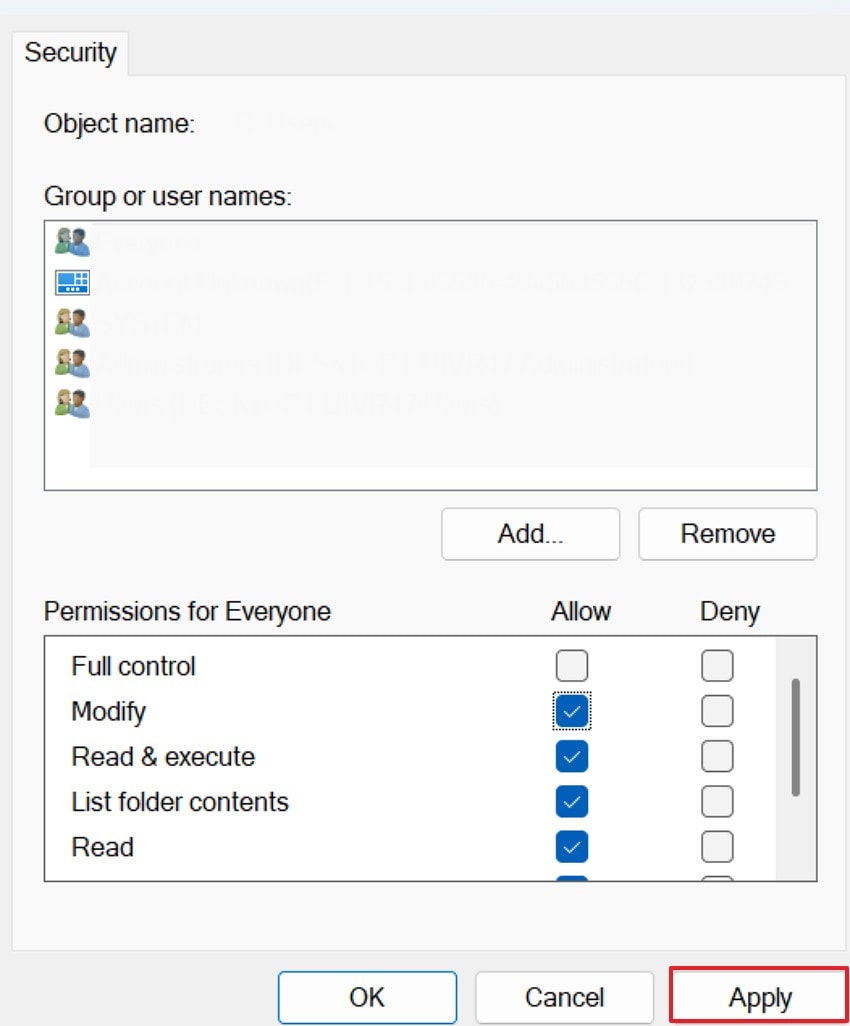
Step 3. Then, click "Edit" if any required permission is missing. Enable the needed permissions, press "Apply," and restart the launcher before testing the game again.
Fix 6. Reinstall or Verify Game Files
Broken patches, failed downloads, or missing files can interrupt protected startup checks. Steam verification compares local files with the official version, then replaces damaged data. This can fix the "Cannot Start Denuvo Service" error without deleting the full game first. If the same failure returns, a clean reinstall becomes the next sensible option. Thus, verify game files through Steam before reinstalling everything with the steps below:
For Reinstall
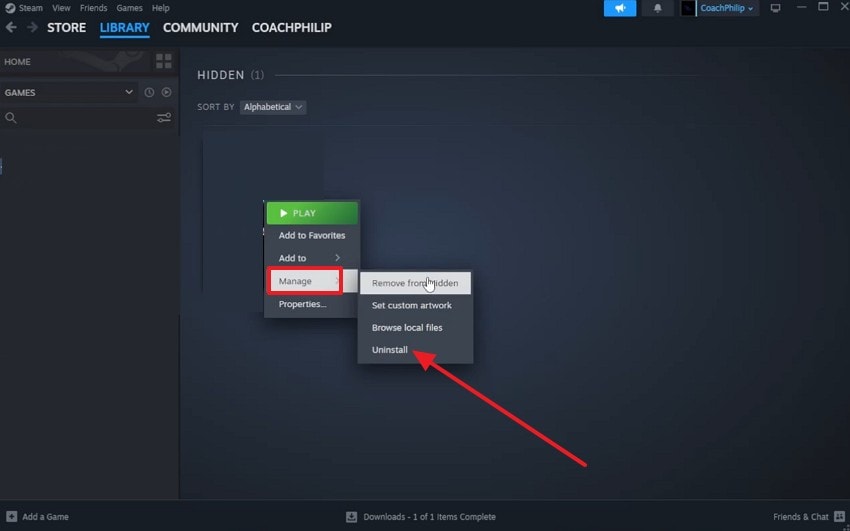
Step 1. In the "Library" section, right-click on the game and choose "Manage" and select "Uninstall" from the available options.
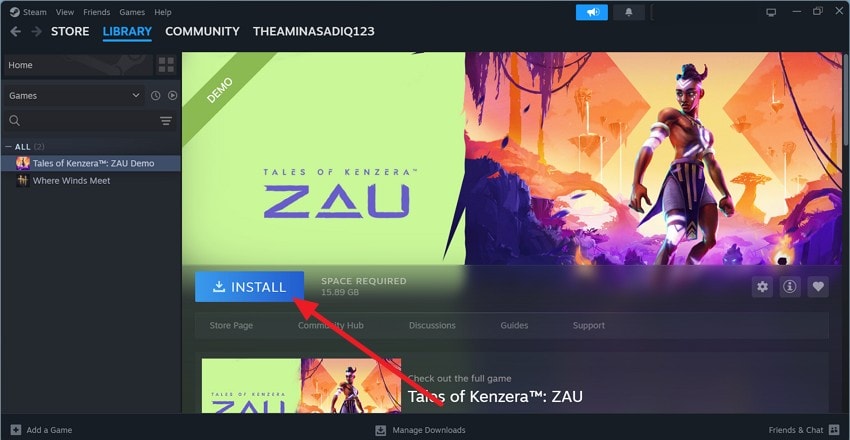
Step 2. Next, navigate to "Store" and add the game to the library, then in "Library" choose the game and click "Install" to reinstall it.
For Verifying Game Files
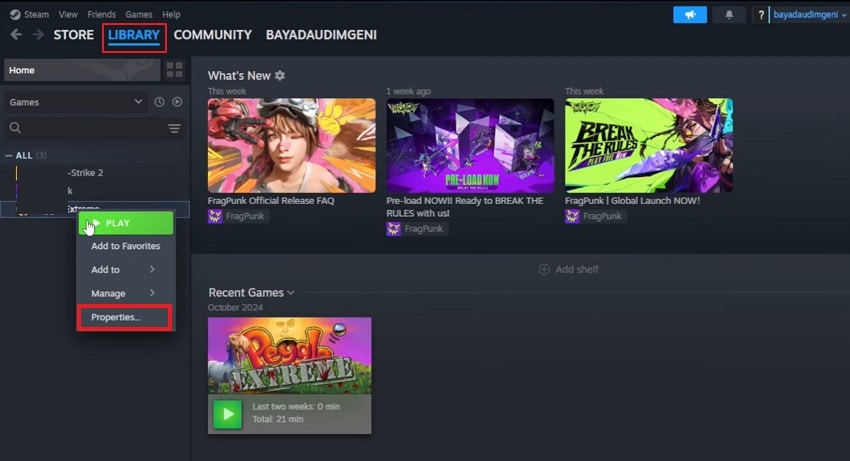
Step 1. Upon launching the "Steam," navigate to the "Library" option and right-click on the game to select the "Properties" option.
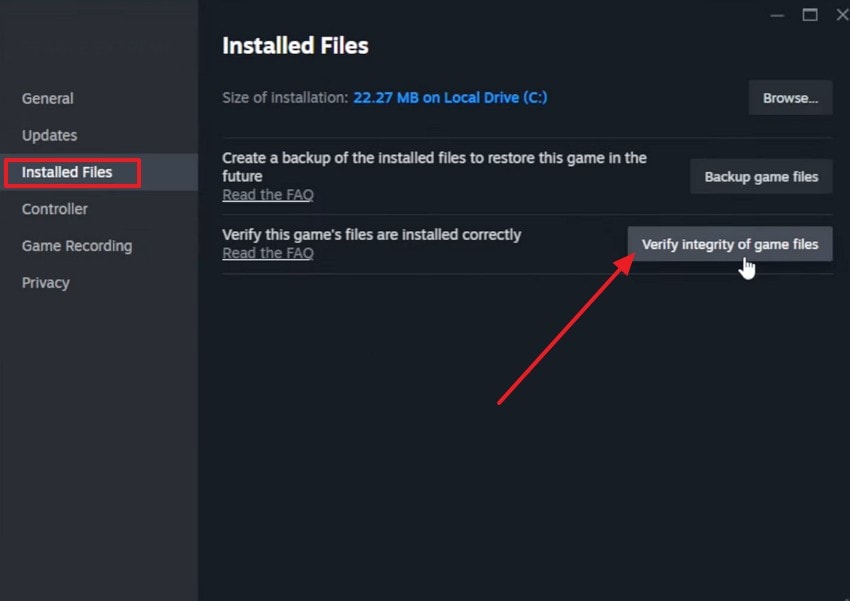
Step 2. Here, in properties, choose the "Installed Files" option and select "Verify integrity of game files" and wait for completion.
Fix 7. Repair Microsoft Visual C++ Redistributables
Many PC games need Visual C++ packages for launchers, engines, and background services. Once these runtime files break, the Cannot Start Denuvo Service " error can appear without a clear warning. Repairing the packages restores support that protected games depend on during startup. This step matters more when several games fail together. Now, follow the steps below to repair Microsoft Visual C++ redistributables:
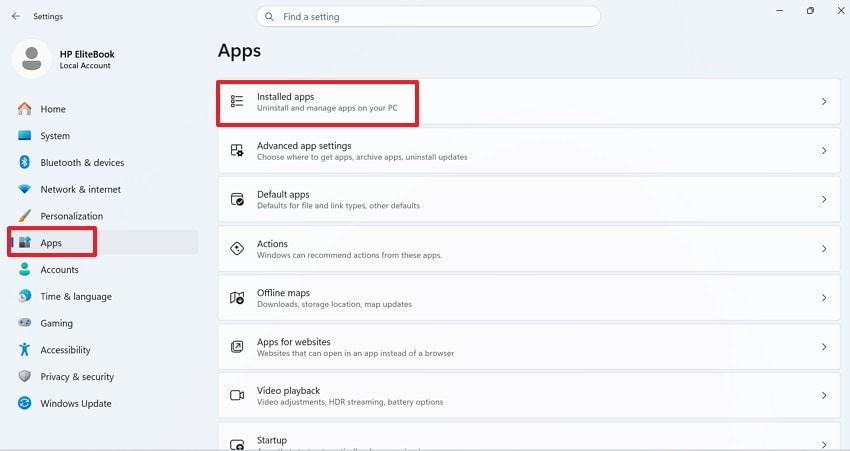
Step 1. First, open Settings and choose "Apps" from the left sidebar. After that, select "Installed apps" to view programs installed on the PC.
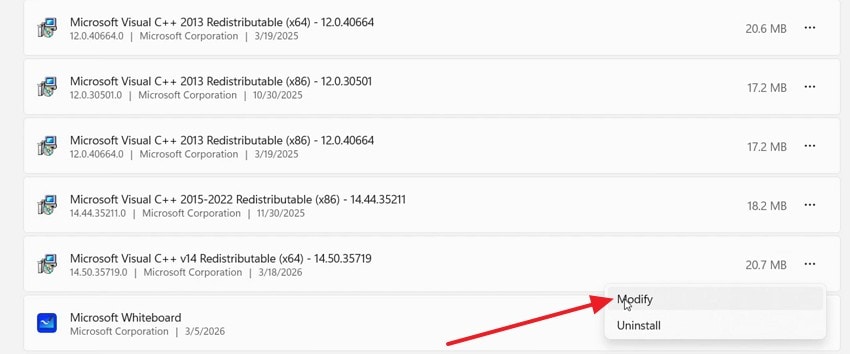
Step 2. Next, find "Microsoft Visual C++ Redistributable" in the app list. Later, click the "three-dot" menu beside the selected package and choose "Modify."
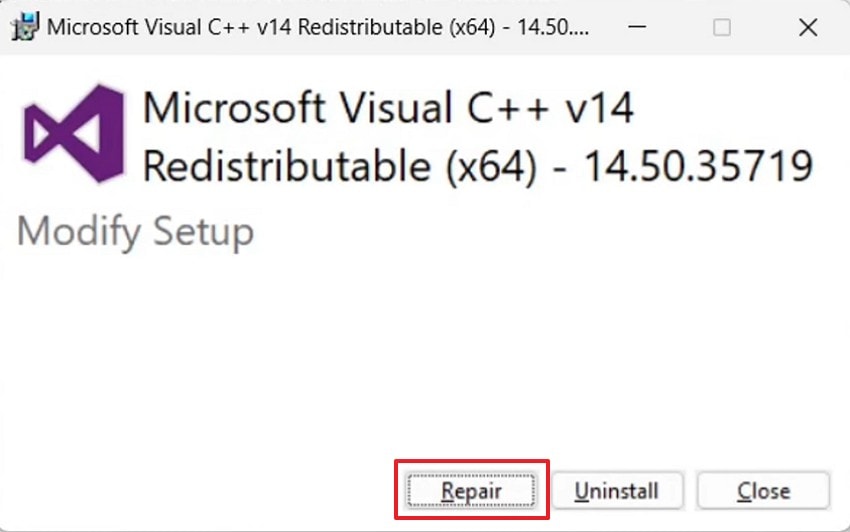
Step 3. Now, press "Repair" inside the Visual C++ setup window. Once the repair finishes, restart the PC and launch the game again.
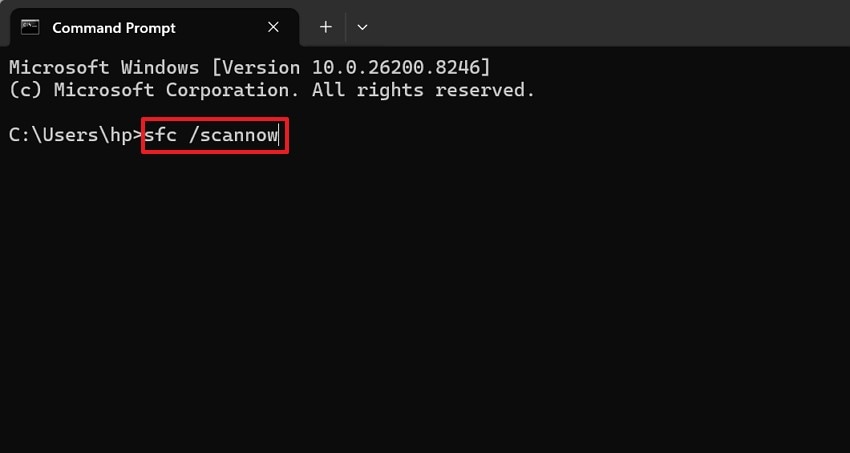
Fix 8. Run System File Checker (SFC Scan)
Windows file damage can affect services, permissions, and protected launch checks at the system level. In such scenarios, the "Cannot Start Denuvo Service" error may stay even after verification or reinstalling. SFC scans Windows files and repairs detected corruption where possible. It is most useful when other apps or games show errors. Use the following steps to run this system repair check:
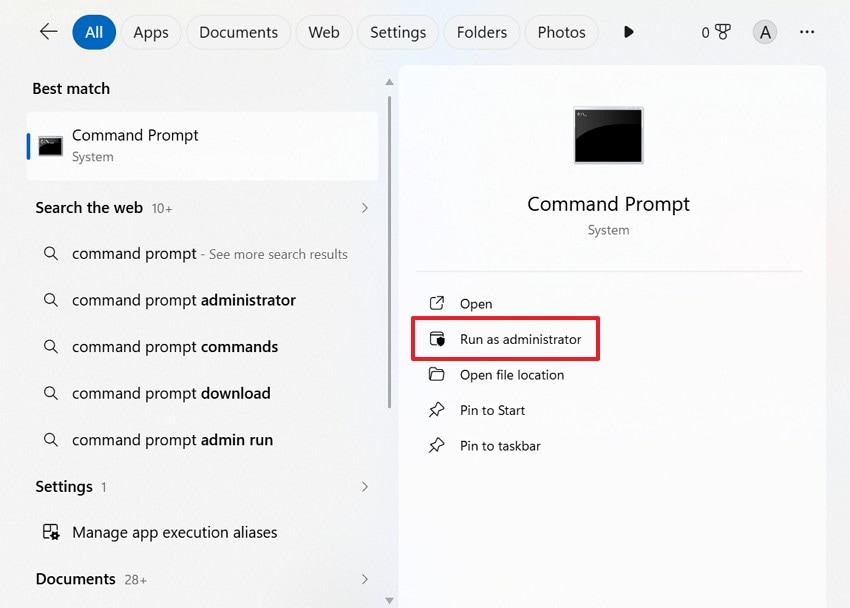
Step 1. First, search "Command Prompt" in the Windows search bar and choose "Run as administrator" to open it with system permissions.
Step 2. Next, type "sfc /scannow" and press "Enter" to start scanning Windows files. Once the scan finishes, restart the PC and launch the game again.
Pro Tip. Solve "Cannot Start Denuvo Service" Error by Repairing Files with Repairit
If launch checks keep failing after Windows fixes, corrupted game or system files may still confuse troubleshooting. The issue may not be Denuvo itself, but damaged recordings, screenshots, documents, or downloaded support files around the game folder. Repairit can help restore these supported files before players move toward deeper system repair or a clean reinstall.
For the "Cannot Start Denuvo Service" error, Repairit works best as a supporting repair option, not a Denuvo service fix. It can repair corrupted media, documents, audio, and image files while Steam handles official game verification. After the repaired system files are saved separately, Steam verification can confirm whether the protected game installation remains complete.
Key Features

-
System File Repair: Fix corrupted, missing, or unreadable system files affecting protected game startup processes.
-
Game File Integrity: Detects missing or damaged game-related files and restores proper structure for smooth launch validation.
-
Game Recording: Repair corrupted, laggy, blurry, or audio-out-of-sync game clips from OBS, Nvidia ShadowPlay, and Xbox Game Bar.
Guide to Repair Corrupted Game/System Files with Repairit
Damaged game or system files can make the "Cannot Start Denuvo Service" error harder to trace. The guide below shows how Repairit repairs supported files safely:
Step 1. Import Corrupt Files to Continue
Upon accessing the "File Repair" tab and selecting "+Add" inside the import area. Then choose corrupted game or system files from storage.

Step 2. Review Files and Start the Repair Process
After files appear under "Unrepaired Files," check their names, sizes, and paths. Next, press "Repair" to process the damaged files.
Step 3. Preview Results and Save Files
Once Repairit shows repaired results, use "Preview" to inspect restored files. Finally, choose "Save" or "Save All" to export repaired files safely.

Repair RAR Files
 Security Verified. Over 7,302,189 people have downloaded it.
Conclusion
To conclude, the "Cannot Start Denuvo Service" error usually points to blocked permissions, security conflicts, damaged game files, or broken Windows components. A safe repair path starts with admin access, firewall checks, antivirus exceptions, Steam verification, Visual C++ repair, and SFC scanning. When corrupted support files complicate troubleshooting, players can repair them before reinstalling Windows with Repairit.
Frequently Asked Questions
-
1. What causes the "Cannot Start Denuvo Service" error on Windows?
It usually appears when Windows blocks permissions, security software access, or protected game files. Damaged runtime packages or damaged Steam files can create the same startup failure. -
2. Can Steam verification fix Denuvo service errors?
Yes, Steam verification can replace missing, damaged, or changed game installation files first. This check should run before players reinstall the whole game from scratch. -
3. Should antivirus protection stay disabled for this error?
No, antivirus protection should only be paused for one short test session once. A trusted folder exception works better after the conflict is confirmed through testing. -
4. Can Repairit fix the Denuvo service directly?
No, Repairit cannot repair Denuvo services or protected launch checks inside games directly. It repairs damaged support files while Steam verifies official game installation data later.




