
If you record video with an HD camcorder, you have likely seen clips saved with an .MTS extension and wondered how to use them. Understanding What is MTS File, how it stores AVCHD footage, and the best ways to open, convert, and repair it will help you keep your high-quality recordings playable on modern devices with minimal effort.
Repair Corrupted Files To Save Your Data
 Security Verified. Over 7,302,189 people have downloaded it.
In this article
What Is MTS File Format?
An mts file is a high-definition video container used by AVCHD-based camcorders from brands like Sony, Panasonic, and Canon. The extension stands for MPEG Transport Stream and typically stores 1080i or 1080p video compressed with H.264/AVC plus Dolby AC-3 or PCM audio.
Inside an AVCHD recording structure, MTS clips often reside in a STREAM folder and are designed for efficient recording to memory cards while preserving excellent image quality. However, the same structure and codec combination that works so well on cameras can cause playback or editing issues on older players, mobile devices, or lightweight apps that do not fully support AVCHD.
Because of this, many users choose to either install compatible software that can read mts video format directly or convert the files into a more universal format such as MP4 for easier sharing, editing, and long-term storage.
How to Open MTS Files
To open an mts file without errors, you need software that understands the AVCHD structure and the codecs inside it. Below are practical options for both Windows and macOS users.
Open MTS Files on Windows
On Windows, you can usually open open mts file content with robust media players or professional editors that include their own codecs.
- VLC media player: A free, cross-platform player that can handle most AVCHD recordings out of the box.
- PotPlayer or MPC-HC: Lightweight players popular with power users for advanced playback control.
- Video editors: Applications like Adobe Premiere Pro, DaVinci Resolve, or VEGAS Pro can import and edit MTS footage directly.
- Windows Media Player: Some versions can play MTS if the proper codecs are installed, but compatibility is not guaranteed.
If your mts player fails to open a file, check whether the clip was fully copied from the camera and ensure your GPU drivers and codecs are up to date. Copy the entire AVCHD folder structure when possible instead of just individual .mts clips.
Open MTS Files on Mac
Modern macOS systems can also handle many AVCHD clips, but not every default app supports MTS equally well.
- VLC for Mac: The easiest all-in-one option to open almost any mts video format without installing extra codecs.
- QuickTime Player: May play some MTS files, especially when wrapped through an editor or conversion tool, but is less reliable for raw camera streams.
- Final Cut Pro / iMovie: These editors can usually import AVCHD structures directly from your camcorder or SD card for editing and export.
- Professional NLEs: Premiere Pro and DaVinci Resolve for Mac also provide reliable MTS support.
If playback stutters or fails, try copying footage to your internal drive before opening it, or consider converting the files into MP4 or ProRes for smoother editing performance.
How to Convert MTS to MP4
Because of compatibility and file size considerations, many users convert convert mts to mp4 before uploading, sharing, or editing. MP4 containers using H.264 or H.265 are widely supported on phones, TVs, browsers, and social platforms.
Convert MTS to MP4 on Desktop
Desktop converters and editors give you more control over quality, bitrate, and resolution when working with mts converter tools.
- Dedicated video converters: Downloadable apps allow batch converting dozens of clips from MTS to MP4 while choosing presets for YouTube, mobile, or 4K displays.
- Editing software: Import your MTS clips into an editor, arrange them if needed, then export the finished project as an MP4 file.
- Free tools: Open-source utilities such as HandBrake or FFmpeg can transcode AVCHD streams with fine-grained control over encoding parameters.
| Method | Best For |
|---|---|
| Desktop converter | Batch converting many MTS clips with simple presets |
| Video editor export | Editing before sharing or archiving as MP4 |
| FFmpeg/CLI tools | Advanced users needing precise encoding control |
Convert MTS to MP4 Online
Online mts converter services can help when you only need to convert a few smaller clips and do not want to install extra software.
- Browser-based converters: Upload an MTS file, choose MP4 as the output format, optionally tweak resolution or bitrate, then download the converted video.
- Cloud workflows: Some online editors allow quick trimming and conversion to MP4 ready for social media.
Be mindful of upload limits, privacy policies, and slower speeds with large AVCHD recordings. For long or sensitive videos, offline conversion on your own computer is safer and more efficient.
How to Use Repairit to Fix a Corrupted MTS File
MTS clips can become corrupted if the camera battery dies while recording, the SD card is removed too early, or the storage device develops errors. When your repair mts file attempts with media players fail, specialized repair software is the most efficient way to restore valuable footage.
Wondershare Repairit is a dedicated video and data repair solution built to handle damaged AVCHD and other HD formats with minimal effort. It analyzes structure-level issues, reconstructs headers and streams, and lets you preview fixed files before saving them. You can download the latest version from the Repairit official website and keep it handy whenever an important recording refuses to play.
Key Features of Repairit for MTS Repair
- Repairs corrupted or unplayable repair mts file clips and many other video formats with a few clicks.
- Works with MTS recordings stored on memory cards, cameras, USB drives, and external hard disks.
- Lets you preview the repaired MTS video before you save it so you can confirm that image and audio are restored.
Step-by-Step: Repair Corrupted MTS Files
-
Choose a Location to Repair Data

-
Deep Scan the Location

-
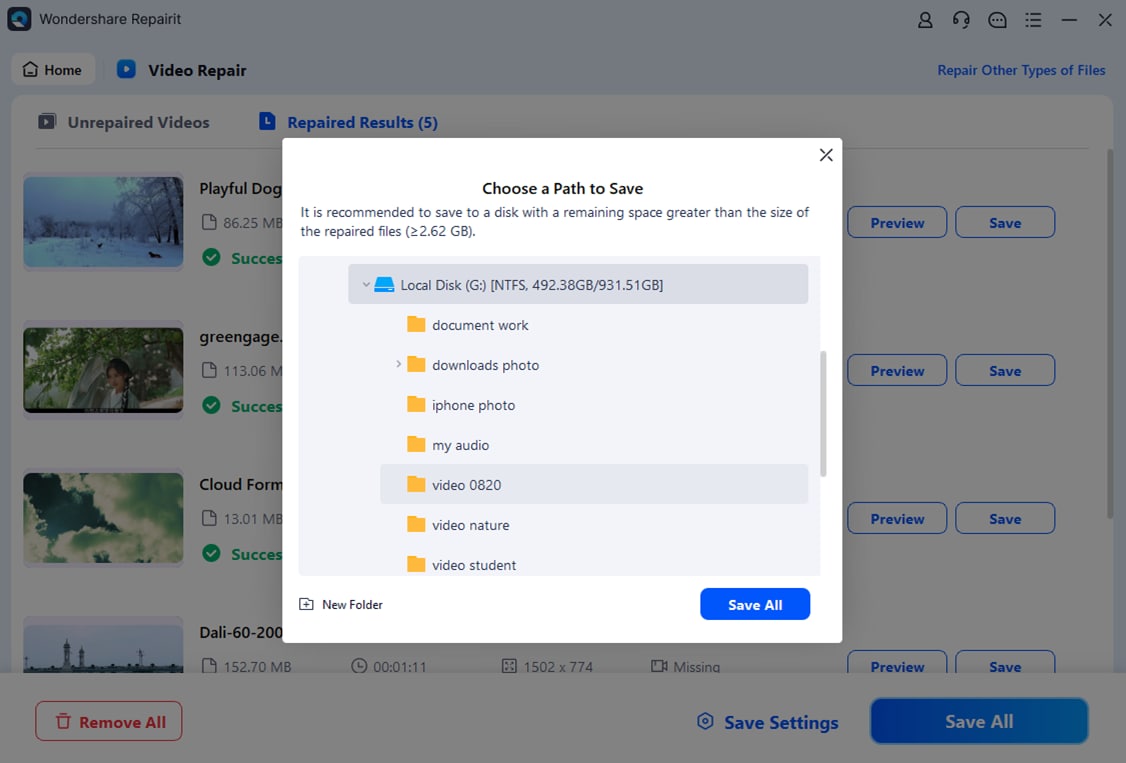
Preview and Repair Your Desired Data
Conclusion
The mts video format is a high-quality AVCHD container widely used by camcorders to store 1080p footage with efficient compression. While it delivers excellent image quality, it can be less compatible with some players and devices, making it important to know how to open MTS files and convert them to MP4 when needed.
When recordings become unplayable or partially damaged, relying on manual tricks alone is rarely enough. A professional repair tool like Wondershare Repairit simplifies recovery by scanning, repairing, and letting you preview results in a few guided steps, helping you protect irreplaceable videos with minimal technical hassle.
Next: What Is Mxf File
FAQ
-
1. What is an MTS file used for?
An MTS file is a high-definition video container based on the AVCHD standard. It is mainly used by digital camcorders to store 1080i or 1080p recordings, delivering high image quality with efficient H.264 compression and multi-channel audio. -
2. Why will my MTS file not play on my computer?
An MTS file may not play if your media player lacks the required codecs, the video was only partially copied from the camera, the storage device has errors, or the file structure is corrupted. Trying another player like VLC, recopying from the original card, or using Repairit to repair the video often resolves the issue. -
3. How can I convert MTS files to MP4 without losing quality?
Use a desktop converter or video editor that supports MTS input and MP4 output. Choose a high bitrate, keep the same resolution and frame rate, and use a quality-focused preset. Tools such as HandBrake, FFmpeg, or professional editors can convert while preserving most of the original quality. -
4. Can a corrupted MTS file be repaired?
In many cases, yes. Dedicated repair software like Wondershare Repairit can scan damaged MTS files, rebuild headers, and reconstruct audio and video streams to create a new playable copy. Success depends on how severely the file is damaged, but lightly or moderately corrupted clips are often recoverable. -
5. Is it safe to delete MTS files after converting them to MP4?
If storage space is limited, you can delete MTS files after confirming that the converted MP4 versions play correctly and meet your quality needs. However, for critical projects or irreplaceable memories, keeping the original MTS recordings on a backup drive is recommended as an extra layer of protection.




