
 TL;DR:
⚡ Quick Fix: Fix Where Winds Meet Crashing or Not Loading
Run Steam as Administrator: Restart Steam with admin rights so the game can access required folders and launch files properly.
Reduce Software Conflicts: Disable Steam Overlay, close heavy background apps, and lock FPS at 60 to lower system stress during loading.
Repair or Reinstall Game Files: Verify game files in Steam, switch DirectX with -dx11 or -dx12, or reinstall the game if crashes continue.
Repair Corrupted Game Videos: If crashes damage recorded gameplay clips, use Repairit video repair tool to restore frozen, broken, or unplayable footage.
Ask AI for a summary
 ChatGPT
 Perplexity
 Gemini
 Claude
 Grok
Grok
"Where Winds Meet" often crashes when the game loads new areas or handles heavy tasks. Many players face long loading screens that slow progress and break normal gameplay. These problems also appear when game files become damaged or when certain settings cause conflicts. Moreover, low system performance can also freeze the game during demanding scenes.
In such cases, players need simple steps that fix "Where Winds Meet crashing and not loading" issues fast. Crashes seem random, but they follow clear patterns across devices, which can be fixed using the right set of solutions.
Table of Contents
-
- Solution 1. Run Steam as Administrator
- Solution 2. Disable Overlays and Background Apps
- Solution 3. Verifyng Game Files For Making Them Operable
- Solution 4. Lock FPS at 60
- Solution 5. Switch DirectX Version
- Solution 6. Use the Lite Version Instead of Steam's Standard Build
- Solution 7. Reinstall the Game
Part 1. Where Winds Meet: Game Overview and Popularity
Where Winds Meet is a free, open-world wuxia RPG set in China with exploration, combat roles, and lifestyle paths. In addition, the co-op play option lets friends travel together and enjoy wide open areas easily; however, it is not fully available in all regions and builds. Many players praise the world design, strong story moments, and smooth gameplay. This helped the game grow fast after launch and reach millions across platforms worldwide.
Where Winds Meet Not Launching: Common Causes
Many PC users report "Where Winds Meet not launching" errors linked to system, driver, or file issues. Below are the most common causes, explained clearly for quick understanding:

- File Corruption: Broken game files can stop the launcher from working at the start. Bad files block loading and make the game close very quickly.
- Driver Issues: Old GPU drivers can cause the game to crash during early loading. Faulty drivers stop graphics from working and block the first screens.
- Antivirus Blocks: Antivirus tools may mark game files as unsafe and stop them from running. When files get blocked, the launcher cannot open the game at all.
- Missing Runtimes: Missing Visual C++ or DirectX files can break the game at startup. Important files cannot load, so the game stops before anything appears.
- Hardware Limits: Weak hardware may freeze the game during the first loading screen. Low power can stop progress and prevent new areas from loading.
Part 2. Where Winds Meet Stuck on Load? Here's How to Solve It
Review the fixes below to solve the "Where Winds Meet stuck on loading" issue:
Solution 1. Run Steam as Administrator
Running Steam as an administrator gives the launcher full control over needed folders. Furthermore, this permission lets the game save temporary files without Windows blocking actions. This mode also helps Where Winds Meet open smoothly on stricter Windows setups. Below are clear steps you can follow to enable administrator mode on your system:
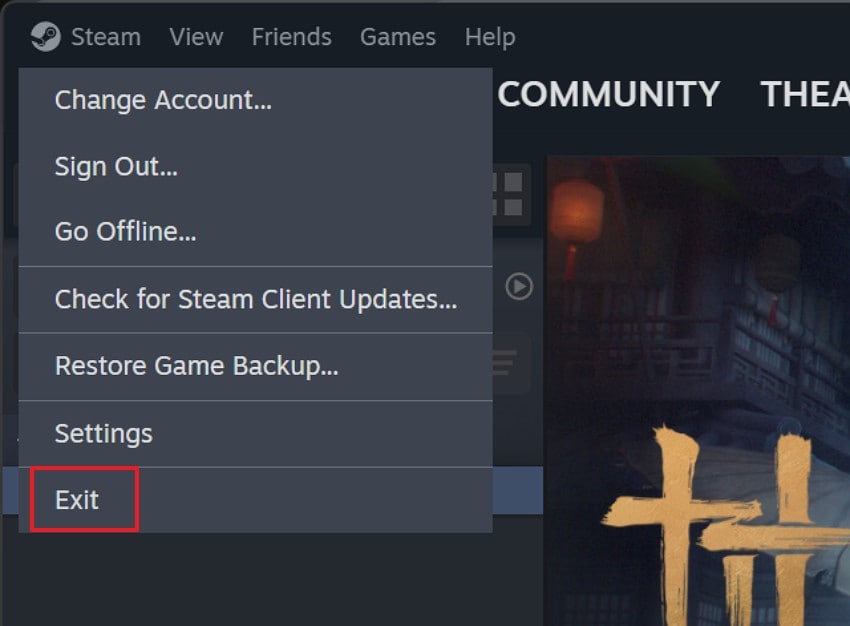
Step 1. First, click on the "Steam" and choose the "Exit" option to turn off Steam completely.
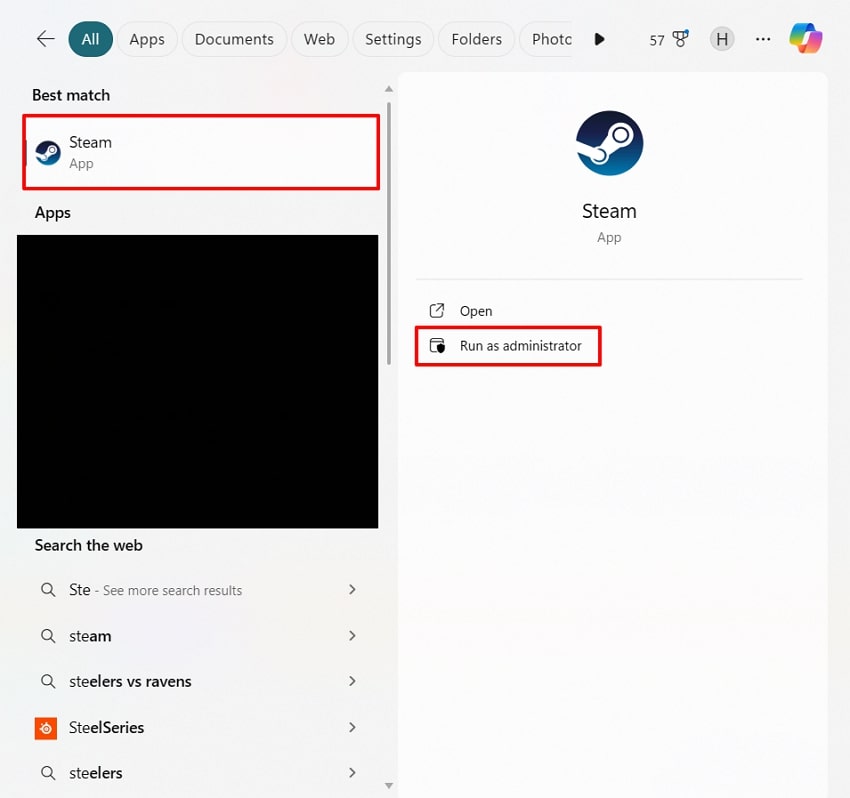
Step 2. Next, search for Steam in the search bar of your PC, right-click on it to further choose the "Run as Administrator" option.
Solution 2. Disable Overlays and Background Apps
Turning off overlays removes extra layers that interfere with the game's loading process. However, closing heavy apps also frees memory and lowers GPU stress during startup. It helps reduce most "Where Winds Meet not launching" problems triggered by software conflicts. Follow these next steps to turn off overlays and remove background apps affecting game loading:
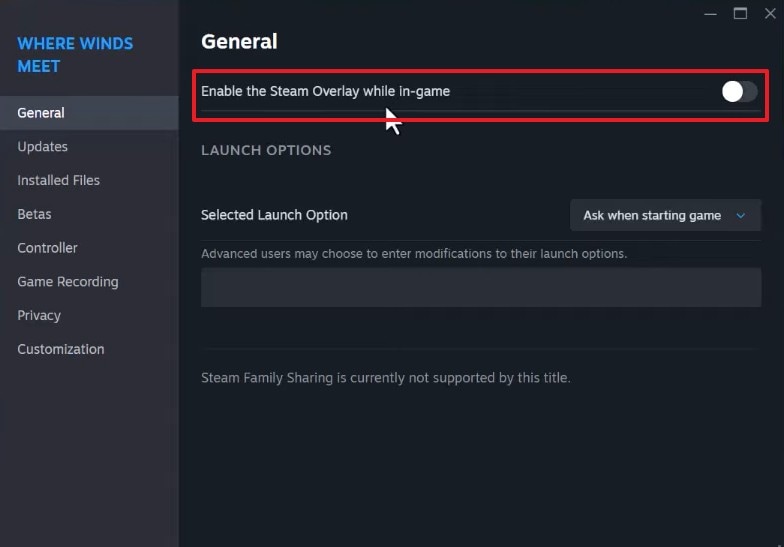
Step 1. Access Steam, go to "Properties," navigate further into the "General" section, and turn off "Enable the Steam Overlay while in-game" toggle using the slider.
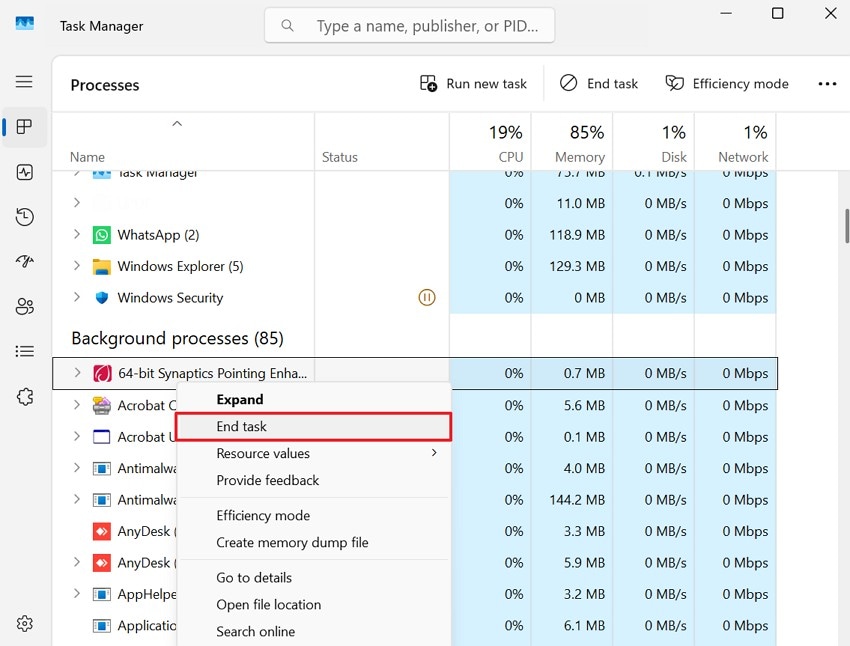
Step 2. Proceed into the "Task Manager," right-click the heavy-duty background apps causing conflict, and select "End task" to close interfering programs.
Solution 3. Try Verifying Game Files For Making Them Operable
Verifying game files within Steam scans the installation and replaces files that no longer load correctly. This process ensures every asset loads smoothly when the game starts or switches scenes via Steam. It reduces "Where Winds Meet crashing" problems linked to missing or damaged files. Consider following the instructions below to scan your game files and replace any broken data:
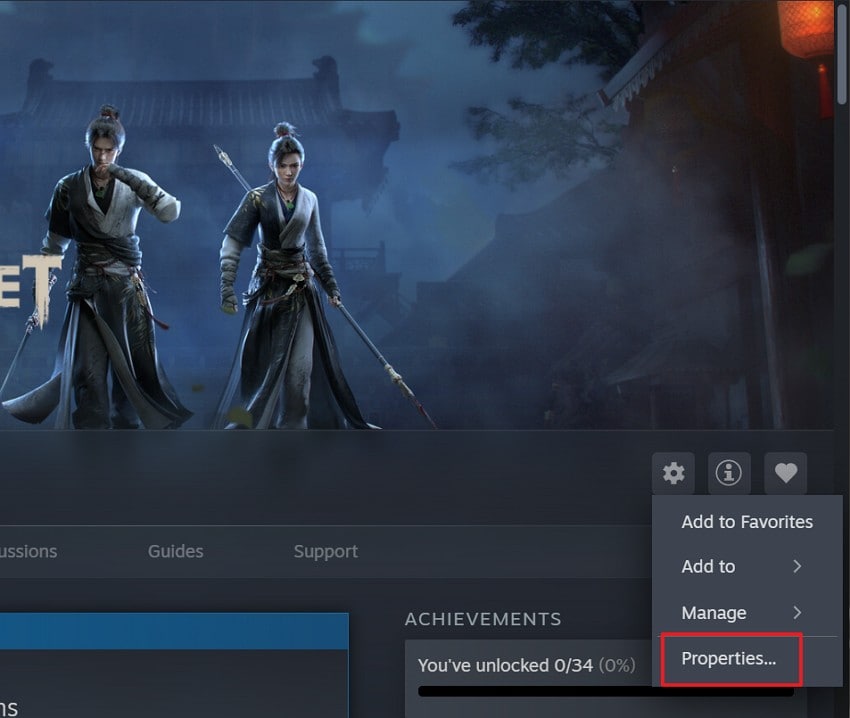
Step 1. Access "Where Winds Meet" in Steam, click on the "Settings" icon, and select "Properties" from the list.
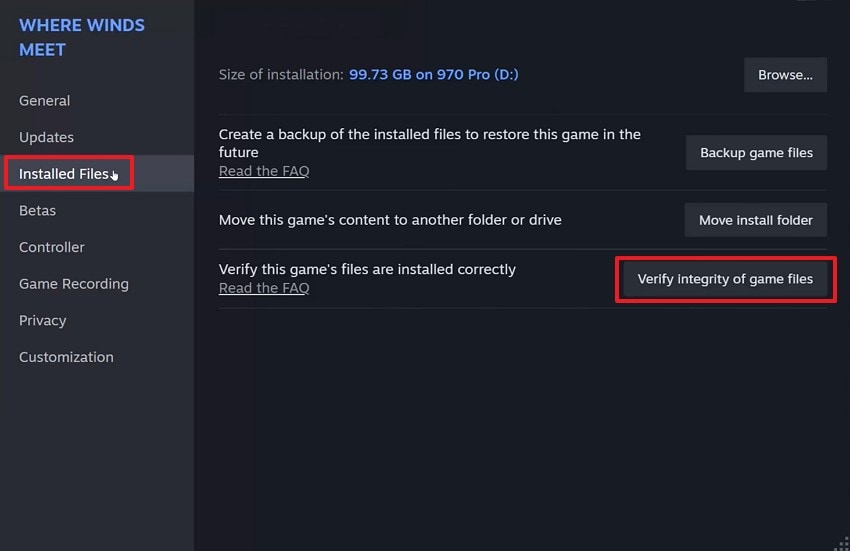
Step 2. Next, choose the "Installed Files" section on the left and click on the "Verify integrity of game files" option to begin the process.
Solution 4. Lock FPS at 60
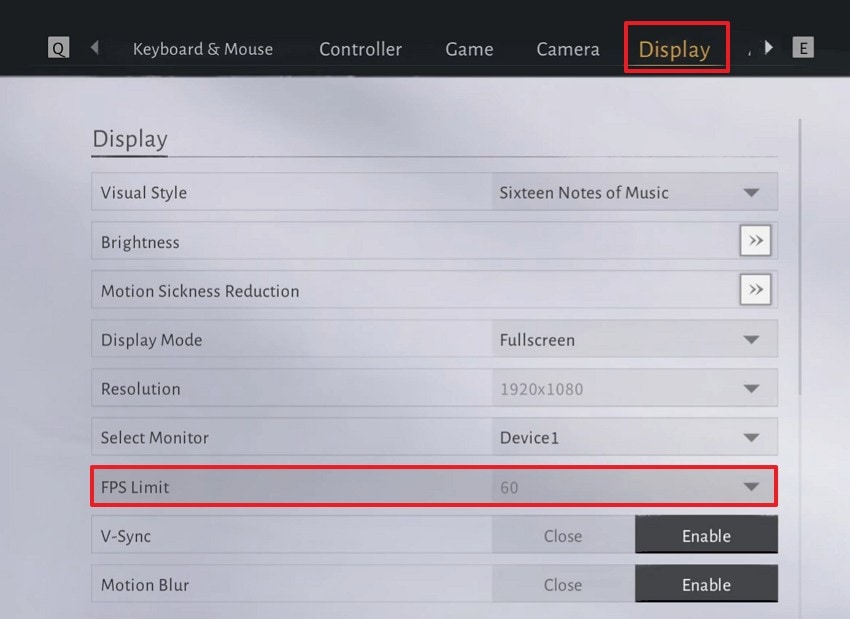
Locking FPS prevents hardware spikes from appearing during long or heavy loading screens. Meanwhile, stable frame pacing keeps heat low and improves overall system behavior. Moreover, it lowers "Where Winds Meet not loading" errors caused by unstable hardware performance. Follow the steps below to apply a steady frame limit that supports smoother loading screens:
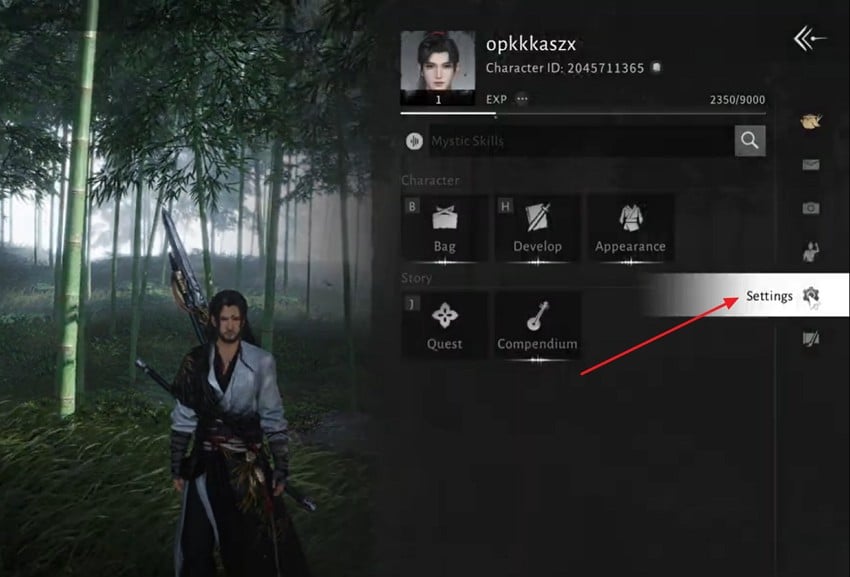
Step 1. First, access the in-game menu and click "Settings" on the right side of the character screen.
Step 2. Next, go to the "Display" tab, find the "FPS Limit" option, and select "60" from the dropdown menu to apply the cap.
Solution 5. Switch DirectX Version
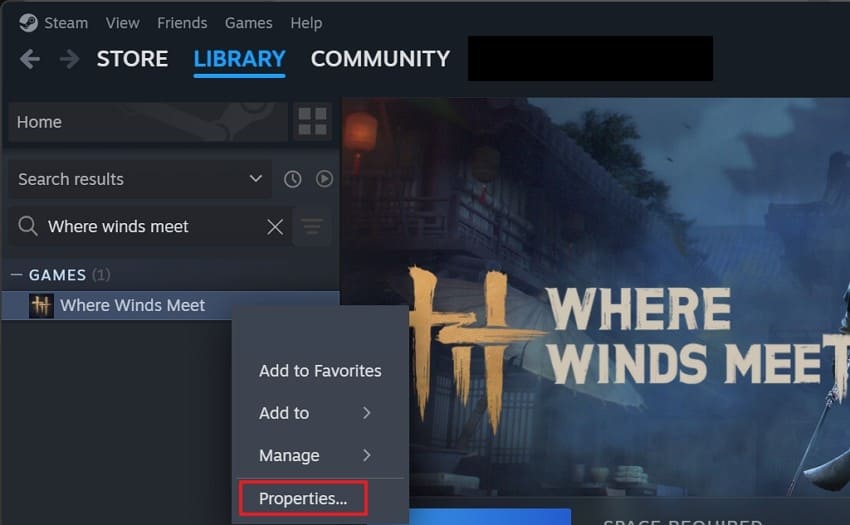
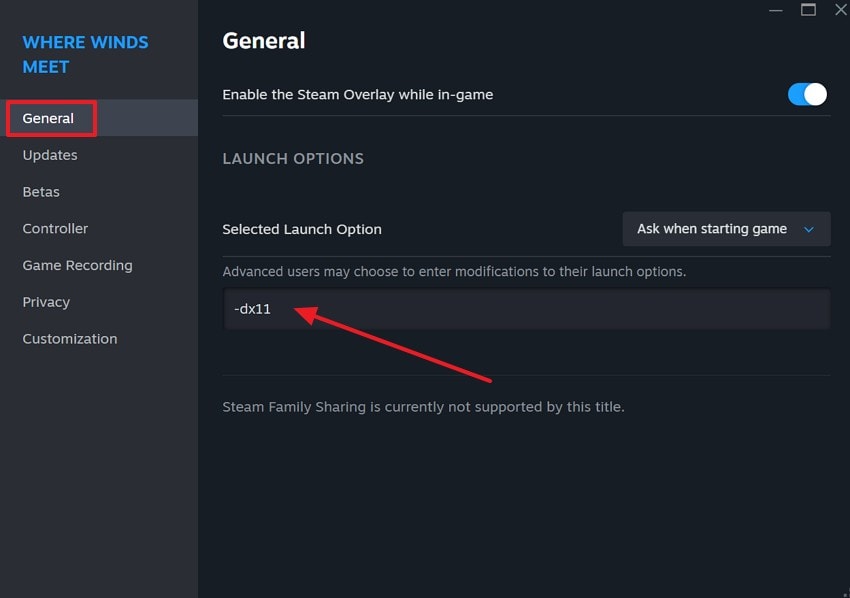
Switching to a different version of DirectX forces the game to use a different graphics method for loading. This avoids crashes caused by unstable drivers or buggy rendering behavior. Some systems run better using DirectX 11, while others prefer DirectX 12. Changing versions often removes loading freezes, affecting many Where Winds Meet players. Try the listed steps to switch DirectX versions and remove graphics issues during startup:
Step 1. Right-click on the game within Steam and choose the "Properties" option from the list to proceed further.
Step 2. Next, under the "General" tab, find "Launch Options," type "-dx11" or "-dx12" into the field, and close the window to apply the setting.
Solution 6. Use the Lite Version Instead of Steam's Standard Build
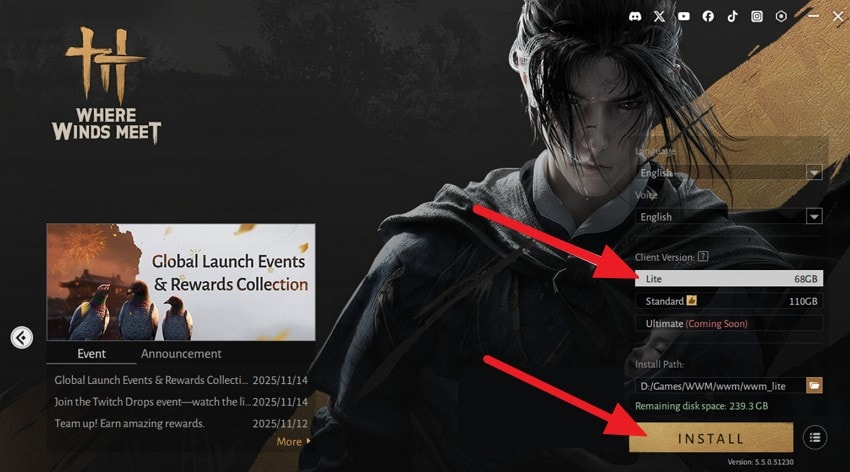
The Lite version uses smaller textures and lighter effects that reduce system stress. Plus, it loads zones faster on weaker hardware because it needs far less memory. Choosing Lite can lower "Where Winds Meet not loading" errors on low-power systems. Adhere to the steps below to install the Lite client and improve overall loading reliability:
Step 1. First, access the official Where Winds Meet website and click "PLAY PC NOW" to access the game launcher.

Step 2. Next, in the launcher, locate "Client Version," choose "Lite," select your install path, and click "INSTALL" to download the lighter build.
Solution 7. Reinstall the Game
A full reinstall removes broken files and leftover patches that cause hidden issues. This fix handles deeper problems that verification might miss during its checks. It reduces the "Where Winds Meet crashing" problems caused by long-term file corruption. Below are the complete steps you can follow to reinstall your game in a clean state:
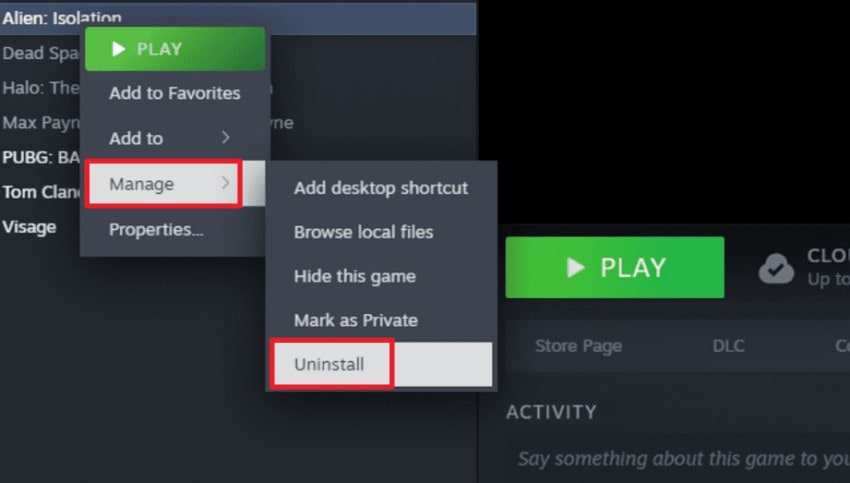
Step 1. Upon opening Steam, navigate to "Library," right-click on the game, and choose "Manage." After that, select the "Uninstall" option from the menu.
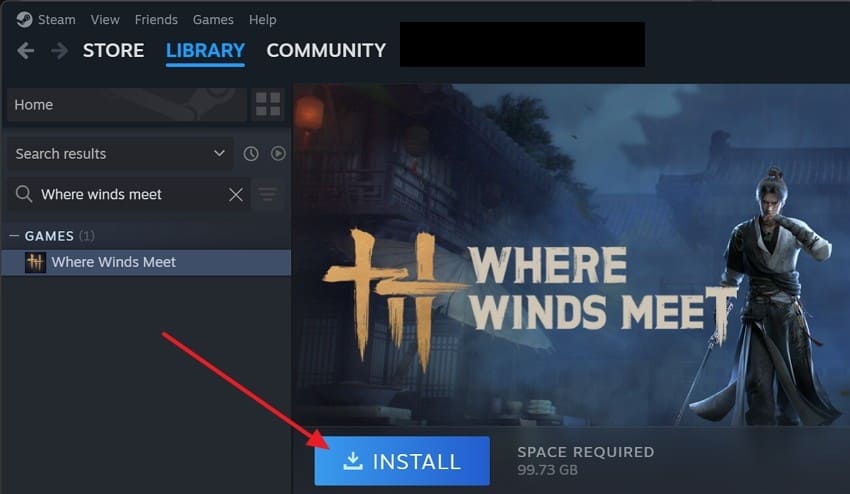
Step 2. Redirect to Steam's "Library" again, select the game, and hit the "Install" option to reinstall it safely.
Pro Tip. Corrupted Where Winds Meet Game Video? Get it Fixed With Repairit!
Recorded game videos can become damaged when crashes interrupt the saving process during play. This issue appears frequently in Where Winds Meet, especially when loading pauses disrupt the recording. Damaged clips may freeze, lose important sections, or fail to play correctly. Therefore, players require a simple and reliable method to repair unusable gameplay footage. Repairit offers a structured repair system designed to restore broken videos for smooth playback.
The software analyzes the corrupted recording, identifies faults within the file, and rebuilds damaged sections. A controlled repair process then stabilizes the clip and prepares it for normal viewing. In addition, users can preview the repaired video before saving to ensure the best result. Thus, this game video repair tool supports situations where recording interruptions create unplayable footage.
Key Features

Wondershare Repairit - Game Video Repair
1,010,994 people have downloaded it.
-
Video Format Support: Supports major formats like MP4, MOV, AVI, MKV, and additional professional recording standards.
-
Batch Repair Large Videos: Repairs multiple corrupted videos together and handles large file sizes without performance issues.
-
Advanced Repair Mode: Uses deeper structural analysis to rebuild severely damaged gameplay videos for stable playback.
Detailed Guide to Repair Corrupted Game Video with Repairit
Let's walk through the step-by-step guide to fix the corrupted game videos easily with Repairit:
Step 1. Add Your Corrupted Game Video
First, choose "Video Repair" from the left sidebar, then add the corrupted video, and hit the "Start" button to initiate the repair.

Step 2. Start the Repair Process
Once all corrupted videos appear under the "Unrepaired Video" tab, select the "Repair" button to start the process.

Step 3. Preview and Save the Repaired Video
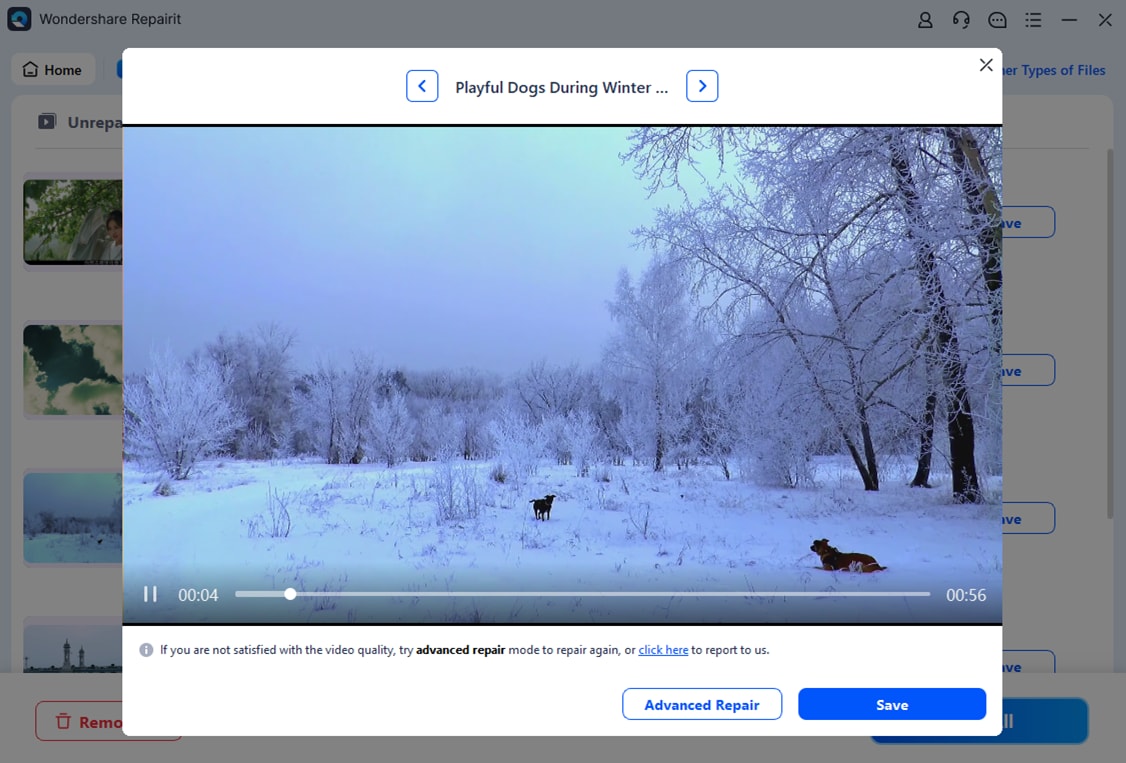
Lastly, click the video thumbnail to open the preview window. If the results are satisfactory, select the "Save" button to export the repaired video to your device.
Repair Corrupted Where Winds Meet Game Video
 Security Verified. Over 7,302,189 people have downloaded it.
Conclusion
To conclude, crashing and "Where Winds Meet not loading" issues often come from file errors, drivers, or system conflicts. In this article, we explored the main causes and shared practical fixes that improve stability and reduce loading failures. When gameplay crashes corrupt saved recordings, Repairit provides a reliable way to repair damaged videos and keep your captured footage usable.
FAQs
-
1. Why does Where Winds Meet keep crashing during gameplay?
Crashes often occur when game files break or GPU drivers fail during rendering tasks. These issues disrupt normal loading routines and interrupt gameplay until proper fixes are applied. -
2. What causes the Where Winds Meet not loading error on PC?
This error appears when hardware limits, missing runtimes, or corrupted resources block early loading. Such faults stop the game from reading assets needed for entering new regions. -
3. How can I fix slow-loading screens in Where Winds Meet?
Improving loading speed requires checking game files, reducing background tasks, and lowering system strain. These steps help the game load assets smoothly without repeated stalls or freezing.




