
Many PC players face a launch failure when the "Failed to Load xgameruntime.dll" error appears. The issue comes from the XGameRuntime package, which controls game parts and sections. When its main DLL goes missing, the launcher cannot load the needed runtime files.
This stops online features, controller inputs, and game assets from starting. However, the fix usually needs to reinstall the runtime package or update game files. This guide explains each method to help you bring back normal game startup.
Table of Contents
Part 1. Understanding "Failed to Load XGameRuntime DLL" Error
This error shows up when Windows or the game cannot open or trust the XGameRuntime file. This file helps many Xbox and PC games start important game actions. When the file goes missing or gets corrupted, the game cannot read the parts it needs to start. Some games also stop loading if Windows blocks the file for safety reasons. In every case, the game fails even before the first screen appears.
Why "Fail to Load XGameRuntime DLL" Happens
To better understand this "fails to load xgameruntime.dll" error, it helps to look at the following main causes behind it:
- Missing File: Windows cannot read the needed file during the game launch process. The game stops loading because the needed file fails to respond.
- Broken Runtime: Gaming Services become damaged and stop helping the game load correctly. This breaks the link between Windows and the game's required files.
- Driver Issues: Old drivers create errors when the game asks for needed system parts. Updated drivers fix missing links that stop games from starting smoothly.
- Security Block: Antivirus tools sometimes block the file during game loading steps. The game cannot continue because the file gets marked as unsafe.
- Wrong Version: Windows loads the wrong copy of the file during game startup. This broken copy stops the game from loading needed functions correctly.
Part 2. How to Fix "Failed to Load XGameRuntime DLL" Error - 5 Ways to Try!
After understanding the issue, the following simple fixes can help you solve the XGameRuntime DLL file issue:
Fix 1. Repair or Reset Gaming Services
When the "Failed to Load XGameRuntime.dll" error appears, Gaming Services may have damaged files. Repairing or resetting this app rebuilds the parts Windows uses to load the runtime. This helps restore missing sections and fixes loading issues for many Xbox and PC games. Now follow the step-by-step guide below to repair or reset Gaming Services:
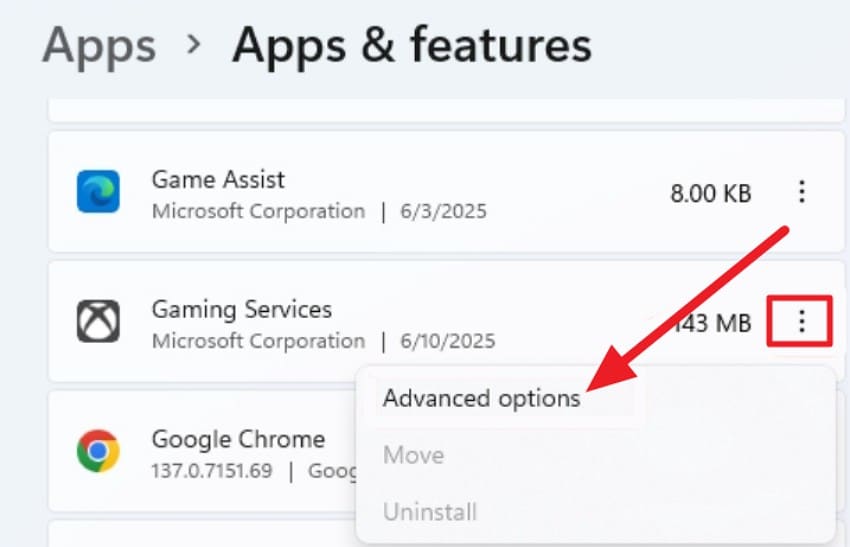
Step 1. First, navigate to your Windows "Settings" to further select the "Apps > App & Features" from the list. After that, scroll to "Gaming Services" and click on the "Three Dots" to access "Advanced Options."
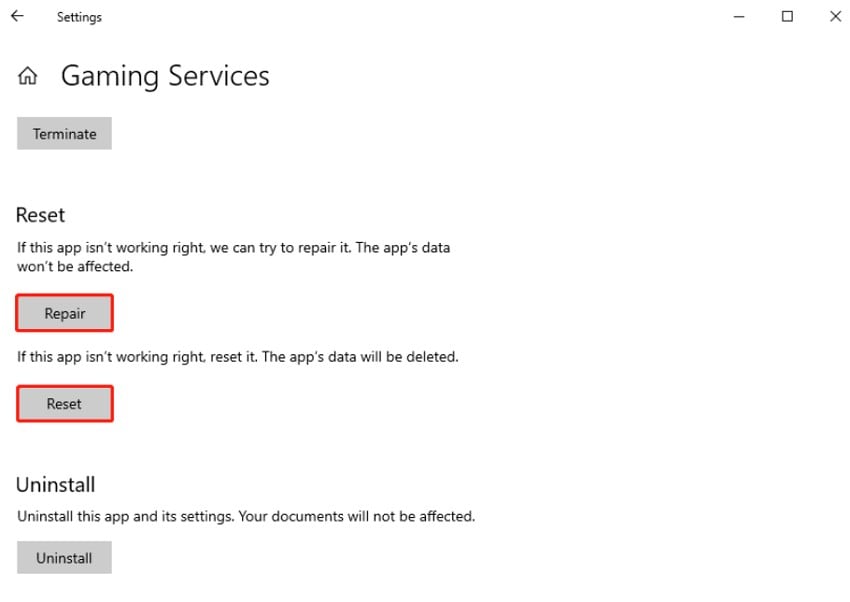
Step 2. Next, on the Gaming Services page, scroll to "Repair" first. If the issue persists with your game, click "Reset" to rebuild the app completely.
Fix 2. Reinstall Gaming Services (PowerShell Method)
Some "Fail to Load XGameRuntime DLL" errors need a complete removal of Gaming Services using PowerShell. This method deletes broken files, old entries, and incomplete updates. Moreover, a clean reinstall from the Microsoft Store installs fresh components that Windows needs to load the runtime correctly. Consider following the simple steps below to reinstall Gaming Services with PowerShell:
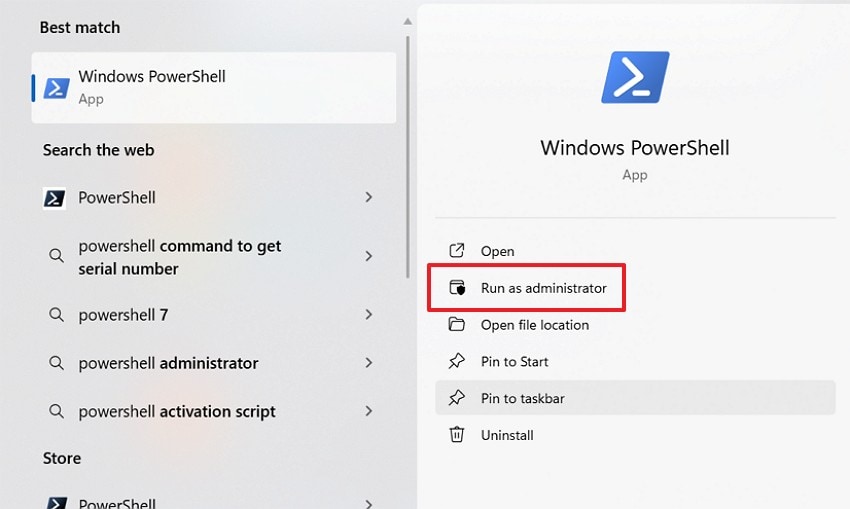
Step 1. Start by accessing the "Start" menu, typing PowerShell, right-clicking, and choosing "Run as administrator."
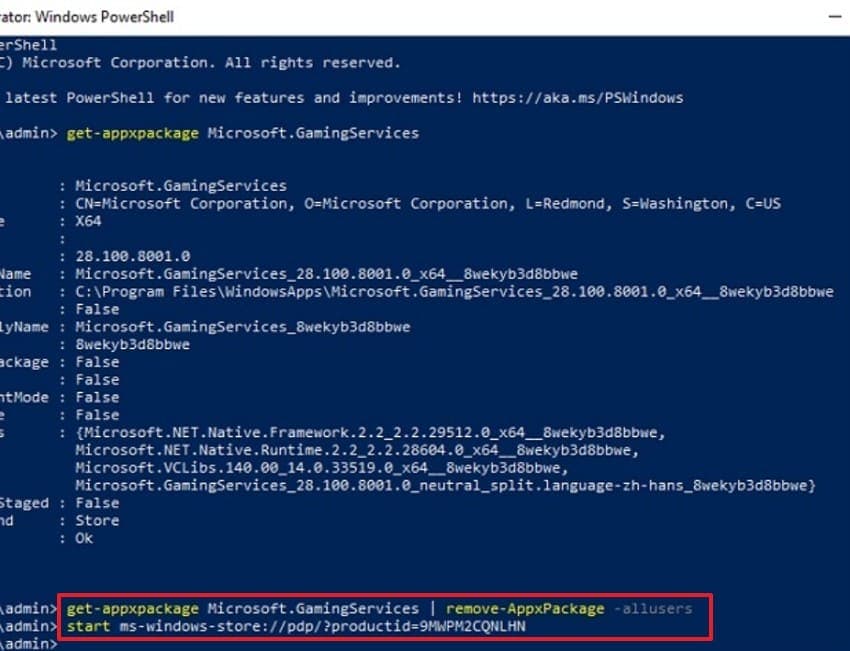
Step 2. Next in the command window, type these commands: "get-appxpackage Microsoft.GamingServices | remove-AppxPackage -allusers" then press "Enter," and later wait for PowerShell to remove the Gaming Services files. After that, run this command "start ms-windows-store://pdp/?productid=9MWPM2CQNLHN" to reinstall Gaming Services through the Microsoft Store.
Fix 3. Whitelist the Game Folder in Antivirus/Defender
Antivirus tools sometimes cause the "Failed to Load XGameRuntime.dll" error by blocking or hiding the file. Adding the game folder as an exclusion prevents it from being scanned or restricted. Above all, this lets Windows read the runtime smoothly and stops repeated blocking issues. Adhere to the steps below to whitelist the game folder in your antivirus:
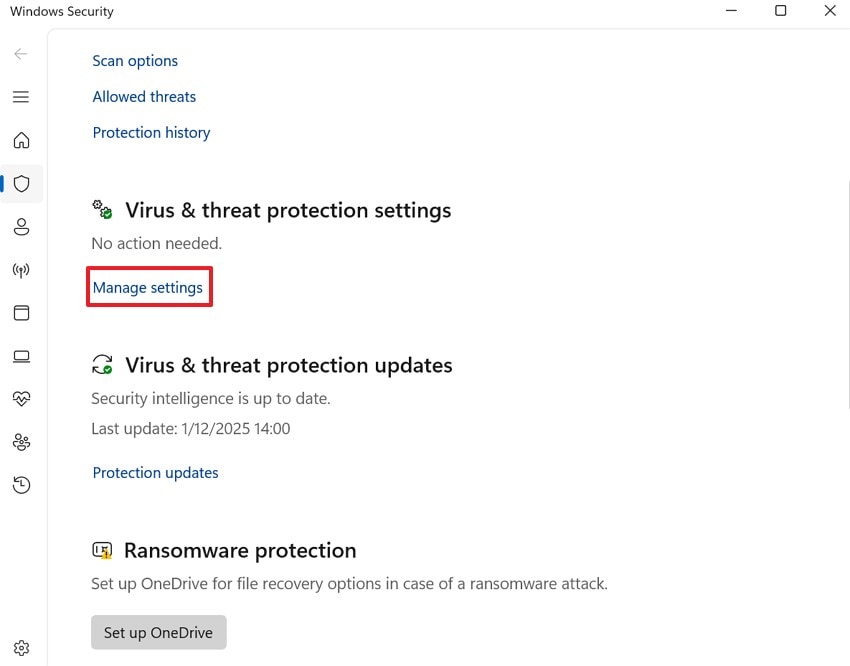
Step 1. First, navigate to "Virus & threat protection" in "Windows Security," then click on "Manage Settings."
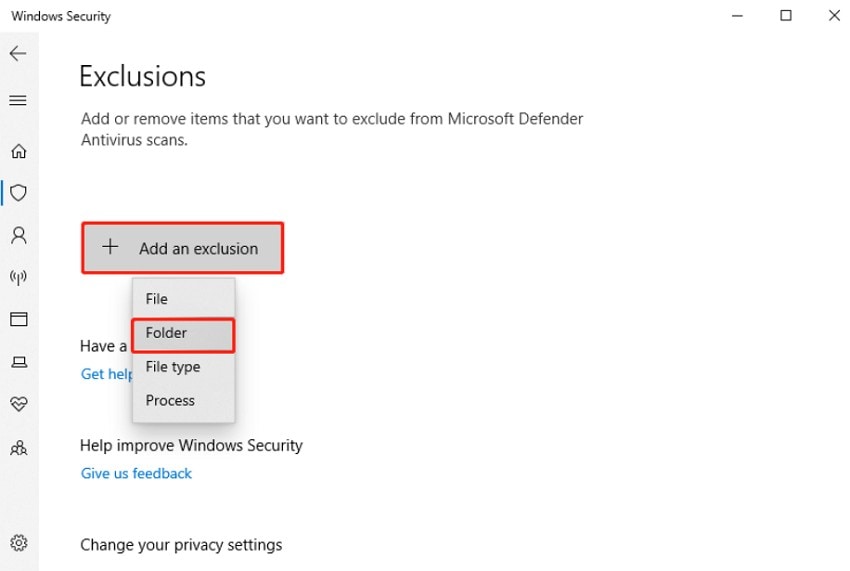
Step 2. Later, scroll down to "Exclusion," click "Add an exclusion," and choose "Folder" to select your game's installation folder to stop Windows Defender from blocking its files.
Fix 4. Update Drivers and Windows
Outdated system drivers can trigger a "Fail to Load XGameRuntime DLL" message during launch. Updating Windows, graphics drivers, and system files restores the needed parts for the runtime. Plus, these updates also fix known bugs that stop DLLs from loading. Let's walk through the stepwise guide below to update Windows and all drivers:
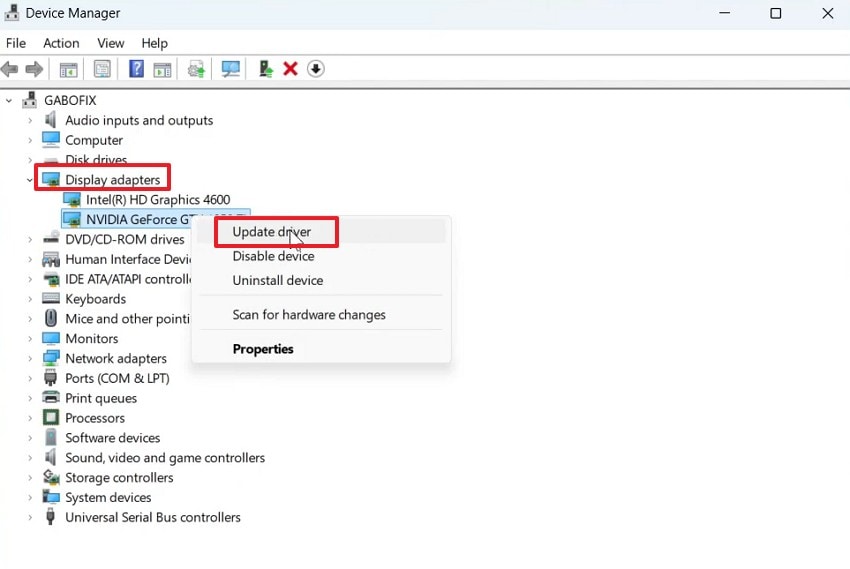
Step 1. Right-click on the "Start" button to select the "Device Manager" option from the list. Expand the "Display adapters" option, right-click on your graphics card, and choose "Update driver."
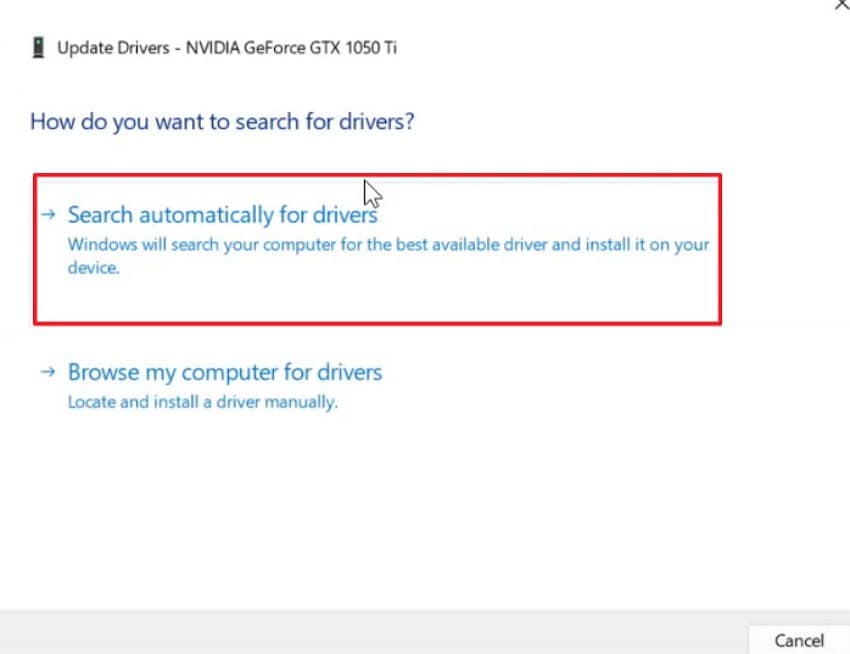
Step 2. Next, choose the "Search Automatically for Drivers" option to start updating the driver.
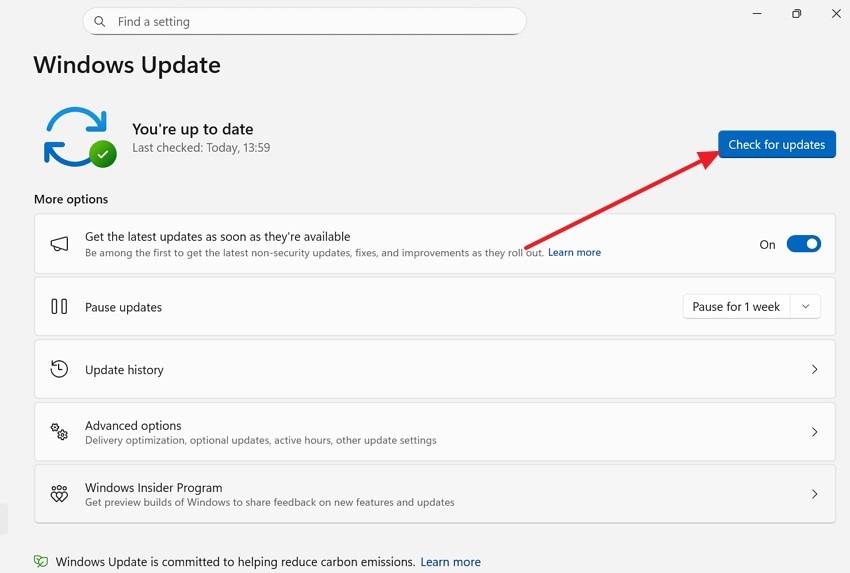
Step 3. To update your Windows, navigate to "Settings > Windows Update" and click on "Check for Updates."
Fix 5. Reinstall or Repair the Affected Game
A corrupted game installation may cause the "Failed to Load XGameRuntime.dll" error to appear. Repairing or reinstalling it restores clean game files, replaces damaged items, and fixes wrong copies of runtime files. To repair or reinstall the game, adhere to the steps below involving Steam:
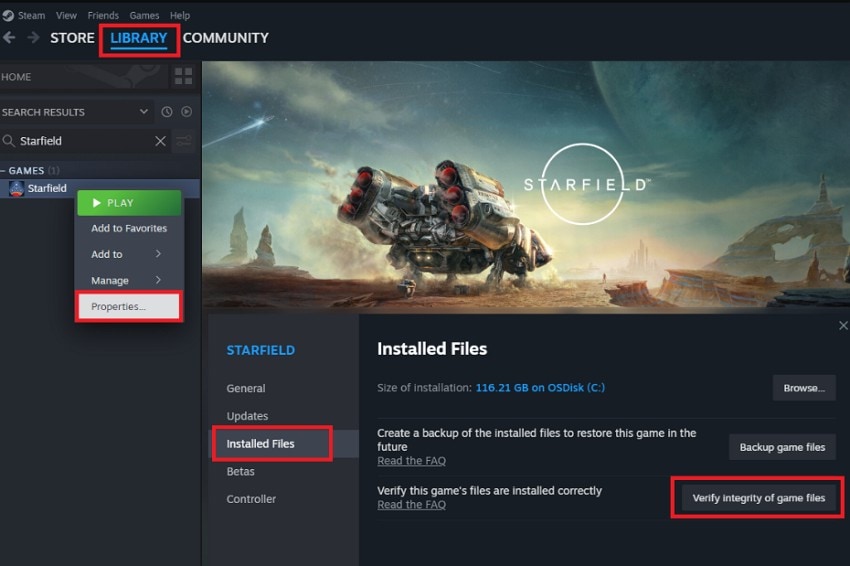
Step 1. Launch "Steam," navigate to your "Library," and right-click the game showing errors to select "Properties" from the menu. After that, choose the "Installed Files" tab and click "Verify integrity of game files" to repair missing or damaged files automatically.
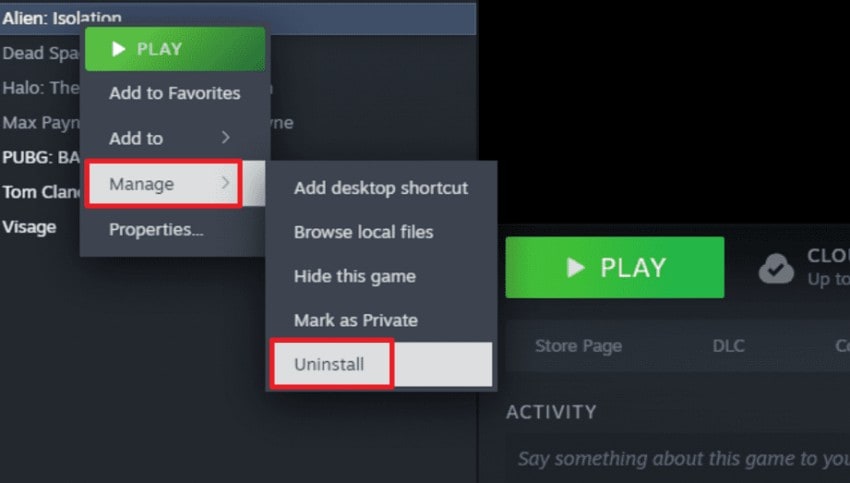
Step 2. If the issue continues, return to your "Library," right-click the game, choose "Manage" to further select the "Uninstall" option.
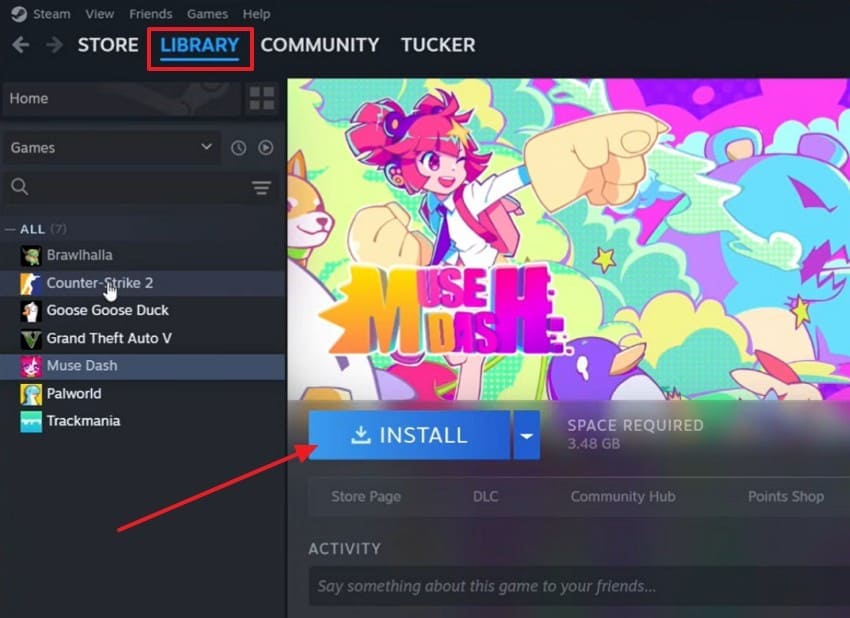
Step 3. After uninstalling the game from Steam, navigate to your "Library" to search for the game and hit the "Install" button to reinstall it.
Pro Tip. How to Recover Corrupted Game Files Easily Using Repairit
Game files can become damaged for many simple reasons, and even a small break can stop a game from opening. Many players face sudden crashes, missing files, or errors that freeze the screen. When this happens, built-in repair tools often cannot fix everything. At this point, you need a stronger solution that can scan deeper and repair files more safely.
This is where Repairit File Repair becomes very helpful. It checks damaged game files, fixes broken parts, and restores them with clear and simple steps. Then, it can solve issues caused by unreadable or incomplete files, including errors like "Failed to Load XGameRuntime.dll." With fast scanning and easy controls, Repairit makes recovering game files smooth and stress-free.
Key Features

-
Repair damaged files with all levels of corruption, including blank files, files not opening, unrecognizable format, unreadable content, files layout changed, etc.
-
Support to repair all formats of PDF, Word, Excel, PowerPoint, Zip, and Adobe files.
-
Perfectly repair corrupted files with a very high success rate, without modifying the original file.
-
No limit to the number and size of the repairable files.
-
Support Windows 11/10/8/7/Vista, Windows Server 2003/2008/2012/2016/2019/2022, and macOS 10.13~macOS 15.
Guide to Repair Corrupted Game Files With Repairit
Let's walk through the step-by-step guide below to repair the damaged game files with Repairit:
Step 1. Import the Corrupted Game Files to Proceed
Choose the "Add" button in the Document Repair tool to select the damaged game files. You can also drag and drop the files directly into the "Unrepaired Files" section.

Step 2. Initiate the Repairing Process
As the files appear in the list, press the "Repair" button at the bottom right. Afterwards, Repairit will start analyzing and fixing each file, showing progress for every item.

Step 3. Preview the Results & Save Them
Finally, when the repair completes, select "Preview" to check the repaired game files before saving. If the files look correct, click "Save" to store them or choose "Save All" for bulk recovery.

Repair Corrupted Game Files
 Security Verified. Over 7,302,189 people have downloaded it.
Conclusion
To conclude, the main issue appears when the "Failed to Load XGameRuntime DLL" error stops a game from loading correctly on Windows. In this article, we covered its causes, common signs, and clear fixes that help restore normal game launch and smooth runtime behavior. For deeper file damage that game tools cannot fix, Repairit remains a dependable option for safe game-file recovery.
Frequently Asked Questions
-
1. What causes the "Failed to Load XGameRuntime DLL" error?
This error appears when Windows cannot read important runtime files needed for games. It also happens when system drivers or Gaming Services become outdated or damaged. -
2. How can I fix missing or broken Gaming Services files?
Repairing or resetting Gaming Services restores the needed runtime parts used during game loading. If issues remain, a full reinstall replaces damaged components with fresh working versions. -
3. Can an antivirus cause this DLL loading problem?
Yes, some antivirus tools block runtime files and stop games from loading correctly. Adding the game folder as an exclusion prevents unwanted blocks during regular loading tasks.




