
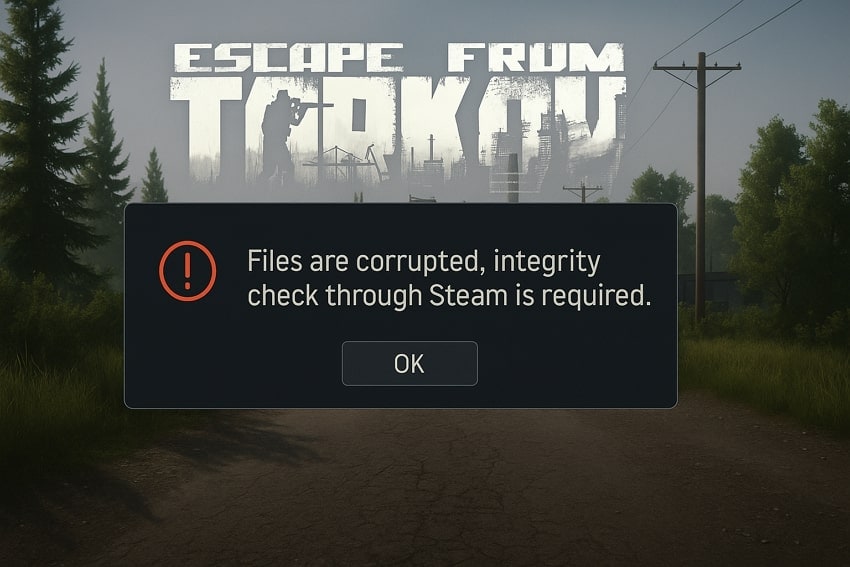
Gamers often report sudden problems that stop their fun and break their focus. Similarly, Escape from Tarkov players report issues with game files becoming corrupted. While it gets stressful, knowing why such mistakes occur will make you correct them quickly and safely. This article describes the tricks that can be used in both Steam and the official launcher for verifying game file integrity.
Table of Contents
Part 1. Why "Escape From Tarkov" Files Get Corrupted
Game files often break when something interferes with normal reading or writing processes. This section covers some issues that are behind the Escape from Tarkov files getting corrupted:
- Sudden Shutdown: Unexpected power loss during game updates can leave files incomplete. It results in broken or missing data in Escape from Tarkov’s folder.
- Faulty Hardware: Damaged RAM or hard drives cause errors when reading or writing data. These forced stops create broken files because the writing process ends.
- Driver Conflicts: Outdated GPU or other drivers cause crashes during file operations. This crash interrupts writing actions and leaves inconsistent data behind.
- Failed Patches: Interrupted downloads or launcher bugs cause mismatched or incomplete game files. These incomplete patches store half-written files that become corrupted.
- Launcher Cache: Corrupted launcher cache or manifest files misreport file status. Faulty records trigger incorrect rewrites, breaking essential data.
Part 2. Escape From Tarkov: Fix Corrupted Files and Restore Game Integrity
Gamers often face corrupted files that stop their fun and ruin their gameplay focus. Thus, in this part, we explain how to fix the "Escape From Tarkov: Error Files Are Corrupted, Integrity Check Through Steam Is Required" error using easy and direct methods:
Fix 1. Verify Game Files in Steam
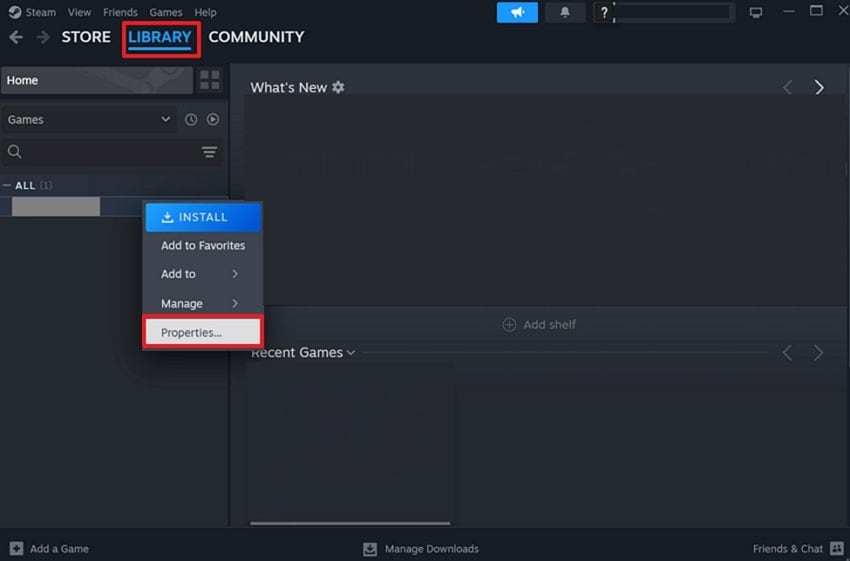
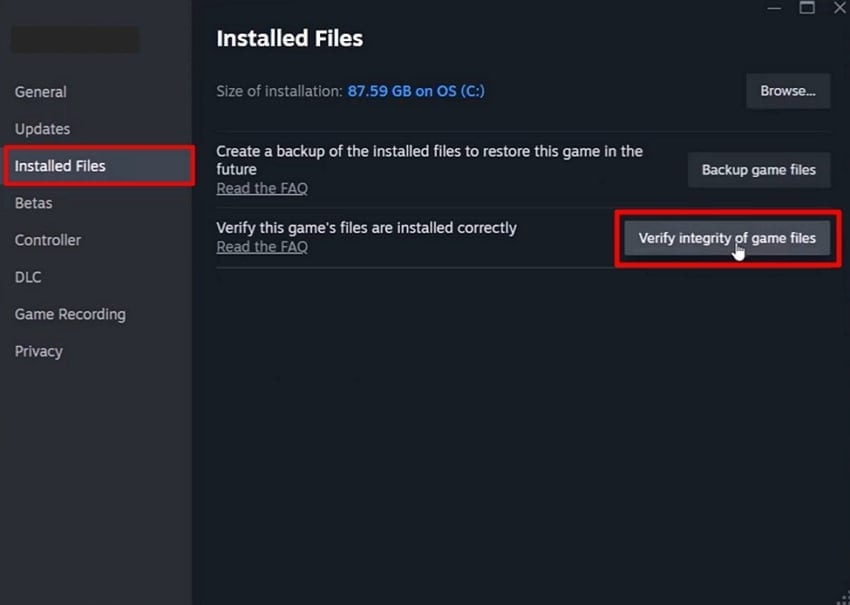
Verifying game files checks Escape From Tarkov’s installation for corrupted data. It compares each file to official Steam versions using checksums and removes corrupted files. Steam then downloads clean copies, fixing errors without a full reinstall. Plus, this process ensures Tarkov matches the original, unmodified release from developers. Hence, follow the steps below to verify game files in Steam:
Step 1. Head to the "Library" tab on Steam and right-click on the game to choose "Properties."
Step 2. Upon accessing it, choose the "Installed Files" tab and select the "Verify Integrity of Game Files" option.
Fix 2. Install and Link the Official EFT Launcher
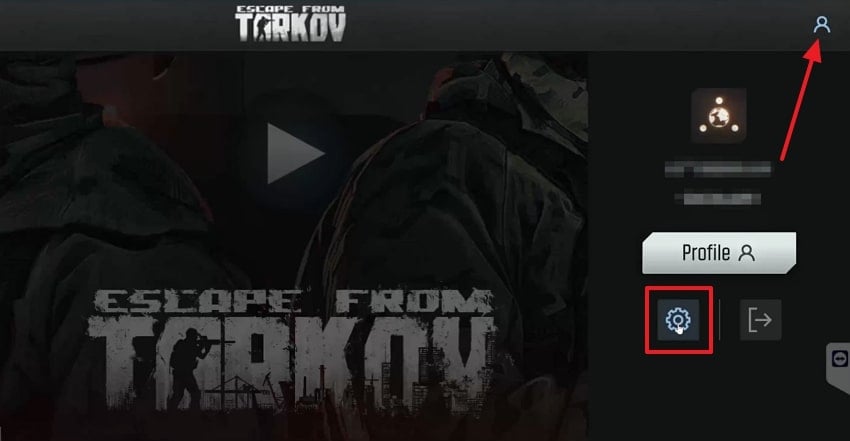
You can also install and link the official EFT launcher to manage your Escape from Tarkov game files. Additionally, the launcher keeps the game folder organized and forces repairs of corrupted data. It even maintains a manifest of proper files and versions, allowing integrity checks. Thus, go through the guide to link the official EFT launcher:
Step 1. To initiate, click on the "Profile" icon in the launcher and select the "Settings" icon.
Step 2. Upon accessing it, click on the "Downloadable Content" section.
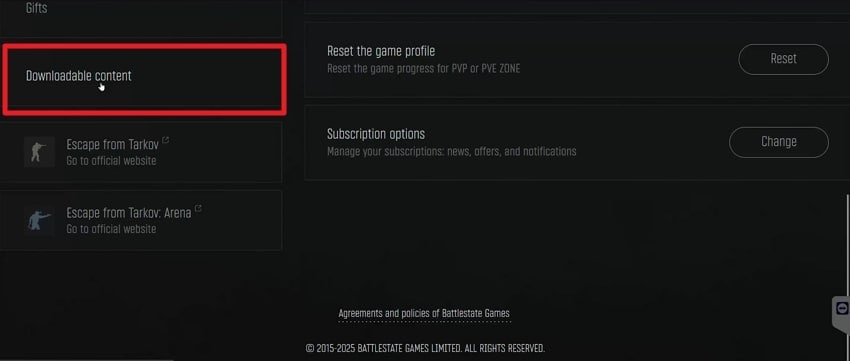
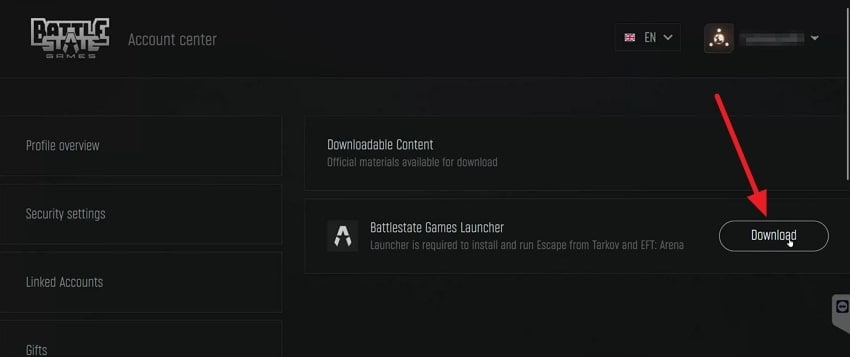
Step 3. After seeing the downloaded content, tap on the "Download" button. Later, locate the Steam installation path of Escape From Tarkov and connect it in the launcher settings.
Fix 3. Clear the EFT Launcher Cache and Run Its Integrity Check
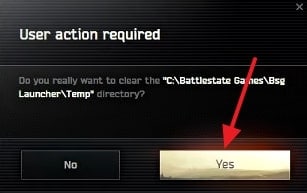
Clearing the EFT launcher cache is vital to maintaining Escape from Tarkov’s health. By removing this cache, the launcher creates fresh files, improving update reliability. When temporary data becomes damaged, it can prevent the game from launching or cause repeated integrity check pop-ups. This process removes corrupted temporary data that can cause errors or block updates. Thus, let's explore the guide to clear the EFT launcher cache:
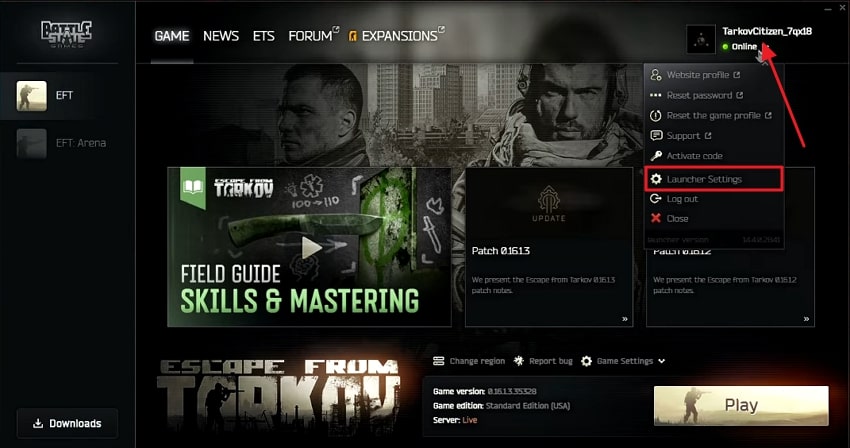
Step 1. First, click on the "Profile" icon and select the "Launcher Settings."
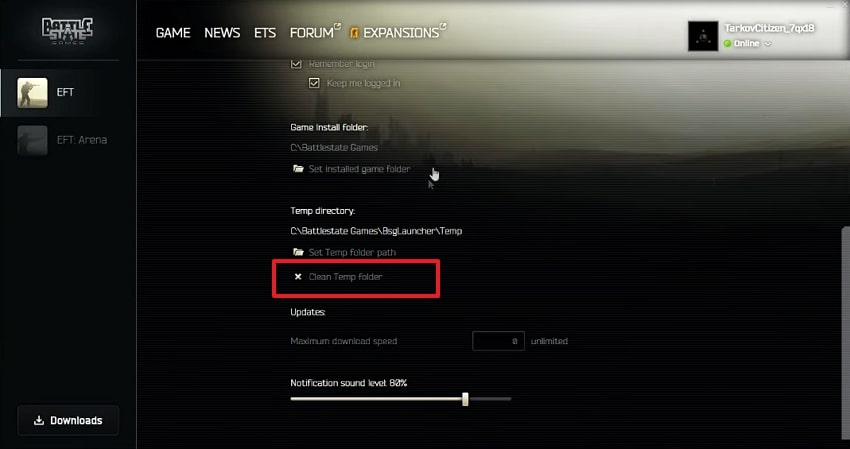
Step 2. After accessing it, click the "Clean Temp Folder" option.
Step 3. Lastly, press the "Yes" button to clear the cache of the game.
Fix 4. Restart PC and Relaunch via Steam
Restarting your PC clears temporary locks on Escape from Tarkov files by ending stuck processes and refreshing system memory. Relaunching the game through Steam then initiates fresh file verification against official servers, replacing damaged files if needed. Combined with EFT launcher checks, this provides added protection against corruption and works best after basic repair steps.
Fix 5. Fully Reinstall EFT and the Launcher if the Error Persists
When issues continue, a full reinstallation of Escape from Tarkov and its launcher may be required. This removes corrupted game and launcher files and installs fresh official versions. Reinstalling also resets the launcher cache and properly reconnects it to the game directory. Keep in mind that hardware faults or antivirus interference can still cause problems. Follow the steps below to reinstall EFT and the launcher correctly:
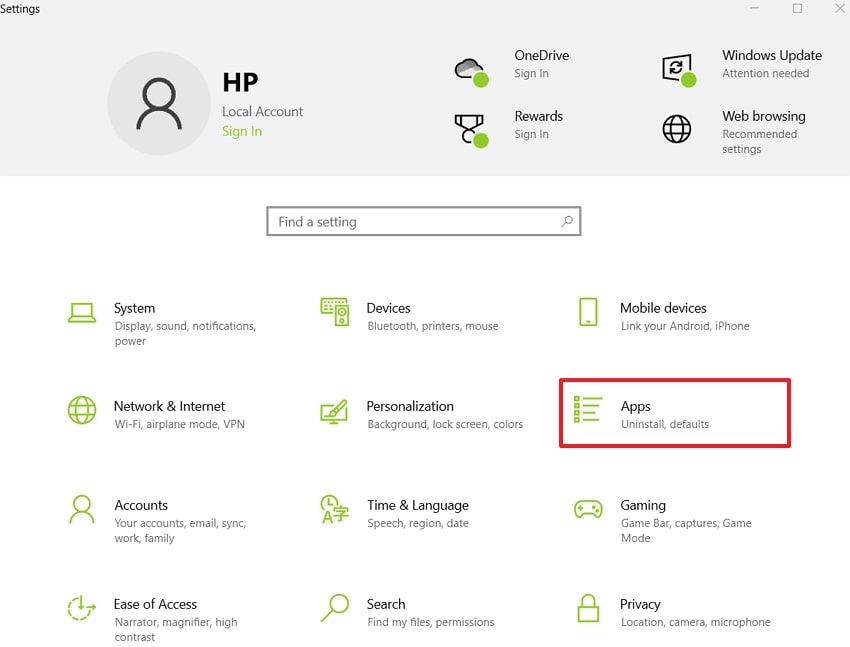
Step 1. Head to the "Settings" window on your computer and choose "Apps."
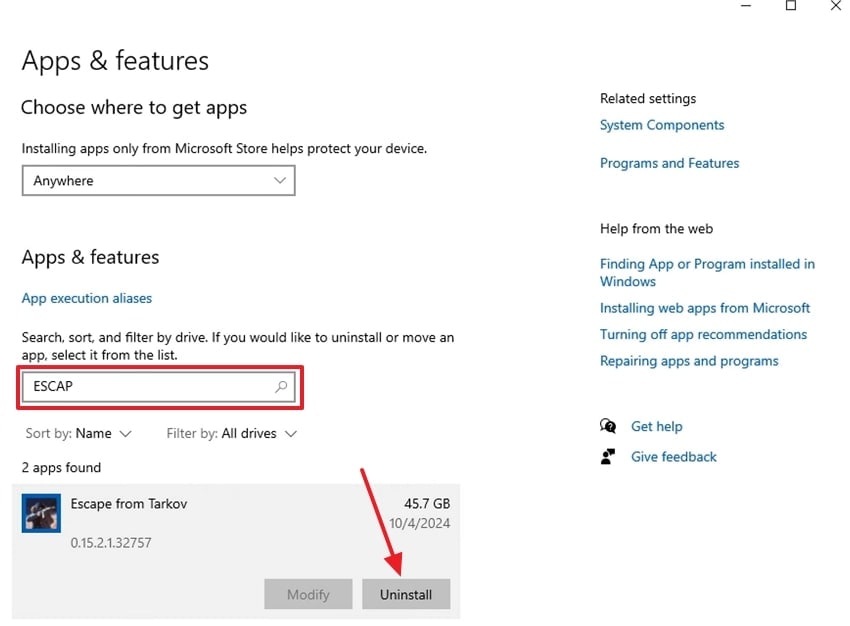
Step 2. After navigating it, search "Escape From Tarkov" and click the "Uninstall" button.
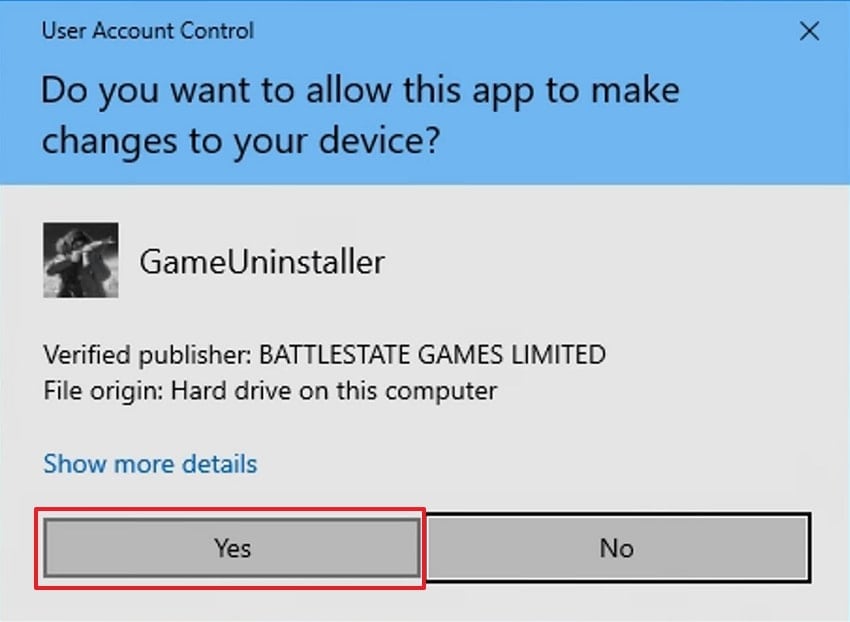
Step 3. At last, press the "Yes" button to uninstall the game from your PC.
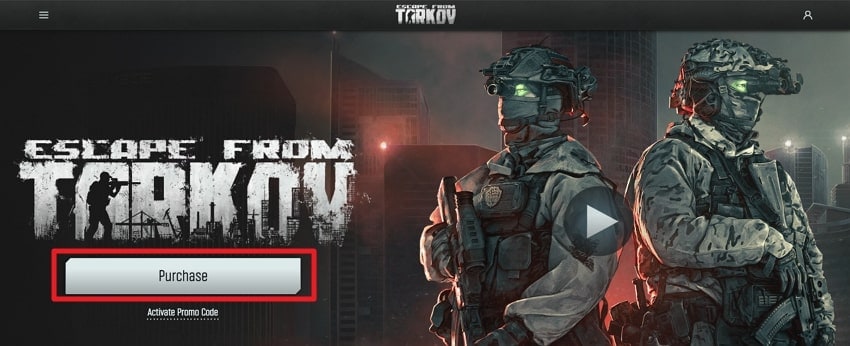
Step 4. Visit the official website of "Escape From Tarkov" and click the "Purchase" button. Buy one of the game editions in the store while logged into your account.
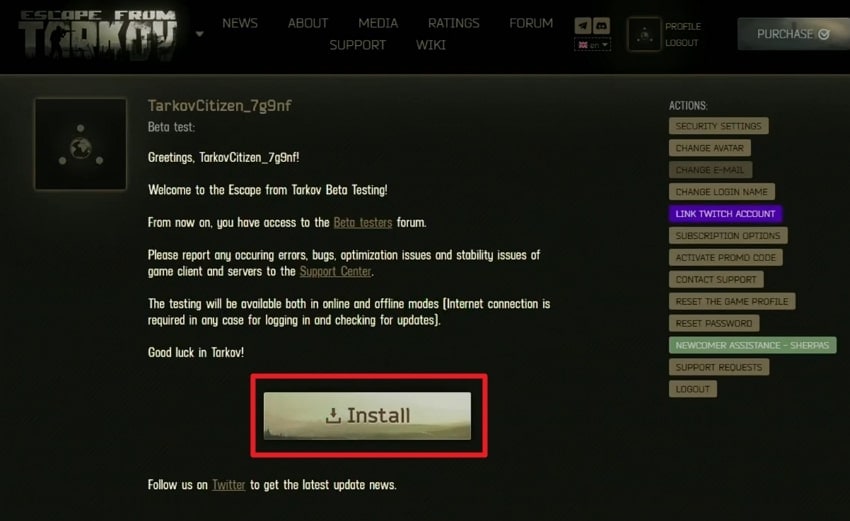
Step 5. After purchase, open your account/profile page on the website and click "Install."
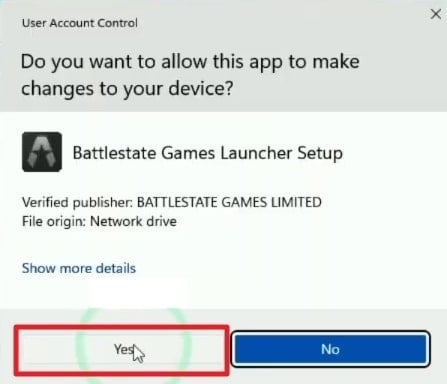
Step 6. Once the installation finishes, hit the "Yes" button and follow the on-screen instructions.
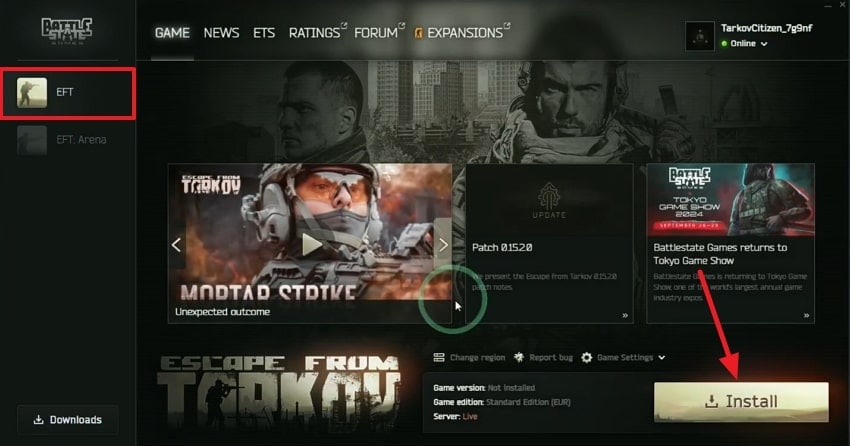
Step 7. After installing the game, enter your personal details to log in. Next, click the "EFT" section and press the "Install" button.
Pro Tip. Recorded "Escape From Tarkov" Gameplay and Got it Corrupted? Fix It Instantly With Repairit!
Many gamers play games and record videos to share them on social media to engage users. Sometimes, gameplay recorded files become corrupted and cannot be opened. In such cases, you should try Repairit Game Video Repair to resolve this issue and restore corrupted files. This advanced tool fixes recordings that show only black screens after gameplay. You can also repair over 25 additional video formats, such as MP4 and MKV.
Plus, it can even restore Escape from Tarkov recordings lost due to software crashes. Users can repair multiple video files at once, saving significant time and effort. Further, it removes unwanted noise and smooths visuals for a cleaner game recording. Repairit also enhances blurry game videos to restore clarity and sharpness. It also corrects videos where audio and video are out of sync during playback.
Key Features

-
Resolution Upscaling: Upscale videos up to 4K resolution, avoiding visible artifacts or distortion.
-
Frame Recovery: Fixes missing or skipped frames to ensure smooth, complete game playback.
-
Professional Mode: Allows working with professional formats like BRAW and CRM for editing.
Detailed Guide to Repair Corrupted Recorded Videos via Repairit
You need to go through the guide to repair damaged recorded game files via Repairit:
Step 1. Open Repairit’s Video Repair Tool
Launch Repairit and navigate to the "Video Repair" section. Next, click the "Start" button, then press "+Add" to import all corrupted recorded video files.

Step 2. Repair Your Damaged Recorded Videos
Once the files appear in the "Unrepaired Files" list, click the "Repair" button to begin the process.

Step 3. Save Repaired 4K Videos
After repair, use the "Preview" button to check each file. Then click "Save All" and "Save" to export them to your system with ease.

Repair Corrupted Recorded Game Videos Now
 Security Verified. Over 7,302,189 people have downloaded it.
Conclusion
To conclude, repairing corrupted Escape from Tarkov files improves stability and minimizes crashes. This guide covered 5 effective methods to resolve the “Error Files Are Corrupted, Integrity Check Through Steam Is Required” issue. While most problems can be fixed with these steps, deeper corruption may still affect gameplay recordings. In such cases, Repairit is essential for restoring corrupted videos without quality loss.
Frequently Asked Questions
-
Q1. Can an antivirus tool forever damage Escape From Tarkov files?
Strict antivirus settings may block or quarantine important game data during required updates. This interference can create missing components or corrupted installation folders. Adding game directories to exclusion lists usually prevents unwanted antivirus disruptions. -
Q2. Why does my recorded Tarkov gameplay show pixelation or heavy artifacts?
It occurs when encoding errors damage textures during recording. These issues distort gameplay visuals and reduce clarity across the entire captured footage. Yet, Repairit helps restore sharpness by rebuilding damaged details and correcting visual inconsistencies. -
Q3. Does slow internet speed cause file corruption during patch downloads?
Slow or unstable connections may interrupt downloads and produce incomplete or mismatched files. These corrupted patch files can trigger repeated launch errors or update failures. Using a stable connection helps ensure patch downloads proceed without interruptions.




