
Seeing the "The media is write-protected" error can be frustrating, especially when trying to copy, delete, or modify files. This error often stops essential tasks, slows your workflow, and may even signal deeper system issues. Ignoring it can lead to data accessibility issues and long-term damage to storage devices.
Understanding why this happens and how to fix it quickly is crucial for preventing further complications. Read this article to learn the common causes and effective ways to fix the error.
Table of Contents
-
- Fix 1. Check For a Physical Lock Switch
- Fix 2. Check Drive Properties and File/Folder "Read-Only"
- Fix 3. Remove Write Protection with Diskpart (Command Line)
- Fix 4. Disable Write Protection in the Registry (Advanced)
- Fix 5. Check Group Policy (Pro/Enterprise Editions)
- Fix 6. Scan For Errors or Malware
- Fix 7. Try Formatting the Drive
Part 1. The Media Write is Protected: Common Causes
Before fixing the error, you must understand the factors causing it. The text below explores the top causes of the "media is write-protected" error:
- Physical Lock Switch Enabled: Many SD cards and some USB drives have a small lock switch preventing modifications. When this switch is accidentally moved, the device instantly becomes write-protected.
- Read-Only File or Drive Attributes: Windows may set files or entire drives to read-only due to system rules or user actions. This attribute blocks all writing attempts until it's manually removed, resulting in the "The media write is protected" issue.
- Corrupted File System: A damaged file system can trigger protection to prevent further data loss or instability. This corruption often appears after improper ejection or sudden power failures.
- Group Policy Restrictions: Some computers enforce write limits through local Group Policy settings configured by administrators. These restrictions override user permissions and block editing completely.
- Malware or Shortcut Virus Activity: Certain malware strains force drives into read-only mode to protect their malicious scripts. This behavior prevents users from deleting infected files or changing drive contents.
Part 2. Device is Media Write Protected? Some Basic Checks
The first step of fixing the error is making sure that your device is write-protected. The following section explains the basic checks to confirm if your device is media write-protected:
Steps to Identify If Your Device Is Locked
Follow the steps below and see how you can confirm that your device is locked:
Check the Physical Lock Switch
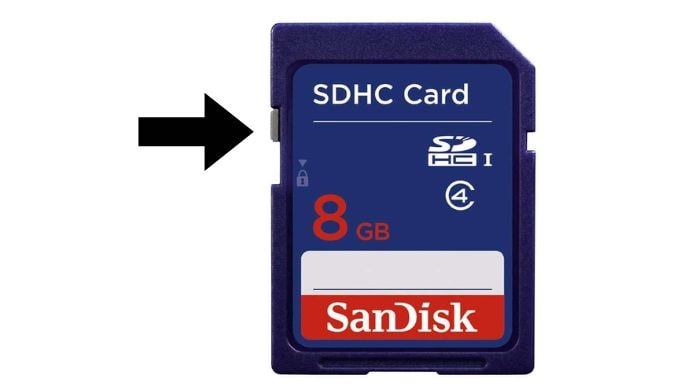
Look for a small lock slider on your SD card or USB device. If it's pushed downward or marked "lock," the device will remain write-protected until repositioned.
Test File Modification
Try renaming or copying a small file to the device. If Windows immediately blocks the action and shows a protection warning, the device is likely locked.
Inspect Drive Properties
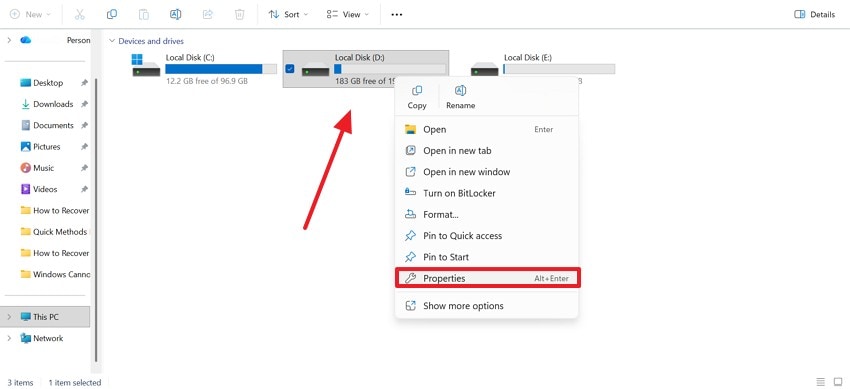
To do this, locate your drive and right-click to open "Properties." If the device behaves normally but still refuses edits in the "General" section, the issue may be an attribute or system-level lock.
Using Windows Tools to Detect Write Protection
To detect the error, you are not bound to install an external tool. Luckily, Windows offers the following built-in tools for error detection:
Diskpart Utility
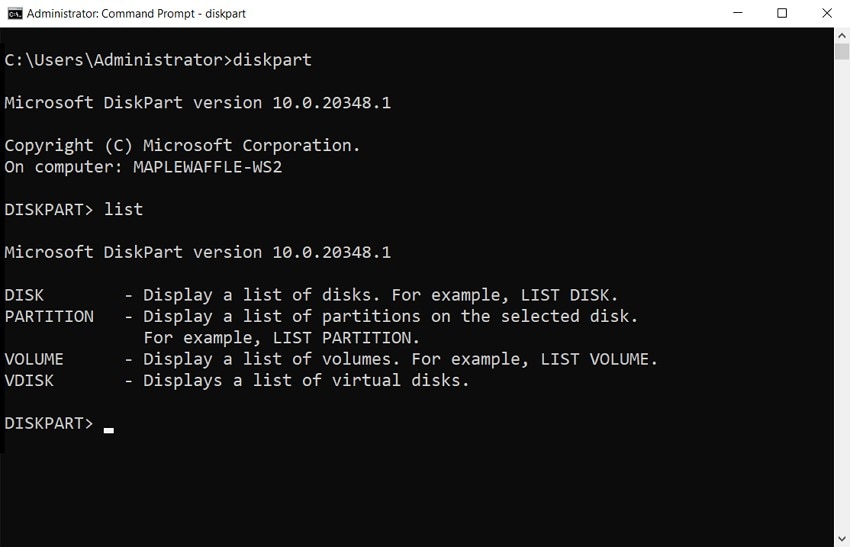
Diskpart helps identify write protection by displaying disk attributes like read-only status and partition details. It reveals whether the protection originates from hardware, software settings, or corrupted drive structures.
Windows File Explorer
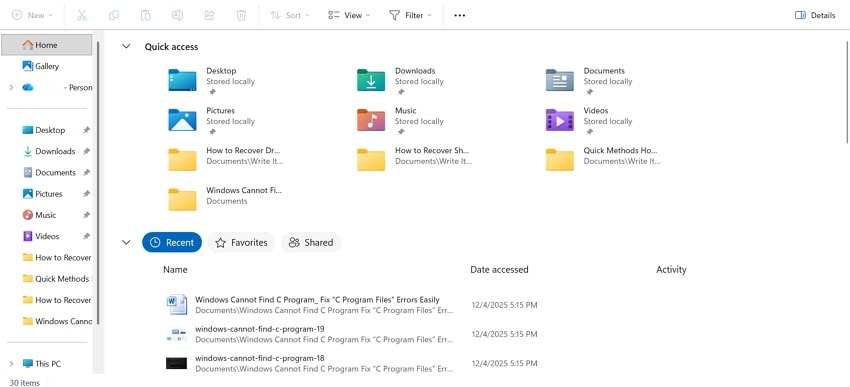
File Explorer shows error prompts and attribute restrictions when you attempt basic file actions. Its detailed drive properties section helps confirm whether the drive is flagged as read-only or blocked by system rules.
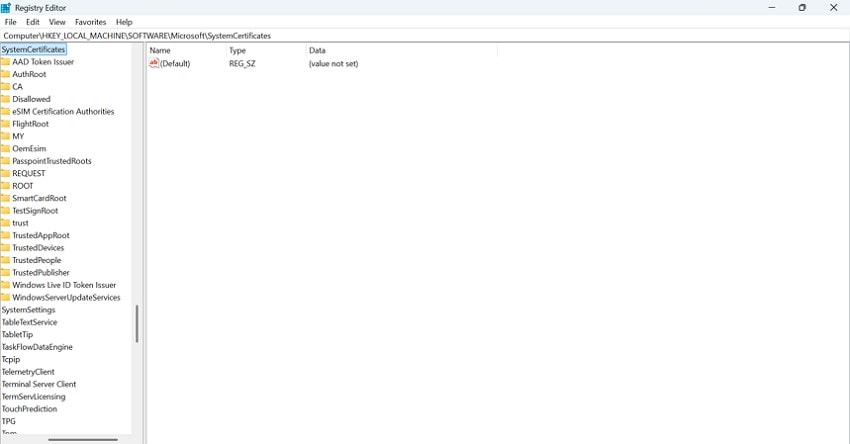
Registry Editor
Registry Editor allows users to inspect storage policies that may enforce write restrictions. It reveals configuration keys that control write permissions, helping you confirm whether a system-level policy is causing the error.
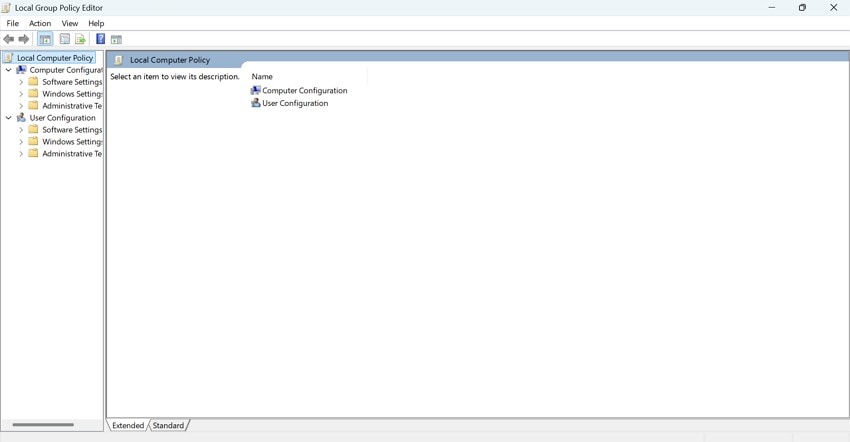
Group Policy Editor
Group Policy Editor displays administrative templates controlling storage device access. It helps identify whether write protection is applied through organizational policies that override normal user permissions across the system.
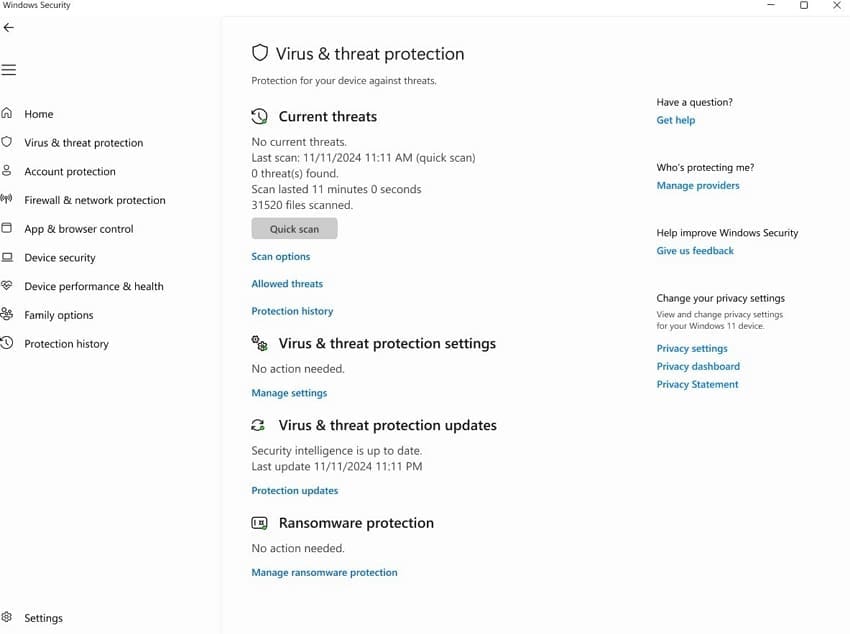
Windows Security or Antivirus Scan
Security tools help detect malware, forcing drives into read-only mode. They scan deep storage areas and identify malicious scripts changing device attributes, confirming whether malware is causing write protection behavior.
Part 3. Write-Protected Media? Simple 7 Ways to Restore Access
Now that we have enough knowledge of the error, let's explore some ways of restoring access to your device. The following section explains the methods of fixing the "media write is protected" error:
Fix 1. Check For a Physical Lock Switch
A physical lock switch can instantly block all write actions on SD cards or USB drives. Checking this switch is important because it restores access without technical steps. Follow these instructions to learn how this process can be executed:
Instructions. Remove the SD card or USB drive from your device and inspect the sides for a small sliding "Lock" switch. If the switch is pushed downward or toward "Lock," slide it upward. Next, reinsert the device into your computer and try copying or deleting a file to confirm the lock is removed.
Fix 2. Check Drive Properties and File/Folder "Read-Only"
Read-only attributes stop modifications, making the drive appear write-protected when it isn't truly locked. Fixing these settings is important because it instantly restores file editing permissions. Follow the guide below to remove the "media is write-protected" error through this fix:
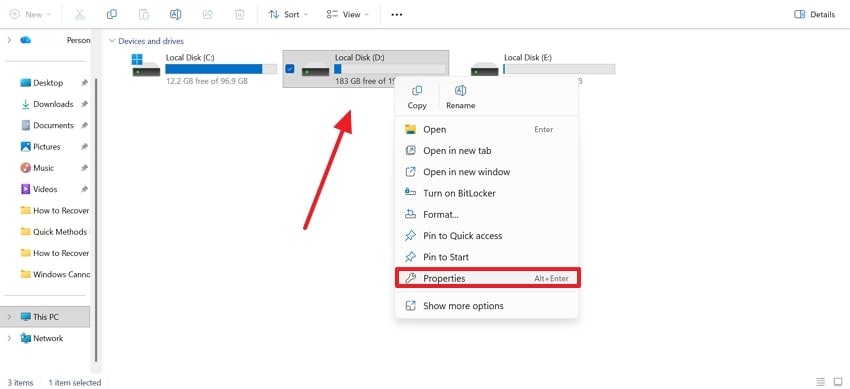
Step 1. First, navigate to the problematic drive and right-click on it to select the "Properties" option to proceed.
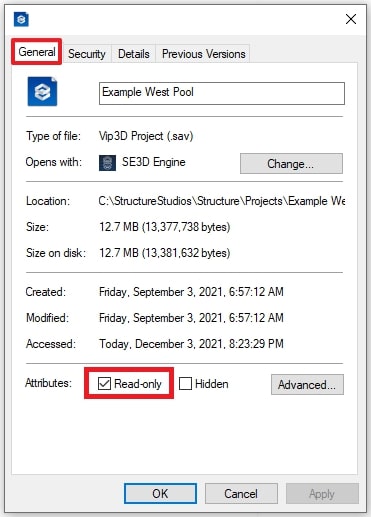
Step 2. In the "General" tab, uncheck the "Read Only" option to save the changes.
Fix 3. Remove Write Protection with Diskpart (Command Line)
Diskpart is important because it removes volume-level write restrictions applied by Windows or corrupted settings. Using it restores normal read-write access when GUI options fail. It provides a powerful method for repairing stubborn drives that reject changes. Follow the guidelines below to learn how to remove "the media is write-protected" error using Diskpart:
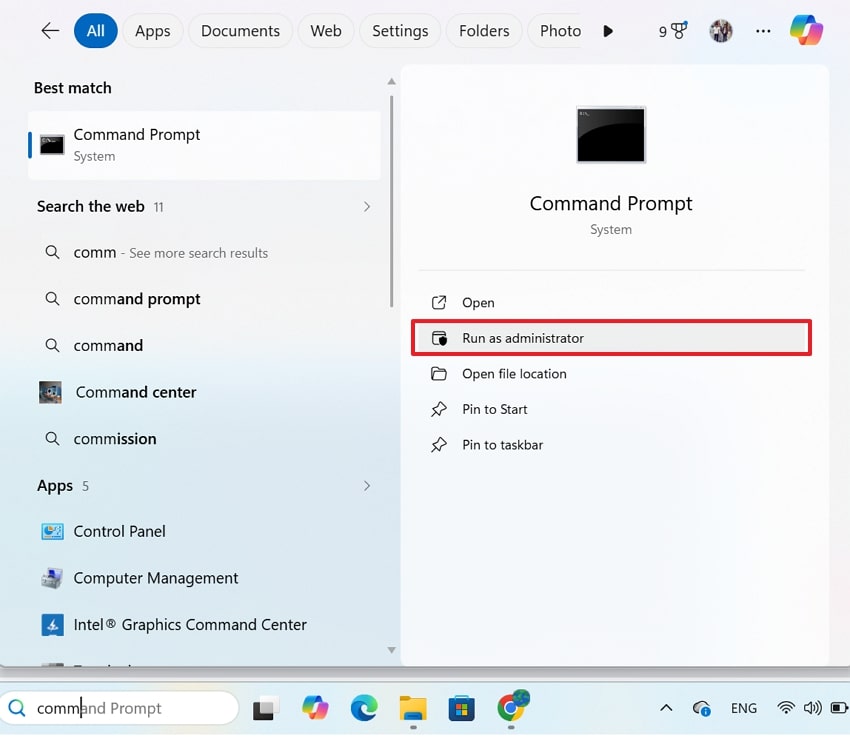
Step 1. To begin with, enter the "Start" menu and search for Command Prompt. When the results appear, select the "Run As Administrator" option to continue.
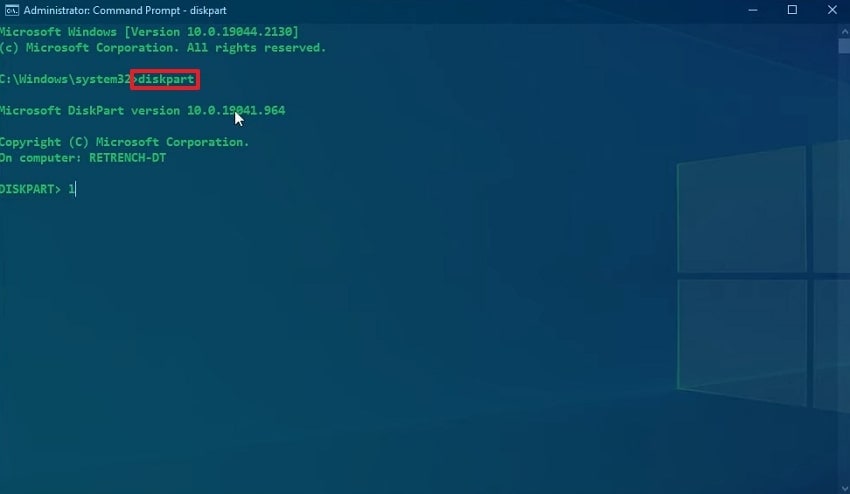
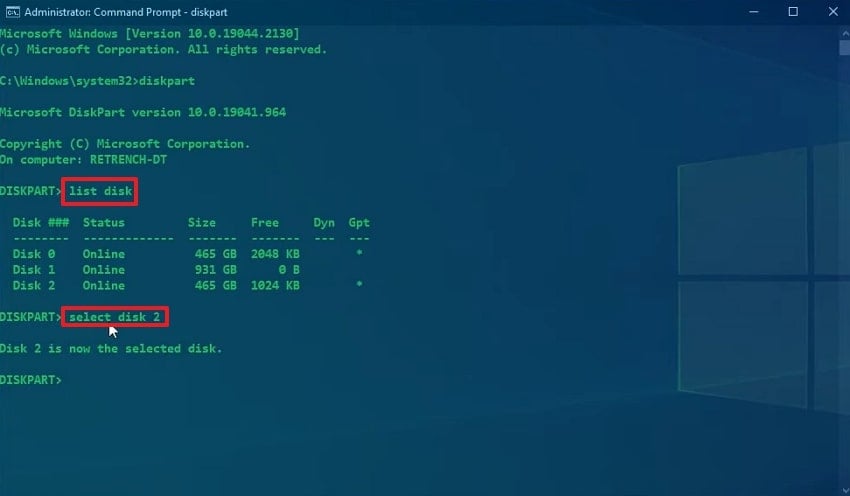
Step 2. Using the CMD window, enter the "diskpart" code and press the "Enter" key to proceed.
Step 3. Now, enter the "list disk" command and press the "Enter" key to get a list of disks on your device. To define your selection, give the "select disk (disk number)" command.
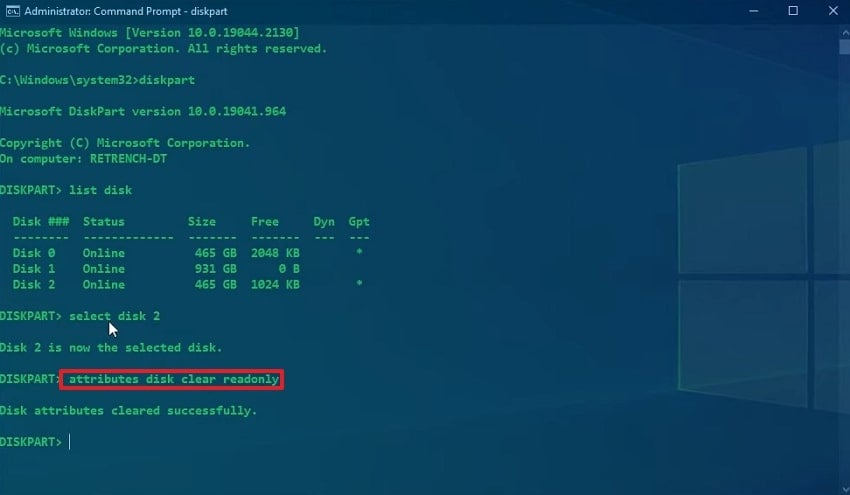
Step 4. After making your disk selection, enter the "attributes disk clear readonly" command and hit the "Enter" key to remove write protection.
Fix 4. Disable Write Protection in the Registry (Advanced)
Registry modifications are important because they target system-level write protection that overrides normal drive behavior. Fixing these entries unlocks drives affected by policy or corruption. This method is essential for restoring access when Windows enforces protection through internal settings. Follow the guide below and see how "the media write is protected" issue can be resolved using the Registry Editor:
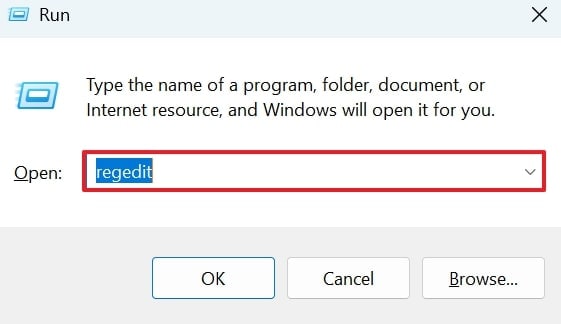
Step 1. To start the process, open the Run program using the "Win + R" keys and type "regedit" to open the Registry Editor.
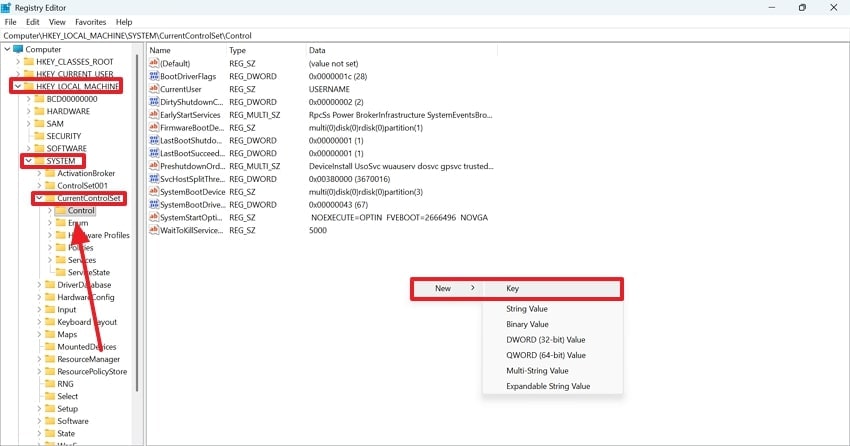
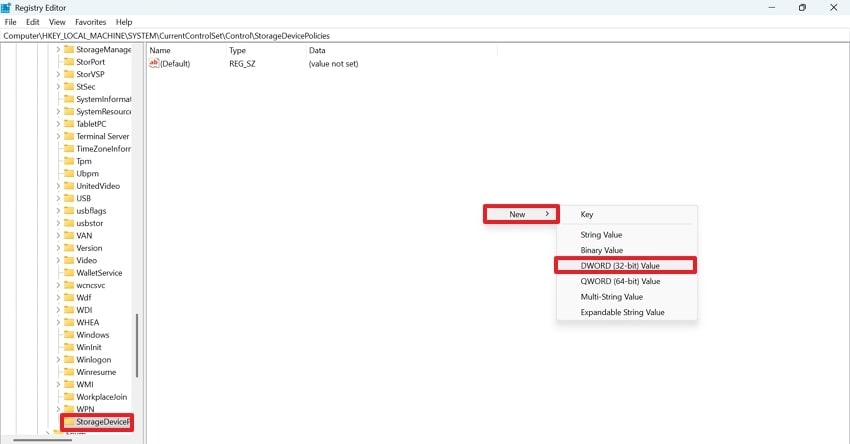
Step 2. In the Registry Editor, expand the "HKEY_LOCAL_MACHINE" menu and select "SYSTEM". Click on the "CurrentControlSet" option to see the settings on the left panel. Now, look for the StorageDevicePolicies option in the extended menu. If you fail to access it, right-click on the right panel and extend the "New" menu. Now, select the "Key" option to create a "StorageDevicePolicies" key.
Step 3. Upon accessing "StorageDevicePolicies," double-click on the empty space and access the "New" option. Continue to select the "DWORD (32-bit) Value" and proceed to the next step.
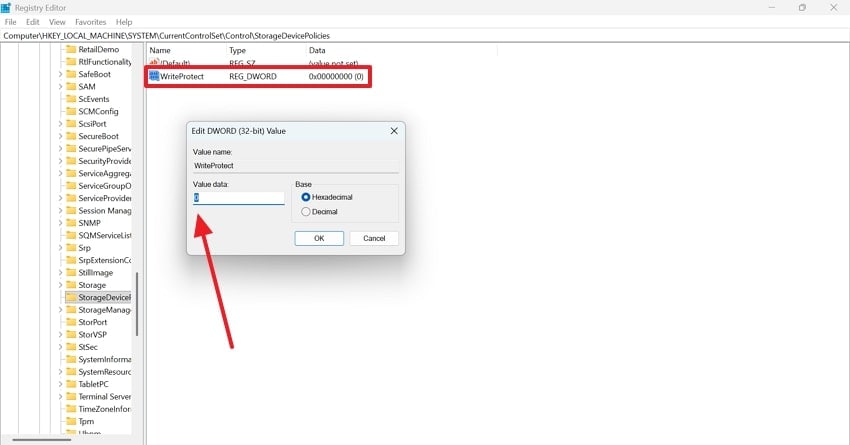
Step 4. Name the new value as "WriteProtect" to continue the process. Once created, double-click on it and rename the Value Data "0". Once done, restart your device and verify if the write-protected issue is resolved.
Fix 5. Check Group Policy (Pro/Enterprise Editions)
Group Policy may enforce write restrictions across removable storage devices in professional environments. Reviewing and adjusting these rules is important because it restores access blocked by administrative settings. The following steps outline a guide to using this method for resolving the "device is media write-protected" error:
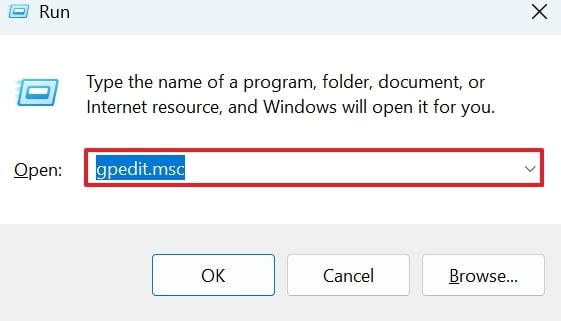
Step 1. In the "Run" window, enter the "gpedit.msc" command to open the Group Policy window.
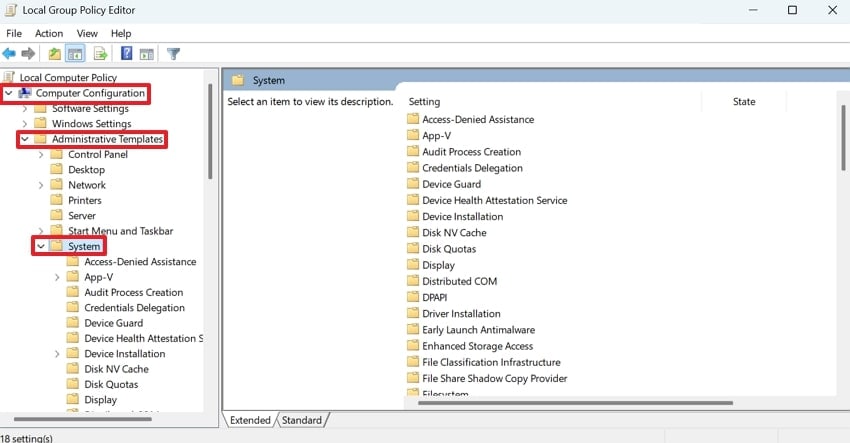
Step 2. Using the left panel, follow this navigation:
"Computer Configuration > Administrative Templates > System"
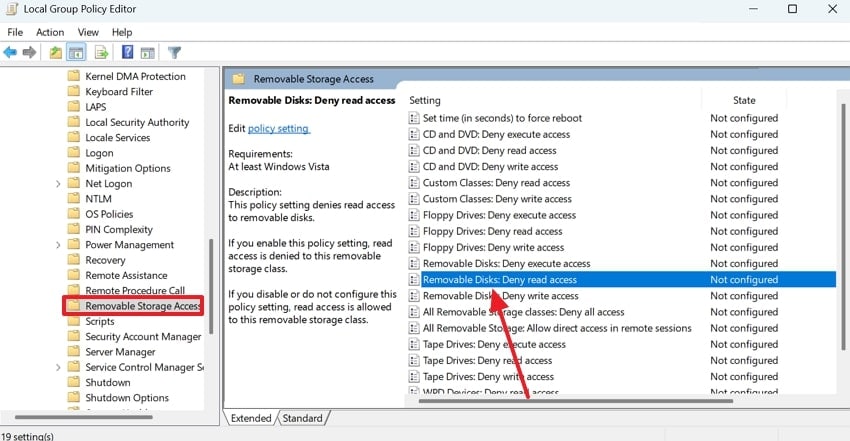
Step 3. Find and double-click on the "Removable Disks: Deny Read Access" option and wait for the new window to open.
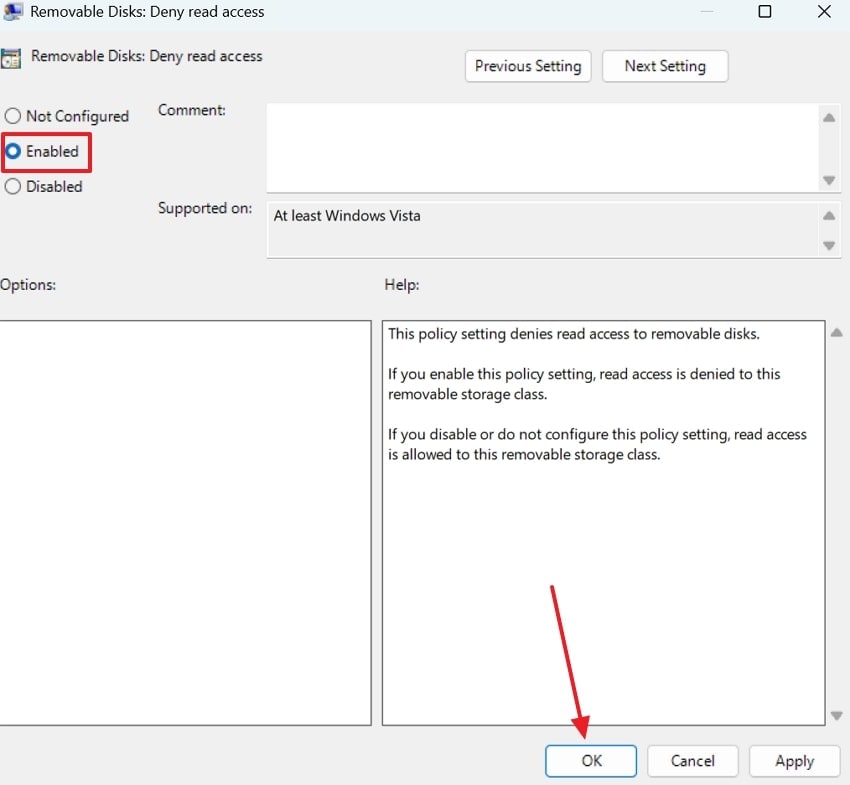
Step 4. Select "Enabled," hit "OK," and restart your device to apply the changes.
Fix 6. Scan For Errors or Malware
Malware or file-system errors can lock drives to prevent further damage or misuse. Scanning helps restore safe access by removing threats or repairing index corruption. Follow the guide below to learn how to scan for errors in the drive to resolve the "media write is protected" issue:
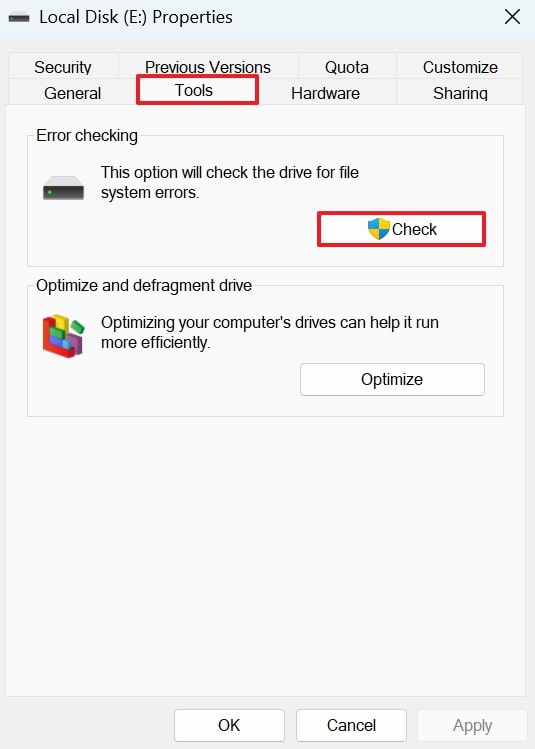
Step 1. To start, find the problematic drive and right-click on it to enter the "Properties" window. In this window, enter the "Tools" section and hit the "Check" button to let Windows scan and repair any errors.
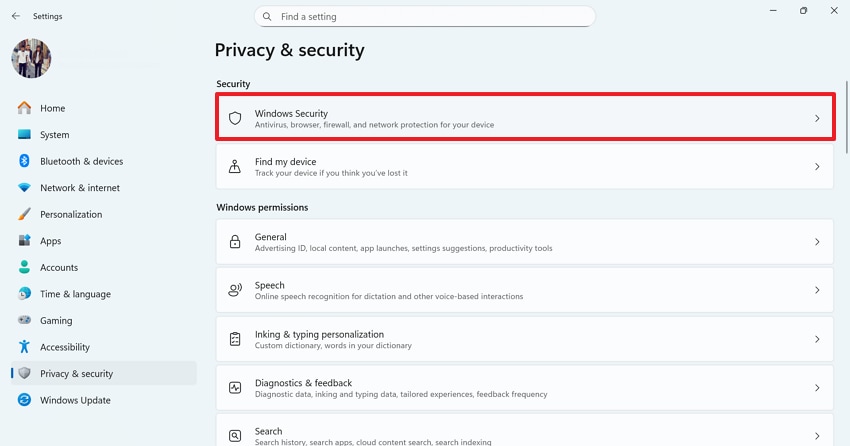
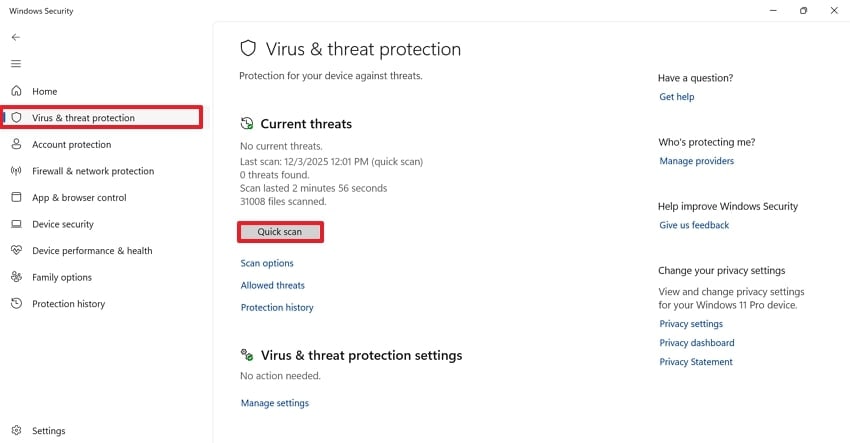
Step 2. Consequently, in the "Settings" window, look for the "Windows Security" tab.
Step 3. Lead into the "Virus & threat protection" tab from the left and proceed further to select the "Quick scan" option for detecting any malware threats. Upon detection, remove and restart the device for testing media access.
Fix 7. Try Formatting the Drive
Formatting is important because it rebuilds the entire file system and removes deep corruption or hidden protections. Although data is erased, it gives the drive a fresh start. Follow the guide below and learn how to format a drive to fix the "media is write-protected" error:
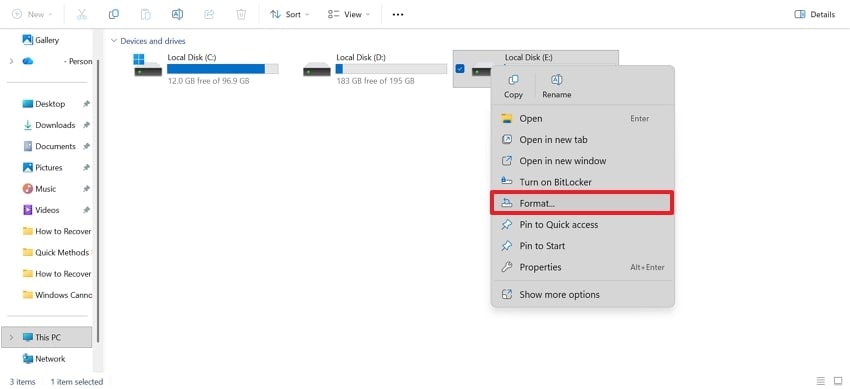
Step 1. Locate the drive that needs to be formatted and right-click on it to select the "Format" option.
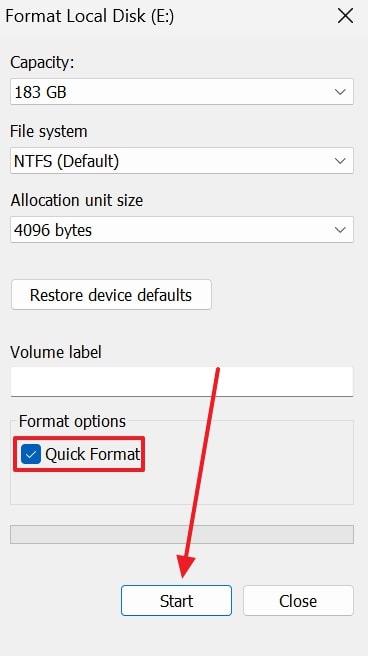
Step 2. Define the "File system," check the "Quick Format" option, and initiate by clicking "Start."
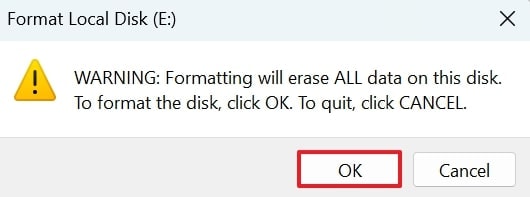
Step 3. Upon receiving a warning of data erasure, click "OK" to successfully format the drive.
Pro Tip. Repair Corrupted Videos and Media Files to Solve Write Protection Issues
If your device is media write-protected due to corrupted multimedia files, repairing these files can fix this error. To repair the problematic media files efficiently, using Repairit can help. This tool offers advanced algorithms that cater to all causes of video and media file corruption. Using its batch-processing feature, you can repair multiple media files at once and enhance your productivity.
Unlike most repair tools on the market, this tool preserves the quality of your multimedia files. No matter which device the videos were captured by, Repairit supports various devices, including Canon, Nikon, and other cameras.
Key Features

-
Advanced Repair Mode: This mode helps fix severely damaged files while preserving the original quality of the video.
-
Professional Video Repair Mode: Repairit comes with a Professional Mode, which helps in dealing with RAW formats, advanced codecs, and high-quality videos.
-
Video Format Support: From basic video formats to pro-grade options like MTS, AVI, FLV, and BRAW, this software ensures everything gets fixed.
A Complete Guide to Using Repairit for Fixing Corrupted Media Files
The following instructions must be followed to use Repairit for fixing your media write is protected files:
Step 1. Enter the Video Repair Mode
To begin with, enter the "Video Repair" mode from the left panel and select the "Start" button from the right.

Step 2. Pick the Videos You Want to Repair
Using the next interface, enter the "UnrepairedVideos" section and select the videos you need to repair. Once done, select the "Repair" button to start the process.

Step 3. Preview the Media Files After Repairing Them
When your media files are repaired, select the "Preview" button next to them to have a peek at the results. If you are satisfied with the results, use the "Save" button to export your video files.

Repair Corrupted Media Files
 Security Verified. Over 7,302,189 people have downloaded it.
Conclusion
"The media is write-protected" error can cause long-term damage to your storage device. This article explained the causes and fixes of this issue in detail. If corrupted multimedia files are causing the write-protection error, use Repairit to fix the files. This platform offers a high success rate to effectively repair files, hence resolve the write-protection error.
FAQs
-
1. What does “The media is write-protected” actually mean?
It means your storage device is blocking any action that changes data, such as copying, deleting, or formatting. This protection can be caused by hardware switches, system settings, or corruption. -
2. Why does my USB or SD card suddenly become write-protected?
Sudden write protection often appears after improper ejection, malware activity, or file-system errors. It can also happen if the device’s physical lock switch moves accidentally. -
3. Can corrupted videos cause a write-protected error?
Corrupted videos do not directly cause the write-protected error, but the drive storing them may become damaged. When the file system gets corrupted, the device can switch to read-only mode to protect itself. Use Repairit to fix the problem in your multimedia files, and your drive issues will go away.




