
A sudden click on the Rockstar Game Launcher brings nothing but a frozen screen, leaving you stuck outside your favorite game. When this platform refuses to open, it can derail your plans and create frustration, especially when you're eager to jump into GTA V or RDR 2.
This problem is more common than many players realize, often triggered by corrupted files, background conflicts, or simple software glitches. In this guide, you'll find clear, practical solutions to fix the "Rockstar Game Launcher not opening" issue and restore smooth access so you can return to gaming without interruptions.
Table of Contents
Part 1. 6 Common Causes of Rockstar Game Launcher Not Opening
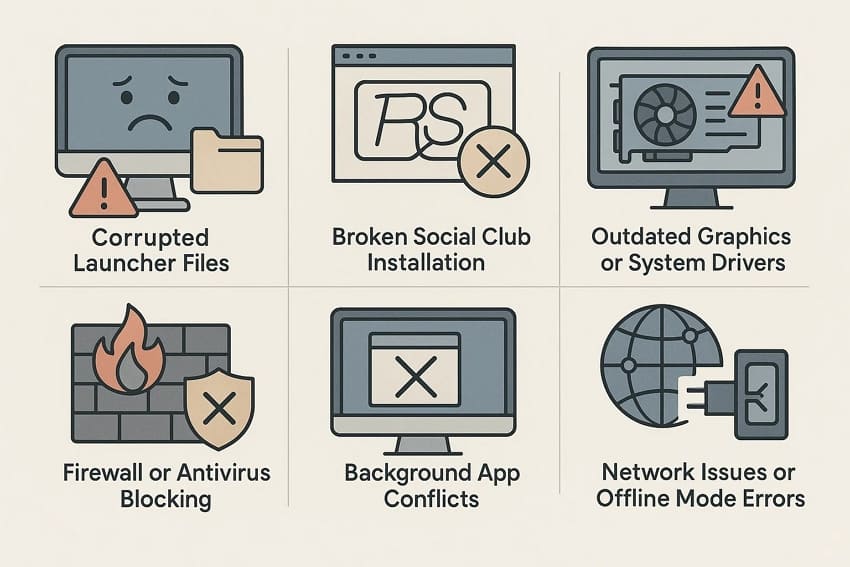
Before you jump into fixes, it helps to understand what might be triggering the Rockstar Game Launcher not opening issue. These underlying issues often trigger the freezing and crashing of the launcher:
| Error | Description |
| Corrupted Launcher Files | Damaged or incomplete files stop the launcher from loading essential components, causing instant crashes or no response. |
| Corrupted Social Club Installation | If Social Club files fail to load, the Rockstar Launcher can't authenticate your account and refuses to start. |
| Outdated Graphics or System Drivers | Old drivers can conflict with your hardware and prevent the launcher from initializing properly. |
| Firewall or Antivirus Blocking | Security tools may wrongly flag the launcher as unsafe, blocking its internet access or preventing it from opening. |
| Background App Conflicts | Overlay apps or heavy background processes can disrupt the launcher's startup sequence, causing freezing or silent failures. |
| Network Issues or Offline Mode Errors | Weak or unstable connections disrupt Rockstar's login and verification process, causing the launcher to hang during startup or close unexpectedly. |
Part 2. 7 Quick Solutions When Rockstar Game Launcher Fails to Start
After learning about the causes behind the Rockstar Game Launcher not opening, the next step is putting that knowledge into action. Below are 7 practical solutions you can try right away to get the launcher running smoothly again:
Fix 1. Run as Administrator
One of the quickest ways to resolve the Rockstar Game Launcher not opening is to run it as an administrator. This grants the launcher the system permissions it may need to function properly, especially when running background processes or security settings. Follow the instructions provided next to learn how to run the launcher with admin access:
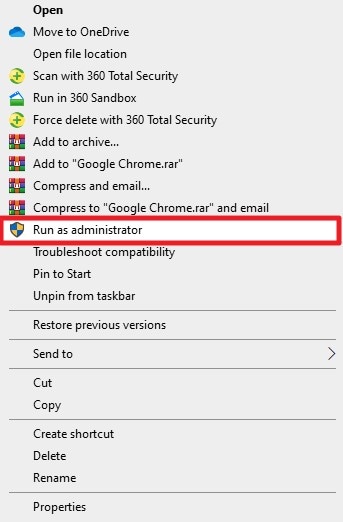
Instructions. Begin by heading to the "Start" menu and typing "Rockstar Launcher" into the search field. Once it appears, right-click the application and choose the "Run as Administrator" option from the available menu choices to launch it.
Fix 2. Disable Antivirus and Firewall Temporarily
If you suspect security software is interfering with the Rockstar Game Launcher not opening issue, temporarily disabling your antivirus and firewall can help identify the issue. Sometimes these programs mistakenly block the launcher's files or network access, preventing it from starting. Turning them off briefly can reveal whether they're the source of the conflict. Read the steps provided below to learn how to disable the firewall temporarily:
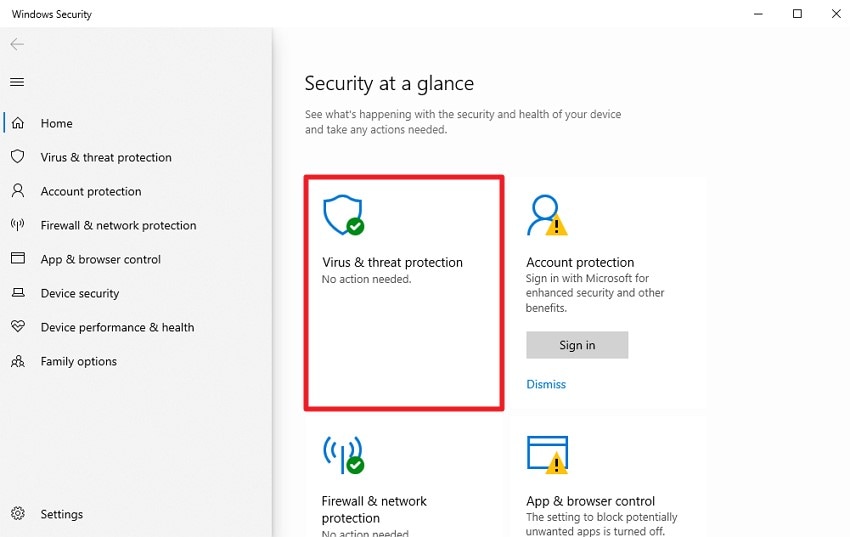
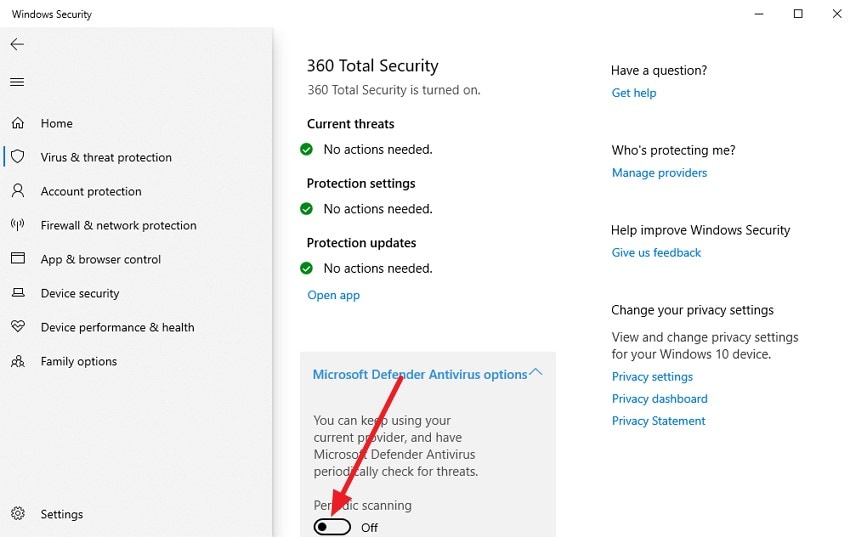
Step 1. Go to the "Virus & Threat Protection" section in your system's security settings. Once you're inside the dashboard, look for the protection options displayed on the screen.
Step 2. On the next page, switch off the toggle for "Microsoft Antivirus Defender" to temporarily turn off the firewall and allow the process to proceed smoothly.
Fix 3. Clear Launcher Cache
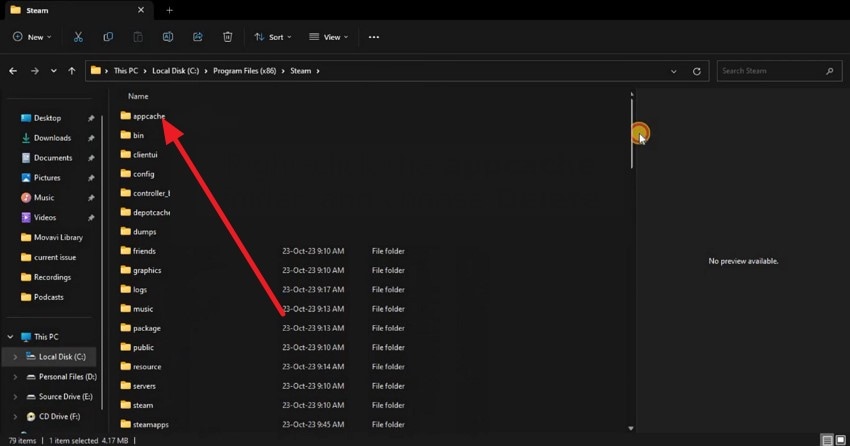
Clear Launcher Cache to eliminate corrupted or outdated temporary files that may be causing the "Rockstar Game Launcher not opening" error. Over time, cached data can conflict with new updates or system changes, causing startup issues. Removing this cache forces the launcher to rebuild fresh files, often restoring smooth and error-free operation. Follow the instructions mentioned below to delete the cache of the launcher to resolve this issue:
Instructions. Head to your Launcher installation folder and find the "appcache" subfolder. Once you spot it, right-click the folder and select "Delete." Removing these cached files clears temporary data that might be interfering with your game's performance.
Fix 4. Reinstall the Launcher and Social Club
Reinstall the launcher if the Rockstar Game Launcher is not opening, and the issue persists. Corrupted installation files or missing components can cause repeated startup failures. This often resolves stubborn errors and restores proper communication between the launcher and Rockstar's online services. To learn how to reinstall the game launcher, read the steps mentioned below:
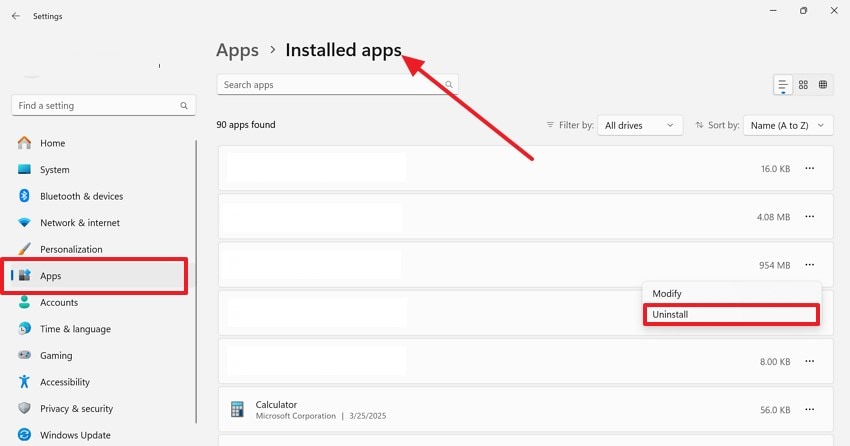
Step 1. Open your device's "Settings" and navigate to the "Apps" menu, then move into the "Installed Apps" list. Locate the Rockstar Launcher to remove the game or select Steam to uninstall the launcher. Click the "Uninstall" option to fully delete the program from your system.
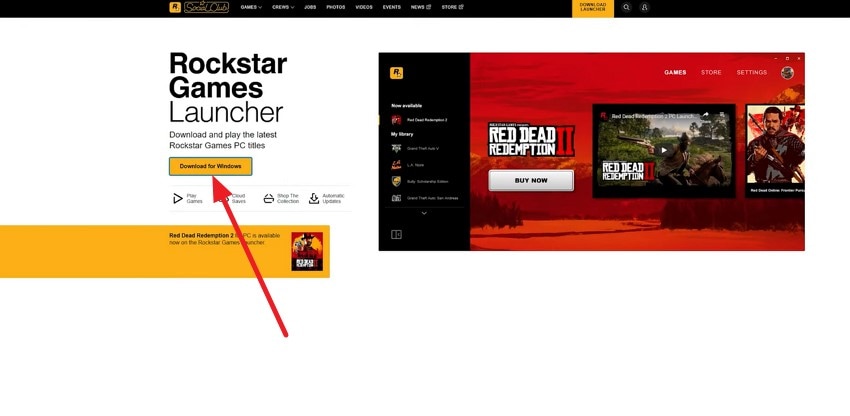
Step 2. Now, head to the official website of Rockstar Game Launcher and locate the launcher. Next, click on the "Download for Windows" option to successfully install it again on your system.
Fix 5. Run Compatibility Troubleshooter
Another effective solution is to run the compatibility troubleshooter for the "Rockstar Game Launcher not opening" problem. This tool helps identify and apply settings that make the launcher compatible with your current version of Windows. It can resolve issues caused by older software configurations and function correctly without manual adjustments. Read the steps in the section below to learn how to run the compatibility troubleshooter within your system:
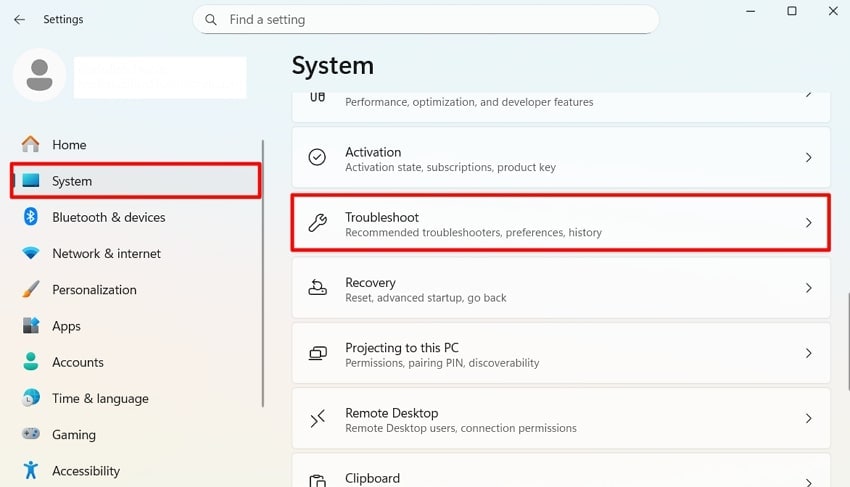
Step 1. Open settings on your PC and head to the "System" section on the left. Now choose the "Troubleshoot" option and then go for "Other Troubleshooters."
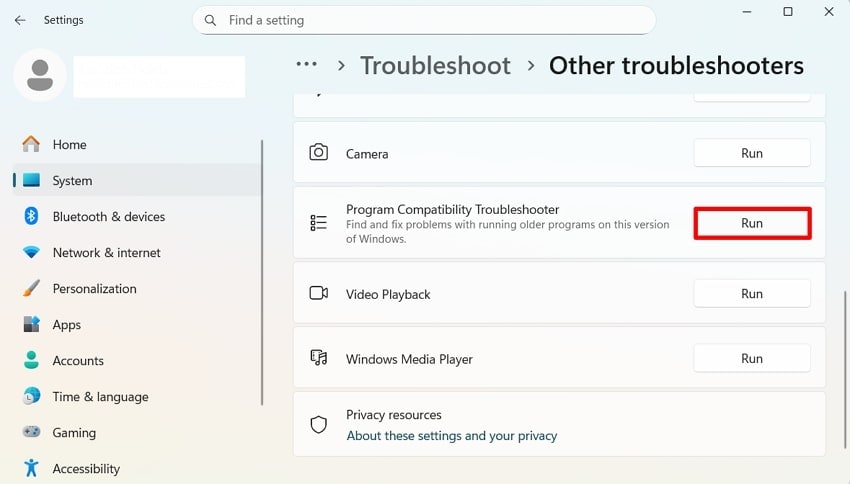
Step 2. Scroll a bit and locate the "Program Compatibility Troubleshoot" option to click on the "Run" button. Follow the instructions on the screen to successfully run the troubleshooting within your system.
Fix 6. Flush DNS Cache
Flushing the DNS cache can help resolve connectivity issues that cause the Rockstar Game Launcher not opening error. Over time, outdated or corrupted DNS data may cause network errors, affecting the launcher's ability to communicate with Rockstar servers. Clearing the cache forces your system to refresh this information. If you do not know how to flush the DNS cache, read the instructions mentioned next:
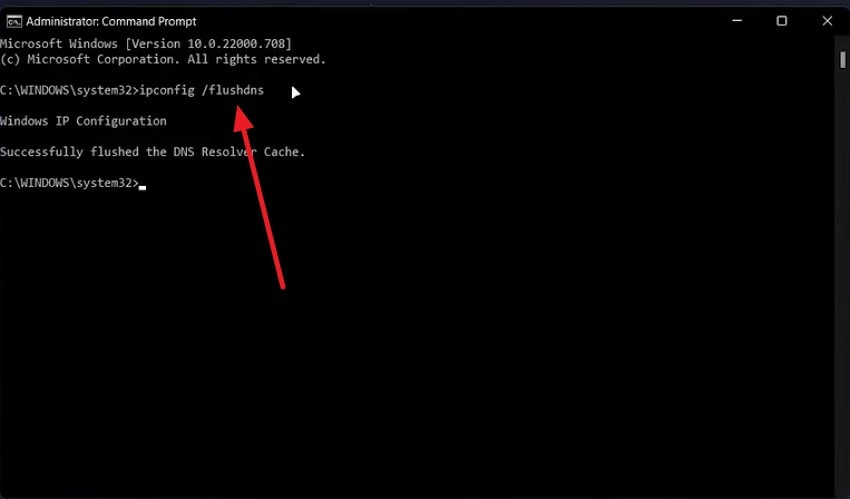
Instructions. Open the command prompt on your system and run the following command: "ipconfig / flushdns." Hit the "Enter" key on the keyboard to successfully flush the DNS Cache.
Fix 7. Delete Problematic Files
Lastly, deleting problematic files can help fix issues that cause the "Rockstar Game Launcher not opening" problem. Certain corrupted or conflicting files within the launcher's directory may prevent it from starting correctly. Removing these files forces the launcher to recreate them fresh. To learn how to delete problematic files, read the instructions in the following section:
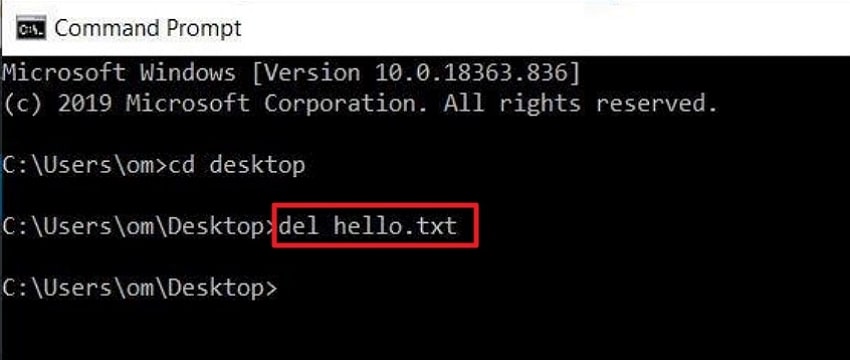
Instructions. If a file is being stubborn and is not deleting using the "Delete" button, open the command prompt. Now, type in the command: "del [filename].[extension]." Hit the "Enter" key to run the command and delete the problematic file.
Pro Tip. Repair Damaged Files Easily Using Repairit — A Smart Solution for Errors
A sudden crash right in the middle of gameplay is often a clear sign that essential game files may be damaged. When file corruption interrupts your sessions or stops a title from launching altogether, Repairit provides a straightforward way to restore those resources with just one click. This powerful tool can repair multiple corrupted game executables at once, eliminating the need for lengthy reinstalls.
Repairit goes beyond fixing game files by offering powerful repair options for documents and combined archives. It can restore corrupted PDFs, Office files, ZIP or RAR archives, and damaged photos in formats like JPEG or RAW. The tool also repairs broken audio tracks and various professional project files.
Key Features Offered By Repairit

-
Repair damaged files with all levels of corruption, including blank files, files not opening, unrecognizable format, unreadable content, files layout changed, etc.
-
Support to repair all formats of PDF, Word, Excel, PowerPoint, Zip, and Adobe files.
-
Perfectly repair corrupted files with a very high success rate, without modifying the original file.
-
No limit to the number and size of the repairable files.
-
Support Windows 11/10/8/7/Vista, Windows Server 2003/2008/2012/2016/2019/2022, and macOS 10.13~macOS 15.
A Complete Guide to Repairing Damaged Game Files Using Repairit
After exploring different solutions for the Rockstar game launcher not opening error, it's worth noting that Repairit can optimize game-related files to optimize your overall experience. Here's a quick demonstration of how to recover corrupted media or documents using its dedicated repair functions:
Step 1. Launch Repairit and Open the Document Repair Module
Start the software, head to the "More Types Repair" menu, and press "Start" under the "Document Repair" option to proceed.

Step 2. Upload All Corrupted Game Files
Next, click the "+Add" icon and load every broken or damaged file that needs restoration.

Step 3. Begin the Repair and Check Results Before Saving
After importing your files, hit the "Repair" button, then select "Preview" to examine the recovered items before storing them on your device.


Repair Damaged Game Files
 Security Verified. Over 7,302,189 people have downloaded it.
Conclusion
This article provided a complete guide on how to resolve the "Rockstar Game Launcher not opening" issue. By following the outlined fixes, you can eliminate startup errors and restore smooth access to your games without unnecessary delays. If the problem is tied to corrupted game files or damaged data, using Repairit can help you repair broken files instantly and get your launcher working again.
FAQs
-
1. Why does the Rockstar Games Launcher fail to open?
It usually happens due to corrupted files, outdated drivers, missing dependencies, or interference from antivirus/firewall settings. Clearing the cache, updating Windows, or reinstalling the launcher often fixes the issue. -
2. How do I know if corrupted game files are causing the launcher problem?
If your games crash frequently, fail to load assets, or the launcher freezes during startup, damaged files might be involved. In such cases, using Repairit can help you repair corrupted game-related files instantly. -
3. Can antivirus software block the Rockstar Game Launcher?
Yes, strict antivirus or firewall rules may prevent the launcher from starting. Temporarily disabling real-time protection or adding an exception can resolve the problem.




