
If you are launching GTA 5 Enhanced Edition and see the error "Could not find RUNE64.dll" right away, you are not the only one facing this. Thousands of players hit this same RUNE64.dll missing error after the PC launch of GTA V Enhanced in March 2025. The good news is there are two reliable methods to resolve this, and in most cases the first one fixes it in under two minutes.
This guide covers both methods to fix the "Could not find RUNE64.dll" error in GTA 5 Enhanced on Windows PC — directly based on the steps that have worked for players worldwide. First, you can restore the file through Windows Security if your antivirus blocked it. Second, you can manually download the RUNE64.dll file and place it in the game folder. Follow the steps below and get back into Los Santos.
Table of Contents
Part 1. Why Does "Could Not Find RUNE64.dll" Happen in GTA 5 Enhanced?
Before trying the fixes, it is helpful to understand why RUNE64.dll goes missing in the first place. RUNE64.dll is a core file used by GTA 5 Enhanced's copy-protection system. The game needs it every time it launches — if the file is missing or blocked, the game immediately stops with the "Could not find RUNE64.dll" error.
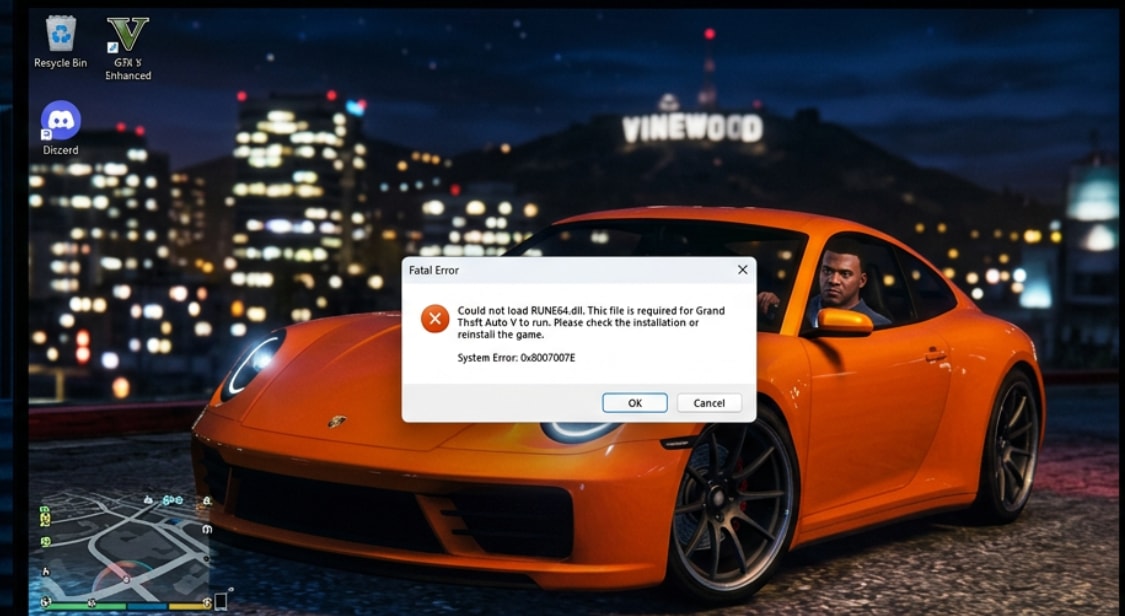
The most common reason this happens is that Windows Defender or another antivirus detects RUNE64.dll as a threat and quarantines or deletes it automatically. Because the file uses copy-protection techniques that resemble certain malware behaviors, security software flags it as a false positive — often silently, without any warning. You launch the game, and it is already gone from the folder without you knowing.
- Antivirus quarantine (false positive): Windows Defender silently moves RUNE64.dll to its quarantine vault during or after a game update. The file is not deleted — it is hidden, and can be restored.
- Antivirus permanent deletion: Some third-party antivirus tools (Avast, Kaspersky, Bitdefender) permanently delete the file rather than quarantine it. In this case you need to re-download and manually replace it.
- Corrupted or incomplete game installation: A broken download or interrupted update can leave RUNE64.dll missing or incomplete inside the game folder.
Part 2. 2 Ways to Fix "Could Not Find RUNE64.dll" in GTA 5 Enhanced
There are two ways to fix the could not find RUNE64.dll GTA 5 Enhanced error. Try Way 1 first — it is the quickest fix if your antivirus quarantined the file. If Way 1 does not apply to your situation, proceed to Way 2 to manually download and place the file.
Way 1. Fix via Windows Security (Restore Quarantined File + Add Exclusion)
If Windows Defender is the cause, RUNE64.dll is not actually deleted — it is sitting in the Defender quarantine vault. You can restore it from Protection History and then add the GTA 5 folder as an exclusion so the file is never blocked again.
Step 1. Open Windows Security and go to Protection History
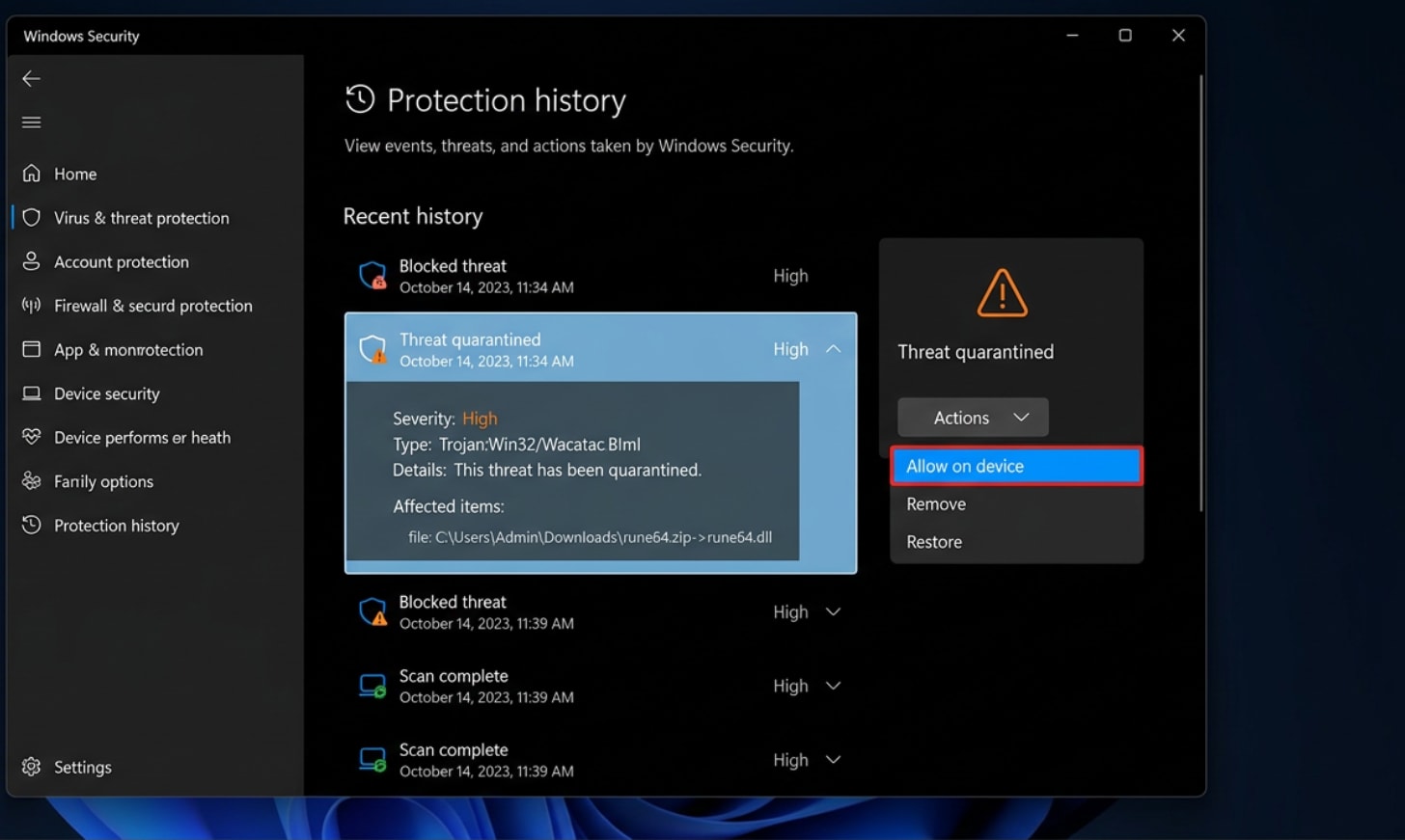
Press Win, search for Windows Security, and open it. In the left pane, click Virus & threat protection. Then click Protection history. All files that have been blocked or quarantined by your antivirus will be listed here.
Step 2. Find RUNE64.dll and restore it
Look through the list for the file named rune64.dll. Click the down arrow next to it to expand and see the full file path. Confirm that the path points to your GTA 5 installation folder (for example, F:\Rockstar Games\Grand Theft Auto V). Once confirmed, click the Actions tab and choose Allow on device. The file is immediately restored to the game directory.
Step 3. Add the GTA 5 folder to exclusions to prevent future blocking
To stop Defender from quarantining the file again on the next launch, go back to Virus & threat protection, click Manage settings, and scroll down to the Exclusions section. Click Add or remove exclusions, then click the + button and choose Folder.
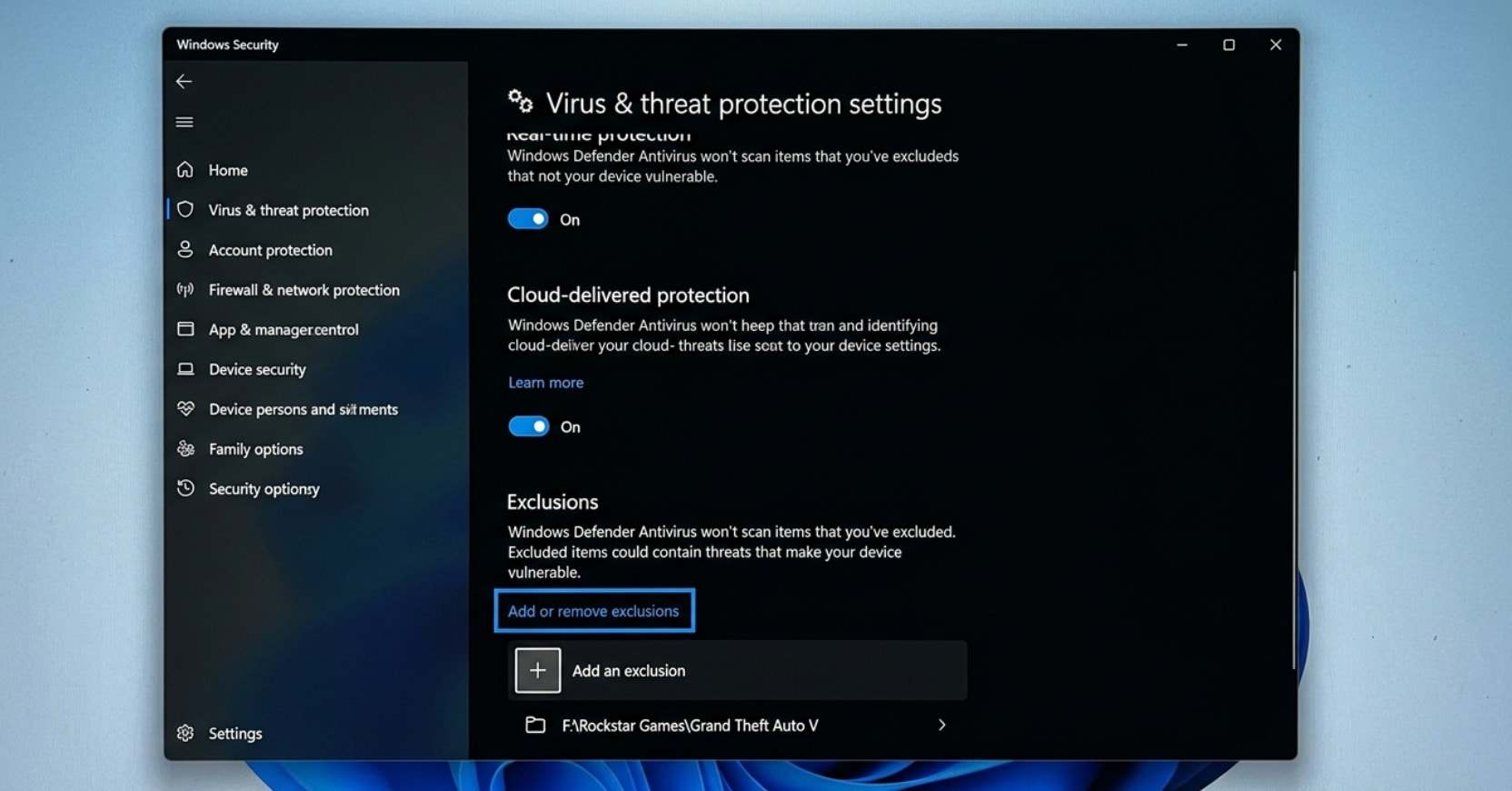
Navigate to the folder where GTA V is installed — for example F:\Rockstar Games\GTA V — and select it. From now on, Windows Defender will not scan or block any files inside that folder, including RUNE64.dll. Relaunch the game and the error should be gone.
Way 2. Manually Download and Place RUNE64.dll in the Game Folder
If Way 1 did not work — for example, if RUNE64.dll does not appear in Protection History because your antivirus permanently deleted it — you need to download the file manually and place it in the GTA 5 game directory.
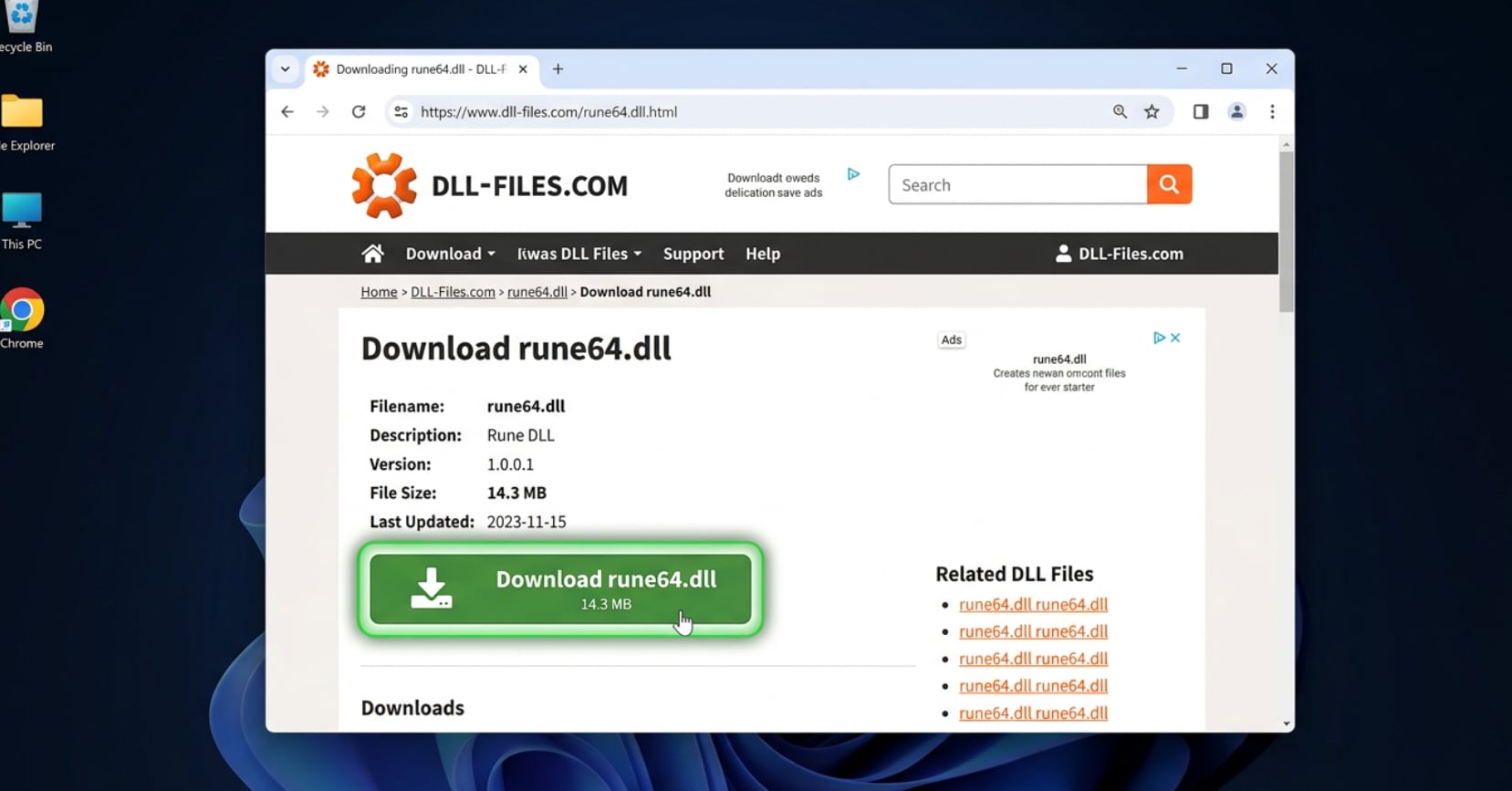
Step 1. Download the RUNE64.dll file
Open your browser and go to the download link for the RUNE64.dll file. Click the download button to start saving the file to your PC.
Step 2. Allow the browser to keep the downloaded file
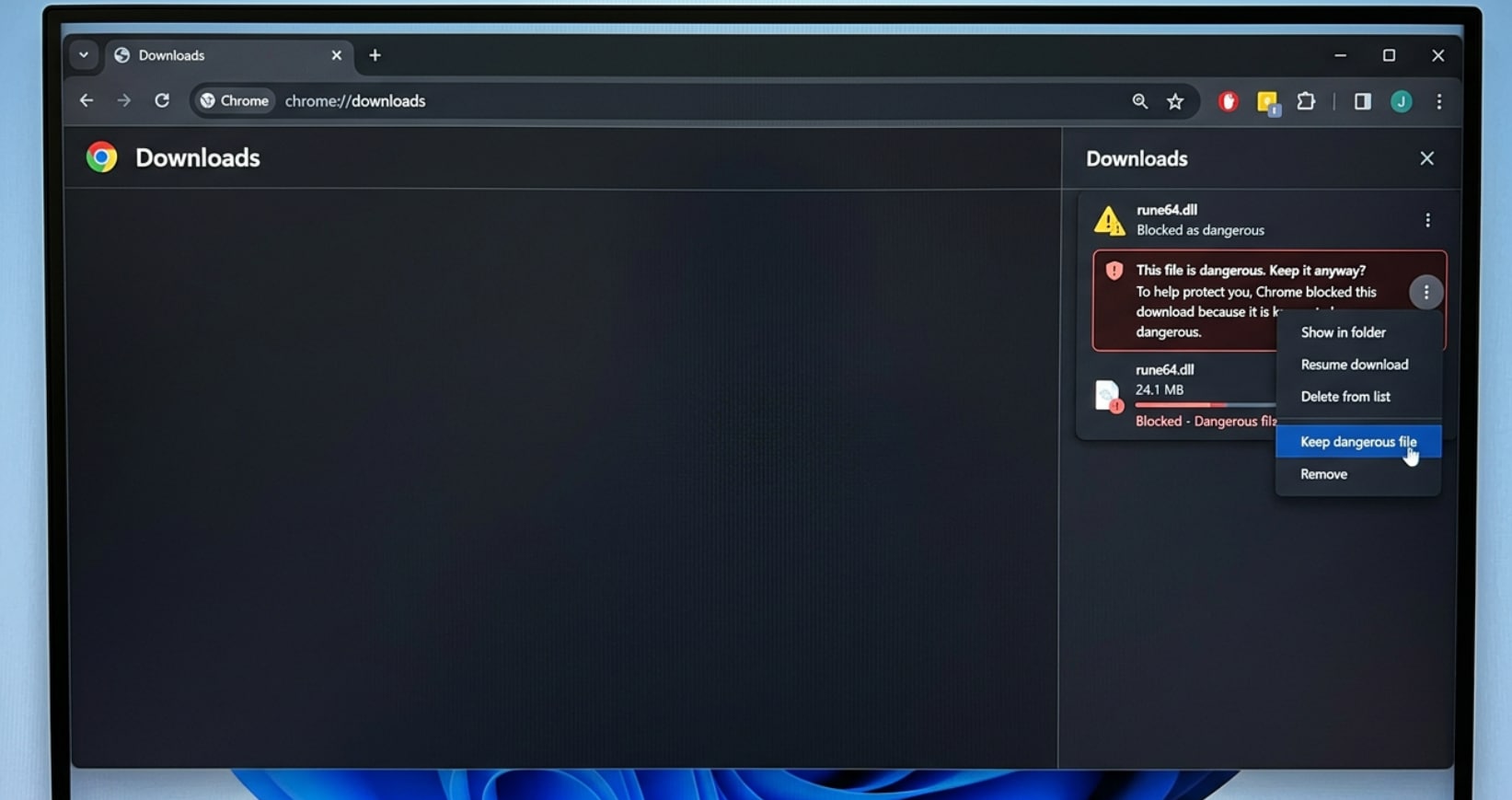
Once the download completes, your browser may flag it as a potentially dangerous file. Click the arrow or three-dot icon next to the download at the bottom of the browser, then open Downloads history. Find the rune64.dll entry, click the three-dot menu next to it, and choose the option Download dangerous file (or Keep / Keep anyway depending on your browser). This tells the browser to allow the file through its built-in security check.
Step 3. Copy the file and paste it into the GTA 5 game directory
Once the file is fully downloaded, right-click rune64.dll and choose Copy. Then open File Explorer and navigate to your GTA 5 installation folder — for example F:\Rockstar Games\Grand Theft Auto V. Right-click inside the folder and choose Paste to place rune64.dll directly in the game directory.
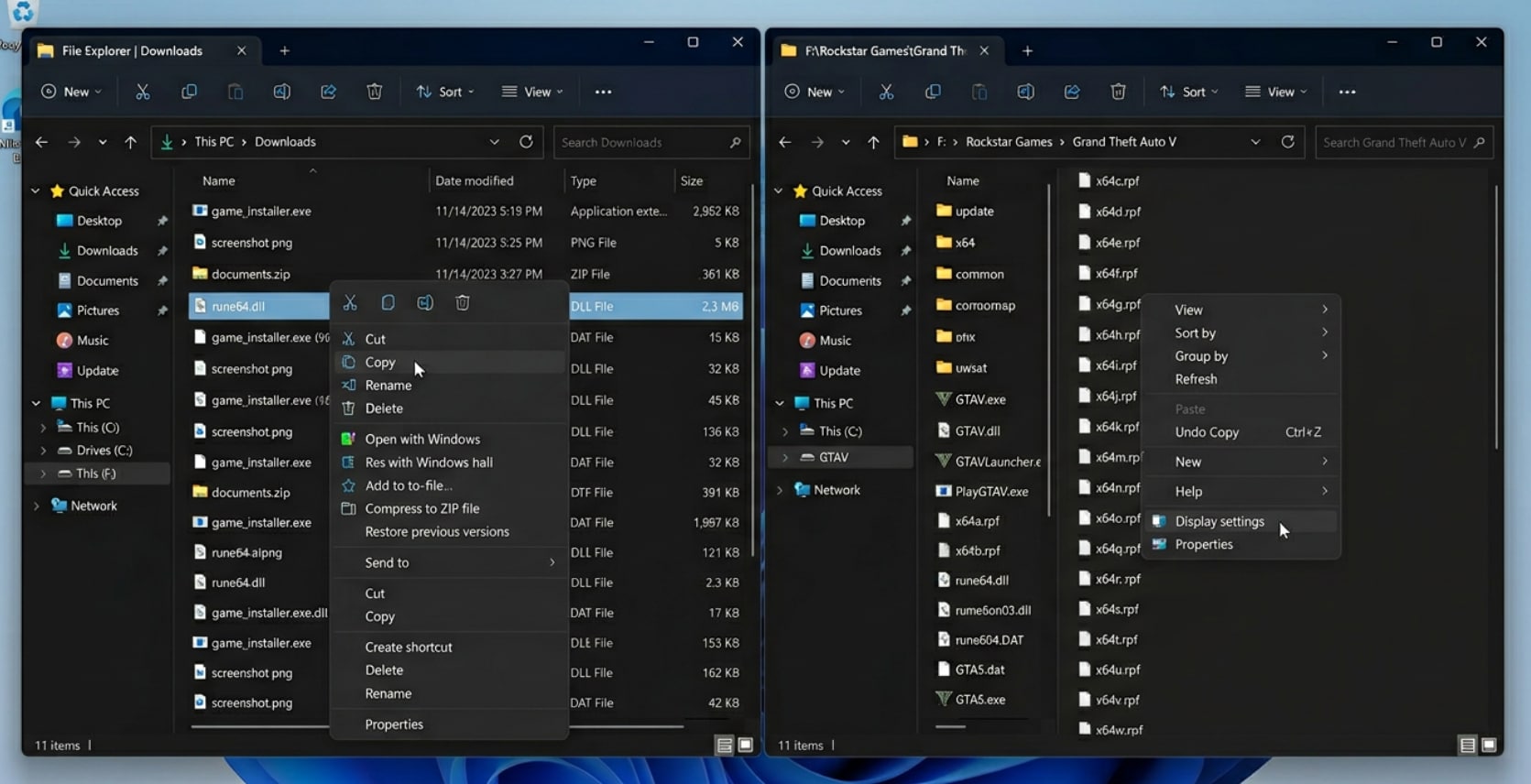
Once the file is pasted, go ahead and relaunch GTA 5 Enhanced. The "Could not find RUNE64.dll" error should now be completely resolved and you will be able to play the game normally.
Pro Tip: Fix Corrupted GTA 5 Game Recordings with Wondershare Repairit
After fixing the RUNE64.dll error, you may find that game clips or recordings you saved before the crash are now corrupted — they show a black screen, freeze on playback, or return an error saying the file cannot be opened. This is because the recording was cut off mid-write when the game crashed.
Repairit is a dedicated video repair tool that can recover corrupted MP4, MKV, MOV, AVI, and M4V recordings — including GTA 5 clips captured with GeForce Experience ShadowPlay, Xbox Game Bar, or OBS — in just a few clicks, with no technical knowledge needed.
Key Features

-
Wide Format Support: Repairs MP4, MOV, MKV, AVI, M4V, 3GP, and 15+ other video formats, covering all major GTA 5 capture outputs from ShadowPlay, Xbox Game Bar, and OBS.
-
Advanced Repair Mode: For severely broken recordings, provide a healthy video sample from the same device and Repairit uses it as a repair reference for a much deeper recovery — perfect for crash-interrupted game clips.
-
Batch Repair & Preview: Load multiple corrupted clips at once, repair them in a single pass, and preview each result before saving — no guesswork required.
How to Fix Corrupted GTA 5 Recordings with Repairit
If your GTA 5 game clips are corrupted after the RUNE64.dll crash, follow these 3 steps to recover them:
Step 1. Add Your Corrupted GTA 5 Video Files

Step 2. Run Repair or Advanced Repair

Step 3. Preview and Save the Repaired Clip

Fix Corrupted GTA 5 Game Recording Files
 Security Verified. Over 7,302,189 people have downloaded it.
Conclusion
To wrap up, the "Could not find RUNE64.dll" GTA 5 Enhanced error is almost always caused by antivirus software — especially Windows Defender — quarantining or deleting the file as a false positive. The fastest fix is to open Windows Security → Protection History, find the blocked rune64.dll entry, choose Allow on device to restore it, and then add your GTA 5 folder to Defender's exclusion list to stop it from being blocked again. If the file does not appear in Protection History because it was permanently deleted, you can manually download RUNE64.dll and paste it directly into the game directory to get the game running again.
Frequently Asked Questions
-
1. Why does Windows Defender keep deleting RUNE64.dll every time I launch GTA 5?
Windows Defender flags RUNE64.dll as a threat because the file's copy-protection behavior resembles techniques used by certain malware — this is a false positive. Defender re-quarantines it on each launch unless you add the GTA 5 installation folder to its exclusion list. Follow Way 1 above: restore the file from Protection History first, then add the game folder as an exclusion. After that, Defender will leave the file alone permanently. -
2. Is it safe to download RUNE64.dll manually from the internet?
Only download RUNE64.dll from a trusted, well-known source. Many DLL download sites host malware disguised as legitimate files. If your browser warns you that the file is "dangerous," that is because its copy-protection behavior triggers automated scanners — the same reason Defender flags it. Use the "Download dangerous file" or "Keep" option in your browser's download manager to allow it through, as shown in Way 2 above. -
3. RUNE64.dll is not in my Protection History. What should I do?
If the file does not appear in Windows Security's Protection History, it was likely permanently deleted by a third-party antivirus rather than quarantined by Defender. In this case, skip to Way 2 and manually download RUNE64.dll, then paste it into your GTA 5 game directory. Also add the game folder to your antivirus exclusion list to prevent the same problem from happening again after re-download.




