
A P-Frame might sound like deep video jargon, but you run into it every time you record with a phone, export from Premiere, stream on YouTube, or scrub through a timeline in your editor. Understanding how predictive frames work helps you balance quality, file size, and playback stability, and even explains why some compressed or corrupted clips suddenly become unwatchable.
Repair Corrupted Files To Save Your Data
 Security Verified. Over 7,302,189 people have downloaded it.
In this article
What Is P-Frame?
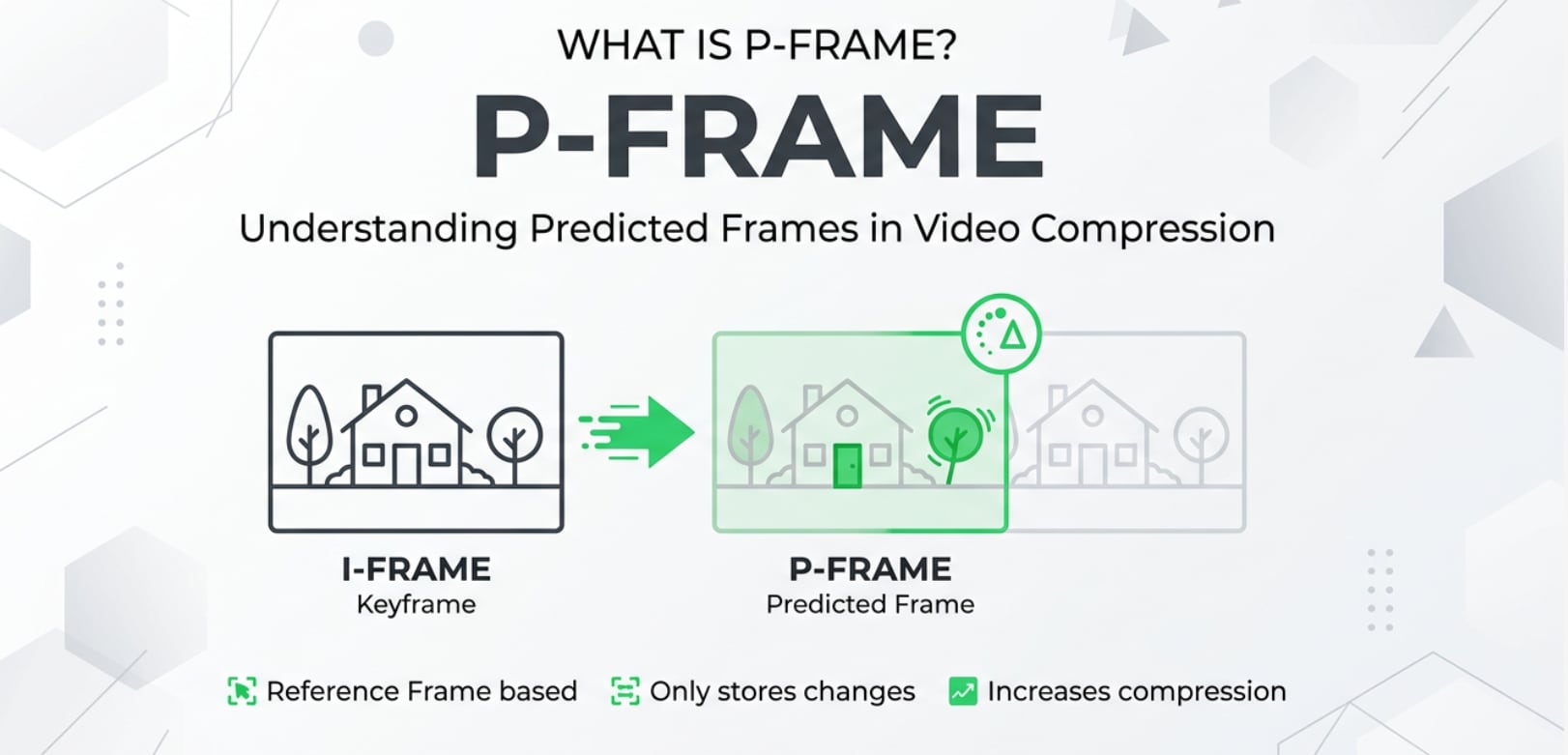
A P-Frame, short for predictive frame, is a type of inter frame used in video compression standards like H.264 and H.265. Instead of storing a full image, it only saves how the current frame differs from a previously decoded frame, usually an I-Frame or another P-Frame.
This makes a P-Frame a core frame type in modern codecs. Its basic role in video encoding is to reuse visual information across time, reducing the amount of data needed to represent motion while keeping playback smooth and convincing to the viewer.
Why Is P-Frame Important in Video Compression?
The main problem video compression tries to solve is that neighboring frames are very similar, yet raw video stores each frame as a complete picture. P-Frames avoid this waste by encoding only motion and changes from a reference frame, which dramatically cuts bitrate and file size.
Key benefits of P-Frames
- Better bitrate efficiency: Because a predictive frame only holds differences, it can be much smaller than a full frame, letting you stream or record more minutes per gigabyte.
- Smoother motion with less data: P-Frames are good at tracking moving subjects, like panning shots or people walking, without needing high bitrates for every frame.
- Improved streaming performance: Efficient inter frame compression means platforms like YouTube and Netflix can deliver HD or 4K over average internet connections with fewer stalls.
- Storage savings on cameras: DSLRs, action cams, and drones rely on P-Frames to keep memory card usage reasonable when recording long sessions.
Main limitations of P-Frames
- Dependency on previous frames: A P-Frame cannot be decoded correctly if its reference frame is missing or corrupted. One damaged frame can cause visible glitches in all following predictive frames within the same GOP.
- Artifact risk at low bitrate: If too many P-Frames are used with too little bitrate, you may see blockiness, smearing, or ghosting in fast motion.
- Less editing friendly: Because P-Frames are not independent, cutting or scrubbing in highly compressed footage (like long-GOP H.264) can feel less responsive than working with all-I codecs.
How Does P-Frame Work in the Encoding Workflow?
During video encoding, frames are grouped into a structure called a GOP (Group of Pictures), typically starting with an I-Frame followed by several P-Frames and sometimes B-Frames. The encoder analyzes how pixels move and change between frames, then stores this as motion vectors and residual data in each P-Frame.
P-Frames inside the GOP structure
- I-Frame: A full self-contained image used as a reference.
- P-Frame: Refers back to the most recent I-Frame or P-Frame, encoding motion and differences only.
- B-Frame: Can reference both previous and future frames for even better compression (in codecs that support it).
In this workflow, P-Frames sit between I-Frames and sometimes between I- and B-Frames, trading independence for compression efficiency. When the decoder plays your file, it first reconstructs the I-Frame, then applies the changes stored in each P-Frame to recreate the full motion sequence.
Where you see P-Frame settings in real tools
- FFmpeg and x264/x265: Options like GOP length, keyint, and B-frame count control how many P-Frames appear between I-Frames, affecting compression and seekability.
- OBS, streaming encoders, and hardware codecs: Presets such as "high quality" vs "low latency" adjust how aggressively P-Frames and other inter frame types are used for live streaming.
- Premiere Pro and Media Encoder: Export presets for H.264/H.265 define GOP size and frame structure, which indirectly sets how often P-Frames are inserted into the stream.
- Camera recording profiles: Long-GOP modes use many P-Frames for efficiency, while All-Intra modes minimize P-Frame usage to make editing smoother at the cost of larger files.
When Should You Care About P-Frame? Common Mistakes and Quick Tips
Who should care about P-Frames
- Editors and colorists: Working with highly compressed long-GOP files heavy on P-Frames can slow down scrubbing and make frame-accurate cuts less responsive.
- Streamers and content creators: Choosing the wrong GOP length or relying on too many predictive frames at low bitrate can cause blocky fast-motion scenes on Twitch, YouTube, or similar platforms.
- Archivists and camera operators: Understanding how P-Frames chain together helps you see why card errors or transfer interruptions may corrupt entire segments of a clip.
Common mistakes and quick tips
- Misunderstanding 1: "More compression is always better." Overusing P-Frames with a tiny bitrate can ruin action shots. Tip: for sports or handheld footage, allow more bitrate or shorter GOPs.
- Misunderstanding 2: "P-Frames do not affect editing." In fact, long spans of predictive frames make timelines heavier. Tip: for complex edits, consider transcoding to an intra-frame codec or using camera modes with fewer P-Frames.
- Misunderstanding 3: "If one frame is damaged, only that frame is affected." Because P-Frames depend on references, corruption early in a GOP can break playback for several seconds. Tip: if a clip glitches or freezes partway through, suspect inter-frame corruption.
Takeaway: You do not need to micromanage every P-Frame, but knowing how predictive frames behave helps you choose safer export presets, more robust streaming settings, and better recording modes for your projects.
How to Use Repairit to Fix a Corrupted Video File
When P-Frames, I-Frames, or headers are damaged, players and editors may refuse to open your clip or show heavy glitches. In these cases, a dedicated repair tool like Wondershare Repairit can analyze the file structure and rebuild missing or broken data. You can learn more about it from the Repairit official website.
Repairit key features
- Video repair for multiple corrupted files from cameras, phones, action cams, and drones in one batch.
- Beginner-friendly interface with a clear, guided workflow that hides technical complexity.
- Instant preview of repaired clips so you can confirm video and audio before saving.
Step-by-step: repair a corrupted video
- Add corrupted video files
Install and open Wondershare Repairit, then go to the Video Repair module. Click the add button or drag and drop your damaged videos into the main window. The clips will appear in a list with details such as format, resolution, and file size so you can confirm you selected the right files.

- Repair video files
Select the videos you want to fix and start the repair process. Repairit scans the structure of each file, attempts to correct headers, timecode, and frame data (including broken P-Frames), and then generates a playable version. When the process finishes, use the built-in player to preview the repaired clips and check image, motion, and sound.

- Save the repaired video files
If the preview looks good, click Save, choose a secure output folder, and export your repaired videos. For safety, store the fixed files on a different drive or directory from the originals so you always have a backup in case you need to retry or compare results later.

Conclusion
P-Frames are predictive frames that reference previously decoded images instead of storing a full frame every time. This simple idea is what lets modern codecs like H.264 and H.265 deliver high-quality video for recording, editing, exporting, and streaming without overwhelming your storage or bandwidth.
By understanding how P-Frames interact with I-Frames and B-Frames, you can choose better encoding presets, avoid common compression artifacts, and recognize why a single corrupted frame can break playback. When that happens, tools like Wondershare Repairit give you a practical way to recover damaged GOPs and get your footage back.
Next: B-Frame
FAQ
-
1. What is a P-Frame in simple terms?
A P-Frame is a frame that only stores how the picture has changed compared with a previous frame instead of saving a full standalone image. The video player must decode the reference frame first, then apply the changes from the P-Frame to rebuild the final image. -
2. How is a P-Frame different from an I-Frame?
An I-Frame is a complete image that can be decoded on its own, while a P-Frame depends on an earlier frame and stores only motion and difference data. I-Frames are larger but easier to edit, and P-Frames are smaller and more efficient for streaming and storage. -
3. Do P-Frames affect video quality?
Yes. Using many P-Frames with very low bitrate can create compression artifacts such as blockiness or smearing, especially in fast motion. With a reasonable bitrate and GOP structure, P-Frames provide good quality while keeping file sizes small. -
4. Why do corrupted P-Frames cause playback issues?
Because P-Frames rely on other frames, corruption in a reference frame or in several predictive frames can break the chain. This often leads to frozen images, heavy glitches, or the player stopping altogether until the next I-Frame appears. -
5. Can corrupted P-Frames be repaired?
Often they can be partially or fully repaired. A tool like Wondershare Repairit analyzes the video structure, fixes headers and timing, and may reconstruct or safely skip damaged inter frames so the file becomes playable again, even if some individual frames remain imperfect.




