
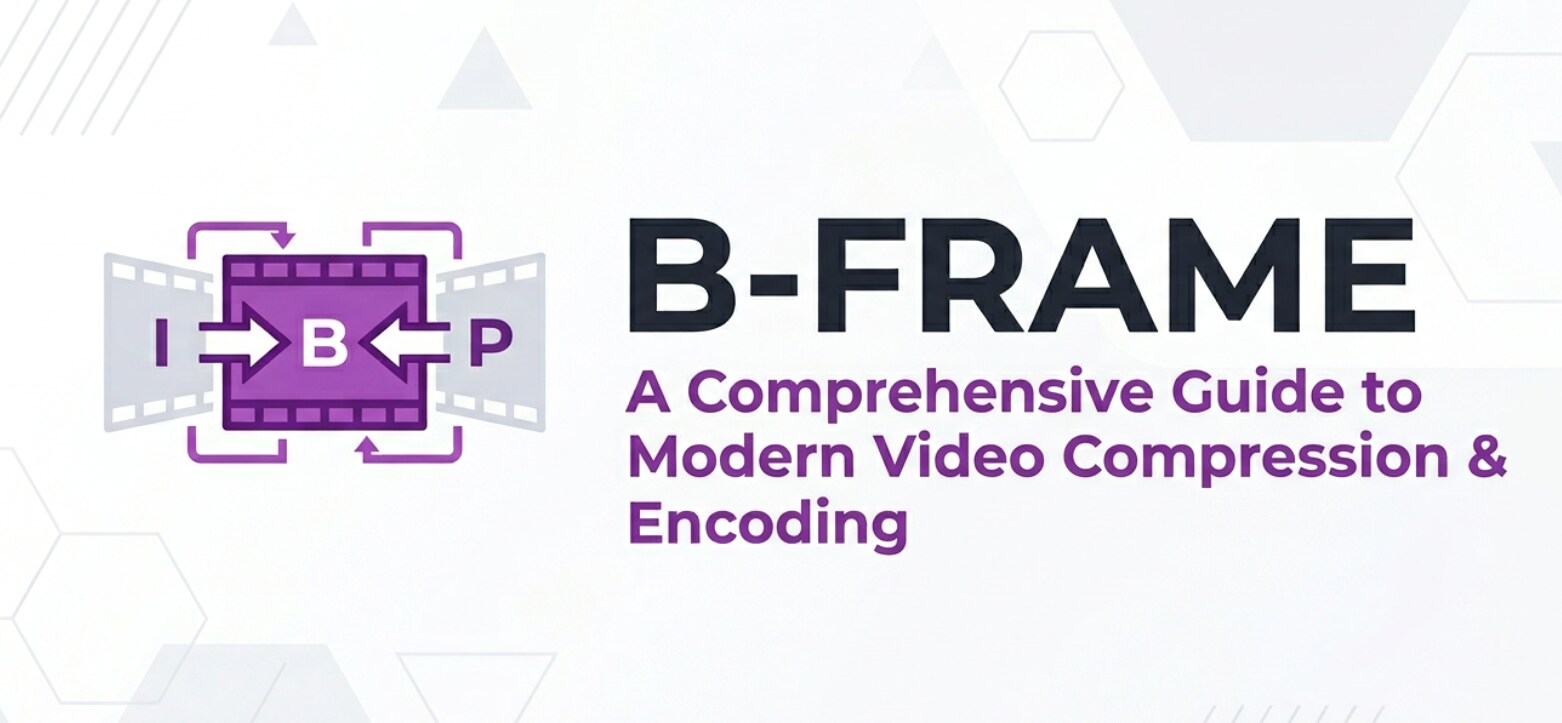
A B-Frame (bidirectional predictive frame) shows up whenever you record, edit, encode, export, or stream compressed video, especially with formats like H.264 and H.265. You may notice it as a setting in encoder menus, a term in FFmpeg logs, or an option affecting file size and smoothness. Understanding B-Frames helps you balance quality, bitrate, and compatibility, and it also explains why some heavily compressed clips become corrupted or hard to edit.
Repair Corrupted Files To Save Your Data
 Security Verified. Over 7,302,189 people have downloaded it.
In this article
What Is B-Frame?
A B-Frame, short for bidirectional predictive frame, is a type of compressed video frame used in modern codecs such as H.264, H.265 (HEVC), and many hardware encoders in cameras and phones. It belongs to the category of "frame type" and "prediction method" in a video stream.
Unlike an I-Frame (intra frame), which stores a complete image, or a P-Frame (predicted frame), which only looks at past frames, a B-Frame predicts its content using both earlier and later frames in the sequence. In a Group of Pictures (GOP) like I-B-B-P-B-B-P, those "B" frames are the highly compressed frames in between. Their basic role in video encoding is to reduce data size while keeping motion smooth and details sharp at lower bitrates.
Why Is B-Frame Important in Video Compression?
How B-Frames Improve Compression Efficiency
The main problem video compression tries to solve is how to deliver good picture quality without huge file sizes or bitrates. B-Frame technology tackles this by taking advantage of redundancy over time.
Because a B-Frame can look "backward" to a previous frame and "forward" to a future frame, the encoder can find more accurate motion and texture predictions. That means fewer new pixels must be stored, which lowers bitrate and shrinks file size. This is especially helpful for:
- Streaming platforms where bandwidth is limited but viewers expect HD or 4K quality
- Recording long sessions on cameras or smartphones where storage space matters
- Exporting videos from editors like Premiere Pro or DaVinci Resolve at low bitrates
With more B-Frames in the GOP, you usually get:
- Better bitrate efficiency at the same visual quality level
- Cleaner motion with fewer blocky artifacts at low bitrates
- More stable quality on detailed or fast-motion shots when tuned correctly
Limitations and Trade-Offs of Using B-Frames
However, B-Frames are not free. They introduce some trade-offs that affect encoding, playback, and editing.
| Aspect | Impact of Using Many B-Frames |
|---|---|
| Encoding speed | Slower, because the encoder analyzes more frames and motion paths. |
| Decoding complexity | Higher CPU/GPU load; older or low-power devices may struggle. |
| Editing friendliness | Less ideal for frame-accurate cuts; NLEs may need to re-decode surrounding frames. |
| Playback/compatibility | Some legacy players or cheap hardware decoders handle complex GOPs poorly. |
Additionally, heavy use of B-Frames can make a stream more sensitive to corruption. If reference frames are damaged, dependent B-Frames may glitch, freeze, or display macroblocking. This is one reason why highly compressed footage from action cams, drones, or screen recordings can become difficult to play or repair when damaged.
How Does B-Frame Work in the Encoding Workflow?
B-Frames Inside the GOP Structure
In the encoding workflow, video is broken into GOPs (Group of Pictures). Each GOP typically starts with an I-Frame, followed by a mix of P-Frames and B-Frames. Within this structure:
- I-Frames act as reference anchors, storing complete images.
- P-Frames reference only past frames (I or P) to predict motion.
- B-Frames reference both past and future frames (I or P) for more efficient prediction.
During encoding, the encoder looks at several frames at once (lookahead). It decides where to place I, P, and B-Frames, and how many B-Frames to insert between reference frames. For example:
- GOP: I B B P B B P B B I ...
- Here, each "B" sits between two reference frames and uses motion vectors to reconstruct its content from those neighbors.
The encoder then applies additional tools like motion compensation, transform coding, and entropy coding (e.g., CABAC in H.264) to pack everything efficiently. On playback, the decoder must reorder frames internally because B-Frames depend on future frames, even though you see them in normal time order on screen.
Where You See B-Frame Settings in Real Tools
You will encounter B-Frame options across many recording, editing, and streaming tools:
- FFmpeg / x264 / x265: Settings like "-bf 2" or "-bf 4" control the maximum number of B-Frames; presets like "slow" or "veryfast" adjust how aggressively they are used.
- OBS Studio: When you choose encoders such as x264, NVENC, or AMD, advanced settings may expose B-Frame counts or GOP-related options that affect streaming latency and quality.
- HandBrake: Under the Video or Advanced tabs, you can customize GOP length, reference frames, and B-Frames, especially when encoding to H.264 or H.265 for platforms like YouTube or Vimeo.
- Adobe Premiere Pro / Media Encoder: Export presets for H.264/H.265 have quality and performance presets that indirectly control B-Frame usage; some advanced tabs show GOP and keyframe distance options.
- Hardware cameras and recorders: Some professional cameras offer codec profiles (Long-GOP vs All-I) where Long-GOP modes make heavy use of B-Frames to save space.
In general, more B-Frames mean better compression at the cost of more processing power and potential latency, which is why low-latency live streams sometimes avoid them or use very few.
When Should You Care About B-Frame? Common Mistakes and Quick Tips
Not everyone needs to think deeply about B-Frame tuning, but certain users benefit by understanding it:
- Editors and colorists working with long-GOP footage in NLEs.
- Streamers balancing latency, quality, and stability in OBS or similar tools.
- Content creators exporting for YouTube, TikTok, or Instagram and wanting smaller files without ugly artifacts.
- Technical users using FFmpeg or custom video encoding pipelines.
When it matters:
- When your edits feel sluggish or scrubbing is choppy with long-GOP camera files.
- When low-end viewers complain about stuttering playback on heavily compressed streams.
- When corrupted or partially downloaded files show glitchy B-Frame-heavy sections.
When it matters less:
- When you work with intra-only codecs (All-I ProRes, DNxHR, etc.) inside the edit timeline.
- When you just use standard presets from major platforms without custom tweaking.
- When you only care about quick preview drafts, not final delivery quality.
Common misunderstandings about B-Frames include:
- "More B-Frames always mean higher quality." In reality, they mean higher efficiency at a given bitrate; poor settings can still look bad.
- "B-Frames cause corruption." Corruption usually happens at the container or reference frame level; B-Frames simply reveal the damage more obviously.
- "Disabling B-Frames fixes all playback issues." It can improve compatibility and latency but often at the cost of much larger files.
Practical tips and takeaway:
- Use default or recommended GOP/B-Frame settings unless you have a clear reason to change them.
- For editing, consider transcoding heavy long-GOP footage to an intra codec if timelines feel slow.
- For live streaming, reduce or disable B-Frames if ultra-low latency is more important than efficiency.
- If a highly compressed, B-Frame-heavy video becomes corrupted, use dedicated repair software instead of repeatedly re-encoding a broken file.
How to Use Repairit to Fix a Corrupted Video File
When a video that uses many B-Frames becomes corrupted, simple players or editors usually cannot fix the damaged GOP structure. Wondershare Repairit is designed specifically to analyze and repair structural issues in video files, including frame-level and codec-related errors. You can learn more and download it from the Repairit official website.
Key Features of Wondershare Repairit
- Repairs damaged or unplayable videos from various cameras, phones, drones, and recording devices.
- Supports multiple video formats and advanced encoding structures that rely on B-Frame prediction.
- Offers a simple, guided workflow suitable for beginners while still being useful for professional editors and creators.
Step-by-step: Repair a Corrupted B-Frame Heavy Video
- Add corrupted video files
Install and launch Wondershare Repairit, then open the Video Repair module. Click the option to add files and browse to the corrupted clips on your computer or external drive. You can import one problematic file or a batch of damaged videos in a single go, then confirm to load them into the repair list.

- Repair video files
After the files are listed, start the repair process with one click. Repairit automatically inspects the container, video compression details, and frame structure (including I-Frame, P-Frame, and B-Frame references). It then rebuilds damaged headers and frame data where possible. Once the process finishes, use the built-in player to preview the repaired videos and confirm that playback is smooth and artifacts are minimized.

- Save the repaired video files
If the preview looks good, choose a safe destination folder, ideally different from the source location, and click to save the repaired versions. Repairit exports clean copies of your videos so you can edit, archive, or upload them without the glitches that were caused by damaged GOP structure or broken B-Frames. Keep these fixed files as your new masters for future use.

Conclusion
B-Frames are bidirectional predictive frames that sit at the heart of modern video encoding in codecs like H.264 and H.265. By referencing both past and future frames, they deliver impressive compression efficiency, enabling smaller files and smoother streaming without sacrificing much visual quality.
At the same time, heavy reliance on B-Frames increases complexity for encoders, decoders, and editors, and can make corrupted files harder to handle. Understanding how B-Frames fit into the GOP structure, where they appear in tools like FFmpeg, OBS, or HandBrake, and when to prioritize quality, latency, or compatibility helps you choose smarter export and recording settings. When damage to frames, codecs, or containers leaves your videos unplayable, a specialized repair solution such as Wondershare Repairit can often bring them back to life.
Next: Idr Frame
FAQ
-
1. What is a B-Frame in simple terms?
A B-Frame is a video frame that does not store a full standalone picture. Instead, it predicts its content using both a previous frame and a future frame, which cuts file size while keeping the video looking smooth and sharp. -
2. How is a B-Frame different from an I-Frame and a P-Frame?
An I-Frame is a complete image that does not depend on other frames. A P-Frame predicts only from past frames. A B-Frame predicts from both past and future frames, which makes it more efficient but also more complex to encode, decode, and edit. -
3. Do more B-Frames always mean better video quality?
No. More B-Frames generally improve compression efficiency at a given bitrate, but they do not guarantee better quality on their own. Too many B-Frames can slow encoding, raise decoding load, and cause issues on older or low-powered devices. -
4. Can B-Frames cause video playback issues?
B-Frames themselves do not inherently break playback, but complex GOP structures with high compression can stress weaker players or devices. If reference frames are damaged or encoded poorly, dependent B-Frames may show glitches, freezes, or jumpy seeking. -
5. How can I fix a corrupted video that uses B-Frames?
First, try opening the file in a different media player to rule out software issues. If it still fails, use a dedicated repair tool like Wondershare Repairit, which analyzes the file structure, codecs, and GOP structure to repair broken references and recover playable video.




