
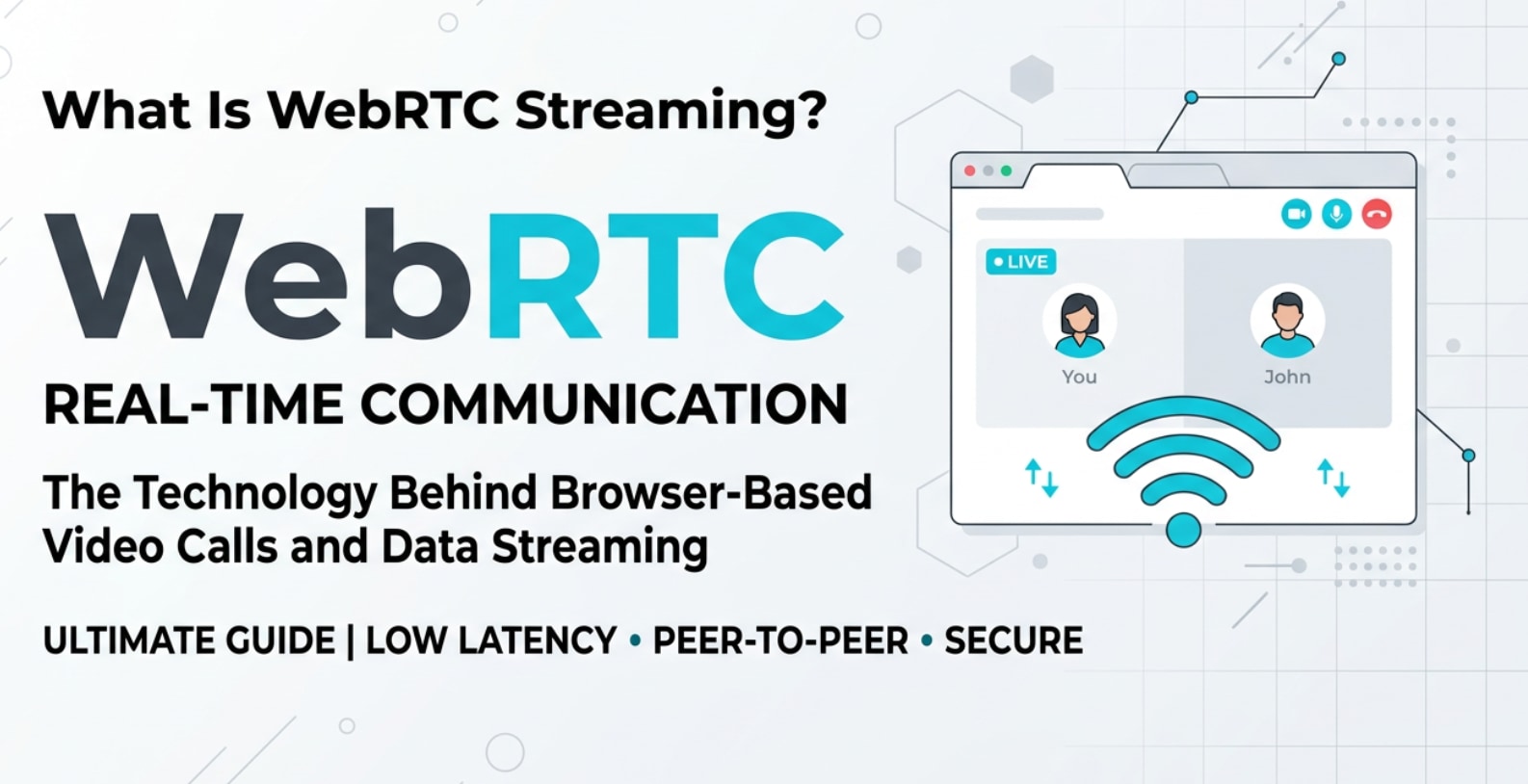
WebRTC streaming is what lets you jump into a live video meeting in your browser, start a real-time screen share, or join an interactive webinar without installing extra apps. You will see it behind tools like video conferencing platforms, browser-based live video chats, customer support widgets, and even some live-streaming sites. Understanding how real time streaming with WebRTC works helps creators, businesses, and developers make smoother calls, lower delay, and deliver more reliable, interactive video experiences on almost any device.
Repair Corrupted Files To Save Your Data
 Security Verified. Over 7,302,189 people have downloaded it.
In this article
What Is WebRTC Streaming?
WebRTC streaming is a browser-based technology that sends audio, video, and data between devices in real time, usually with latency under a second. WebRTC (Web Real-Time Communication) is built directly into modern browsers like Chrome, Firefox, Safari, and Edge, so users can join low latency video calls without plug-ins or native apps.
Unlike traditional streaming methods such as HLS or DASH that buffer video in chunks, WebRTC uses peer-to-peer connections when possible and applies technologies like SRTP (Secure Real-time Transport Protocol) for media encryption and ICE/STUN/TURN servers to discover the best path between users. For creators and video teams, this means live collaboration, instant monitoring, and highly responsive interactions compared to older protocols like RTMP.
From a video workflow perspective, WebRTC is another transport option alongside browser based streaming standards and classic ingest protocols. It is particularly important whenever you need truly interactive sessions, not just one-way broadcast.
How Does WebRTC Streaming Work in the Real Workflow?
Capture, encode, and send from the browser
In a practical production or collaboration setup, WebRTC streaming appears at several stages of the media workflow:
- Recording: A user opens a meeting link or cloud recorder in their browser. WebRTC accesses their camera, microphone, or screen via getUserMedia, then feeds this into an internal encoder (typically VP8/VP9 or H.264 for video, Opus for audio).
- Live encoding: Instead of using a separate hardware encoder, the browser encodes video frames in real time and pushes them into SRTP packets. This is key for teams that do quick demos, support calls, or remote interviews without dedicated gear.
- Session setup: Signaling servers manage call invitations, create sessions, and exchange SDP descriptions. ICE then negotiates the path between participants, sometimes relaying traffic through a TURN server when direct peer-to-peer is blocked by firewalls or NAT.
When you hit Record in a browser-based meeting or support platform, the raw WebRTC stream is often captured server-side or locally and saved to a container like MP4 or WebM. That saved file can later be downloaded, edited in an NLE, or uploaded to other platforms.
Delivery, playback, and platform compatibility
Once the WebRTC stream is live, the workflow continues through delivery and playback:
- Real-time playback: Viewers in the same WebRTC session see and hear you with minimal delay. Adaptive bitrate control adjusts resolution and bitrate on the fly to match network conditions, preserving smooth playback on weaker connections.
- Server-side mixing and routing: Many platforms do not rely on pure peer-to-peer. They use SFUs (Selective Forwarding Units) or MCUs (Multipoint Conferencing Units) to route and mix streams, enabling grid views, active speaker layouts, and recording of composite video.
- Export and editing: After the call, the WebRTC session is turned into a file. Editors import this file into tools like Premiere Pro, Final Cut Pro, or DaVinci Resolve for trimming, color correction, and audio cleanup. This is where WebRTC intersects with traditional post-production.
- Cross-platform compatibility: Although WebRTC is native to browsers, mobile apps and desktop clients can integrate WebRTC libraries so that phones, tablets, and PCs all join the same real time streaming session. This makes it easier to reuse live recordings across platforms like YouTube, Vimeo, or learning management systems.
Because these sessions are real time, they are also more vulnerable to network glitches, abrupt disconnects, and faulty saves. The resulting recorded files can become corrupted, leading to missing video, audio desync, or unplayable clips that must be repaired before editing or sharing.
Where Is WebRTC Streaming Commonly Used?
WebRTC streaming is widely used anywhere responsive, two-way interaction matters more than raw broadcast reach. You are most likely to encounter it in situations like:
- Video conferencing and meetings: Platforms for team meetings, standups, client calls, and webinars rely heavily on WebRTC for browser-based meetings that start instantly.
- Customer support and sales: Live support widgets, click-to-call buttons, and instant demo tools embed WebRTC so agents can show screens, walk through products, or troubleshoot with customers in real time.
- Remote production and collaboration: Creators and video teams use low latency video links for remote directing, live feedback, or virtual greenroom setups. Cameras on set can feed preview streams through WebRTC to remote stakeholders.
- Education and training: Online classrooms, tutoring platforms, and skills training services use real time streaming so instructors can interact directly with students, annotate screens, and answer questions instantly.
- Gaming and interactive events: Some cloud gaming, watch-party, and live interactive shows combine WebRTC with other protocols to provide quick feedback and shared experiences without noticeable lag.
Behind the scenes, many services also bridge WebRTC vs RTMP workflows. For example, a host might join a session via WebRTC, and the platform simultaneously re-encodes that feed to RTMP for distribution to classic live-streaming CDNs. This allows an interactive core group while still broadcasting to large audiences.
How to Use Repairit to Fix a Corrupted Video File
Why choose Repairit for damaged videos
Browser recordings from WebRTC streaming are often critical assets: client meetings, product demos, interviews, or training sessions you cannot easily recreate. If a download fails, the browser crashes, or a network spike interrupts saving, you may end up with a corrupted MP4, WebM, or MOV file that refuses to play or has missing audio and frames.
In these situations, Wondershare Repairit offers a straightforward way to restore broken recordings. It focuses on fixing structural issues in video containers and streams so you can open, edit, and share your clips again instead of rescheduling important live sessions.
To learn more about what it can repair across video, photo, audio, and documents, you can visit the Repairit official website.
Key features of Repairit video repair
- Repairs corrupted or unplayable recordings from real-time tools, cameras, screen recorders, and other sources in multiple formats.
- Provides a simple, guided interface so you can repair several damaged videos from WebRTC calls or live sessions in one batch.
- Lets you preview the repaired video before saving, ensuring that audio, picture, and timeline issues are fixed as expected.
Step-by-step: repair a corrupted WebRTC recording
When a WebRTC-based recording from your meeting or live stream will not play, Wondershare Repairit can often restore it in just a few steps. The process is similar whether your file came from a browser, desktop app, or cloud download.
- Add corrupted video files
Launch Repairit on your computer and open the Video Repair module. Click the add icon or the central file area, then browse to the folder where your damaged WebRTC recording is stored. Select one or more corrupted clips and import them into the program. The file list will display basic details like format, duration, and resolution so you can confirm you chose the correct videos.

- Repair video files
After your files are loaded, start the repair process with a single click. Repairit scans the structure of each video, analyzes headers, indexes, and streams, then attempts to rebuild any damaged sections. During this stage, you do not need to tweak codecs or technical settings; the software applies its own repair logic in the background. When the process finishes, you can preview the repaired recordings directly within Repairit to check audio, picture, and playback quality.

- Save the repaired video files
If the preview looks correct, choose a safe destination folder that is different from your original source location, then click Save to export the fixed files. Repairit writes new, healthy copies of your recordings without altering the originals, so you keep a fallback version. Once saved, you can open the repaired videos in your preferred media player, import them into editing software, or upload them to sharing and collaboration platforms as part of your regular workflow.

Conclusion
WebRTC streaming has transformed how we capture, share, and collaborate with video by bringing real time streaming directly into the browser. From quick client calls to interactive training, it powers low-latency, two-way communication across many modern platforms and industries.
At the same time, recordings from WebRTC sessions can be fragile, especially when network interruptions or software crashes occur. Wondershare Repairit helps you protect the value of these sessions by repairing corrupted video files so they remain usable for editing, documentation, and future reference. With the right combination of real-time technology and reliable repair tools, you can keep both your live experiences and archived media running smoothly.
Next: What Is Secure Reliable Transport (SRT)?
FAQ
-
1. What is the main benefit of WebRTC streaming compared to traditional protocols like RTMP?
WebRTC provides interactive, two-way communication with very low latency directly in the browser, so users can join video calls or live sessions without extra plug-ins or players. RTMP is better suited for one-way broadcast to large audiences but usually has more delay and requires dedicated ingest setups. -
2. Can I use WebRTC streaming for professional recording and editing workflows?
Yes. Many teams use WebRTC-based tools to capture meetings, interviews, and remote collaborations, then export the resulting files as MP4 or WebM. These files can be edited in professional NLEs just like footage from cameras or screen recorders, as long as they are not corrupted. -
3. Why do some WebRTC recordings become corrupted or unplayable?
Corruption usually happens when a call is interrupted, the browser crashes, storage runs out, or the connection drops during saving or downloading. The container headers or media streams may be incomplete, causing players to fail when opening the file. -
4. How does Repairit help with damaged WebRTC streaming files?
Repairit analyzes the corrupted video, rebuilds damaged headers or indexes, and fixes problematic audio and video streams. This allows previously unplayable recordings from WebRTC sessions to open again, so you can review, edit, and share them as normal. -
5. Does Repairit change the original WebRTC recording during repair?
No. Repairit creates a new, repaired copy of your video in a target folder while leaving the original file untouched. This gives you a safe backup and ensures you can always revert if needed.




