
A transform block is one of those hidden tools inside your camera, phone, or editor that quietly decides how good your compressed video will look on YouTube, TikTok, or a TV screen. You might meet the term when tuning export presets in Premiere, HandBrake, or FFmpeg, or when you notice blocky artifacts in highly compressed clips. Understanding transform blocks helps you balance quality, file size, and streaming stability, and also spot when glitches are from normal compression versus a truly corrupted video file that needs repair.
Repair Corrupted Files To Save Your Data
 Security Verified. Over 7,302,189 people have downloaded it.
In this article
What Is Transform Block?
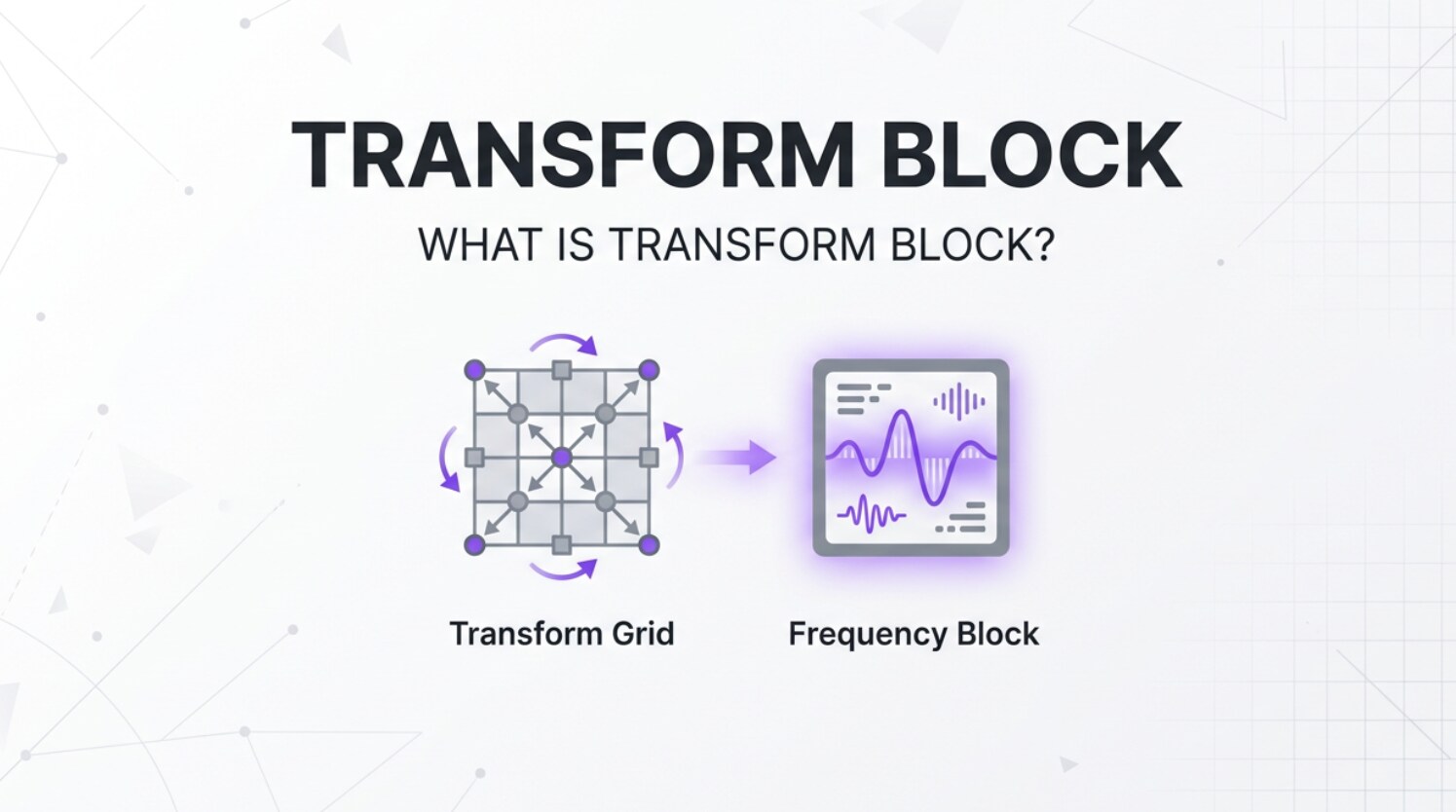
A transform block is a small square or rectangular patch of an image that a video codec converts from raw pixel values into frequency components. It belongs to the family of frequency-domain tools in a codec, along with concepts like dct transform and quantization.
Instead of storing each pixel in the block directly, the encoder runs a mathematical transform (often a Discrete Cosine Transform or a related variant) to represent the block as a mix of low- and high-frequency details. This representation makes it easier for codecs like h264, h265/HEVC, and av1 to compress video efficiently.
In the encoding pipeline, the transform block sits between prediction (where the codec tries to guess the next pixels from neighbors or motion) and entropy coding (where bits are packed as tightly as possible). Its main role is to organize visual detail so the codec can preserve important information while discarding subtle details that matter less to human vision.
Why Is Transform Block Important in Video Compression?
The transform block solves a fundamental compression problem: raw pixel data is bulky and not organized in a way that matches how our eyes see detail. By grouping pixels and converting them into frequency components, transform blocks allow the codec to:
- Separate smooth areas (low frequencies) from edges and fine textures (high frequencies).
- Apply heavier compression where artifacts are less noticeable.
- Control how bits are spent across the image for a given bitrate.
This directly affects bitrate efficiency and file size. With the same bitrate, a well-tuned transform system in a modern video codec like h265 or av1 can deliver higher perceived quality than older, rigid macroblock-based designs in h264.
Main benefits of transform blocks:
- Better quality per bit: Frequency-based representation lets encoders keep visible structure while dropping subtle noise.
- Flexible detail handling: Smaller blocks can follow edges and textures; larger ones handle flat skies or walls efficiently.
- Streaming-friendly: Efficient compression means lower bitrates for the same quality, which helps avoid buffering and bandwidth issues.
Key limitations:
- Block artifacts: Because each transform block is compressed separately, too-strong compression can create visible block boundaries and banding.
- Complexity: More flexible block structures in HEVC and AV1 improve quality but increase encoder complexity and sometimes encoding time.
- Editing challenges: Highly compressed, block-based formats can be less friendly for frame-accurate editing compared to lightly compressed intraframe formats.
How Does Transform Block Work in the Encoding Workflow?
In practice, you encounter the effects of transform block decisions whenever you choose a codec preset, quality target, or bitrate in your NLE, encoder, or streaming software. The blocks themselves are not usually exposed as a direct user setting, but they are constantly shaping both quality and efficiency in the background.
Transform blocks alongside prediction and motion
At a high level, a typical encoding chain for video encoding in codecs like h264, h265, and av1 looks like this:
- 1. Input frame and color conversion: The raw frame from your camera or editor is converted to a codec-friendly format (often YUV) and sometimes downsampled in chroma.
- 2. Partitioning into blocks: The frame is divided into a hierarchy of blocks. Older macroblock-based codecs use fixed 16x16 blocks; newer codecs use flexible trees where prediction and transform blocks can vary (for example, 4x4 up to 32x32 or more).
- 3. Intra or inter prediction: The encoder predicts each block from surrounding pixels (intra) or from motion-compensated references (inter). The difference between the prediction and the real block is called the residual.
- 4. Transform stage (where transform blocks live): The residual is split into transform blocks and a transform such as a DCT-like operation is applied. This reorganizes the error signal so most energy is concentrated in a few low-frequency coefficients.
- 5. Quantization: The transform coefficients are scaled and rounded according to the chosen quality level or bitrate. High-frequency coefficients may be shrunk to zero, especially at lower bitrates.
- 6. Entropy coding: The quantized coefficients and side information (like motion vectors and block sizes) are fed to a lossless compressor such as CABAC. This finishes the encoded bitstream.
On decode, the process is reversed: entropy decoding, dequantization, inverse transform for each transform block, plus in-loop tools like deblocking and filtering, then reconstruction of the final frame for playback or further editing.
Where you see transform block behavior in real tools
While you rarely see a toggle named "transform block" in interfaces, many settings indirectly control how the encoder chooses and uses blocks:
- FFmpeg and x264/x265: Parameters like preset (slow, medium, fast), CRF, and tune (film, animation, grain) influence block partitioning, transform sizes, and quantization strength.
- OBS Studio: When you choose encoders like x264, NVENC, or hardware HEVC, the quality and bitrate presets dictate how aggressively transform blocks are compressed for live streaming.
- HandBrake: RF/quality sliders and encoder presets internally adjust transform-related decisions to balance quality and file size for exports.
- Adobe Premiere Pro / Media Encoder: Export settings such as target bitrate, profile (Main, High, Main10), and hardware vs software encoding affect how the underlying codec decides block sizes and transform modes.
- Hardware encoders in cameras and phones: "High efficiency," "HEVC," or "space saver" recording modes typically push more efficient block usage to shrink file sizes, which can lead to more noticeable artifacts at extreme compression.
When you see blocky skies, banding, or "checkerboard" patterns while streaming or editing, you are usually seeing the side effects of transform block decisions plus heavy quantization at too low a bitrate.
When Should You Care About Transform Block? Common Mistakes and Quick Tips
Not everyone needs to be a compression engineer, but understanding transform blocks is helpful for certain roles.
Who should care the most?
- Video editors and colorists: When pushing aggressive exports or round-tripping between apps, block artifacts can limit grading latitude or reveal banding in gradients.
- Streamers and live producers: If your upload bandwidth is tight, your encoder will rely heavily on efficient blocks and aggressive quantization, making artifacts more likely.
- Encoding specialists and archivists: Choosing between h264, h265, and av1 involves evaluating how their transform/block systems behave with your content.
- Mobile and social creators: Recording or exporting twice with strong compression can stack transform-related artifacts and noticeably degrade quality.
Common misunderstandings:
- "Blockiness always means corruption." Most of the time, visible blocks are just low-bitrate compression, not damaged files.
- "Higher resolution fixes block artifacts." If bitrate does not increase accordingly, larger frames can actually make blockiness more obvious.
- "All codecs block artifacts the same way." Modern codecs with more flexible structures can reduce but not eliminate block artifacts, especially at extreme compression.
Practical tips and takeaway:
- Use "visually lossless" or higher bitrates for masters to avoid stacking transform artifacts across multiple exports.
- For gradients (skies, studio backdrops), consider slightly higher bitrates or 10-bit profiles to reduce banding from quantized transform blocks.
- Test streaming presets using fast-moving and flat-color content; these stress transform block systems differently.
- If a clip shows sudden freezes, green frames, or missing sections rather than consistent blockiness, you may be dealing with a truly corrupted video files issue that requires repair rather than just better compression settings.
In short, you do not need to tweak transform blocks directly, but knowing they organize detail inside each frame helps you interpret artifacts and choose safer export and streaming settings.
How to Use Repairit to Fix a Corrupted Video File
When glitches go beyond normal compression artifacts and you see playback errors, black frames, or files that will not open, adjusting video compression settings will not help. This is where Wondershare Repairit becomes more relevant than any transform block tweak. Instead of asking you to decode codec internals like macroblock layout or dct transform parameters, Repairit automatically analyzes and rebuilds damaged video structure so your clips become playable again. You can learn more and access both desktop and online tools from the Repairit official website.
Key features of Wondershare Repairit
- Repairs corrupted or unplayable videos from various cameras, phones, and formats.
- Supports batch repair so you can process multiple problem clips in one run.
- Lets you preview repaired videos before saving them to confirm that playback looks correct.
Step-by-step guide to repair corrupted video files
- Add corrupted video files
Install and launch Wondershare Repairit on your computer, then head to the Video Repair module. Click the add button and browse to the folder where your damaged or unplayable videos are stored. Select one or several clips, including those encoded with h264, h265/HEVC, or av1, and load them into the repair list.

- Repair video files
After your files are listed, start the repair process with a single click. Repairit will inspect the container, headers, and stream structure, then reconstruct the broken video and audio data so the output can decode correctly, regardless of the original video codec or transform block configuration. When the first pass is finished, use the built-in player to preview the repaired results and confirm that playback runs smoothly.

- Save the repaired video files
If the preview looks good and the artifacts match normal compression rather than corruption, click Save to export the fixed versions. Choose an output folder that is different from the original file location to keep your repaired clips separate and safe. Once saved, you can bring the restored videos back into your editing, encoding, or streaming workflow without worrying about structural corruption.

Conclusion
Transform blocks sit at the heart of modern video compression, converting pixel data into frequency components that codecs can compress efficiently. The way these blocks are sized and quantized in formats like h264, h265/HEVC, and av1 strongly influences file size, visible detail, and the risk of block artifacts, especially when bitrates are pushed too low for recording, exporting, or streaming.
In day-to-day work, you rarely change transform block settings directly, but your choices of codec, preset, profile, and bitrate all steer how they behave. When visual issues are purely compression-related, adjusting those settings is the right move. When problems point to true corrupted video files instead, a dedicated repair solution like Wondershare Repairit can restore playback without requiring you to dig into low-level codec mechanics.
Next: Deblocking Filter
FAQ
-
1. What is a transform block in simple terms?
A transform block is a small region of pixels that the codec converts into frequency coefficients so it can compress video more efficiently. Instead of storing every pixel directly, it stores a compact description of smooth areas and edges, which reduces file size while trying to keep visual quality acceptable. -
2. How is a transform block different from a macroblock?
A macroblock is an older, fixed-size 16x16 grouping used in standards like h264 for pixels, motion, and transform data. Newer codecs such as h265/HEVC and av1 use more flexible block trees, where prediction and transform block sizes can vary. This flexibility improves compression efficiency and reduces visible artifacts at the same bitrate. -
3. Do transform block settings affect visible video quality?
Yes. Smaller or more adaptive transform blocks can follow edges and textures more accurately, preserving detail, while larger blocks can be more efficient but may produce stronger block artifacts at low bitrates. Most software (FFmpeg, OBS, HandBrake, Premiere exports) manages these decisions automatically based on your chosen codec, preset, and bitrate. -
4. Can transform blocks cause blocky artifacts and banding?
Blocky artifacts typically appear when transform coefficients are heavily quantized to hit a very low bitrate. Because each transform block is compressed separately, strong quantization can make the boundaries between blocks visible, especially in flat gradients like skies or studio backdrops, leading to blockiness and banding. -
5. Will a video repair tool change transform block behavior?
No. A video repair tool such as Wondershare Repairit does not re-encode your footage or change transform block decisions. Instead, it focuses on fixing structural problems like broken headers, damaged indexes, and corrupted streams so the original compressed data can be decoded and played back correctly.




