
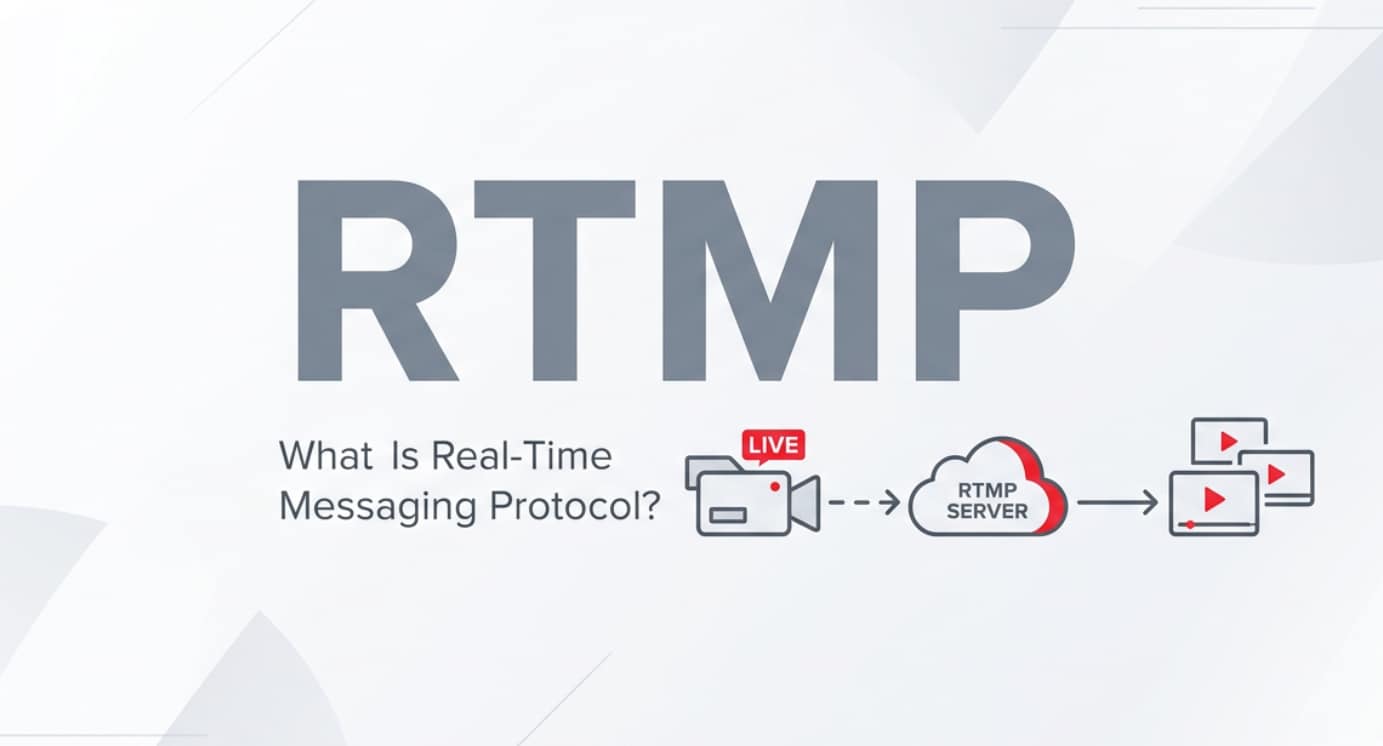
Real-Time Messaging Protocol (RTMP) is a long-standing streaming technology used to send live audio and video from cameras, capture cards, or software encoders to platforms like YouTube, Facebook Live, and Twitch. You will encounter RTMP streaming whenever you go live from OBS, Wirecast, vMix, or a hardware encoder. Understanding what RTMP is and how it fits into recording, encoding, exporting, and playback workflows helps you build more reliable streams and avoid frustrating broadcast failures.
Repair Corrupted Files To Save Your Data
 Security Verified. Over 7,302,189 people have downloaded it.
In this article
What Is Real-Time Messaging Protocol (RTMP)?
Real-Time Messaging Protocol (RTMP) is a TCP-based streaming protocol originally designed to move audio, video, and data between Flash Player and media servers with low latency. In modern workflows, Flash has disappeared, but RTMP live streaming is still widely used as an ingest format to send encoded video from production tools to cloud platforms.
RTMP keeps a persistent connection open between the encoder and the server. Audio and video are chopped into small chunks, wrapped inside an FLV-style container, and transmitted over this steady connection. This design allows smoother, more responsive live experiences than many traditional HTTP download methods.
When you configure an encoder with an RTMP URL and stream key, you are telling that encoder where to send your live feed. The platform then accepts the incoming RTMP stream, decodes it, and often repackages it as HLS or DASH for end viewers using web players, mobile apps, or smart TVs.
| Aspect | How RTMP Handles It |
|---|---|
| Transport | Uses TCP with a persistent connection between encoder and server |
| Content types | Audio, video, and timed metadata (captions, cues, stream markers) |
| Typical use today | Ingest from encoders to platforms; not for direct browser playback |
How Does Real-Time Messaging Protocol (RTMP) Work in the Real Workflow?
RTMP in capture, encoding, and contribution
In a real production pipeline, RTMP streaming usually sits between the encoding stage and the media server or CDN.
- Capture and recording: Cameras, webcams, or screen-capture tools record video in formats like MP4, MOV, or MKV. These files are stored locally and may later be edited or uploaded.
- Encoding: Software like OBS Studio, Streamlabs, vMix, Wirecast, or hardware encoders compress the signal using codecs such as H.264/AAC. You then select RTMP as the output protocol.
- Contribution to the cloud: The encoder sends a continuous RTMP live streaming feed to a platform URL (for example rtmp://live.youtube.com/app) along with your stream key.
- Transcoding and packaging: The platform receives the incoming RTMP stream, decodes it, and re-encodes multiple quality levels suitable for different network conditions and devices.
- Archiving and VOD: Many services record the incoming RTMP feed to MP4 or another container for on-demand playback or editing. If the network drops or the encoder crashes during this stage, those saved files can become corrupted or unplayable and may need dedicated repair.
Because RTMP uses a long-lived connection, it can deliver relatively low-latency streaming for interactive content such as live auctions, Q&A sessions, and gaming. However, the same persistent connection also means temporary network problems can damage the underlying file structure of archived streams, leading to playback errors in editing tools or players.
RTMP vs HLS and other delivery protocols
Creators often compare RTMP vs HLS when designing streaming workflows. Understanding the difference helps you choose the right protocol for each stage.
| Protocol | Typical Role in Workflow |
|---|---|
| RTMP | Low-latency ingest from encoder to server; not used directly for browser playback anymore. |
| HLS (HTTP Live Streaming) | Chunked HTTP-based delivery to web players, mobile apps, and smart TVs; ideal for scalable distribution. |
| DASH / CMAF | Modern standards-based streaming for adaptive bitrate and broad device support. |
In practice, you might send an RTMP workflow feed from OBS to a streaming platform. That platform immediately converts RTMP to HLS (or DASH) for your viewers. This hybrid approach combines RTMP's low-latency ingest with HLS's compatibility across browsers, mobile devices, OTT boxes, and smart TVs.
Where is the Real-Time Messaging Protocol (RTMP) Commonly Used?
RTMP live streaming still appears across many industries and platforms, even though the original Flash ecosystem is gone.
- Social and creator platforms: YouTube Live, Facebook Live, Twitch, and many other services accept RTMP as a primary ingest option from software and hardware encoders.
- Professional broadcast and events: Production teams use RTMP streaming from on-site encoders to central studios or cloud switching services for conferences, concerts, webinars, and sports.
- Gaming and esports: Game streamers rely on RTMP to push their encoded gameplay from OBS or dedicated cards to Twitch or other platforms with low delay.
- Corporate and education: Companies and schools use RTMP to feed internal media servers, lecture capture systems, and video portals before content is packaged for on-demand viewing.
- Cloud production tools: Many browser-based switching and contribution tools accept RTMP inputs and output HLS or WebRTC to participants and viewers.
If you work with video recording, editing, encoding, exporting, or live streaming, you are likely to see RTMP URLs and stream keys whenever you set up a new channel, connect an encoder, or archive live sessions for later editing.
How to Use Repairit to Fix a Corrupted Video File
Repairit introduction
When a network drop, encoder crash, or power loss corrupts your RTMP-based recording, the resulting MP4, MOV, or other file may refuse to play or import into your editor. Wondershare Repairit is designed specifically to fix corrupted, damaged, or unplayable video files in a straightforward workflow, so you can rescue valuable streams and camera footage without complex settings. You can learn more and download the tool from the Repairit official website.
Key features of Repairit
- Repairs multiple corrupted video formats from cameras, phones, and screen recorders.
- Supports batch processing so you can fix many damaged clips in one go.
- Offers an intuitive preview to check repaired videos before saving.
Step-by-step: repair corrupted RTMP recordings
- Add corrupted video files

Open Repairit and choose the Video Repair module. Click the add button or drag your problematic RTMP-based recordings (such as MP4 files captured from your live stream) into the main window. You can load several files at once, which is ideal if an entire event or playlist was affected.
- Repair video files

After the clips are listed, start the repair process with a single click. Repairit analyzes the container and video stream structure, fixes header and index issues, and reconstructs playable data wherever possible. When the repair completes, use the built-in preview player to quickly scrub through each clip and confirm that the audio, video, and duration look correct.
- Save the repaired video files

If you are satisfied with the previews, select the videos you want to keep and choose a secure destination folder, ideally on a healthy drive with enough free space. Click Save to export all repaired files. The fixed videos can now be opened in your NLE, archived as VOD assets, or reuploaded to your streaming platform without errors.
Conclusion
Real-Time Messaging Protocol (RTMP) remains a core piece of many live-streaming pipelines, particularly as a reliable ingest method between encoders and cloud platforms. While viewers typically watch streams via HLS or other modern protocols, RTMP continues to power the contribution side of countless broadcasts.
Because these workflows rely on continuous connections, interruptions can easily corrupt archived RTMP recordings and make them unplayable. Using a dedicated tool like Repairit helps you restore damaged files, protect your content library, and keep your streaming operations stable from capture and encoding through export, distribution, and playback.
Next: Real-Time Streaming Protocol (Rtsp)
FAQ
-
1. What is RTMP used for today?
Today, RTMP is mainly used as an ingest protocol. Encoders send a live stream via RTMP to a media server or platform, which then repackages the content into formats like HLS or DASH for viewers on web, mobile, and TV devices. -
2. Is RTMP still relevant after the end of Flash?
Yes. Although Flash Player is no longer supported in browsers, RTMP streaming remains widely used by hardware and software encoders, CDNs, and professional live platforms for low-latency contribution in production workflows. -
3. What are the advantages of RTMP for live streaming?
RTMP live streaming offers relatively low latency, a persistent connection, and stable delivery for long-running broadcasts. It is mature, well-documented, and supported by many encoders, media servers, and cloud platforms. -
4. Why do RTMP recordings become corrupted?
RTMP-based recordings can become corrupted due to unstable network connections, encoder software crashes, power failures, storage issues, or improper session termination. These problems can damage file headers, indexes, or data blocks, causing playback or import errors. -
5. How can I repair a corrupted RTMP video file?
You can use a video repair solution such as Wondershare Repairit. Add the corrupted recording, run the repair process, preview the fixed output to confirm quality, and then save the repaired file to a safe location for editing, archiving, or reuploading.




