
When you shoot, edit, export, or stream video, you constantly bump into terms like bitrate, compression, and quality settings. One of the hidden engines behind all of this is quantization. It quietly decides how much detail your footage keeps or throws away, whether you are exporting from Premiere, live streaming with OBS, or uploading to social platforms. Understanding it helps you avoid muddy, blocky images while still keeping file sizes and upload times under control.
Repair Corrupted Files To Save Your Data
 Security Verified. Over 7,302,189 people have downloaded it.
In this article
What Is Quantization?
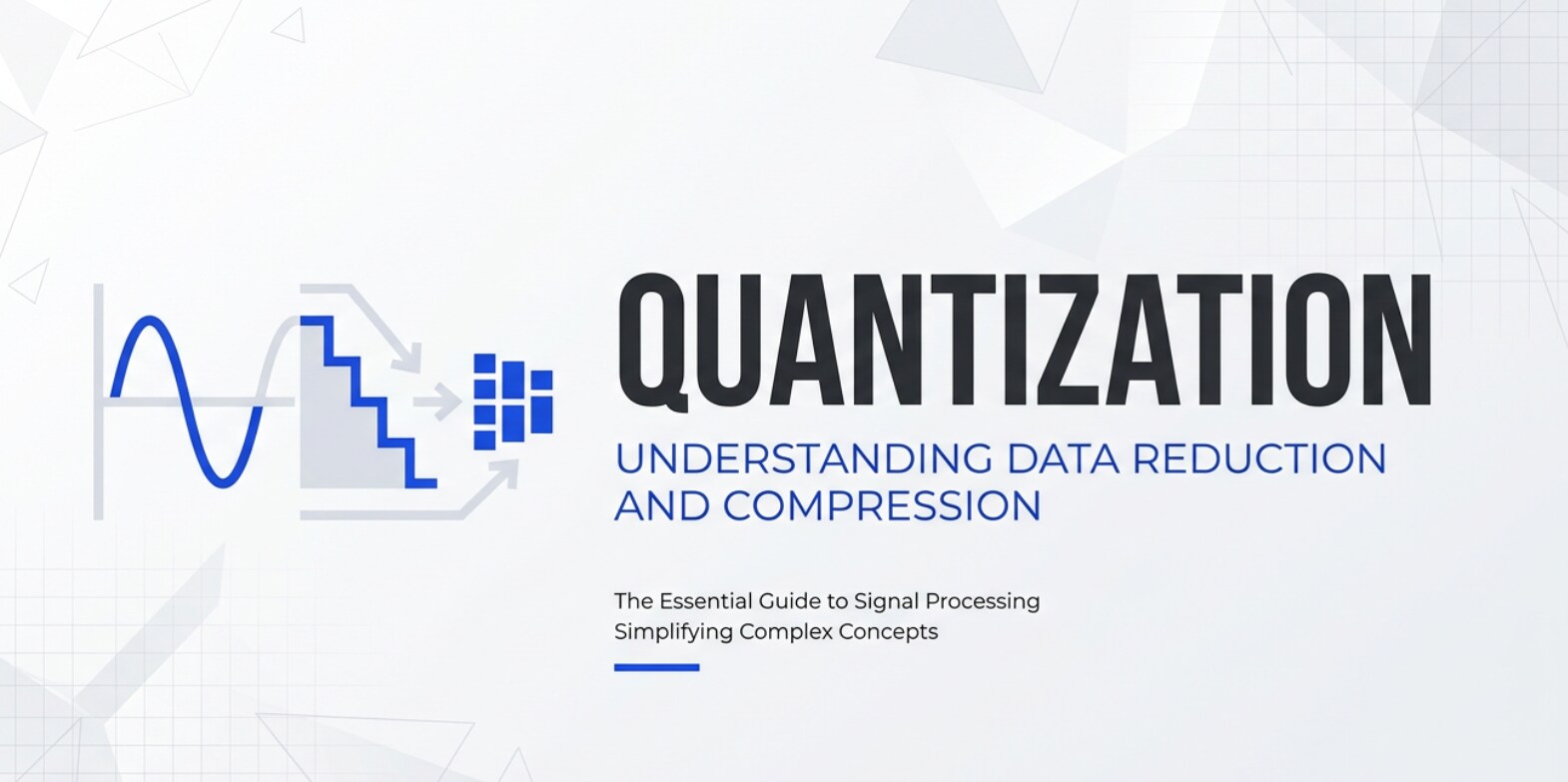
Quantization is a core step in digital video compression where the encoder reduces the precision of picture information so that it can be stored or transmitted using fewer bits. In practical terms, it takes many possible values (fine detail) and groups them into fewer, coarser levels.
Within a codec like H.264, H.265/HEVC, AV1, or VP9, video quantization belongs to the category of "lossy compression" tools. It works on transformed data (frequency coefficients) after motion prediction and spatial transforms (like DCT) but before entropy coding. Its basic role in video encoding is to control how aggressively detail is discarded, which directly affects quality, bitrate, and file size.
Whenever you choose a quality level, CRF value, or Quantization Parameter (QP) in encoders such as x264, x265, FFmpeg, OBS, or Adobe Media Encoder, you are indirectly setting how strong the quantization will be on your footage.
Why Is Quantization Important in Video Compression?
The main problem modern codecs must solve is how to squeeze huge amounts of visual information into bitrates that are practical for storage, editing, and streaming. Raw 4K or even 1080p video is far too large for everyday workflows, so codecs must throw away some information while trying to keep the result looking good. Quantization is the step that decides exactly how much detail gets sacrificed.
By using a larger quantization step size, the encoder maps a wider range of values to the same output level. This slashes the data rate and file size, which is good for streaming and saving disk space, but it also increases visible artifacts like blockiness, banding, and texture loss. Smaller step sizes preserve more detail and fine gradients, at the cost of a higher bitrate and larger files.
In terms of compression behavior, quantization strongly affects:
- Bitrate efficiency: Efficient tuning of quantization gives you the best possible quality for a chosen bitrate. Poor tuning wastes bits on parts the viewer cannot see or starves important areas of detail.
- File size: Stronger video quantization directly shrinks file size. This is what lets you upload a 20‑minute video to a platform in minutes rather than hours.
- Image quality and artifacts: Over-quantized footage shows macroblocking, mosquito noise around edges, and flat color patches, especially in gradients and low‑light scenes.
- Streaming stability: With clever bitrate control, encoders dynamically adjust quantization so streams stay within bandwidth limits without stalling.
However, quantization has limitations. Once detail is discarded, it cannot be perfectly restored. Pushing quantization too hard to meet aggressive bitrate targets often leads to permanent quality loss, and no decoder can fully recover what is gone. This is why mastering its impact is critical when you need clean footage for grading, VFX, or archival delivery.
How Does Quantization Work in the Encoding Workflow?
To understand quantization in the real-world encoding pipeline, it helps to see where it sits between recording and playback. Whether you are capturing with a camera, editing in NLEs like Premiere Pro, or streaming via OBS, the basic steps in modern codecs are very similar.
Transforming the image before quantization
Before video quantization happens, the encoder performs several steps:
- Color conversion and subsampling: The image is converted from RGB to YUV, and chroma may be subsampled (4:2:0, 4:2:2) to reduce color data while preserving luma detail.
- Block splitting and prediction: Each frame is divided into blocks or macroblocks. The encoder predicts those blocks either from earlier frames (inter prediction) or neighboring regions (intra prediction).
- Transform (e.g., DCT-like): The prediction error (difference between actual block and predicted block) is passed through a transform such as a discrete cosine transform. This concentrates most of the visual energy into a few low-frequency coefficients, leaving high-frequency coefficients to represent fine texture and noise.
This is where quantization comes in. For every block of transform coefficients, the encoder applies a quantization matrix or scale that divides each coefficient by a step size, then rounds the result to a nearby integer level. Larger step sizes flatten small coefficients to zero, reducing the amount of data to be coded.
During decoding, the inverse happens: the decoder multiplies these quantized coefficients by the same step size (inverse quantization) and applies an inverse transform. Because rounding destroyed some precision, the reconstructed block is a close approximation, not a perfect copy, which is why compression is lossy.
Applying quantization in real tools and codecs
In real tools, you do not usually adjust mathematical step sizes directly; you control them via a quality or QP setting that the encoder maps to internal quantization behavior.
- x264/x265 and FFmpeg: When you choose CRF, QP, or bitrate mode, the encoder dynamically chooses quantization levels per frame or block. For example, a lower CRF in x264 generally means milder quantization and higher quality.
- OBS and streaming encoders: When streaming games or live events, the encoder tries to respect your configured bitrate. In complex scenes, it may raise quantization (lower quality) to keep from exceeding bandwidth, which is why you sometimes see blockiness during fast motion.
- Premiere Pro and Adobe Media Encoder: Export presets (like "High Quality 1080p" or "YouTube 4K") embed default video compression parameters, including quantization strength. Higher target bitrates and 2‑pass VBR tend to allow milder quantization.
- Hardware encoders (NVENC, Quick Sync, Apple hardware): These use specialized chips to perform motion estimation, transform, and quantization very quickly. Options like "quality", "balanced", or "performance" effectively shift how aggressively quantization is applied.
You will also see terms like Quantization Parameter (QP)
When Should You Care About Quantization? Common Mistakes and Quick Tips
Not everyone needs to think about quantization daily, but if you are a video editor, colorist, encoder specialist, YouTuber, streamer, or post-production professional, it can have a huge impact on your results.
You should pay close attention to it when:
- You are exporting master files for grading or VFX and want minimal generational loss.
- You see visible artifacts (blocking, banding, smearing) after export or upload.
- You are tuning encoder settings in tools like FFmpeg, HandBrake, or OBS to hit strict bitrate caps for streaming.
- You work with HDR or dark scenes, which show quantization issues quickly in smooth gradients.
It matters less when you are:
- Working with intermediate or mezzanine codecs (ProRes, DNxHR, CineForm) that use gentler compression.
- Rendering simple motion graphics or screen captures where detail is limited.
- Viewing content casually on small screens where heavy compression may be less obvious.
Common misunderstandings about video quantization include:
- "Higher compression always means worse quality": Smart quantization and good bitrate control can produce excellent quality at moderate bitrates, especially for simple content.
- "You can fully restore detail lost to quantization with filters": Denoising or sharpening can improve the look, but lost original detail cannot be perfectly recovered.
- "More bits always equal better quality": If quantization and other settings are poorly tuned, extra bitrate can be wasted without producing visibly better images.
Practical tips for dealing with quantization:
- Use visually transparent settings (lower QP or lower CRF) for master exports, then create streaming or delivery versions from that master.
- Avoid re-encoding already heavily compressed footage multiple times; each pass adds more quantization noise.
- Test small snippets at different bitrates and quality settings, then compare on your target playback devices.
- Watch gradients and low‑light areas closely; they reveal quantization problems such as banding fastest.
The takeaway: understand how quantization trades detail for size, so you can choose encoding and export settings that protect image quality where it matters while still fitting the constraints of platforms, bandwidth, and storage.
How to Use Repairit to Fix a Corrupted Video File
Even when video compression and quantization are configured correctly, video files can still become corrupted by interrupted recording, sudden power loss, transfer errors, or storage issues. When this happens, normal media players or editors may fail to open, scrub, or export the footage. Wondershare Repairit is designed to handle exactly these situations, letting you repair damaged clips in a few guided steps instead of diving into complex codec tools.
With Wondershare Repairit, you can quickly scan and repair videos recorded on cameras, phones, drones, or screen recorders without deep technical knowledge of video quantization, containers, or codec internals. You can learn more and download it from the Repairit official website.
Key features of Wondershare Repairit
- Repairs multiple corrupted video formats from cameras, phones, and drones, preserving original resolution and encoding as much as possible.
- Supports batch repair so you can fix several damaged clips in one workflow instead of handling them one by one.
- Provides an intuitive preview window to verify that video and audio play correctly before you commit to saving the repaired files.
Step-by-step guide to repair a corrupted video
- Add corrupted video files
Install and open Wondershare Repairit on your computer, then go to the Video Repair module. Click the button to add files, browse to the folder where your unplayable or glitchy clips are stored, and select one or more videos you want to fix. They will appear in a list with basic info such as name, size, and path.

- Repair video files
After your damaged files have been loaded, start the repair process with a single click. Repairit analyzes the structure of each file, reconstructs broken headers, indexes, and streams, and then attempts to rebuild a playable video. When the process finishes, you can preview the repaired output directly inside the software to confirm that images and sound are restored correctly.

- Save the repaired video files
If the previews look good, choose a safe destination folder on your drive and save the repaired clips. It is best practice to store them on healthy storage, separate from any potentially faulty card or disk that caused the original corruption. Once saved, your videos can be imported back into your NLE, shared online, or archived just like normal footage.

Conclusion
Quantization is the backbone of modern video compression, converting rich, high-precision image data into a compact form that can be edited, exported, streamed, and played back on everyday devices. By adjusting how coarse or fine the quantization is, encoders balance file size and bandwidth against visible quality.
When you understand how video quantization interacts with bitrate, resolution, and content type, you can choose smarter export and streaming settings, avoid common artifacts, and protect critical detail in your footage. And if things go beyond simple quality loss and you end up with corrupted files, a specialized video repair tool like Wondershare Repairit can help you recover playable clips so your creative work is not lost.
Next: Quantization Parameter (Qp)
FAQ
-
1. What is quantization in video compression?
Quantization in video compression is the process of reducing the precision of transformed image data so it can be represented with fewer bits. The encoder groups similar values into the same level, which cuts bitrate and file size but introduces some permanent quality loss. It is a controlled, designed form of loss, unlike random corruption.
-
2. How does quantization affect video quality and file size?
Stronger video quantization (larger step sizes or higher QP) removes more fine detail and small variations, producing smaller files and lower bitrates. However, this can cause visible artifacts such as blockiness, ringing, and banding, especially in gradients and dark areas. Weaker quantization keeps more detail and smoother tones but requires more bits, leading to larger files.
-
3. Is quantization the same as Quantization Parameter (QP)?
No. Quantization is the actual process of rounding and coarsening transformed coefficients, while the Quantization Parameter (QP) is a numerical control used by codecs like H.264, H.265, and AV1 to set how strong that quantization will be. Higher QP values generally mean stronger quantization (lower quality, smaller size), and lower QP values mean gentler quantization (higher quality, larger size).
-
4. Why do I see blocks and banding in compressed videos?
Blocks, banding, and smeared textures usually appear when video quantization is too aggressive for the content or resolution. The encoder discards too much subtle variation, so flat regions break into visible 8x8 or 16x16 blocks, and smooth gradients turn into discrete steps. This is common when pushing bitrates very low for streaming or when exporting with overly "small file size" presets.
-
5. Can quantization cause video corruption, and how do I fix corrupted files?
Quantization itself does not corrupt video files; it only reduces visual detail in a predictable way. Corruption typically comes from recording interruptions, faulty media, transfer errors, or software crashes, which damage the file structure. To fix corrupted video, you can use a dedicated video repair tool such as Wondershare Repairit, which analyzes and rebuilds damaged containers and streams so the clips become playable again.




