
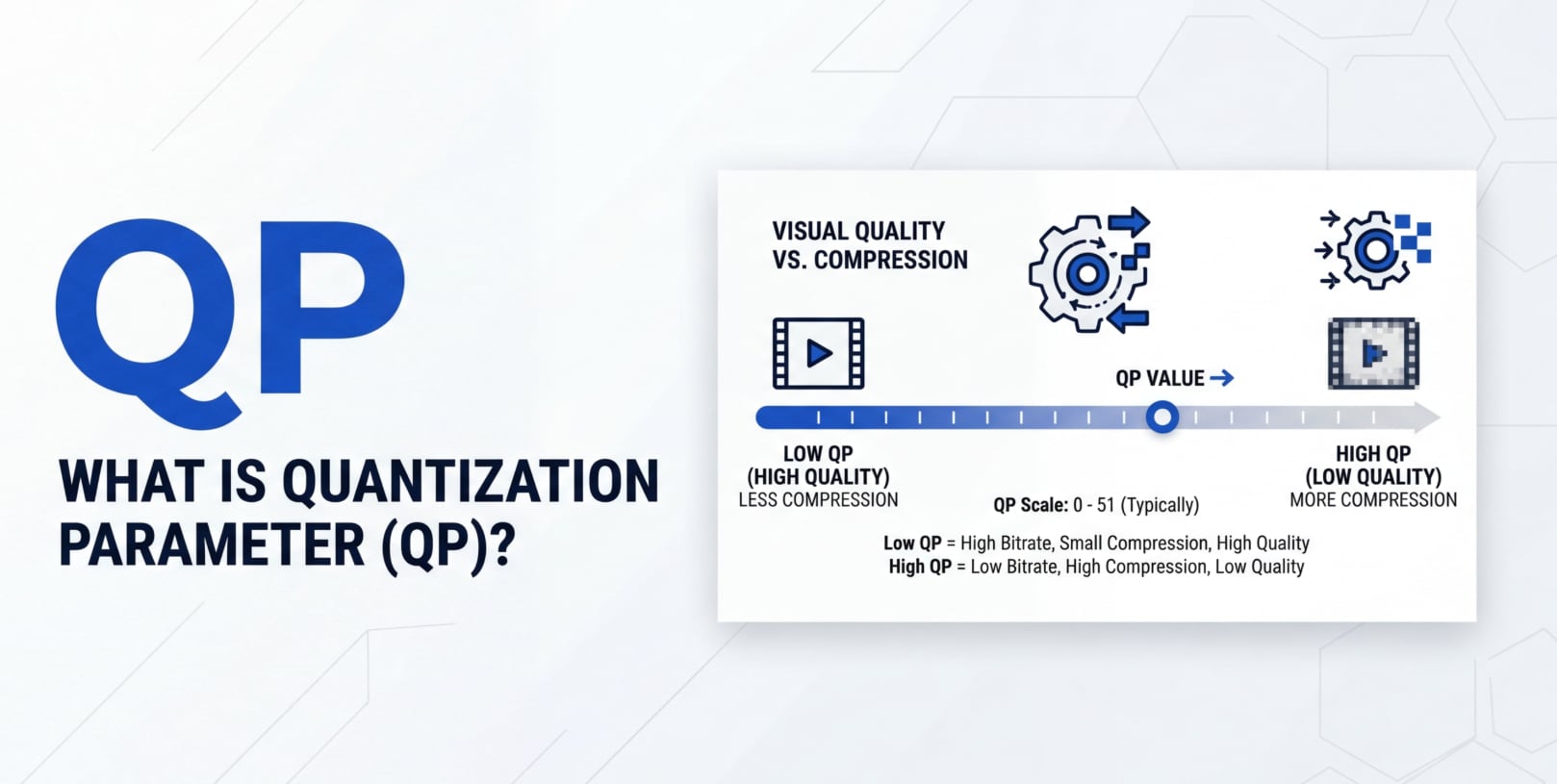
When you shoot, edit, encode, or stream video, you will often see a setting called quantization parameter or QP in video compression in tools like FFmpeg, x264/x265, OBS, and NLE export dialogs. This single number quietly decides how much detail is preserved, how big your file becomes, and how clean your footage looks on different platforms and devices.
Repair Corrupted Files To Save Your Data
 Security Verified. Over 7,302,189 people have downloaded it.
In this article
What Is Quantization Parameter (QP)?
Quantization parameter (usually written as QP in video compression) is a numeric setting used by modern video codecs such as H.264/AVC, H.265/HEVC, AV1, and others. It belongs to the category of encoding workflow settings and quantization controls that directly influence how aggressively the encoder compresses image data.
In simple terms, QP tells the encoder how much detail it is allowed to throw away when it converts your raw or lightly compressed frames into a heavily compressed stream for recording, exporting, or streaming.
- Low QP (for example, 16–22 in many H.264/H.265 encoders) keeps more detail and looks cleaner but produces a higher bitrate and larger files.
- High QP (for example, 30–40) discards more detail, reduces bitrate and file size, but increases visible compression artifacts such as blocking, banding, and smearing of fine textures.
Every macroblock or coding unit in your picture can be encoded with a specific QP. The encoder may use a fixed QP for the whole video, or adjust it per frame or region based on your chosen mode (CRF, CBR, VBR, etc.). This makes QP one of the core dials for controlling visual quality and bitrate in practical video encoding workflows.
Why Is Quantization Parameter (QP) Important in Video Compression?
The main problem video compression tries to solve is how to represent huge amounts of visual information in a smaller, streamable, and easily storable form without making the picture unwatchable. Quantization parameter is the mechanism that decides how far that simplification can go.
1. Controlling file size and bitrate
- Lower QP = less aggressive quantization. The encoder needs more bits to describe the preserved detail, which increases bitrate and file size.
- Higher QP = more aggressive quantization. The encoder can describe each block using fewer bits, decreasing bitrate and file size.
This makes QP a central factor for delivery constraints such as YouTube upload sizes, OTT bit budgets, SD-card capacity in cameras, and bandwidth limits for live streaming or remote review.
2. Managing visual quality and artifacts
- Low QP values help retain gradients, skin texture, foliage, text overlays, and noise/detail in shadows, which is crucial for color grading and VFX work in postproduction.
- High QP values can introduce artifacts:
- Blocking: square-shaped patterns around edges and in flat regions.
- Banding: visible steps instead of smooth gradients in skies or walls.
- Muddy motion: fine detail gets smeared during movement, harming sports or action footage.
For editors and finishers, choosing a reasonable QP range prevents footage from falling apart under color correction, sharpening, or noise reduction.
3. Balancing streaming performance and device compatibility
- Streaming services and platforms rely on reasonable QP choices to fit content into constrained bitrates without constant buffering.
- If QP is too low for a fixed bandwidth, you risk rebuffering, dropped frames, or the encoder failing to maintain the target bitrate.
- If QP is too high, playback is easy, but your audience sees blocky, unstable quality, especially on large displays and TVs.
4. Impact on editing and re-encoding
- Footage encoded with very low QP preserves more latitude for editing, color grading, and recompression for different platforms.
- Footage encoded with very high QP may fall apart when re-encoded, especially if it is encoded again with another lossy codec for distribution.
In short, QP is important because it is the most direct way to negotiate the tradeoff between image quality, bitrate efficiency, and smooth playback across cameras, editing software, hardware encoders, and streaming services.
How Does Quantization Parameter (QP) Work in the Encoding Workflow?
To understand how QP in video compression actually behaves, it helps to see where it fits in the encoding pipeline most cameras, software encoders, and hardware chips follow.
1. Typical encoding stages where QP is applied
- Input and preprocessing: Raw frames from your camera sensor, screen capture, or editing timeline are optionally resized, color converted, and filtered (e.g., denoising, sharpening).
- Prediction: The codec predicts each block of the current frame using either data from the same frame (intra prediction) or previous/future frames (inter prediction). This stage tries to reduce redundancy before actual quantization.
- Transform: The encoder converts the prediction error (residual) into a frequency domain representation using transforms such as DCT or similar. This separates coarse structures from fine details.
- Quantization: Here is where quantization parameter comes in. The transform coefficients are divided by a scale factor determined by QP, which shrinks their numeric range and removes small variations. Higher QP uses a larger scale, leading to more aggressive rounding and more lost detail.
- Entropy coding: After quantization, the simplified coefficients are compressed further using techniques such as CABAC or CAVLC. Lower QP typically yields more nonzero coefficients that require more bits to represent; higher QP yields more zeros and fewer bits.
When the video is decoded for playback, the decoder reverses the process. However, the information lost during quantization can never be perfectly recovered, which is why QP is effectively a quality knob.
QP in common codecs and tools
Different tools expose quantization parameter in slightly different ways, but the idea remains the same.
- H.264 / AVC QP: Often ranges roughly from 0 (lossless-ish) to 51 (very compressed) in encoders like x264 or many hardware ASICs.
- H.265 / HEVC QP: Similar numeric range; more compression efficiency, so a given QP may look better than in H.264 at the same bitrate.
- On cameras: You may not see the word QP directly, but picture profiles like "High quality," "Standard," or bitrate presets indirectly set QP ranges internally.
- FFmpeg, x264, x265:
- You can explicitly set a fixed QP (e.g.,
-qp 23in x264/x265) to force a constant quantization strength. - More commonly, you instead use CRF or bitrate modes that dynamically adjust QP per frame.
- You can explicitly set a fixed QP (e.g.,
- OBS and live encoders: Streamers often use x264 with a target bitrate. The encoder then changes QP automatically to maintain that bitrate across varying content complexity.
- HandBrake, Premiere Pro, Media Encoder: User-facing controls like "Quality," "Target Bitrate," or "VBR 1-pass/2-pass" are mostly more friendly wrappers around underlying QP decisions.
How QP interacts with other quality and bitrate controls
Because QP is low-level and technical, many encoders hide it behind more intuitive modes that still rely on QP internally.
1. QP vs CRF (Constant Rate Factor)
- Quantization parameter: A direct instruction to the encoder about how strong quantization should be. If you set
-qp 24, that QP (or very close) is used consistently. - CRF (e.g., x264/x265): A quality-based mode where you set a target quality value (such as CRF 18 or 23). The encoder then adjusts QP dynamically based on scene complexity to maintain perceived quality while still being bitrate-efficient.
CRF is easier for most creators, but under the hood the encoder is still mapping CRF decisions to varying QP values across frames and blocks.
2. QP vs bitrate-based modes (CBR/VBR)
- CBR (Constant Bitrate): You set a specific bitrate. The encoder changes QP up and down to try to stay near that rate. Complex scenes may be assigned higher QP (lower quality) when the bitrate ceiling is too low.
- VBR (Variable Bitrate): You set an average bitrate, possibly with a max limit. QP still changes, but the encoder has more freedom to allocate bits to complex scenes and lower QP when needed.
3. QP and hardware encoders
- Hardware encoders in GPUs, cameras, and dedicated devices often have rate-control modes like "CBR," "CQP," and "VBR."
- "CQP" (Constant QP) directly exposes QP in video compression, giving power users fine control over quality at the cost of unpredictable bitrate.
- For live streaming and broadcast, CBR or VBR modes are more common because bandwidth constraints are strict, and QP becomes an internal tuning variable.
When Should You Care About QP? Common Mistakes and Quick Tips
Who should pay attention to QP?
- Video editors and colorists: When encoding mezzanine files or final masters for grading, VFX, or archiving, you benefit from lower QP ranges that preserve more detail and color information.
- Streamers and live producers: You rely on QP indirectly through bitrate settings; understanding QP helps you avoid overloading your upload connection or sending crunchy video to viewers.
- Postproduction supervisors and delivery technicians: You must balance network/broadcast constraints with quality. Knowing how QP behaves across codecs and hardware encoders is key.
- Content creators for YouTube, TikTok, and social platforms: Proper QP-related settings avoid double-compression disasters when platforms transcode your uploads again.
When QP matters most
- Recording or exporting a master that will see heavy editing, color grading, or graphics compositing.
- Working with high-motion sports, esports, or action scenes, where aggressive quantization causes smearing and loss of fine detail.
- Delivering content to large screens and professional displays, where subtle banding and blockiness are easily visible.
- When you must hit strict bitrate caps for streaming, satellite, or broadcast distribution.
When QP matters less
- Casual screen captures or internal review clips where smooth playback and small size matter more than pixel-perfect quality.
- Short clips for social media that will be watched on mobile phones at small sizes and likely re-encoded by the platform.
Common mistakes related to quantization parameter
- Confusing QP with bitrate: Lower QP generally means higher bitrate, but QP is about compression strength per block, not a guaranteed data rate.
- Using extremely low QP "just to be safe": This can create huge files with minimal visible benefit, complicating transfer, storage, and platform compatibility.
- Using extremely high QP to shrink files: This may introduce irreversible artifacts that become obvious after color correction, sharpening, or another encode for distribution.
- Assuming QP is the same across codecs: QP 24 in H.264 does not equal QP 24 in HEVC or AV1 in terms of visual quality or bitrate.
- Blaming QP for file corruption: QP only affects compression strength. Corruption usually comes from storage errors, crashes, or transmission issues.
Practical quick tips
- For H.264/H.265 exports with CRF, aim for a mid-range CRF (e.g., 18–23). Internally, this keeps QP moderate for most scenes.
- When using explicit QP (CQP/CQ modes), start in the middle of the range and test: if detail is lacking, lower QP; if files are too big, raise QP slightly.
- For content that will be heavily graded, prefer lower QP (or higher quality CRF) and higher bitrates; treat that file as your high-quality source.
- Remember that camera "bitrate" and encoder "QP" both matter: an overloaded encoder forced to use high QP will harm quality even at high resolutions.
The key takeaway: QP is the real engine behind your quality and bitrate decisions. Even when hidden behind friendly sliders, learning how it behaves will help you choose encoding presets that fit your workflow and avoid both blocky video and unnecessarily huge files.
How to Use Repairit to Fix a Corrupted Video File
Even with perfectly chosen quantization parameter or precisely tuned video encoding settings, a clip can still become corrupted due to camera failures, storage issues, or system crashes. When your encoded or exported videos refuse to play, glitch, or show errors in the player or NLE, a dedicated repair tool is far more effective than re-encoding alone. Wondershare Repairit is designed exactly for this situation, and you can learn more on the Repairit official website.
Key features of Wondershare Repairit
- Repairs various video formats from cameras, drones, action cams, and mobile devices, including common H.264 and HEVC QP-based encodes.
- Supports advanced repair for severely damaged or unplayable clips where normal players or editors cannot open the file at all.
- Offers batch processing so you can fix multiple corrupted videos in one go, saving time on large projects or multi-camera shoots.
Step-by-step: repair a corrupted video with Repairit
- Add corrupted video files
Download and install Wondershare Repairit on your computer, then open it and head to the Video Repair module. Click the "Add" button and browse to the folder where your damaged or unplayable video clips are stored. Select one or multiple files from different cameras, phones, or recorders and load them into the repair list.

- Repair video files
Once your clips are added, hit the "Repair" button to start the automatic fixing process. Repairit analyzes the video and audio streams, rebuilds broken headers and index data, and corrects common playback errors such as freezing, stuttering, or failure to open. When the process finishes, use the Preview option to watch the restored video and confirm that the picture and sound are back to normal.

- Save the repaired video files
If the preview looks good, choose a safe output location that is different from the original damaged file path. Click "Save" for an individual clip or "Save All" to export every repaired file at once. After saving, you can open the videos in your preferred media player, import them into your NLE, or re-encode them again with your chosen video bitrate control and video quality settings.

Conclusion
Quantization parameter is the hidden but crucial control that balances image detail, compression strength, and bitrate in modern codecs. Whether you are working with H.264 QP, HEVC QP, or newer formats, QP determines how much information is discarded and how robust your footage remains for grading, editing, and platform re-encoding.
By understanding how QP fits into the encoding workflow and how it interacts with CRF and bitrate modes, you can tune your exports for streaming, archiving, or delivery without wasting bandwidth or ending up with blocky, unusable video. And when file damage comes from corruption rather than compression choices, tools like Wondershare Repairit can restore broken clips so your creative work is not lost.
Next: Entropy Coding
FAQ
-
1. What is Quantization Parameter (QP) in simple terms?
Quantization parameter is a numeric setting in a video codec that controls how much detail is removed during compression. A lower QP keeps more detail and produces higher quality with a larger file, while a higher QP removes more detail, lowering quality but reducing file size and bitrate.
-
2. How does QP affect video bitrate and file size?
QP directly influences how many bits are needed to describe each block of the picture. Lower QP values leave more non-zero transform coefficients, so the encoder must spend more bits, raising bitrate and file size. Higher QP values quantize more aggressively, creating more zeros and fewer bits to encode, so bitrate and file size drop.
-
3. Is QP the same as CRF or bitrate in video encoders?
No. QP is the underlying quantization strength used on blocks or frames. CRF is a quality-based mode that automatically adjusts QP to maintain consistent visual quality. Bitrate modes like CBR or VBR target a specific data rate and dynamically raise or lower QP to stay near that bitrate.
-
4. What QP value should I use for good quality?
There is no universal "best" QP, because codecs, resolutions, and content types differ. In H.264/H.265 workflows, mid-range QP values usually give a good balance between quality and size, especially when mapped from a CRF value around 18–23. Extremely low QP can waste space, while very high QP often causes visible blocking, banding, and loss of fine detail.
-
5. Can Quantization Parameter (QP) cause video corruption?
No. QP itself only controls compression strength and does not damage container structures or file integrity. Corruption usually results from interrupted transfers, power loss, faulty storage, or software crashes. In those situations, a repair tool like Wondershare Repairit can help restore corrupted or unplayable video files.




