
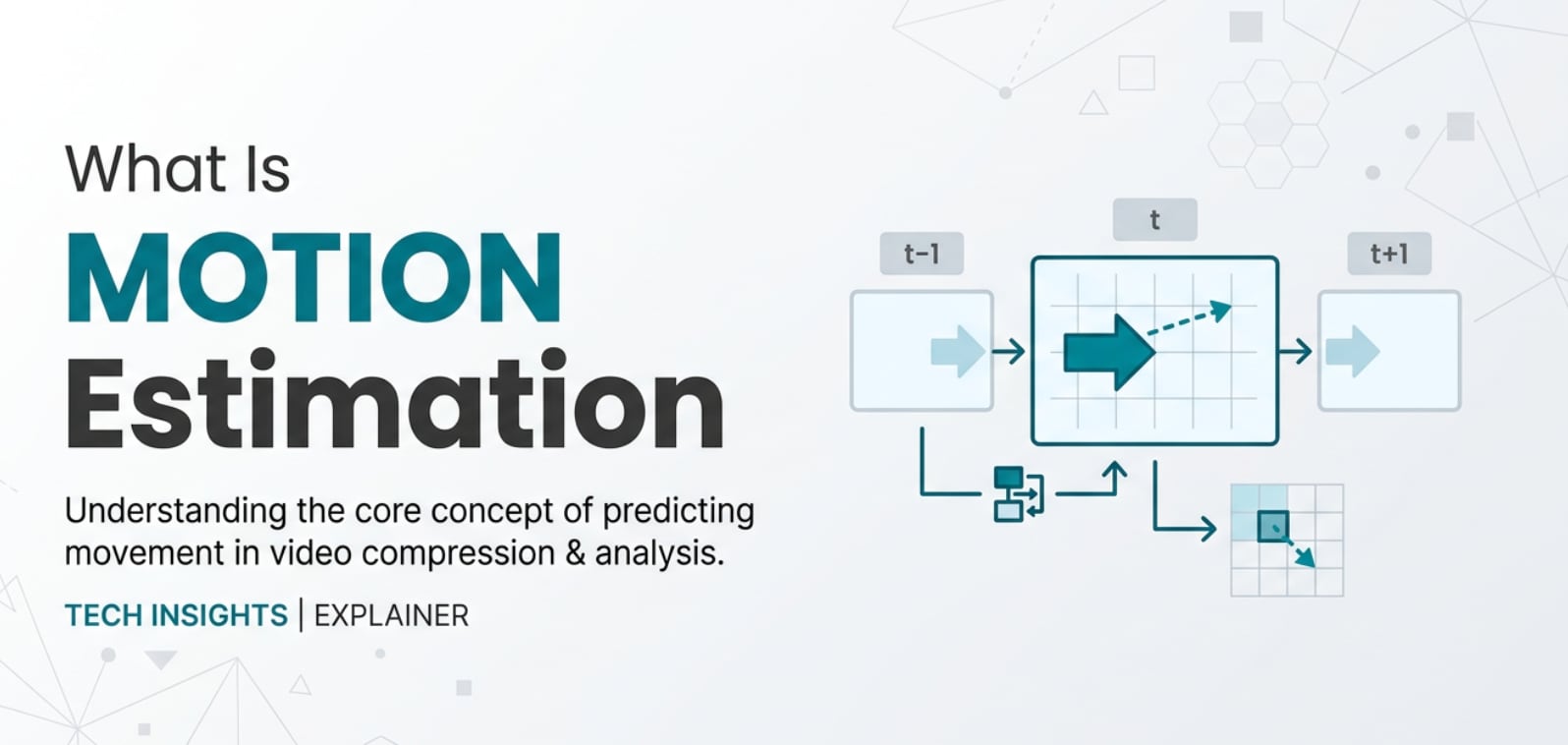
Motion estimation shows up whenever you record, edit, compress, or stream video, especially with codecs like H.264, HEVC, or AV1. It is the engine that helps encoders understand how objects move from frame to frame so they can reduce file size without ruining quality. Knowing how motion estimation works explains why some clips look smooth while others show blocks, smears, or lag during playback on phones, editing apps, and streaming platforms.
Repair Corrupted Files To Save Your Data
 Security Verified. Over 7,302,189 people have downloaded it.
In this article
What Is Motion Estimation?
Motion estimation is a video compression technique that analyzes how small regions (blocks) in one frame move to new positions in the next frame. It belongs to the category of inter frame prediction methods, which let an encoder reuse information across multiple frames instead of encoding each frame independently.
During video encoding, motion estimation tries to match each block in the current frame with a similar block in a reference frame (typically a previous or future frame). The encoder then records a small piece of data called a motion vector, which describes the direction and distance that block has moved. This motion information, combined with residual image data, gives the decoder enough detail to reconstruct smooth motion during playback.
Because it lives at the heart of inter-frame prediction, motion estimation is critical in codecs like MPEG-2, H.264/AVC, HEVC/H.265, and AV1. Whether you are exporting from an editor, live-streaming through OBS, or compressing a library with FFmpeg, motion estimation is silently working behind the scenes.
Why Is Motion Estimation Important in Video Compression?
The main challenge in compressing video is that raw footage contains huge amounts of data. Consecutive frames are often very similar, especially in talking-head videos, screen captures, and many cinematic shots. Without motion-aware prediction, encoders would waste bits re-encoding nearly identical content frame after frame.
Motion estimation solves this by detecting how pixels move over time so the encoder can send changes instead of full images. This has several important effects:
- Better bitrate efficiency and smaller files: Reusing information from previous frames means fewer bits are needed to describe each new frame, so your exports, uploads, and archives take up less space.
- Higher quality at the same bitrate: With accurate motion vectors, more of the limited bitrate can go toward fine detail and textures rather than repeatedly encoding similar structures.
- Smoother motion handling: Good motion estimation reduces visible judder, ghosting, and block artifacts around moving objects, which is vital for sports, action scenes, and gameplay capture.
- Better streaming performance: Efficient motion prediction helps platforms like YouTube and streaming services deliver watchable video at lower bitrates, which is key for slower connections and mobile viewing.
However, motion estimation also has trade-offs:
- Encoding speed: Good motion estimation is CPU- and GPU-intensive because the encoder must search many candidate positions. Higher-quality search modes often mean longer export times.
- Decoding complexity: While decoders do not repeat the full search, they must apply many motion vectors and reference frames, which can raise playback requirements on low-power devices.
- Artifacts in difficult scenes: Fast camera moves, noisy footage, or very low bitrates can confuse motion estimation, causing blocky, smeared, or "wobbly" areas in the picture.
When you balance these factors well, you get efficient streaming, clean exports, and smooth editing performance across platforms and devices.
How Does Motion Estimation Work in the Encoding Workflow?
Motion estimation within a typical encoding pipeline
Inside the video encoding pipeline, motion estimation operates on inter-coded frames (P-frames and B-frames). The overall process can be simplified as follows:
- 1. Frame analysis and partitioning: The encoder divides the current frame into blocks or macroblocks (and, in modern codecs, smaller sub-blocks). These blocks will be compared with blocks in one or more reference frames.
- 2. Searching for similar blocks: For each block, the encoder looks around in the reference frame(s) to find a block with similar content. Different codecs and settings control how large and how exhaustive this search is (fast search vs. full search, search range, sub-pixel refinement, and so on).
- 3. Generating motion vectors: Once the best matching block is found, the difference in position is stored as a motion vector. This vector tells the decoder "take this block from the reference frame and move it here."
- 4. Calculating residual data: Even with good motion prediction, there will be differences between the predicted block and the actual block in the current frame. This difference (residual) is transformed, quantized, and entropy-coded along with the motion vector.
- 5. Rate-distortion optimization: The encoder evaluates different motion predictions, block sizes, and coding modes to decide which combination gives the best trade-off between bitrate and visual distortion. Sometimes it may decide to code a block as an intra block if motion prediction is not effective.
This step-by-step cooperation between motion estimation, transformation, quantization, and entropy coding is what lets modern codecs compress video far beyond what older intraframe-only methods can achieve.
Where you see motion estimation in real tools
You will rarely see "motion estimation" spelled out during simple exports, but many tools expose controls that directly or indirectly tune this behavior:
- FFmpeg and x264/x265: Command-line encoders offer explicit settings like
-me(motion estimation method),-subme(sub-pixel refinement), search ranges, and presets (ultrafast to placebo) that adjust how deeply motion estimation searches for block matches. - Adobe Premiere Pro / Media Encoder: Even if the term is hidden, choices like encoding preset (performance vs. quality), profile, and level influence how the underlying encoder handles motion estimation and inter-frame prediction.
- OBS Studio (live streaming): Encoder presets (e.g., "veryfast," "faster," "slow") toggle how aggressive motion estimation is. Slower presets invest more CPU in motion search to improve compression efficiency at the same bitrate.
- Hardware encoders (NVENC, Quick Sync, AMF): Quality modes such as "low-latency," "high quality," or "lossless" also govern how much motion analysis the hardware performs before encoding each frame.
In practical terms, choosing a slower preset or higher quality mode typically means more detailed motion estimation, yielding better quality and smaller files at the cost of longer encoding time and higher CPU/GPU load.
When Should You Care About Motion Estimation? Common Mistakes and Quick Tips
Not everyone needs to tweak motion estimation settings, but some creators benefit a lot from understanding it.
Who should care most:
- Video editors exporting long-form content or films where efficient yet high-quality compression matters.
- Streamers using OBS or similar tools who juggle bitrate limits, CPU load, and motion-heavy gameplay.
- Post-production specialists, colorists, or VFX artists working with intermediate and delivery formats.
- Anyone managing large video libraries for platforms, archives, or online courses.
When it matters:
- Encoding fast-action footage (sports, racing, FPS games) where motion is complex and constant.
- Working under tight bitrate caps (live streaming, online platforms, social networks).
- Exporting master files or mezzanine formats that need to hold up to future edits and re-encodes.
- Delivering to devices or platforms that struggle with heavy motion or show visible artifacts.
When it matters less:
- Short clips with minimal movement (slideshows, talking heads with little camera motion).
- Quick drafts or review exports where speed is more important than perfect efficiency.
- Lossless or near-lossless intraframe codecs used only for editing (not final delivery).
Common misunderstandings:
- Thinking that "faster preset" always means worse quality in every case. For static or simple content, a fast preset can be visually fine.
- Believing higher bitrate alone fixes bad motion artifacts. If motion estimation or prediction is poor, extra bitrate can still be wasted.
- Assuming motion estimation errors are the same as file corruption. In reality, they cause compression artifacts, while corruption usually comes from transfer, storage, or container issues.
Quick tips and takeaway:
- For important projects, use a slower encoder preset (better motion estimation) if your hardware and deadline allow it.
- For high-motion content, avoid extremely low bitrates; even the best motion estimation cannot fully rescue starved footage.
- Test exports on your actual playback and streaming platforms to verify that motion looks natural and free of distracting artifacts.
- If a file will be edited again, consider a less aggressive compression level so later recoding has cleaner motion data to work with.
In short, motion estimation is worth your attention when quality, bitrate, or motion complexity are critical. It is less pressing for quick drafts or calm, static scenes.
How to Use Repairit to Fix a Corrupted Video File
What is Repairit?
Even when motion estimation and other encoding steps are configured correctly, problems can appear later due to interrupted exports, storage issues, or transfer errors. If a video will not play, freezes mid-way, or shows severe distortion in your player or editor, a repair tool can help. Repairit by Wondershare is designed specifically for this purpose. It repairs corrupted or unplayable videos from cameras, phones, and editing software so you can recover important footage without technical expertise. Learn more on the Repairit official website.
Key features of Repairit for broken videos
- Repairs corrupted or unplayable videos from various cameras, smartphones, and editing workflows, including clips damaged during compression, upload, or transfer.
- Supports multiple popular formats and allows batch repair, which is ideal when you have many problem files from the same shoot or project.
- Provides built-in preview so you can inspect the repaired output and confirm that motion, audio, and overall quality look correct before saving.
Step-by-step: Repair corrupted videos with Repairit
- Add corrupted video files
Open Repairit on your Windows PC or Mac and choose the Video Repair option on the main screen. Click the add button and browse to your damaged or unplayable video files stored on your computer, memory card, or external drive. Once selected, the files will appear in the list with basic details like name, size, and format.

- Repair video files
After your clips are loaded, select the videos you want to fix and start the repair process. Repairit analyzes the structure of each file, rebuilds broken headers, video streams, and audio tracks, and then displays the repair status for each entry. When the process is finished, you can click a file to preview the repaired result inside the program.

- Save the repaired video files
If the preview looks correct and playback is smooth, choose a safe output folder that is different from the original file location. Click Save to export the repaired videos to your selected drive. You can then open them in your usual media player, editing software, or upload them to your preferred platform without the previous playback errors.

Conclusion
Motion estimation is a core part of modern video compression, allowing encoders to follow how image blocks move between frames and encode their paths using motion vectors. By predicting motion and storing only the differences, codecs deliver much smaller files and smoother streaming without destroying visual quality, whether you are watching on a phone, editing on a workstation, or uploading to an online platform.
Understanding motion estimation helps you choose better encoding presets, avoid common artifacts in fast-action scenes, and make more informed decisions when exporting or streaming. If something goes wrong after encoding or transfer and your videos end up corrupted instead of just compressed, Repairit offers a straightforward way to repair damaged video files and keep your projects on track.
Next: Motion Compensation
FAQ
-
1. What is motion estimation in simple terms?
Motion estimation is the process a video encoder uses to detect how parts of one frame move to new positions in the next frame. Instead of storing every frame as a full image, the encoder saves motion vectors and small differences, which makes the file much smaller while keeping motion looking natural. -
2. How does motion estimation affect video quality and file size?
Accurate motion estimation lets the encoder reuse data across frames, so it needs fewer bits for the same visual quality. That usually means smaller files or cleaner pictures at the same bitrate. Poor motion estimation, or overly aggressive compression, can cause blockiness, smearing, or ghosting, especially in fast-moving scenes. -
3. Where can I control motion estimation settings in practice?
In tools like FFmpeg or x264/x265, motion estimation is affected by options such as presets, motion estimation method, and sub-pixel refinement. In OBS, it is mostly controlled through encoder presets (e.g., veryfast, medium, slow). In editing apps like Premiere Pro and Media Encoder, quality or performance presets indirectly tune motion estimation through the chosen codec settings. -
4. Does motion estimation work the same way for all types of video content?
The core idea is the same, but its effectiveness varies. It works very well for stable scenes and moderate motion, such as interviews or tutorials. For noisy footage, handheld shots, or high-speed action, motion estimation becomes harder, which can require higher bitrates or slower, more detailed search modes to avoid visible artifacts. -
5. Can motion estimation issues make a file corrupted, and how can I fix such videos?
Motion estimation problems usually cause visual artifacts, not file corruption. True corruption comes from issues like incomplete downloads, storage errors, or broken container structures. If a video will not open or play correctly due to corruption, you can use Wondershare Repairit to scan and repair the damaged file so it becomes playable again.




