
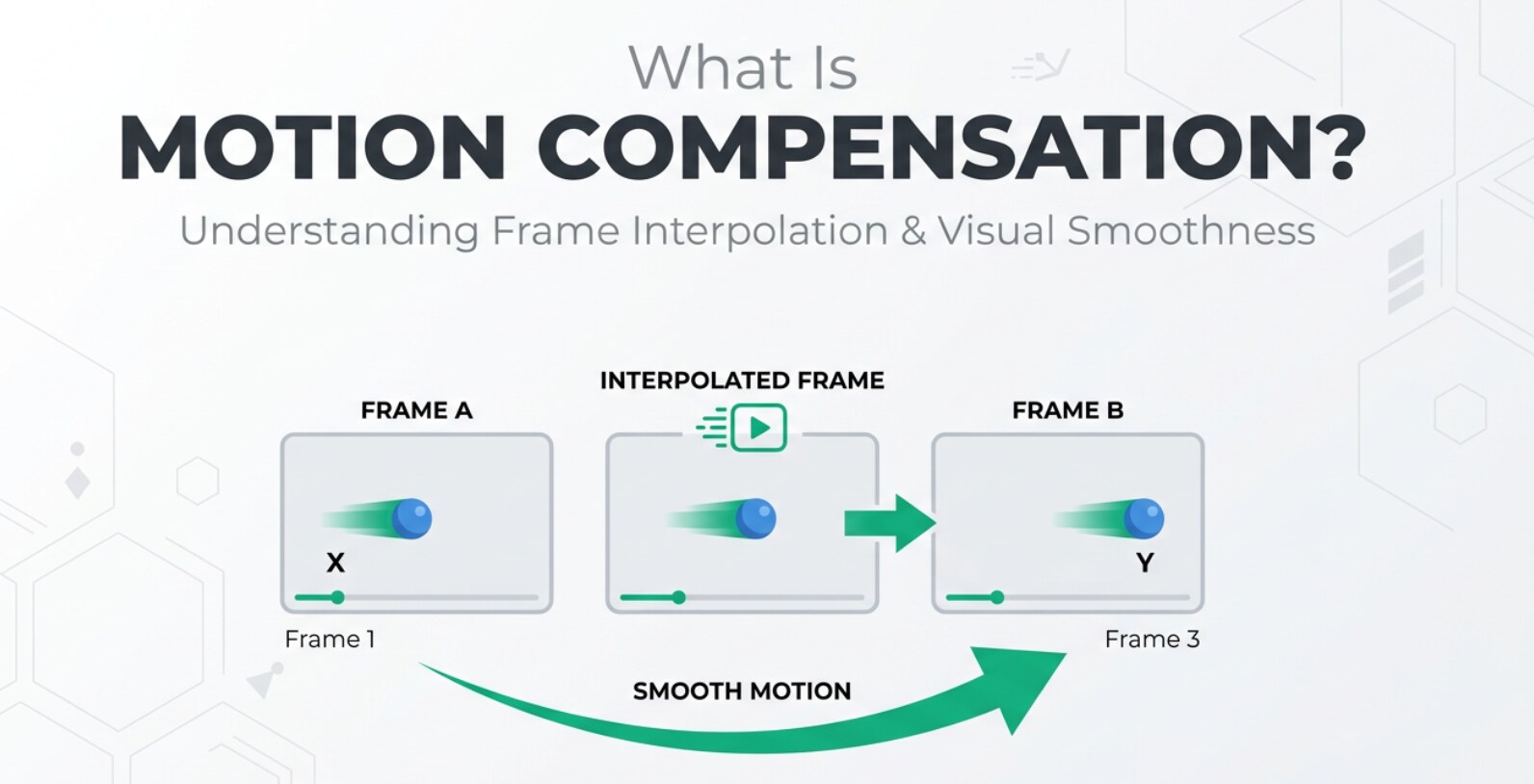
Motion compensation is a core idea behind how modern videos are recorded, edited, compressed, streamed, and played back on phones, cameras, and laptops. You will run into it whenever you work with formats like H.264, H.265/HEVC, or VP9 in tools such as OBS, Premiere Pro, or HandBrake. Understanding how it predicts movement between frames helps you see why some clips look clean while others show blocky artifacts, smearing, or glitches after export or upload.
Repair Corrupted Files To Save Your Data
 Security Verified. Over 7,302,189 people have downloaded it.
In this article
What Is Motion Compensation?
Motion compensation is a prediction method used in digital video compression standards such as H.264/AVC, H.265/HEVC, and VP9. Instead of encoding every frame as a full picture, the encoder predicts how pieces of the image move from one frame to another and stores only the differences.
Video frames are divided into blocks (often called a macroblock or coding unit). The encoder estimates how each block has moved, represents that movement as a motion estimation vector, and then uses motion compensation to build a predicted frame. Only the residual error between this prediction and the real frame is encoded. This helps keep file sizes low while preserving visible detail in recording, editing, exporting, and streaming workflows.
Why Is Motion Compensation Important in Video Compression?
When a camera records video, most neighboring frames are very similar. Encoding every frame independently would waste a lot of bits. Motion compensation solves this by reusing information from reference frames so encoders do not need to store the same visual content over and over.
Main benefits of motion compensation
- Better bitrate efficiency and smaller file sizes – By predicting motion rather than reencoding each pixel, the encoder can reach the same visual quality with a much lower bitrate. This is crucial for phone recording, camera memory cards, and cloud storage.
- Smoother streaming and playback – Streaming platforms like YouTube, TikTok, and Netflix rely on strong inter frame prediction to deliver HD or 4K video over limited bandwidth. Good motion handling means fewer pauses and faster buffering.
- Higher visual quality at the same bitrate – Accurate motion estimation and compensation keep moving objects sharp, reducing blockiness and smearing during fast motion such as sports, gaming captures, and action footage.
- Better platform compatibility – Hardware encoders and decoders in TVs, consoles, cameras, and phones are optimized around motion-compensated codecs like H.264 and H.265, which improves battery life and playback smoothness.
Limitations and trade-offs
- Encoding complexity – Searching for the best motion for each block is CPU/GPU intensive and can slow down exports or live encoding in tools like OBS, FFmpeg, and Adobe Media Encoder.
- Decoder workload – Phones, TVs, and set-top boxes must follow motion vectors and reconstruct frames, which adds complexity compared with simple intra-only codecs.
- Visible artifacts at low bitrates – If bitrate is too low or motion vectors are inaccurate, you may see video artifacts such as blockiness, ghosting, jitter, and motion blur in fast-moving regions.
- Editing friendliness – Highly compressed, motion-compensated formats can be less smooth to scrub in video editors than intra-only formats like ProRes or DNxHD.
How Does Motion Compensation Work in the Encoding Workflow?
In a full encoding pipeline, motion compensation sits in the prediction stage between raw input frames and final bitstream generation. Here is how it typically fits into the workflow for recording, editing, encoding, and streaming:
- 1. Input and preprocessing – The encoder receives raw frames from the camera sensor, a screen capture, or a timeline export. It may scale, crop, or convert color formats before compression.
- 2. Frame type decision – The encoder chooses between I-frames (intra), P-frames (predicted from past frames), and B-frames (predicted from past and future frames). Motion compensation is mainly used for P- and B-frames.
- 3. Block partitioning – Each frame is split into blocks or macroblock-like units. These blocks are the basic pieces whose motion is tracked between frames.
- 4. Motion estimation – The encoder searches reference frames for the best match for each block. The offset between the current block and its reference position is the motion vector. This step is visible in advanced encoders like x264/x265, FFmpeg, or some GPU encoders through settings like search range, sub-pixel accuracy, and reference frames.
- 5. Motion compensation – Using the chosen motion vectors, the encoder reconstructs a predicted frame from reference frames. Motion compensation applies the vectors and interpolation to rebuild how the block should look after moving.
- 6. Residual calculation and transform – The encoder subtracts the predicted frame from the actual frame to get a residual image. This smaller difference is then transformed, quantized, and entropy-coded.
- 7. Bitstream and metadata – The encoded residual plus motion vectors, reference indices, and other coding decisions form the final compressed stream saved to MP4, MOV, MKV, or similar containers.
In real tools:
- OBS Studio – When using x264 or hardware encoders, presets such as "fast," "medium," or "slow" indirectly control how much time is spent on motion search and prediction.
- HandBrake – Advanced options let you tweak reference frames, B-frames, and encoder presets for more accurate inter frame prediction.
- Adobe Premiere Pro / Media Encoder – Export presets for H.264/H.265 adjust profile, level, and encoding presets that impact motion estimation quality and speed.
- FFmpeg / x264 / x265 – CLI parameters like "me", "subme", "refs", and "bframes" directly influence how motion is searched and compensated.
When Should You Care About Motion Compensation? Common Mistakes and Quick Tips
Who should care most? Video editors, YouTubers, live streamers, camera operators, and anyone responsible for encoding, exporting, or troubleshooting playback should understand how motion compensation affects their footage.
When it really matters:
- You record fast motion like sports, racing, action, or handheld camera movements.
- You stream gameplay and want smooth motion with limited upload bandwidth.
- You are exporting long-form content and must balance file size versus quality.
- You see strange video artifacts such as blocking or smearing after upload or render.
When it matters less:
- Short social clips at very high bitrates where artifacts are unlikely.
- Studio or talking-head footage with minimal movement and stable lighting.
- Workflows using intra-only codecs for editing, where motion prediction is lightweight or disabled.
Common misunderstandings:
- Believing "higher resolution alone" fixes motion problems – poor motion estimation or too-low bitrate can still cause artifacts even in 4K.
- Assuming all glitches are just compression – some issues are caused by corrupted video files and require video repair instead of bitrate changes.
- Thinking faster presets are always fine – extreme "ultrafast" or "superfast" presets often weaken motion search and reduce visual quality for moving subjects.
Quick tips and takeaway:
- For sports or gaming, use slower encoder presets and a slightly higher bitrate so motion compensation can work more accurately.
- Use hardware encoders tuned for streaming (NVENC, Quick Sync) when you need real-time encoding but still care about motion detail.
- If you see repeatable artifacts at the same location in all players, consider increasing bitrate, changing presets, or using fewer B-frames.
- If a file will not open, freezes, or shows random blocking and color streaks after transfer or crash, treat it as corrupted video and try a video repair tool such as Wondershare Repairit.
How to Use Repairit to Fix a Corrupted Video File
Repairit introduction
When motion-compensated videos become damaged during recording, transfer, editing, or export, they may refuse to play or show severe artifacts that normal re-encoding cannot fix. Wondershare Repairit is a dedicated video repair solution designed to rebuild file structures and restore playable content from many formats and cameras. You can learn more and get the latest version from the Repairit official website.
Key features of Repairit
- Video repair for many codecs and containers from cameras, phones, action cams, and more.
- Supports batch processing so you can fix multiple corrupted video clips at once.
- Provides an instant preview window to verify repaired results before saving.
Step-by-step: repair a corrupted video
- Add corrupted video files
Open Wondershare Repairit and choose the Video Repair module. Click "Add" and select all the damaged clips from your computer, camera card backup, or external drive. The files will appear in a list with basic details like name, path, and format.

- Repair video files
Press the "Repair" button to start processing. Repairit analyzes the internal structure of each file, including headers, frames, and motion-related data, then reconstructs a playable stream. You can follow the progress bar to see how far along each video repair task is.

- Save the repaired video files
When the repair is complete, select a video and click "Preview" to confirm that playback is smooth and artifacts are gone or greatly reduced. If you are satisfied, click "Save" and choose a secure folder or drive. The fixed files can then be edited, encoded, or uploaded again without the previous corruption issues.

Conclusion
Motion compensation is the backbone of modern video compression, allowing codecs to describe how content moves between frames instead of reencoding every pixel. By combining motion estimation with efficient inter frame prediction, encoders can deliver crisp video at lower bitrates for recording, editing, exporting, and streaming.
However, aggressive compression, low bitrates, or file damage can still lead to visible video artifacts or completely unplayable clips. When the root cause is corruption rather than normal codec limits, a specialized tool like Wondershare Repairit helps you fix corrupted video files and recover footage that might otherwise be lost.
Next: Macroblock
FAQ
-
1. What is motion compensation in simple terms?
Motion compensation is a prediction technique where the encoder tracks how blocks of pixels move from one frame to the next and then encodes only the differences instead of storing each full frame. This saves a large amount of data while keeping motion looking natural. -
2. How is motion compensation different from motion estimation?
Motion estimation is the search step where the encoder looks through reference frames to find where a block has moved. Motion compensation is the reconstruction step where the encoder uses those motion vectors to build a predicted frame and encode only the residual errors. -
3. Why do I see blocky or smeared areas in moving parts of my video?
Blockiness, smearing, or ghosting around motion often occur when bitrate is too low, motion vectors are not accurate enough, or encoder presets are too fast. In these cases, motion compensation cannot predict movement precisely, so artifacts become visible, especially in fast scenes. -
4. Can corrupted video files break motion compensation and cause glitches?
Yes. If parts of the bitstream containing motion vectors, reference frames, or headers are damaged, decoders may show severe artifacts, frozen frames, or crashes. This is not just normal compression loss; it usually indicates a corrupted video file that may need professional repair. -
5. How can I fix a video that will not play because of compression or motion-related errors?
If playback issues persist in multiple players, the file structure may be corrupted. Instead of re-encoding, use a dedicated tool like Wondershare Repairit to scan and repair the video, rebuild damaged structures, and restore compatibility with common players and platforms.




