
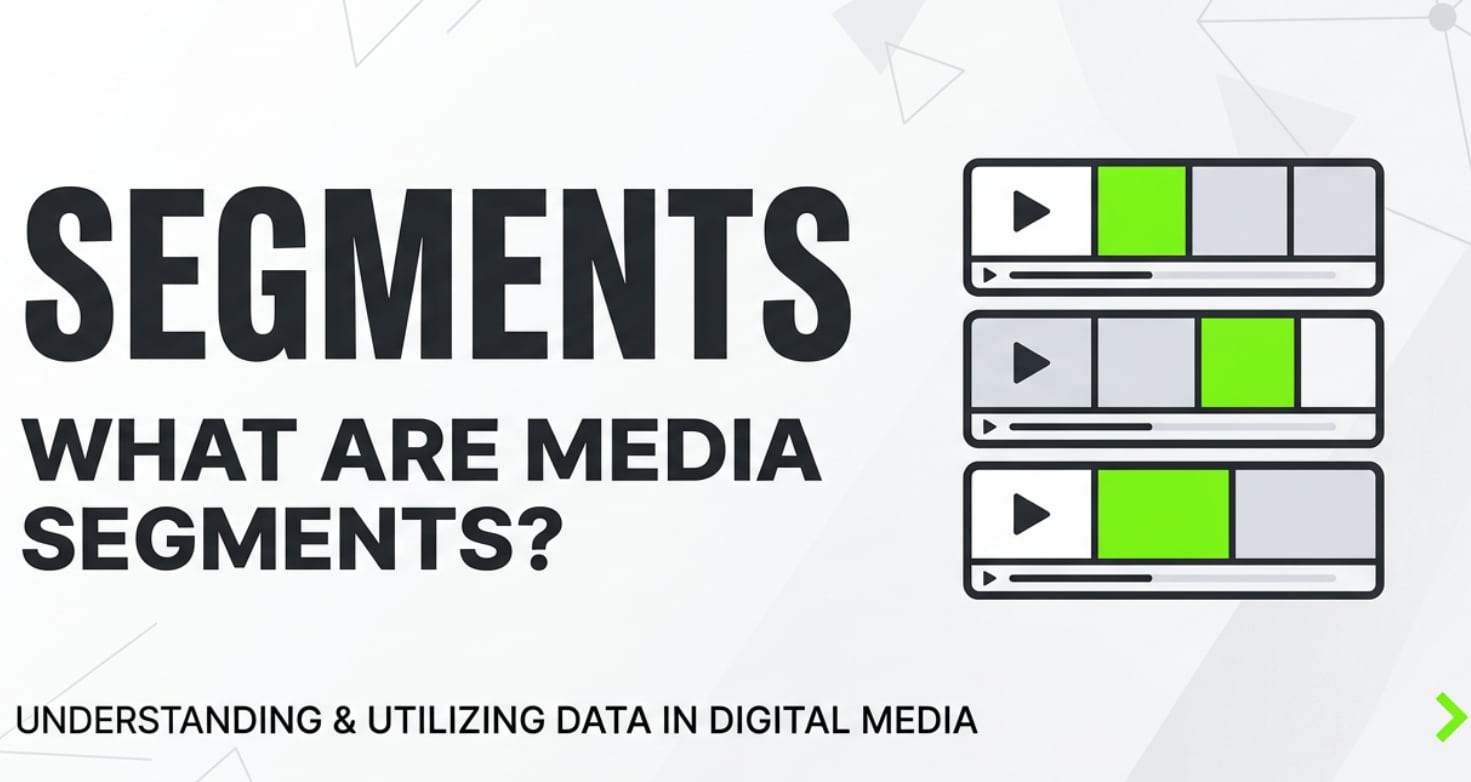
Media segments are everywhere in online video, from short social clips to 4K movie streams. You encounter them whenever you watch Netflix, YouTube, Twitch, or a video embedded on a website. Instead of sending one giant file, platforms slice content into many tiny chunks, making streaming smoother, more flexible, and easier to deliver on different devices and networks. Understanding how these segments work helps you troubleshoot buffering, quality drops, and corruption issues in your own recordings or video workflows.
Repair Corrupted Files To Save Your Data
 Security Verified. Over 7,302,189 people have downloaded it.
In this article
What Is Media Segments?
Media segments (also called streaming segments, HLS segments, or DASH segments) are short, time-based chunks of audio and video that make up a full program in streaming workflows. Instead of exporting a single MP4, the video is broken into many smaller files, usually a few seconds long, often in formats like TS or fragmented media MP4.
These short video chunks are listed in a playlist or manifest file (such as an HLS M3U8 or MPEG-DASH MPD). The player reads the manifest and downloads one segment after another to keep playback going. This design is essential to adaptive bitrate streaming, where multiple versions of each segment exist at different quality levels so the player can jump between them depending on the bandwidth.
In practical terms, every time you scrub a live stream, resume a VOD on your smart TV, or watch video in an app with variable quality, you are interacting with a chain of online video delivery built around these media segments.
How Does Media Segments Work in the Real Workflow?
From recording to encoding
The lifecycle of media segments starts long before you hit play. It begins with capture, editing, and encoding in your production workflow.
- Recording the source footage
You might record with a DSLR, cinema camera, smartphone, or screen recorder. At this stage you are usually working with continuous files (MP4, MOV, MXF). Problems like dropped frames, power loss, or card errors can already damage data that will later be turned into segments, resulting in corrupted video files before streaming even starts. - Editing and exporting for streaming
In tools such as Adobe Premiere Pro, Final Cut Pro, DaVinci Resolve, or other NLEs, you cut and arrange the story. When you export, you typically render a mezzanine or distribution master (often H.264/H.265 in an MP4 container). This master is what encoding pipelines ingest to generate media segments for delivery. - Encoding into segment-friendly formats
An encoder or transcoder (on-prem or cloud-based) converts the master into several bitrates and resolutions: 1080p, 720p, 480p, etc. It then slices each rendition into video chunks, often 2–10 seconds long. For HLS, these are commonly .ts or .m4s files; for DASH, usually .m4s fMP4 segments. Each chunk must contain complete decodable units (GOPs), so players can switch between qualities at segment boundaries.
From packaging to playback
Once encoding is done, the stream must be packaged, delivered, and played on different platforms, all using media segments as the core unit.
- Packaging into HLS or DASH
A packager creates playlists (M3U8 for HLS, MPD for DASH) that describe the available HLS segments or DASH segments and their URLs. Each list points to a series of time-ordered files. There is usually a master playlist that references multiple variant playlists (one per bitrate). - Delivery over CDNs and web servers
Segments are uploaded to web servers or CDNs. Instead of caching one giant file, the CDN caches thousands of small streaming segments. This makes content distribution more efficient and resilient: if a region loses one edge node, others can still serve individual chunks. - Player logic and adaptive bitrate decisions
On your TV, browser, or app, a streaming player (like hls.js, Shaka Player, AVPlayer on iOS, ExoPlayer on Android, or a TV OS player) fetches the manifest and starts buffering the first few video chunks. It constantly measures bandwidth, buffer health, and device performance. If conditions are good, it requests higher-bitrate media segments; if your network slows down, it downgrades to smaller segments encoded at a lower quality. Because the content is fragmented into discrete segments, these switches can happen smoothly, one chunk at a time. - Error handling and corrupted segments
If a segment fails to download or is corrupted during upload or storage, the player might retry, skip ahead, or pause playback. In VOD workflows, you can regenerate the broken media segments from a clean master. But if the master itself is damaged, you need to repair the corrupted video files before re-encoding, using tools like Repairit to reconstruct playable streams.
Where Is Media Segments Commonly Used?
Media segments sit at the heart of nearly every modern online video delivery pipeline. You will encounter them across many scenarios, even if you only see the final video.
- Commercial streaming platforms
Services such as Netflix, Disney+, Prime Video, Hulu, and countless regional VOD platforms rely on adaptive bitrate streaming with segmented media to ensure smooth playback on TVs, consoles, phones, and browsers. Every time the picture gets sharper or softer based on your internet speed, the player is switching between different segment variants. - Social media and UGC video
YouTube, TikTok, Instagram, Facebook, and similar platforms all distribute uploaded videos as video chunks behind the scenes. Short-form videos, Stories, and Reels are delivered as media segments so they load quickly and adapt to your connection. - Live streaming and events
Twitch, live sports platforms, news channels, and corporate webinars use segmented protocols (HLS/DASH) for live feeds. The encoder continuously creates fresh streaming segments and updates the manifest so new chunks appear at the end of the playlist, enabling near-real-time playback with a rolling buffer. - OTT apps and smart TV ecosystems
Smart TV apps, set-top boxes, and OTT platforms (Roku, Fire TV, Apple TV, Android TV, etc.) use HLS segments or DASH segments for compatibility with native players. Segment-based delivery lets them support various resolutions and codecs depending on device capabilities. - Enterprise and education video
Internal training portals, e-learning platforms, and video CMSs often use segmented delivery to support secure streaming, DRM, fast seeking, and playback analytics. Corruption in a few media segments can disrupt critical training material, making robust storage and reliable repair options important.
How to Use Repairit to Fix a Corrupted Video File
Introduction to Repairit
When individual media segments or full exported clips become corrupted, playback can freeze, desync, or fail completely, even before you send the files into a streaming workflow. Wondershare Repairit is designed to fix corrupted video files from cameras, phones, and editing systems, so you can safely re-encode them into streaming segments without quality loss. It analyzes the damaged structure, reconstructs headers and streams, and delivers a clean, playable result. You can explore the desktop and online tools on the Repairit official website.
Key features of Repairit
- Repairs videos from multiple cameras, formats, and storage devices so you can recover damaged masters before segmenting them for HLS or DASH.
- Supports quick repair for common container and index issues, plus advanced repair for severely corrupted clips where standard players cannot decode the stream.
- Lets you preview repaired videos to verify motion, audio, and sync before exporting them back into your editing or online video delivery pipeline.
Step-by-step: Fix corrupted video files before segmenting
- Add corrupted video files
Launch Wondershare Repairit on your computer and open the Video Repair module from the main interface. Click the button to add files, then browse to the folder holding your broken exports, camera originals, or downloaded streams. Select one or several corrupted video files that refuse to play or show errors when imported into your encoder, and confirm. Repairit will list them with essential info like format, resolution, and duration, so you know exactly which sources are being processed.
- Repair video files
Press the Repair button to start automatic analysis. Repairit scans each clip for damaged headers, missing or inconsistent metadata, index problems, and stream corruption that can later break media segments. It then reconstructs the container and rebuilds the video and audio tracks as far as possible. When the process finishes, use the built-in preview to play back the repaired versions. Check that the picture is stable, there are no unexpected freezes, and that audio stays in sync from start to finish.
- Save the repaired video files
If the preview looks good, tick the clips you want to keep and click Save. Choose an output folder different from your original location to avoid overwriting the damaged sources. Repairit will export clean, fully playable files you can safely import into your editing software, transcoder, or packager to generate fresh HLS segments or DASH segments. Once saving is complete, open the destination folder, test the repaired videos in your usual player, and then continue with encoding and segmentation as normal.
Conclusion
Media segments are the building blocks of modern streaming: small, time-based chunks that make adaptive bitrate streaming possible, allow fast seeking, and ensure that video can reach viewers reliably across countless devices and networks. HLS and DASH rely on these streaming segments to switch quality on the fly and to scale efficiently through CDNs.
When recording errors, storage failures, or transfer problems damage your masters, every downstream media segment created from them can inherit playback issues. By repairing your corrupted video files with a specialized toolkit like Wondershare Repairit before encoding, you protect your entire online video delivery pipeline and keep your audience’s experience smooth and dependable.
Next: Fragmented Mp4 (Fmp4)
FAQ
-
1. What are media segments in streaming?
Media segments are short, time-based pieces of audio or video that a player downloads one after another instead of fetching a single big file. In HLS and MPEG-DASH, these chunks (often 2–10 seconds long) are listed in a playlist or manifest, allowing smooth playback, fast seeking, and adaptive quality switching.
-
2. How long is a typical media segment?
Typical streaming segments range from about 2 to 10 seconds. Shorter segments allow quicker bitrate changes and more responsive seeking, while slightly longer segments reduce request overhead on servers and CDNs. The exact length is defined in the encoder or packager settings.
-
3. How do media segments enable adaptive bitrate streaming?
In adaptive bitrate streaming, every time slice of content is encoded at multiple qualities, each saved as separate video chunks. The player monitors network conditions and chooses which quality level to request for the next segment. Because decisions are made segment by segment, it can upgrade or downgrade quality without interrupting playback.
-
4. Why might a media segment become corrupted?
A media segment can be corrupted by camera failures during recording, storage issues on memory cards or drives, incomplete uploads, network interruptions during file transfer, or bugs in the encoder/packager. When this happens, the player may stutter, show artifacts, or skip ahead when it encounters the damaged chunk.
-
5. How can I fix a video if some segments are damaged?
If VOD source files or downloaded streams contain damaged areas, you can repair the underlying corrupted video files before re-encoding them into media segments. Tools like Wondershare Repairit analyze the container and stream structure, rebuild broken metadata and indices, and output a cleaned file that can be safely used in your HLS or DASH workflow.




