
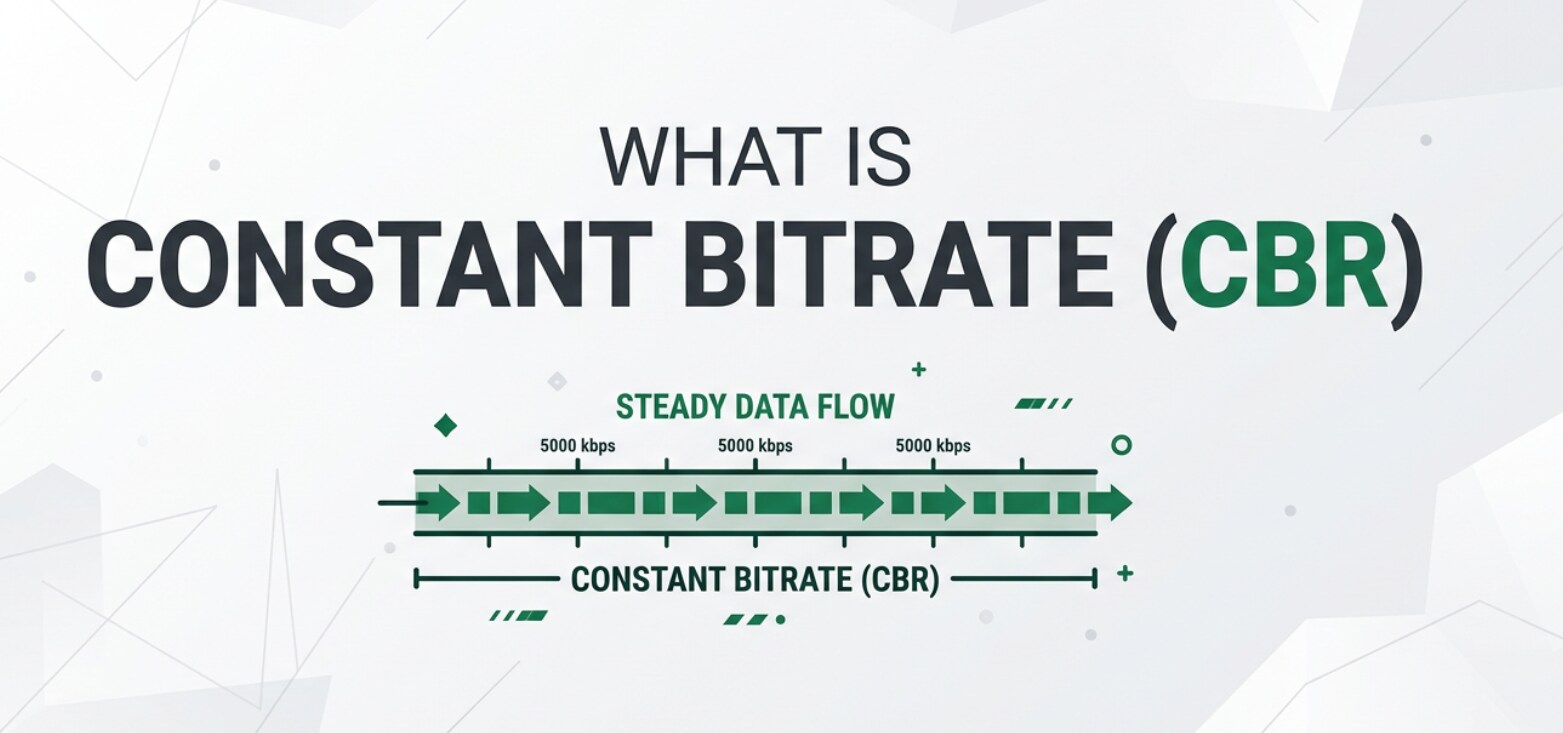
Constant Bitrate (CBR) is a setting you will see in cameras, screen recorders, streaming platforms, and export menus of editors like Premiere Pro or Final Cut. It controls how much data your video uses every second. Understanding how CBR video works helps you balance quality, file size, and smooth playback, especially when you are streaming, uploading to platforms, or archiving finished projects.
Repair Corrupted Files To Save Your Data
 Security Verified. Over 7,302,189 people have downloaded it.
In this article
What Is Constant Bitrate (CBR)?
Constant Bitrate (CBR) is a video and audio encoding method where the data rate stays the same from start to finish. It is a technical setting that belongs to the category of video bitrate and video compression parameters.
When you choose CBR video in your camera, encoder, or export dialog, you are telling the software to use a fixed number of bits per second (for example, 5 Mbps or 10 Mbps) for the entire clip. Every second of footage gets roughly the same amount of data, regardless of whether the scene is simple (like a still interview) or very complex (like fast sports or action).
This makes CBR easy to predict: if you know the bitrate and the duration, you can estimate the final file size and the bandwidth required to play or stream it.
What Does Constant Bitrate (CBR) Affect?
Impact on quality and file size
Because constant bitrate keeps the data rate fixed, it has a direct effect on both visual quality and file size:
- Quality at a given bitrate: At lower CBR values, you may see compression artifacts such as blockiness, banding, or loss of fine detail, especially in motion-heavy scenes. At higher bitrates, most of these issues disappear, but the files get larger.
- File size predictability: With CBR, file size grows in a straight line with duration. For example, doubling the length of a 5 Mbps CBR recording roughly doubles the file size. This predictability is a major reason many broadcasters and streamers still rely on CBR.
- Efficiency vs. Variable Bitrate (VBR): Compared with CBR vs VBR, CBR is usually less efficient. VBR can lower data usage in easy scenes and raise it in harder ones. CBR uses the same rate everywhere, sometimes "wasting" bits on simple shots and not having enough for complex ones.
Impact on streaming and playback
Bitrate mode also affects how smoothly content plays back across devices and networks:
- Streaming stability: A fixed streaming bitrate is easier for content delivery networks, live encoders, and older hardware decoders to handle. It reduces the risk of sudden bandwidth spikes that can cause buffering.
- Bandwidth planning: For live streaming, CBR allows you to plan upstream bandwidth precisely. If your upload connection can safely handle 6 Mbps, you can set your encoder to 4–5 Mbps CBR and know it will not jump higher.
- Compatibility: Some older set-top boxes, DVR systems, and capture cards expect CBR or handle it more reliably than VBR. In these cases, choosing CBR improves compatibility and reduces playback errors.
- Storage and archiving: When you archive large amounts of footage, CBR simplifies capacity planning. You can estimate how many hours of 10 Mbps CBR footage will fit on a given drive much more easily than with VBR.
How Does Constant Bitrate (CBR) Work in Real Use?
You will encounter CBR video across many stages of a video workflow, from recording to delivery.
CBR in cameras and capture devices
Many camcorders, DSLRs, action cameras, and hardware recorders let you choose between different bitrate modes. When you pick CBR, the device allocates a fixed rate such as 25 Mbps or 50 Mbps for 1080p or 4K recording.
- On-set recording: Crews often use CBR when shooting long events like conferences or weddings, where predictable card usage matters. For example, they know a 128 GB card will hold roughly a certain number of hours at 35 Mbps CBR.
- Screen capture: Desktop recorders and gaming capture tools often default to CBR so that streaming platforms like YouTube or Twitch receive a stable, predictable bitstream.
CBR in editing, encoding, and exporting
When you finish editing in tools like Adobe Premiere Pro, DaVinci Resolve, or Final Cut Pro, the export dialog usually lets you choose between constant bitrate and variable bitrate.
- Editing exports for review: CBR can be handy for fast turnaround and consistent upload times. A producer reviewing daily cuts knows the upload will not randomly balloon in size because of a few complex scenes.
- Broadcast delivery: TV stations and some OTT services have strict specs such as "H.264, 1080p, 15 Mbps CBR." Using CBR makes it easier to pass quality control because the file matches the documented profile.
- Social media and platforms: Many platforms accept both CBR vs VBR, but some recommend CBR for live streaming encoders to avoid variable peaks that cause buffering for viewers on slower networks.
Typical CBR values in practice
While the ideal bitrate depends on resolution, frame rate, and codec, some common CBR ranges are:
| Use case | Typical CBR range |
|---|---|
| 1080p live stream (H.264) | 3–8 Mbps |
| 4K UHD streaming (H.264 / H.265) | 8–25 Mbps |
| Offline 1080p export for editing | 10–50 Mbps |
Staying within platform-recommended ranges avoids wasteful oversizing while keeping quality acceptable for your audience.
Common Mistakes and Quick Tips
Frequent misunderstandings
- "Higher bitrate is always better." Very high CBR values quickly inflate file sizes without visible gains once you reach the sweet spot for your resolution and codec.
- "CBR guarantees perfect quality." CBR only fixes the rate; it does not guarantee how efficiently the encoder uses those bits. Poor encoder settings or low CBR still cause artifacts.
- "CBR and VBR are interchangeable." For live streaming over limited bandwidth, CBR is often safer. For downloadable files or local playback, VBR can produce better quality at the same average size.
- "All players treat CBR the same." Some older devices may handle CBR better, but any file can still become corrupted due to transfer errors, bad storage, or interrupted downloads.
Quick tips for using CBR wisely
- Match bitrate to resolution and frame rate. Use higher CBR for 4K or 60 fps content, and a moderate rate for 720p or 1080p 30 fps.
- Follow platform guidelines. Check YouTube, Twitch, or your broadcaster's recommended video bitrate and stay inside those ranges.
- Test short clips first. Export a 20–30 second sample at different CBR values and compare quality vs. file size before committing to a full render.
- Keep a safety margin for live streaming. Set your CBR 20–30% below your measured upload speed to reduce the risk of drops and buffering.
- Back up important CBR recordings. Save copies on separate drives so if one file gets corrupted, you still have a clean version; otherwise, use a repair tool if issues appear.
How to Use Repairit to Fix a Corrupted Video File
Why choose Repairit for corrupted CBR videos
Even a perfectly configured CBR video can get damaged by sudden power loss, camera crashes, bad SD cards, or incomplete downloads. In those cases, adjusting video encoding settings will not help; you need a dedicated repair utility. Repairit by Wondershare is designed specifically to analyze and fix corrupted or unplayable media files.
With a simple interface and powerful repair engine, Repairit can restore playback for many types of cbr video files, whether they come from cameras, screen recorders, or editing exports. You can learn more about supported formats and advanced functions on the Repairit official website.
Key features of Repairit
- Repairs corrupted or unplayable videos from a wide range of cameras, phones, and editing applications, including files encoded with constant bitrate.
- Supports many common formats and lets you run batch repairs so you can fix several damaged clips in one go.
- Provides an intuitive workflow with preview options, so you can check the repaired file before saving the final version.
Step-by-step: Fix a corrupted CBR video file with Repairit
- Add corrupted video files
Install and open Repairit on your computer, then choose the Video Repair module from the main screen. Click the button to add files and browse to the folder where your damaged CBR video clips are stored (on local drives, SD cards, or external disks). Select one or multiple files and confirm to load them into the repair list.

- Repair video files
After importing the videos, start the repair process with a single click. Repairit automatically scans the structure of each file, checks headers, containers, and video compression details, and attempts to correct common damage that stops playback. While the repair is running, you can see progress for each clip. When the process finishes, use the built-in player to preview the restored videos and confirm that picture and audio are back to normal.

- Save the repaired video files
If the preview looks good, choose a safe destination folder on a healthy drive that is different from the original problem location whenever possible. Click Save to export the repaired versions of your repair cbr video files. Once the export is complete, open them in your usual media player or editing software to continue working, sharing, or archiving without errors.

Conclusion
Constant bitrate offers predictable file sizes and stable bandwidth usage, which makes it a popular choice for live streaming, broadcasting, and workflows that depend on strict storage or network limits. The tradeoff is that CBR is not always as efficient as VBR, particularly in scenes with very different levels of motion and detail.
By understanding how video bitrate modes affect quality, file size, and playback stability, you can choose the right settings for each project, whether you are recording gameplay, capturing live events, or exporting final masters. If a CBR file becomes corrupted or refuses to play, using a professional tool like Repairit lets you fix corrupted video quickly and keep your content usable without re-recording.
Next: What is Interlaced Scan?
FAQ
-
1. What is Constant Bitrate (CBR) in simple terms?
Constant bitrate (CBR) is a way of encoding video or audio where the data rate is fixed for the whole file. Every second uses roughly the same number of bits, which makes file size and bandwidth usage predictable but not always as efficient as variable bitrate.
-
2. How is CBR different from Variable Bitrate (VBR)?
With CBR, the bitrate stays the same from start to finish, so complex and simple scenes get the same data budget. With VBR, the encoder changes the bitrate according to scene complexity, often giving better overall quality at a similar average size, but with less predictable bandwidth and file size.
-
3. When should I use CBR instead of VBR?
Choose CBR for live streaming, broadcast deliveries, or workflows where you must control bitrate and file size tightly, or when you are targeting older hardware that prefers a fixed streaming bitrate. For downloads, local playback, or archival exports, VBR is often more efficient.
-
4. Does higher CBR always mean better video quality?
A higher video bitrate usually improves quality up to a point, but after you reach an adequate level for your resolution and codec, further increases mainly make the files larger without obvious visual gains. It is better to find a balanced bitrate than to push it as high as possible.
-
5. How can I fix a corrupted CBR video file?
First, copy the file to a safe location and try several media players to rule out software issues. If the clip is still broken, use a dedicated repair tool like Repairit to fix corrupted video: add the damaged CBR file, run the repair, preview the result, and then save the repaired version to a healthy drive.




