
The modern world has lots of tasks depending on a stable PC performance. When the OS refuses to function properly, it may leave your system unpatched and vulnerable to security threats. 0x80070306 is among the errors that could hinder a smoothly working PC.
From random crashes to security risks, this error can cause many troubles. However, there are various Windows built-in solutions that could repair this issue. This article explores these repair methods and suggests a repair tool that fixes the files that could be causing this error.
Table of Contents
Part 1. What Is Error 0x80070306 and Why Does It Occur
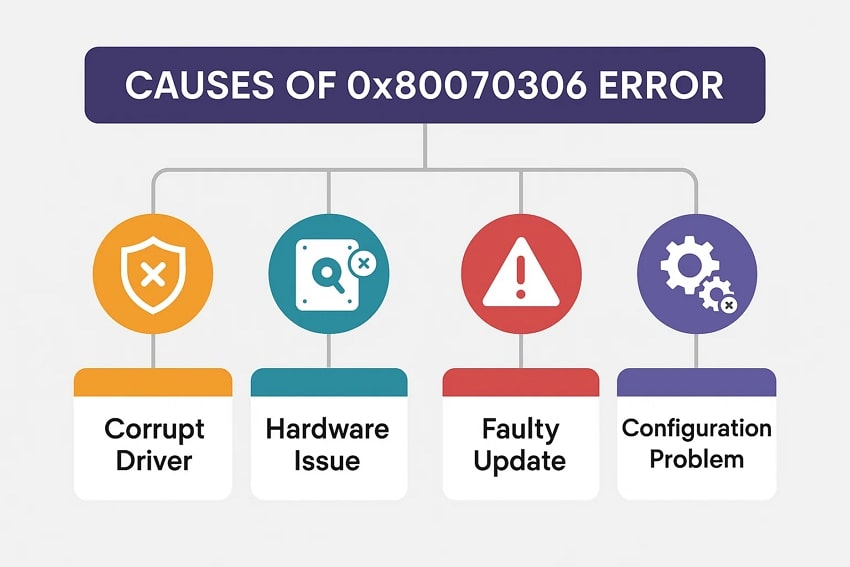
Error 0x80070306 is a Windows Update failure code that appears during updates or system restores when essential system files fail to communicate. It interrupts normal operations and requires troubleshooting to restore stable functionality. The following points explain why this error might occur on your Windows device:
- Corrupted System Files: Damaged or missing system components disrupt essential operations and trigger failures during updates or restores.
- Interrupted Windows Update Process: Network drops, forced shutdowns, or stalled downloads can break update tasks and generate this specific error.
- Faulty or Outdated Drivers: Incompatible drivers create communication issues between Windows and hardware, leading to operation failures.
- Disk or Storage Problems: Bad sectors, failing drives, or unreadable partitions prevent Windows from accessing required data structures correctly.
How to Identify the Cause of 0x80070306
If you do not know the symptoms of a 0x80070306 error, the following points will help you identify it:
- Check Windows Update History: Review failed updates and repeated error entries to determine if the issue originates from update interruptions.
- Run System File Tools: Using SFC or DISM helps identify whether corrupted system files are responsible for recurring failures.
- Monitor Device Manager Alerts: Yellow warning icons or driver errors highlight potential hardware communication issues causing this code.
- Diagnose Storage Health: Running CHKDSK or checking SMART data reveals disk problems that may trigger the error consistently.
Part 2. Troubleshoot Windows Error 0x80070306: Step-by-Step
Now that you have identified the issue, the next step would be to fix it. The following section is a detailed guide to resolving the 0x80070306 error effectively:
Method 1. Run the Windows Update Troubleshooter
Using the Windows Update Troubleshooter is important because it automatically detects update-related interruptions and repairs configuration issues. This tool simplifies diagnosis by fixing corrupted update components, allowing Windows to resume downloading and installing critical updates smoothly. Follow the guide below to learn how to run Windows update troubleshooting:
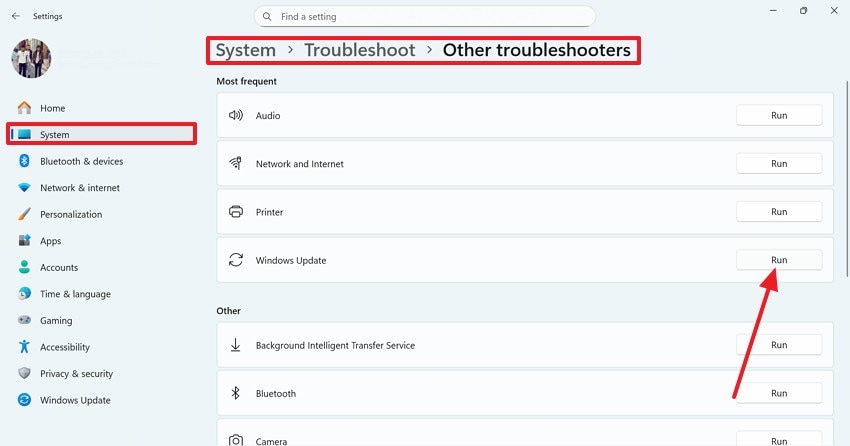
Instructions. In the “Settings” window, enter the “System” tab from the left side bar and follow this pathway: “System >Troubleshoot > Other Troubleshooters.” In the final window, find the “Windows Update” tab and select the “Run” button to scan for Windows update issues.
Method 2. Repair System Files
Repairing system files is essential because corrupted components can break critical Windows processes and cause repeated update failures. Using SFC or DISM scans and restores missing or damaged files, helping the system run smoothly and complete updates without interruptions. Follow the guide below to learn how to repair system files and resolve the 0x80070306 error:
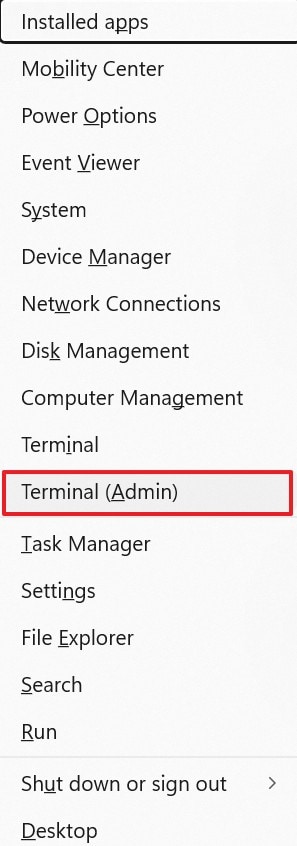
Step 1. To start the process, enter the “Win + X” keys and select the “Terminal (Admin)” option from the pop-up to open the CMD window.
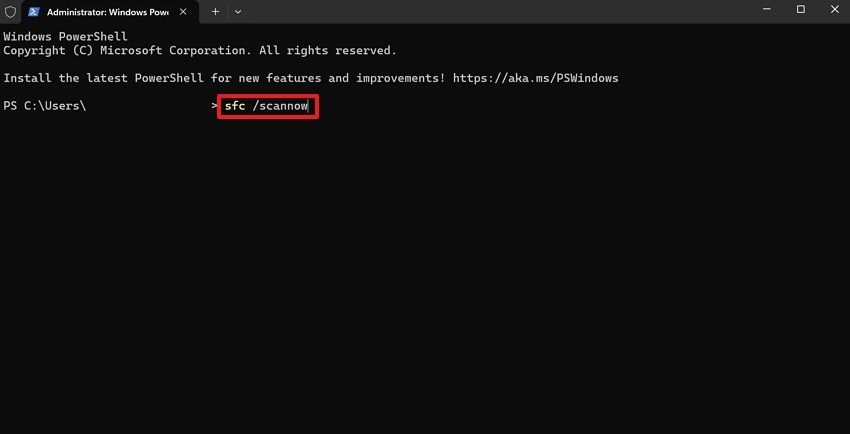
Step 2. In the CMD window, give the “sfc /scannow” command and press the “Enter” key to scan for and fix errors.
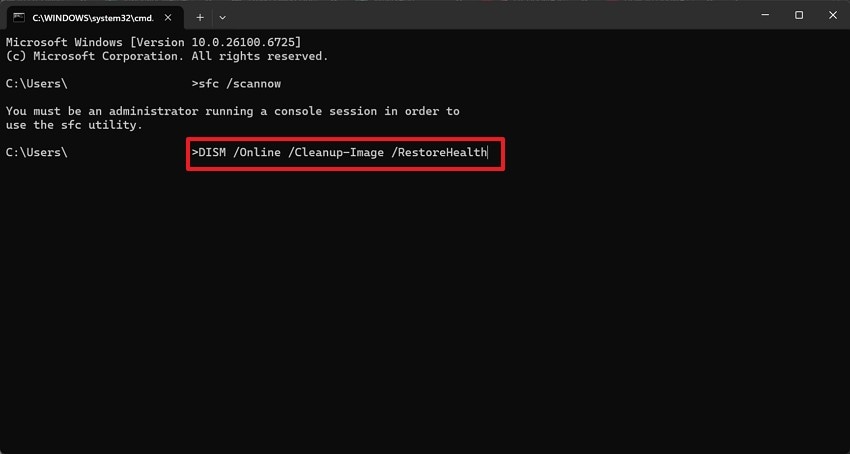
Step 3. Conversely, you can enter the “DISM /Online /Cleanup-Image /RestoreHealth” command to repair files. Once done, restart the PC to start fresh on your device.
Method 3. Use the Built-in Windows Recovery Tool
Using the built-in recovery tool is important because it resets critical update components that become misconfigured or damaged. This process restores system stability by refreshing essential services and settings, allowing Windows to recover from persistent update issues that prevent successful installations. Follow the steps below to reset your PC to factory settings:
Step 1. To start, press the “Shift” key and the “Restart” button at once.
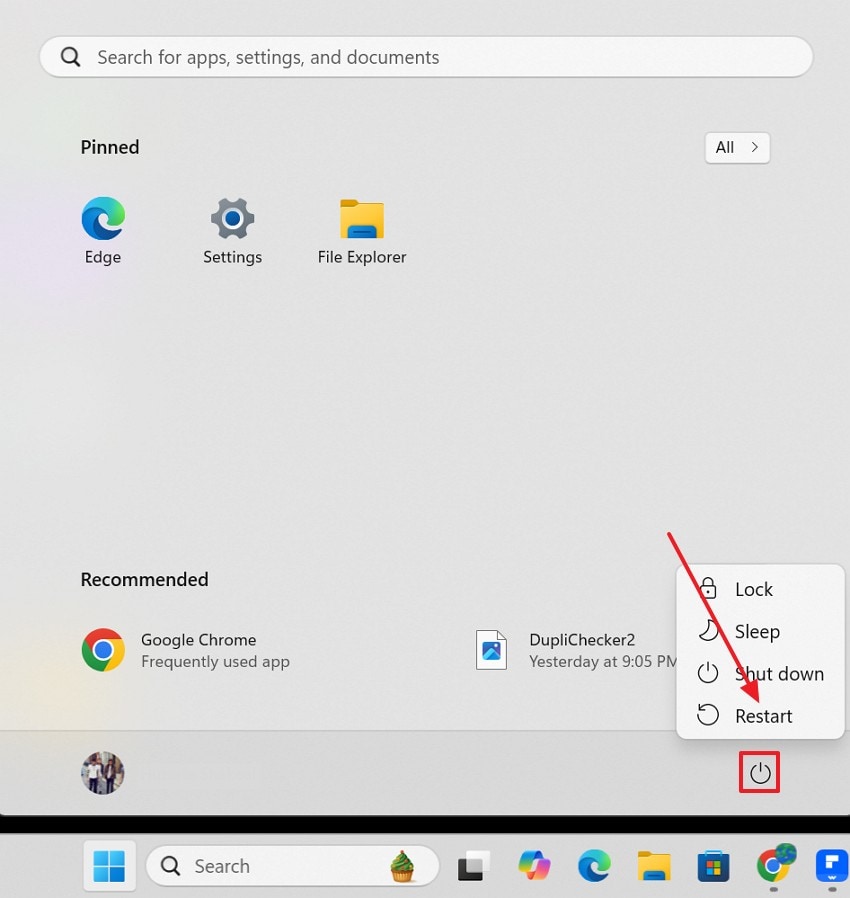
Step 2. As the “Windows Recovery Environment” opens, select the “Troubleshoot” button to continue.
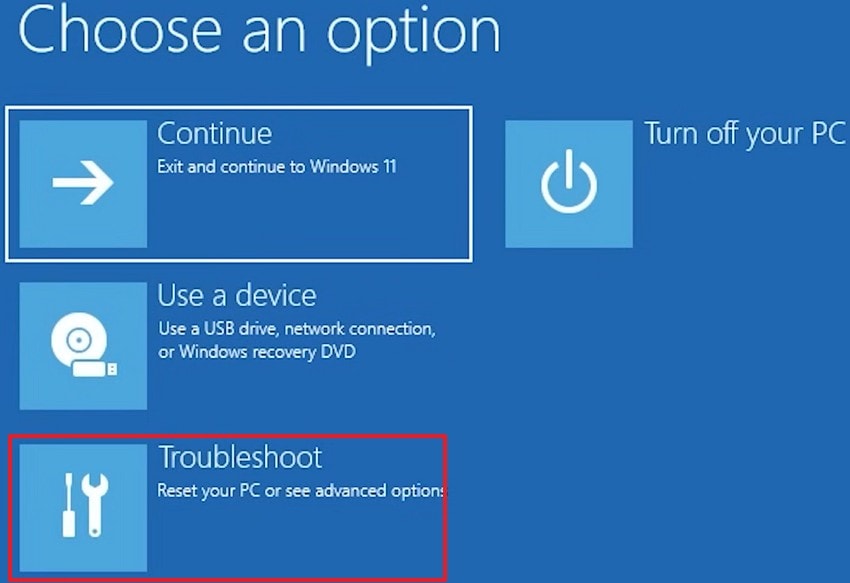
Step 3. In the “Troubleshoot” interface, click the “Reset this PC” option to proceed.
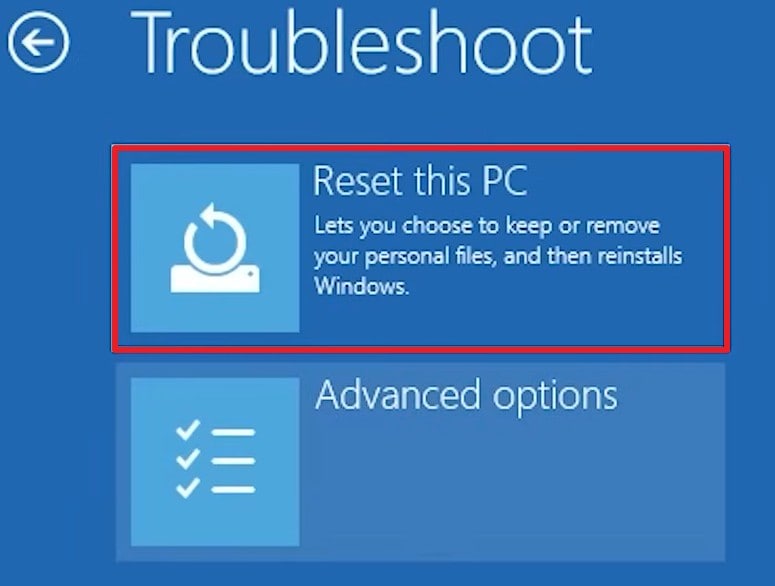
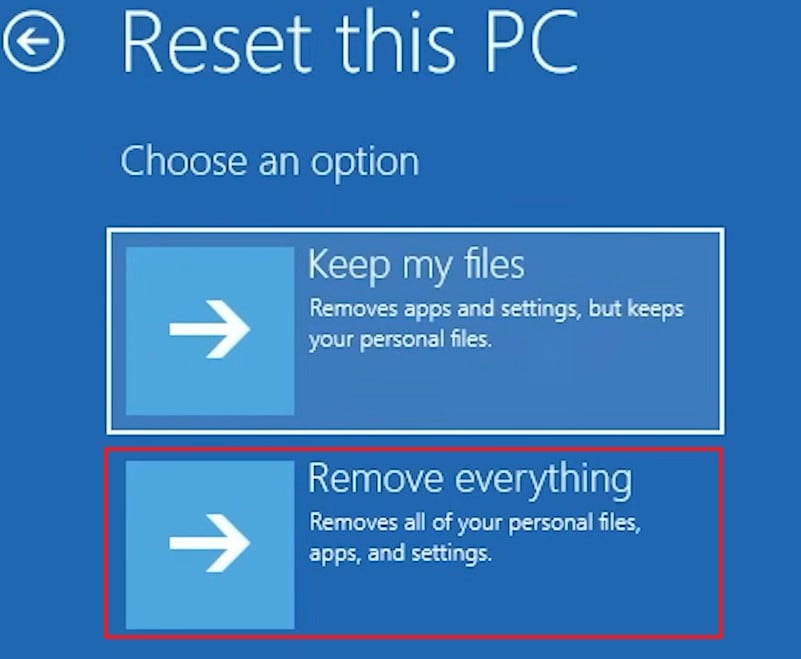
Step 4. Using the following screen, select the “Remove Everything” option to delete all data after the reset. You can also keep your files if needed once the device is reset.
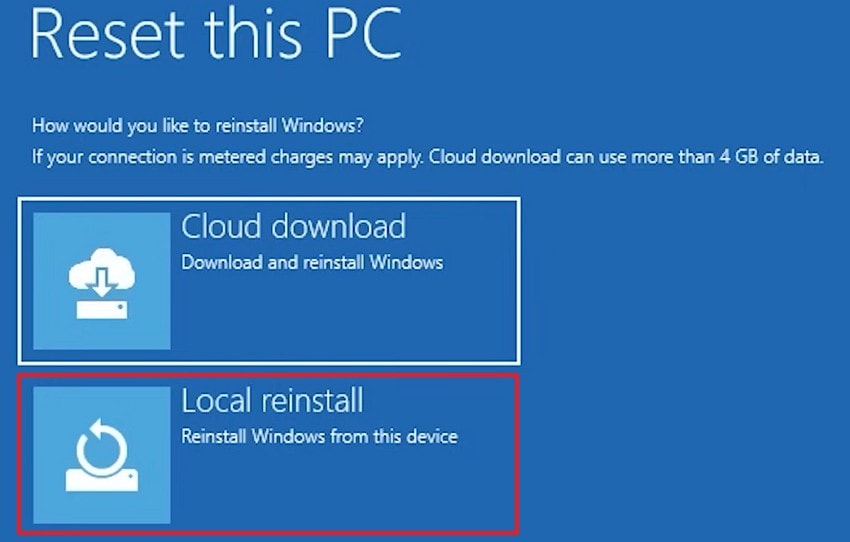
Step 5. If you want to install the latest version of Windows, select the “Cloud Download” option to continue. Users who prefer the existing OS version can click the “Local Reinstall” button.
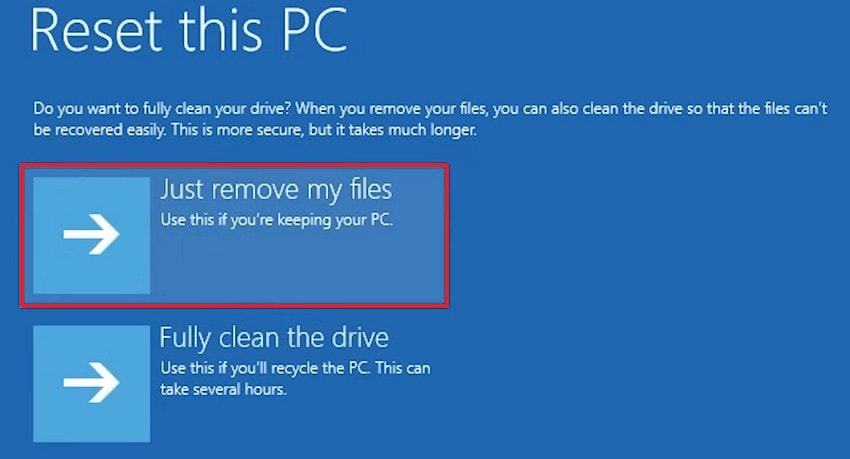
Step 6. Following that, select the “Just Remove My Files” option if you are keeping your PC. If selling the device, click the drive-cleaning tab.
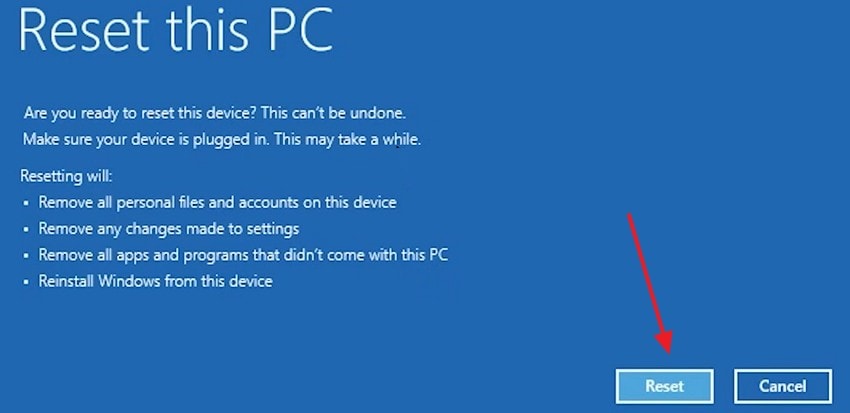
Step 7. Finally, click the “Reset” button and let the system set itself up again.
Method 4. Install Updates in Safe Mode
Installing updates in Safe Mode is important because it loads only essential drivers and disables conflicting background software. This isolated environment helps Windows complete updates successfully, especially when third-party programs or drivers interfere with the update process. The steps below are a detailed guide to installing updates in safe mode for fixing the 0x80070306 error:
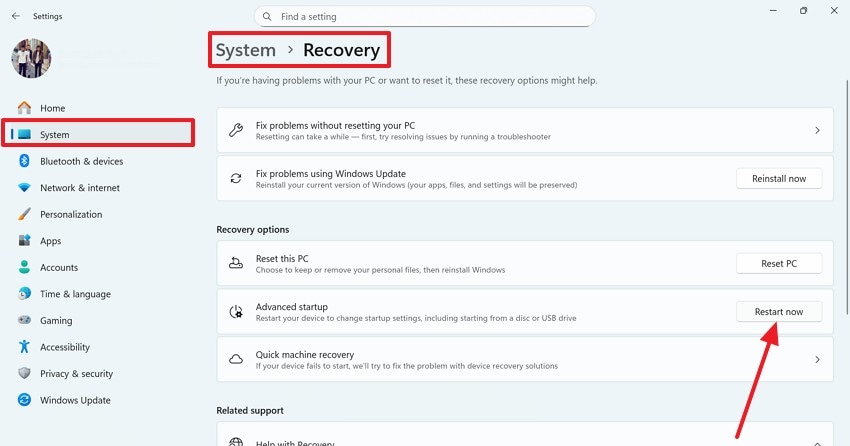
Step 1. To start, use the “Win + I” keys to enter the “Settings” on your PC. From the left panel, enter the “System” tab and select the “Recovery” option. As you enter the following window, select the “Restart Now” button next to “Advanced Startup.” Now, wait for the Windows Recovery Environment interface to open.
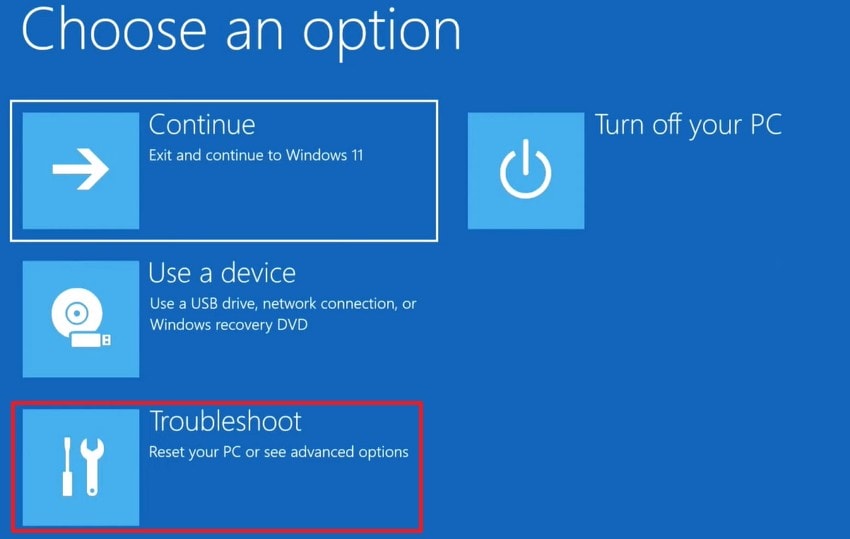
Step 2. In WRE, select the “Troubleshoot” tab and proceed to the next interface.
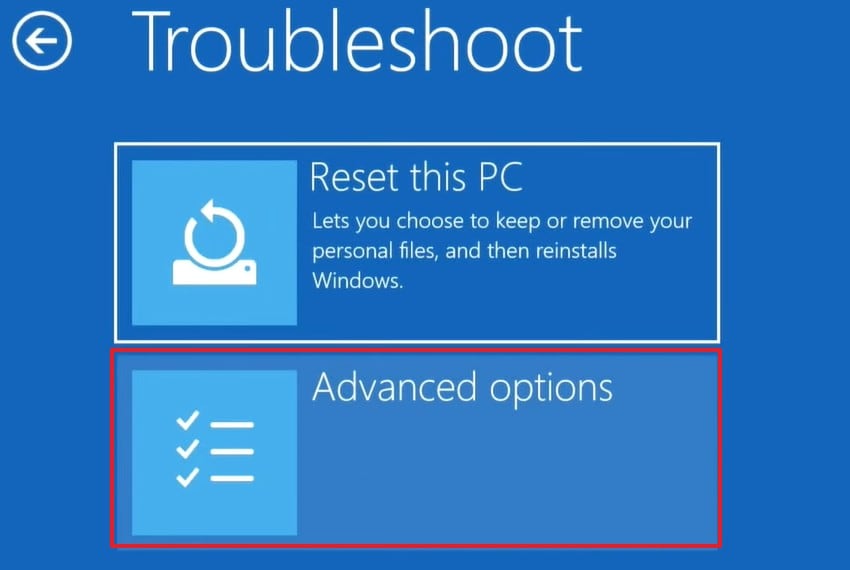
Step 3. Afterward, navigate to the “Advanced Options” and wait for the next interface.
Step 4. Look for the “Startup Settings” tab and wait for the next screen to appear.
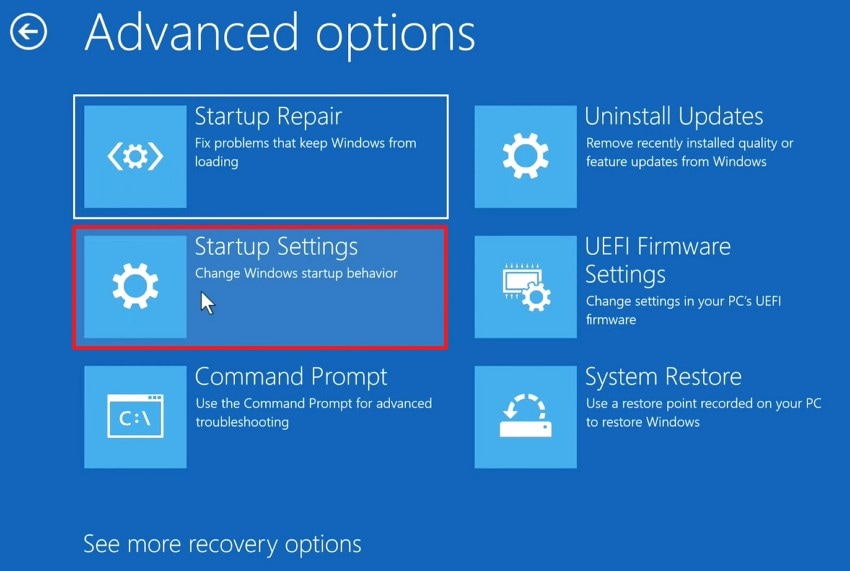
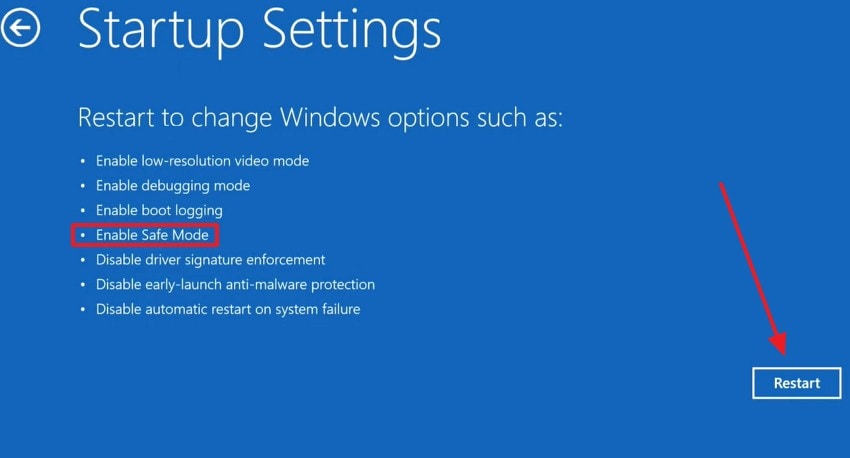
Step 5. In the “Startup Settings” interface, click “Restart” if you need to enable Safe Mode.
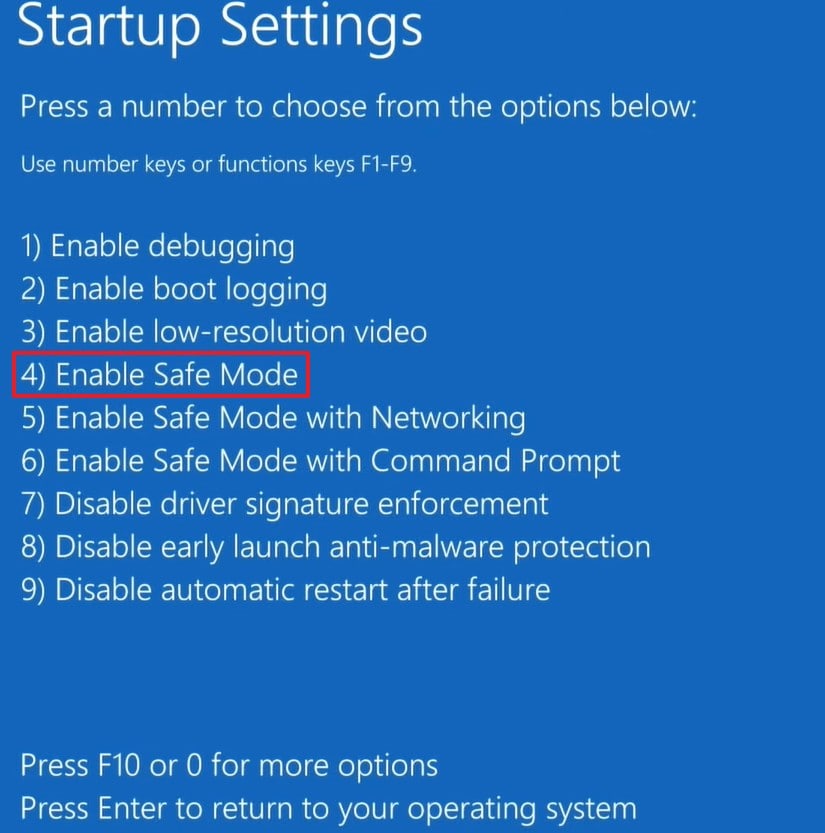
Step 6. When the list of options appears, use the numeric or functional keys to “Enable Safe Mode.”
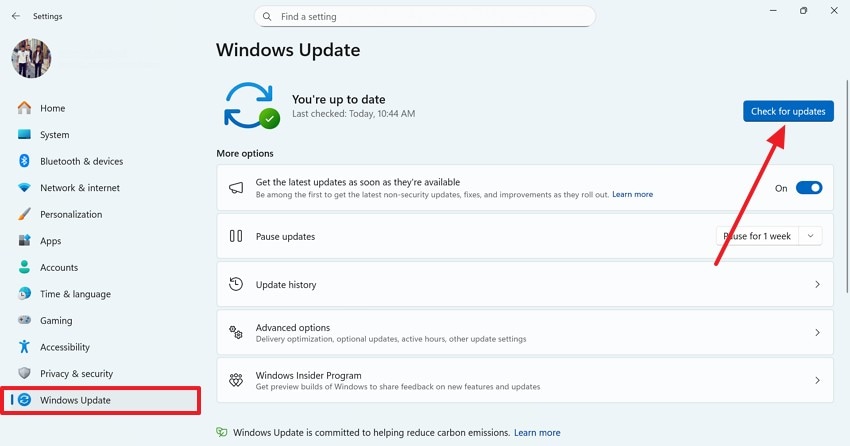
Step 7. Once the PC starts, enter the “Settings” window again and look for “Windows Update.” Lastly, click the “Check for Updates” button to update the Windows version.
Method 5. Use “Fix Problems Using Windows Update”
Windows 11 has a relatively new feature that resolves issues on your PC with a simple update. It targets underlying configuration issues more precisely, helping users resolve complex update failures that standard troubleshooting cannot fix effectively. Follow this guide to resolve the 0x80070306 error:
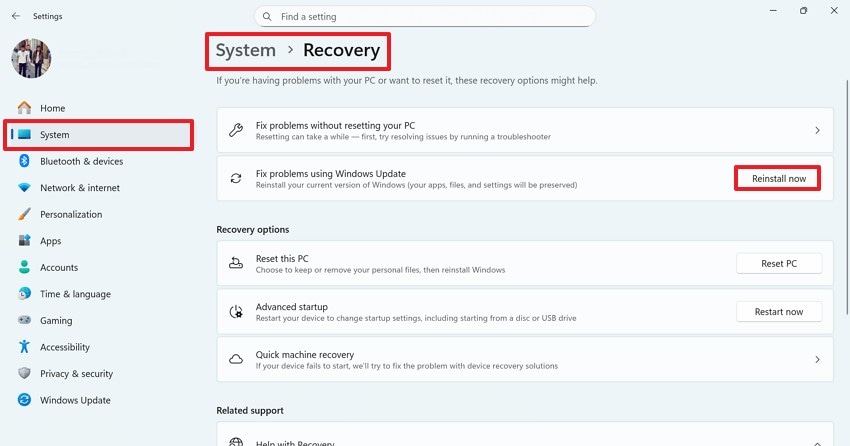
Step 1. As you open the “Settings,” lead into the “Recovery” section from “System.” Following this, look for the “Reinstall now” button adjacent to the “Fix problems using Windows update” option.
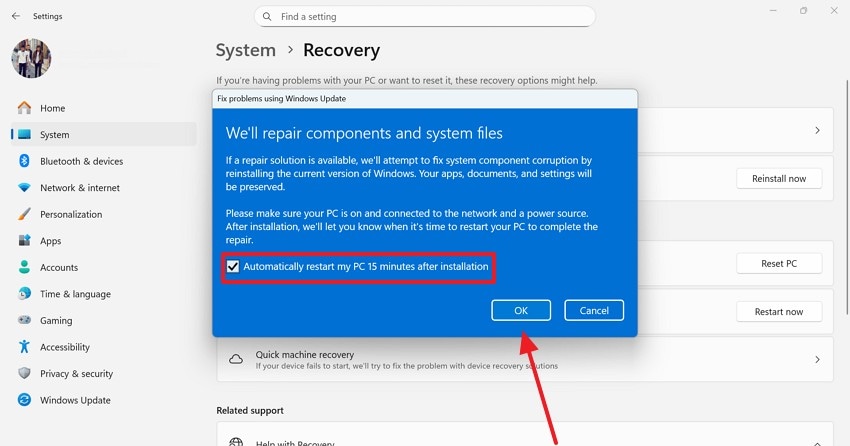
Step 2. When the window opens, check the “Automatically Restart My PC 15 Minutes After Installation” box and press “OK” to continue.
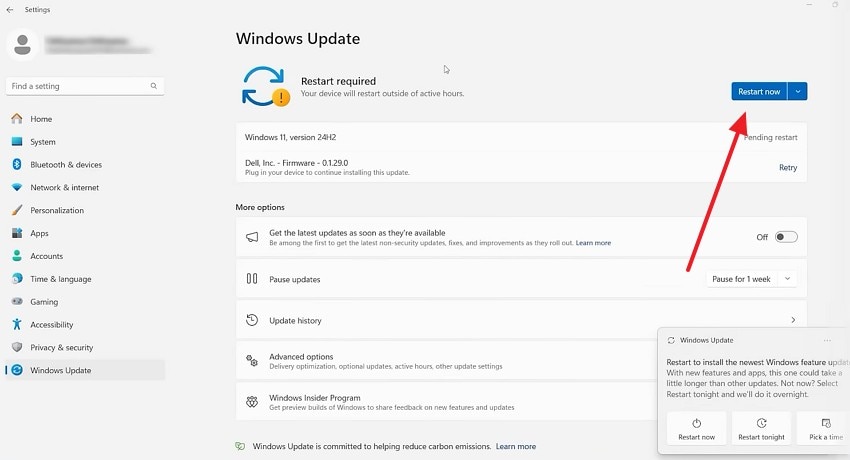
Step 3. This will take you to the “Windows Update” page, where you will be able to check for and track the update. Once the Windows version is updated, click the “Restart Now” option to start fresh.
Method 6. Download and Install Updates Manually
Manually installing updates bypasses damaged update components that cannot download files automatically. This approach ensures your system still receives critical security patches, reduces vulnerabilities, and restores update functionality despite ongoing errors. Follow the guide below to learn how to update Windows manually and fix the 0x80070306 issue.
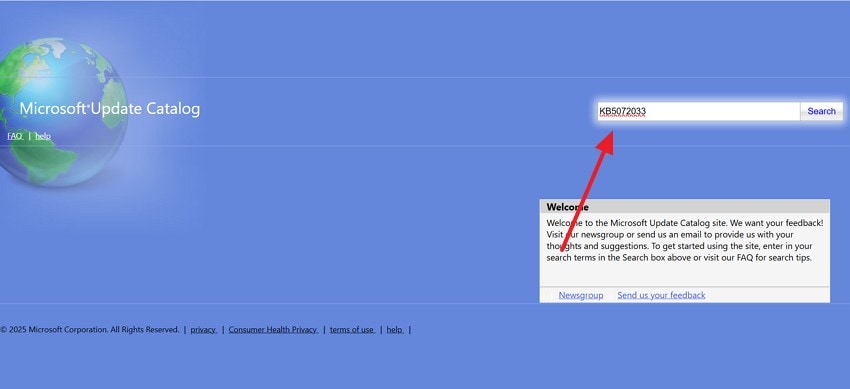
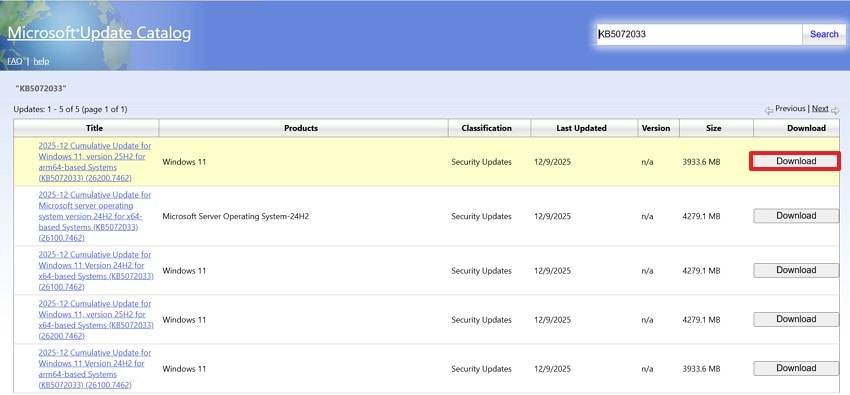
Step 1. If the conventional update method does not work, you can do so manually. For this, you will have to visit the Microsoft Update Catalogue website and search for the knowledge base or KB number of the update you are trying to download.
If you are not sure about the corresponding KB number, visit this site and locate the KB number of your desired update version. Enter and search for this number in the search bar at the top right.
Step 2. As the next page opens, download the product with the KB number of your target update and wait for the next browser window to open.
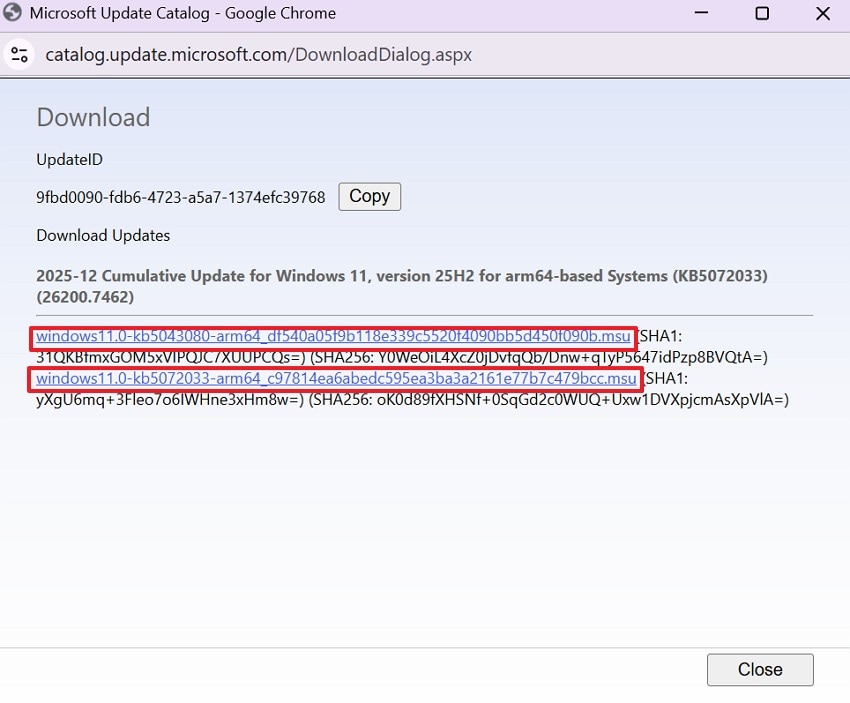
Step 3. Using the following window, click on and download both links with “.msu.” The first URL update in the window is the base update. Once they are downloaded, double-click on the base update and install it on your device. Once done, install the second update that you had downloaded earlier. Now, restart your PC to start working on the up-to-date version of Windows.
Pro Tip. Fix Corrupted Files Causing Windows 0x80070306 Error
As mentioned, corrupted system files are among the reasons for the 0x80070306 error. To fix this error, you will first need to repair these faulty documents. To get this done, Repairit is an excellent platform. With its powerful file-repair algorithms, it analyses your files and identifies the root cause of the error. To enhance its usability, this tool supports more than 30 file formats.
No matter what causes the files to get faulty, Repairit can fix all corruption scenarios. This tool supports batch repair to save time needed for individual document repairs. Unlike most tools, Repairit does not deteriorate the original file quality. Once the files are repaired, they can be easily accessed in the designated cloud storage.
Key Features

-
File Preview Feature: Before you download the repaired file on your device, you can use the File Preview option to take a look at it.
-
Advanced Repair Mode: In case the regular file repair fails to fix your files, use the Advanced Repair Mode to resolve the error.
-
Engineering File Repair: From PPROJ to AutoCAD files, Repairit provides a layer-by-layer rebuilding with its repairing facility.
A Guide to Using Repairit for Effective Repair of the Files Causing the 0x80070306 Error
Now that we know that Repairit is capable of fixing the system files causing the 0x80070306 error, let’s see how this is done. The steps below are a guide to using this tool for fixing this issue:
Step 1. Import a File in Repairit’s Document Repair Interface
To start the process, select the “More Types Repair” tab from the left sidebar and click the “Document Repair” option from the right. Now, import the batch of damaged files from your device.

Step 2. Repair the Imported Batch of Damaged Files
Once the selected files appear, press the “Repair” button to start fixing them.

Step 3. Save or Preview the Files After the Repair
As your system files are fixed, a dialogue box will appear next. Using this dialogue box, click “Save” to download the fixed file, or “Preview” to view it before saving.

Repair Corrupted Files Caused by the 0x80070306 Error
 Security Verified. Over 7,302,189 people have downloaded it.
Conclusion
It is very common for Windows users to complain about the 0x80070306 error. This article explained the meaning and causes of this error. We also discussed the most effective techniques for resolving this issue on a PC. While many reasons could be causing this error, having corrupt system files is one of the factors. If this is the case with you, use Repairit to fix these faulty files, as it easily repairs files with high accuracy.
Frequently Asked Questions
-
1. Can corrupt system files cause the 0x80070306 error?
Having damaged system files is one of the reasons why one could face this error on their Windows device. Luckily, Repairit can fix these damaged files and help you regain access to your PC’s normal functionality. -
2. What usually triggers the 0x80070306 error?
The 0x80070306 error often occurs due to corrupted system files, faulty drivers, or damaged Windows Update components. Storage issues, interrupted updates, and misconfigured services can also contribute significantly. -
3. Can the 0x80070306 error affect Windows stability?
Yes, repeated occurrences can cause system instability by interrupting essential processes and update mechanisms. Unresolved issues may also slow performance and trigger additional errors. -
4. How can I save time fixing multiple system files?
Fixing each file individually could cost time, delaying the normal function of your PC. However, Repairit’s batch processing feature helps you fix multiple system files in a single go and saves you time.




