
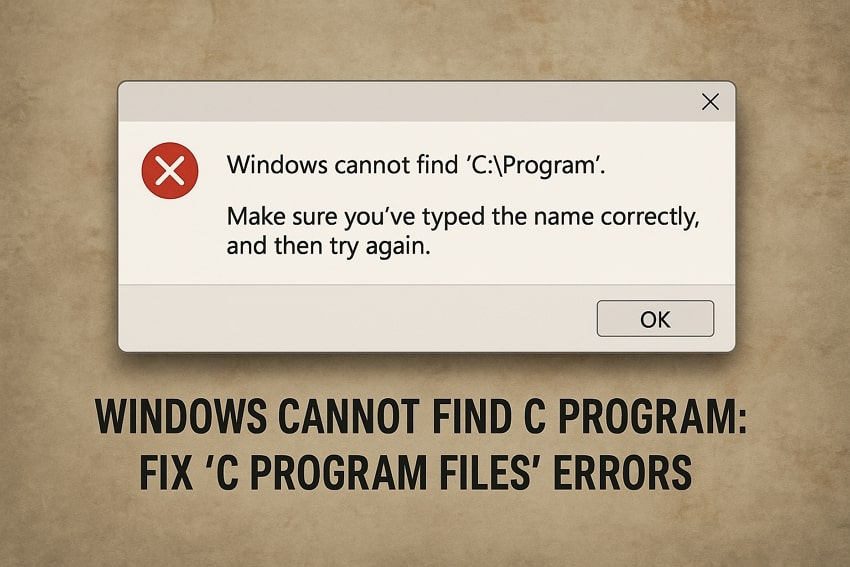
While this Windows error is believed to be a common user problem, there's not much offered as a remedy. The "Windows cannot find C:\ Program" error usually occurs when Windows is trying to launch something from the Program Files directory, but only sees the first part of the path.
On the other hand, it is unable to locate the actual executable at the specified location, which leads us to seek appropriate solutions. This article outlines potential solutions to fix this Windows error with ease.
Table of Contents
Part 1. Why "Windows Cannot Find C Program" and What It Means
The "Windows cannot find C:\ Program Files" error directly explains that the path received does not point to a valid file that needs to be executed. This does not involve a specific program, but any program that operates from an executable offered within the "Program Files" folder. The problem is directly associated with the path followed, where it can be broken, shortened, or misread by Windows.
Why Does the "Windows Cannot Find C Program" Error Hit
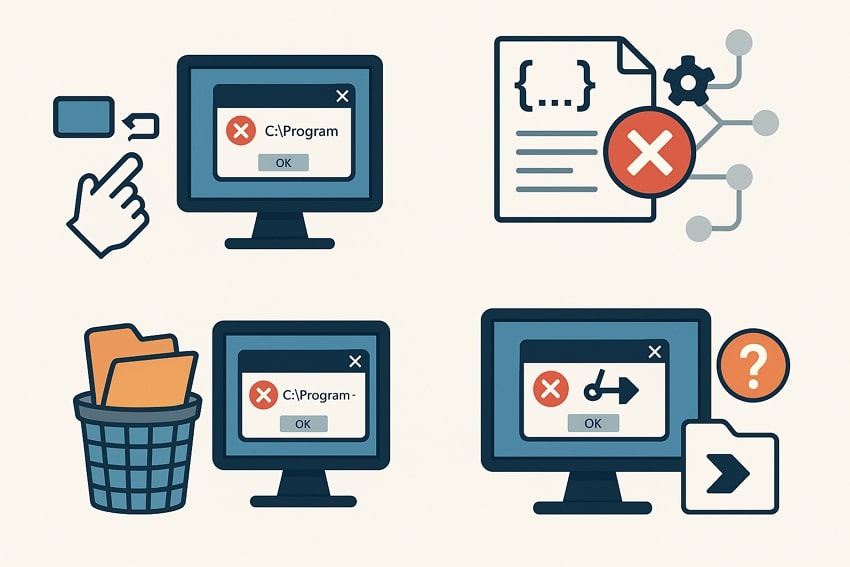
To get a better idea of why the "Windows cannot find C Program" error occurs in the first place, look ahead into the mentioned reasons:
- Path Not Quoted With Spaces: Most commands, scripts, and entries utilize "C:\Program Files…" without surrounding the path in quotation marks, regardless of having a space in "Program Files." With the path not quoted, Windows splits the command from the first space and only runs "C:\Program," which does not exist.
- Broken Image File Execution Options (IFEO) Registry: Incorrect debugger or filter entries within the "Image File Execution Options" registry key can be a direct cause of the problem. As these entries are responsible for running a helper executable, the error occurs when the helper path becomes invalid.
- Software Not Uninstalled Properly: When software or malware is not removed properly from a Windows computer, leftover tasks can redirect to an executable in Program Files that is non-existent.
- Missing or Moved Executable: It is quite possible that the target application file might have been deleted or moved to another location. When shortcuts or file associations are accessed, they reference the old path, leading to the error.
Part 2. Easy Fixes for "Windows Cannot Find C Program" Errors
Once you've explored the "Windows cannot find C:\Program Files" error in detail, it is best to learn how to get it fixed. This section brings the applicable solutions that can help you make the associated program accessible again:
Method 1. Confirm The File And Path Actually Exist
This error appears when accessing specific files because the executable file (.exe) has been deleted or moved to a new location. The command points at the wrong place, leading to such program errors. The best way to make this work is to verify if the actual .exe file is present in the expected folder, as shown in the path. The following steps define how to confirm if the file and path actually exist across Windows:
Step 1. Note the entire path displayed in the error and start accessing it manually after opening File Explorer.
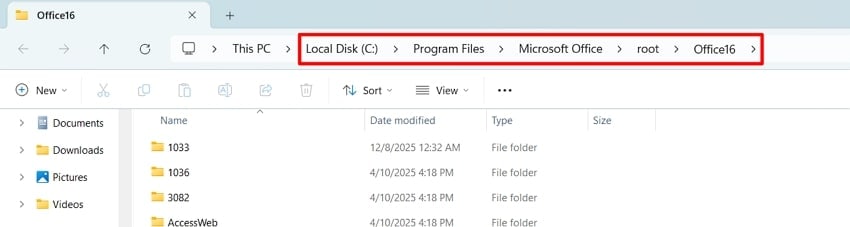
Step 2. Upon accessing the path manually, if you find the executable file (.exe) within the folder, try running it. This will help you verify if the path is correct and the executable file is actually operational, ensuring that the installation is intact.
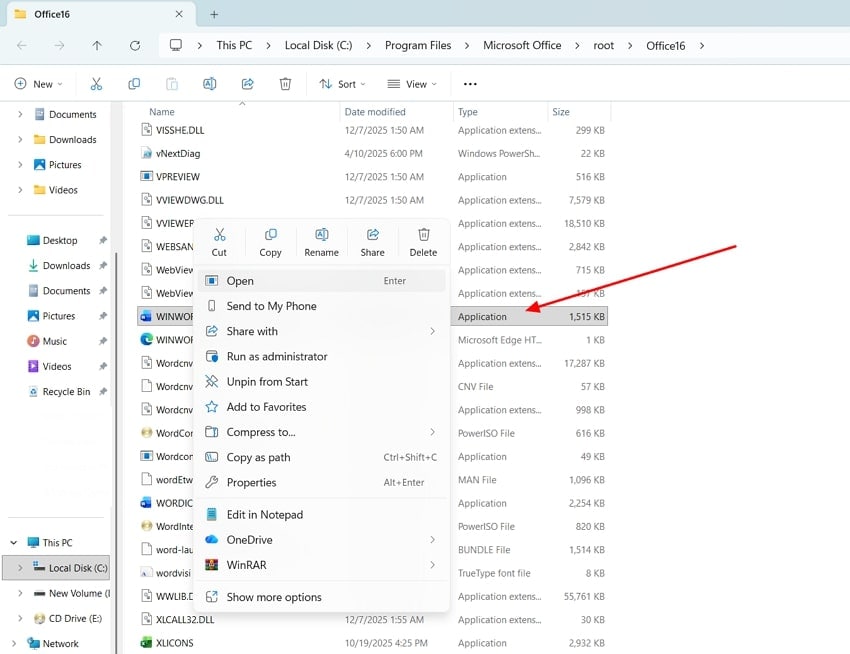
Method 2. Fix Paths That Break At "C:\Program."
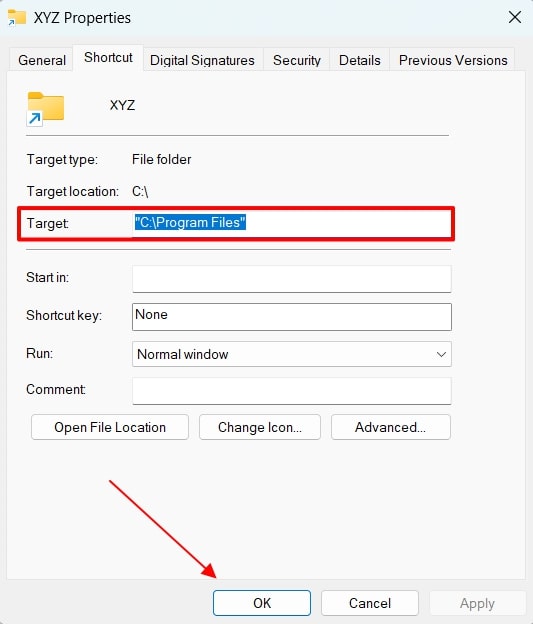
When paths like "C:\Program Files\Microsoft Office\root\Office16\WINWORD.EXE" are used without quotes, many shells and shortcuts interpret it incorrectly. They only see "C:\Program," triggering the "Windows cannot find C program" error. At times, adding quotation marks around the paths fixes the issue and helps you run the correct executable file.
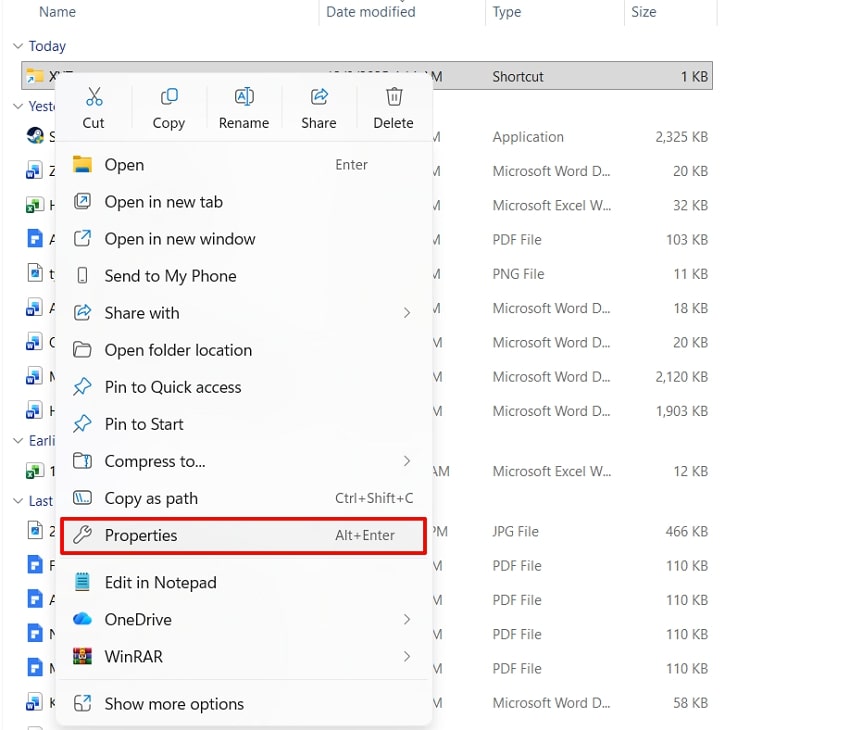
Step 1. Access the program that is showing the executable error, and right-click to select "Properties" from the options.
Step 2. While this opens a new window, navigate to the "Target" section and check if the pathway breaks at "C:\Program." If it does, fix it by pasting the entire path in quotation marks and hitting "OK" to save the changes.
Method 3. Check Folder Permissions
If the permissions across the program's folder are restricted for particular user accounts, Windows might refuse to open the executable file within the folder. Once you've confirmed the file path and found nothing, you can definitely check the associated folder permissions. The following are the simple steps to fix the "Windows cannot find C:\ Program Files" error by verifying folder permissions:
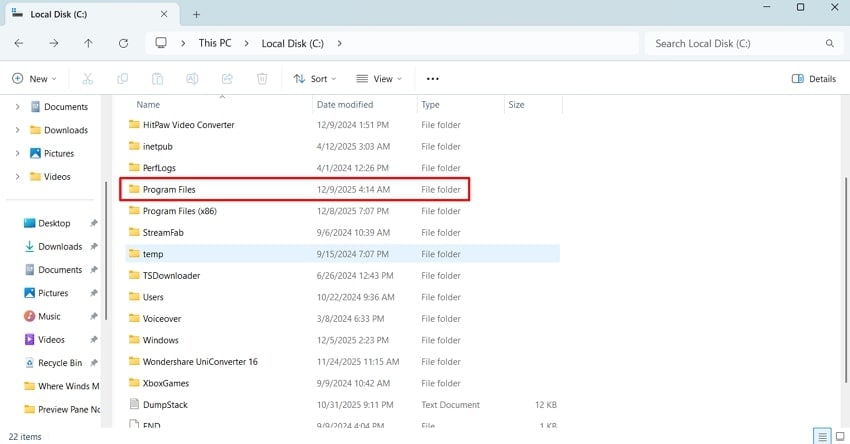
Step 1. Within File Explorer, access the respective folder of the application in "C:\ Program Files" that is being triggered.
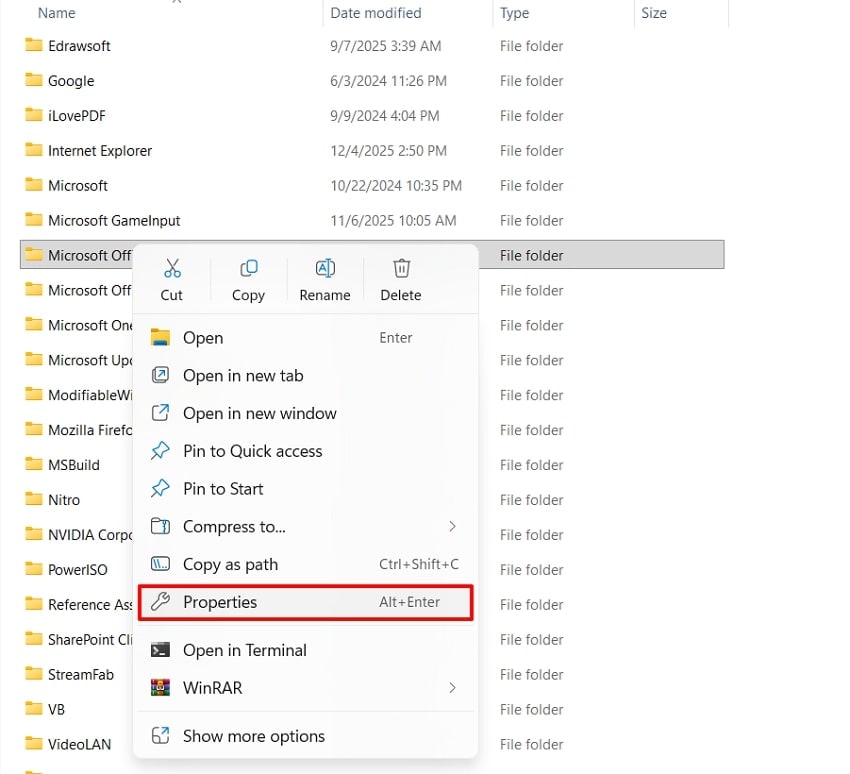
Step 2. Taking "Microsoft Office" in this case, right-click on the program folder and select "Properties."
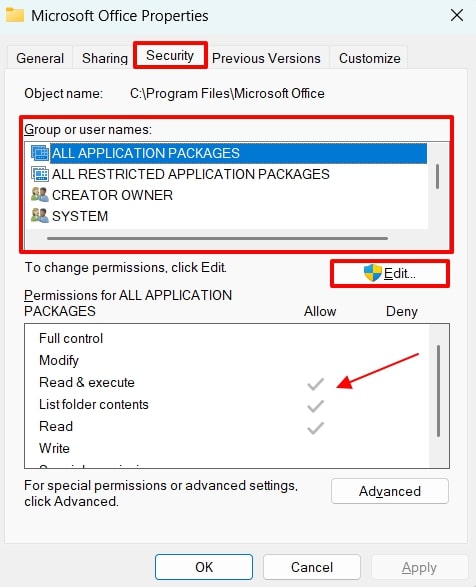
Step 3. Navigate to the "Security" tab and look for your affected user account under "Group or user names." Verify the "Permissions" box shows the selected options of "Read" or "Read & execute" for regular operation. To make changes to the assigned permissions, use the "Edit" button to allow it.
Method 4. Check Antivirus And Security Tools
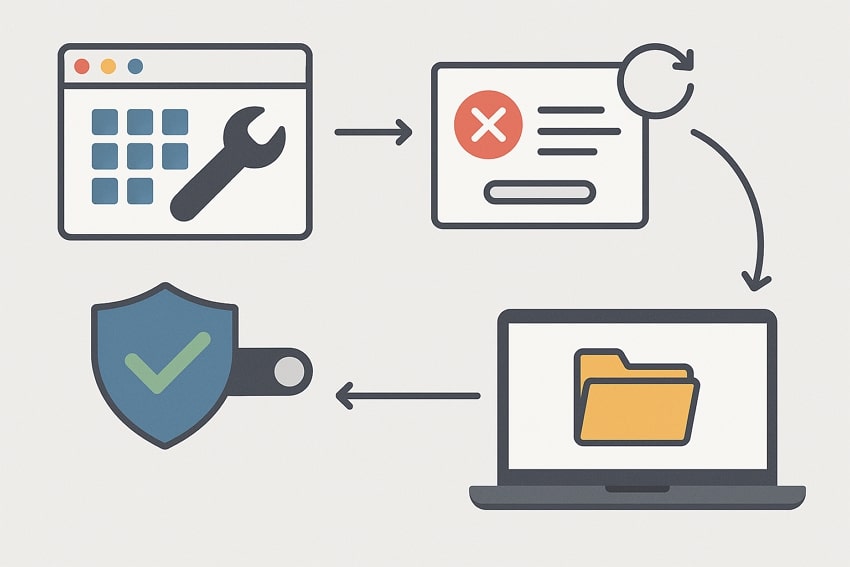
Antivirus software usually creates entries under the Image File Execution Options (IFEO) registry key for monitoring applications. The use of such security products blocks or quarantines the real executable files, leading to "Windows cannot find C:\ program" errors.
The right way to get this resolved is by temporarily disabling the antivirus on your computer.
Method 5. Repair Registry "Debugger/IFEO" Entries (Advanced)
Image File Execution Options (IFEO) is a Windows feature that allows developers to attach a debugger or filter across an executable file through registry keys. When an IFEO entry has a value that points to the wrong executable, Windows shows the "Windows cannot find C:\ Program Files" error. Eventually, the right approach is to access the respective registry and delete the appropriate entry, which is featured as follows:
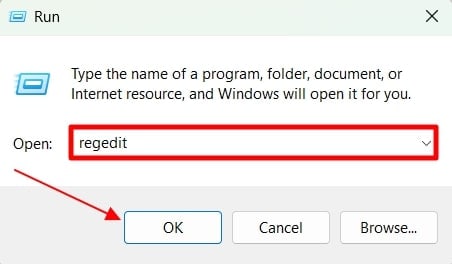
Step 1. To start the process, access the Run program using the "Win + R" shortcut key and type "regedit" to open the Registry Editor.
Step 2. With the Registry Editor opened, use the following path to access the IFEO entries:
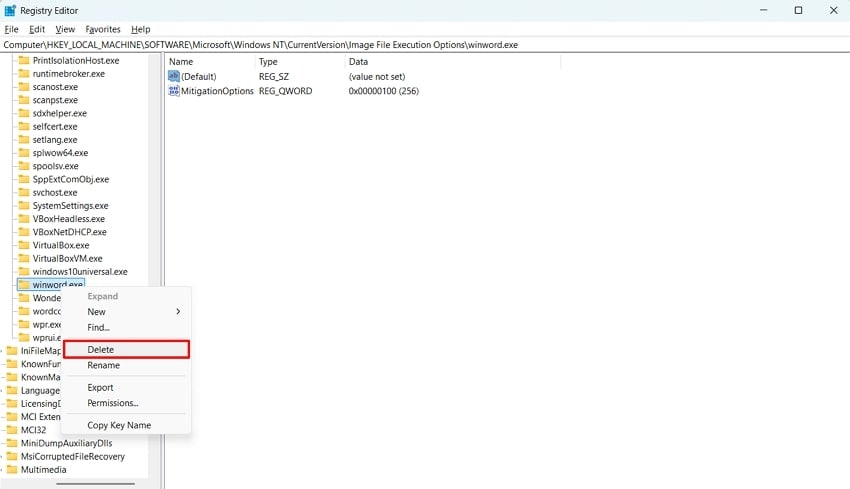
HKEY_LOCAL_MACHINE\SOFTWARE\Microsoft\Windows NT\CurrentVersion\Image File Execution Options
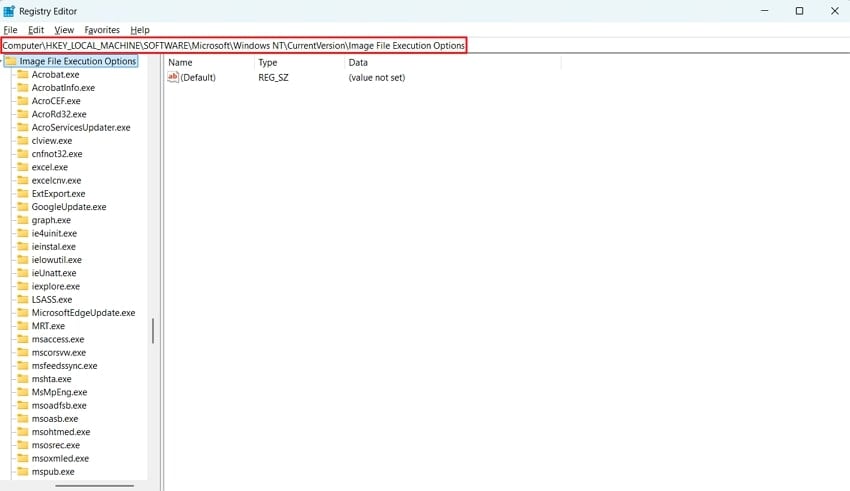
Step 3. Upon accessing the IFEO entries, review the executable file from the left pane that is showing the error. Review its sub-key values and if problematic, right-click on the key and select "Delete" from the left pane. Once confirmed, restart your device and run the file again to check if the executable file works properly now.
Method 6. Use Clean Boot To Rule Out Conflicting Apps
At times, the "Windows cannot find C:\ program" error occurs due to the presence of a conflicting app. The problem lies neither in the path nor in the registry keys, but is associated with a third-party app. The solution to such a situation comes within the Clean Boot state.
In this state, Windows starts with only the essential services, with no third-party startup programs associated with the process. To know how this works for the C Program error, look ahead:
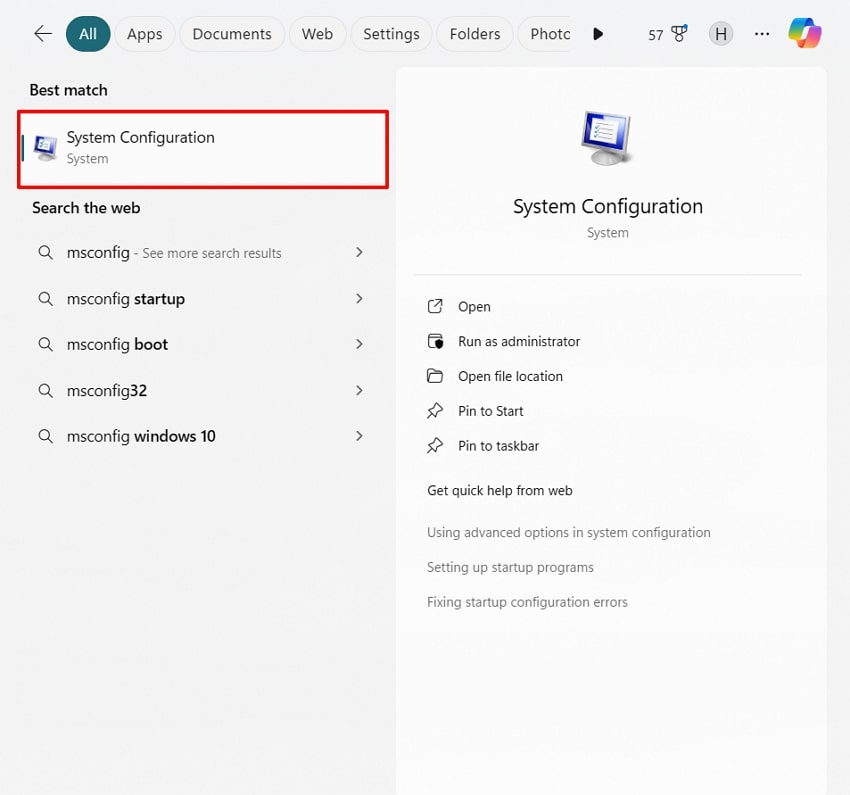
Step 1. Using the "Windows + S" key combination, access the "Search" bar and type "msconfig" to access the System Configuration window.
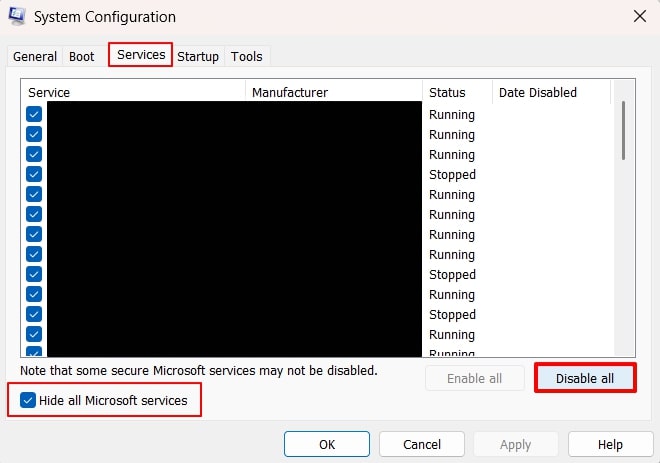
Step 2. Once accessed, head into the "Services" tab and choose "Hide all Microsoft services" before hitting "Disable all" to disable all unnecessary startup services.
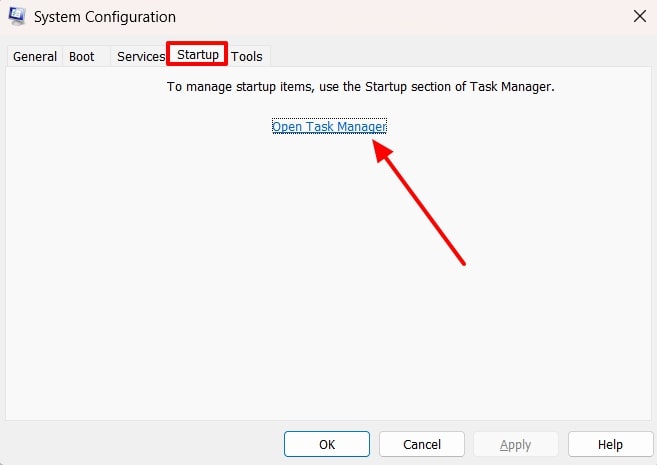
Step 3. Navigate further into the "Startup" tab and select the "Open Task Manager" option.
Step 4. Within the Task Manager, ensure that the apps showing the "Enabled" status across the "Startup apps" tab are changed to "Disabled."
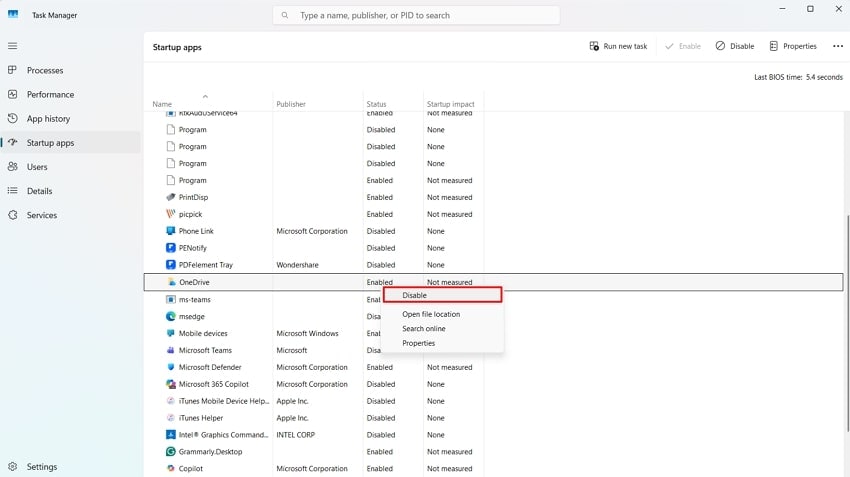
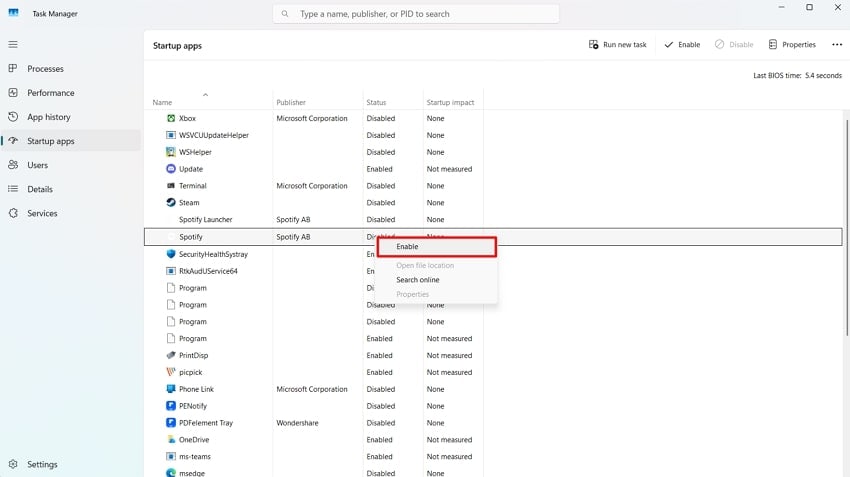
Step 5. While keeping tabs on which startup app is disabled, restart your PC and access the program file that is showing the executable error. If it works, keep enabling the "Startup apps" from the Task Manager by following the steps above until you find the conflicting app.
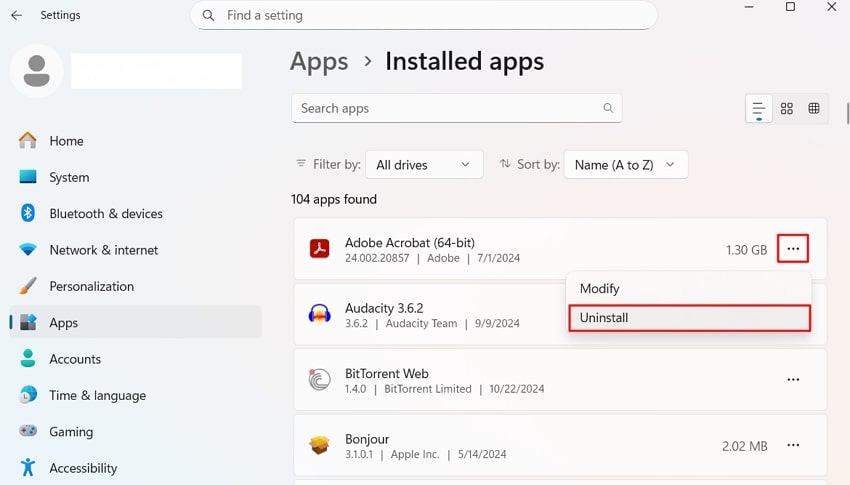
Step 6. Once located, open the "Add or remove programs" window within the device's "Settings" and locate that conflicting app. Select the "three dots" and choose the "Uninstall" option to follow the on-screen instructions for removing it from the device.
Pro Tip: Repair Corrupted C Program Files Like a Pro with Repairit
The article has solely focused on fixing the "Windows cannot find C:\ program" error in the sections above. However, another problem associated with the problem is corrupted C:\ Program files, which needs an entirely different operational fix. To resolve file corruption problems, a reliable third-party file repairing tool works best. Repairit can fix C:\ Program files with damage, no matter what caused it.
This platform caters to over 30 file types, be it multimedia or document files. It offers a File Preview feature to help you ensure that you are saving the right file. Repairit is a complete package when it comes to fixing files with varied corruption reasons, making it a coherent solution for Windows users.
Key Features

-
Major File Format Support: From basic Office documents to iWork files, Repairit provides major support for repairing essential file formats.
-
Repairing Engineering Files: You can utilize Repairit for fixing PSD, AI, CAD, and other complex engineering files with layers and metadata.
-
Preserving File Quality: Repairit ensures that the corrupted files are preserved in their original quality, format, and content structure.
Guide to Repair Corrupted C:\ Program Files With Repairit
Following is a comprehensive guide showing how Repairit makes file repair easy, regardless of the nature of the file itself:
Step 1. Import Corrupted C:\ Program Files in Repairit
To initiate the process, click on the "More Types Repair" tab from the left and look for the "Document Repair" option to add your corrupted program files.

Step 2. Repair Batch Damaged Files
With the program files imported, wait for them to load and press the "Repair" option to start fixing them across Repairit.

Step 3. Save or Preview the Files to End the Process
With the program files repaired, a dialogue box will appear next. Here, click "Save" to download the fixed file, or "Preview" to view it before saving.

Repair Corrupted C:\ Program Files
 Security Verified. Over 7,302,189 people have downloaded it.
Conclusion
The "Windows cannot find C:\ program" error can disrupt workflow by preventing apps from opening. This article explained various methods of repairing this error for better function. With the right solutions, you can ensure that the executable file works perfectly on Windows. However, if you are encountering this issue due to damaged files, Repairit serves as the best option for fixing corruption issues.
FAQs
-
1. Can corrupted files cause the C Program Files error?
When essential program files become damaged or unreadable, Windows cannot locate or launch the executable files. To make this error go away, you are required to repair the damaged files using Repairit. -
2. Why do errors involving “C Program Files” paths happen?
The “Windows cannot find C:\Program Files" error often appears when path names break due to spaces or missing quotation marks. As a result, Windows misreads the path and fails to locate the executable program. -
3. How can I check if the file actually exists?
Open File Explorer and manually navigate to the folder shown in the shortcut’s target path. If the file is missing, restoring or reinstalling the program usually solves the issue. -
4. How can multiple damaged files be fixed without consuming much time?
To execute a batch file repair, Repairit offers a handy bulk-processing feature within its desktop tool. This helps users save significant time in repairing damaged files together.




