
Users often feel blocked when simple files refuse to open without clear reasons. This issue can appear suddenly and interrupt normal tasks that rely on trust. Many people see the message that these files can't be opened and feel stressed. It leaves them unsure about what went wrong and how to continue safely. Therefore, this guide explains simple ways anyone can try to restore normal access to files.
Table of Contents
Part 1. Why Windows Shows "These Files Can’t Be Opened"
This message appears when Windows believes a file may be unsafe or blocked. It happens with items downloaded from the internet or saved in unknown locations. Yet, strict security rules can stop normal files from opening without a clear warning. So, the “Windows security these files can't be opened” problem reflects these protective limits. Below, you will explore a few key reasons behind seeing this specific error:

- File Blocked: Windows may block the file because it thinks the source looks unsafe. This often happens when the file comes from email downloads or unknown online places.
- Strict Settings: Security settings may be set too high and prevent normal files from operating. These settings treat simple files as unsafe and block them without a clear reason.
- Old Zones: Old Internet zone settings can restrict file actions even on a new system. These outdated rules may remain active and cause blocks without showing clear alerts.
- User Profile: A damaged user profile can create wrong rules that block normal file activity. Only one account may show the issue while others continue working without trouble.
- Path Problem: Files stored in long or complex paths may trigger this safety message unexpectedly. Moving the file to a simple folder often removes the block and opens it normally.
Part 2. Fixing These Files Can’t Be Opened Issue - 6 Fixes to Try Now!
As you now know about the "these files can't be opened in Windows 11" error and its symptoms. This section covers 6 methods to solve this problem with ease and effectively:
Method 1 – Unblock the File
Unblock the file to remove Windows’ safety mark, letting the system treat it as trusted. This stops security alerts from blocking access and allows normal opening. Only the selected file is affected, so other protections remain active. This method is helpful for trusted downloads or files copied from another computer. Follow the steps below to unblock the file to resolve the issue:
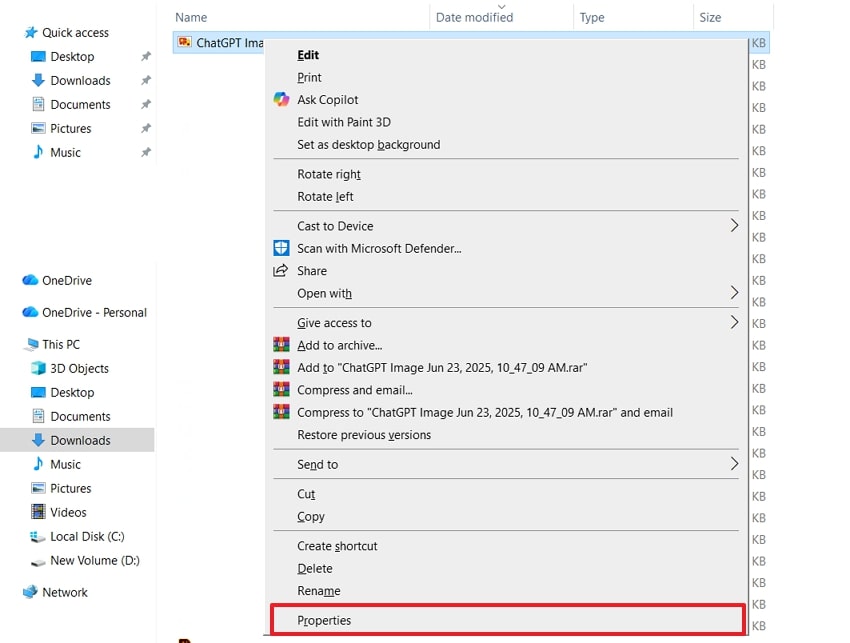
Step 1. Find the file on your computer that shows “these files can’t be opened.” Next, right-click the file and select” Properties” from the context menu.
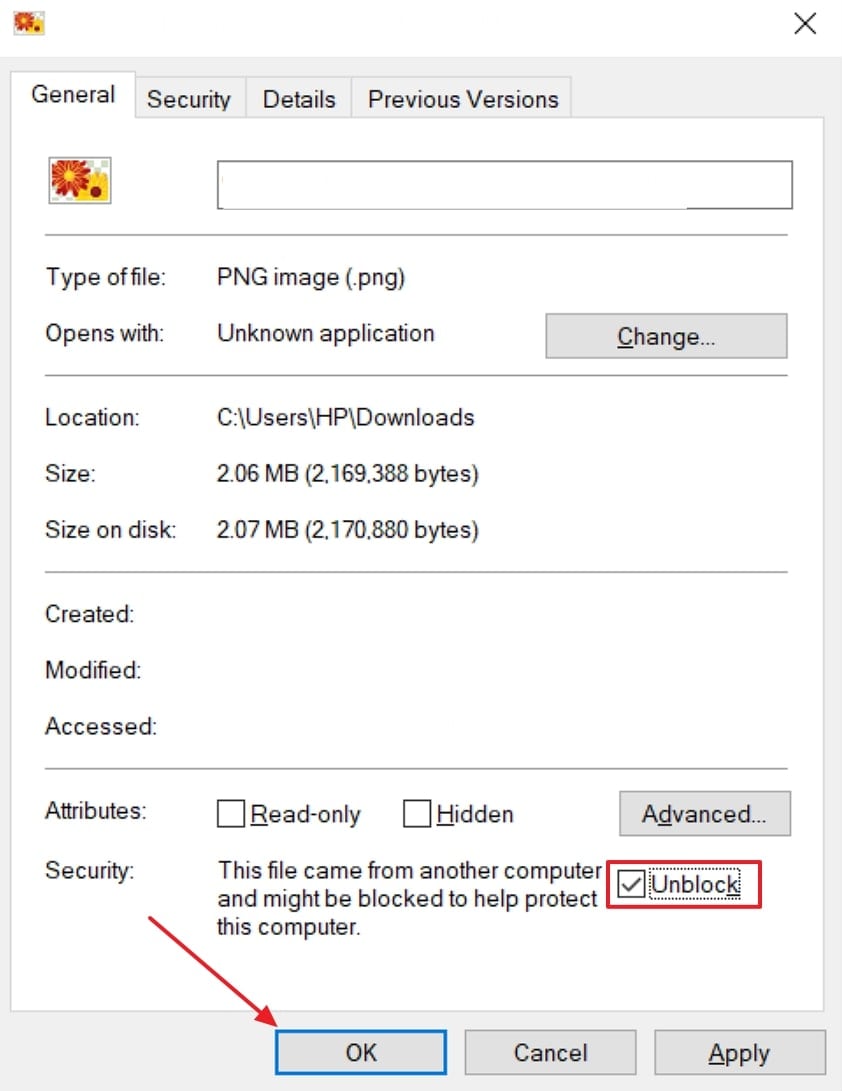
Step 2. In the General tab, check the box labelled “Unblock” at the bottom. Afterward, click the “OK” button to save changes and close the window.
Method 2 – Adjust Internet Security Settings
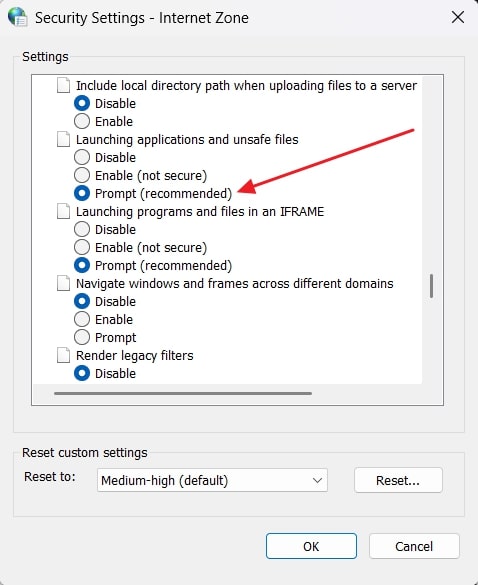
Adjusting the Internet security settings can stop Windows from blocking safe files. It allows Windows to prompt about or allow safe files instead of silently blocking them. This is because strict rules prevent regular programs from running, causing the “these files can't be opened” error. Go through the given guide to adjust your internet security settings:
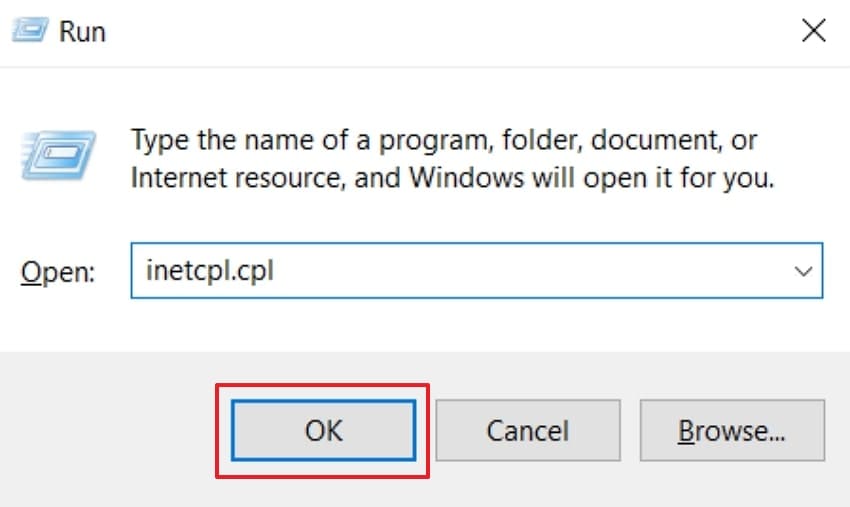
Step 1. Press “Windows Key + R” and type “inetcpl.cpl” and press the “OK” button.
Step 2. In “Internet Properties,” open the “Security” tab and choose the zone, such as Internet, to adjust. Here, click “Custom Level,” enable the “Prompt (recommended)” option for “Launching applications and unsafe files," and save the settings.
Method 3 – Reset Internet Explorer or Edge Settings
You can also reset Internet Explorer or Edge to restore Windows’ web security settings to default. This clears overly strict rules that block downloaded or network files. By fixing misconfigured zones and browser policies, Windows stops preventing files from opening. Below is an easy guide to perform a reset of the internet browser:
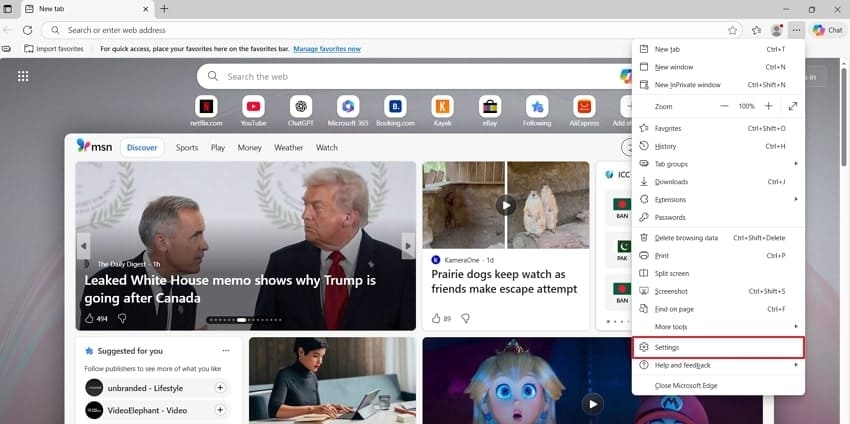
Step 1. Go to your “Microsoft Edge” and click on the “Three Dots” icon to select “Settings”.
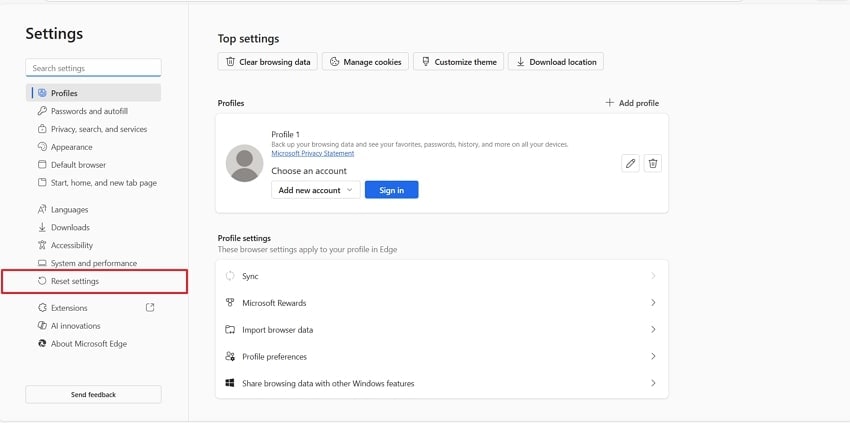
Step 2. Afterwards, expand the “Reset Settings” tab and click “Reset Settings to their Default Values.”
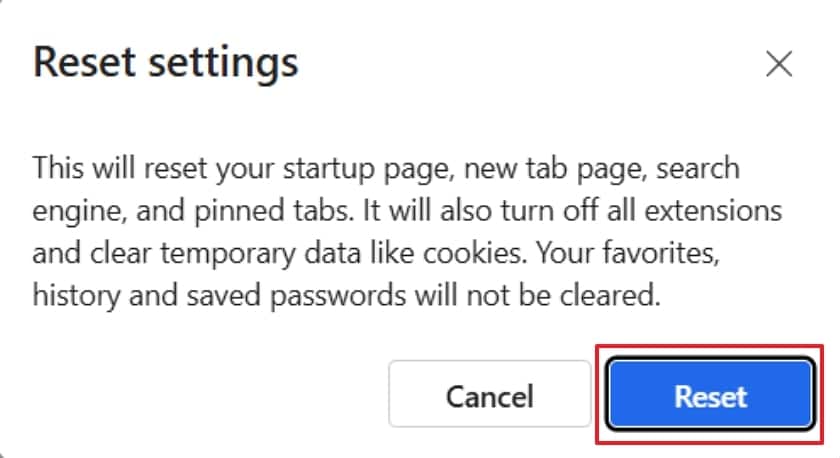
Step 3. Lastly, a pop-up box will appear, from which you have to press the “Reset” button.
Method 4 – Modify Group Policy/Local Security Policy
Modifying Group Policy or Local Security Policy changes how Windows handles attachment information. It removes the internet source mark that often triggers the “these files can't be opened Windows 11” warning. When the file is confirmed safe, this adjustment helps Windows open it normally and reduces repeated alerts without weakening core protection. Follow the steps below to change group policy or local security:
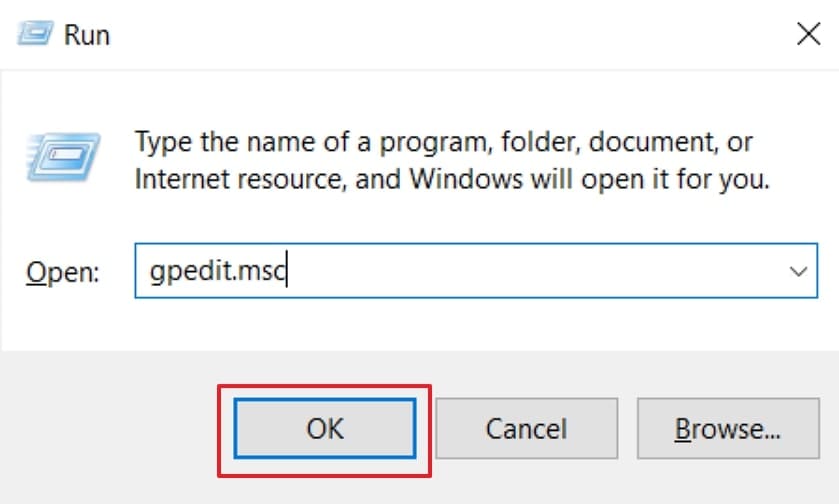
Step 1. Press “Windows + R,” type “gpedit.msc,” and hit “OK” to open the editor
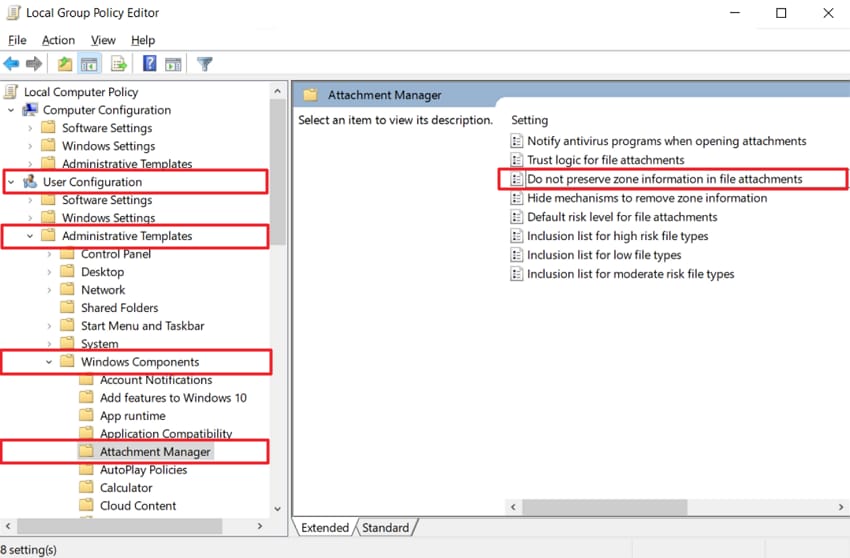
Step 2. Go to User “Configuration” and choose the “Administrative Templates” section, then select the “Windows Components” option. Afterwards, choose “Attachment Manager” and double-click “Do Not Preserve Zone Information in File Attachments.”
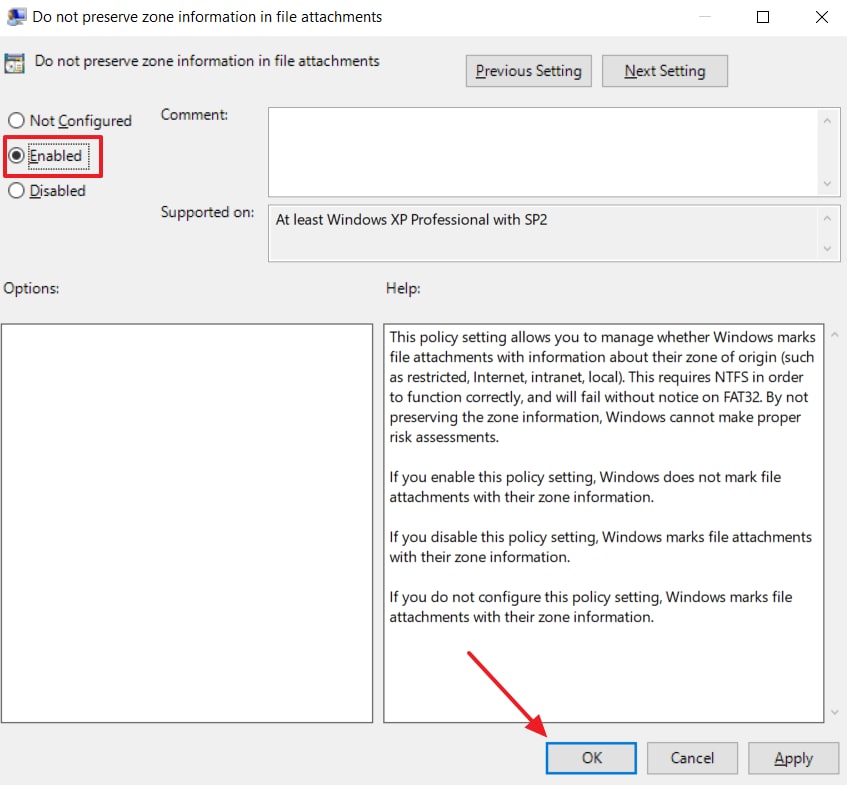
Step 3. Lastly, click the “Enable” option and then press the “OK” button.
Method 5 – Perform a Clean Boot or Safe Mode
Users can also perform a clean boot or safe mode to isolate third-party programs that block files. A clean boot disables extra software to reveal conflicts with security rules. Besides, safe mode loads only basic Windows parts without add-on apps. You can follow the given guide below to perform a clean boot and fix the “Windows security these files can’t be opened” problem:
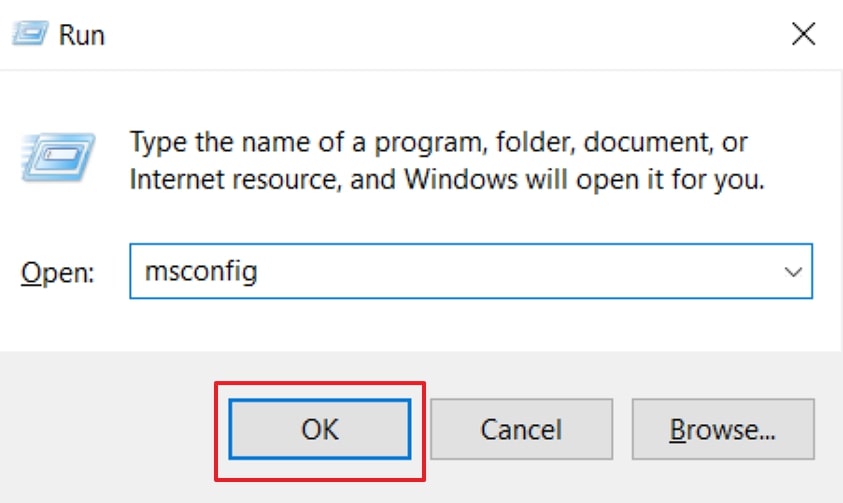
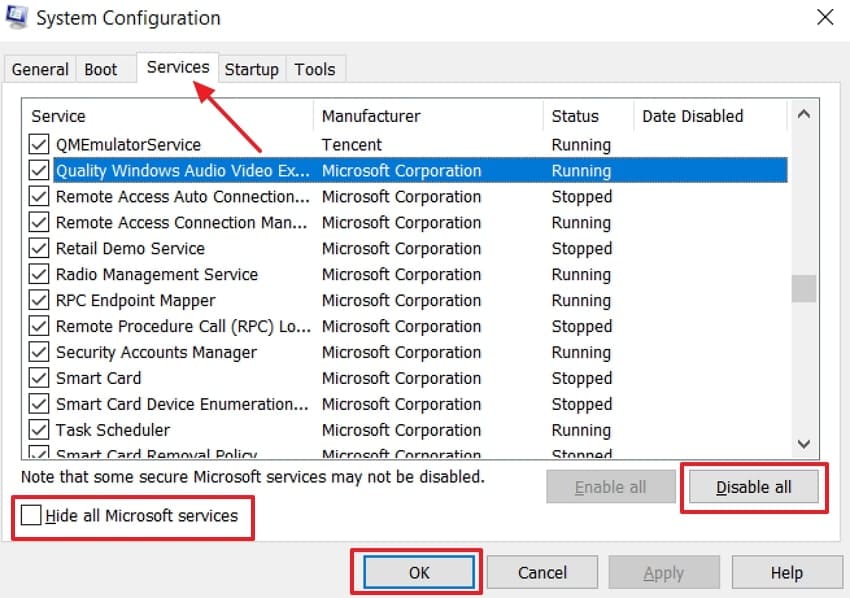
Step 1. Press “Win + R,” type “msconfig,” and hit “OK” to open the System Configuration panel.
Step 2. Go to the “Services” tab, tick “Hide all Microsoft” services, then click “Disable all” and hit the “OK” button.
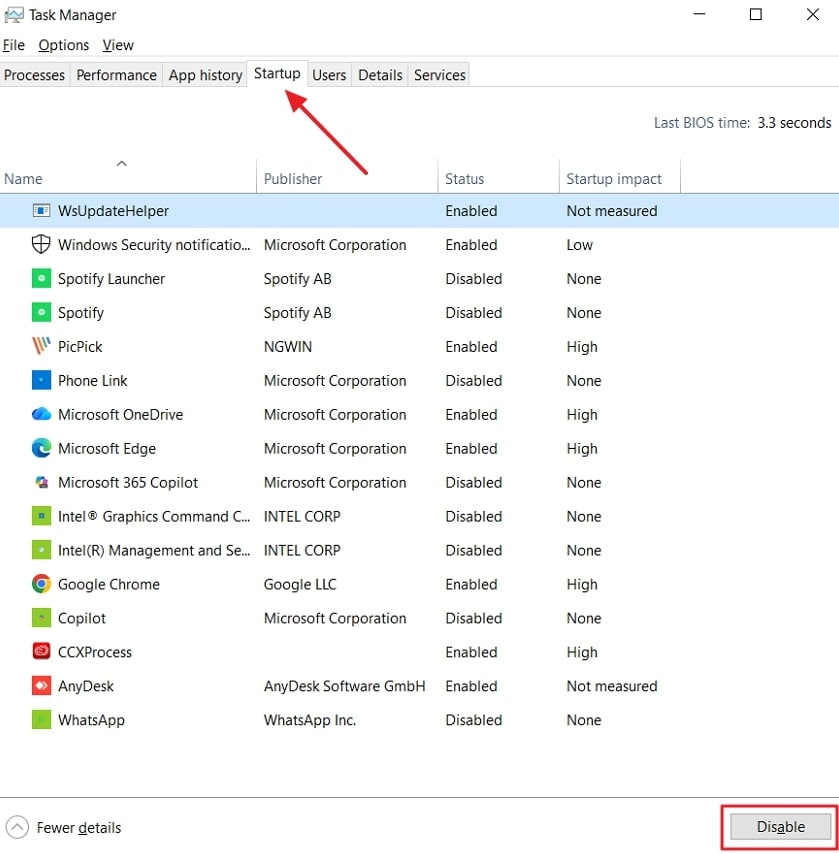
Step 3. Now open “Task Manager” and go to the “Startup” tab, and disable all listed startup items. Lastly, close everything and restart your computer to boot with only essential services running.
Method 6 – Run System File Checker (SFC)
Run System File Checker (SFC) also repairs damaged Windows parts that block files. A corrupted system file causes “these files can’t be opened Windows 11” by messing up security checks. Therefore, SFC compares files against clean copies and automatically replaces bad ones. Adhere to the instructions below to learn how to perform SFC:
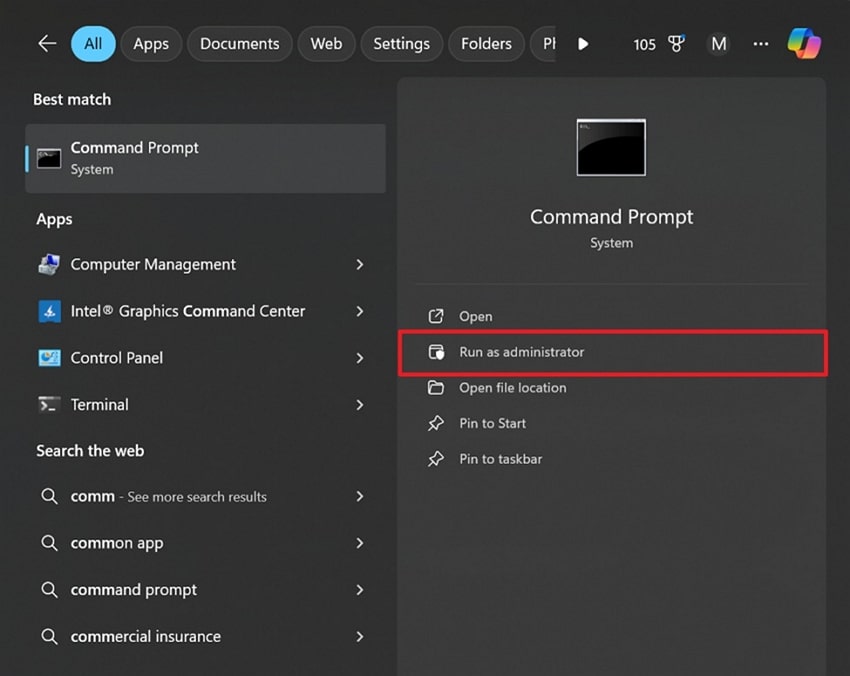
Step 1. Open the “Command Prompt” on your PC and choose “Run As Administrator.”
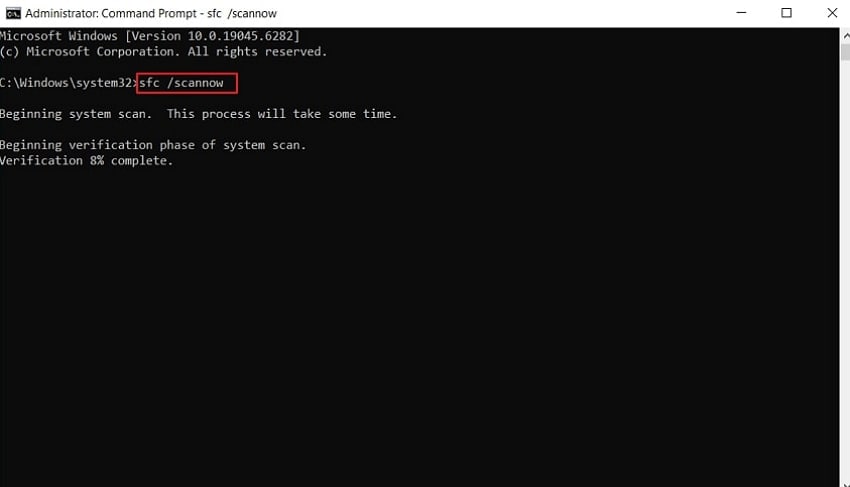
Step 2. In the CMD window, type in "sfc /scannow" and press "Enter." Once the scan is complete, the Command Prompt will display a message.
Advanced Fix. Use Repairit to Repair Files When “These Files Can’t Be Opened” Persist
Many users get stressed when their important files get damaged or are unable to open them. You should try Repairit to repair your broken or damaged files effortlessly. This is an advanced data repair tool that can fix multiple XLS or XLSX files in a single process without any harm. It is even possible to batch fix large or multiple ZIP files in a relatively safe and efficient way.
Furthermore, the tool restores files that appear blank or empty due to failed saves or corruption. It also helps when the “these files can't be opened” error occurs, fixing the underlying issues quickly. Moreover, it can fix loading errors, corrupted pages, and unreadable PDF files quickly. This data repair tool even helps to restore corrupted headers and footers in Word or PowerPoint files.
Key Features

-
Repair damaged files with all levels of corruption, including blank files, files not opening, unrecognizable format, unreadable content, files layout changed, etc.
-
Support to repair all formats of PDF, Word, Excel, PowerPoint, Zip, and Adobe files.
-
Perfectly repair corrupted files with a very high success rate, without modifying the original file.
-
No limit to the number and size of the repairable files.
-
Support Windows 11/10/8/7/Vista, Windows Server 2003/2008/2012/2016/2019/2022, and macOS 10.13~macOS 15.
Detailed Guide to Recover Your Broken or Damaged Files via Repairit
Follow the step-by-step tutorial below to restore your corrupted files without data loss using Repairit:
Step 1. Add Your Corrupted Files
Go to the “More Types Repair” tab to choose the “Document Repair” feature and press the “Start” button.

Step 2. Choose and Import Damaged Files
Here, click the “+Add” button to select your damaged files and then press the “Repair” button to begin.

Step 3. Save Your Repaired Files Securely
Once the repair is finished, click the “Save All” button and follow it with “Save” to export your repaired files.

Repair Files When “These Files Can’t Be Opened” Persist
 Security Verified. Over 7,302,189 people have downloaded it.
Conclusion
To conclude, the “Windows security these files can’t be opened” message can interrupt normal work when documents stop responding. Thus, this guide showed practical ways to restore access and recover normal file behavior. In some cases, system issues still block files or leave them damaged. When that happens, Repairit offers a dependable way to repair broken documents and recover critical data safely.
FAQs
-
1. Can antivirus software cause “these files can’t be opened” errors?
Yes, antivirus software can block files considered unsafe or from an unknown source. It may quarantine harmless files by mistake. In this case, disabling antivirus software temporarily often resolves access issues for a trusted document. -
2. Does running Windows updates help solve file access problems?
Updating Windows may fix corrupted system files that trigger file-opening errors. Updates often include security patches and improve compatibility with downloaded documents. Besides, always restart your PC after installing essential updates to ensure effectiveness. -
3. Can I fix multiple corrupted files at once?
Yes, the batch repair tool of Repairit allows simultaneous restoration of many damaged documents. This saves time compared to repairing files individually. Besides, Repairit can efficiently handle batch recovery for all types of files, like Office, archive, engineering, and design.




