
 TL;DR:
⚡ Quick Fix: Fix Preview Pane Not Working on Windows
● Enable Preview Settings: Turn on Preview Pane in File Explorer, enable preview handlers in Folder Options, and make sure Always Show Icons, Never Thumbnails is unchecked.
● Check PDF Reader Support: Update your PDF reader, set the correct default PDF app, and enable PDF thumbnail or preview options inside the reader settings.
● Repair Windows Issues: Run CHKDSK to check disk response problems, adjust Advanced System Properties for best appearance, and use SFC to repair damaged Windows system files.
● Repair Corrupted PDFs: If only specific PDF files fail to preview, repair or redownload the damaged PDFs before changing more system settings.
Ask AI for a summary
 ChatGPT
 Perplexity
 Gemini
 Claude
 Grok
Grok
It is pretty frustrating when the PDF preview pane suddenly stops working in File Explorer. Due to this glitch, you cannot preview the document in glance and are bound to open each file individually. This issue is common in Windows 10/11 and may occur after recent updates or software changes.
If you are also exhausted with the "preview pane not working" issue, you are in the right place. This article will cover all efficient methods to fix the problem, along with their detailed step-by-step guides.
Table of Contents
-
- Way 1. Make Sure the Preview Pane Is Actually Turned On
- Way 2. Tweak Folder Options Settings
- Way 3. Check Hard Disk Response Issues
- Way 4. Check PDF Thumbnail Previews Option on PDF Reader
- Way 5. Adjust Advanced System Properties for Best Appearance
- Way 6. Repair Corrupted PDF Online or Redownload
- Way 7. Run an SFC Scan
Part 1. Preview Pane Not Working? Common Causes Explained
Before applying any fixes, let's look at the main reasons why the PDF preview pane is not working:
- Outdated PDF Reader: An outdated PDF reader may not fully support Windows 10/11 preview, so it cannot generate a PDF preview.
- Wrong Default PDF Application: Sometimes the wrong app is set as the default PDF handler, so Windows uses a viewer that doesn't provide a preview option.
- Recent Windows Update: New security protections may block previews or display warnings about potentially harmful files, halting the PDF from accessing the preview pane.
- Conflicting Third-Party Add-ins: In some cases, add-ins or third-party plugins interfere with the preview handler, resulting in a preview pane error.
- Corrupted Cache Files: A corrupted thumbnail in Windows can prevent PDFs from displaying when File Explorer tries to use cached data.
Part 2. Preview Pane Not Working After Windows Update: 7 Quick Fixes
Next, let's walk through 7 practical fixes that often resolve the "preview pane not working" issue after updates:
Way 1. Make Sure the Preview Pane Is Actually Turned On
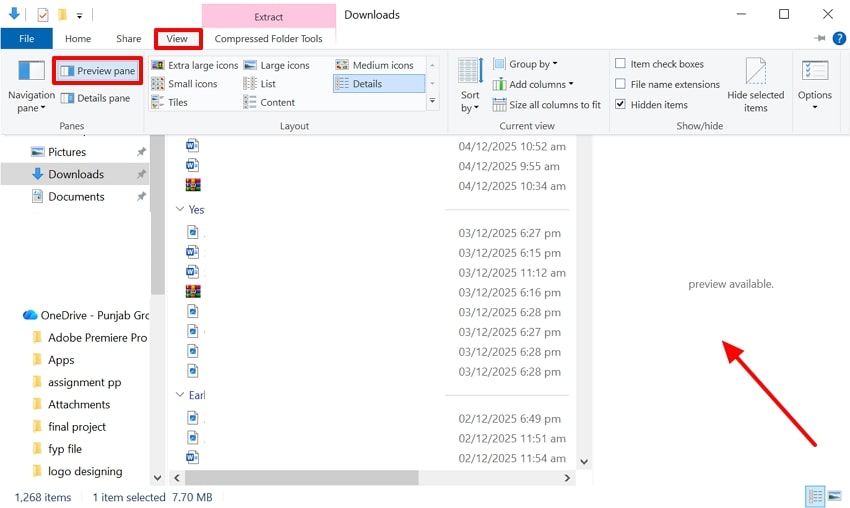
When encountering this error, users can enable the "Preview pane" by accessing the "Options" settings in File Explorer. With this method, you will instantly get a preview of the file without opening each file to examine it. Furthermore, you don't need any technical knowledge of third-party software to fix this specific error. Thus, if you want to explore this method to fix your preview pane issue, explore the following guide:
Instructions. Upon entering the "File Explorer," click on the "View" menu and choose the "Preview Pane" option. After enabling it, you will be shown a preview pane on the right side of the interface.
Way 2. Tweak Folder Options Settings
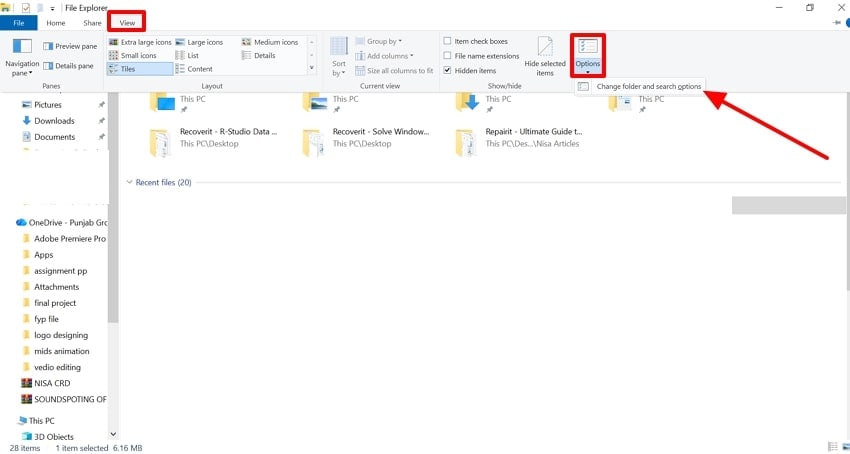
Users can try using this method by choosing different folder settings, as it restores the preview pane with minimal risk. This method lets you change the desired settings for the file as needed. Moreover, these tweaks are accessible only on the selected account, allowing you to disable file settings if required. Now, have a look at the following guide to fix the "PDF preview pane not working" issue:
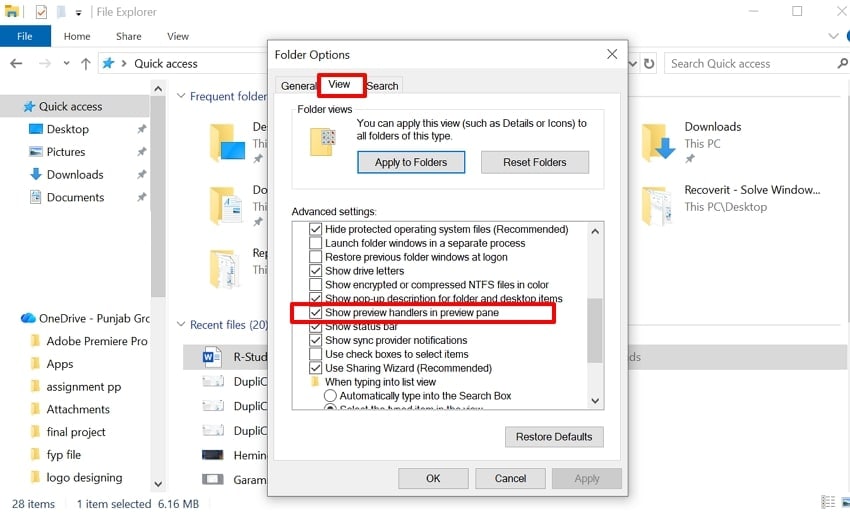
Step 1. Open the File Explorer, access the "View" menu, and choose "Options." From the drop-down menu, select the "Change Folder and Search Options" to access the "Settings" interface.
Step 2. Within this interface, navigate to the "View" tab, enable the "Show Preview Handlers in Preview Pane" option, and hit the "OK" button.
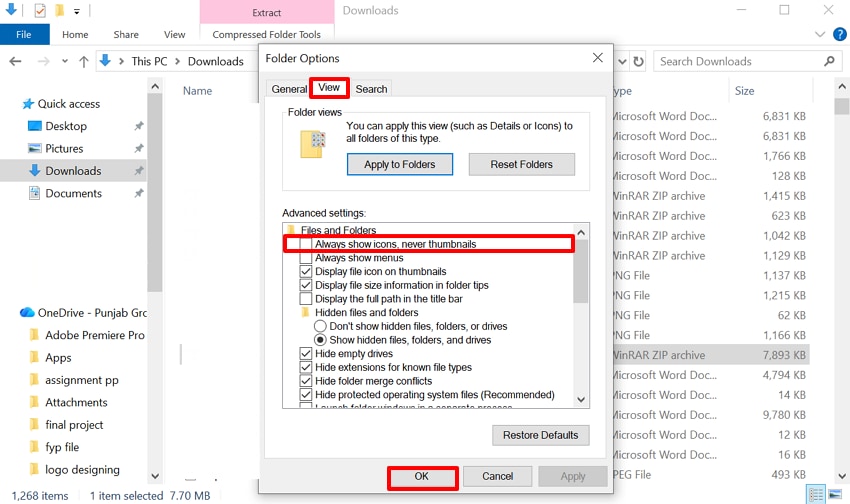
Step 3. Following this, ensure the "Always Show Icons, Never Thumbnails" is unchecked so Windows can render PDF previews.
Way 3. Check Hard Disk Response Issues
Sometimes you are unable to access the preview pane due to corrupted disk drives. With this method, users can have a clear idea of the Drive's health, so they can examine the disk. It works entirely on the command line and provides you with a detailed report of hard disk health. Upon hearing the key features, let's explore a guide to review and resolve the "preview pane not working" issue:
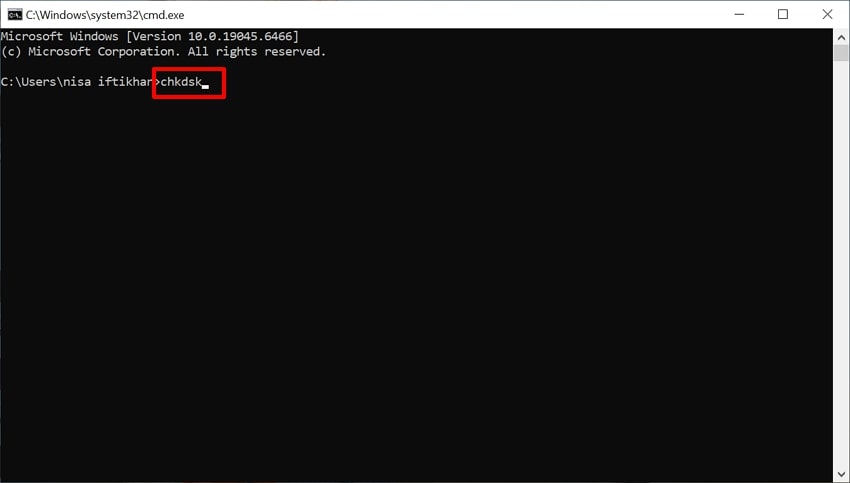
Instructions. Open the command prompt and enter the "chkdsk" command, then press "Enter." It will scan for file system problems and basic disk response issues and give a detailed review.
Way 4. Check PDF Thumbnail Previews Option on PDF Reader
Enabling the "PDF thumbnail/preview" option in your PDF reader is essential, as it controls whether your app shows a preview. These settings let you show the actual first page of each PDF as a thumbnail and a full preview pane. Furthermore, this method does not require any registry edits or third‑party tools. Users can even turn it off at any time when needed; thus, have a look at the following detailed guide:
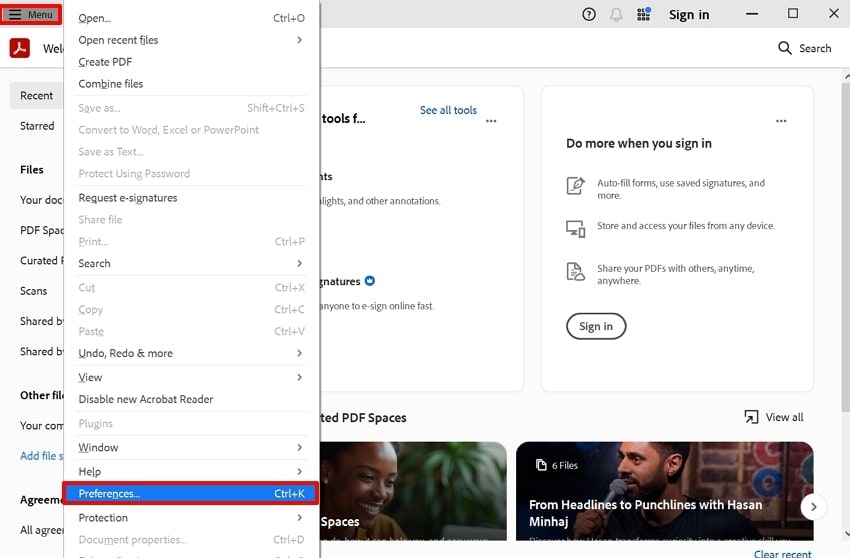
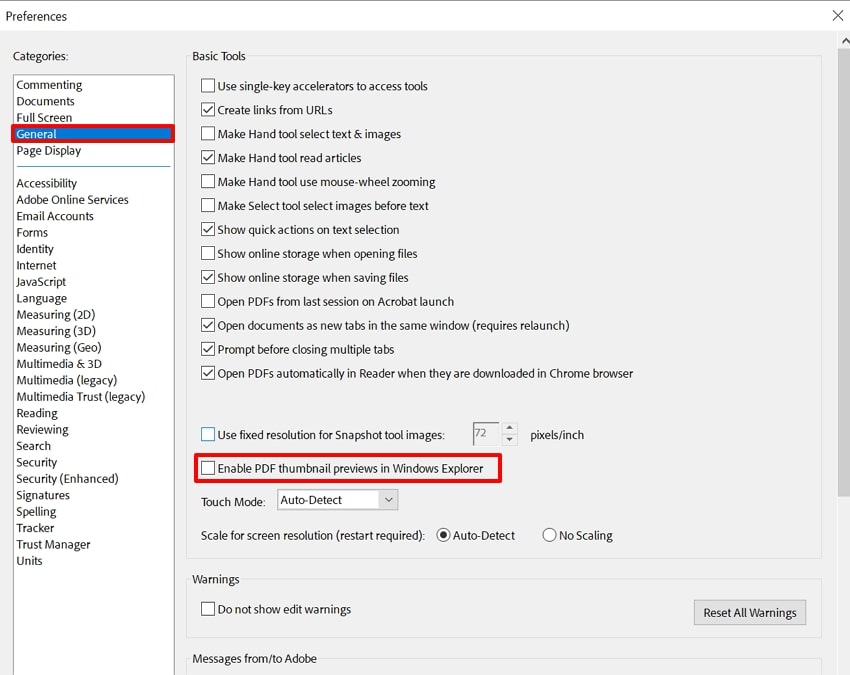
Step 1. Open your preferred PDF reader, Adobe Acrobat in this case, and hit the "Menu" option in the toolbar. Following this, choose the "Preferences" option from the drop-down menu.
Step 2. Choose the "General" option from the left "Categories" section. Afterwards, toggle the "Enable PDF thumbnail previews in Windows Explorer" and click the "OK" button.
Way 5. Adjust Advanced System Properties for Best Appearance
This method automatically turns back on a wide set of user interface effects to get file previews. It helps File Explorer to show better thumbnail visuals, leading to fixing the preview pane not working issue. Furthermore, you have the option to choose between the best performance tool or let Windows choose it. Thus, explore the given guide to use this efficient method instantly if the "preview pane is not working for PDF:"
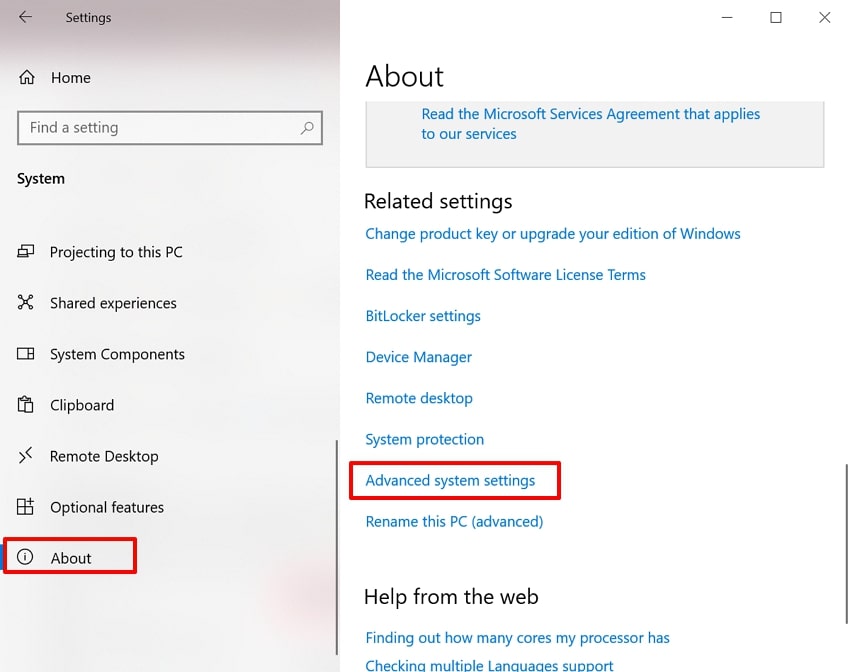
Step 1. Open your Windows "Settings" and click on the "System" option in the main interface. Afterwards, choose the "About" section and select the "Advanced System Settings" option.
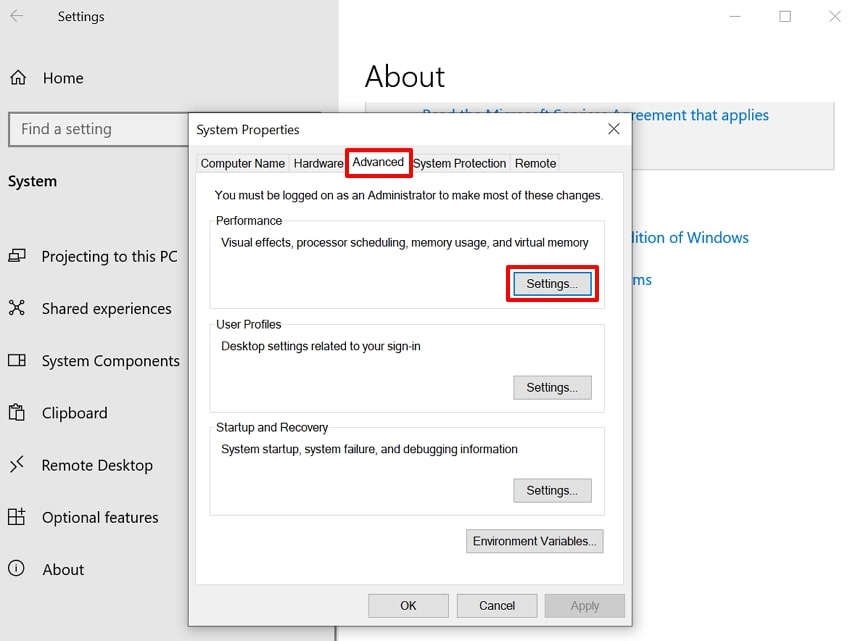
Step 2. Navigate to the "Advanced" tab and hit the "Settings" button to enter the next interface.
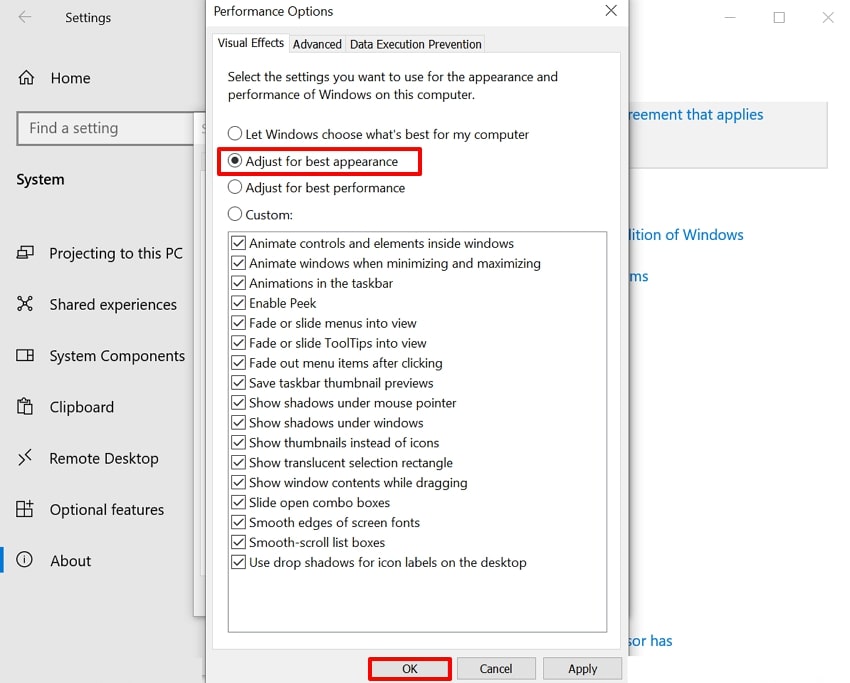
Step 3. Here, enable the "Adjust for Best Appearance" option and click the "OK" button to save the settings.
Way 6. Repair Corrupted PDF Online or Redownload
Sometimes the main issue is in your PDF, which prevents you from accessing the preview pane. In this situation, we recommend using Repairit Online, which lets you instantly repair files from anywhere. This tool lets you repair the corrupted file without altering the elements to ensure it has the same format as before.
Repairit allows you to fix file corruption issues like unreadable or not‑opening PDFs and damaged headers. Furthermore, it also lets you preview the repaired outcome to ensure that it is complete and accurate.
While exploring the "preview pane not working" error, let's have a look at its detailed guide to repair the corrupted PDF:
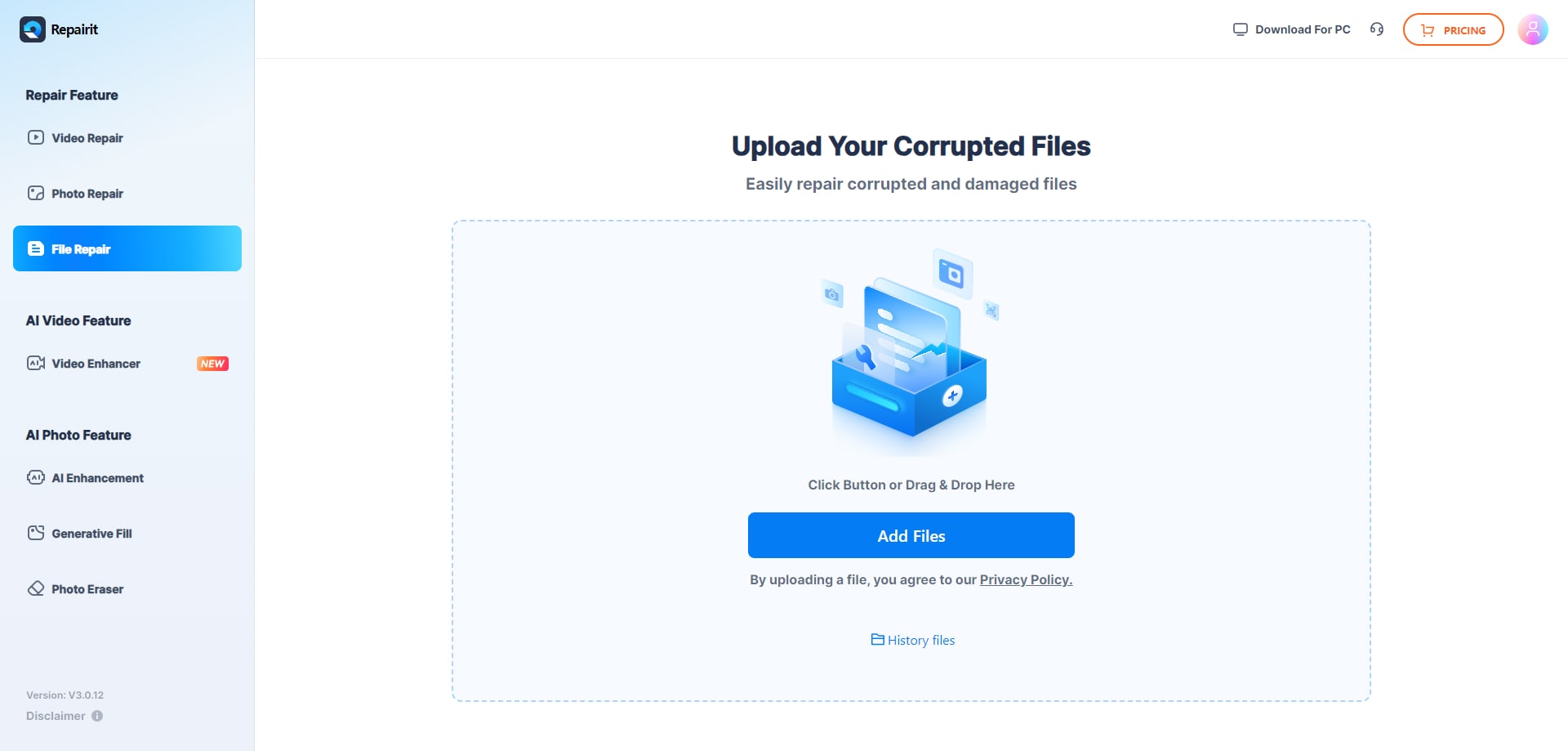
Step 1. Access the File Repair and Add the Desired File
Upon entering the tool, click on the "File Repair" option from the left tab and hit the "Add Files" to insert corrupted files.
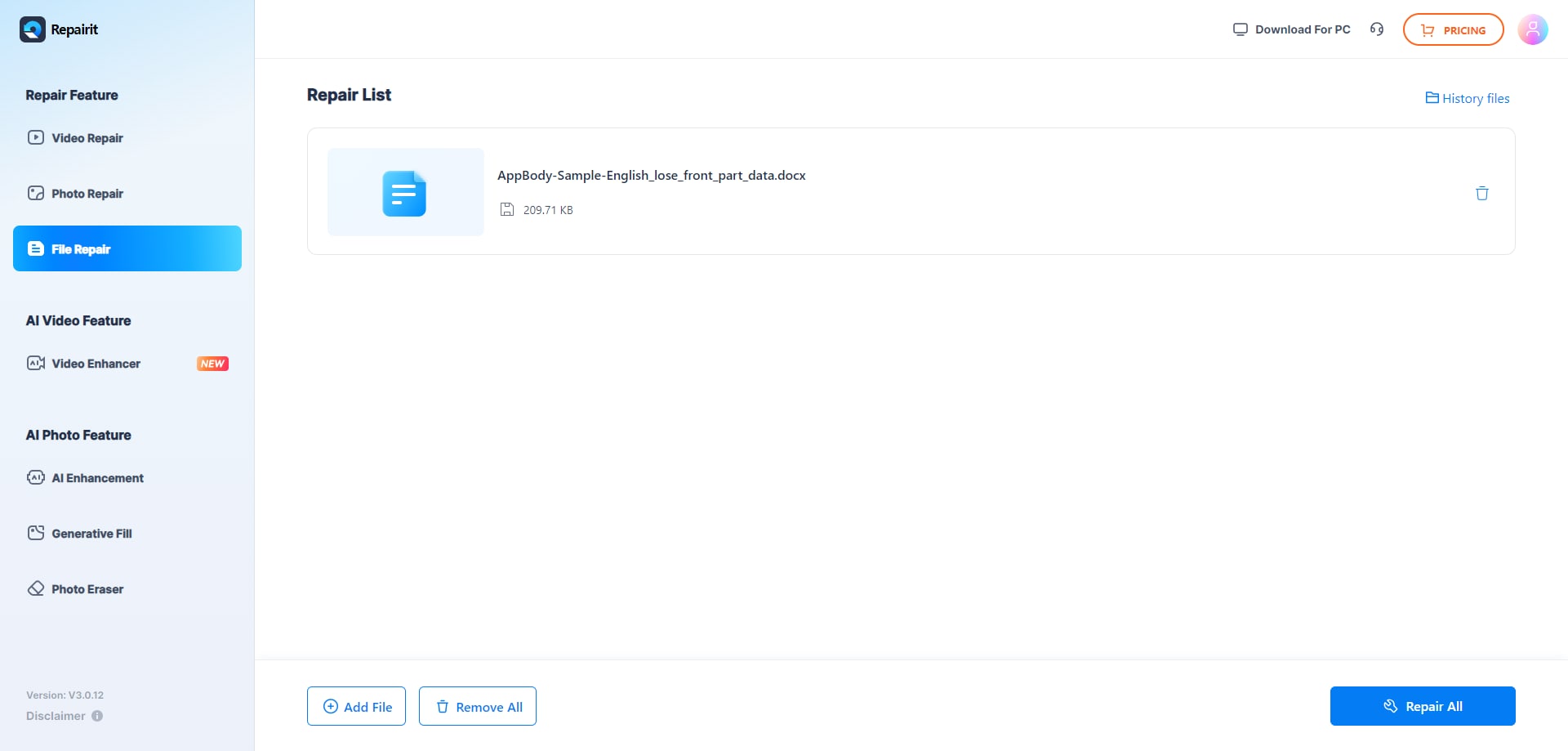
Step 2. Click the Repair All Button to Initiate the Procedure
As you have added the corrupted document, click on the "Repair All" button to initiate the process.
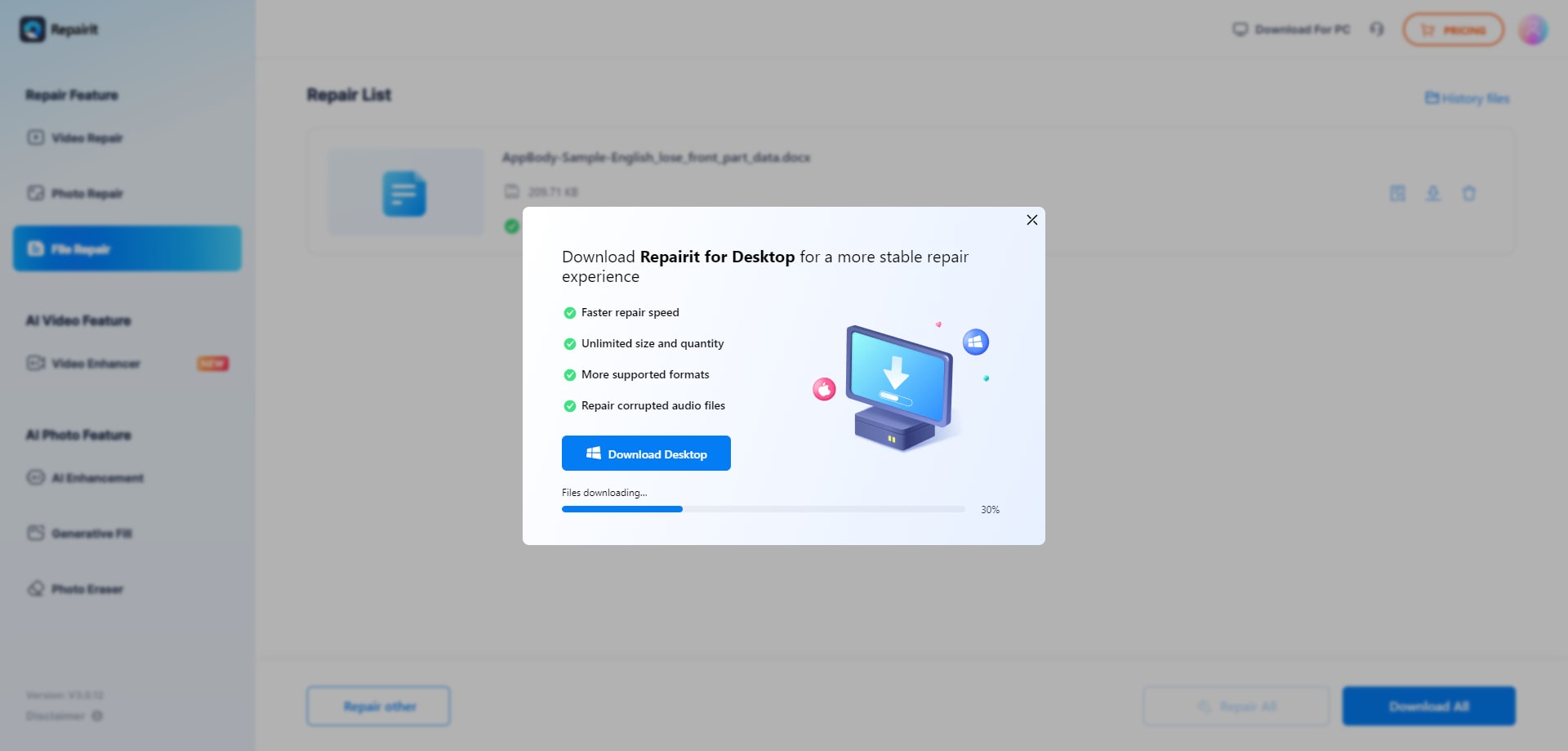
Step 3. Preview the Repaired Outcome and Save To the Device
Finally, the file is repaired, and click on the "Preview All" button to examine it. Following this, choose the "Download All" button to save to the device folder.
Way 7. Run an SFC scan
Unlike other methods, which target only the File Explorer, this method targets the entire Windows OS. SFC scan compares protected Windows files with cached originals and replaces any that are damaged or missing. This method is capable of fixing files damaged due to failed updates, crashes, or malware attacks. Furthermore, it does not damage the inner elements of the file, so let's explore its detailed guide below:
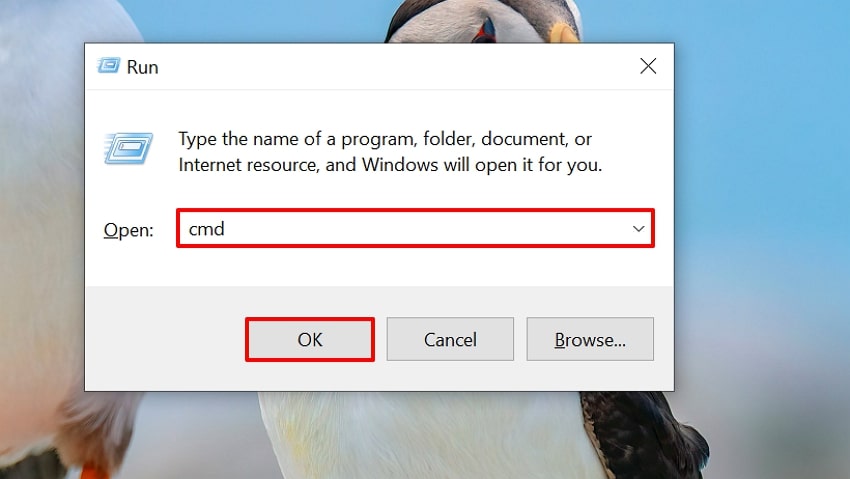
Step 1. Using the "Windows + R" key, access the "Run" program, enter the "CMD" command, and hit "OK" to access the interface.
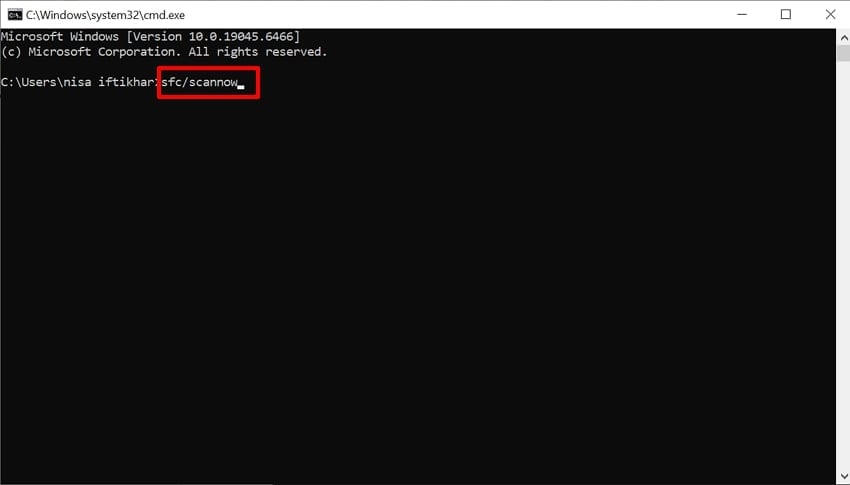
Step 2. Add the "sfc/scannow" command and hit the "Enter" button on the keyboard. This procedure will take some time, and it will show a message "Windows resource protection found corrupt files and successfully repaired them." Afterwards, restart the computer to gain access to the preview pane feature of the files.
Pro Tip. Preview Pane Acting Up? Repair Corrupted PDFs Like a Pro
While you've reviewed several solutions for the "preview pane not working for PDF" issue, it has already been discussed that the PDF might have its issues. Instead of looking for the PDF again, you might try repairing it with the right tool. In this situation, we recommend using Repairit, which lets you repair the corrupted files instantly.
This tool lets you repair numerous file formats, including images, PDF files, and Excel sheets. Users can even enhance the photo and video files to make them visually appealing. Overall, it is considered an ideal solution as it provides maximum file accuracy while repairing files.
Key Features

-
Office Format Repair: The platform provides the ability to repair Office-based formats, ranging from Word to Excel and PowerPoint.
-
PDF Document Repair: Easily fix damaged, corrupted, or unopenable PDF files with layouts, text, and formatting fully intact.
-
Archive File Repair: You can also restore corrupted ZIP, RAR, ISO, and other archive file formats of over 1GB in size.
An Extensive Guide to Repair Corrupted PDF Files with Repairit
If your PDF preview pane is not working, let's explore a detailed step-by-step guide to use the Repairit tool:
Step 1. Insert the Desired PDF Files into Repairit
Upon entering the tool, click on the "More Types Repair" feature from the left tab. Following this, choose the "Document Repair" option to insert the corrupted files.

Step 2. Initiate the Repairing Procedure to Fix the File
As your file is entered, click on the "Repair" button to start the repair procedure of your corrupted PDF files.

Step 3. Render the Repaired Outcome to the Device Folder
Once the file is repaired, preview it to ensure its complete restoration. Following this, click on the "Save" button to get it exported to the designated folder of the device.

Repair Corrupted PDF Files
 Security Verified. Over 7,302,189 people have downloaded it.
Conclusion
Summing up, anyone can fix the "preview pane not working" issue through an appropriate method. This article has covered all the efficient, yet beginner-friendly methods to fix the preview pane problem. However, if your files get corrupted, we recommend using Repairit, which lets you repair files effortlessly in seconds.
FAQs
-
1. Why did the Preview pane stop working after a Windows update?
Some Windows 10/11 updates change security and preview policies, which can block previews of PDFs. However, you can manually allow the preview option by using various methods. -
2. Do I need a specific PDF reader for previews to work?
Yes, you need a PDF viewer that includes a Windows preview/thumbnail handler, such as Adobe Acrobat/Reader or Foxit. After opening the PDF viewer, make sure the "PDF thumbnail/preview" option is enabled. -
3. How can I repair a corrupted PDF that won't preview?
You can easily repair the corrupted files by using an appropriate repairing tool like Repairit. This tool is highly recommended as it ensures complete accuracy while repairing the corrupted file within a minimum time period.




