
A PDF file (Portable Document Format) is a fixed-layout document designed to look the same on any device or operating system. It can contain text, images, links, forms, and even multimedia, making it ideal for sharing contracts, manuals, eBooks, and scanned documents. While PDFs are highly reliable, they can still run into problems such as not opening, displaying errors, or becoming corrupted. This guide explains what a PDF file is, how to open it on different devices, common issues you might encounter, and effective ways to repair a damaged PDF.
Repair Corrupted Files To Save Your Data
 Security Verified. Over 7,302,189 people have downloaded it.
In this article
What Is PDF File
A PDF file (Portable Document Format) is a universal file format developed by Adobe to present documents consistently across platforms. Unlike editable formats such as DOC or TXT, a PDF preserves fonts, images, vector graphics, and layout exactly as the author intended.
This makes the Portable Document Format perfect for archiving, printing, and securely sharing content that should not change, such as contracts, invoices, scanned forms, academic papers, and product manuals. PDFs can also include interactive elements like form fields, bookmarks, hyperlinks, and digital signatures.
Most PDFs are read-only for regular users, but the file can be created or edited using specialized tools and later protected with passwords or permissions to control what others can do with the document.
How to Open PDF Files
You can open a PDF on virtually any device using built-in viewers, web browsers, or dedicated PDF reader apps. The best method depends on the operating system and your needs (simple viewing versus advanced features like editing or signing).
Open PDFs on Windows and Mac
On desktop systems, you have several reliable ways to open a PDF file without much setup.
- Web browsers: Modern browsers such as Google Chrome, Microsoft Edge, Mozilla Firefox, and Safari can open PDFs directly in a tab. Just double-click the file or drag it into the browser window.
- Adobe Acrobat Reader: The free Adobe Acrobat Reader provides robust viewing, printing, annotation, and commenting features. It is often the default choice for working with PDFs on Windows and macOS.
- Built-in viewers: On Windows, apps like Microsoft Edge or third-party readers (SumatraPDF, Foxit PDF Reader) can open PDF documents. On macOS, the Preview app can open, annotate, and lightly edit PDFs out of the box.
- Office suites: Recent versions of Microsoft Office and LibreOffice can open many PDF files for viewing and limited editing, then export them again as PDF.
If a PDF does not open on desktop, check that your reader is up to date and that the file is fully downloaded and not damaged.
Open PDFs on Mobile Devices
Smartphones and tablets also offer several convenient options for opening PDF files.
- Android devices: Many Android phones include Google PDF Viewer or Google Drive, which can open PDFs directly from email, downloads, or cloud storage. You can also install dedicated apps like Adobe Acrobat Reader for Android from the Google Play Store.
- iPhone and iPad: iOS and iPadOS can open PDFs in Files, Mail, and Safari. For extended features, you can use Apple Books, Adobe Acrobat Reader, or other PDF reader apps from the App Store.
- Cloud storage apps: Services like Google Drive, Dropbox, and OneDrive include built-in PDF viewer functionality, letting you open and read PDFs stored in the cloud.
If you get a blank screen or an error while opening a PDF on mobile, try saving the file to local storage first, updating the viewer app, or opening it with a different reader.
Common PDF File Errors
Despite being a robust format, a PDF file can still trigger errors or become unreadable. Understanding these problems helps you decide whether simple troubleshooting is enough or whether you need a more advanced repair solution.
Typical PDF Error Messages
When something goes wrong, your PDF viewer may display one of the following messages or behaviors:
- "There was an error opening this document": A general error that often indicates file corruption, incompatible features, or permission problems.
- "The file is damaged and could not be repaired": Suggests that the PDF is partially corrupted or its internal structure is broken.
- Blank pages or missing content: The viewer opens the file, but some or all pages appear blank, or images and fonts do not load correctly.
- Slow loading or freezing: Large or complex PDF files can take a long time to open, crash the viewer, or lock up the system.
- Password or permission errors: The document is protected, and you cannot open, print, copy, or edit it without the correct password or access rights.
Why PDFs Become Corrupted
Corruption usually occurs when the PDF file is created, saved, transferred, or stored under unstable conditions. Common causes include:
- Interrupted downloads or transfers: If a network connection drops or a copy process is interrupted, the resulting file may be incomplete or damaged.
- Storage device issues: Bad sectors, failing hard drives, unstable USB drives, or faulty memory cards can corrupt files, including PDF documents.
- Software crashes: If your PDF editor, viewer, or the operating system crashes while the file is being saved, the structure of the document may break.
- Malware and viruses: Infected systems and storage devices can damage or alter files, leading to unreadable PDF files.
- Incompatible or outdated software: Old readers may misinterpret newer PDF features, resulting in display errors or apparent corruption.
In mild cases, re-downloading or copying the file again may fix the issue. In more severe cases, you may need dedicated tools to repair PDF file data and recover its content.
How to Use Repairit to Fix a Corrupted PDF File
Repairit Introduction
When a critical PDF file refuses to open or shows damaged content, manual fixes often are not enough. Wondershare Repairit is designed to handle exactly these situations. It specializes in repairing corrupted files, including documents, photos, and videos, so you can regain access to important information with minimal effort. You can learn more and download the tool from the Repairit official website.
Repairit scans your chosen storage location, identifies problematic files, and attempts to reconstruct damaged data structures. This allows you to repair PDF file content that other viewers cannot open, often restoring readable text and images from seemingly lost documents.
Key Features of Repairit
- Repairs a wide range of corrupted files, including PDF documents, office files, images, and videos from different devices.
- Provides guided repair steps with clear previews so you can verify repaired PDF files before saving them.
- Supports scanning and repairing from multiple storage locations such as internal drives, external hard disks, USB flash drives, and memory cards.
Step-by-step: Repair Corrupted PDFs with Repairit
Follow these practical steps to use Repairit to repair PDF file issues and restore access to damaged documents.
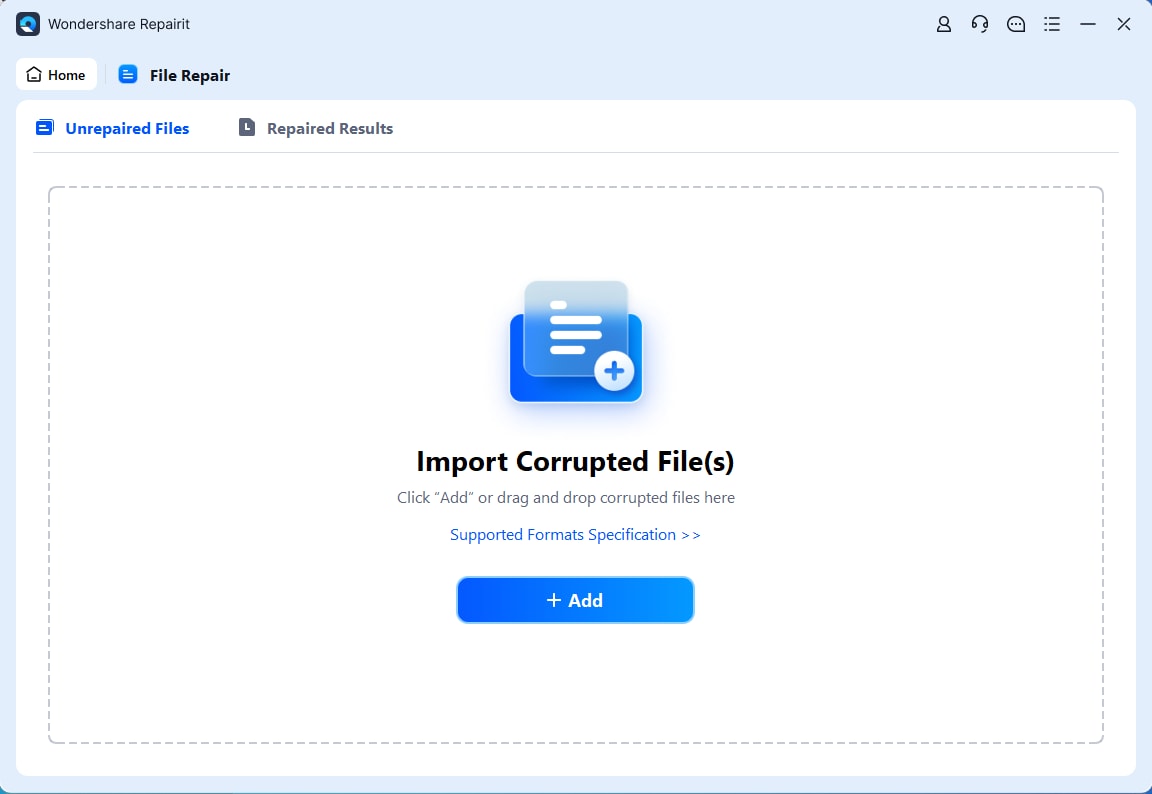
- Load your corrupted files on Repairit
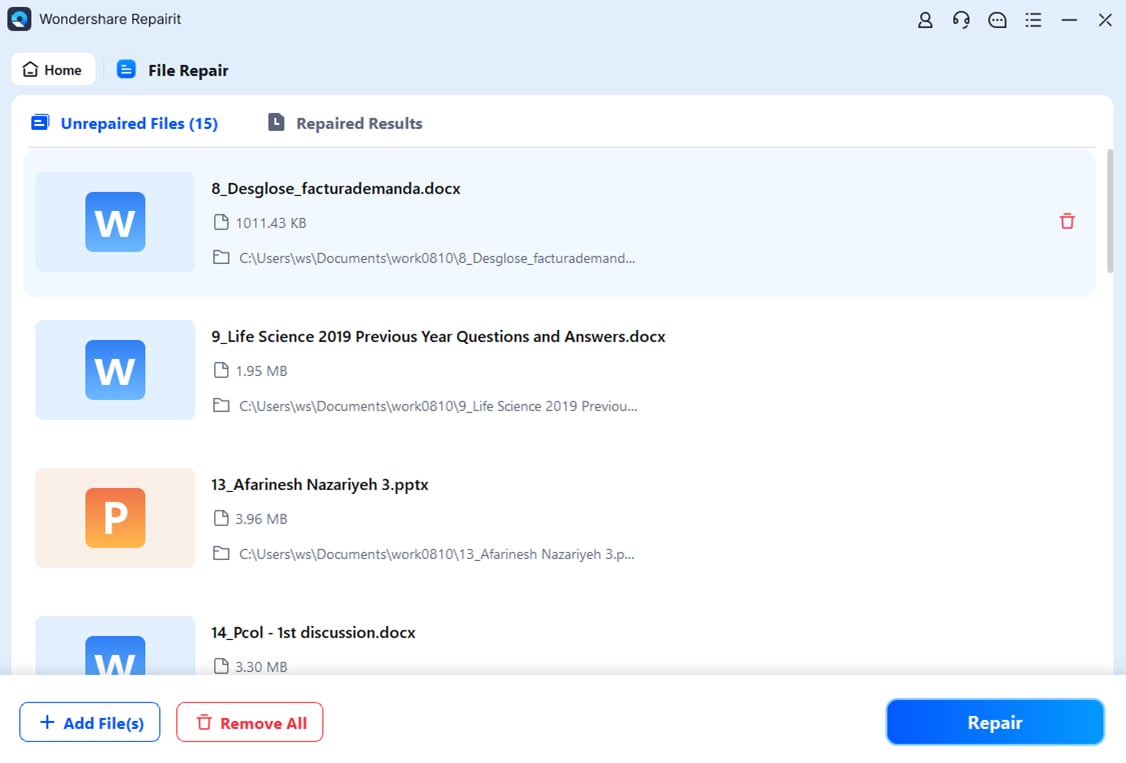
- Start the repair process
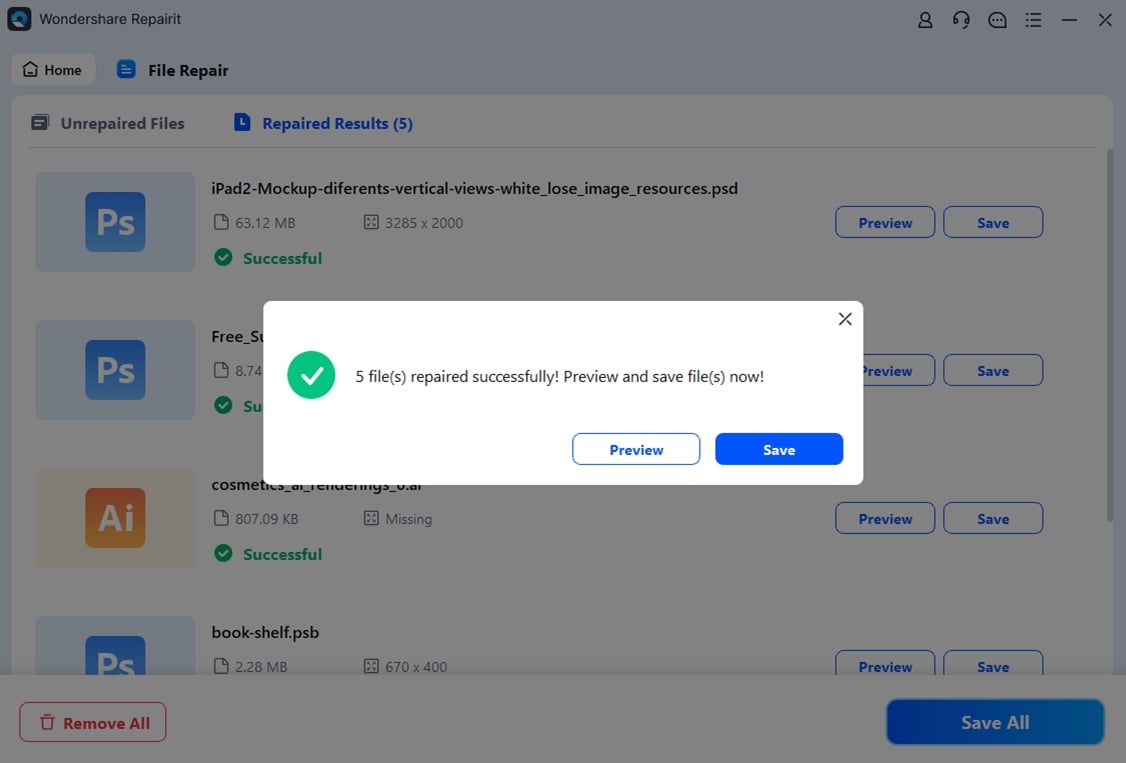
- Preview and Save Your Desired Data
Conclusion
PDF files are a dependable way to share and preserve documents because they keep fonts, layout, and graphics consistent across different platforms and devices. Knowing what a PDF is and how to open it with suitable viewers ensures you can read, print, and manage documents smoothly in both personal and professional settings.
When errors occur or a PDF file becomes corrupted, you still have several options. Simple steps such as re-downloading the file, switching viewers, or restoring from backup may solve minor issues. For more serious damage, specialized repair tools like Wondershare Repairit can scan, fix, and recover broken PDF files, helping you protect your information and avoid permanent data loss.
Next: What is Doc File?
FAQ
-
1. What is a PDF file used for?
A PDF file is used to share documents that keep their original formatting, including text, images, and layout, regardless of the device, operating system, or software used to open them. This makes PDFs ideal for contracts, reports, manuals, eBooks, and printable forms. -
2. How do I open a PDF file on my computer or phone?
You can open a PDF on a computer using web browsers (Chrome, Edge, Firefox, Safari), Adobe Acrobat Reader, or built-in apps like Preview on Mac. On phones and tablets, use apps such as Google PDF Viewer, Google Drive, Apple Books, or Adobe Acrobat Reader for mobile. -
3. Why will my PDF not open?
A PDF file may not open because it is corrupted, the reader software is outdated, the download or transfer was incomplete, or security settings and permissions are blocking access. Trying a different viewer, updating your software, or re-downloading the file often resolves minor issues. -
4. Can I repair a corrupted PDF file?
Yes. You can attempt to repair PDF file problems by downloading the document again, opening it in another viewer, restoring it from a backup, or using dedicated repair tools like Wondershare Repairit to scan and fix damaged PDF structures. -
5. How can I prevent my PDF files from getting corrupted?
To reduce the risk of corrupted PDF files, use reliable storage devices, avoid interrupting file saves or transfers, keep your operating system and PDF software updated, maintain regular backups, protect your system against malware, and always safely eject external drives before disconnecting them.




