

A MOV file is a popular video format used on both Mac and Windows for high-quality movies, clips, and recordings. Understanding what a MOV file is, how it works, and how to open, convert, or repair it helps you avoid playback problems and keep your video projects safe.
Repair Corrupted Files To Save Your Data
 Security Verified. Over 7,302,189 people have downloaded it.
In this article
What Is MOV File
A MOV file is a multimedia container format created by Apple and commonly used by iPhones, iPads, Mac computers, and professional cameras. Technically, it is based on the QuickTime File Format (QTFF) and can store video, audio, subtitles, timecode, and metadata in separate tracks inside a single file.
Because the MOV file format is a container, it can use different video and audio codecs, such as H.264, HEVC (H.265), AAC, and others. This flexibility makes MOV ideal for high-quality editing, archiving, and professional workflows.
Compared with MP4, MOV files usually provide better quality but slightly larger file sizes. That is why MOV vs MP4 is a common comparison when choosing the best format for editing, sharing, or streaming.
| Format | Main Characteristics |
|---|---|
| MOV | High quality, designed for Apple and editing workflows, supports multiple tracks and advanced metadata. |
| MP4 | Highly compatible, smaller size, best for web, social media, and cross-platform sharing. |
How to Open MOV Files
You can open MOV file videos on almost any modern device, but the method and software you use may differ between Windows, macOS, and mobile platforms.
Open MOV files on Windows
Windows can play many MOV videos out of the box, but older systems or unusual codecs may require extra software or codecs.
- Use the built-in Movies & TV app or Windows Media Player on the latest Windows versions.
- Install a universal player such as VLC Media Player for broader open MOV file support.
- Update video drivers and Windows to improve compatibility with newer codecs such as HEVC.
If your MOV file does not play, stutters, or shows errors, it may be using an unsupported codec or be partially corrupted. In that case, converting the file or repairing it can help.
Open MOV files on Mac and mobile
Because Apple developed the MOV file format, macOS and iOS handle it very well.
- On Mac: double-click the MOV file to open it in QuickTime Player, or use apps like VLC, iMovie, or Final Cut Pro for editing.
- On iPhone/iPad: play MOV videos directly in the Photos app, Files app, or AirDrop them to another Apple device.
- On Android: install a third-party player such as VLC or MX Player to extend support for MOV codecs.
If playback fails on mobile devices, converting the MOV file to MP4 is often the quickest fix.
How to Convert MOV to MP4
Because MP4 is more widely supported on TVs, game consoles, web browsers, and Android phones, many users prefer to convert MOV to MP4 for sharing or streaming.
Convert MOV to MP4 on desktop
Desktop converters give you more control over quality, resolution, and codecs when switching from MOV file to MP4.
- Use professional video converters that support batch processing and preset profiles for different devices.
- Select H.264 or H.265 as the video codec and AAC for audio to keep compatibility high.
- Maintain the original resolution and bitrate if you do not want to sacrifice quality during conversion.
Always keep a backup of the original MOV file before conversion, especially if it contains irreplaceable footage.
Convert MOV to MP4 online
Online tools are convenient when you only need to convert a few small videos from MOV to MP4 and do not want to install software.
- Upload your MOV clip to a trusted online converter website.
- Choose MP4 as the output format and adjust simple options such as resolution or size.
- Download the converted file and test it in your preferred media player.
Online conversion may compress your video and can be slow for large files, so desktop tools are better for long or high-resolution MOV file projects.
How to Use Repairit to Fix a Corrupted MOV File
Why choose Repairit
When a MOV file becomes unplayable, shows black screens, or loses sound, the file structure or video stream is likely damaged. Wondershare Repairit is dedicated repair software that can automatically scan, analyze, and fix corrupted MOV videos from various cameras, smartphones, and storage devices. You can learn more on the Repairit official website.
Key features of Repairit
- Repairs corrupted MOV and other video formats from cameras, memory cards, external drives, and computers.
- Supports multiple corruption scenarios, including header damage, playback errors, audio-video sync problems, and more.
- Offers an intuitive interface with preview, selective saving, and clear progress indicators for each repaired file.
Steps to repair corrupted MOV files
The workflow in Repairit is streamlined so you can focus on recovering your damaged MOV file instead of dealing with complex settings.
- Choose a Location to Repair Data
Launch Repairit and select Video Repair from the main screen. Browse to the folder, drive, memory card, or device that stores your problematic MOV clips. Add the specific MOV file you want to fix so the software can target it during the scan.

- Deep Scan the Location
Start the scan to let Repairit thoroughly analyze the chosen location and your damaged MOV videos. The tool examines file headers, frames, and audio tracks to identify corruption patterns. During this deep scan, you can watch the progress bar and see which MOV file entries are being processed.

- Preview and Repair Your Desired Data
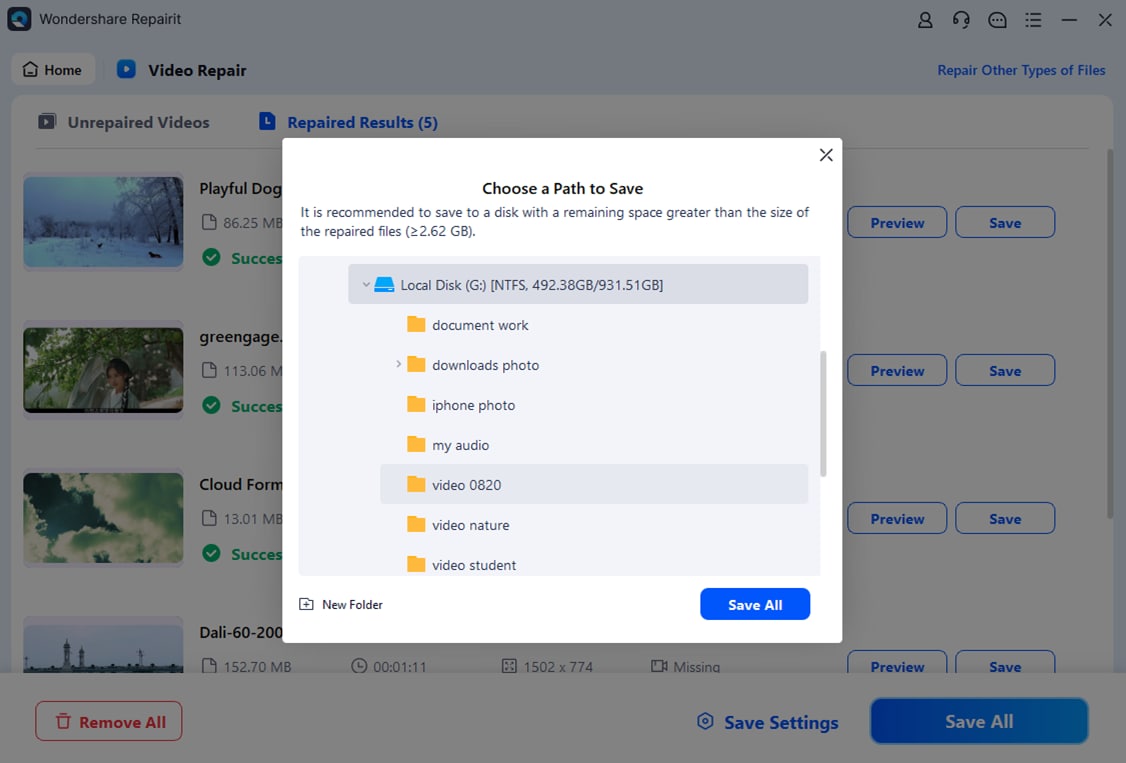
After scanning, Repairit lists the recoverable videos. Select a MOV clip to preview it inside the program and confirm that playback, sound, and image quality are restored. When you are satisfied, click Repair or Save to export the fixed MOV file to a secure location on your computer or external drive.
Conclusion
The MOV file format is a flexible, high-quality container widely used in Apple devices and professional video workflows. Knowing what a MOV file is, how it differs from MP4, and how to open or convert it ensures smooth playback and easier sharing across platforms.
When your videos refuse to play or show errors, specialized tools such as Wondershare Repairit can repair corrupted MOV files and rescue important footage. By combining proper playback software, smart conversion to MP4 when needed, and reliable repair utilities, you can keep your entire MOV video library safe and accessible.
FAQ
-
1. What is a MOV file used for?
A MOV file is mainly used for storing high-quality video, audio, and subtitles in a single container. It is common for iPhone recordings, camera footage, movie trailers, and video editing projects because it preserves quality and supports multiple tracks. -
2. Is MOV better than MP4?
MOV often delivers slightly better quality and flexibility for editing, especially in Apple and professional environments. MP4, however, is more universal and better for sharing online, streaming, and playing on TVs, phones, and browsers. The best choice depends on whether you prioritize editing quality (MOV) or compatibility (MP4). -
3. Why will my MOV file not play?
Your MOV file may not play because the player does not support its codec, your system lacks necessary components, or the file is corrupted. Trying another media player, converting the MOV to MP4, or using a repair tool like Wondershare Repairit can usually resolve the problem. -
4. Can I convert MOV to MP4 without losing quality?
Yes. If you keep the same resolution, bitrate, and use high-quality codecs such as H.264 or H.265, you can convert MOV to MP4 with minimal or visually lossless quality changes. Desktop converters provide more control than most online tools. -
5. How does Repairit fix corrupted MOV videos?
Repairit analyzes the structure of your MOV file, including headers, frames, and audio tracks, then reconstructs damaged parts based on healthy data and reference parameters. After scanning, it lets you preview the repaired MOV video so you can confirm that playback is restored before saving.




