
A user attempts to launch a trusted program, only to be stopped by a pop-up that reads, “This app has been blocked for your protection.” The sudden warning interrupts their workflow and raises concerns about whether the file is unsafe or Windows is being overly strict.
This common security message appears when the system detects unknown publishers, outdated certificates, or restricted permissions. Understanding why it triggers is the first step to restoring access without compromising safety. In this guide, you’ll learn what causes the error and the safest methods to fix it across different Windows versions.
Table of Contents
Part 1. Why Windows Stops Some Apps: Understanding Protection Blocks
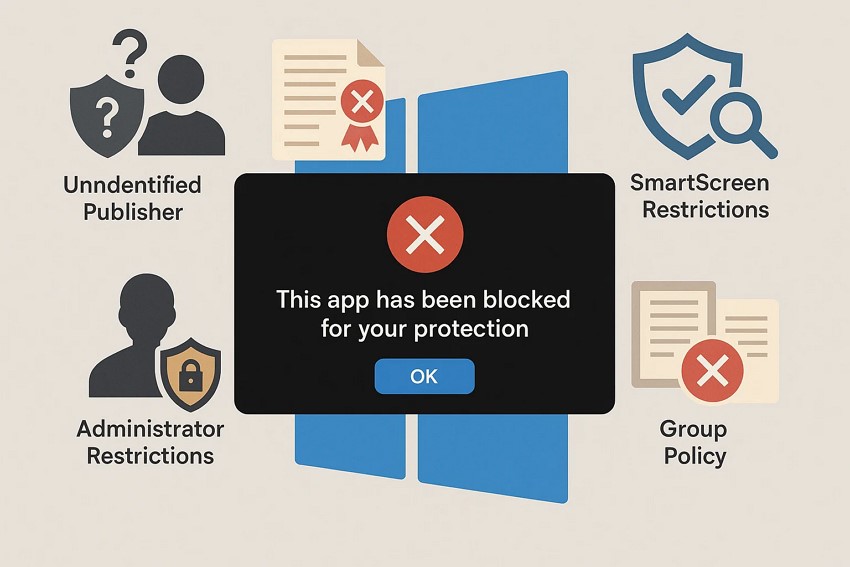
When Windows prevents an app from running, it’s usually acting as a security gatekeeper rather than creating an inconvenience. Here are the primary reasons behind the “this app has been blocked for your protection Windows 11” error:
- Unknown Publisher: Windows cannot verify the developer’s identity, so it treats the app as potentially unsafe. This prevents accidental installation of malware or unauthorized programs.
- SmartScreen Filter Alerts: Microsoft SmartScreen identifies apps with low reputation or uncommon usage. It blocks them to prevent potential threats from running on your device.
- Administrator Restrictions: Some apps require elevated permissions to run properly. If your account lacks these rights, Windows will stop the app from launching.
- Blocked by Group Policy: System administrators can set policies that restrict apps from certain sources. Any app violating these rules will be automatically blocked.
Is This App Safe? Steps to Check Windows Blocked Programs
When Windows blocks an app, it’s natural to question whether the software is safe to run. Not every blocked program is malicious, but caution is essential. By following a few careful steps, you can determine the legitimacy of a blocked program before deciding to bypass the “this app has been blocked for your protection Windows 10” issue.
Steps to Check Windows Blocked Programs
- Check the App Source: Always download software from official websites or trusted platforms. Avoid files from unknown links, torrents, or email attachments.
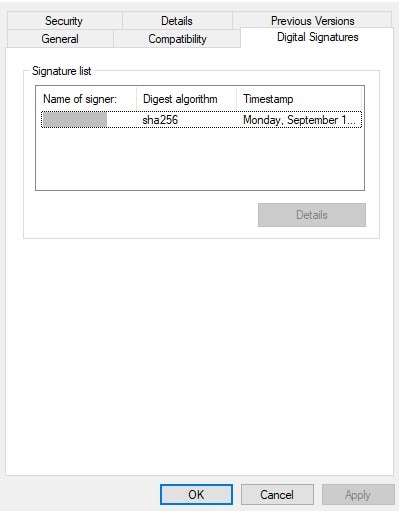
- Verify the Publisher: Right-click the blocked file, go to “Properties” → “Digital Signatures,” and confirm the publisher’s identity. A recognized publisher reduces the risk of running unsafe software.
- Inspect the Digital Signature: Ensure the app’s certificate is valid and not expired. Invalid or missing signatures are a common reason Windows blocks programs.
- Avoid Risky Applications: If the app seems suspicious or lacks proper verification, do not attempt to bypass Windows protection. Prioritize safety over convenience to protect your system.
Part 2. Bypass “This App Has Been Blocked” Error in Windows 10/11
After identifying whether a blocked app is safe, the next step is learning how to bypass the “This App Has Been Blocked for Your Protection” error. The following section walks you through practical, step-by-step solutions to regain access to legitimate programs safely:
Fix 1. Scan and Unblock the File in Properties
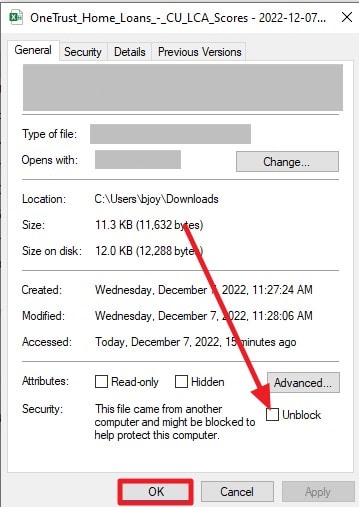
One of the simplest ways to bypass the "This App Has Been Blocked for Your Protection" error is by scanning and unblocking the file through its properties. By using the file's built-in properties panel, you can confirm its safety and lift any restrictions that Windows has placed due to unknown origins or security flags. Follow the steps provided next to learn how to unblock files in properties:
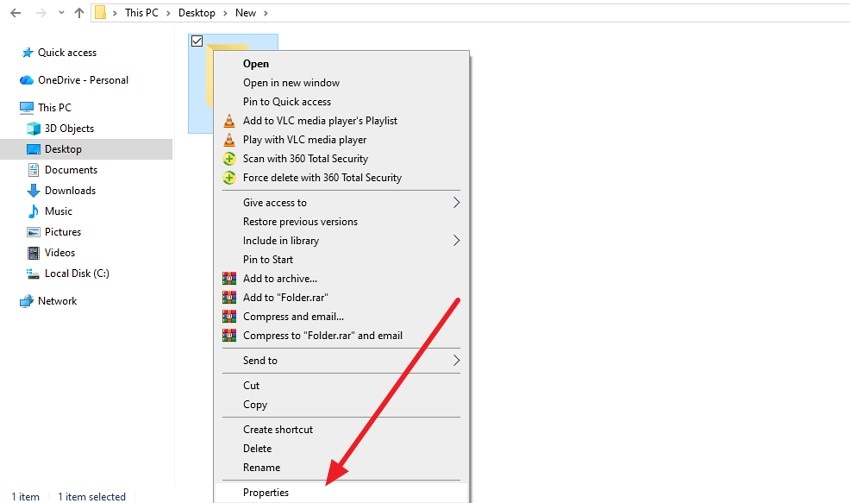
Step 1. Locate the file and right-click on it to enable a list of options. From here, press the “Properties” option located at the bottom.
Step 2. Navigate to the “General” section and locate the “Unblock” option at the bottom. Tick its checkbox and press “OK” to save the applied changes.
Fix 2. Run the App as Administrator
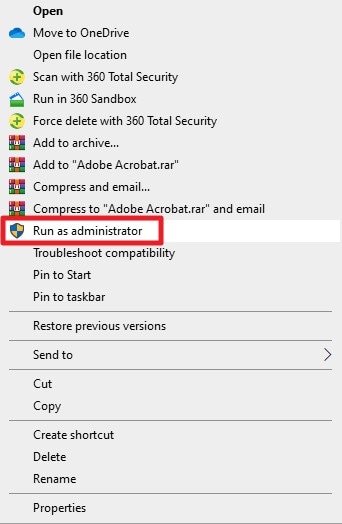
Running a blocked application with administrative privileges can help it bypass certain Windows security restrictions without compromising system safety. This method grants the program elevated permissions so it can access required system resources and function correctly. It is particularly effective for trusted software that needs deeper system-level integration to operate as intended. Follow the steps below to learn how to run an application as an administrator:
Instructions. Locate the application and right-click to enable a list of options. Next, search for the “Run as Administrator” option and operate the app with admin privileges.
Fix 3. Temporarily Turn Off SmartScreen/Reputation‑Based Protection
Sometimes, Windows SmartScreen or reputation-based protection blocks safe applications simply because they are new or have a low usage history. This can trigger the "this app has been blocked for your protection” message even for trusted software. Temporarily disabling these features lets you launch the application without interruption. Afterward, re-enable the protection to keep your system secure. Follow the steps below to learn how to turn these settings off:
Turn Off Reputation-Based Protection
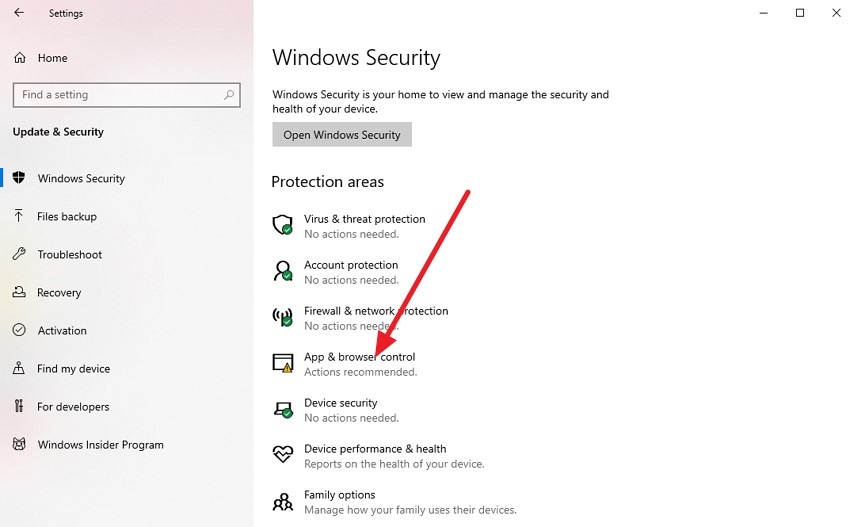
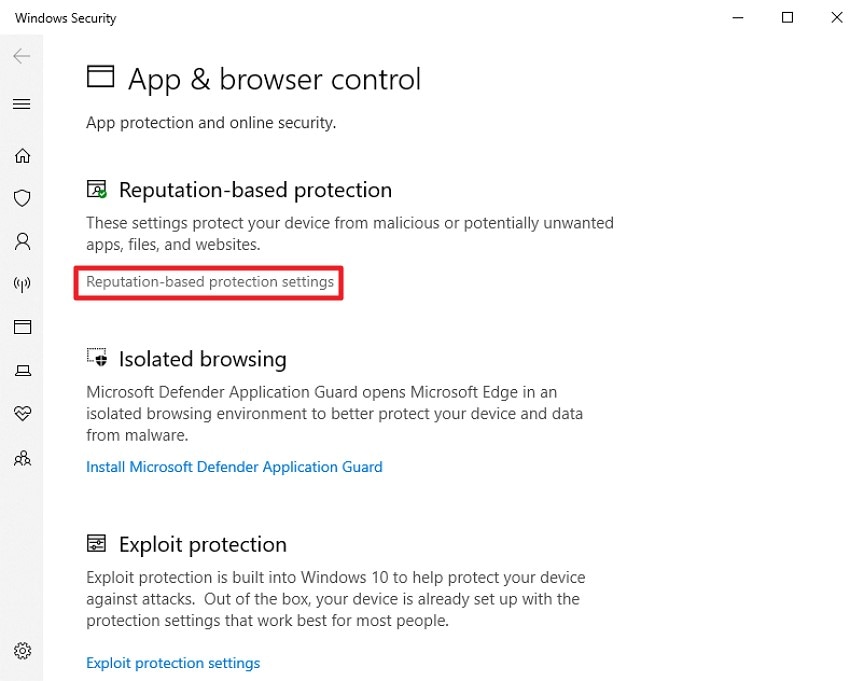
Step 1. Open the “Windows Security” settings on your device and press the “App & Browser Control” option.
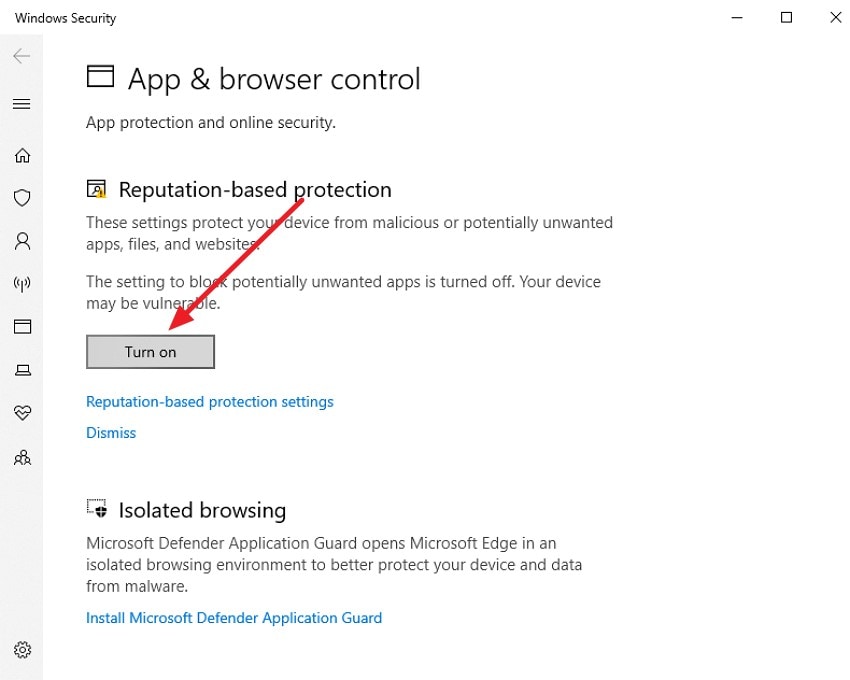
Step 2. Next, press the “Turn On/Off” button under the “Reputation-Based Protection” section.
Turn Off Smart Screen
Step 1. Within the same interface of “Apps & Browser Control,” navigate to the “Reputation-Based Protection Settings” option.
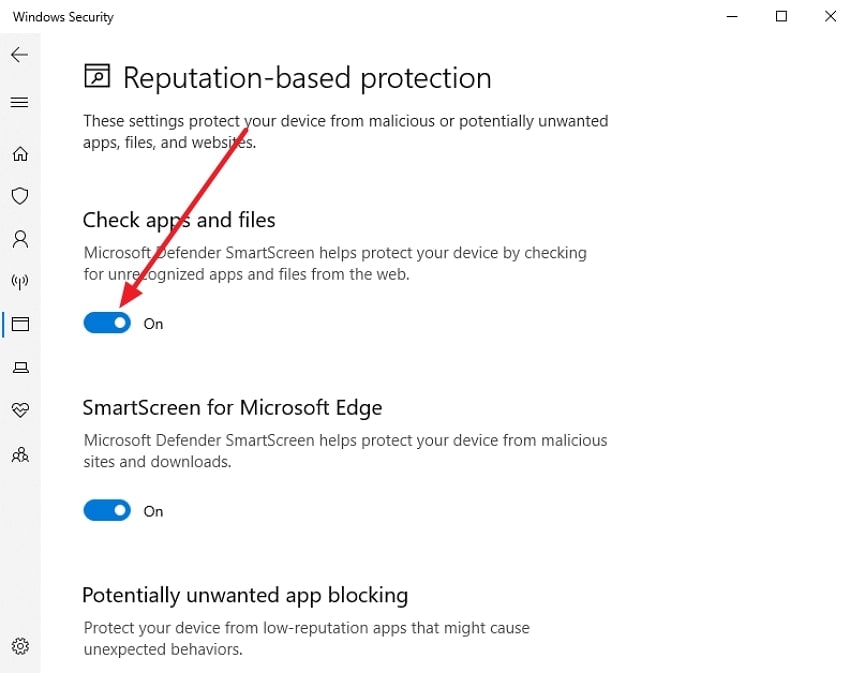
Step 2. Turn the toggle off for the “Check apps and files” option to disable the SmartScreen.
Fix 4. Launch the App from an Elevated (Aministrator) Command Prompt
Using an elevated Command Prompt provides a way to run blocked applications with administrative privileges directly. This method is particularly helpful for advanced users who need to run trusted software that standard permissions cannot launch. It is quite helpful when dealing with the "this app has been blocked for your protection Windows 11 warning. Read the instructions provided next to learn how to run an app using the Command Prompt:
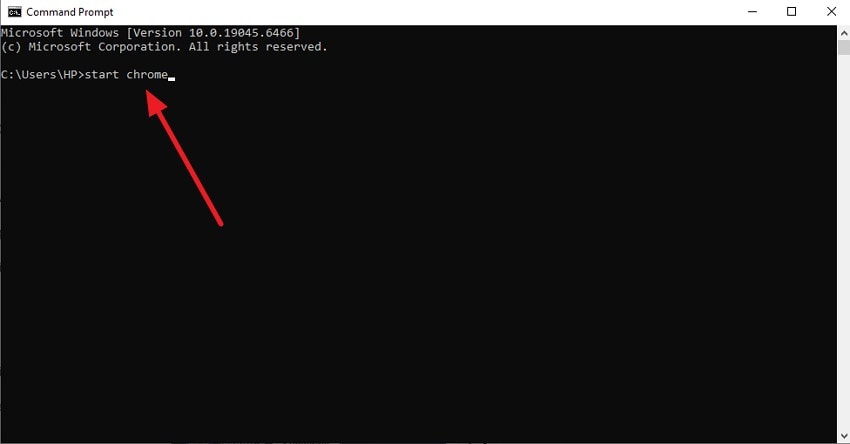
Instructions. Open CMD on your system as an administrator and type in the command: “start [app name]” and hit the “Enter” key. The system will instantly launch the desired application on your device.
Fix 5. Relax UAC/Group Policy Restrictions Blocking the App
Sometimes, Windows blocks applications due to strict User Account Control (UAC) settings or Group Policy restrictions. Adjusting administrative policies or strict security settings can prove helpful in fixing the “this app has been blocked for your protection Windows 10” issue. To learn how to perform this fix, read the steps in the following section:
Relax UAC
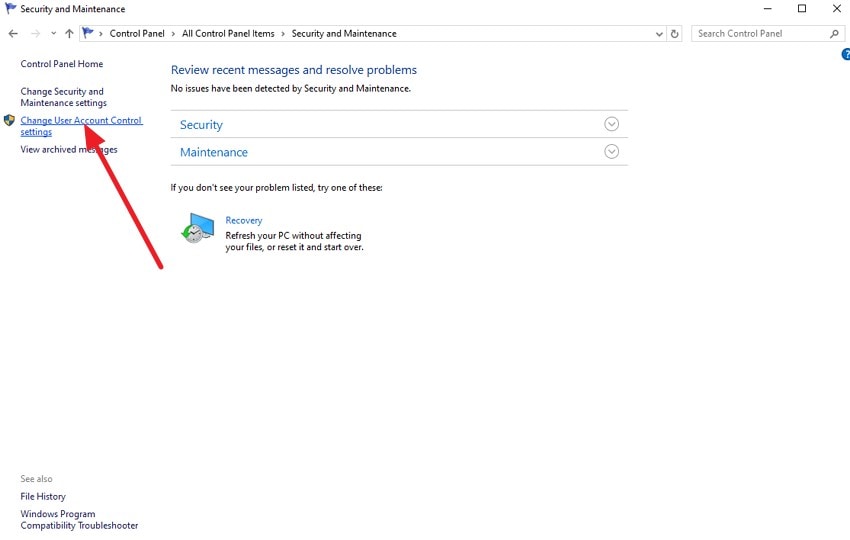
Step 1. Open the “Control Panel” and locate the “Security and Maintenance” option to click on it.
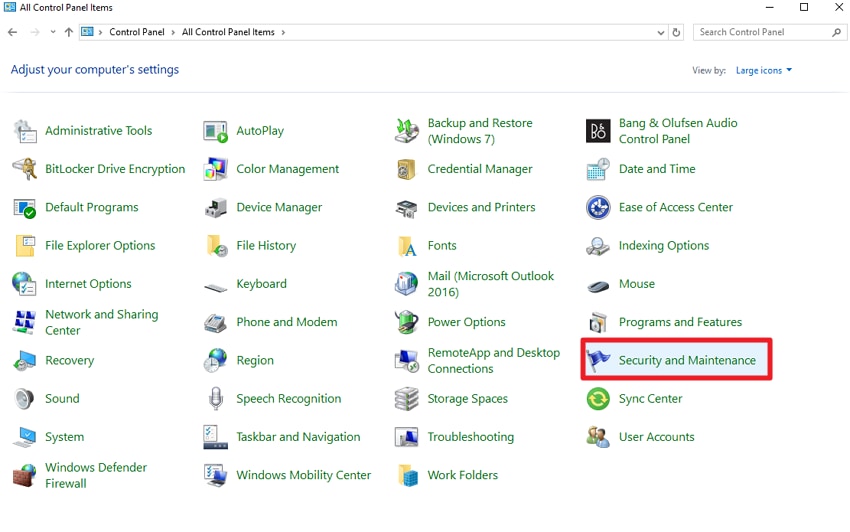
Step 2. In the following interface, head to the section on the left and click on the “Change User Account Control Settings” option.
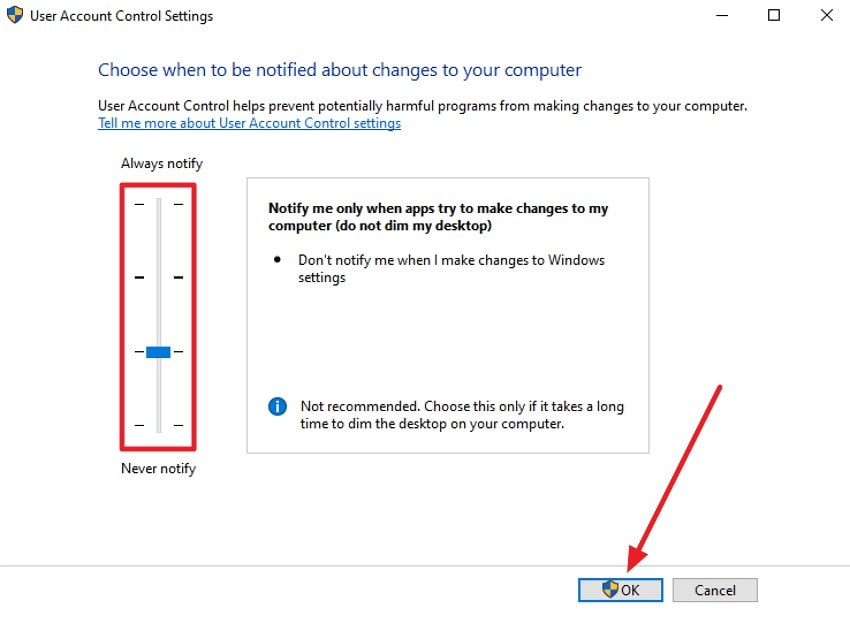
Step 3. In the following interface, lower the bar on the left to relax the UAC settings.
Group Policy Restrictions
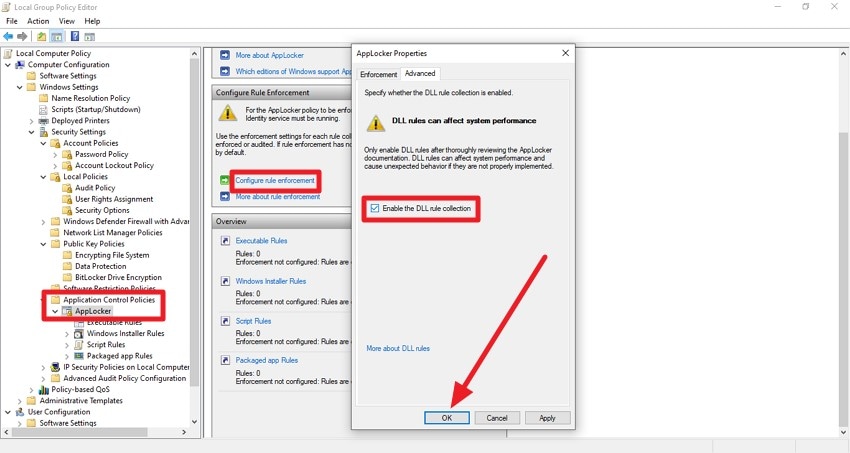
Instructions. Access the Local Group Policy Editor and expand the “Application Control Policies” option. Now, choose the “Applocker” option and press the “Configure Rule Enforcement” option. In the following small window, untick the “Enable DLL Rule Collection” option.
Pro Tip. Repair Damaged Files Causing App Blockages
Sometimes, an app is blocked not because of security settings but due to file corruption. Damaged or incomplete program files can trigger Windows protection alerts and stop the application from launching. Repairing these files restores them to a proper working state and resolves errors that cause execution failures. Repairit helps rebuild corrupted files so the program can run normally again.
It scans the affected file, identifies inconsistencies, and repairs them to ensure smooth operation. By addressing corruption directly, Repairit allows your trusted applications to run without triggering the “This app has been blocked for your protection” warning. It focuses on core file repair functions, restoring integrity and correcting internal errors that cause execution issues.
Incredible Features of Repairit

-
Batch Repair: Repairit allows you to repair multiple corrupted files at once, saving time when dealing with several damaged files.
-
Adobe File Repair: The repairing service also helps you repair your Adobe project files with the option of rebuilding layers and previews.
-
iWork Repair Files: Repairit provides the ability to fix damaged Pages, Numbers, and Keynote files with accurate repairing results.
Step-by-Step Guide to Repair Damaged Files with Repairit
After learning about this incredible repair tool in detail, let us have a look at the comprehensive steps to use Repairit in the following section:
Step 1. Select the Appropriate Repair Mode
Begin by choosing the repair mode that fits your file type, such as “Document Repair,” from Repairit. Click the “Start” button to proceed, then upload the corrupted or damaged files.

Step 2. Import Files and Initiate Repair
Once your files are added, highlight the ones you want to recover and click the “Repair” button located at the bottom of the interface.

Step 3. Review and Save Repaired Files
After the repair process is complete, take a moment to preview the restored files to ensure everything is fixed correctly. When satisfied, click “Save” to store the repaired files safely on your device.
Repair Damaged Files with Repairit
 Security Verified. Over 7,302,189 people have downloaded it.

Conclusion
To summarize, this article provided a complete guide on how to fix the “This App Has Been Blocked for Your Protection” error using different techniques. These handy techniques allow you to effortlessly get the application running. However, if an app is blocked due to a corrupted app file, you can repair it using Repairit. This advanced file repair tool uses advanced technology to mend your data file in no time.
Frequently Asked Questions
-
1. Can corrupt system files cause the 0x80070306 error?
Having damaged system files is one of the reasons why one could face this error on their Windows device. Luckily, Repairit can fix these damaged files and help you regain access to your PC’s normal functionality. -
2. What usually triggers the 0x80070306 error?
The 0x80070306 error often occurs due to corrupted system files, faulty drivers, or damaged Windows Update components. Storage issues, interrupted updates, and misconfigured services can also contribute significantly. -
3. Can the 0x80070306 error affect Windows stability?
Yes, repeated occurrences can cause system instability by interrupting essential processes and update mechanisms. Unresolved issues may also slow performance and trigger additional errors. -
4. How can I save time fixing multiple system files?
Fixing each file individually could cost time, delaying the normal function of your PC. However, Repairit’s batch processing feature helps you fix multiple system files in a single go and saves you time.




