
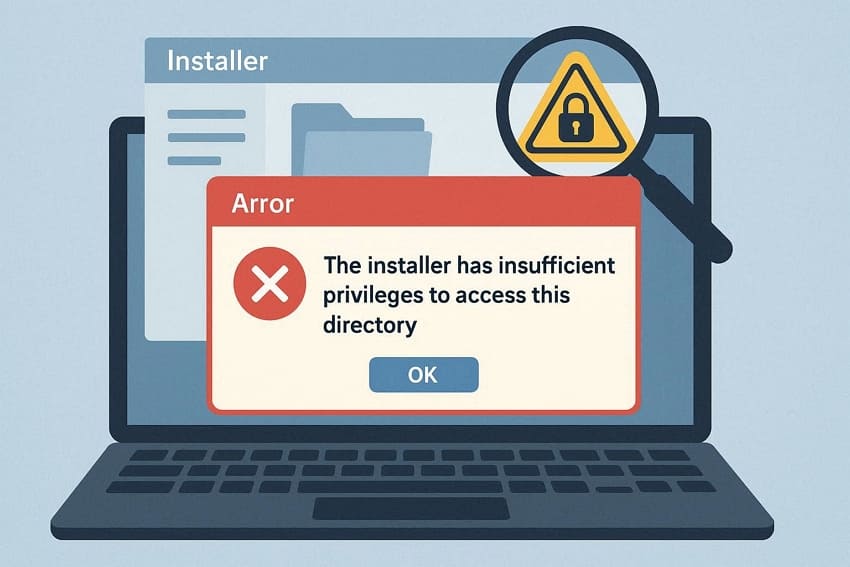
Installing software can sometimes trigger the frustrating message: "The installer has insufficient privileges to access this directory." When this happens, the installation process halts, preventing users from completing essential tasks. This issue can affect anyone, from professionals needing critical tools to students trying to set up programs for their coursework.
Knowing how to overcome this restriction ensures that installations proceed smoothly without unnecessary delays. This comprehensive guide provides clear, step-by-step solutions to bypass the error and successfully install software.
Table of Contents
-
- Fix 1. Run the Installer as Administrator to Bypass Blocks
- Fix 2. Take Ownership of the Target Folder Safely
- Fix 3. Reset or Repair Folder Permissions Quickly
- Fix 4. Temporarily Disable Antivirus or Security Software
- Fix 5. Move Installation to a Safer, Writable Location
- Fix 6. Clear Space Using Disk Cleanup
Part 1. Understanding the Insufficient Privileges Installer Error
The error "the installer has insufficient privileges to access this directory" occurs when a user tries to install software but lacks the necessary permissions to access the target folder or to make system changes. This prevents the installation from completing successfully. Here are some of the factors that trigger this error to occur:
- User Account Control (UAC) Restrictions: Windows may block installers from making system changes if they aren’t run with administrator rights. This security feature protects the system, but can trigger an error.
- Non-Administrator Account: The current user may not have the admin privileges needed for installing software. Without these rights, access to protected directories is denied.
- Folder Permissions Issue: Certain directories may have restrictive access settings that prevent changes. Installers cannot write files to these folders without proper permission.
- Antivirus or Security Software Interference: Some security programs block installers from modifying system folders. This can result in insufficient privileges error.
- Corrupted Installer File: A damaged or incomplete installer may fail to request necessary permissions. Re-downloading the installer often resolves this problem.
Part 2. Access Unlocked: How to Fix Insufficient Privileges in Windows
After understanding why "the installer has insufficient privileges to access this directory" occurs, the next step is learning how to regain access. The following section provides practical solutions to overcome this error:
Fix 1. Run the Installer as Administrator to Bypass Blocks
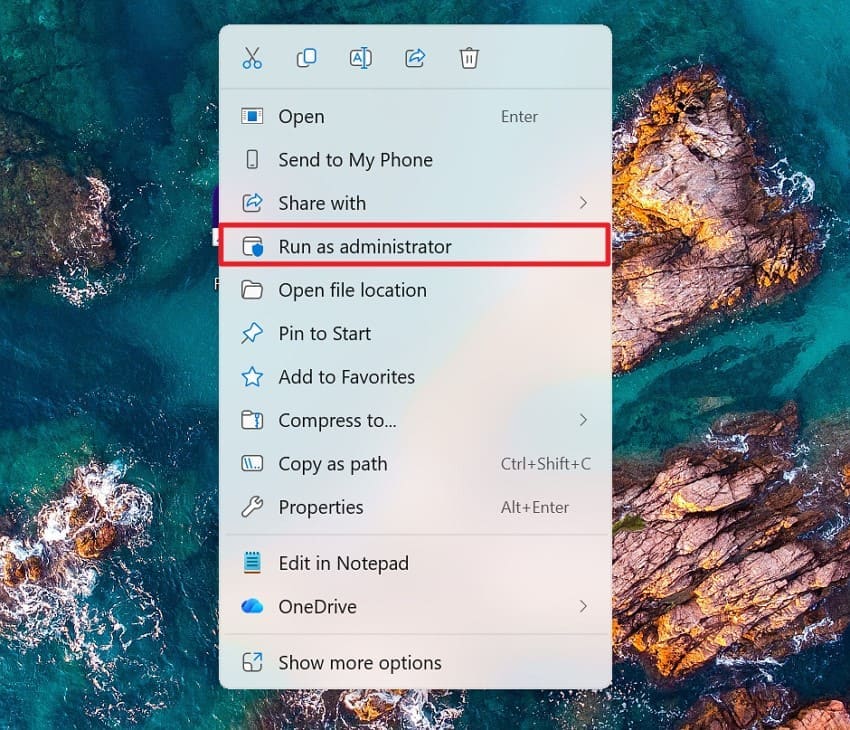
Running the installer with administrator rights allows it to make necessary system-level changes. This approach often resolves the issue that "the installer has insufficient privileges to access this directory" by granting temporary elevated permissions. It is especially useful when installing software that needs access to protected Windows folders or registry settings. To learn how to run the installer as admin, read the instructions provided next:
Instructions. Start by finding the program on your system and right-clicking on it to display the available options. Next, select "Run as Administrator" from the menu to launch the tool with elevated permissions.
Fix 2. Take Ownership of the Target Folder Safely
Taking ownership of the installation folder ensures the system recognizes the user as having full control. When ownership is missing, "the installer has insufficient privileges to access this directory" error may appear. Assigning proper ownership removes access conflicts and allows installers to write files without encountering permission barriers. To learn how to perform this fix, read the steps provided next:
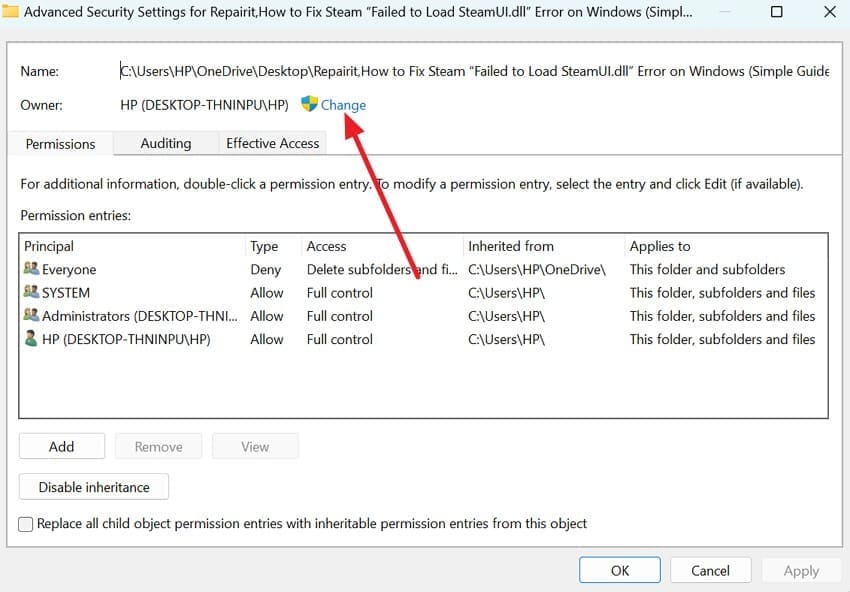
Step 1. Locate the target folder where the installation is failing and right-click on it. Select "Properties" from the context menu and switch to the "Security" tab. Click "Advanced" to open the advanced security settings.
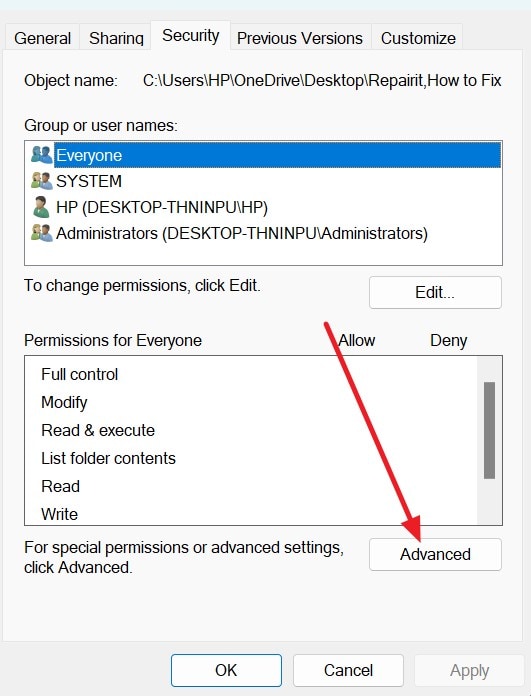
Step 2. At the top, click "Change" next to the "Owner" field and enter your user account name.
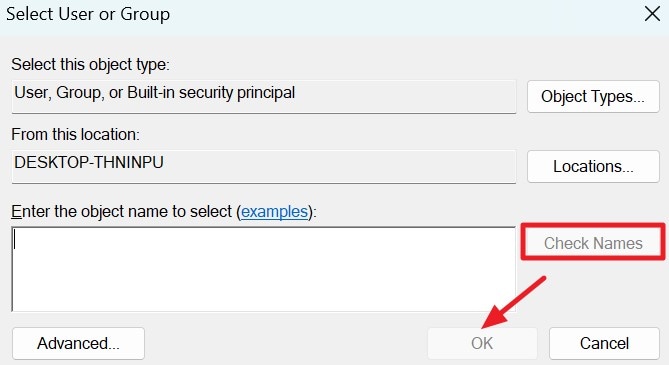
Step 3. Click "Check Names," then "OK" to confirm ownership of the target folder.
Fix 3. Reset or Repair Folder Permissions Quickly
Incorrect or broken folder permissions can prevent installers from accessing required directories. Resetting these permissions helps eliminate conflicts that trigger "the installer has insufficient privileges to access this directory" error. Restoring default access settings ensures the installer can create, modify, and save files during installation. To learn how to perform this fix, read the steps provided next:
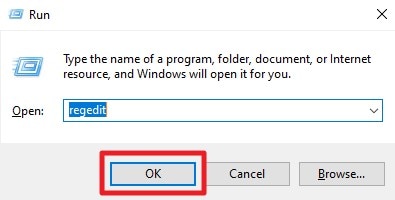
Step 1. Press "Windows + R," enter "Regedit," and hit "Enter."
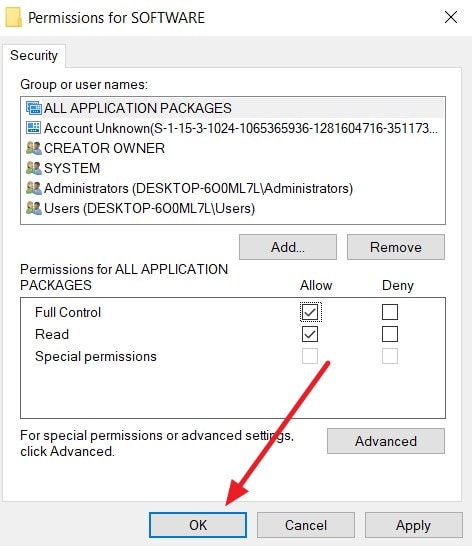
Step 2. Browse to the folder location associated with the affected program. Confirm the file paths match the correct installation directory. Right-click the folder and choose "Permissions" to check access settings.
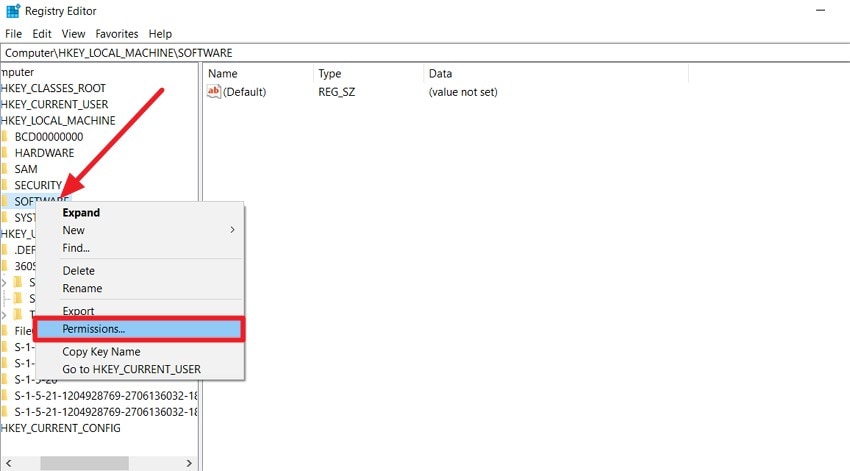
Step 3. Verify that both system and administrator accounts have the required permissions. Click "OK," then restart Windows for the changes to take effect.
Fix 4. Temporarily Disable Antivirus or Security Software
Security tools sometimes block installers from modifying system directories. This interference can lead to "the installer having insufficient privileges to access this directory" issue, even when permissions are correct. Temporarily disabling antivirus or firewall protection can allow the installer to complete without being incorrectly flagged or restricted. Read the steps provided below to learn how to temporarily disable antivirus software:
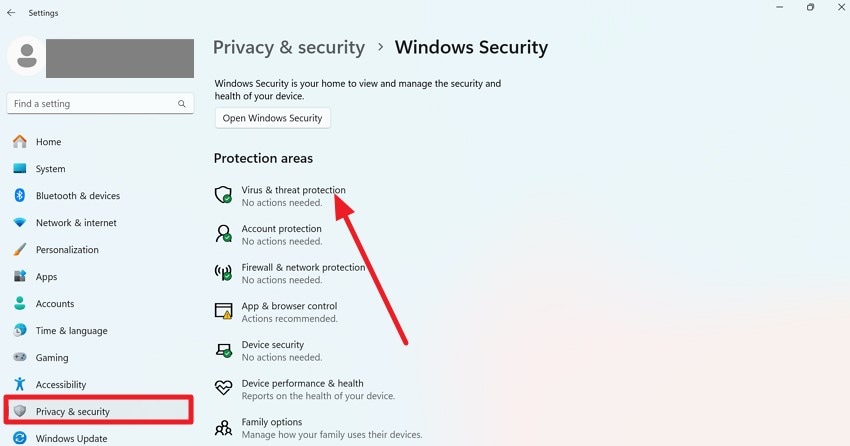
Step 1. Open the system "Settings" and select "Privacy & Security" from the left panel. Then find and click on "Virus & Threat Protection" to proceed.
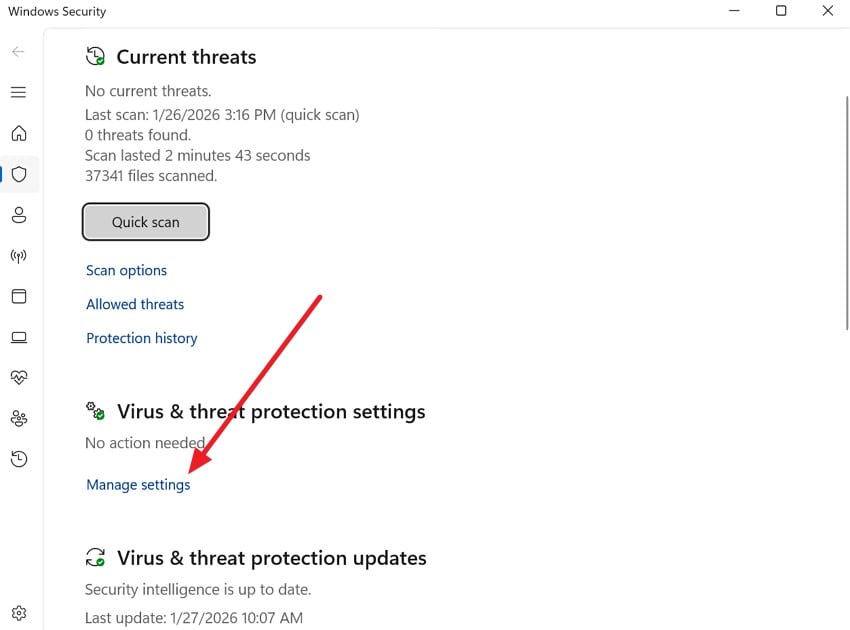
Step 2. On the next screen, choose "Manage Settings" under the "Virus & Threat Protection" section.
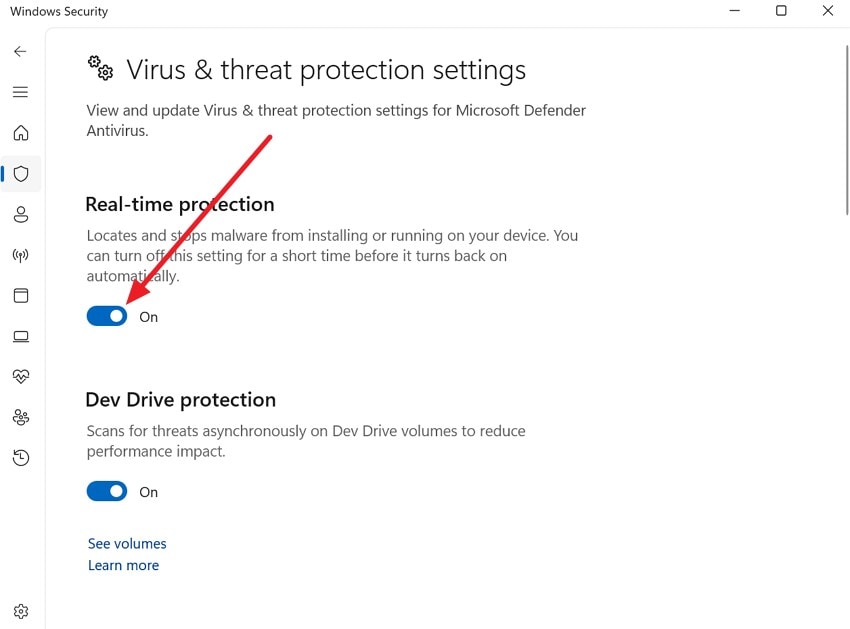
Step 3. Finally, switch off the "Real-time Protection" toggle to temporarily disable the antivirus on your system.
Fix 5. Move Installation to a Safer, Writable Location
Installing software in protected directories can cause permission-related failures. Choosing a user-accessible folder helps avoid "the installer has insufficient privileges to access this directory" error. Writable locations reduce access restrictions and allow installers to function smoothly without requiring advanced system permissions. When prompted for the installation path, choose a writeable location and proceed with the installation to successfully execute it.
Fix 6. Clear Space Using Disk Cleanup
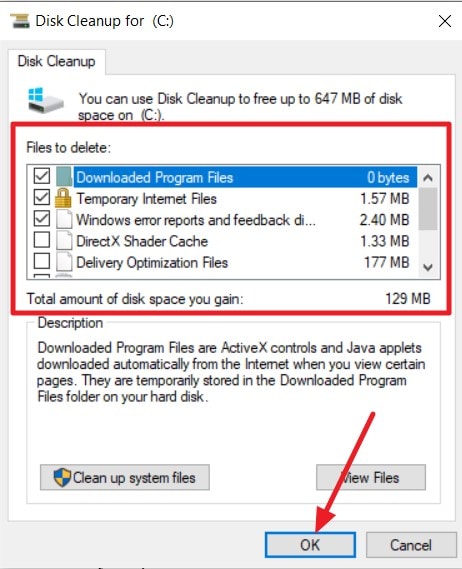
Limited disk space can interfere with installation processes and trigger access errors. Running Disk Cleanup helps remove unnecessary files that may contribute to "the installer has insufficient privileges to access this directory" issue. Freeing space ensures the installer can write temporary and permanent files without interruption. Read the instructions provided below to learn how to perform disk clean-up on your system:
Instructions. Open "DiskCleanup," select the system drive, and let Windows scan for junk files. Now select the disk that you want to delete by ticking the checkboxes. Press the "OK" button to successfully remove them from your system.
Pro Tip: Use Repairit When Files or Folders Are Corrupted or Blocked
When files or folders become corrupted due to crashes, transfer errors, or unexpected issues, standard access methods often fail. This may trigger errors similar to "The installer has insufficient privileges to access this directory" error. Repairit offers a dependable way to restore damaged files across a wide range of formats, helping users regain access to important documents and archives without losing original content.
Beyond simple repair, Repairit excels in handling complex corruption issues that regular file explorers or utilities can’t fix. It supports photo, video, document, and archive file repair, often restoring damaged items to a usable state. Its user-friendly interface and broad compatibility make it suitable for both casual users and professionals who need reliable recovery tools.
Incredible Features Offered By Repairit

-
Cross‑Platform Repair Flexibility: Repairit works on both Windows and macOS with consistent feature support. This means users can fix corrupted or blocked files regardless of the operating system.
-
Supports Password‑Protected File Repair: The tool can handle encrypted or password‑protected files by allowing password input during the repair process.
Guide for Repairing Damaged Files or Folders with Repairit
Now that the features and benefits of Repairit are clear, it’s time to see the tool in action. The following steps demonstrate how to repair corrupted or blocked files efficiently, helping users avoid common issues:
Step 1. Choose the Repair Mode
Begin by selecting the appropriate repair option, such as "Document Repair, or Photo Repair" from the main menu. Click on the "Start" button, then upload the corrupted files directly into Repairit’s interface.

Step 2. Upload Files and Initiate Repair
Next, select the uploaded files and press the "Repair" button at the bottom. Repairit will instantly start analyzing the files and restoring the damaged content.

Step 3. Preview and Save Recovered Files
After the repair is complete, check the restored documents in the preview window. Once satisfied, click "Save" to download the repaired files to your device.

Repairing Damaged Files or Folders
 Security Verified. Over 7,302,189 people have downloaded it.
Part 3. Stop Installer Errors: Proven Tips for Smooth Software Installs
After addressing file corruption issues, the next focus is on ensuring software installations run smoothly. Many users encounter the frustrating message "the installer has insufficient privileges to access this directory." To prevent this error and other common installation problems before they occur, follow the tips provided next:
- Run as Administrator: Always launch the installer with administrative privileges to bypass system-level restrictions that trigger privilege errors.
- Check User Account Permissions: Ensure the active account has sufficient rights to write to the installation directory and modify system files.
- Adjust Folder Permissions: Verify the target folder’s access settings and modify them to allow full control for the user.
- Disable Security Software Temporarily: Antivirus or firewall programs can block installers, so temporarily disabling them can prevent access errors.
- Choose a Writable Installation Location: Installing software in user-accessible directories reduces conflicts with system-protected folders.
Conclusion
To wrap it up, this article provided a detailed guide on resolving installation and file access issues. This includes the common error "the installer has insufficient privileges to access this directory." By following these tips and using reliable tools like Repairit to fix corrupted or blocked files, users can ensure smooth software installation.
FAQs
-
1. What does "the installer has insufficient privileges to access this directory" mean?
This error occurs when the installer cannot access the target folder due to permission restrictions or system settings. It prevents software installation until proper access is granted. -
2. How can I fix insufficient privileges errors without using extra software?
You can try running the installer as an administrator, adjusting folder permissions, or disabling antivirus software temporarily to allow access. Choosing a writable installation location also helps. -
3. Can Repairit help if blocked or corrupted files trigger installer errors?
Yes, Repairit can fix corrupted or blocked files that may be causing the installer privileges error. The tool ensures smooth installation and access to necessary files.




