
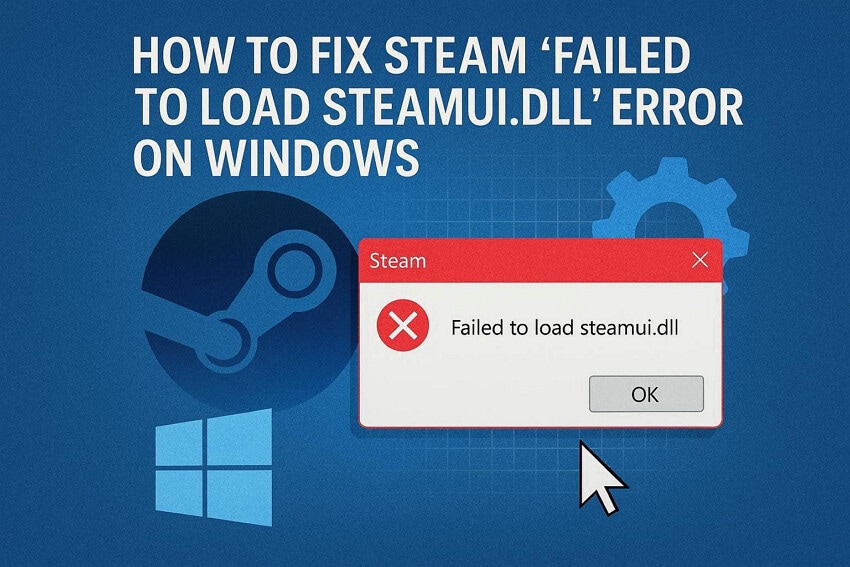
When Steam suddenly throws the "failed to load SteamUI.dll" error, it feels like your entire gaming setup has shut down. This error might prevent Steam from loading its main interface, along with your game and updates, making them completely inaccessible. For many gamers, it appears out of nowhere, right after a system update or during a routine launch.
What makes it even more confusing is that a simple restart rarely fixes the problem, leaving you stuck with no clear explanation. After all, you’ll need stepwise guidance on how to address this error, just as demonstrated in the guide below.
Table of Contents
Part 1. What "Failed to Load SteamUI.dll" Means and How It Appears
Steam failed to load SteamUI.dll means it cannot open a key file called SteamUI.dll. The file is important for handling Steam’s main interface, and if it's missing or damaged, the launcher stops with a fatal error. You can say that one of the main Steam components isn't working, so the app gives up and crashes before it fully launches.
How and When the Error Shows Up
To understand the context behind this issue, look closely at the points listed, elaborating how and when it shows up:
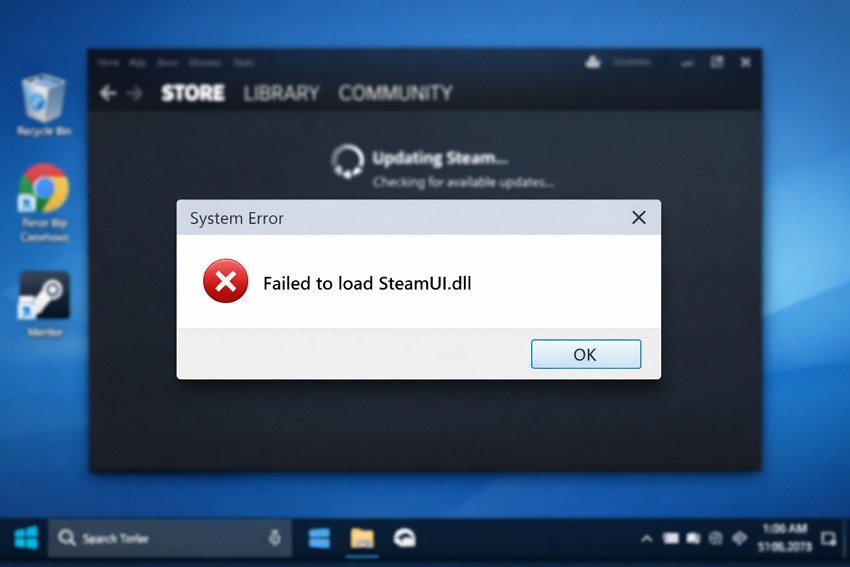
- When Launching Steam Normally: You double-click the Steam icon, and instead of opening, an error appears and then closes. This often happens every time you try to start Steam, and you’re unable to reach your game library.
- Right After a Steam or Windows Update: The error can appear right after Steam finishes an update or after a recent Windows update. Often, the update has changed, moved, or damaged some Steam files, preventing Steam from reading SteamUI.dll properly.
- After Reinstalling or Moving Steam: Gamers might encounter the error when trying to open Steam after reinstalling or moving it to another drive or folder. If some files don’t copy or install correctly, Steam can’t find SteamUI.dll in the new location and shows this message.
- If Files are Corrupted or Deleted: The error can occur if antivirus software, disk problems, or a mistake removes or corrupts SteamUI.dll or related Steam files. Steam then tries to start, fails to read the file, and eventually crashes at startup.
Part 2. Common Causes Behind SteamUI.dll Load Failures
This SteamUI.dll error doesn’t appear randomly; it is triggered by specific system or software conflicts. To point out the actual cause and fix it promptly, let’s review the most frequent reasons for SteamUI.dll failing to load:
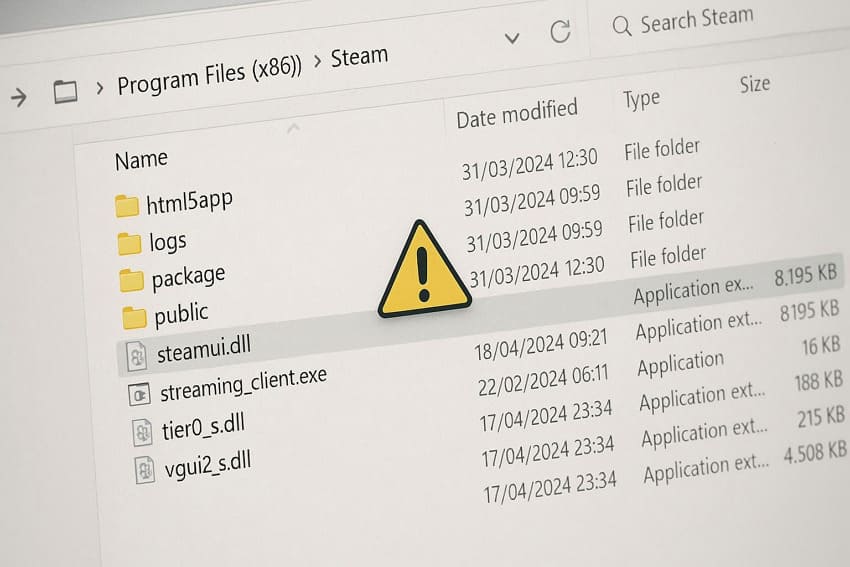
- Due to Hardware or System-Related Issues: Hard disk or RAM problems, and a damaged Windows system can also corrupt DLL files, such as steamui.dll. All these issues cause file errors, and Steam stops working because the DLL can’t be read correctly.
- Broken or Missing Windows System Files: If core Windows system files are damaged, Steam may not be able to load DLLs correctly. In such cases, System File Checkers (SFC) or DISM are suggested because they repair these system files.
- Incomplete or Interrupted Steam Updates: When Steam closes, your PC shuts down, or the internet drops while Steam is updating, SteamUI.dll files can remain partially updated. Thus, the very next time you start Steam, it might fail to load this incomplete file and display the error.
Part 3. Top 6 Proven Fixes for Failed to Load SteamUI.dll Error
A recurrent Steam failed to load SteamUI.dll error signals that the app needs a little cleanup and correction. Once you understand what breaks the startup process, apply the provided solutions and address the issue more effectively:
Way 1. Try Restarting and Elevated Launch
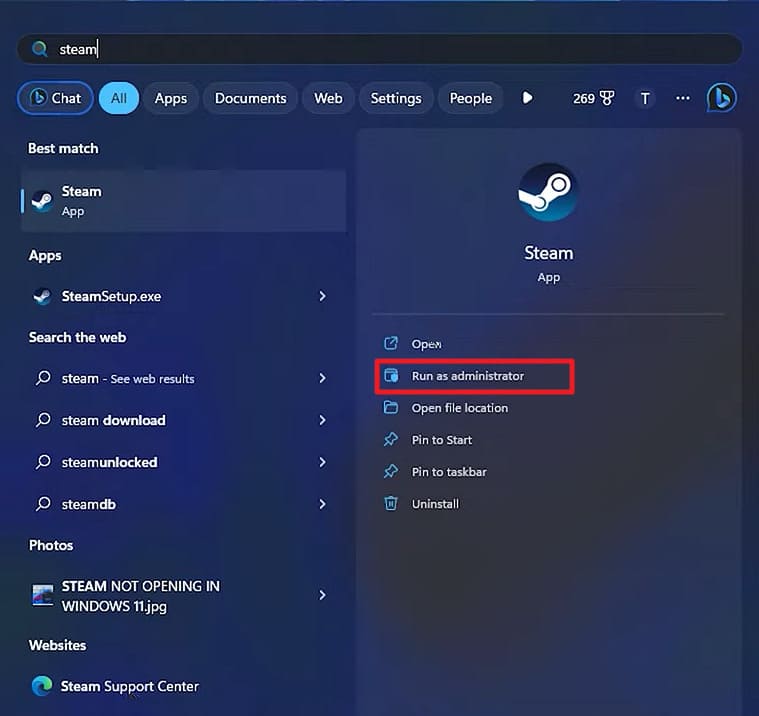
Soon, when you restart your PC, it clears out any stuck Steam processes or system locks that might be interfering. Whereas running Steam as an administrator ensures the application has complete access to all essential files, including SteamUI.dll. To resolve the error without any complexity, follow the guided tutorial and get sorted:
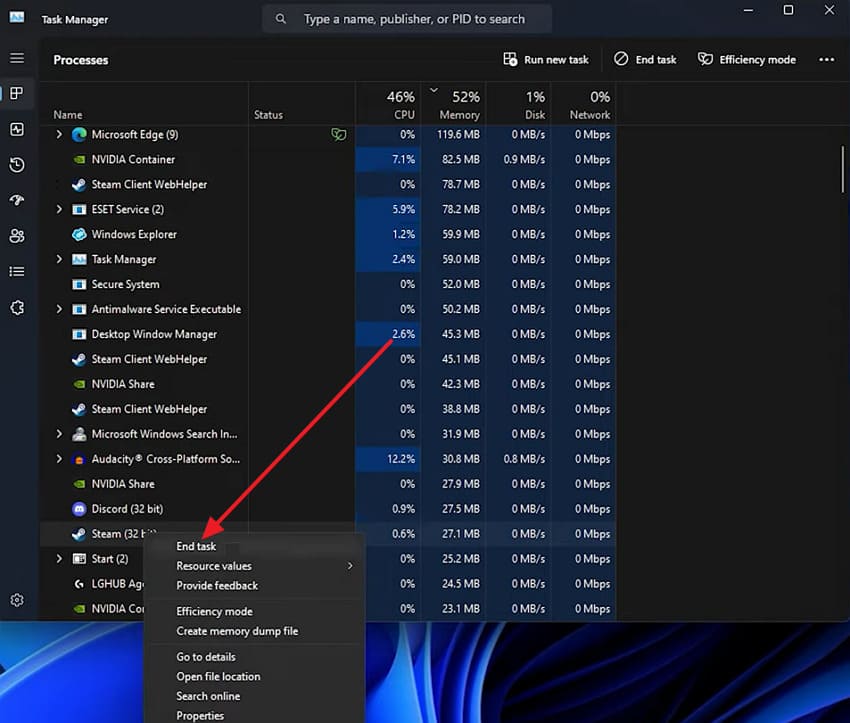
Step 1. Access Task Manager, locate the "Steam" app, and right-click it to choose the "End Task" option.
Step 2. Next, search for Steam and press the "Run as Administrator" option to restart it without an error.
Way 2. Force Steam to Redownload DLLs by Removing Corrupt Files
Removing the SteamUI.dll files after corruption forces Steam to automatically download fresh, uncorrupted versions from its servers. This helps not only restore the SteamUI components but also prevents crashes caused by other potentially damaged files. For more clarification, adhere to the stepwise manual and force Steam to download the proper DLL files:
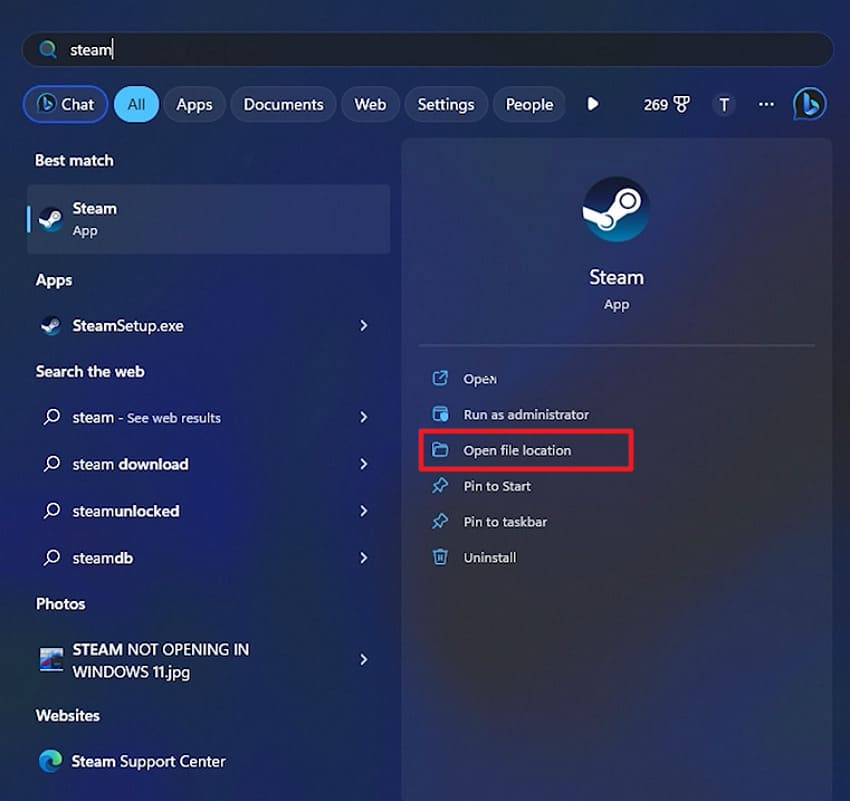
Step 1. First, make sure Steam is completely closed, then search for Steam and press the "Open File Location" option.
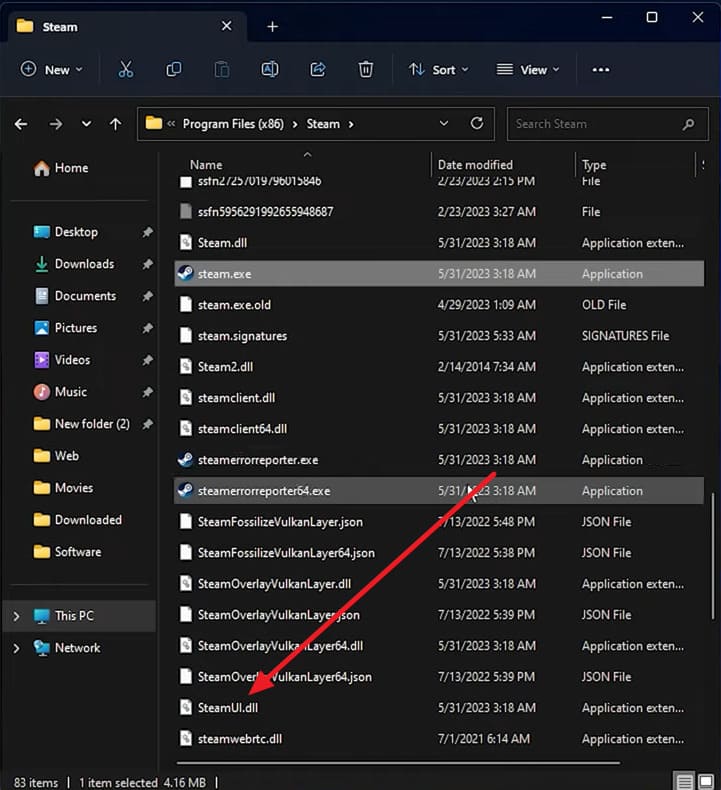
Step 2. Once the Steam folder is opened, navigate to the "SteamUI.dll" file and hit the "Delete" key. Move forward, relaunch the Steam app, and it will automatically redownload the missing DLLs and other required files.
Fix 3. Restore Normal Client Version (No Beta)
Beta versions of Steam often include experimental features or updates that are not fully stable. These builds can unintentionally break critical files, including SteamUI.dll, causing load failures. Once you opt out of the beta program, you ensure that Steam runs on the stable, fully tested version. To proceed, simply follow the given guidelines and learn how to restore the normal client version:
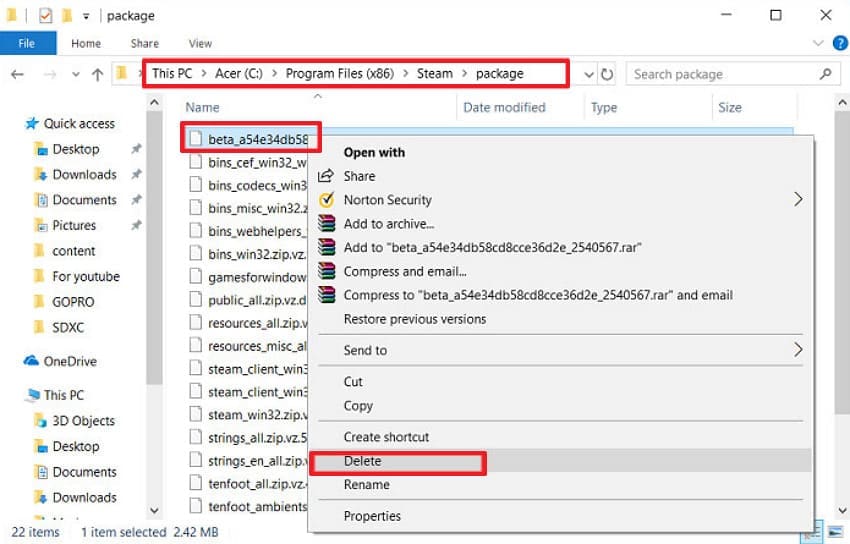
Instructions: At first, open File Explorer, navigate to your Steam directory, and locate its package folder. Once found, right-click a file named Beta and then select the "Delete" option from the drop-down menu. After this, reboot your computer to restart Steam, and the necessary Steam files will download automatically.
Fix 4. Check and Reinstall Visual C++ Redistributables
Steam relies massively on Microsoft Visual C++ libraries to run essential components, such as SteamUI.dll. When these redistributables are missing or corrupted, Steam might fail to launch, displaying the dreaded error. Therefore, repairing and reinstalling them ensures all necessary runtime libraries are correctly installed, improving the app’s capabilities. For a deeper software-level fix, explore the given tutorial and reinstall Visual C++ Redistributables:
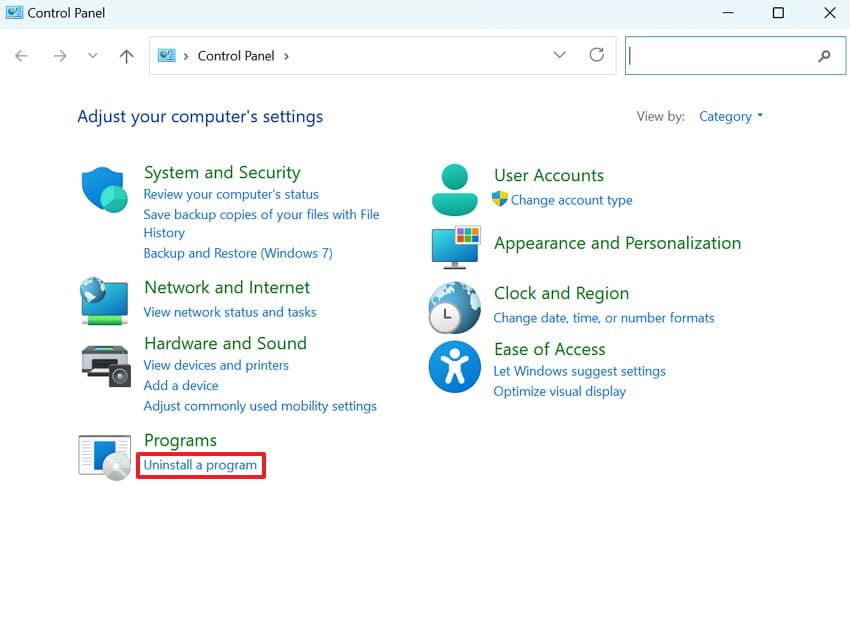
Step 1. Initially, locate the Control Panel, then click the "Uninstall a Program" option under the Programs section.
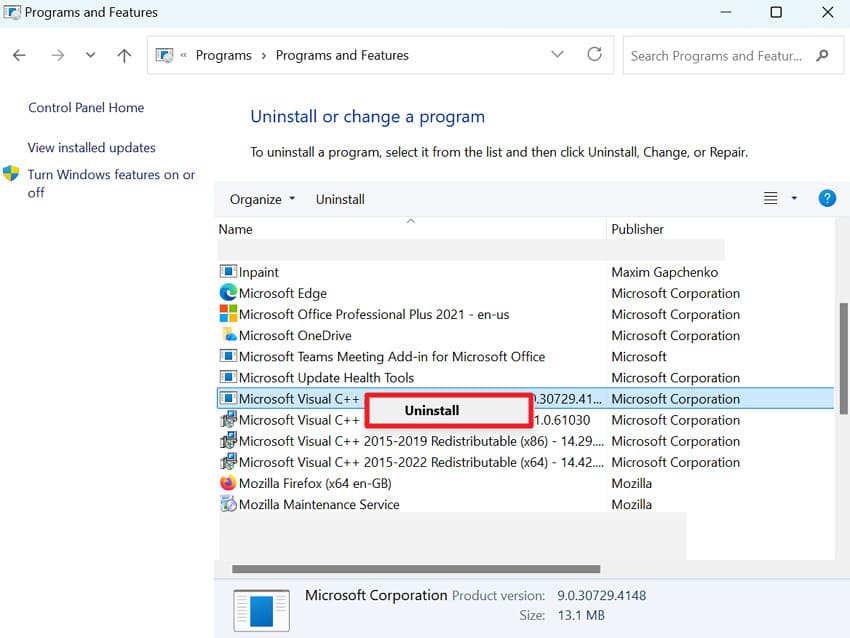
Step 2. Now, check all "Microsoft Visual C++ Redistributable" entries; if any suspicious entries persist, plan to reinstall it. Right-click the entry, press the "Uninstall" option, and click "Yes" in the prompt window for confirmation.
Step 3. Once uninstalled, visit the official Microsoft site and install the latest supported Visual C++ redistributable entries.

Fix 5. Clear Download Cache for Steam File
One of the effective ways to resolve the failed to load SteamUI.dll error is by clearing corrupted or incomplete cached files. With the removal of these files, Steam is forced to refresh and rebuild its core data, allowing the DLLs to load correctly. Impressively, this method doesn't delete installed games or save progress, yet improves client stability. To proceed, follow the guidelines and clear the download cache for Steam files:
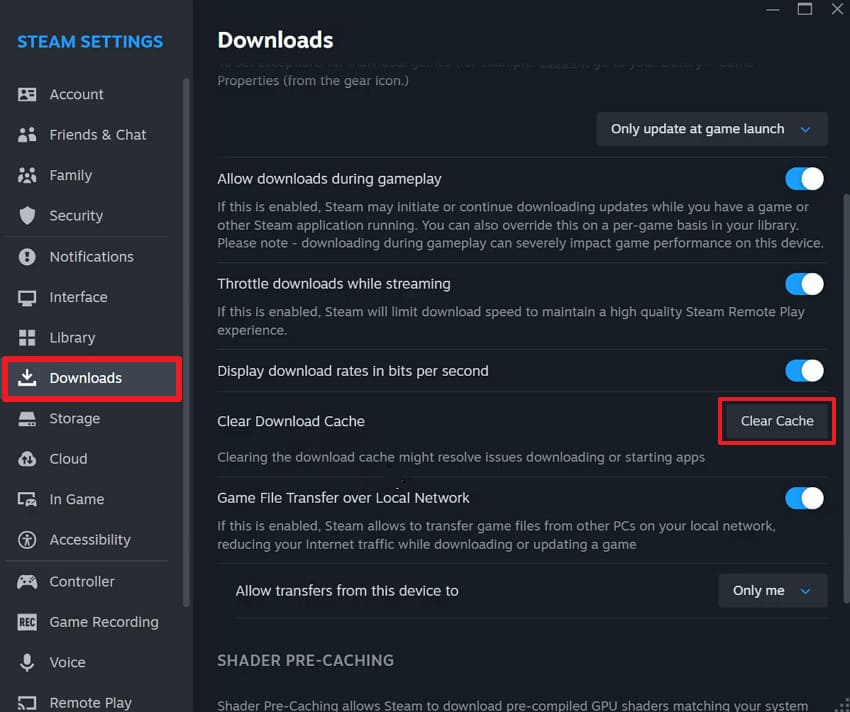
Instructions. Enter your Steam Settings, locate the "Download" option, and click on the "Clear Cache" option. Once done, press the "OK" button in the confirmation window to proceed with the task.
Fix 6. Repair System Files with SFC/DISM
Sometimes, the root cause isn’t Steam itself but corrupted Windows system files that prevent DLLs from loading. The SFC and DISM tools scan and repair critical system files at the operating system level. Hence, running these tools ensures Steam functions properly, fixing errors that manual Steam repair cannot address. Read the instructions and repair system files via SFC/DISM scan to overcome the Steam failed to load SteamUI.dll error:
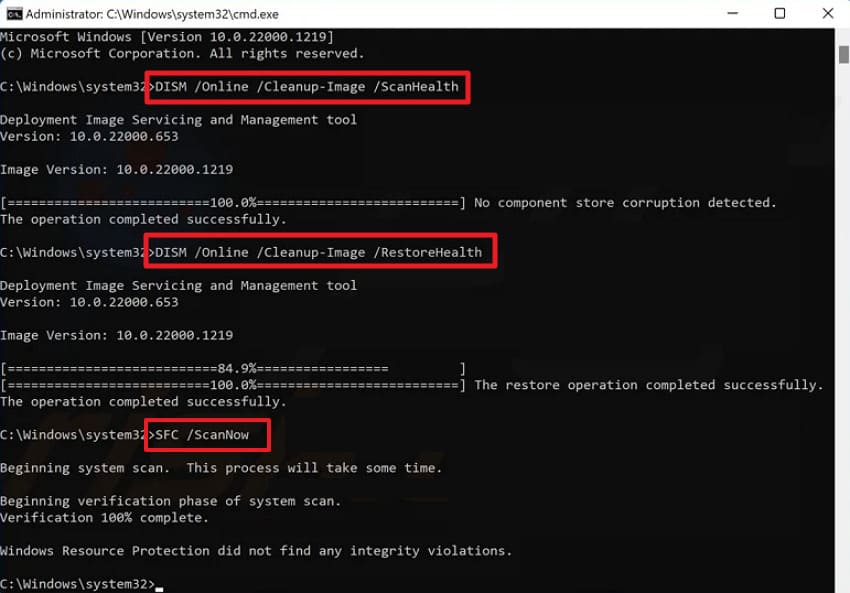
Instructions. To begin, run Command Prompt as an administrator, then type "DISM /Online /Cleanup-Image /ScanHealth" and press Enter. Once completed, run "DISM /Online /Cleanup-Image /RestoreHealth," then wait for the command to finish. Next, type "sfc /scannow" and press Enter, then restart your PC to check the Steam app again.
Pro Tip. Fix SteamUI.dll Errors Quickly by Repairing Corrupted Steam Files
Properly fixing the "failed to load SteamUI.dll" error usually means repairing corrupted Steam files, and Repairit knows its job well. It's a professional data-repair tool that can help when corruption also affects your game documents, screenshots, or other related files. In this context, you first let Steam redownload its own DLLs and client files, then use Repairit to fix any damage.
The platform is designed to address many types of corrupted files in one place, including videos or documents of different formats. If a Steam crash or disk issue corrupts many files at once, the program’s batch repair allows you to load multiple documents simultaneously. This feature is valuable when you have a complete folder of project files that stopped opening after the same incident.
Key Features

-
Handles Steam File Damage: Fixes Steam-related files affected by update interruptions, crashes, or file system inconsistencies.
-
Repairs Common Steam Content: Restores corrupted Steam downloads, recorded gameplay files, screenshots, and local data files.
-
Multiple Repair Levels Available: Uses standard repair for mild corruption and deep repair for heavily damaged Steam files.
Simple Guide to Repair Corrupted Steam Files via Repairit
To completely restore Steam's stability and prevent repeated errors, follow the detailed guidelines below for corrupted Steam files:
Step 1. Access the Document Repair Tool to Get Started
At first, access the "More Types Repair" tab, then click the "Start" button for the Document Repair tool.

Step 2. Insert Corrupted Steam Files for Repair
After this, press the "+Add" button to insert all the corrupted or broken Steam files into the tool.

Step 3. Start Repairing Your Damaged Steam Files
Now, proceed to the "Repair" button and start repairing all the added Steam files. When the action is completed, preview the repaired Steam files and save them.

Repair Corrupted Files Due to Steam Error
 Security Verified. Over 7,302,189 people have downloaded it.
Part 4. When to Seek Official Support or Professional Help
One should immediately seek professional help if every possible fix is tested and the Steam fails to load the SteamUI.dll error persists. At this point, the problem is likely caused by corrupted Steam files, Windows system issues, or permission-related conflicts. Simply, go to the Steam Support and open a support ticket, including screenshots of the error and a list of tested fixes.
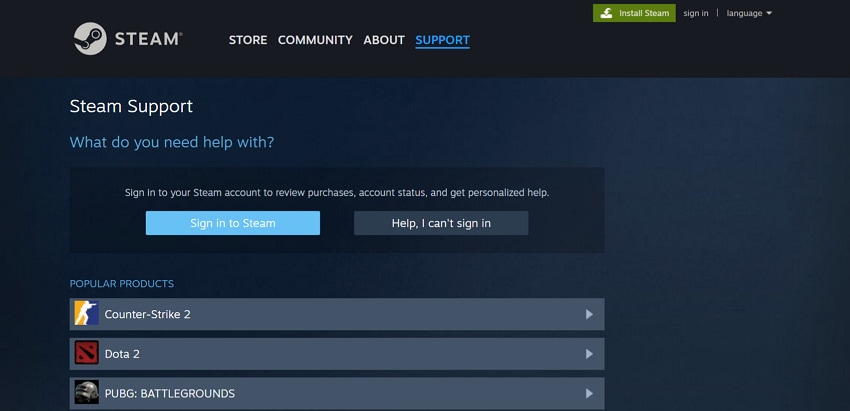
In fact, you should also contact official support or a local PC technician if you notice symptoms such as missing DLL files. Moreover, when the SFC/DISM reports system file problems that might point to hardware or deep Windows corruption. Even in cases where you're not comfortable editing folders, using Command Prompt, or reinstalling Windows. Finally, a professional handles the diagnosis and repair, ensuring safety and preventing data loss.
Conclusion
In conclusion, a sudden "failed to load SteamUI.dll" error requires more than basic fixes like scanning for corrupted files or missing DLLs. These manual methods can be time-consuming and confusing when the issue continues. Therefore, Steam's built-in repair tools and official fixes should be used to restore missing DLL files. Repairit should be used to repair other corrupted Steam files, such as damaged game data, screenshots, or media files, after crashes.
Frequently Asked Questions
-
1. Will deleting SteamUI.dll delete my games?
Not at all, deleting the SteamUI.dll file or other specific files does not remove your installed games. The game stays intact, unless you delete the "steamapps" folder from File Explorer. However, Steam will automatically redownload the necessary SteamUI.dll files upon relaunching the app. -
2. Does this error happen only on Windows?
While most reports occur on Windows, the "SteamUI.dll" error is linked to missing or corrupted DLL files, which is a Windows-specific issue. On the other hand, Mac and Linux users might experience similar startup errors, but with different file dependencies. -
3. Does this error affect all Steam accounts on my PC?
No, the error is related to the installation files and system environment, not individual user accounts. This means that while the error can prevent Steam from launching for any account on that installation, your progress for each account remains intact. Thus, addressing the SteamUI.dll issue restores access for all accounts without affecting your game libraries or preferences.




