
Windows Explorer is an essential part of the Windows operating system, providing the interface for navigating files, folders, and drives. However, it can sometimes become unresponsive, which can disrupt your workflow and cause frustration. It can be caused by various factors, including system freezing or crashing.
The good part is that you can fix this issue by adopting the approaches discussed in this article. This guide covers 8 efficient fixes for the "File Explorer not responding" issue. Furthermore, if your file becomes corrupted, you can repair it with the reliable tool discussed here.
Table of Contents
Part 1. File Explorer Not Responding? Here Are the Common Causes
The "File Explorer is not responding" error is a Windows issue where File Explorer freezes, stops responding to clicks, or shows the "Not responding" status. When this error occurs, File Explorer is still running but gets stuck at some point, which takes time to respond. Consequently, let's explore what the root causes of this error are:

- Large File and Folders: When a folder contains thousands of items or large files, the PC uses a lot of memory, which can cause the specific error.
- Outdated or Corrupted Drivers: If the drivers are obsolete, buggy, or corrupted, File Explorer can misbehave because they make a connection with hardware.
- Malware or Virus: In case your device gets a virus or malware attack, it may slow down or destabilize the process in File Explorer.
- Faulty Hard Drive: If the drive has bad sectors or other physical problems, reading file data can become slow or fail instantly.
- Conflict with Third-Party Software: Some programs that work directly with Explorer are poorly written and can cause it to hang or crash.
Part 2. Step-by-Step Fix for Solutions Explorer Not Responding
To resolve the "Windows Explorer not responding" problem efficiently, follow these detailed methods listed below:
Solution 1. Restart File Explorer in Task Manager
Restarting File Explorer is fast, safe, and often fixes temporary glitches without restarting the whole computer. The Task Manager is built into your Windows, saving you from opting for third-party tools for restarting File Explorer. This method fixes freezes caused by minor software glitches, making it a quick and ideal option. So, let's explore a detailed guide to fix the "Explorer not responding" error:
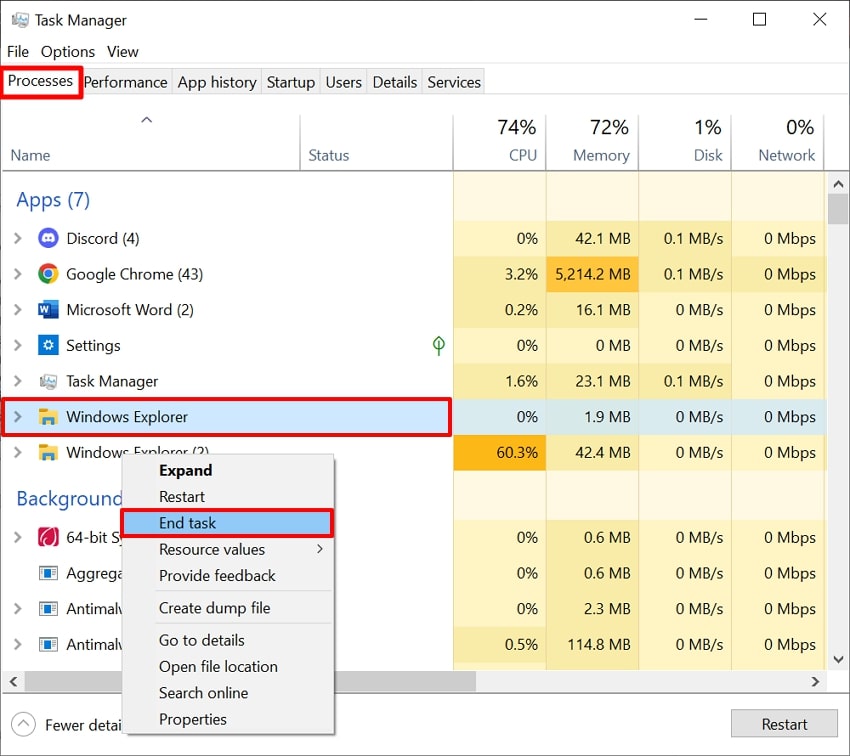
Step 1. Open the "Task Manager" using the "Ctrl + Shift + Esc" combination if your File Explorer freezes. Upon entering the interface, access the "Processes" tab, right-click the "Windows Explorer" option, and hit "End Task."
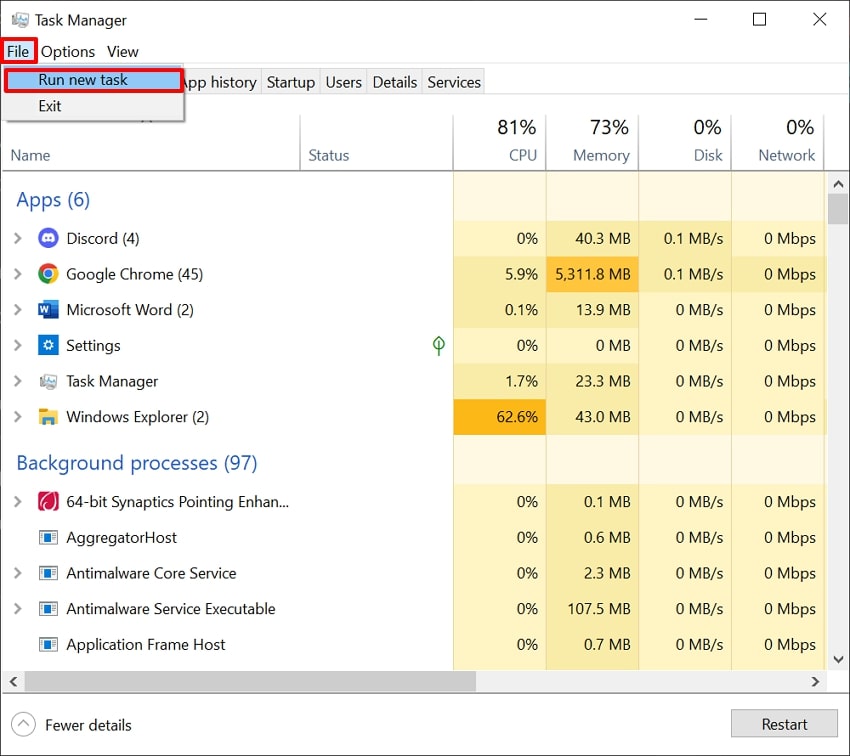
Step 2. Within the same window, navigate to the "File" menu and choose the "Run New Task" option.
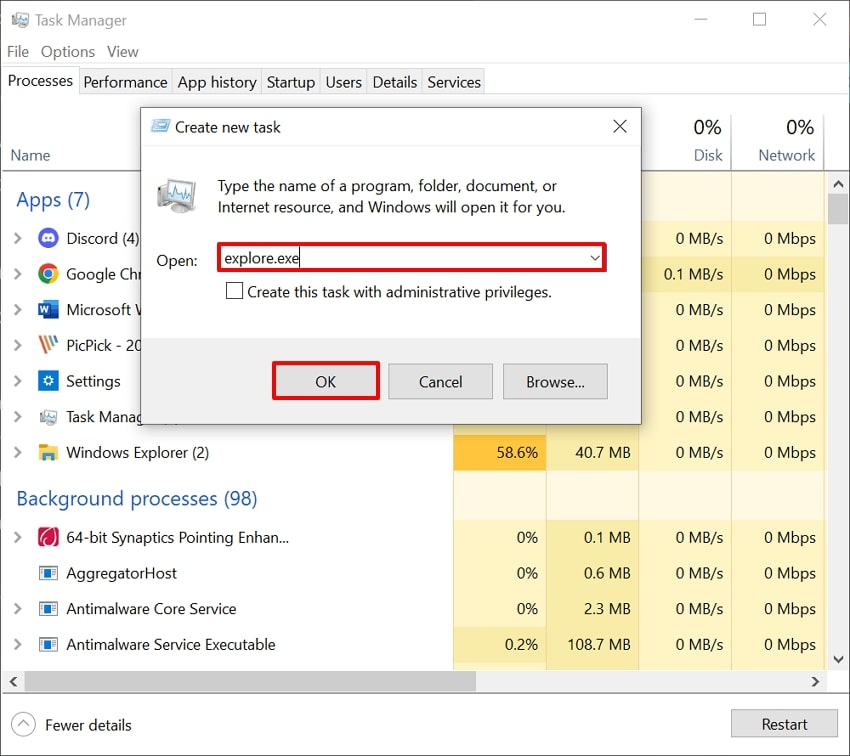
Step 3. Here, enter "explore.exe" in the "Open" tab and hit the "OK" button to start the "File Explorer" again without restarting your computer.
Solution 2. Restart File Explorer Using CMD
To fix the "File Explorer not responding Windows 11" error, try restarting File Explorer from the command line. This approach gives you a strong reset that forces Explorer to close even when it is severely frozen. It also works well for batch files or administrative scripts, allowing you to quickly refresh Explorer whenever needed. After reviewing what this method can offer, explore the guide below to apply it properly:
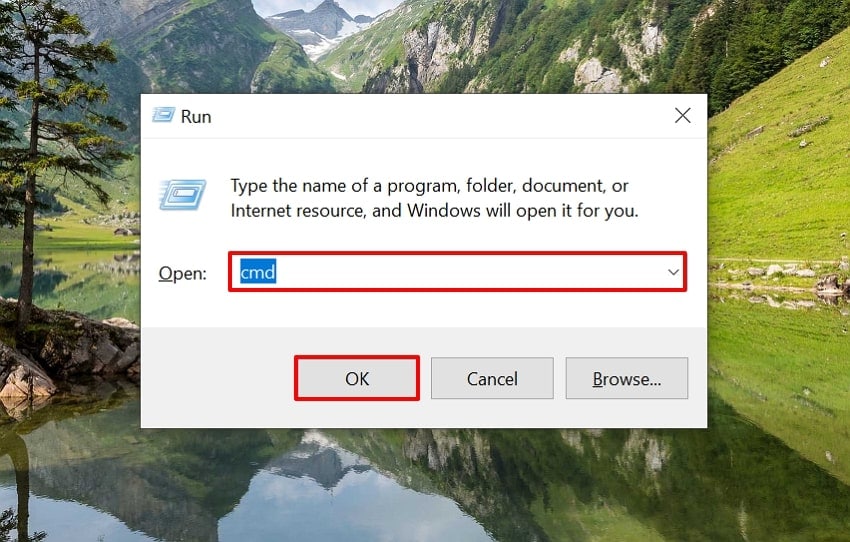
Step 1. Open the Run program using the "Windows + R" keys on the keyboard. Enter the "cmd" command in the pop-up window and hit the "OK" button.
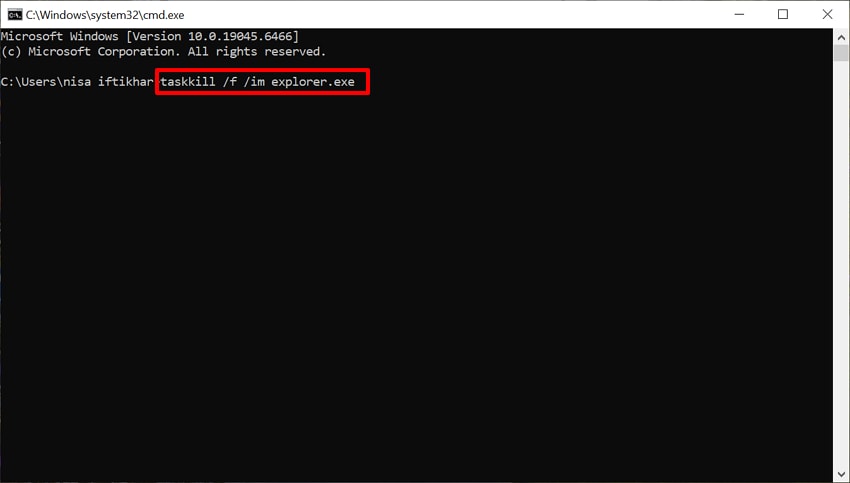
Step 2. Upon entering CMD, enter the "taskkill /f /im explorer.exe" command and hit the "Enter" button to restart the File Explorer.
Solution 3. Clear File Explorer History and Reset Options
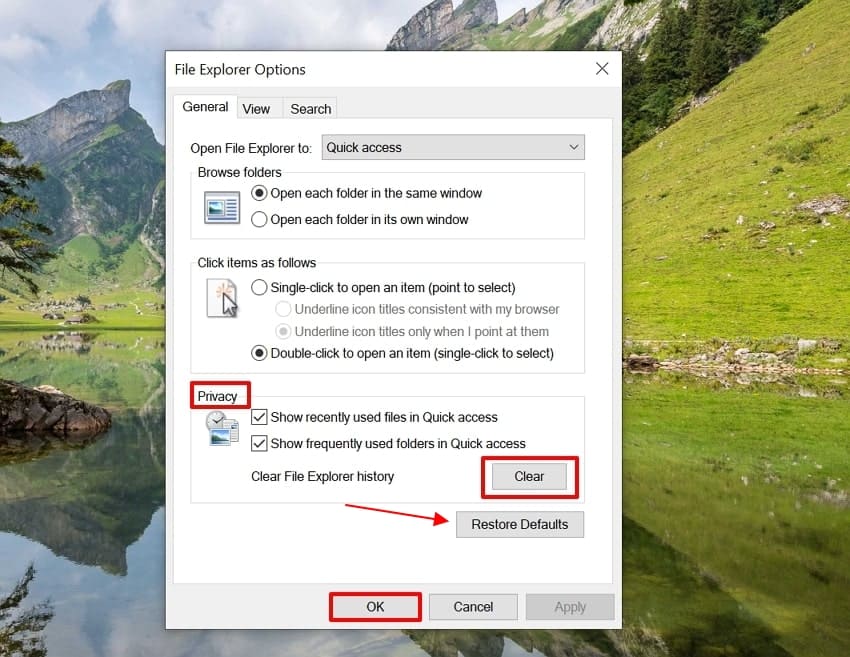
Clearing File Explorer history and resetting its options is used to remove cached data and custom settings. By deleting the cache files, including "Recent files" and "Frequent folders," the File Explorer will be lighter and work smoothly again. Moreover, it is a low‑risk troubleshooting step; thus, have a look at the detailed guide to fix the "Explorer not responding" error:
Instructions. Initiate by searching for the File Explorer Options app in the Windows search bar. As a window opens, access the "General" tab, then select the "Clear" button in the "Privacy" section. Then hit the "Restore Defaults" and hit "OK" to save the changes.
Solution 4. Run System File Repair (SFC and DISM)
The "SFC" and "DISM" methods are helpful in fixing errors like "Windows Explorer not responding." Both SFC and DISM are official services available within Windows that work without third‑party software, making them safe and suitable. Moreover, you can run both tools multiple times to fix multiple system errors in a single go. So, let's explore a detailed guide below to accurately fix the error using these commands:
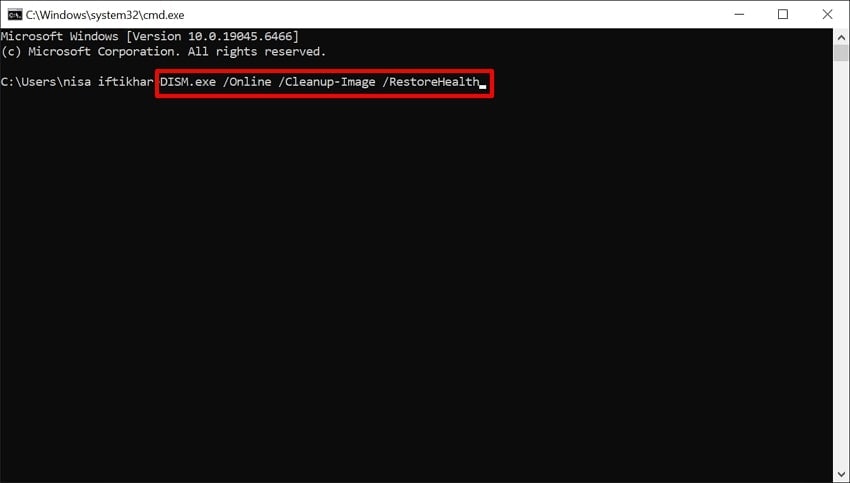
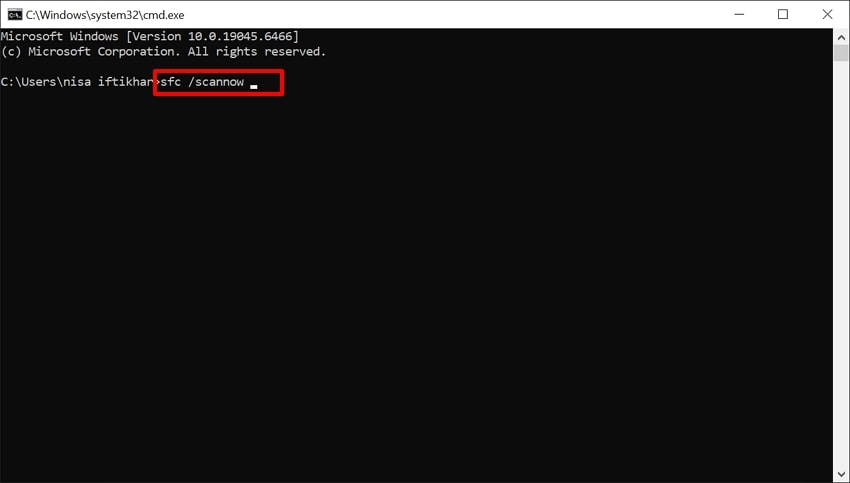
Step 1. Open CMD and enter the "DISM.exe /Online /Cleanup-Image /RestoreHealth" command to run the DISM setup. Wait for this process to complete and check if your File Explorer works properly.
Step 2. Conversely, you can try using the "sfc /scannow" command across CMD to initiate the SFC scan process. If it says, "It found and repaired files, restart your PC," restart to apply all fixes.
Solution 5. Check and Clear System Space
Checking and clearing system space is helpful because filled storage often slows down overall performance. Removing temporary files, caches, and other unnecessary data reduces the load File Explorer must handle during everyday tasks. Limited free space can also interrupt Windows updates and prevent apps from working properly, so regular cleanup is essential for stable performance. If you want to use this method, explore the following guide.
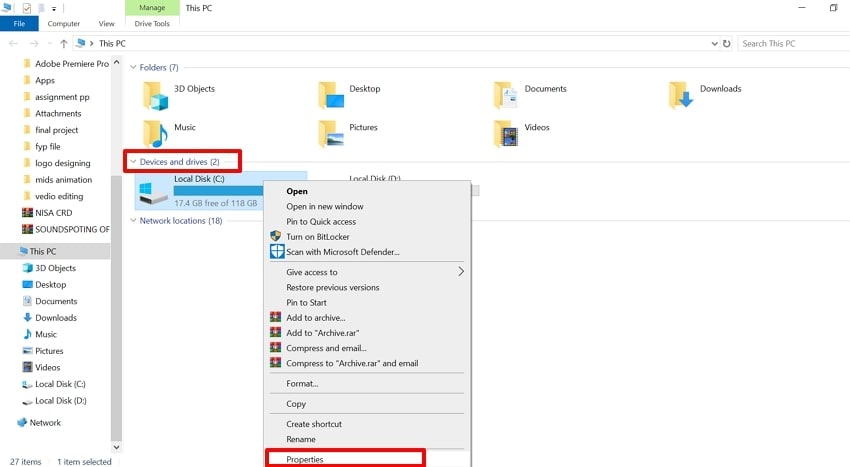
Step 1. Open the "The PC" or "My Computer" and navigate to the "Devices and drives" section. Here, choose Local Disk (C), right-click, and choose "Properties."
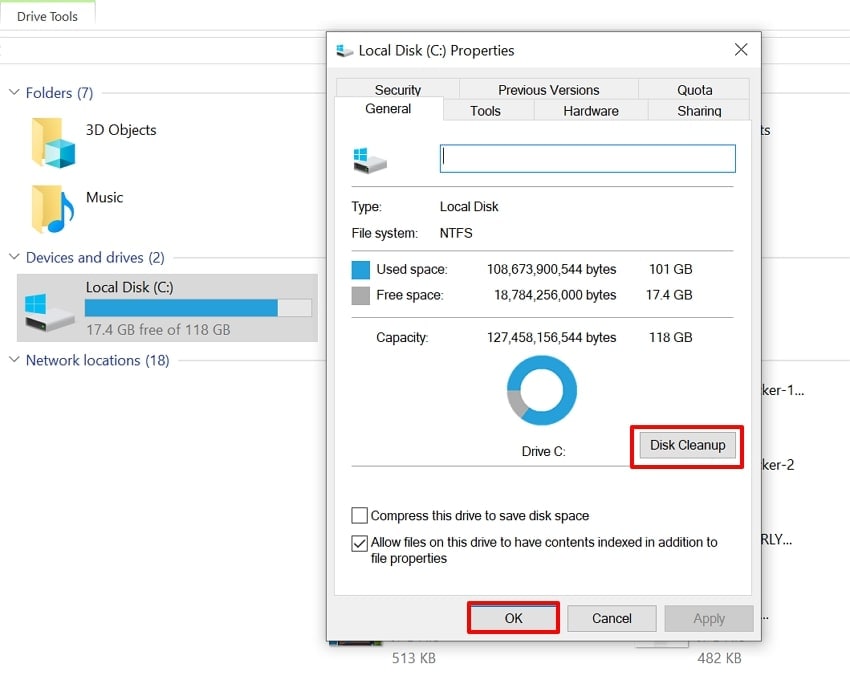
Step 2. Examine the storage space and click on the "Disk Cleanup" button to clean the extra system cache data from the device. Once done, try starting the "File Explorer" again to check if it freezes or not.
Pro Tip. Fix Explorer Fast: Repair Damaged System Files with Repairit
There is a student preparing a final year project presentation on his Windows laptop the night before the exam. However, File Explorer keeps freezing whenever he opens his "Projects" folder, and suddenly the file becomes corrupted and inaccessible after several forced starts. In this situation, we recommend using the Repairit tool because it can repair multiple corrupted files in only a few seconds and restore them to a usable state.
This tool allows you to repair your file format by simply adding the corrupted files. It needs no technical experience and offers an intuitive interface, which makes it an excellent choice for beginners. Its ability to manage complex documents makes it a perfect repair utility for a larger audience.
Key Features

-
Accurate Results: Repairit effectively repairs corrupted system files while maintaining accuracy in the file structure.
-
Engineering File Repair: The platform’s ability to deal with complex files while rebuilding layers, metadata, and previews helps users repair their engineering file formats.
-
Mac Files Repair: You can easily repair files from Pages, Numbers, and Keynote across Repairit while retaining the layout.
An Extensive Guide on How to Use Repairit for File Repair
If you have damaged your system files, leading to the "File Explorer not responding Windows 11" error, follow the given guide to repair it:
Step 1. Deploy Repairit and Access Document Repair
Upon entering the tool, click on the "More Type Repair" tab from the left panel on the main interface. After this, select the "Document Repair" in the respective section. Afterwards, click the "Add" button to insert your corrupted files and start your repair procedure instantly.

Step 2. Initiate the Repairing Procedure with the Repairit Tool
Upon adding the damaged files, hit the "Repair" button in the bottom right corner to initiate the repair procedure.

Step 3. Preview and Render the Repaired Outcome to the Device Folder
Once the respective files are repaired, hit the "Preview" button to examine the repaired file. Upon ensuring its accuracy, click on the "Save" button to get it exported to its designated folder.

Repair Corrupted Files Now
 Security Verified. Over 7,302,189 people have downloaded it.
Conclusion
Summing up, many people can now fix File Explorer not responding by using appropriate methods. This article has covered the most efficient methods along with their detailed guides to fix the error instantly. When dealing with this error, if you find your system files corrupted, use Repairit for efficient repairs. Users can even batch process damaged files and preview the generated outcome to ensure complete accuracy.
FAQs
-
Q1. What are the most common causes of Explorer freezing?
The most common causes include a corrupted File Explorer cache and many bugs encountered with third-party apps. You can easily fix the "File Explorer is not responding" error by clearing all cached data and history involving the File Explorer. -
Q2. Can I restart File Explorer without restarting my computer?
Yes, the Task Manager service can be used to create a new task to run the File Explorer. This helps in restarting the File Explorer without restarting the entire device from scratch. -
Q3. What to do if your file gets corrupted after multiple file explorer errors?
If your files get corrupted while encountering this error, we recommend using a tool like Repairit. This efficient tool is capable of repairing many file types while ensuring complete accuracy.




