
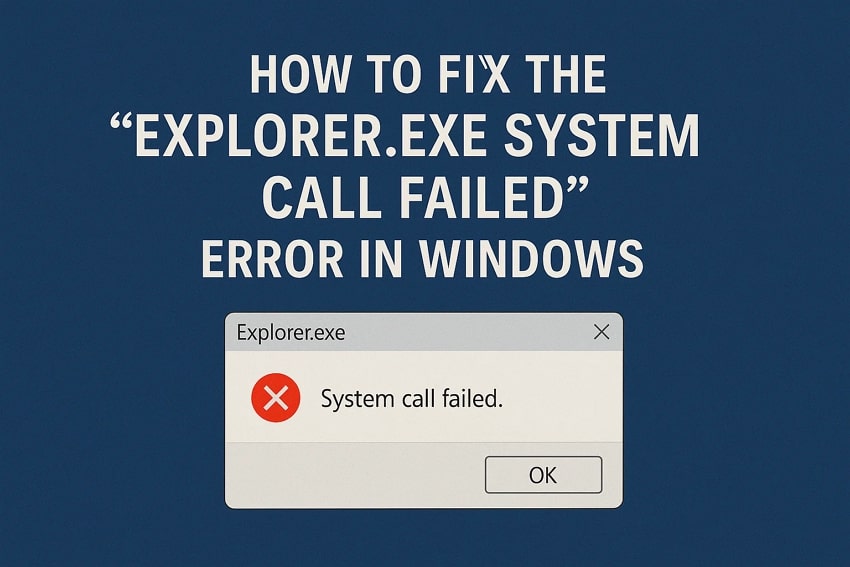
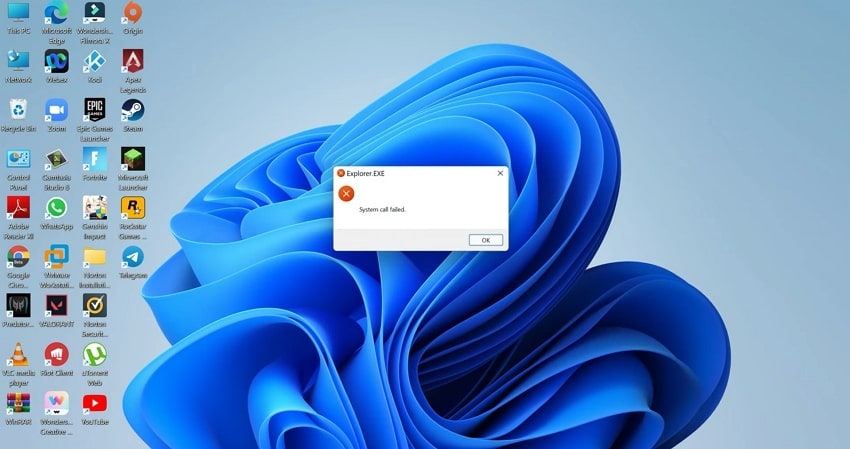
Windows users sometimes face the “Explorer.exe System Call Failed” error, which may block access to files, folders, or even the desktop. This fault can be observed as a result of corrupt system files and incompatible installed software. Users may notice sudden issues once this error shows up, as folders and essential desktop elements stop responding in routine situations.
Luckily, there are many ways to repair the normal Windows functioning without losing important data. In this guide, you'll find simple methods and an advanced repairing tool to address the error and get Windows Explorer running again.
Table of Contents
-
- Method 1. Restart the Explorer.exe Process With Task Manager
- Method 2. Change the Misconfigured File Explorer Options
- Method 3. Clear File Explorer Cache
- Method 4. Use the SFC & DISM Commands
- Method 5. Perform a Clean Boot
- Method 6. Do a System Restore
- Method 7. Initiate a Malware Scan
- Method 8. Perform Windows Update
Part 1. What the “Explorer.exe System Call Failed” Error Means
The “Explorer.exe System Call Failed” error means File Explorer asked Windows for a low-level service, and that request failed. Once the kernel-level request fails, normal shell features like opening folders, taskbar usage, and desktop interaction can break. This error usually indicates corrupted system files, unstable or outdated drivers, or conflicting background software interrupting Explorer’s communication with Windows.
The error matters because it directly affects Windows use and makes the system frustrating during important work. It also signals deeper problems in the system kernel or installed software that should be fixed to avoid crashes, freezes, and possible data loss.
Why the Explorer.exe System Call Failed in Windows
Let’s examine the main reasons behind this error to understand how to fix the Explorer.exe System Call Failed in Windows.
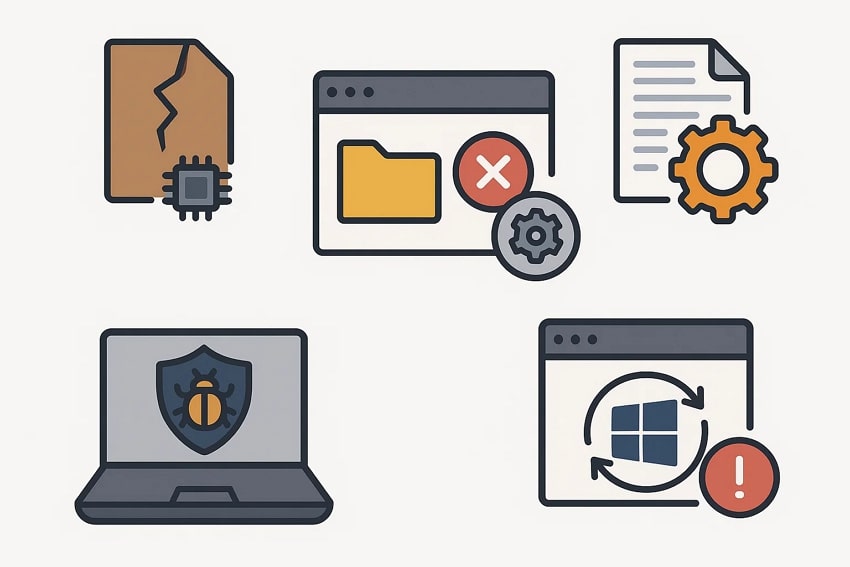
- System Corruption: Core Windows or Explorer files become damaged, so system calls from Explorer fail and trigger this error. Corruption may result from sudden shutdowns, bad sectors, or interrupted updates.
- File Misconfiguration: Incorrect registry entries cause Explorer to call the wrong handlers, which prevents basic shell operations. Misconfigurations often appear after manual tweaks, failed installs, or cleanup tools altering Windows settings.
- Software Conflicts: Third-party apps and security tools interfere with Explorer’s behavior, which blocks or hijacks system requests. Conflicts usually start after installing new programs or context-menu add-ons.
- Malware Infection: Malicious programs hook into Explorer or inject code that breaks safe communication with Windows. Moreover, infections can corrupt files, alter permissions, and disrupt system calls.
- Update Failure: Incomplete or buggy Windows or driver updates leave Explorer using outdated binaries that no longer match the system. This mismatch causes failed system calls and repeated errors until updates are fixed or reapplied.
Part 2. Fixing Explorer.exe System Call Failed - 7 Solutions to Try!
Now that we understand the causes, let’s look at the must-try methods to fix the Explorer.exe System Call Failed error and get Windows Explorer working again.
Method 1. Restart the Explorer.exe Process With Task Manager
Task Manager provides a built-in option to terminate and refresh the Explorer process, which controls the Windows desktop. This approach clears minor glitches and cached data without forcing a complete system shutdown. Moreover, the method works best for temporary errors that cause interface freezes but do not involve deep file corruption. Now, follow the steps below to fix the System Call Failed issue with this method:
Step 1. First, search for the “Task Manager” tool in the Windows Search and open it.
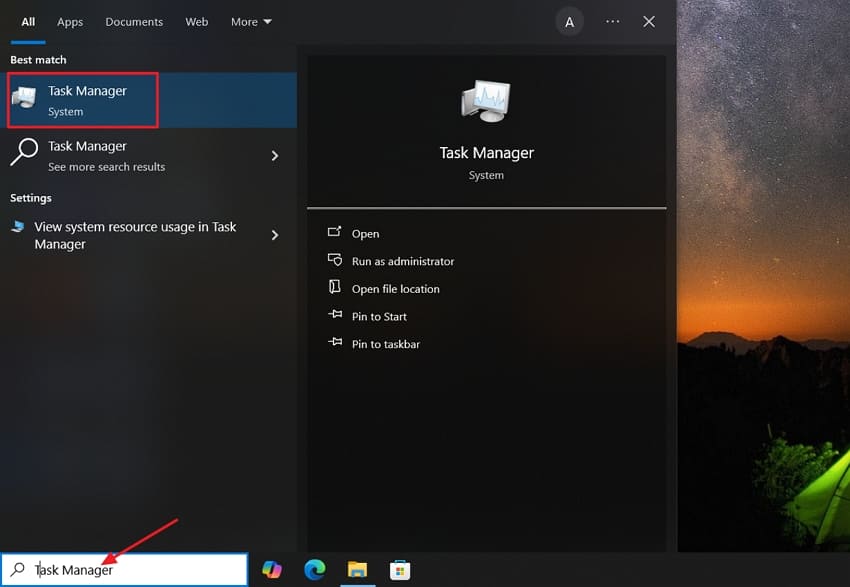
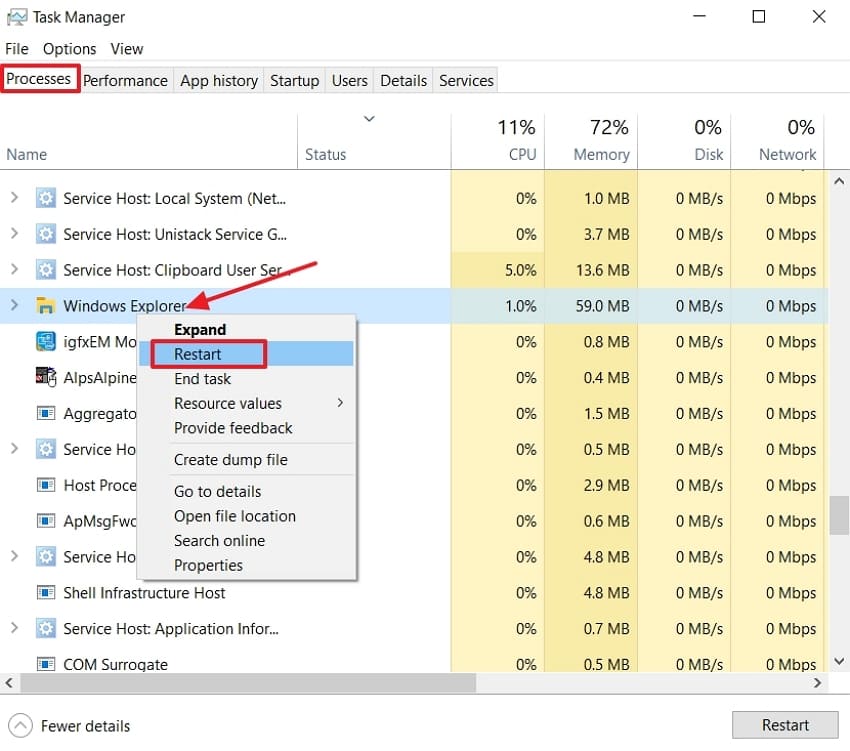
Step 2. Next, press the “Processes” tab and scroll down to locate the Windows Explorer. Right-click on it and tap the “Restart” button to restart the Windows Explorer.
Method 2. Change the Misconfigured File Explorer Options
This method is used to address the Explorer.exe System Call Failed error caused by incorrect preferences. These options control how folders open, how items display, and how Explorer communicates with core Windows components. Besides, configured settings reduce unexpected behavior, prevent repeated error messages, and help keep everyday navigation stable. Go through the steps below to see how this method works:
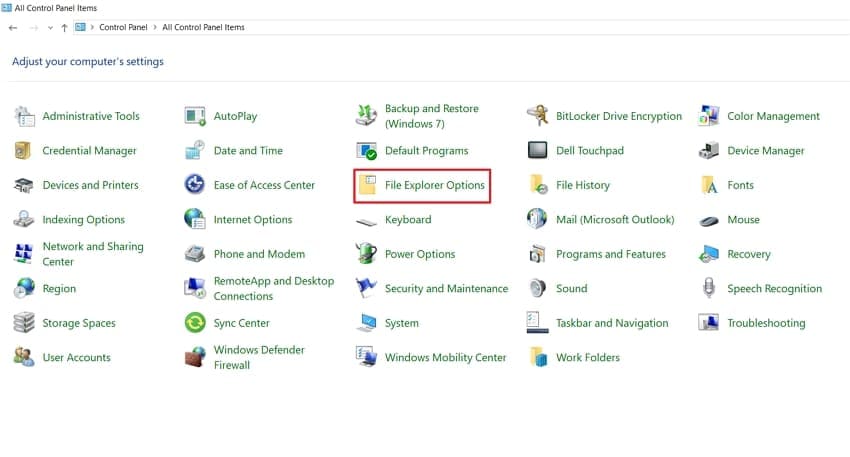
Step 1. First, open the Control Panel on your Windows PC and hit the “File Explorer Options” icon.
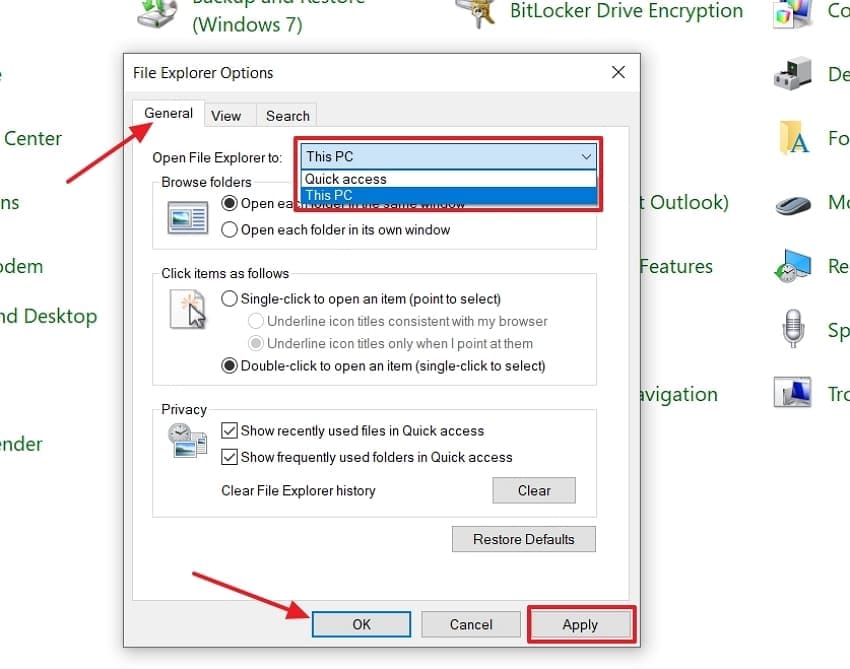
Step 2. Next, hit the “General” tab and choose the “This PC” option in front of the “Open File Explorer to” option. Then, hit the “Apply” button and press the “OK” option to apply and close the pop-up menu.
Method 3. Clear File Explorer Cache
File Explorer stores temporary data and cached information that can become outdated, corrupted, or large over time. This buildup often triggers the Explorer.exe System Call Failed message when Windows tries to read or use these problematic cached files. A clean cache removes outdated data, refreshes system calls, and improves the file management experience. Adhere to the instructions below to fix such errors with this method:
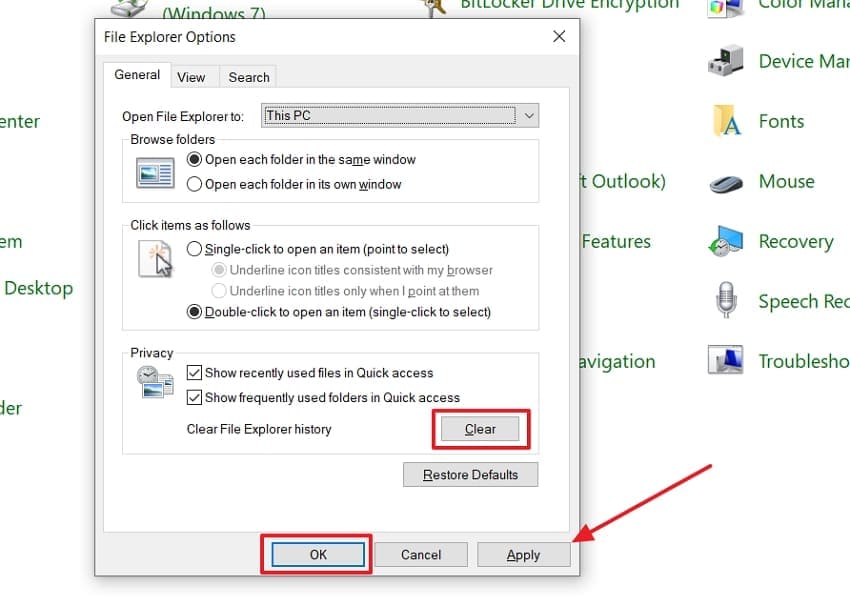
Instructions. First, access the “File Explorer Options” pop-up window from the Control Panel. Next, hit the “Clear” button beside the “Clear File Explorer History” option. Once done, hit the “Apply” button and press the “OK” option to apply this setting.
Method 4. Use the SFC & DISM Commands
System file repair tools offer a deeper way to address stubborn errors by targeting corrupted core components. These commands work at the operating system level, checking protected files for integrity issues that simple restarts cannot resolve. When underlying damage is detected, they replace broken system files with healthy versions, restoring stability and reliability. Follow the detailed steps below to see how to address this issue with these commands:
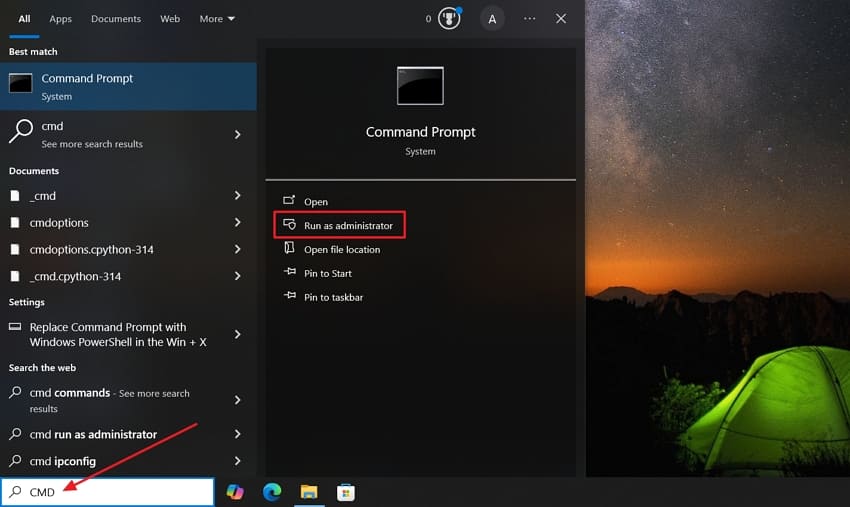
Step 1. Open the “Search Bar,” enter “CMD,” then choose the “Run as Administrator” option.
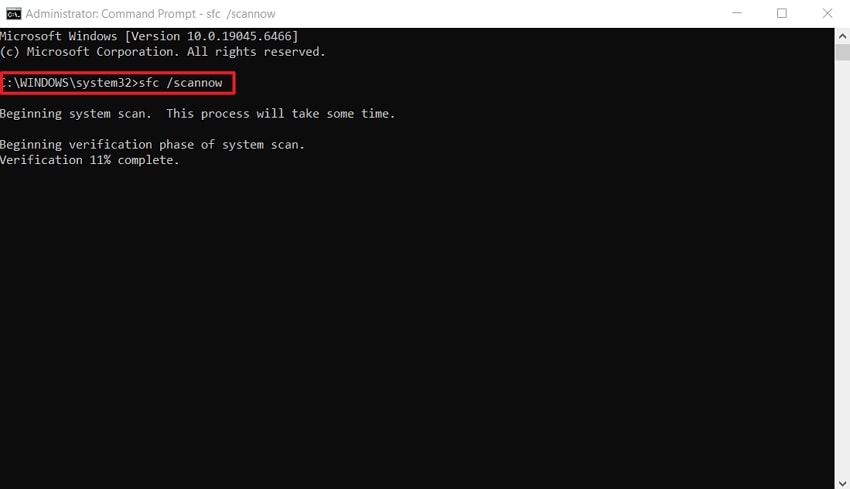
Step 2. Type “sfc /scannow” and press the “Enter” key to allow the system to scan the errors. Restart the PC and verify whether the error appears again.
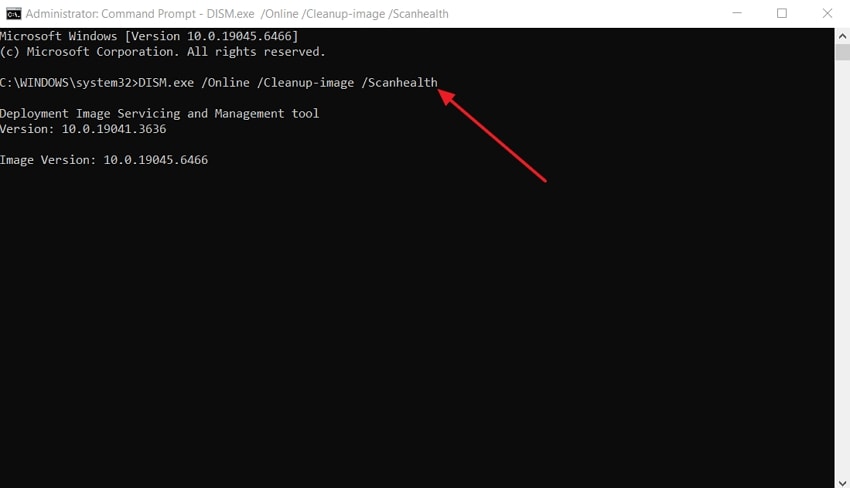
Step 3. If the problem appears again, type the “DISM.exe/Online/Cleanup-image/Scanhealth” prompt and hit the “Enter” key to scan the system image.
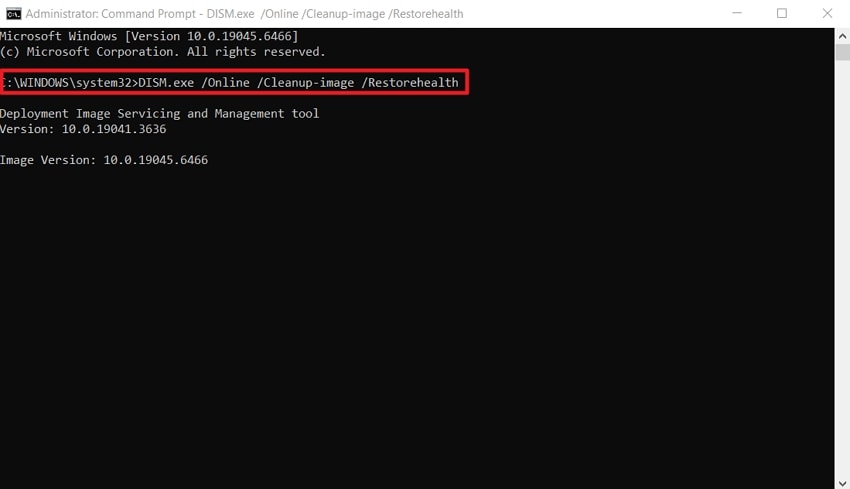
Step 4. Run CMD and enter the "DISM.exe/Online/Cleanup-image/Restorehealth” command in it. After that, hit the “Enter” key and restart the PC to check if the issue is fixed.
Method 5. Perform a Clean Boot
A clean boot approach focuses on starting Windows with only essential drivers active to isolate conflicts. This helps diagnose stubborn issues behind the Explorer.exe System Call Failed error when background programs interfere with normal system calls. By stripping away third-party processes, the system reveals whether hidden software clashes are causing instability. Look at the steps below to see how you can fix the error via this method:
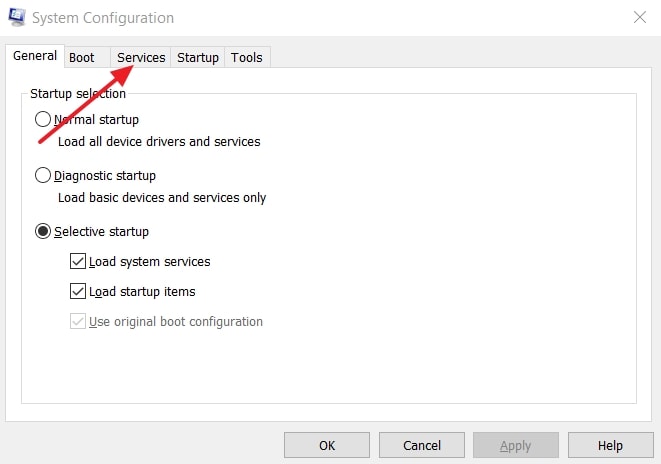
Step 1. Bring up the “System Configuration” window through Windows Search and switch over to the “Services” tab.
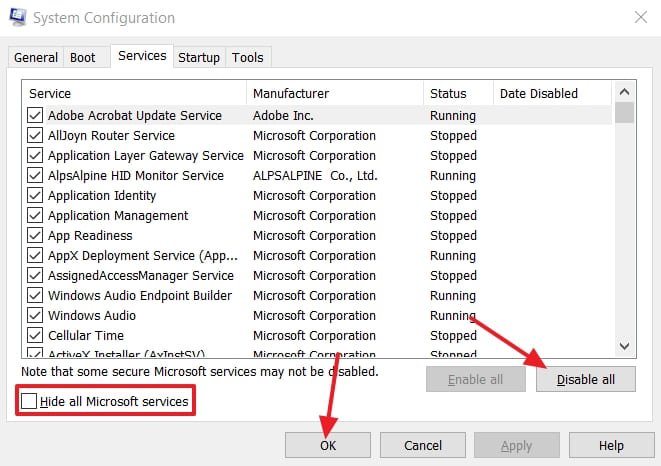
Step 2. Check the “Hide All Microsoft Services" box and click the "Disable All” button. After that, click the “OK” option and close the window.
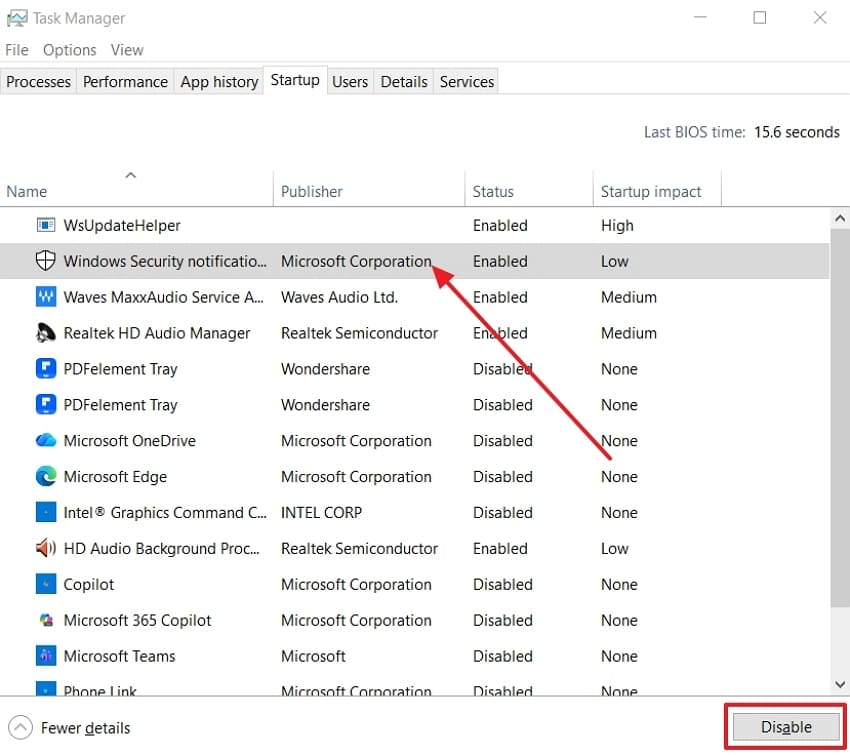
Step 3. Launch the Task Manager, switch to the “Startup” tab, then click each application and press the “Disable” button for all.
Method 6. Do a System Restore
System Restore can reverse recent system-level changes that started causing the Explorer.exe System Call Failed error. Before you proceed with this method, remember to back up your data to an external storage drive and avoid unintentional data loss. Furthermore, this precaution keeps important files safe if the chosen restore point reintroduces instability. Follow the steps below to remove this error by restoring the system state:
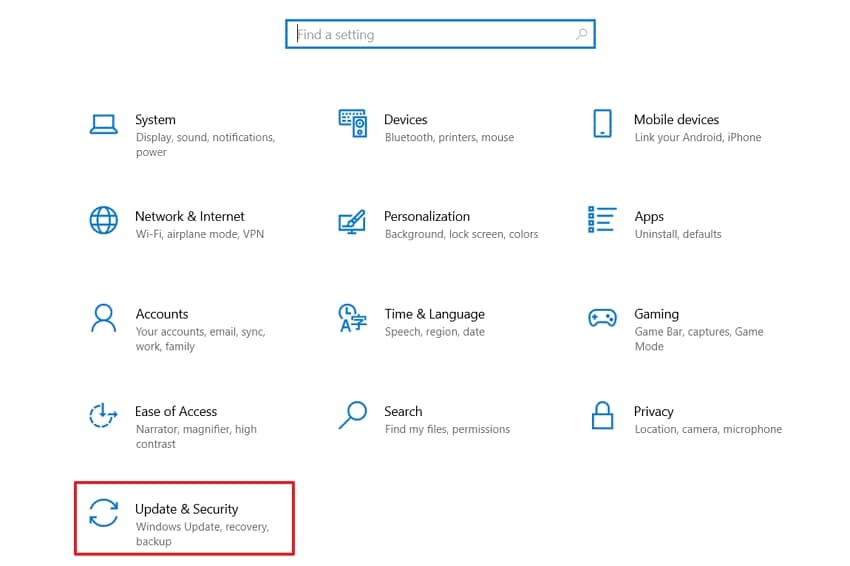
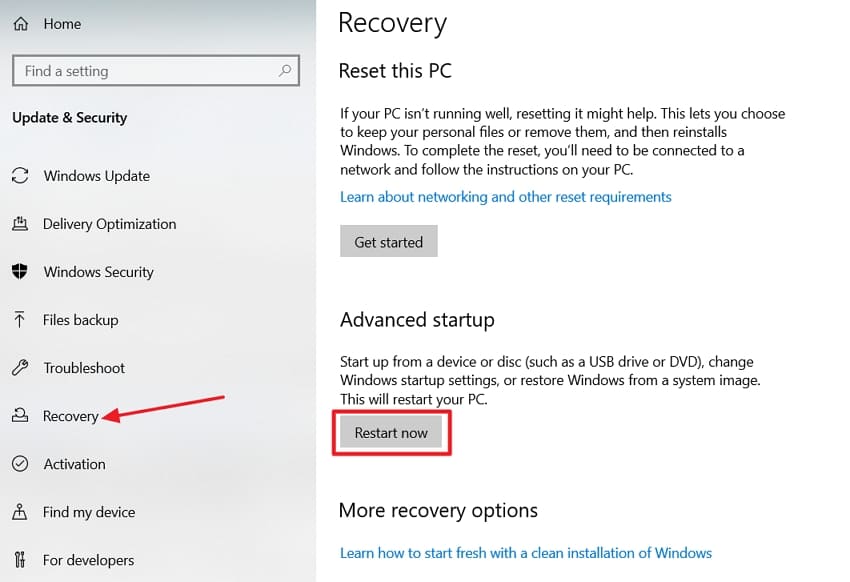
Step 1. First, open the “Windows Settings” and hit the “Update & Security” option in the left panel of your screen.
Step 2. Next, hit the “Recovery” option and press the “Restart Now” under the “Advanced Startup” section.
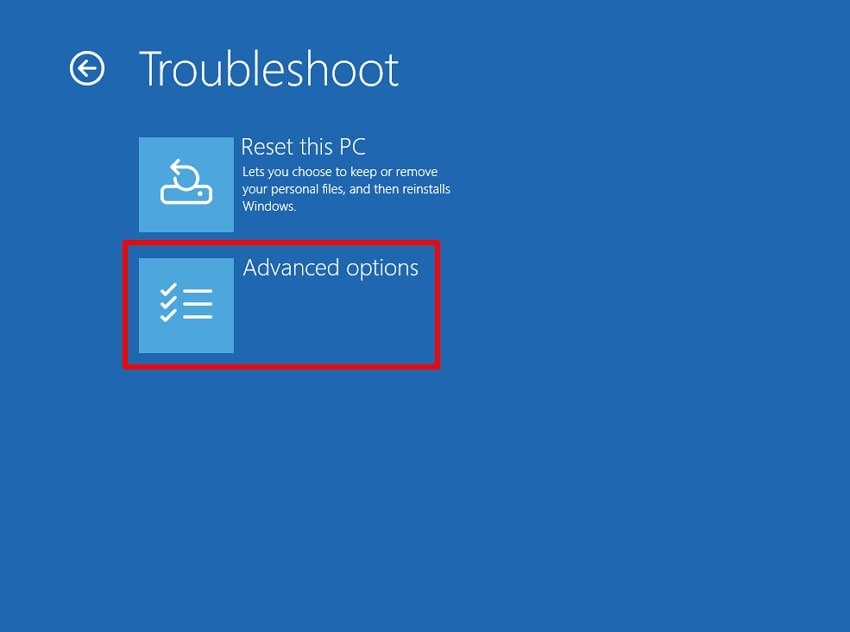
Step 3. Now, wait for the system to load WinRE and then click the “Troubleshoot” option and click the “Advanced Options” button.
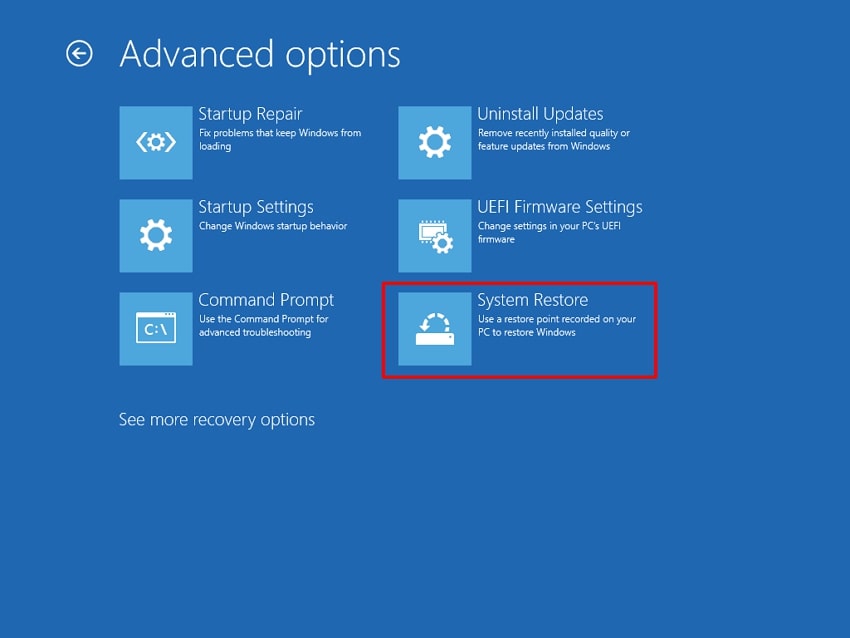
Step 4. Next, hit the “System Restore” button to start the system restoration process quickly.
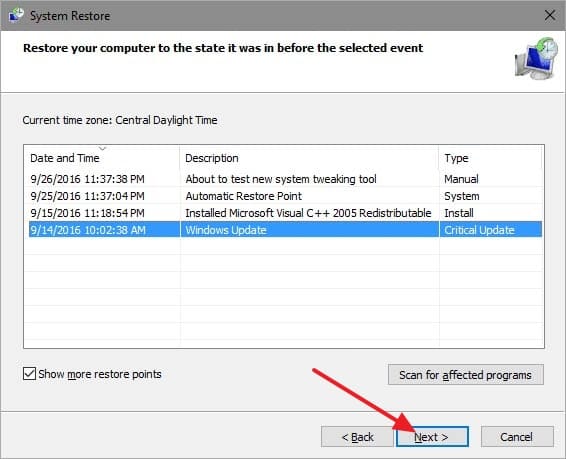
Step 5. After the wizard opens, select your username and enter the necessary password if prompted. Consequently, choose a different restore point and click the “Next” button.
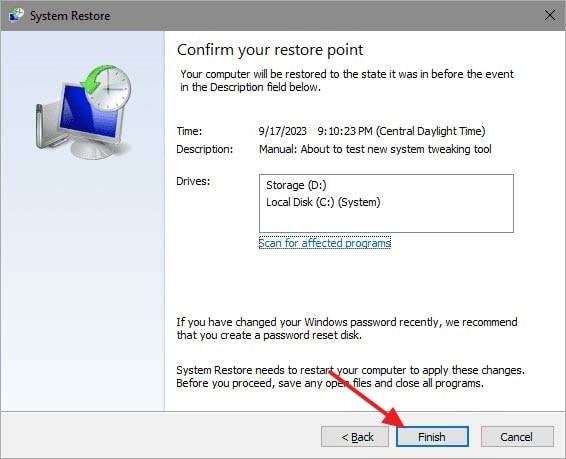
Step 6. Lastly, hit the “Finish” button to start the restore process and wait for Windows to complete the restoring process.
Method 7. Initiate a Malware Scan
Malicious programs can hook into system processes and trigger the Explorer.exe System Call Failed error repeatedly. A dedicated anti-malware scan removes hidden threats and suspicious entries that interfere with Explorer's communication to Windows. This approach addresses infections that traditional antivirus scans might miss and restores safe behavior. Now, go through the steps below to see how to fix this error via this method of scanning:
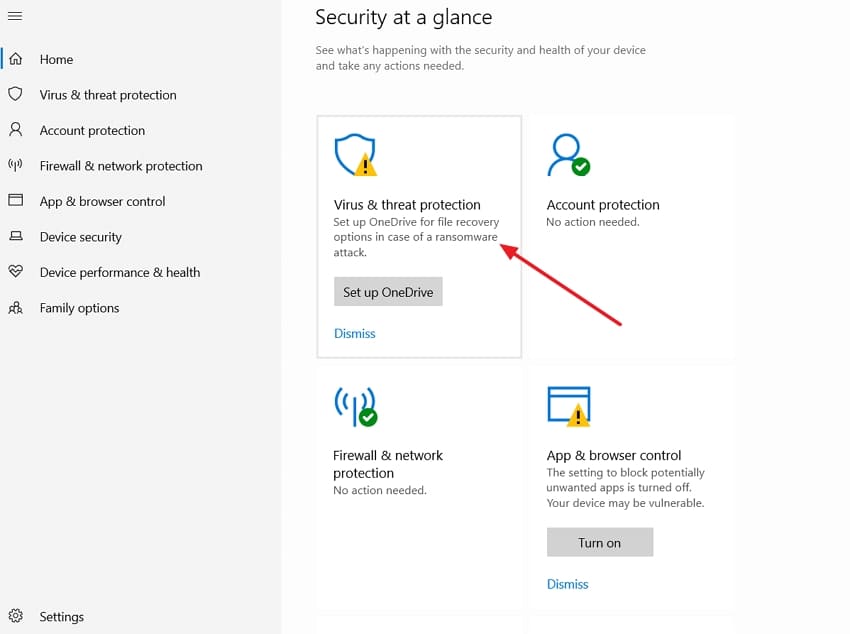
Step 1. To begin, open the Windows Security on your PC. Next, click on the “Virus & Threat Protection” option to proceed further.
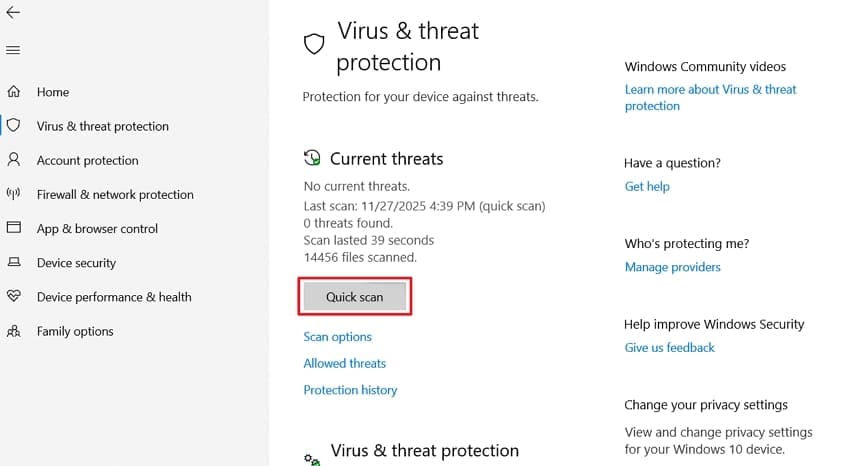
Step 2. Now, click on the “Quick Scan” button to run a quick malware scan. This will automatically scan and remove any conflicts in the File Explorer.
Method 8. Perform Windows Update
Updating your Windows can be a logical solution to fixing the "Explorer.exe System Call Failed" error. This is because system updates usually come with fixes for several bugs and patches for system file corruptions. It helps in instantly resolving the underlying causes of the Explorer.exe errors. Following is the simple process of updating your Windows to resolve the Explorer.exe issue:
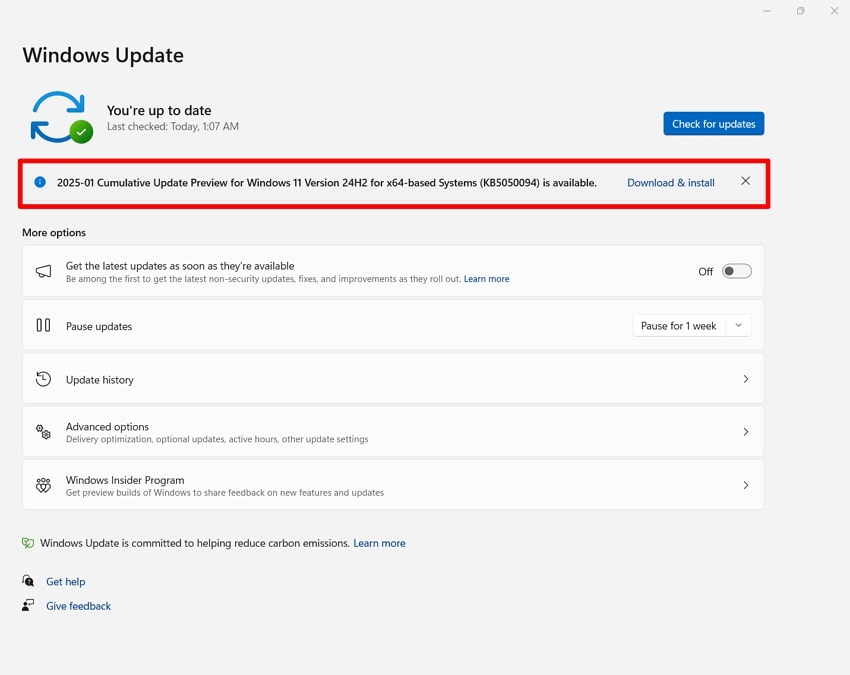
Instructions. Look for the “Search” bar on the bottom toolbar and access the “Check for updates” settings window. Once the window opens, click the “Check for updates” button to search for any Windows updates. If there is any, tap the “Download & install” button to continue with updating your device.
Pro Tip. Use Repairit to Restore Corrupted Files Causing Explorer.exe Failures
Unexpected “Explorer.exe System Call Failed” errors can sometimes come from a single corrupted document, image, or video. That damaged file crashes File Explorer whenever you open or preview it. In these cases, Repairit steps in as a dedicated repair hub, focusing on bringing damaged files back to life without recreating everything.
Instead of manually hunting through dozens of folders to guess which item is corrupted, you can let Repairit handle problematic files together. Not only this, but the tool is also designed to work with everyday formats like Office documents, images, and media clips that Windows relies on constantly. Once repaired, these files are far less likely to crash Explorer or interrupt normal browsing.
Key Features

-
Repair damaged files with all levels of corruption, including blank files, files not opening, unrecognizable format, unreadable content, files layout changed, etc.
-
Support to repair all formats of PDF, Word, Excel, PowerPoint, Zip, and Adobe files.
-
Perfectly repair corrupted files with a very high success rate, without modifying the original file.
-
No limit to the number and size of the repairable files.
-
Support Windows 11/10/8/7/Vista, Windows Server 2003/2008/2012/2016/2019/2022, and macOS 10.13~macOS 15.
Guide to Restore Corrupted Files Causing Explorer.exe Failures
After exploring the best tool, adhere to the guide below to repair corrupted files causing the Explorer.exe System Call Failed error:
Step 1. Access The Document Repair Feature in Repairit
Once you enter the main interface, hit the “More Types Repair” tab and click the “Start” button in the “Document Repair” section.

Step 2. Import All Corrupted Files and Start The Repair Process
Once you import all files, hit the “Repair” button at the bottom to start the process.

Step 3. Preview and Save Repaired Files
As soon as files are repaired, hit the “Preview” option to see them and click the “Save” button to export the repaired files.

Repair Corrupted Files Causing Explorer.exe Failures
 Security Verified. Over 7,302,189 people have downloaded it.
Conclusion
In conclusion, the “Explorer.exe System Call Failed” error is disruptive but manageable when addressed methodically with the right steps. Therefore, in this article, you have explored practical fixes that restore stability to File Explorer and Windows. If you still encounter crashes triggered by damaged documents, archives, or project files, we recommend using Repairit to repair corrupted data safely and prevent further interruptions.
FAQs
-
Q1. How can users prevent this error from happening again after fixing it once?
Users should keep Windows updated and regularly scan for malware software to avoid the Explorer.exe System Call Failed error in the future. Periodically repairing corrupted documents with a dedicated repair tool also reduces future Explorer instability. -
Q2. What signs indicate the issue comes from hardware problems rather than software glitches?
Frequent disk errors, strange noises, or SMART warnings suggest failing storage rather than simple configuration issues. When Explorer errors persist after clean boots and reinstalls, testing drives become extremely urgent. -
Q3. What precautions should users take when working with external drives to avoid this error?
Always avoid disconnecting during transfers and regularly run disk checks for file-system corruption. When corruption appears, repairing damaged files on that drive with Repairit helps prevent repeat Explorer failures later.




