
Alexa and Spotify connect to stream music at home via voice commands. Most users expect smooth playback every single day without any sudden problems. Yet sometimes the connection stops working without warning during normal daily use. Devices respond to commands but refuse to play songs from the Spotify library.
This issue often appears as Alexa not playing Spotify error on the screen. Thus, users feel confused when their favourite playlists never start during busy mornings. The speaker's lights glow, yet no music fills the rooms with sound. Therefore, this guide walks you through the ways to fix this issue.
Table of Contents
Part 1. Why Alexa and Spotify Are Not Working
When "Alexa and Spotify not working" becomes a frequent problem, the following root causes often sit behind the disruption:
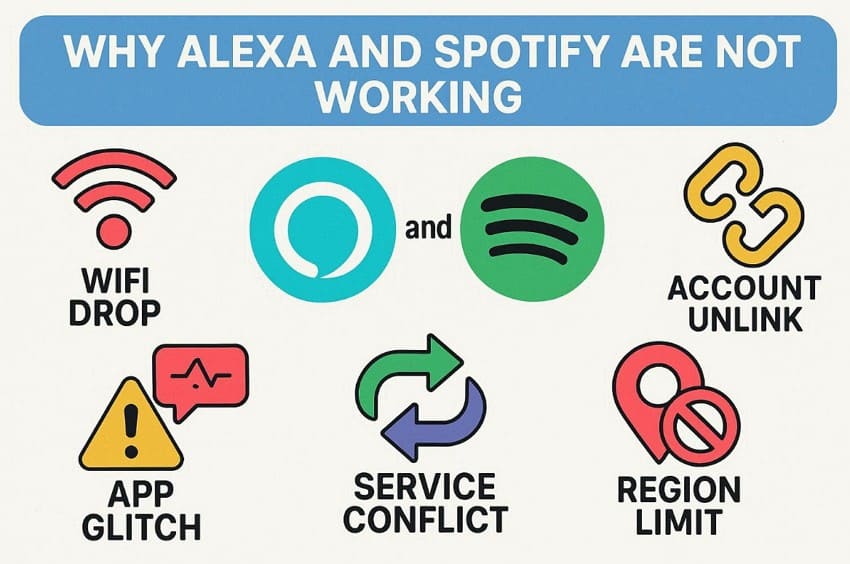
- Wi-Fi Drops: Weak Wi-Fi signals interrupt the connection between Alexa and Spotify servers. Thus, short signal cuts block music requests before reaching Spotify.
- Account Unlink: Spotify account disconnects from Alexa after updates or resets. Alexa loses access to playlists and the saved music library.
- Service Conflict: The default music service changes from Spotify to another platform. Alexa sends song requests to the wrong music service provider.
- App Glitch: Software bugs create errors during music request processing. Temporary system glitches block streaming between linked Spotify and Alexa accounts.
- Region Limits: Regional restrictions limit Spotify access on certain accounts. Location settings create a service mismatch between the two platforms.
Common Error Messages/Symptoms
Before users understand the reason, Alexa and Spotify not working show clear warning signs mentioned below:
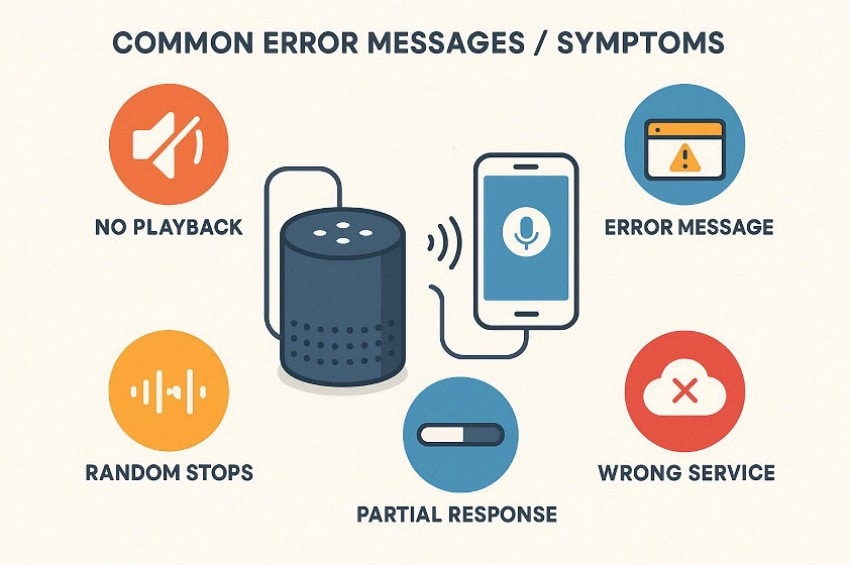
- No Playback: Alexa confirms the command, but no music begins playing. The room stays silent after repeated voice requests from users.
- Error Message: Device announces a connection problem with the Spotify account. The screen displays an account linking failure message after a voice command request.
- Partial Response: Alexa hears the command but stops before the song begins. The request appears to have been processed, but playback never starts.
- Random Stops: Music starts playing but stops in the middle of the song. Moreover, playback cuts during a normal streaming session without any warning or user interaction.
- Wrong Service: Alexa plays music from another default service instead. Your requested Spotify playlist triggers playback from a different platform.
Part 2. Spotify Not Working on Alexa? Step-by-Step Fix Guide
With the basics covered, let's move towards the methods to fix "Spotify not working on Alexa" issue.
Fix 1: Check Internet Connection
Unstable Wi-Fi often makes Alexa fail Spotify commands. A weak signal can break the link between your Echo device and Spotify servers, so Alexa may respond, but nothing plays. Thus, checking connection status helps you confirm the issue is internet-related, not a Spotify problem. Follow the guide below to verify internet connectivity:
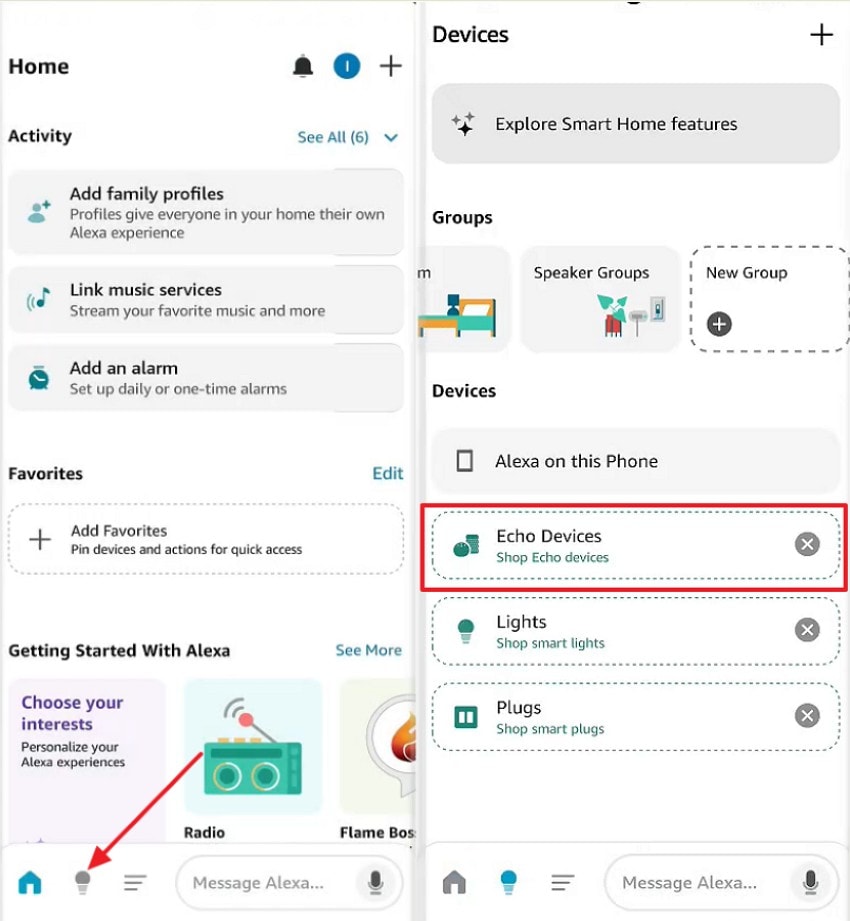
Step 1. Upon opening the Alexa app, move towards the "Devices" option and choose "Echo Devices." After this, select your Echo, open "Wi-Fi/Network," and ensure Wi-Fi is connected.
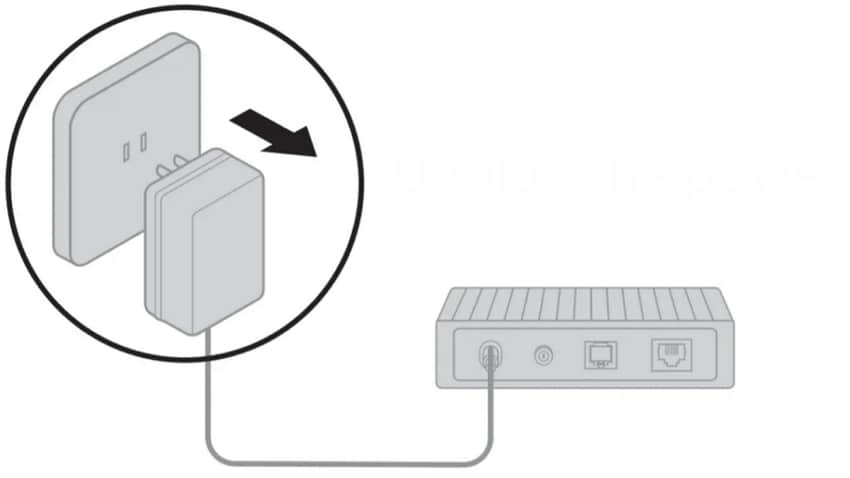
Step 2. If not stable, restart your router, unplug it for 30 seconds, and plug it back in to wait for 2-3 minutes. Moreover, move the Alexa device closer to the router to strengthen signal stability.
Fix 2: Check Spotify Subscription and Login
Many "Alexa and Spotify not working" problems begin with account issues. Spotify requires an active Premium subscription for voice playback support. If the plan expires, Alexa cannot stream requested songs. Login errors also break the connection between both platforms. Even a recent password change may unlink accounts silently. Therefore, reviewing subscription status and account linking ensures stable playback performance. Below are the steps to check your Spotify subscription and login:
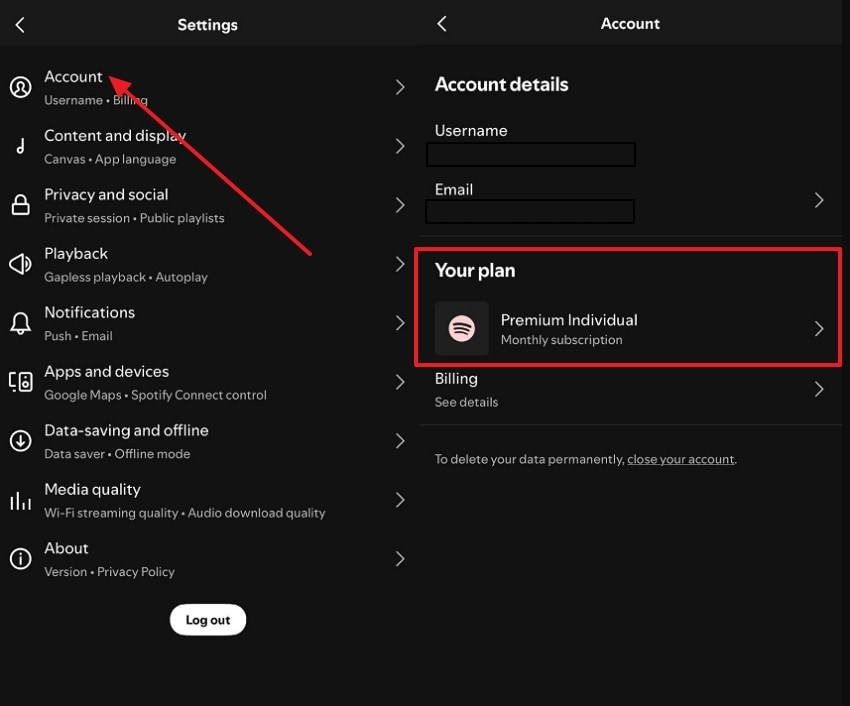
For Android
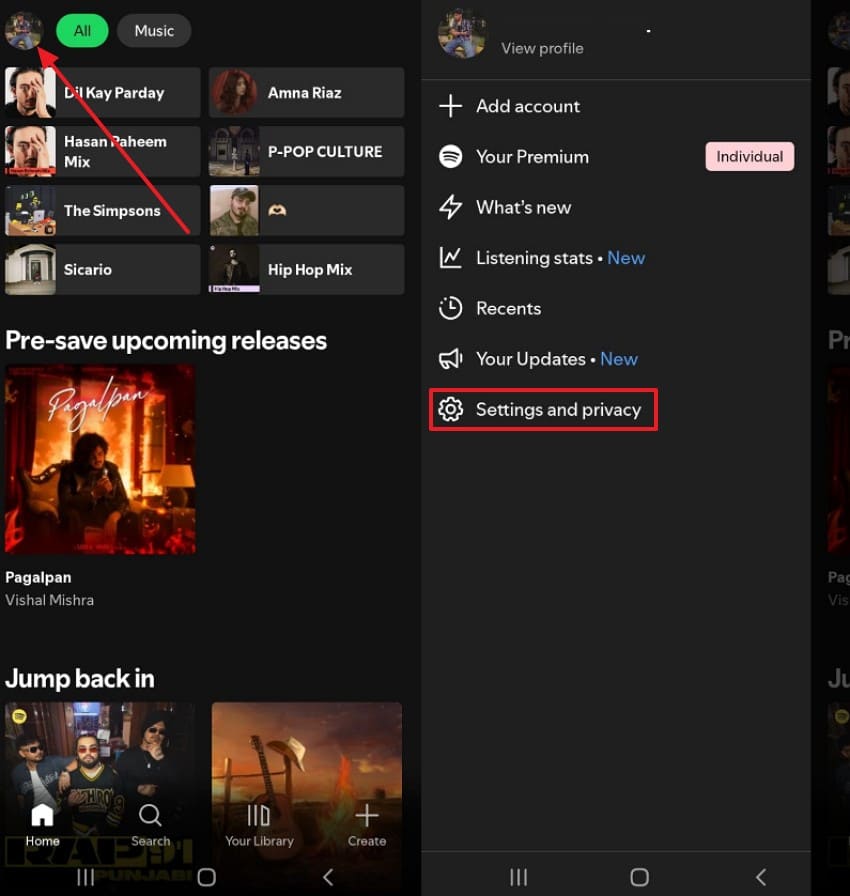
Step 1. To start, open the Spotify app and locate the "Profile" icon. After that, select the "Settings and Privacy" option to proceed further.
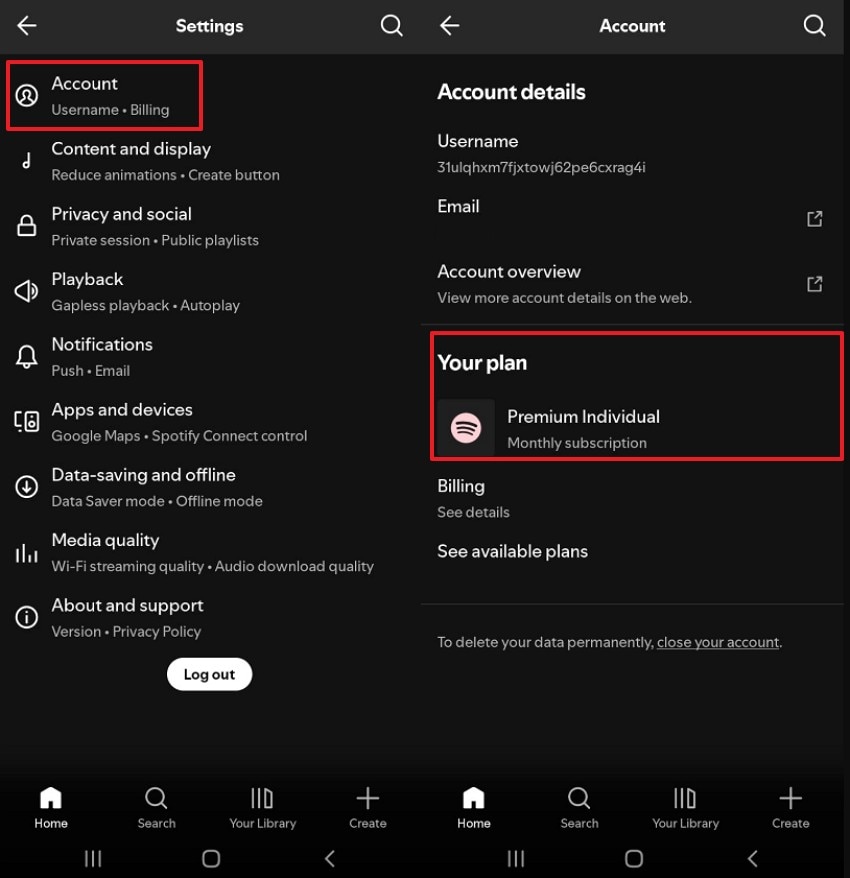
Step 2. Now pick the "Accounts" option to check available "Subscription" and verify whether the premium plan is active or not, plus log in if needed.
For iPhone
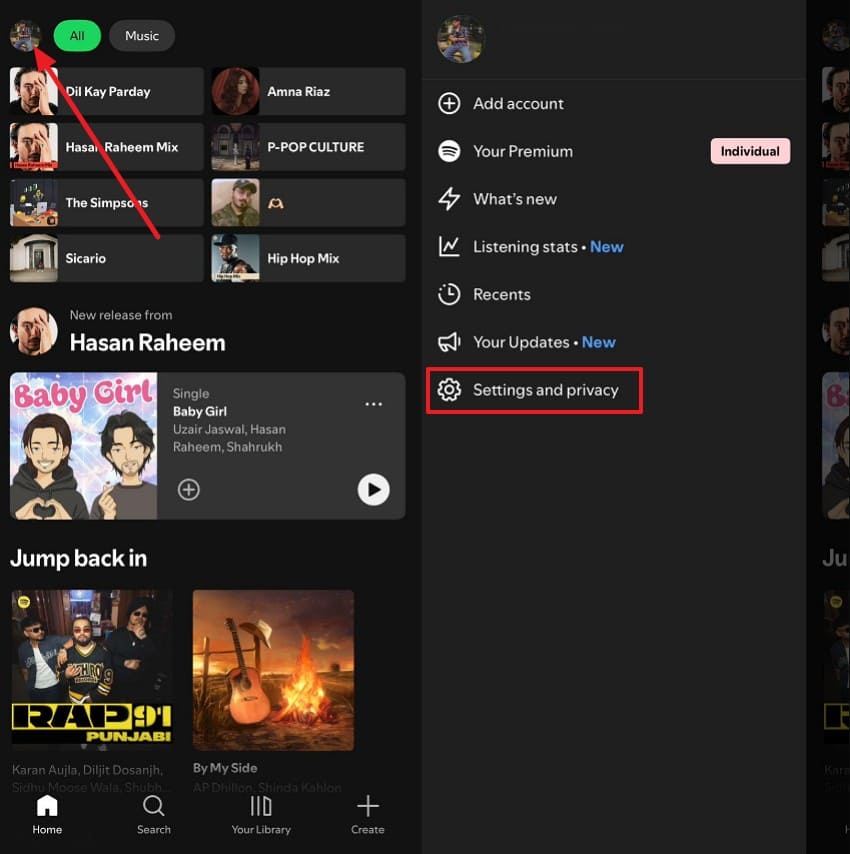
Step 1. Access the Spotify app, tap on the "Profile" icon, and navigate to the "Settings and Privacy" option.
Step 2. After that, confirm the premium subscription in the "Account" section.
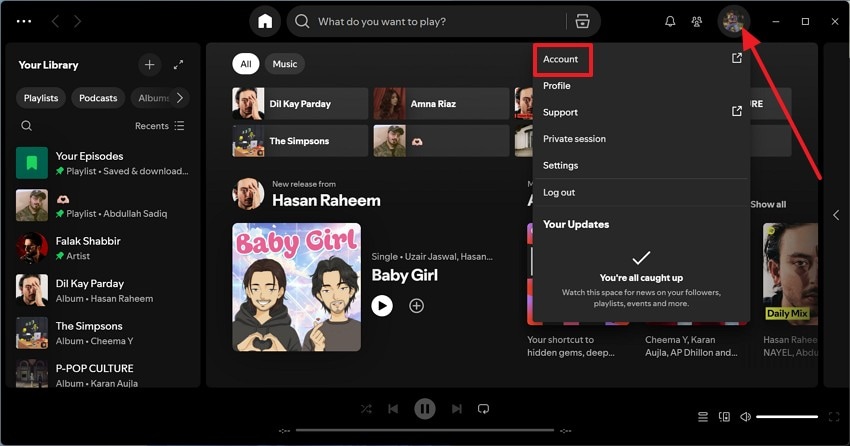
For Desktop
Step 1. Start by accessing Spotify on desktop, then click on the "Profile" icon to further select "Account" to continue.
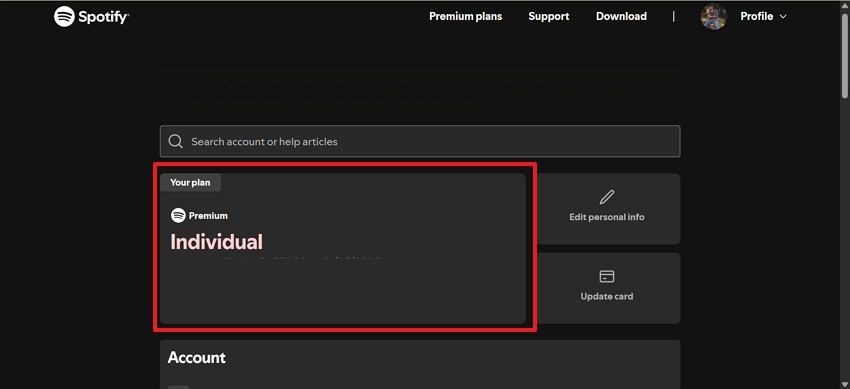
Step 2. In the next window, review your subscription plan and verify that the "Premium" subscription is active.
Fix 3: Restart the Alexa Device and the Spotify App
If Alexa Spotify is not working and interrupts your music sessions, temporary software conflicts may block streaming. Overloaded memory or background processes can disrupt communication between Alexa and Spotify servers. Restarting the Alexa device and closing the Spotify app refreshes active connections and clears short-term errors. Now, follow the steps below to perform a proper restart:
Restart the Alexa Device
Instructions. First, unplug the Alexa power adapter from the wall outlet. Wait 10 seconds, reconnect it, and test Spotify playback again.
Restart the Spotify App
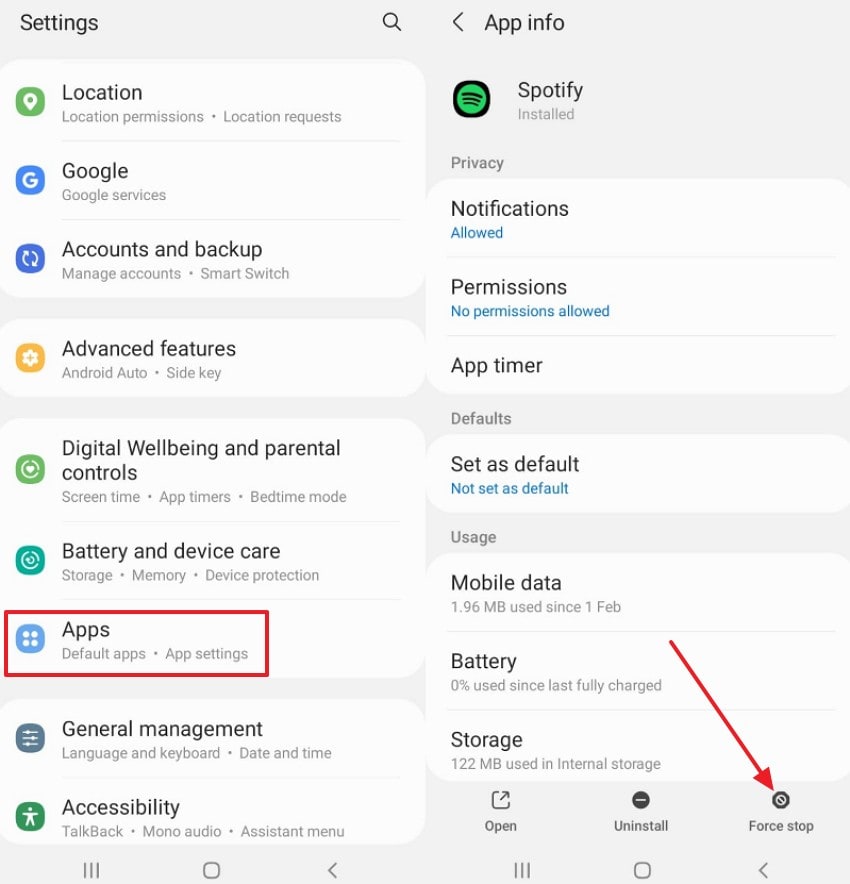
For Android
Instructions. To start, access the "Settings," navigate to "Apps," then choose "Spotify," and press "Force Stop." After that, return to the home screen and open Spotify again to check.
For iPhone
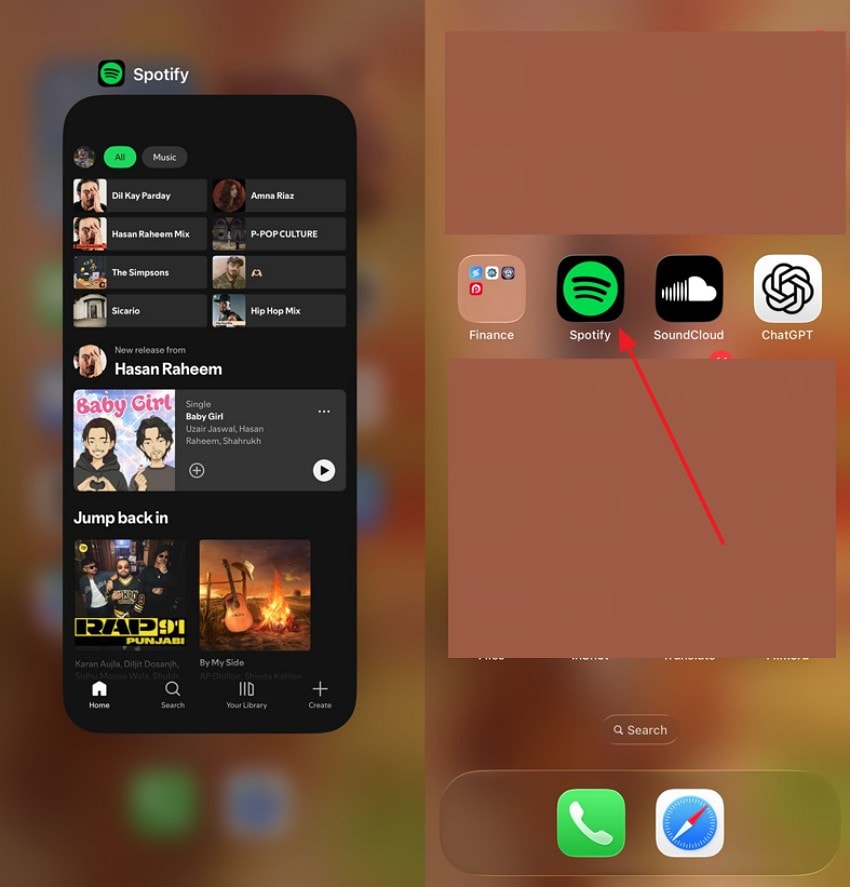
Instructions. On your iPhone, open the app switcher by swiping up from the bottom of the screen, find Spotify, and swipe it upward to force close the app. Return to the home screen and reopen the "Spotify" app to test playback again.
For Desktop
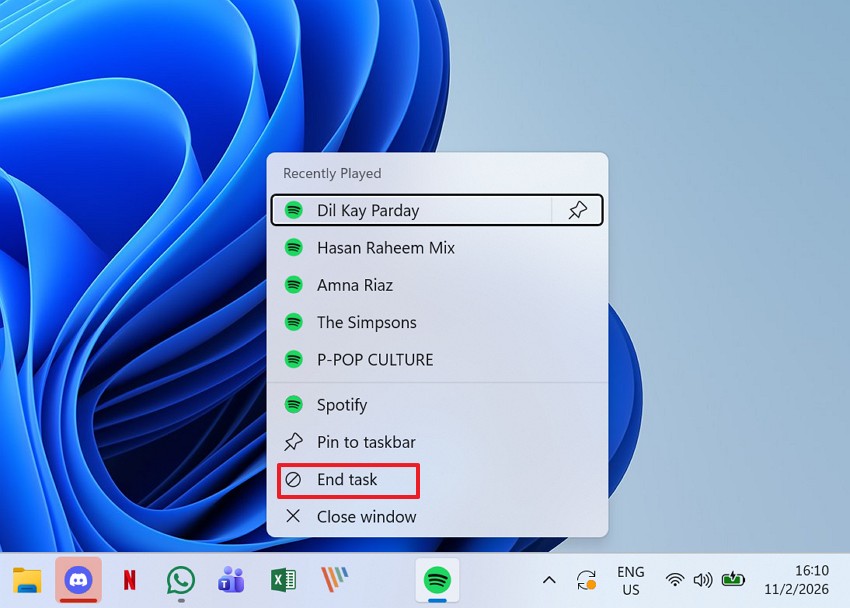
Step 1. On your Windows desktop, right-click the Spotify icon on the taskbar, select "End task" from the menu to fully close the application.
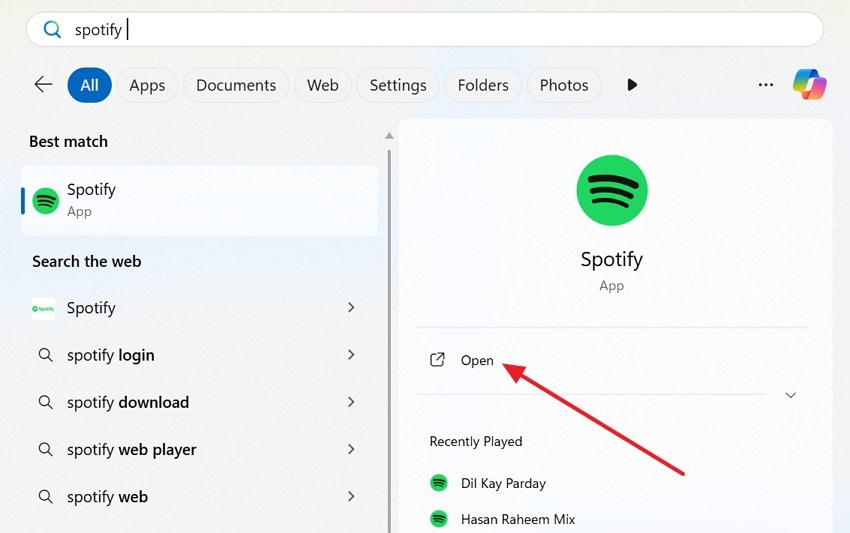
Step 2. Afterward, open the "Start menu," search for "Spotify," click "Open," then test playback with your Alexa device.
Fix 4: Update Alexa and Spotify Apps
Frequent "Spotify not working on Alexa" issues often result from outdated application versions. Older builds can conflict with recent server updates and streaming protocols. This mismatch disrupts voice command processing and prevents smooth playback. Installing the latest versions of both Alexa and Spotify improves the streaming performance. Next, adhere to the steps mentioned below to try this fix:
For Android
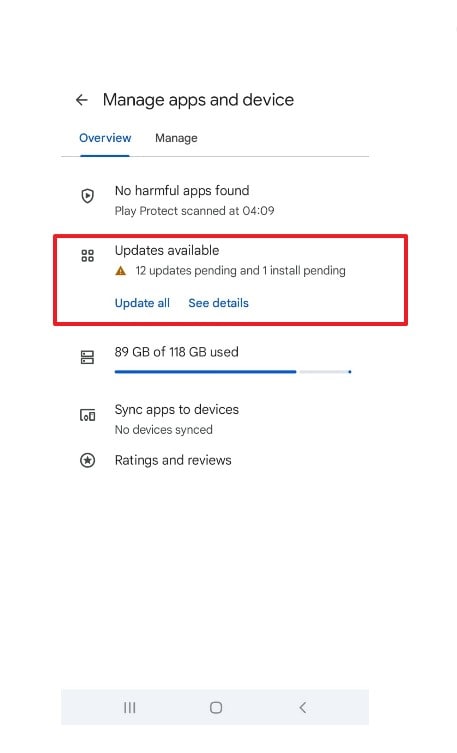
Step 1. Open the "Google Play Store," then tap on the "Profile" icon in the top right corner. Afterward, select "Manage apps and device" from the menu to continue.
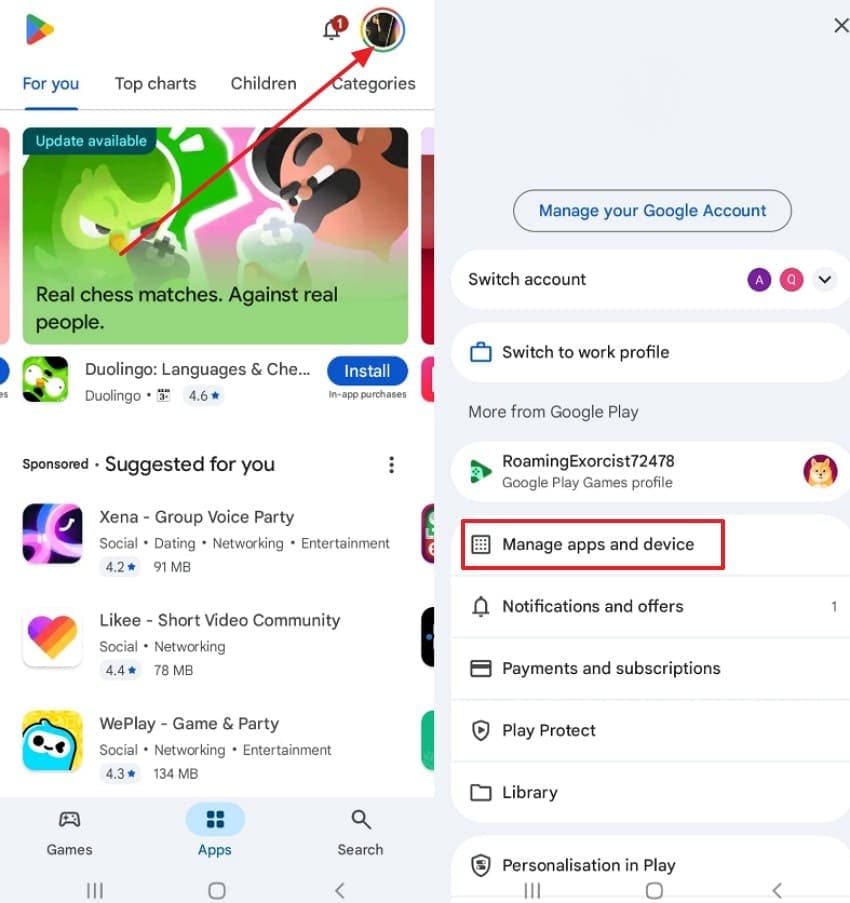
Step 2. Here in the "Updates available" section, check Alexa and Spotify in the list, if an update is available, install it.
For iPhone
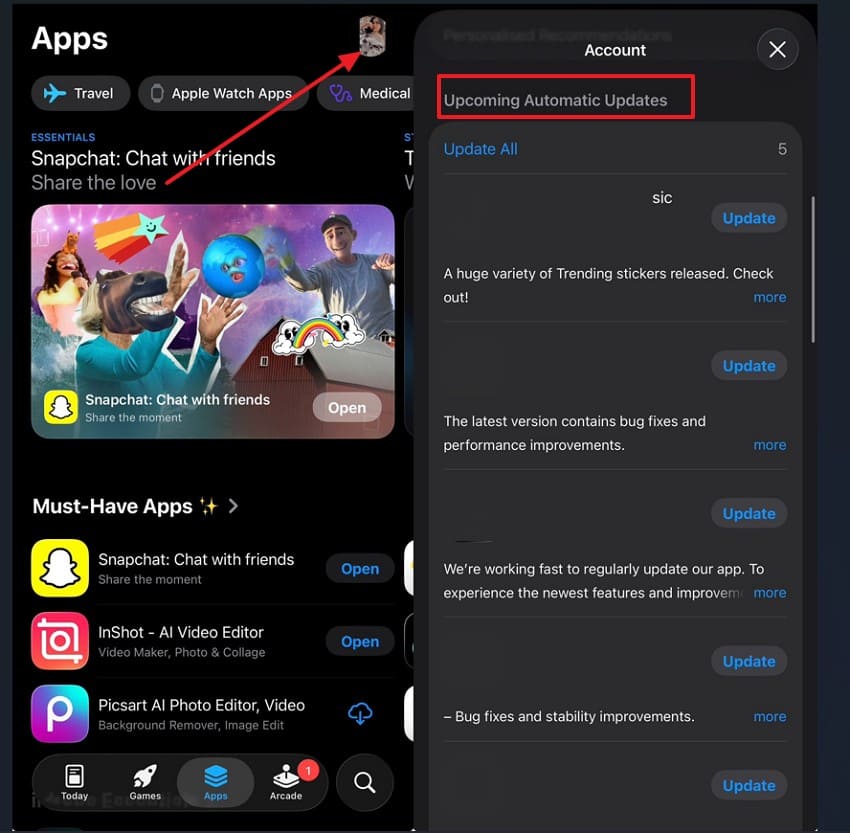
Instructions. Start by opening "App Store," select the "Profile" icon, then navigate to the "Update" section. Look for the "Amazon Alexa" and "Spotify" apps in the list and update if available.
For Desktop
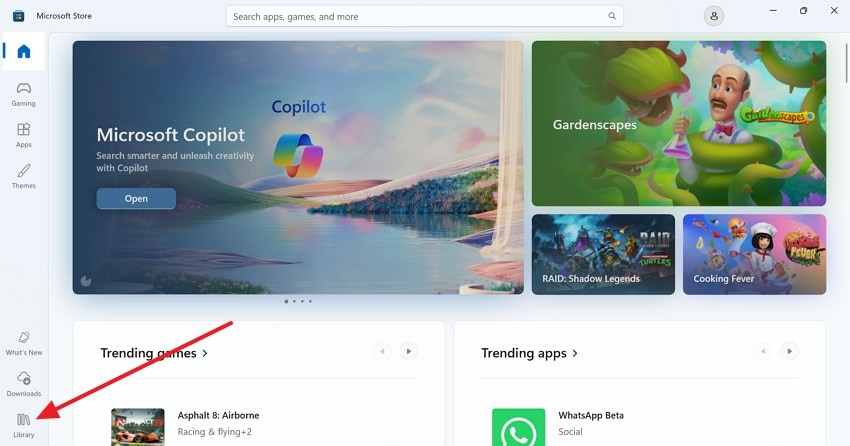
Step 1. To start, go to "Microsoft Store" and then click on the "Library" option to proceed.
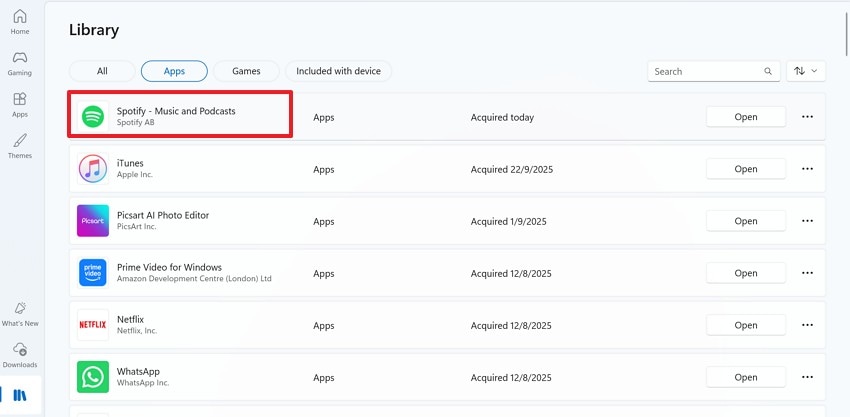
Step 2. Next, click on the "App" tab to view installed applications. Locate the Spotify and Alexa apps in the list, and if you see an update, click it to install the latest version.
Fix 5: Clear App Cache/Data
Stored files can cause Alexa not to play Spotify during normal music use. Over time, saved app data may block the proper connection between both services. This can stop songs from starting even after clear voice commands. Thus, clearing the Spotify and Alexa app cache removes old data and refreshes the connection. Adhere to the guides below to clear the app cache with ease:
For Android
Step 1. First, go to "Settings > Apps," then choose the "Storage" option to proceed further.
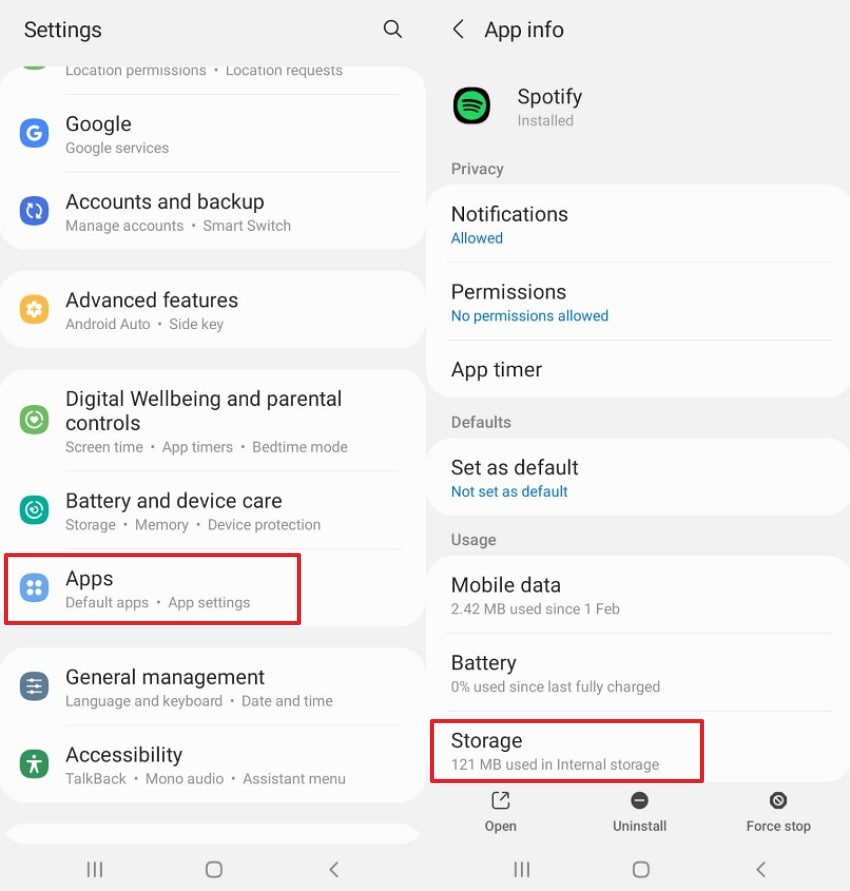
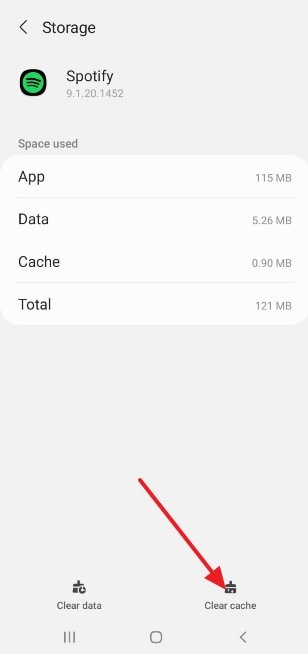
Step 2. In the storage, pick the "Clear Cache" option to clear Spotify or Alexa app data.
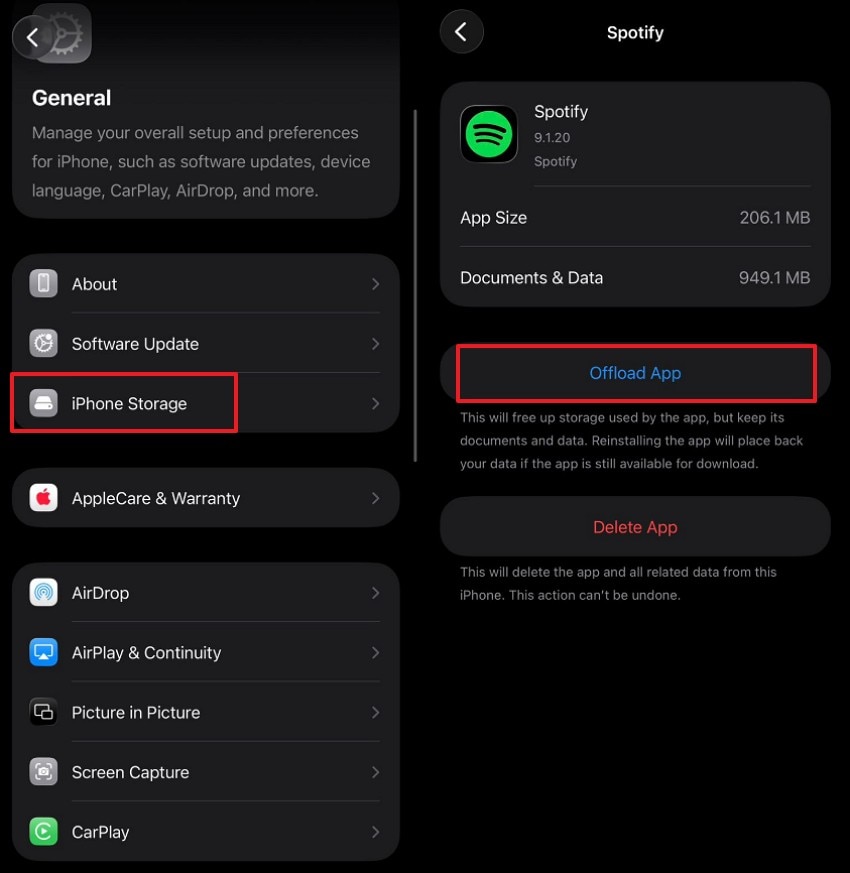
For iPhone
Instructions. To clear data on iPhone, navigate to "Settings > General > iPhone Storage." Then, choose the app "Spotify" or "Amazon Alexa" and tap "Offload App" and confirm.
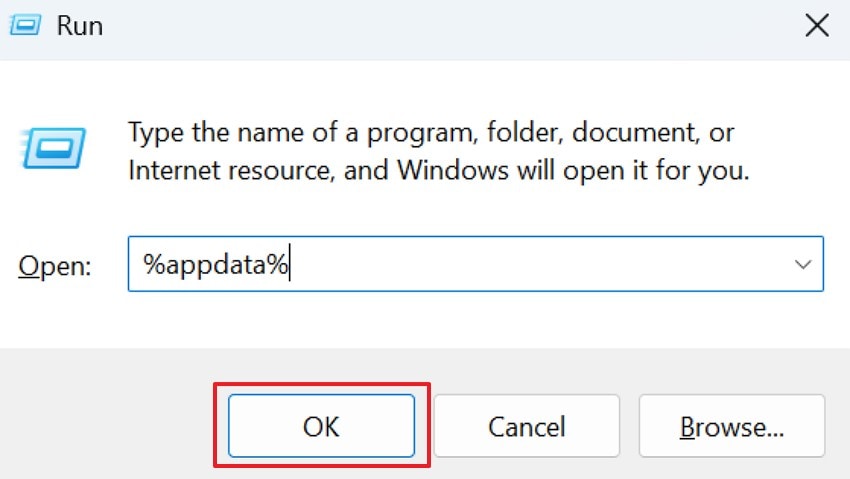
For Desktop
Instructions. First, press "Windows +R" and run the command "%appdata%" and press "OK". Next, open the "Spotify" folder, delete the "Cache" folder, and restart Spotify.
Fix 6: Reset Alexa Device (Optional/Last Resort)
Sometimes, "Alexa and Spotify not working" continues after trying all other fixes. In that case, the Alexa device may hold old settings that cause errors. A full reset clears saved settings and starts the device fresh. This gives you a clean setup and removes hidden problems. Let's stick to the steps below to reset the Alexa device:
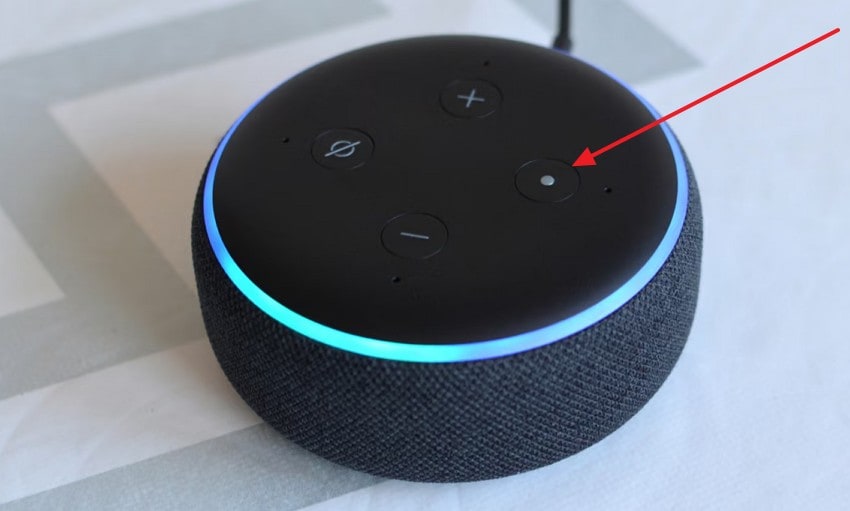
Step 1. To start, locate the "Action button" on your Echo device and press and hold it for about 20-25 seconds. Wait until the light ring runs orange, then blue, and afterward release the button when the device restarts.
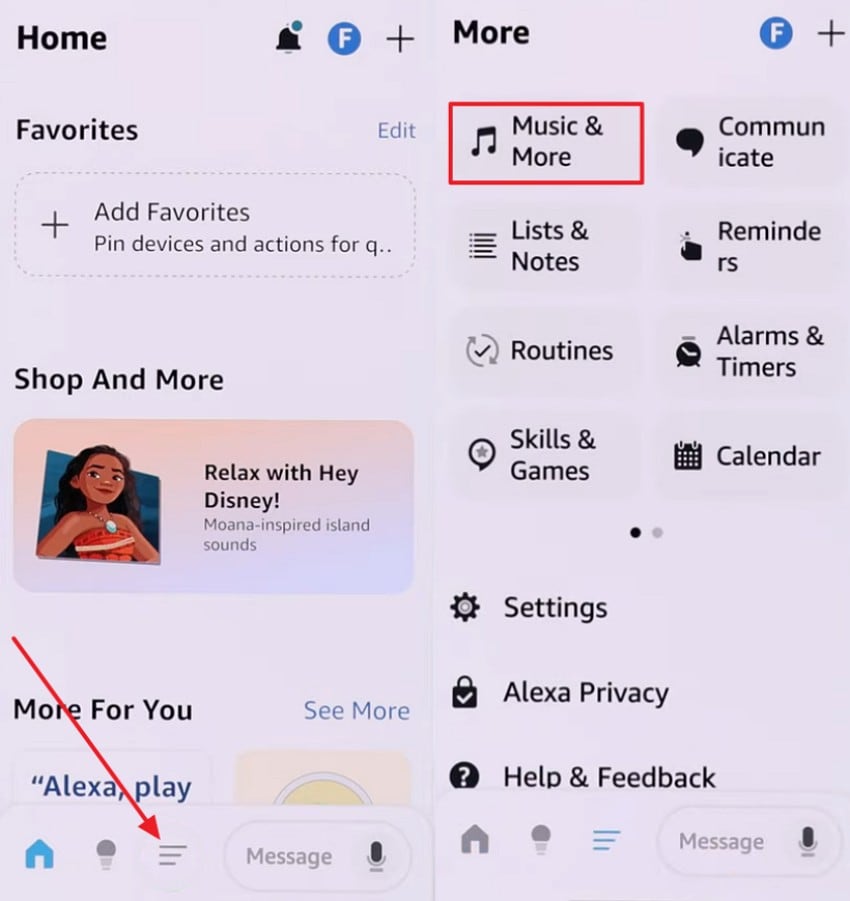
Step 2. Afterward, open the Alexa app on your phone, tap on "More (≡)" to later select "Music & More."
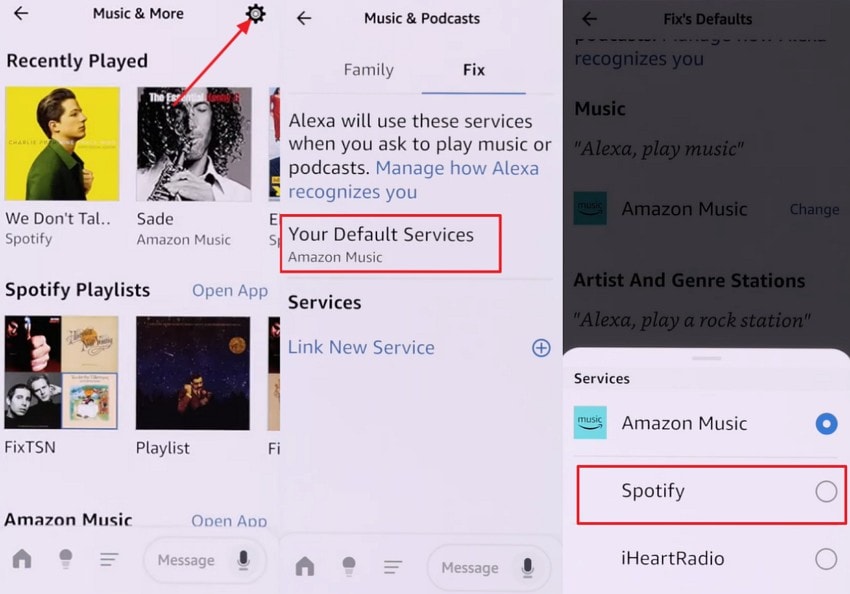
Step 3. Next, choose the "Settings" icon and tap on "Your Default Services" to choose "Spotify" and confirm the selection.
Pro Tip: Restore Unplayable Music Files via Repairit
Sometimes music files appear normal but refuse to play. Songs skip, freeze, or stop seconds after starting playback. These issues may surface while "Alexa not playing Spotify" persists. However, the real cause can be a corrupted audio file structure. Also, damaged file headers often block proper decoding during streaming.
Therefore, Repairit restores unplayable music files with reliable repair technology. It scans tracks carefully and detects damaged audio sections with ease. Then it rebuilds broken data without disturbing the original sound quality. As a result, repaired files play smoothly across connected devices. This ensures stable playback without sudden stops or sound distortion.
Key Features

-
Repairs Major Music Formats: This tool is capable of repairing various music file formats, including MP3, M4A, WAV, FLAC, AAC, and more.
-
AI-Powered Resolution: It uses advanced, AI-assisted repair to rebuild damaged waveforms and preserve details.
-
Fixes Various Audio Damage Types: Repairit is capable of catering to issues like clipping, buzzing, rumbling, hiss, and distortions to make the sound clear.
Guide to Restore Unplayable Music Files via Repairit
Let's walk through this step-by-step tutorial below to repair damaged music files with Repairit:
Step 1. Import Corrupted Audio Files into Repairit
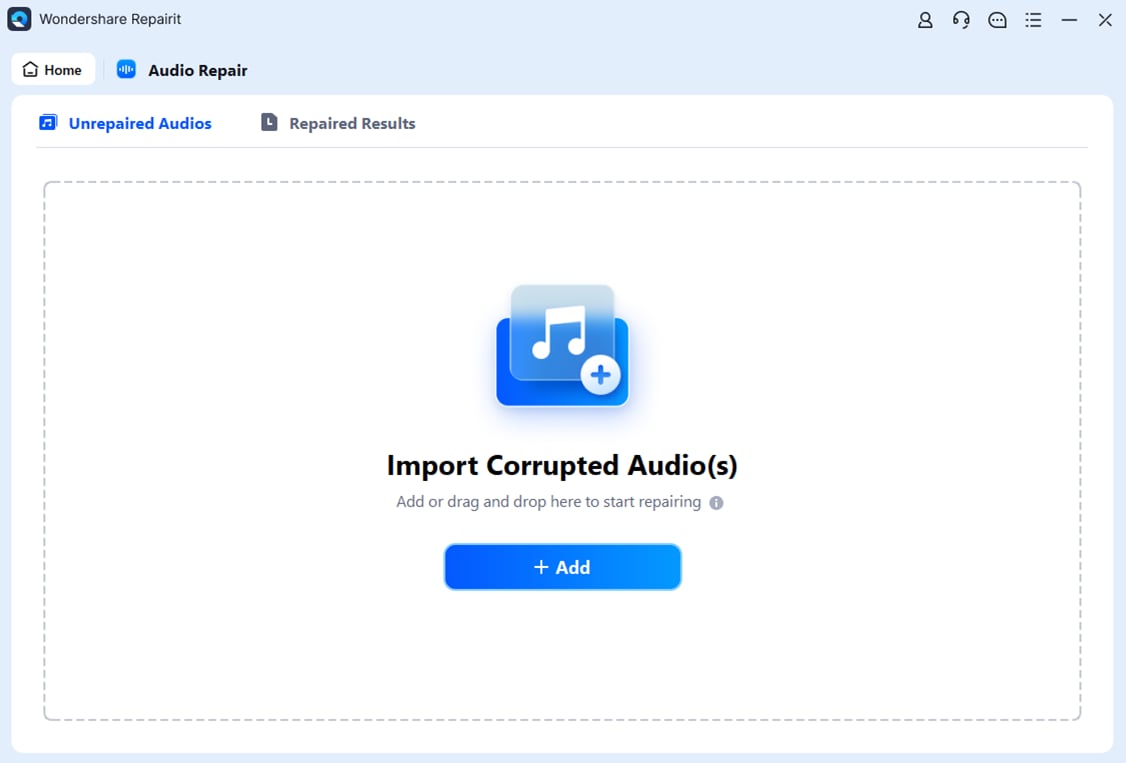
Launch Repairit and navigate to the "Audio Repair" module. Press "+ Add" under "Import Corrupted Audio(s)." You can also drag and drop damaged audio files into the upload area.
Step 2. Verify Audio Files & Execute the Repair Process
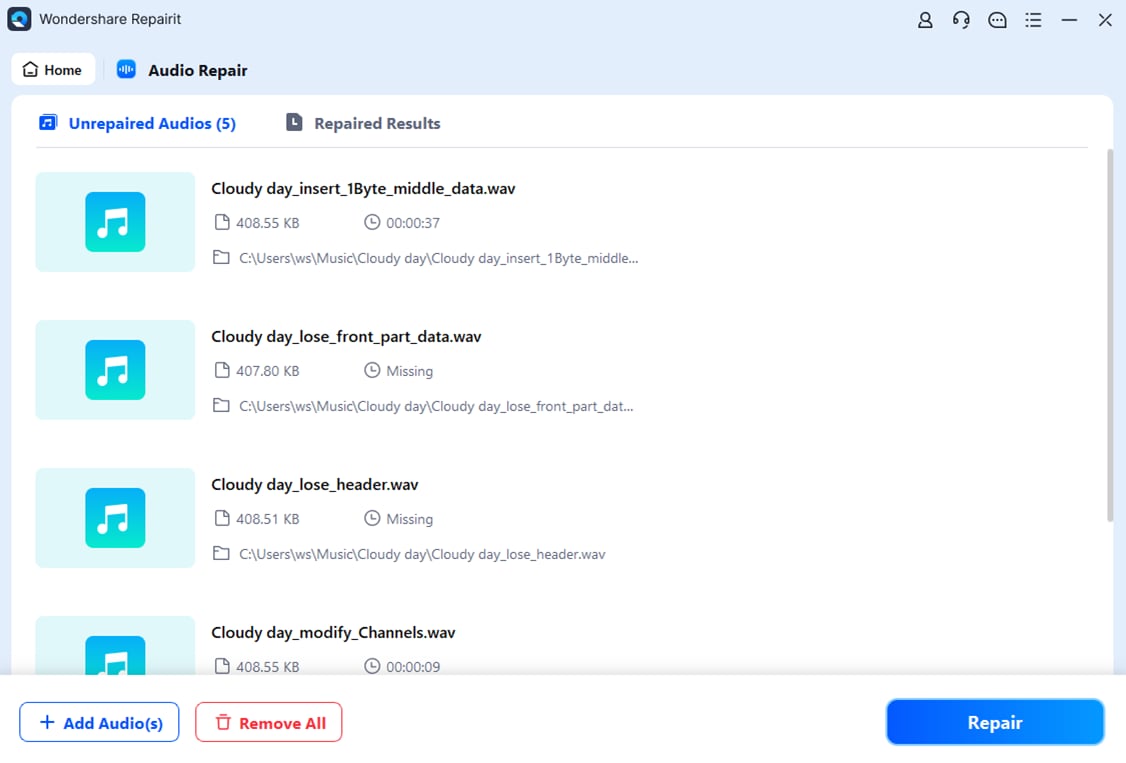
Once imported, review the uploaded audio file list and confirm the correct file details. Then, click the "Repair" button to start scanning and rebuilding corrupted audio data.
Step 3. Preview and Save the Repaired Audio File
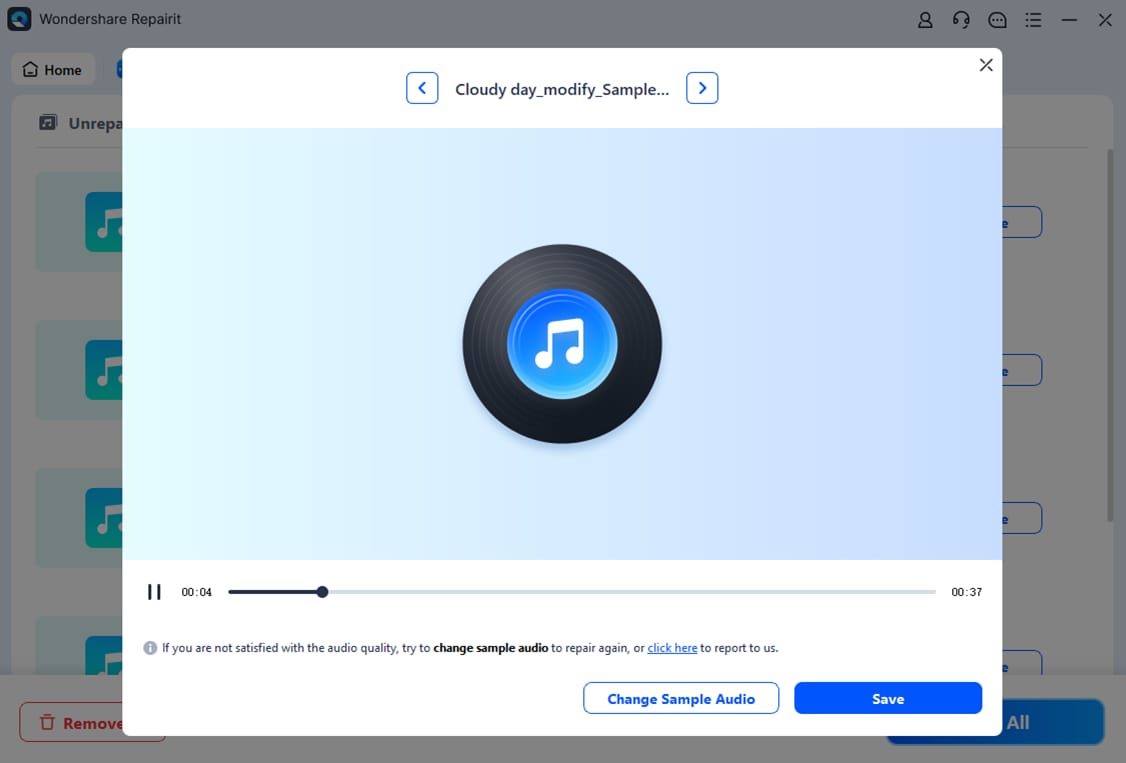
After the repair completes, open the repaired file preview window to verify audio playback quality. Now, click the "Save" button to export the restored file securely.
Restore Unplayable Spotify Music Files
 Security Verified. Over 7,302,189 people have downloaded it.
Part 3. 6 Tips to Prevent Spotify from Not Working on Alexa
To avoid future "Alexa not playing Spotify" problems, follow these preventive practices:
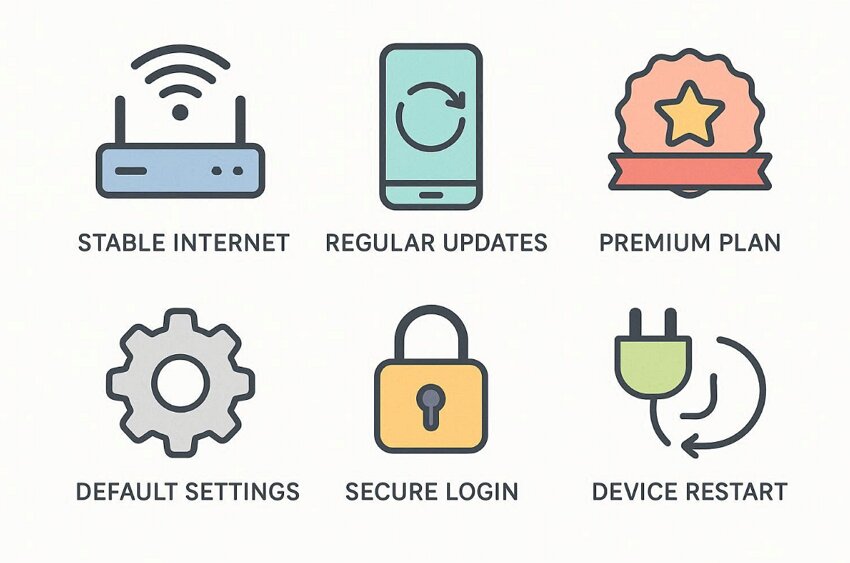
Stable Internet: Maintain a strong Wi-Fi connection to support smooth music streaming sessions. Place the router closer to Alexa to reduce signal interruptions.
Regular Updates: Keep Alexa and Spotify apps updated to the latest versions. Thus, updates resolve software bugs and improve service compatibility and performance.
Premium Plan: Ensure Spotify Premium subscription remains active for voice playback. Free plans often restrict the playback access on Alexa-connected devices.
Default Settings: Set Spotify as the default music service inside the Alexa application settings. Incorrect default settings cause playback to redirect to another streaming platform.
Secure Login: Use correct Spotify login credentials across all connected devices. So, password updates may unlink accounts without a clear system notification.
Device Restart: Restart the Alexa device occasionally to refresh system memory. Routine restarts prevent temporary playback glitches and connection conflicts.
Conclusion
To conclude, Alexa not playing Spotify can feel frustrating during daily routines. However, most issues connect to the internet, account, or software conflicts. By following structured troubleshooting steps, you can restore smooth streaming quickly. Regular updates and correct settings help prevent repeat problems. If damaged audio files cause playback failure, Repairit offers a reliable solution to restore unplayable music files easily.
Frequently Asked Questions
-
1. Why is Alexa not playing Spotify even with Premium?
Account linking errors or default service conflicts often cause playback failures. Check Spotify linking inside Alexa settings and confirm Premium status. -
2. Why does Alexa say it cannot access Spotify?
A weak internet connection may interrupt communication between the two services. Restart the router and test connection stability before retrying playback. -
3. Why does Spotify stop playing on Alexa randomly?
Temporary software glitches can interrupt streaming sessions unexpectedly. Thus, restart the Alexa device and the Spotify app to refresh system connections. -
4. Can corrupted music files cause playback issues on Alexa?
Damaged audio files may fail during decoding and playback requests. Consider trying Repairit to restore corrupted tracks before streaming again.




