

An image alpha channel is what makes backgrounds disappear cleanly, soft shadows look natural, and layered graphics blend together without ugly outlines. You will meet this term when exporting PNGs from a photo editor, preparing graphics for web or apps, or compositing images in video software. Understanding how the alpha channel controls transparency helps you get clean cutouts, avoid random white boxes, and keep your designs looking professional on every screen.
Repair Corrupted Files To Save Your Data
 Security Verified. Over 7,302,189 people have downloaded it.
In this article
What Is Image Alpha Channel?
An image alpha channel is a special data channel that stores transparency information for each pixel in an image. It belongs to the category of image parameters, similar to color channels like red, green, and blue.
In an RGBA image (Red, Green, Blue, Alpha), the alpha value says how opaque or transparent each pixel should appear, from fully solid to fully see-through. Image editors, web browsers, and video compositors read the alpha channel and use it as a mask, deciding which parts of a picture should show and which should reveal what is underneath.
In simple terms, the alpha channel is the hidden layer that tells your software where your image should fade out, have soft edges, or cut out a subject from its background.
What Does Image Alpha Channel Affect?
Visual quality and edges
The alpha channel has a huge impact on how clean and professional your graphics look:
- Edge smoothness: A carefully painted or generated alpha channel gives you soft, anti-aliased edges around objects, avoiding jagged outlines.
- Halos and fringing: Poorly handled alpha produces white or dark halos around cutout objects, especially noticeable on hair, smoke, and glass.
- Shadows and glows: The alpha channel controls how soft shadows, glows, and reflections fade into the background.
- Layer blending: In compositing, the alpha decides how foreground and background images mix, affecting realism.
Strong, accurate alpha data makes your image transparency look natural, while bad alpha data makes even high-resolution images look amateurish.
Performance, formats, and compatibility
The image alpha channel also affects how files behave across software and platforms:
- File size: Formats that store an alpha channel (such as PNG with transparency) can be larger than flat JPEGs, especially with many semi-transparent pixels.
- Format choice: Only certain formats support alpha, like PNG, WebP, TIFF, TGA, PSD, and some video codecs. Standard JPEG does not store an alpha channel.
- Rendering performance: Multiple transparent layers can be heavier to render in web pages, games, and apps, which may reduce performance on low-power devices.
- Platform compatibility: Some apps or pipelines ignore alpha or convert it incorrectly, causing transparent areas to turn black, white, or gray.
Choosing the right format and being aware of alpha support helps you balance quality, speed, and compatibility in web graphics, UI design, and video compositing.
How Does Image Alpha Channel Work in Real Use?
You will see the image alpha channel show up at many points in your recording, editing, and publishing workflows.
In photo and graphic design software
In tools like Photoshop, GIMP, Affinity Photo, or Illustrator, alpha behaves as a transparency mask:
- Layers and masks: Layer masks and selections are often stored or baked into the alpha channel when exporting PNGs or TIFFs.
- Export dialogs: Options like "Transparent background" or "Include alpha channel" decide whether your final file keeps transparency.
- Logos and UI icons: Clean alpha is critical for logos, buttons, and overlay graphics that sit on different backgrounds in apps or websites.
In video compositing and motion graphics
In video editors and compositors such as After Effects, Premiere Pro, DaVinci Resolve, or Nuke, the alpha channel is what lets one clip sit on top of another:
- Lower thirds and titles: Text graphics, animated logos, and overlays are often exported as RGBA QuickTime or PNG sequences with an embedded alpha channel.
- Green screen and keying: When you key out a green or blue screen, the resulting matte becomes an alpha channel that defines where the background is removed.
- Codecs with alpha: Some codecs (such as ProRes 4444, DNxHR with alpha, and certain WebM or MOV variants) support embedded transparency, while others ignore it.
On the web and in apps
When you export graphics for websites, mobile apps, or UI frameworks:
- PNG and WebP assets: Icons and illustrations often rely on alpha to float over backgrounds that can change with dark mode or theme settings.
- CSS and canvas: Web developers use transparent PNGs, SVGs, or WebP images together with RGBA colors in CSS and HTML canvas drawing.
- Fallback behavior: Older browsers or conversion tools may flatten alpha onto a solid color, which is why some "transparent" images suddenly show white or black squares.
In storage, encoding, and playback
Across storage and playback systems, the alpha channel can be affected by conversions and corruption:
- Thumbnail generation: Some OS or cloud services flatten alpha to generate previews, which can look different from the original file.
- Transcoding: When images or videos are transcoded to formats that do not support alpha, transparency is lost and replaced with a background color.
- File corruption: Damage to a PNG or TIFF can break the alpha data specifically, resulting in jagged edges, random blocks, or solid backgrounds where transparency used to be.
Common Mistakes and Quick Tips
Working with the image alpha channel is easier when you avoid some frequent pitfalls.
- Assuming JPEG supports transparency: JPEG cannot store an alpha channel. Always switch to PNG, WebP, TIFF, or another format that supports alpha if you need transparent areas.
- Exporting without alpha enabled: It is common to design with transparency but forget to tick "Include alpha" or "Transparent background" on export, leading to an unwanted solid background.
- Using the wrong background color when compositing: Designing only on white or black can hide fringing. Always preview your cutouts on both light and dark backgrounds.
- Over-compressing with bad converters: Some online tools flatten alpha or damage it when compressing images. Test results visually after any batch optimization.
- Ignoring premultiplied vs. straight alpha: In video pipelines, mixing these two interpretations can cause dark halos or fading issues.
Quick takeaways:
- Choose a format that truly supports png transparency and alpha, like PNG or WebP, for graphics with see-through areas.
- Always preview edges over multiple background colors before final export.
- Keep master files (like PSD or layered TIFF) so you can rebuild the alpha channel if something goes wrong.
How to Use Repairit to Fix a Corrupted Photo File
Repairit introduction
When a photo becomes corrupted, both its color data and image alpha channel can be damaged, causing strange edges, wrong backgrounds, or unreadable files. Repairit by Wondershare is a dedicated media repair tool that helps you quickly fix corrupted, damaged, or unplayable photos and videos so you can recover crucial visual details, including correct transparency information. With an intuitive interface and guided workflow available on the Repairit official website, it is designed for creators, designers, and everyday users who need reliable repair without a steep learning curve.
Key features of Repairit
- Repairs corrupted photos and videos from various cameras, phones, memory cards, and drives while preserving as much transparency data as possible.
- Supports multiple formats and batch repair, saving time when you need to process many rgba images or damaged clips at once.
- Lets you preview repaired files clearly before export so you can confirm that edges, backgrounds, and image transparency look correct.
Step-by-step: Fix a corrupted photo file with Repairit
- Add corrupted photo files
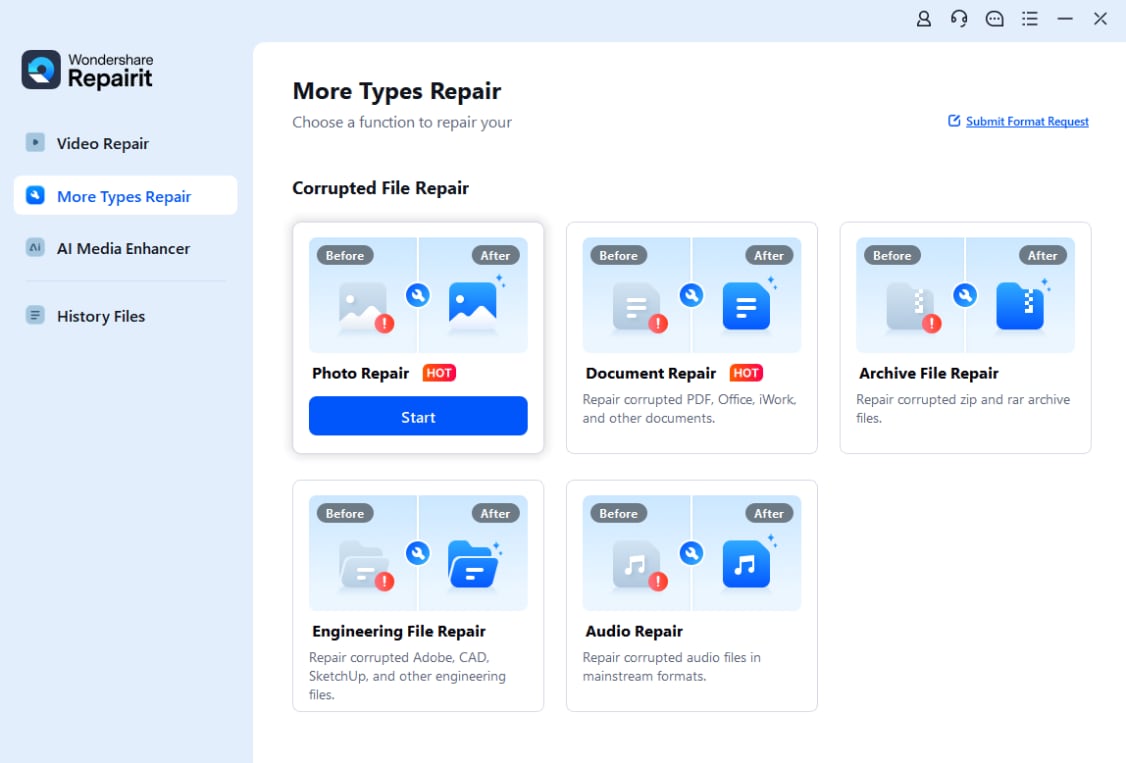
Download and install Repairit, then open the program and go to the Photo Repair section. Click the Add button and browse to the corrupted photo files on your computer, SD card, or external drive. You can import one or many images at the same time to prepare them for repair.
- Repair photo files
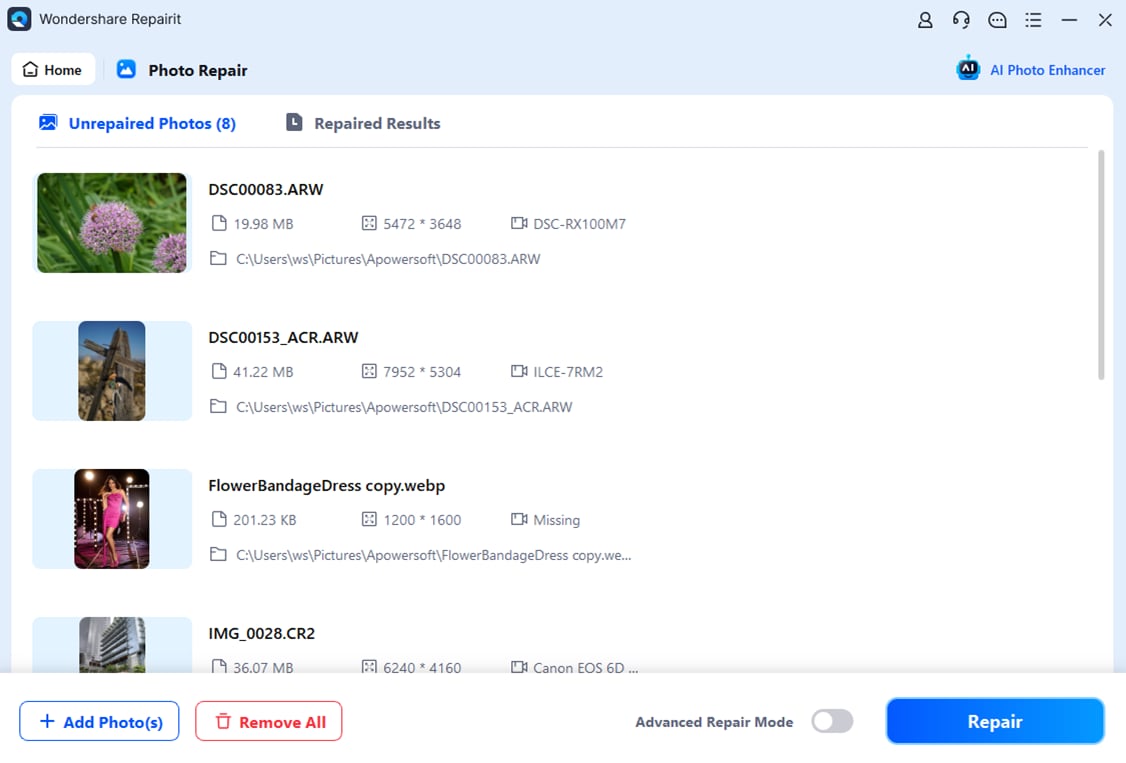
After the photos appear in the list, click the Repair button to start the automatic fixing process. Repairit will analyze each file, rebuild damaged structures, and attempt to restore both color and alpha channel information. If a file is heavily damaged, you can switch to Advanced Repair and provide a similar sample photo from the same device to help improve the repair accuracy.
- Save the repaired photo files
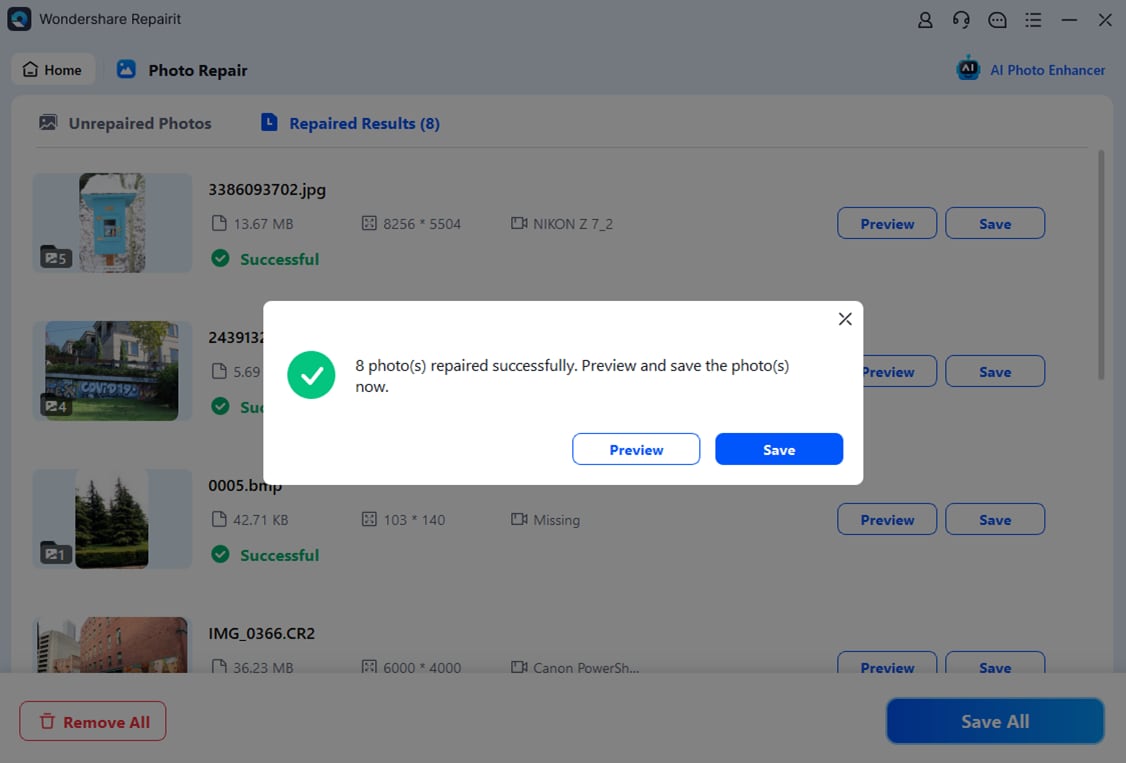
When the repair finishes, select a file and use the Preview option to inspect the result. Check that the subject, background, and any image transparency or edges display correctly. If you are satisfied, click Save or Save All, then choose a safe output folder that is different from the original location to avoid overwriting your source files.
Conclusion
The image alpha channel is the invisible hero behind clean cutouts, realistic composites, and flexible layouts. By understanding how it stores transparency data, how it behaves in different formats, and how tools interpret it, you can avoid jagged edges, halos, and unexpected solid backgrounds in your work.
Whether you are designing web graphics, preparing overlays for video, or exporting assets for apps, mastering alpha channels and using reliable repair tools like Repairit will keep your images sharp, consistent, and ready for any platform.
Next: What is Image Transparency?
FAQ
-
1. What is an image alpha channel in simple terms?
An image alpha channel is an extra layer of data that tells software how transparent each pixel should be. It works alongside the color channels and controls whether parts of your image appear solid, partially see-through, or fully invisible. -
2. Which file formats support alpha channels?
Common image formats that support alpha channels include PNG, TIFF, WebP, TGA (in some variants), and layered formats like PSD. Standard JPEG files do not store an alpha channel, so they cannot provide true transparency. -
3. Why does my transparent PNG show a white or black background?
This often happens when the alpha channel was not saved correctly during export, or when the platform you are using does not fully support transparency. Double-check that you exported a PNG with transparency enabled and test the file in another viewer or browser. -
4. What is the difference between opacity and alpha channel?
Opacity is the visible result of how solid or transparent a pixel appears on screen. The alpha channel is the underlying data that stores that transparency value. Changing values in the alpha channel directly changes the perceived opacity. -
5. Can a corrupted image file break its alpha channel?
Yes. If an image file becomes corrupted, its color data, alpha channel, or both can be damaged. This may cause jagged edges, random solid backgrounds, or missing transparent areas. A dedicated repair tool like Repairit can often recover the file structure and restore usable transparency.




