

You try to log in to TikTok, but a message “Maximum Number of Attempts Reached, Try Again Later” stops you. If you feel confused and worried about your account, it's evident. This error usually appears after many login attempts within a short period. As a result, TikTok blocks new attempts for safety reasons.
However, this block is often temporary and not a permanent ban, which is why there is no need to panic. In this guide, you will learn simple steps to fix the TikTok error “TikTok Error Maximum Number of Attempts Reached, Try Again Later” and regain access to your account quickly and safely.
Table of Contents
Part 1. Why TikTok Says “Try Again Later” After Too Many Attempts
To know the root cause of “TikTok Error Maximum Number of Attempts Reached, Try Again Later” in detail, adhere to the top 5 reasons mentioned below:

- Wrong Login Details: If you enter the wrong password or code many times in a short period, TikTok sees a risk. As a result, it blocks new login attempts for a period of time, even with the correct details.
- Too Many Actions: For instance, if you follow, like, comment, or request codes too fast, limits apply. Therefore, TikTok stops further actions and shows “Try again later” to slow activity.
- IP or Device Block: Shared Wi-Fi, office networks, or public internet can trigger system limits. Thus, TikTok blocks that IP or device for a short cooldown period.
- VPN or Tools Use: Know that VPNs change location quickly, and emulators or tools look unsafe. So, TikTok flags the account and locks login or actions temporarily.
- App Glitch: App bugs or bad cache can send repeat requests without clear notice. As a result, TikTok counts many attempts and shows the limit error.
Part 2. Top Step-by-Step Solutions for TikTok “Try Again Later” Message
So, after understanding the causes, here are 4 basic ways you can try to fix the “TikTok Error Maximum Number of Attempts Reached, Try Again Later” message:
Way 1. Wait Before Trying Again
Wait before you try again so TikTok can reset its security system and remove the block. If you keep tapping or logging in, the timer may restart and lock you out longer. The block is usually short, from minutes to hours, and access often returns on its own. In addition, it protects your account, avoids longer lockouts, and reduces the need for support.

Way 2. Avoid Multiple Devices at Once
This can also resolve the “TikTok Error Maximum Number of Attempts Reached, Try Again Later" message. When you log in from several phones, tablets, or new locations in a short time, TikTok may see this as unsafe behavior. Thus, TikTok experts suggest avoiding the use of many devices at the same time to reduce the risk of blocks. Instead, use a single trusted device and a single network for stable access.
Way 3. Clear TikTok Cache (Android)
For the Android “TikTok Error Maximum Number of Attempts Reached, Try Again Later” message, try to clear the cache. The app saves temporary files for feeds and login sessions, but they can become corrupted over time. Hence, cache removal forces the app to get fresh data from TikTok servers. This can reset stuck login states, fix small bugs, improve speed, and is guided ahead:
Step 1. In the Settings, pick the “Apps” option and tap on the “Manage Apps” menu on the new interface.

Step 2. Now, choose the “TikTok” app from the list, and tap on the “Clear Data” option. In the popup, choose “Clear Cache” and press the “Ok” button to confirm and remove old data.

Way 4. Update TikTok App
An update can also remove the “TikTok Error Maximum Number of Attempts Reached, Try Again Later” message. Old app versions may have bugs that cause wrong login errors or failed code checks, even with correct details. Thus, new updates fix these issues and improve account security. In addition, the latest version also works better with current TikTok servers and your phone system, once updated via the mentioned steps:

Instructions: Search for the TikTok app on the App Store and press on TikTok’s “Update” option if it's there.

Instructions: Choose the “Update” option next to TikTok as you press the “Search” icon and locate TikTok on the App Store.

Part 3. Solve “Try Again Later” Problems with Advanced Methods
When basic solutions fail to remove the “TikTok Error Maximum Number of Attempts Reached, Try Again Later” message, try some of the given advanced solutions:
Way 1. Disable VPN or Proxy
Many VPN services use shared IP addresses that bots also use, so TikTok may flag them as unsafe. So, use your normal home or mobile network for stable access. This lowers the risk of IP blocks, reduces extra security checks, and helps SMS codes or email verification work as expected. Hence, here is how you can disable the VPN on Android and iOS in a few simple taps:
Instructions: On the “Connection & Sharing” interface, pick the “VPN” option and toggle off the “VPN” on the following interface.

Instructions: Tap the “VPN” option and disable all the listed options displayed on the “VPN” screen.

Way 2. Try TikTok Web or Another Device
Try TikTok Web or another device if you see the “TikTok Error Maximum Number of Attempts Reached, Try Again Later” message. Sometimes the problem comes from one phone, bad cache, or app issues, not your account. This is why logging in from a browser or another device requires a fresh setup and may avoid the stuck error. Besides, it also gives quick access while you fix your main device.
Way 3. Reinstall TikTok
It is also suggested to reinstall the app if the “TikTok Error Maximum Number of Attempts Reached, Try Again Later” message reappears. When you uninstall, your phone removes old files and settings. So, after reinstall, you get a clean and the latest version from the official store. This reset can remove hidden bugs and stuck error states, once reinstalled through the given ways:
Instructions: On the “App Info” screen, select the “Uninstall” option and press the “Ok” button to commence. After uninstalling, search for TikTok in the Play Store and tap the “Install” button.

Instructions. While long-pressing on the TikTok app, choose the “Remove App” and “Delete App” options. After that, press the “Delete” button to confirm and search for the TikTok on the App Store. Finally, press the “Cloud” icon to reinstall and re-login to the app.

Way 4. Contact TikTok Support
Some blocks relate to security flags, region limits, or policy issues that you cannot see or fix yourself. Hence, if the error stays, after one or two days, support can check your account logs and IP history. They may remove or adjust a block if no misuse appears. Support also gives clear next steps for your case and helps with safe account recovery if needed.
Part 4. If the Problem Continues | Reset Your Account Passcode Safely
If the wrong passcode is causing the “TikTok Error Maximum Number of Attempts Reached, Try Again Later” message, reset it. Use the official “Forgot password?” option with phone or email to verify your identity. After the cooldown ends, log in with the new password to avoid more failed attempts. This method also improves account security and ends old sessions, so reset through the listed ways:
If You Can Open the TikTok App
Step 1. Tap the “Profile” icon to choose the “Login” option and choose the “Use Phone/Email/Username” option. After that, if you pick the Email option, enter the email, and on the “Verify Email” screen, press the “Need Help Logging In?” option.

Step 2. On the popup menu, choose the “Use Password Instead” option and again press the “Need Help Logging In?” option. After that, select the “Rest Passcode with Email” or “Rest Passcode with Phone” option.

Step 3. Now, enter the email details and press the “Continue” button, and enter the new passcode. When resetting via email, enter the 6-digit code and tap “Continue” to log in.

If You Are Using TikTok Web
Step 1. On the TikTok login screen, choose the “Use Phone/Email/Username” option.

Step 2. After that, press the “Forget Passcode” option, then enter the 6-digit code and a new password. Once done, pick the “Login” option to reset the TikTok passcode.

Pro Tip. Fix Downloaded TikTok Media That Won’t Play via Repairit
While learning how to resolve the “TikTok Error Maximum Number of Attempts Reached, Try Again Later” message, sometimes, your TikTok drafts or videos might get corrupted. This can occur due to a transfer, crash, or storage error, and Repairit can help you fix it. Moreover, this AI tool is designed to repair 150+ video formats, including MP4, MOV, AVI, and MKV.
Leveraging innovative algorithms, it can also repair RAW formats, HDR/LOG footage, and advanced video codecs. Hence, with support for HD, 4K, and 8K videos across all devices, the tool claims a 100% success rate without further compression or quality loss. In addition, users can batch-repair multiple corrupted TikTok videos, with the option to preview them after repair.
Key Features

-
Gyroscope Data Repair: 98.15% gyroscope data restoration for GoPro, fixes corrupted motion sensor, supports GyroFlow, and GoPro Player.
-
Cross‑platform & Online + Desktop: Repair available on Windows, macOS, and online, offering quick fixes via desktop apps and web-based options.
-
User‑friendly Interface: Simple drag and drop workflow with three steps: add, repair, and save easily for non-technical users.
Simplified Manual to Fix Corrupted TikTok Videos or Drafts via Repairit
As you resolve the “TikTok Error Maximum Number of Attempts Reached, Try Again Later” message, here is how you can repair the corrupted TikToks upon login:
Step 1. Choose to Add Corrupted TikTok Videos
When you open Repairit, tap the “Start” button, then add the corrupted TikTok videos in the “Video Repair” tool.

Step 2. Fix the Corrupt & Damaged TikToks
Pick the “+Add Files(s)” button in the “Unrepaired Videos” section and add multiple files to repair at once. As it's done, choose the “Repair” button and wait for the tool to detect and fix the videos.

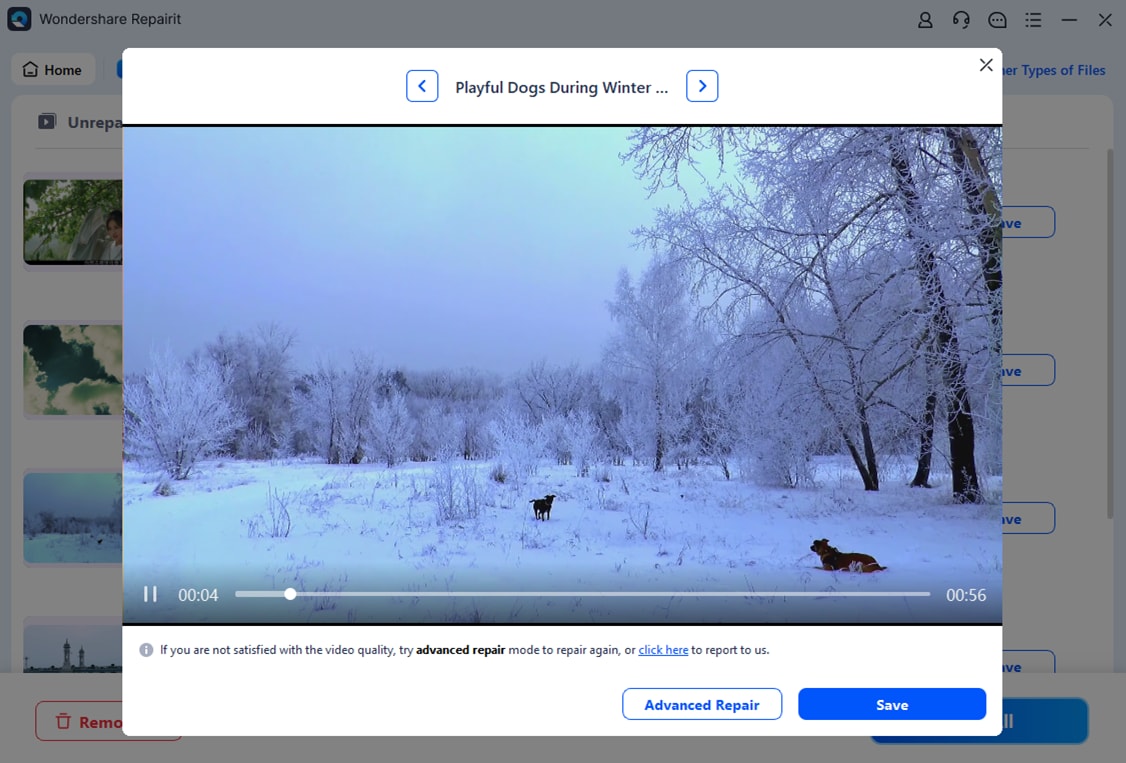
Step 3. Preview and Save the Fixed TikTok Videos
Finally, preview the fixed TikToks and choose the “Save” button to export.
Fix Corrupted TikTok Videos or Drafts via Repairit
 Security Verified. Over 7,302,189 people have downloaded it.
Conclusion
To sum up, many users encounter the “TikTok Error Maximum Number of Attempts Reached, Try Again Later" message. Therefore, this guide has explained why it occurs and how to resolve it via basic and advanced solutions. After a successful login, if your drafts or videos get corrupted, use Repairit to repair them in batches in any format. This helps restore playback and prevents losing important TikTok content.
Frequently Asked Questions
-
1. How long does the TikTok cooldown usually last?
Usually, the cooldown lasts from a few minutes to up to two full days. Therefore, you should wait patiently and avoid extra login attempts during this period. -
2. Can this TikTok login error lead to a permanent ban?
No, this error normally does not result in permanent account deletion or ban. However, repeated violations or suspicious activity may cause stricter actions on your account. -
3. Will TikTok notify me when the block is lifted?
TikTok does not send a message when the cooldown or block ends. So, you need to try logging in again after the wait period finishes.




