
Imagine that you are about to sit down and watch your favorite movie on Amazon Prime Video, and then a message appears: This Video Is Currently Unavailable Amazon Prime. It can frustrate anybody, particularly when it has been a hard day, or friends are waiting to sit and watch a movie. This problem is faced by many users on different devices like smart TVs, smartphones, tablets, and computers.
Often, the problem happens due to regional restrictions, expired content licenses, or temporary server errors. No matter what the cause, this guide will help you find simple solutions to make the video play again quickly.
Table of Contents
Part 1. 5 Common Causes of Amazon Prime Video Unavailability
"This Video Is Currently Unavailable" on Amazon Prime Video is a general playback error that means the platform cannot allow access to that title at that moment. It does not always point to a single cause, but rather to a restriction or a temporary failure.
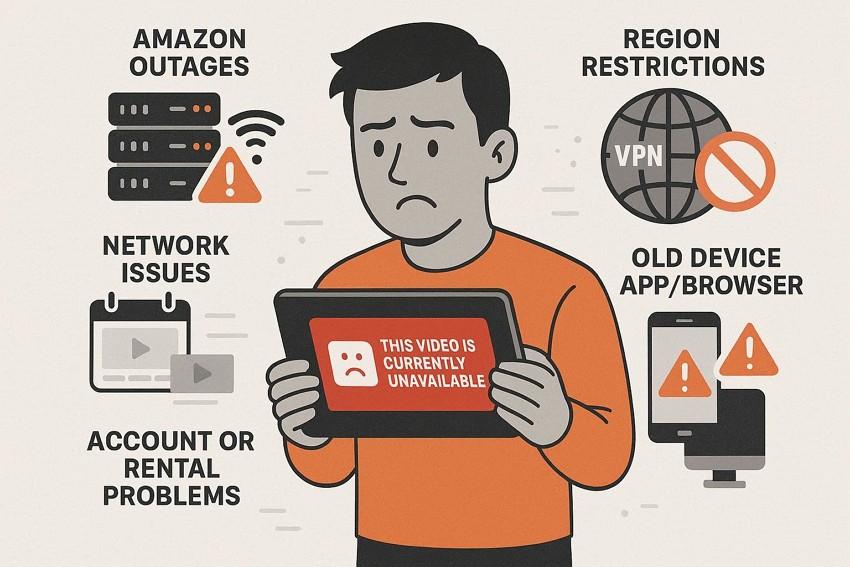
Since the issue stems from many reasons, adhere to the 5 main causes and learn why the Amazon Prime video unavailable alert shows:
- Amazon Server or Service Outages: Prime Video may stop working when Amazon servers fail or become overloaded. In this case, many users see "Video unavailable," and errors affect large regions or specific titles.
- Network and Bandwidth Problems: A slow or unstable internet connection can block Prime Video from playing videos. To put it simply, weak Wi‑Fi, router issues, or ISP problems often cause buffering, low quality, or complete failure.
- Region Restrictions, VPNs, and Licensing: Some titles work only in specific countries, and a mismatched location can block playback. Hence, VPNs, proxies, or incorrect device settings can cause Amazon to think you are outside the allowed regions.
- Account, Subscription, or Library Issues: Videos can disappear if rentals expire or subscriptions end for certain channels. Additionally, Amazon may temporarily block titles due to backend or rights issues until they are resolved.
- Device, App, or Browser Compatibility Problems: Old devices, unsupported browsers, or outdated apps may prevent videos from playing. In addition, apps or device limitations can cause generic "video unavailable" messages across titles.
Part 2. Fix Amazon Prime "This Video is Currently Unavailable" Error
To know how you can resolve the "Amazon video unavailable" alert message, try the 8 simple fixes mentioned below:
Fix 1: Check Internet Connection
Know that the app needs a stable, fast link to load videos and verify licenses. Thus, a slow or broken connection can cause buffering, endless loading, or messages marked as unavailable. This is why testing on another device or network helps determine whether the problem is local or with your ISP.
Fix 2: Restart Your Device
To fix the "Amazon Prime, this video is currently unavailable" alert, try restarting the device. This fix clears temporary glitches in memory, apps, and network modules. Since it also completes pending updates and clears minor OS glitches that affect playback, here is how you can do this on major devices:

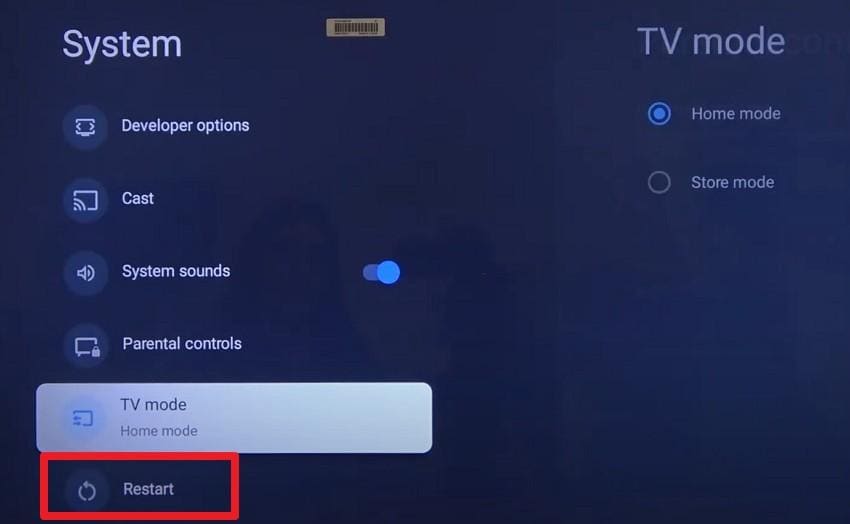
Step 1. Press the "Settings" icon and go to the "System" settings to choose the "Restart" option.
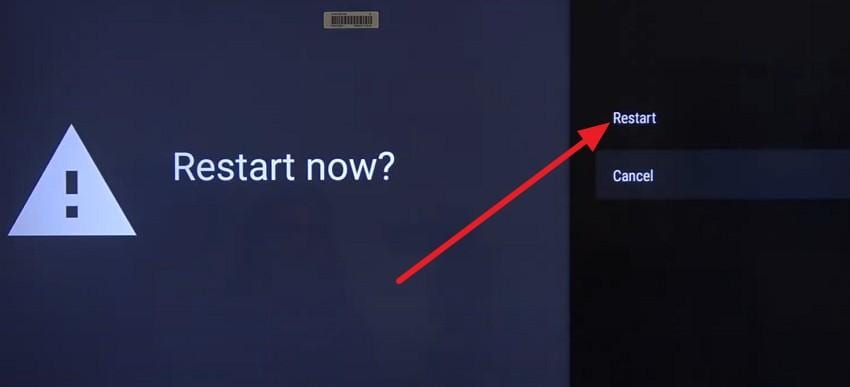
Step 2. On the new interface, click on the "Restart" button to confirm.
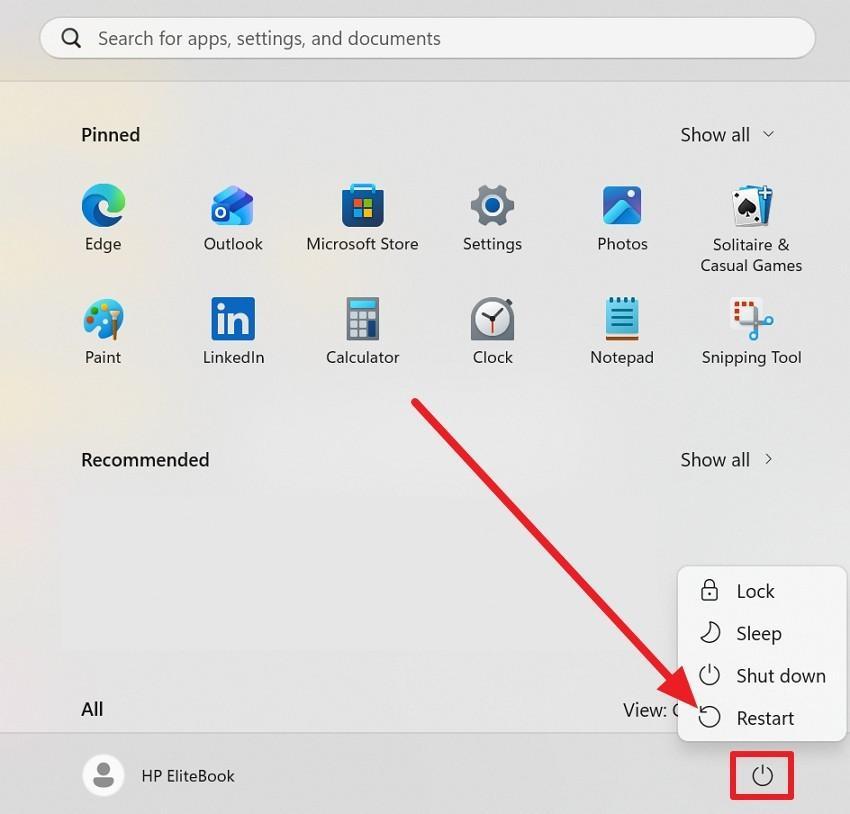
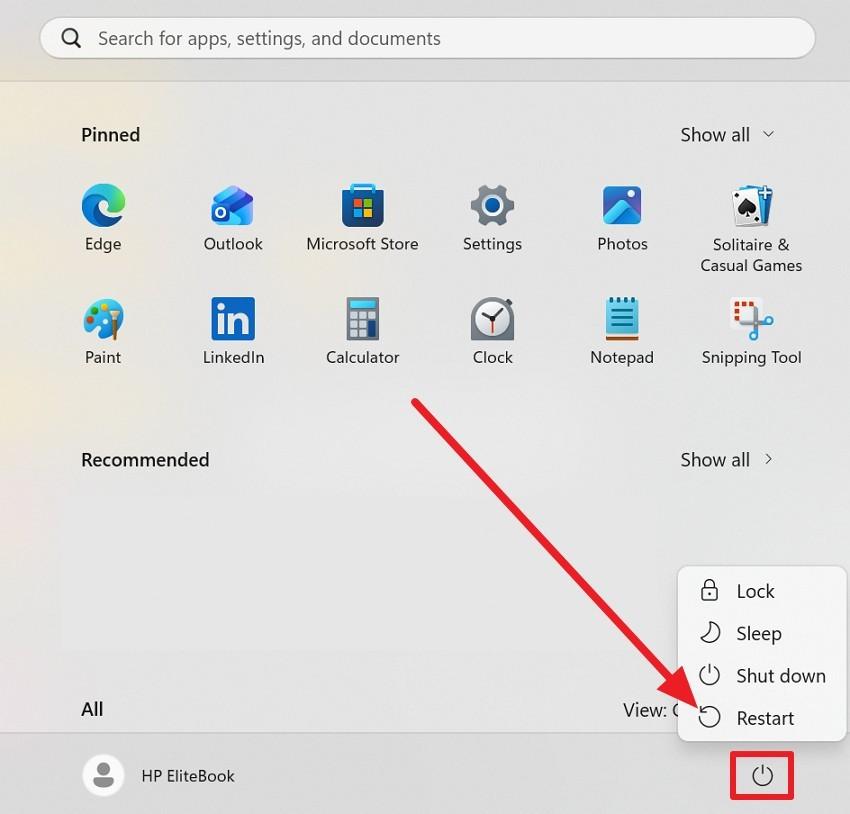
Instructions: Pick the "Power" icon in the Start menu and choose the "Restart" option.
Instructions: Tap the "Apple" icon and choose the "Restart" option from the list.
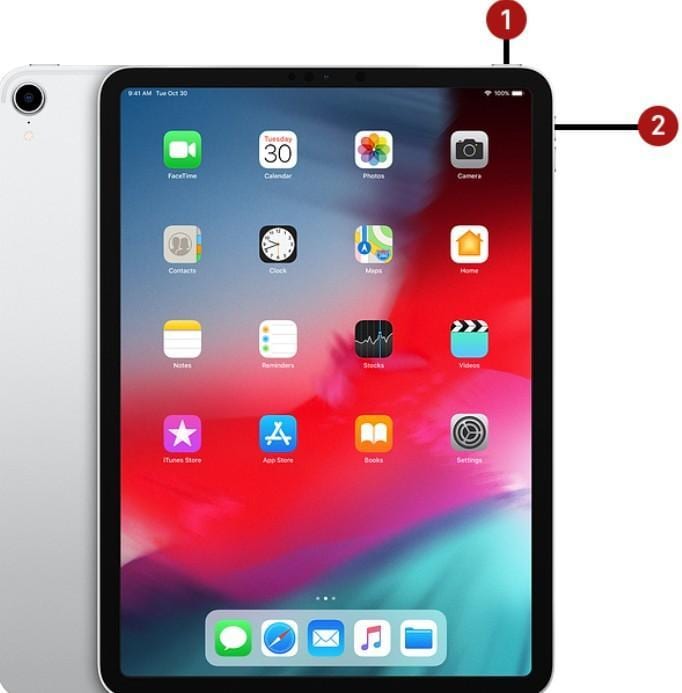
Instructions: Press and hold the "Top" button and "Volume Up" button until the slider appears, then slide to power off. After a few seconds, use the "Top" button again to turn on your iPad.
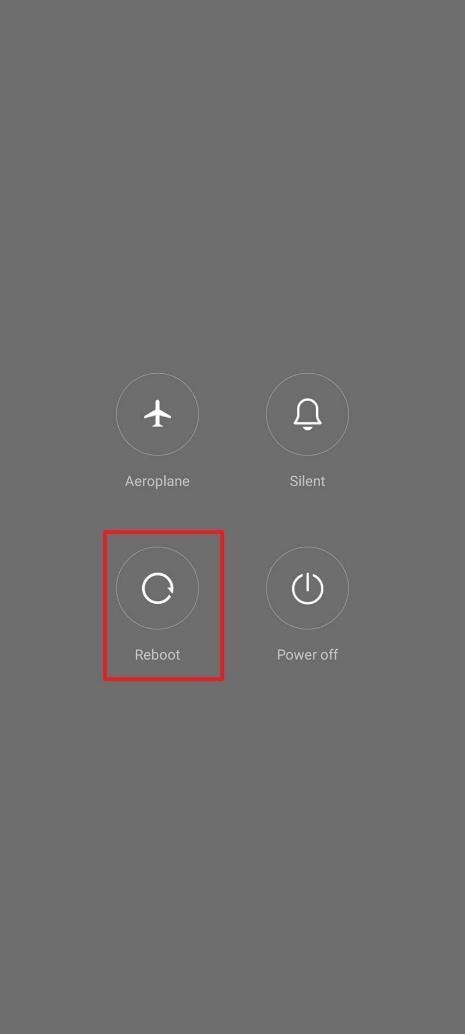
Instructions: Hold the "Power + Volume Up" buttons and pick "Reboot."
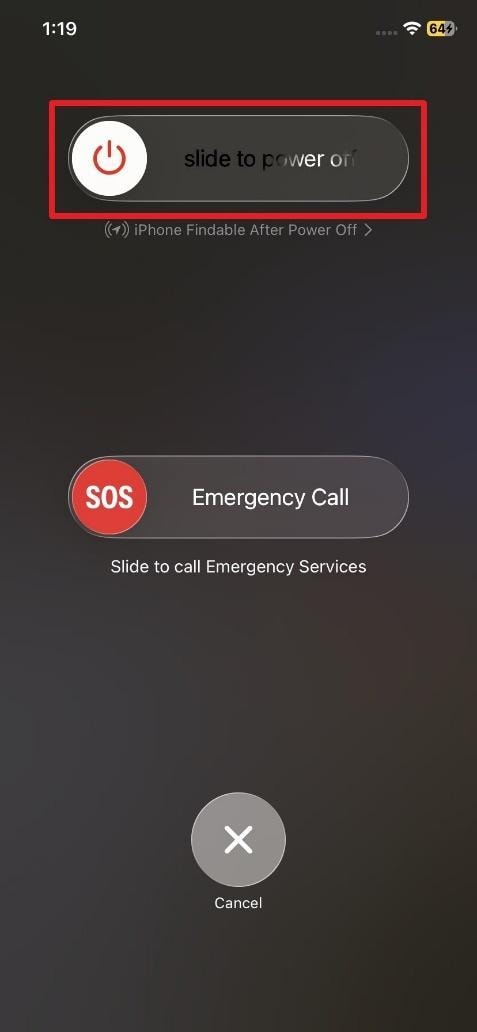
Instructions: Press and hold the "Power + Volume Up" button and slide the "Slide to Power Off" slider. Next, utilize the "Power" button to turn on your iPhone after a few seconds.
Fix 3: Add Show to the Watchlist
For the "this video is currently unavailable Amazon Prime" alert, this fix reloads the title through a different app path. In addition, it refreshes the link and metadata, bypassing minor glitches that block playback. As you add the show to the Watchlist via the mentioned steps and open it, it can avoid broken catalog pages or stale information:
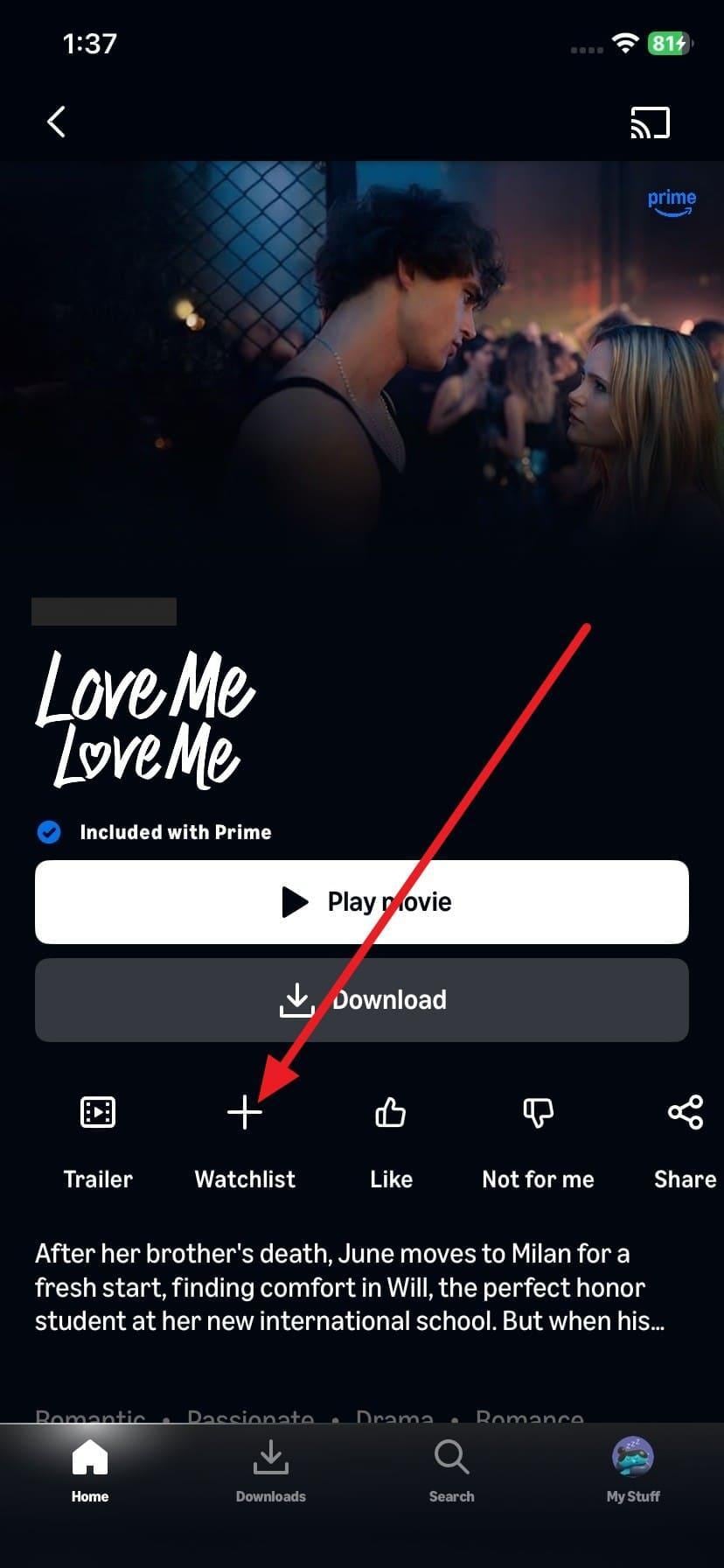
Instructions: With the show open, tap the "+" icon to add to the Watchlist.
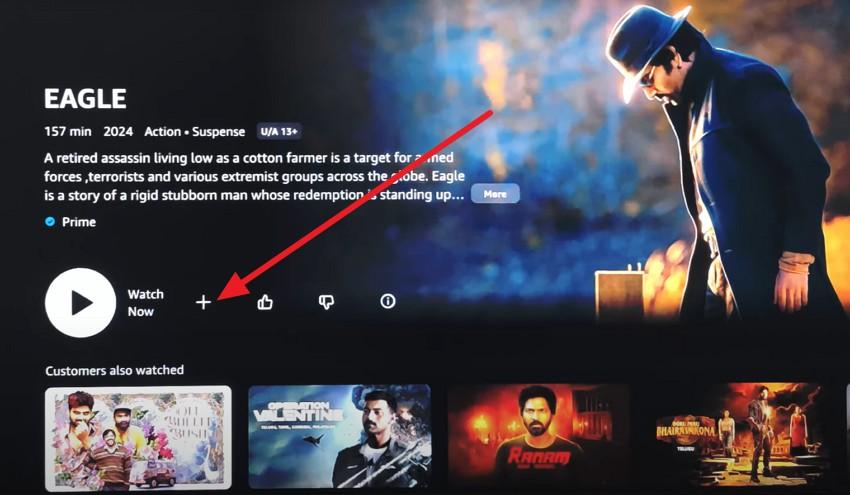
Instructions: Search for a specific show on Prime, then tap the "+" icon.
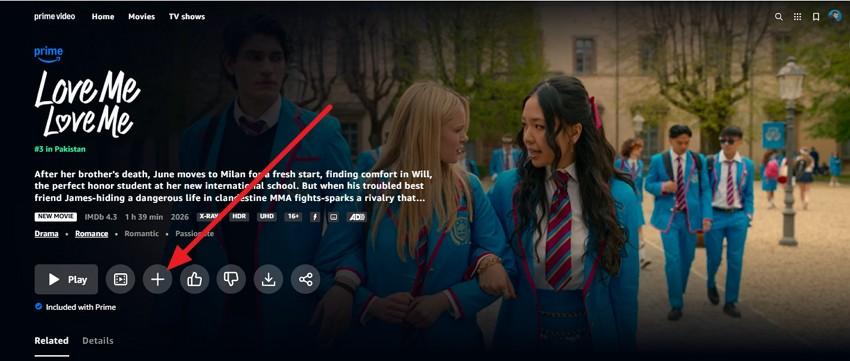
Instructions: Open the show and press the "+" icon under the download option.
Fix 4: Clear Browsing or App Data
If you still get the "Amazon Prime video unavailable" alert, try this fix because old or corrupted cache, cookies, and site storage can block playback. Removing this data forces the browser or app to load fresh files, reset sessions, and clear stale states. Additionally, it helps the player initialize correctly, and the detailed steps are mentioned below:
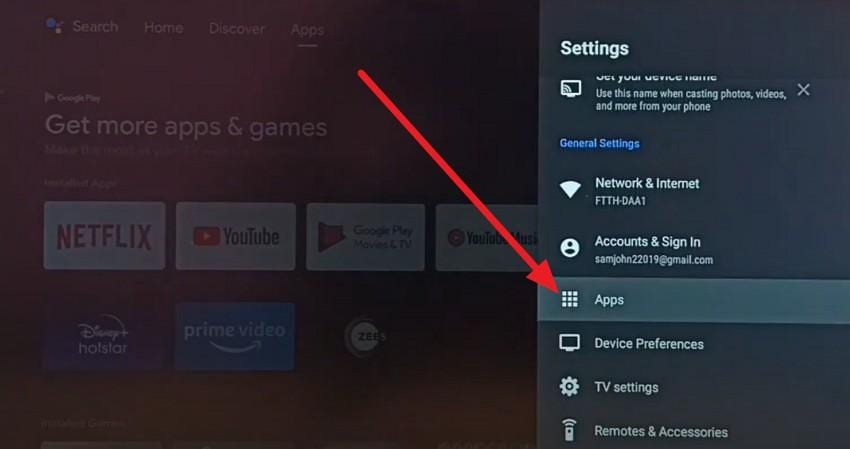
Step 1. Choose "Settings" and press the "Apps > See All Apps" option, and choose Prime Video from the list.
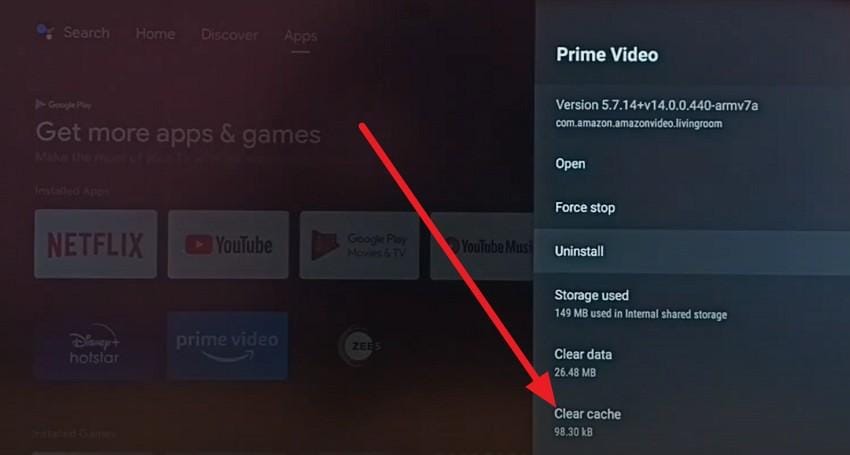
Step 2. After that, tap the "Clear Cache" option in the app settings, then press the "OK" button to confirm.
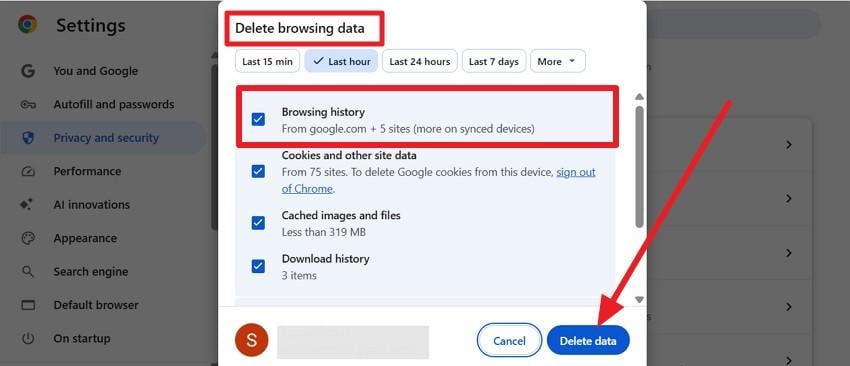
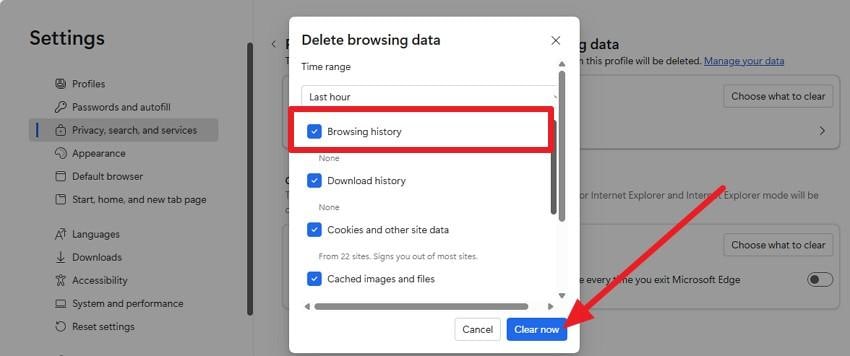
Instructions: Press "Ctrl + Shift + Delete" on Windows or "Command + Shift + Delete" on Mac. In the "Delete Browsing Data" tab, tick "Browsing History, Cookies and other site data, and Cached images and files" and press "Delete Data."
Step 1. Pick the "Privacy, Search, And Services" tab and choose the "Clear Browsing Data" menu and tap "Choose What to Clear."
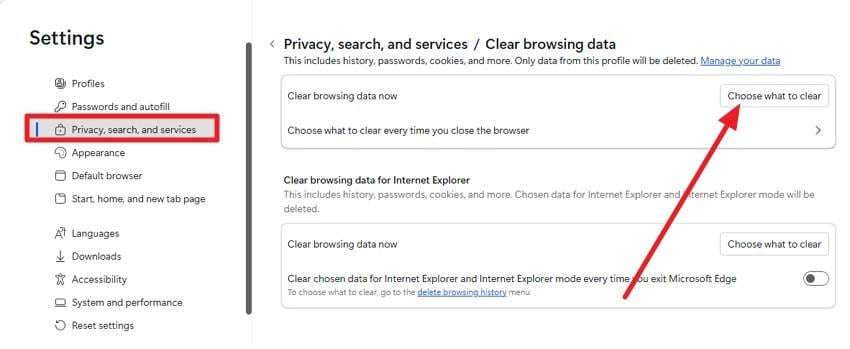
Step 2. Select "Browsing Data" along with other options and press the "Clear Now" button to confirm.
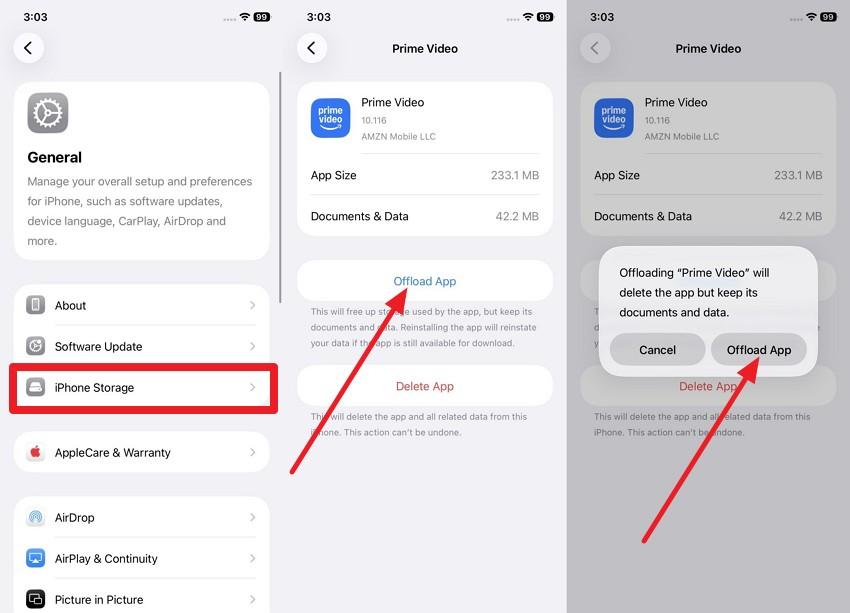
Note: On phones and tablets, it's usually better to offload or reinstall the app on iOS or clear the app cache on Android. This is because Amazon Prime Video typically runs as a standalone app rather than in a browser.
Instructions: In General settings, select the "iPhone Storage" option, then scroll down the app list to select the Prime Video app. There, press the "Offload App" option and pick "Offload App" again to confirm.
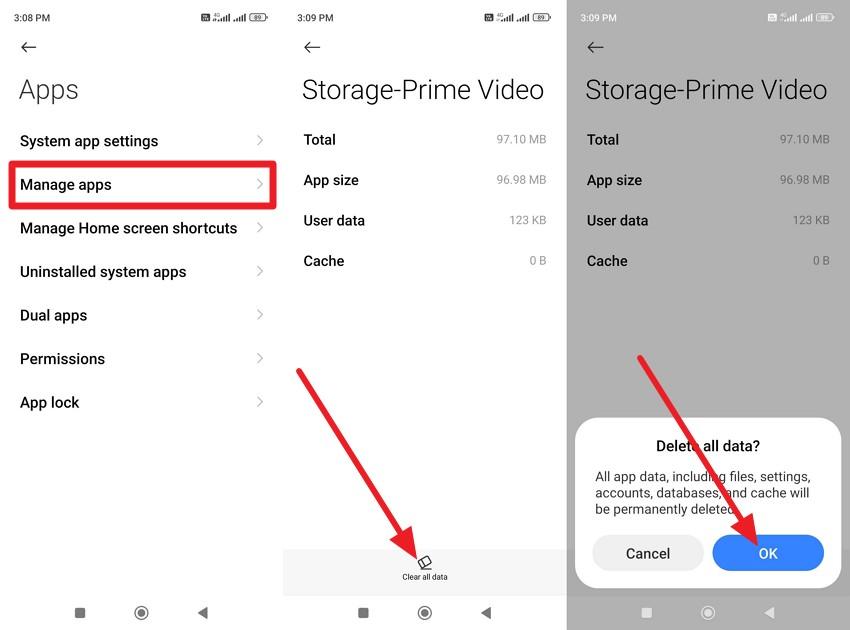
Instructions: Go to "Apps > Manage Apps" settings, then select the Prime Video app from the list. Head to the "Storage" option, choose the "Clear All Data" option, and pick "Ok" to confirm.
Fix 5: Enable/Disable VPN Connection
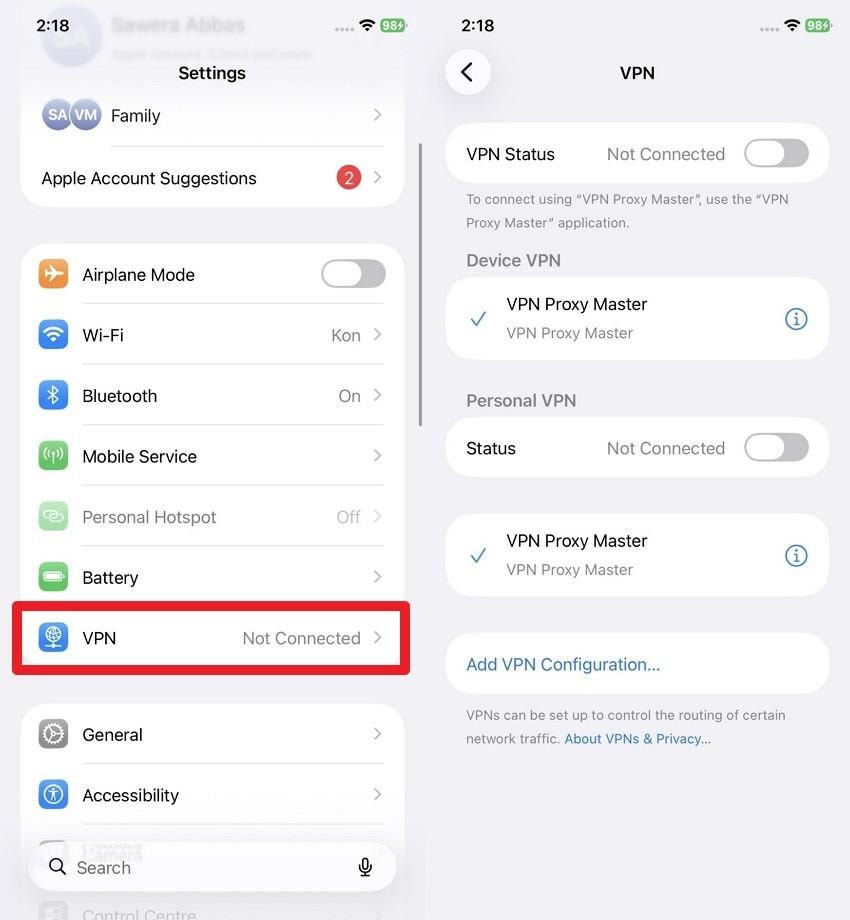
To resolve the Amazon video unavailable issue, enable/disable VPN, as Amazon Prime Video checks your IP address and location before playback. Turning off the VPN lets Prime detect your real location, while switching to another server can provide a clean IP address that isn't blocked. Here are the simple steps you can perform to turn off VPN on all devices:
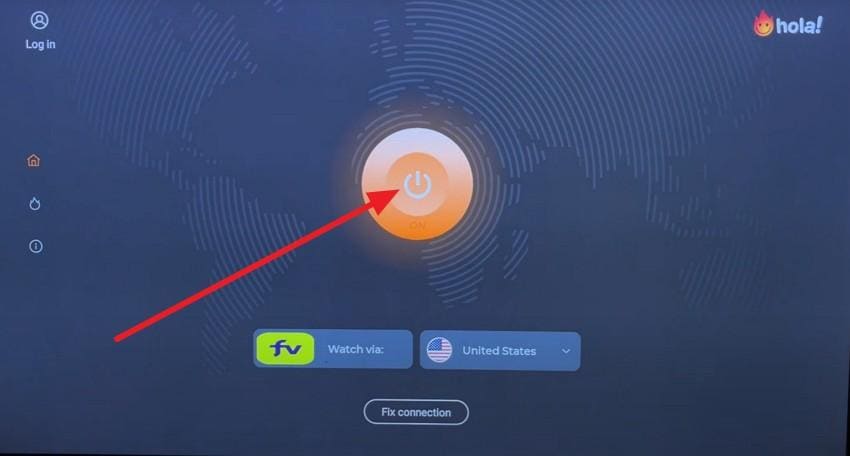
Step 1. On Fire TV Stick, press the "Apps" icon and locate the VPN app from the list.
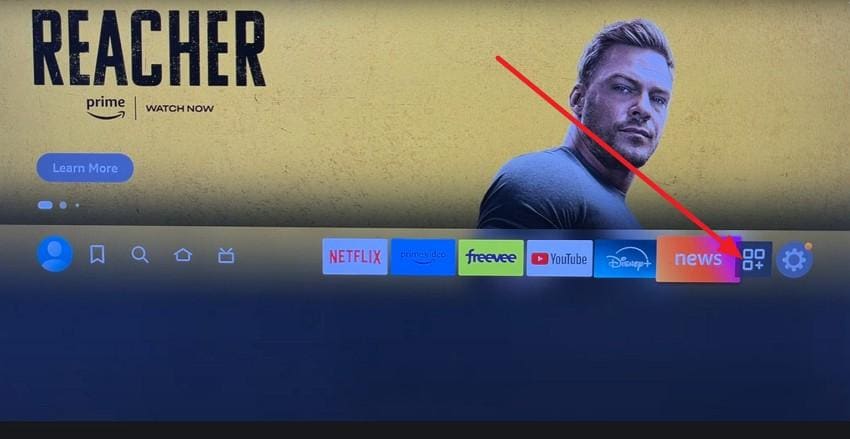
Step 2. After that, press the "Power" icon on the VPN interface to disable or enable it.
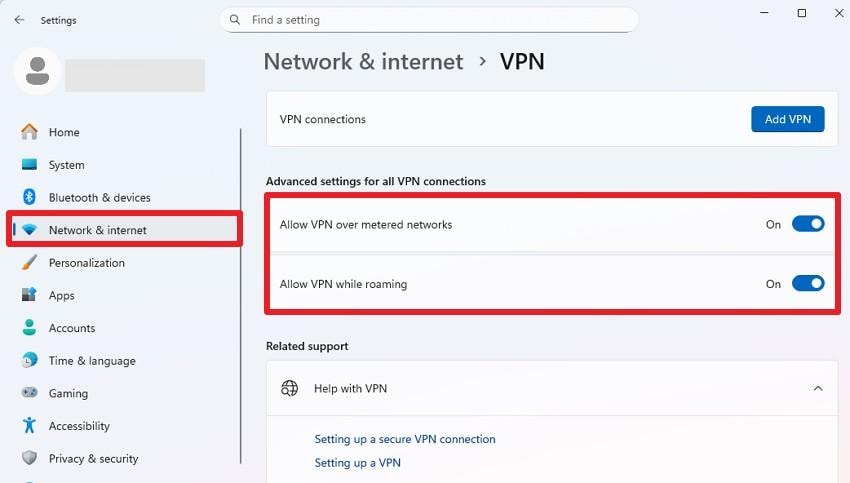
Instructions: Go to "Network & Internet > VPN" in settings and disable the given VPN options.
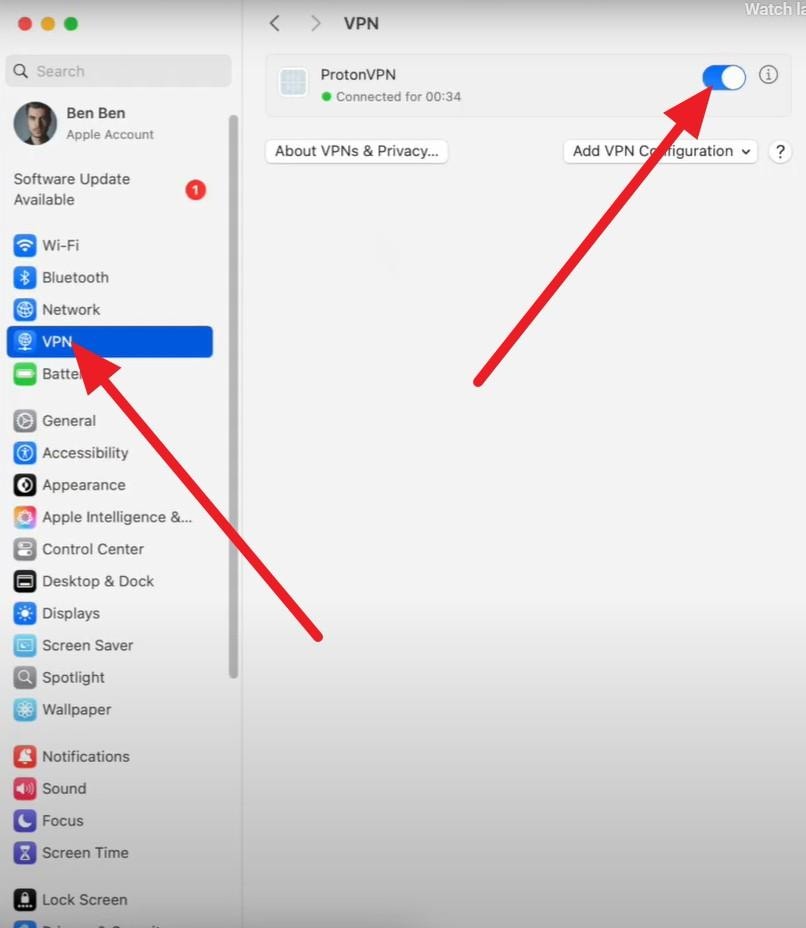
Instructions: Go to System Settings and pick "VPN" in the left sidebar and toggle off the option.
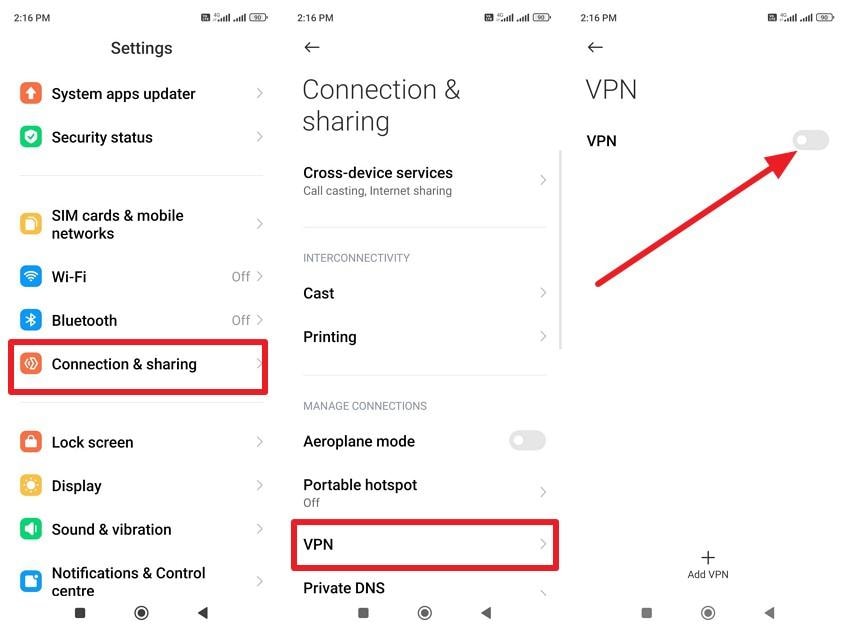
Instructions: Choose the "Connection & Sharing" option and pick "VPN" on the new interface. After that, toggle off the "VPN" option to disconnect.
Instructions: In Settings, press the "VPN" option and disable the listed VPN options.
Fix 6: Check Regional Restrictions
Checking regional restrictions helps fix the "Amazon Prime, this video is currently unavailable" error. It confirms the issue relates to geo limits, not a broken device or app. If your account region does not match your real location, some titles may stay unavailable. Furthermore, regional checks explain why one device can play the video while another cannot, especially across different networks.
Fix 7: Disable Hardware Acceleration
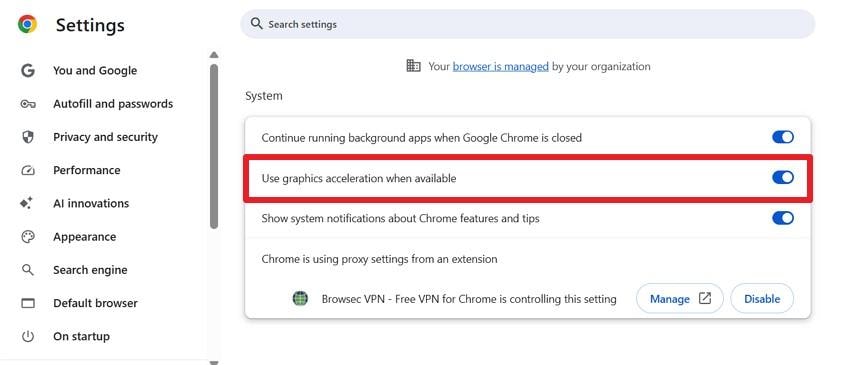
Try this fix to resolve the "this video is currently unavailable, Amazon Prime" alert message. Amazon Prime Video may show glitches, flicker, or a blank screen if your graphics driver fails to handle DRM video correctly. With hardware acceleration off through the listed steps, the CPU handles video decoding instead of the GPU, which can bypass driver bugs:
Step 1. In Chrome settings, go to the "System" tab and disable the "Use Graphic Acceleration When Available" option.
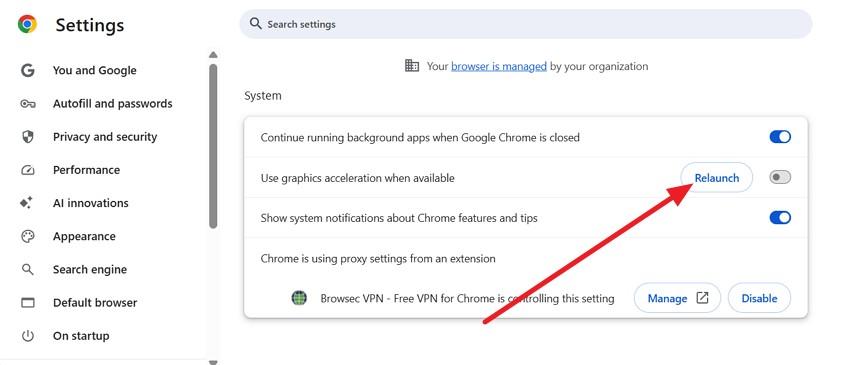
Step 2. Then, press the "Relaunch" button to restart Chrome and see if the issue persists.
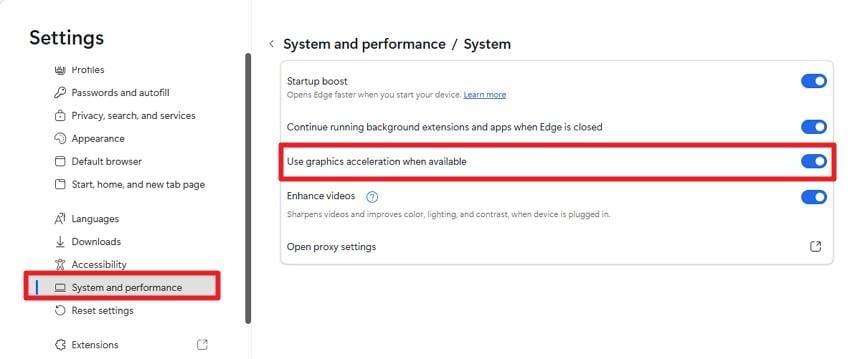
Instructions: Go to the "System and Performance" tab in Settings and in the "System" tab, toggle off the "Use Graphic Acceleration When Available" option.
Most smart TV and streaming device systems, such as Amazon Fire TV, Roku OS, tvOS, and Android TV, do not offer a hardware acceleration toggle. If video issues persist, update the device firmware and the Amazon Prime Video app.
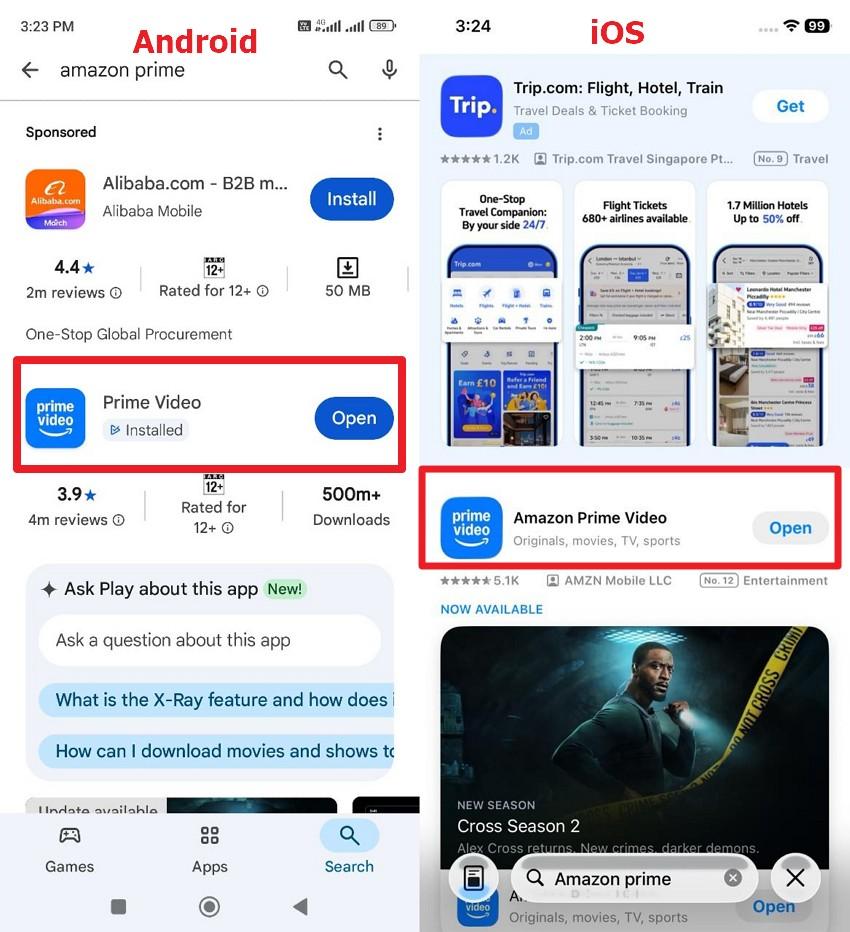
On Android and iOS, you can't adjust hardware acceleration as you can on a desktop. So, fix the "Amazon Prime Video unavailable" error by refreshing the app, your account, and your network, especially in Amazon Prime Video. Try the listed ways to update the Prime Video app on Google Play Store and App Store:
Instructions: Search for the "Prime Video" app on Google Play Store and App Store, and select the "Update" option if available.
Fix 8: Check Amazon Prime Server Status
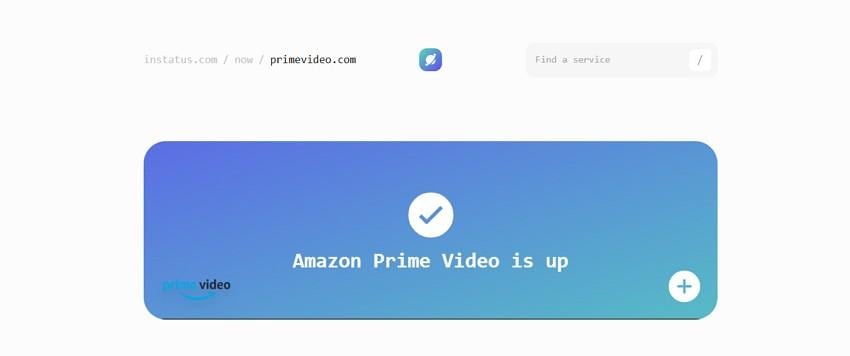
When nothing fixes the "Amazon Prime this video is currently unavailable" alert, check the Amazon Prime Server Status. If many users report problems or a status page confirms an outage, the fault lies with Amazon. In addition, this helps you separate global service disruption from local setup issues. Server status also prevents unnecessary account or payment changes during temporary outages.
Pro Tip: Use Repairit to Repair Corrupted Third-Party Prime Video Files
If Amazon Prime seasons downloaded from a third-party source fail to play while others work, the video files may be corrupted. Here, Repairit can fix corrupted videos in common and pro formats, such as MP4, MOV, MKV, AVI, FLV, MXF, RAW, LOG, and HDR. In addition, users can fix footage from DSLRs, mirrorless cameras, smartphones, and drones, making it a versatile choice.
Unlike other repair tools, you can fix multiple corrupted Prime downloads at once, saving you the hassle of manual work. For repairs, users can use the Quick and Advanced repair options. Quick repair for common damage, plus Advanced and Professional modes for severe corruption or pro-codec video files. Not just that, users can preview all fixes Prime downloads in detail, without having further quality loss.
Key Features

-
RAW Video Repair: Supports ARRI, Sony, Canon, Blackmagic, and RED RAW formats, including large 6K, 8K, and 12K professional video files.
-
High Success Rate: Elevated success for MP4 and professional formats, with repair rates up to 90-95% in some scenarios.
-
Cross-Platform & Online: Available on Windows, macOS, and online, letting users repair files quickly without installing any software.
Guide to Fix Corrupted Prime Downloads via Repairit
When you get the Amazon Prime video unavailable message from corrupted downloaded videos, here is how you can fix them in 3 simple steps:
Step 1. Add Corrupted Prime Downloads
Press the "Start" button to add the corrupted Prime downloads in the "Video Repair" tool.

Step 2. Import More Files and Repair Them
As you are done adding multiple Prime Video movies or seasons by picking the "+Add Files(s)" button, choose "Repair" to commence.

Step 3. Choose to Preview or Save the Fixed Prime Downloads
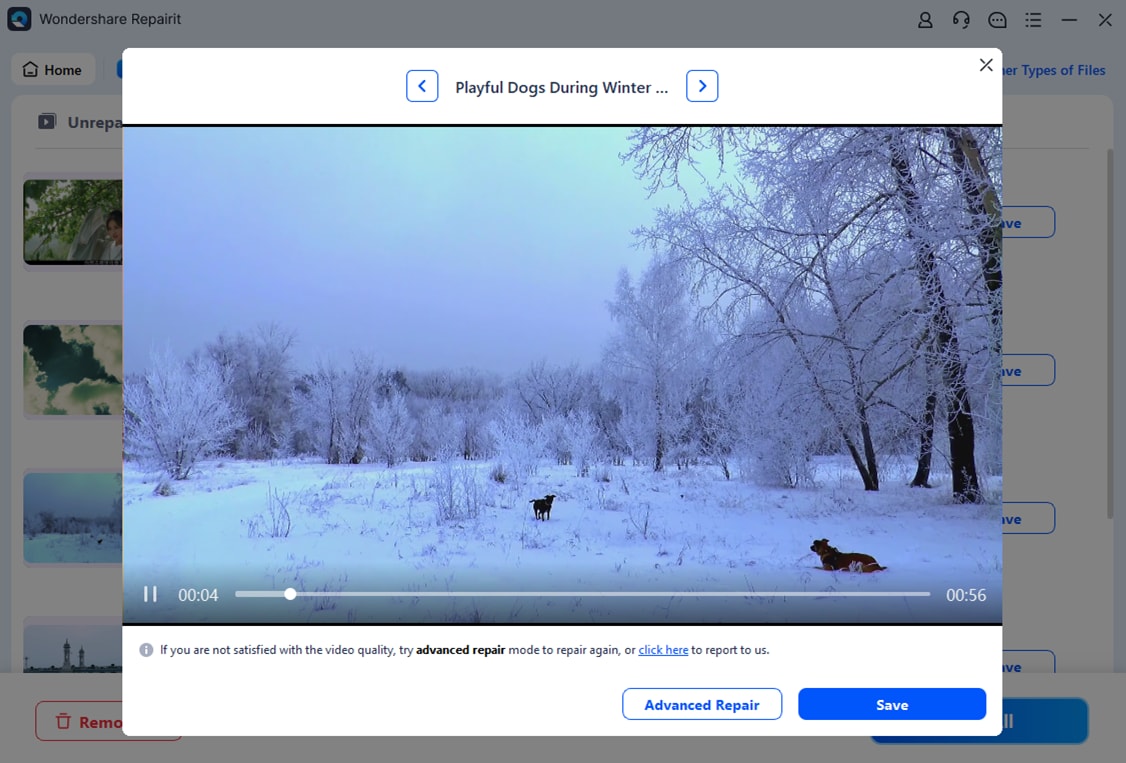
Wait for the tool to fix the corrupted videos and press the "Preview" or "Save" button. When you are done previewing the files in detail, choose "Save All."
Fix Corrupted Prime Downloaded Video Files
 Security Verified. Over 7,302,189 people have downloaded it.
Conclusion
In a nutshell, the "this video is currently unavailable, Amazon Prime" issue is frustrating, and users wonder why it occurs. While having the basics, 8 simple and effective solutions are explained in detail to help users restore playback quickly and reliably. However, if the alert appears on corrupted Prime downloads, Repairit is recommended for its Quick Repair and extensive support.
Frequently Asked Questions
-
1. Can this error appear on some devices but not others?
Yes, devices may show different results due to app version, account login, or network used. Therefore, one device works while another shows "video unavailable" even on the same account. -
2. Why do some Prime Video titles work for friends but not me?
Content availability depends on your account region, subscription type, or IP location at that moment. Thus, friends in another region or account type may be able to access titles you cannot watch. -
3. Does this Prime Video error affect all streaming features?
No, other videos, downloads, or live content may play normally while one title fails. However, the unavailable error only blocks certain titles and does not stop full Prime Video use.




