
Amazon Prime Video is one of the top on-demand streaming services, offering thousands of movies and TV shows. However, sometimes videos may buffer, skip, freeze, or load very slowly due to network or other issues, which affects the viewing experience.
There are many possible reasons for Amazon Prime Video buffering. Below, we share different solutions based on the most common causes, so you can try the fixes that apply to your situation.
Table of Contents
Part 1. Why Amazon Prime Keeps Buffering

Before troubleshooting the issue, it’s vital to know what’s causing it. Most Amazon Prime Video buffering issues come from one of three areas: your internet, your device, or the Prime Video app.
- Bad or Slow Internet Connection: A weak or slow internet connection can't load Prime Video quickly, causing buffering. Amazon recommends 3 Mbps for SD, 5 Mbps for HD, and 25 Mbps for 4K. Faulty routers can also disrupt stable streaming.
- Outdated or Buggy Prime Video App: Using an outdated Prime Video app or device software can lead to bugs and buffering, as older versions may miss vital updates.
- Device Issues: Sometimes the buffering problem comes from the device itself. Low memory, overheating, system bugs, or hardware glitches can slow down performance and cause videos to lag, freeze, or even crash.
- Amazon Server Issues: In some cases, the problem is on Amazon’s side. If other platforms like Netflix or YouTube stream smoothly but Prime Video freezes, Amazon may be having technical issues.
- Too Many Apps Running in the Background: Your device might be low on memory because other apps are open. This can slow things down and cause video lag or stuttering.
- Corrupted Downloaded Videos: If the Amazon video you downloaded is damaged or didn’t save correctly, it may not play smoothly and might keep freezing or crashing.
Part 2. Quick Fixes for Prime Video Buffering
Watching on mobile, desktop, or Fire TV, but Prime Video starts buffering? Try these fast and easy fixes to stop buffering and get back to watching without interruptions.
1. Check Your Internet Connection
A weak or unstable internet connection is one of the main reasons Prime Video buffers. Make sure your internet is working properly, and the speed is enough for streaming. Here are quick ways to test it:
Try other apps or websites. If they load normally, your internet is likely fine, and the issue may be with Prime Video.
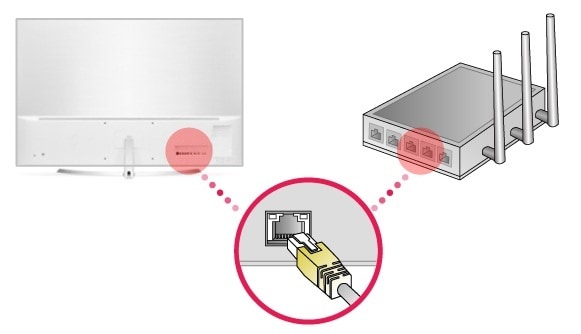
Use a wired connection. If you’re on Wi-Fi, try connecting your device directly to the router with a good Ethernet cable. This often gives a more stable and reliable connection.
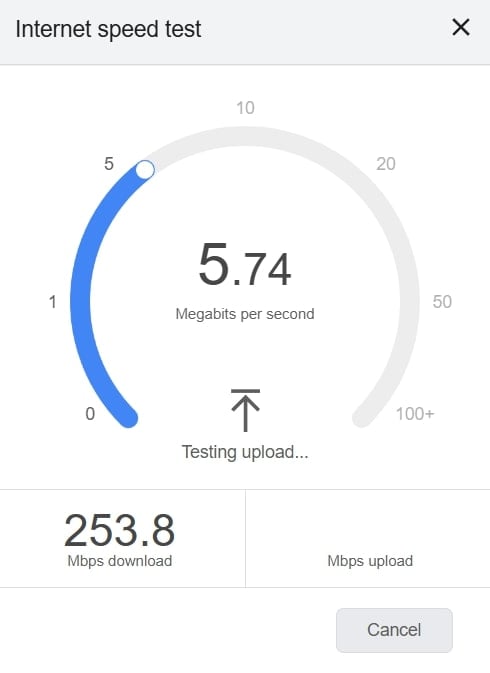
Move closer to the router. Then, run a quick speed test to check the internet speed.
2. Restart Your Device or Router
If your internet and Amazon’s servers are working, try restarting your device or router. A simple reboot can troubleshoot many temporary glitches. It refreshes the system and clears small errors that may cause buffering.
Here are the steps:
Step 1: Turn off your phone, computer, or TV.
Step 2: Unplug your router for 1-2 minutes.
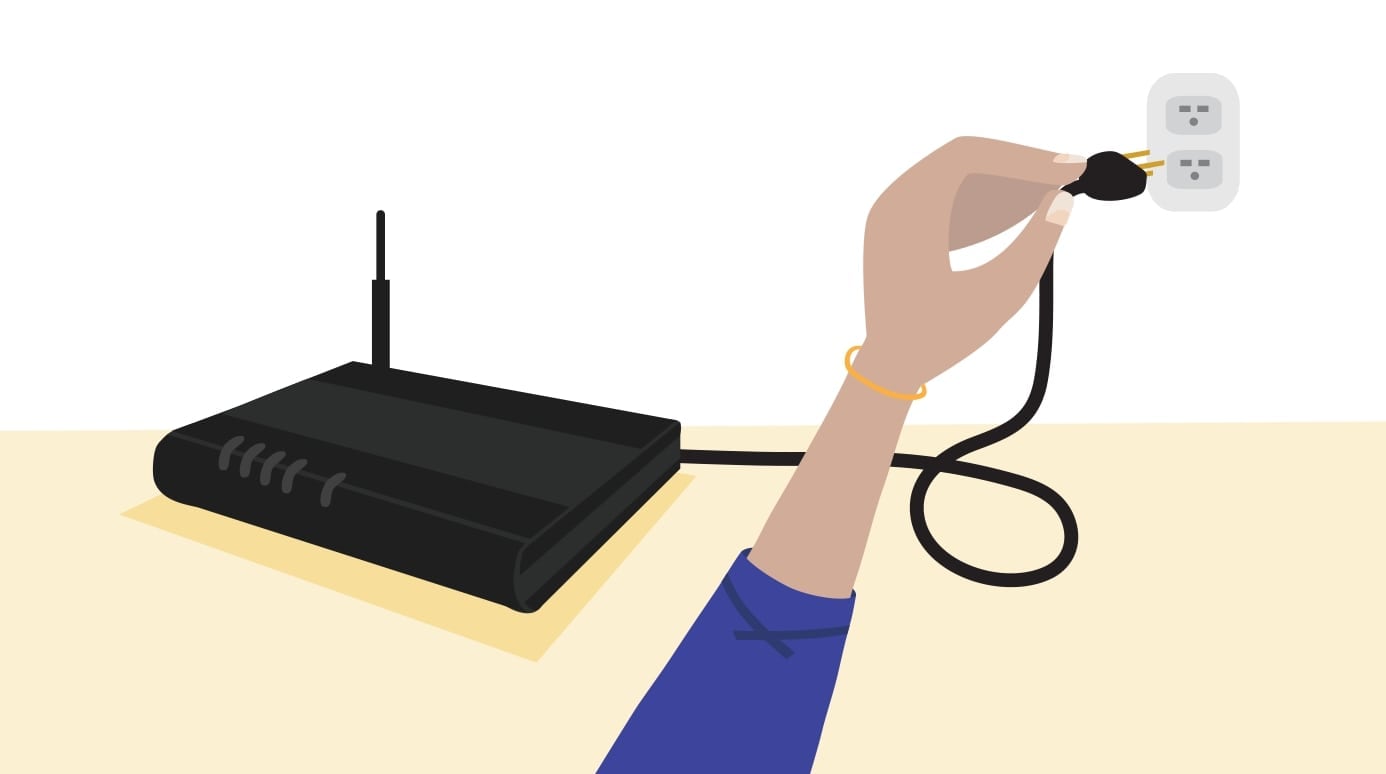
Step 3: Plug them back in and wait for them to restart.
Step 4: Turn your device back on and open Prime Video again.
Step 5: Once everything is back online, try streaming again to see if the Amazon Prime buffering is gone.
3. Update the Prime Video App
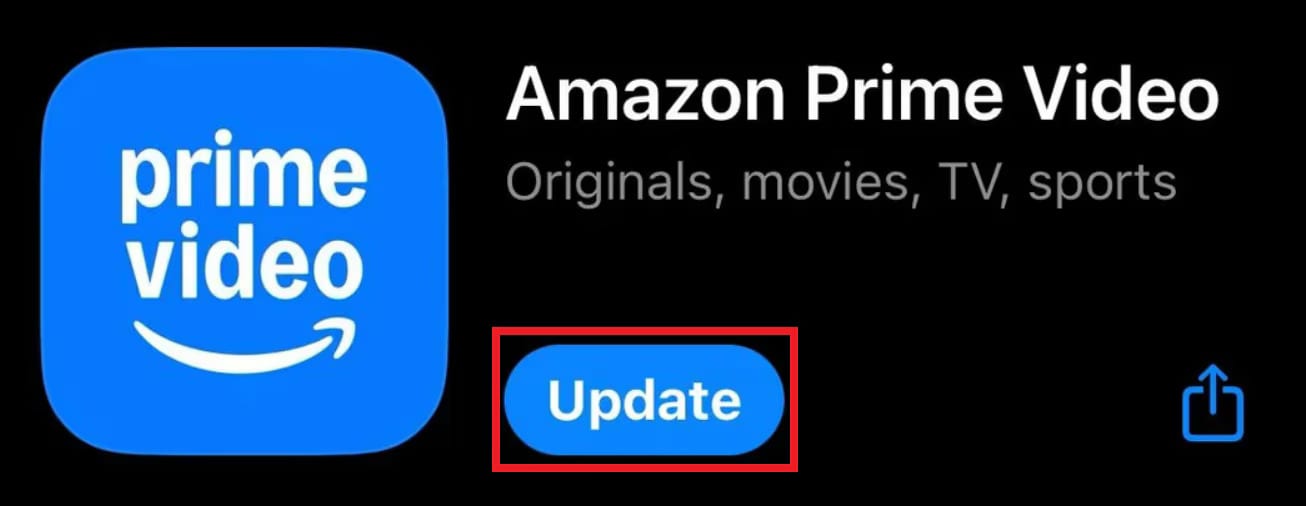
If your Prime Video app is currently outdated, it may cause streaming or buffering problems. Updating the app helps fix bugs and improve performance. Follow the steps below to update it:
On Mobile (Android/iOS):
Step 1: Navigate to the App Store (iOS) and Google Play Store (Android). Then, search for Prime Video.
Step 2: Tap Update if available.
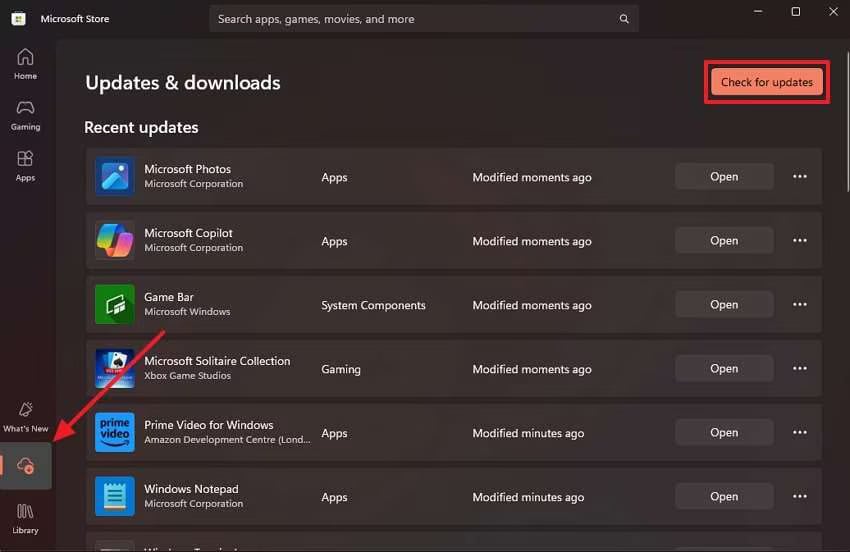
On Windows PC:
Step 1: Open the Microsoft Store and go to Downloads.
Step 2: Click Check for Updates, and the store will update your apps, including Prime Video.
4. Clear Prime Video Cache and Data
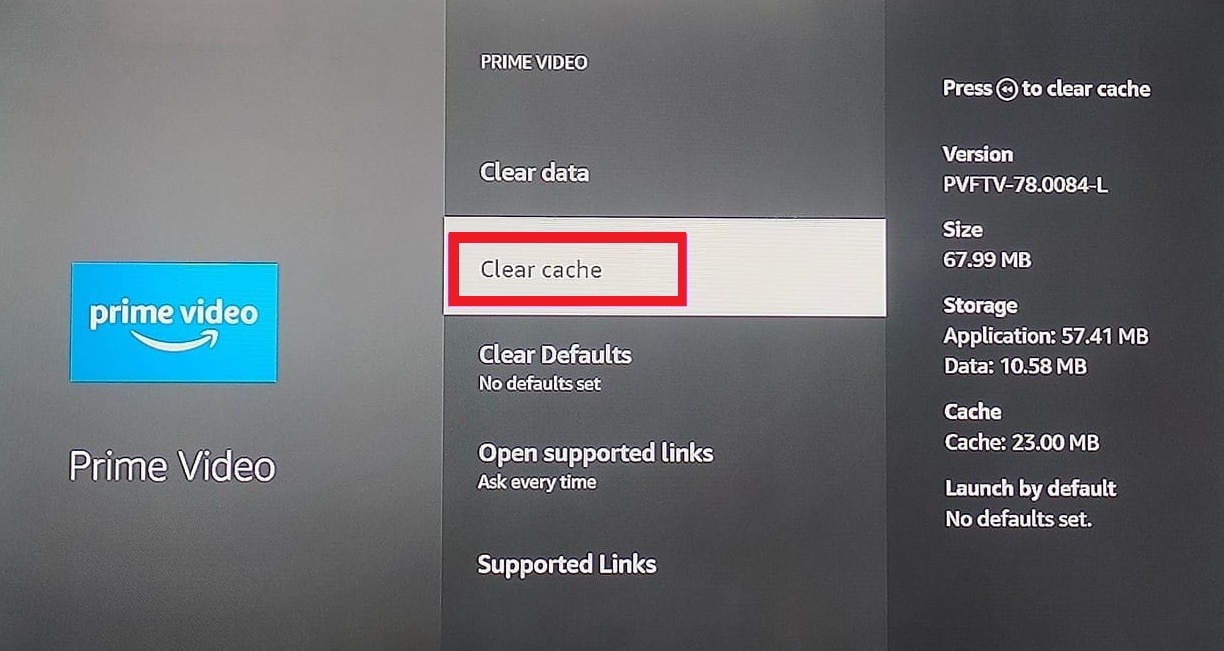
To improve Prime Video app performance or resolve loading issues, start by clearing the cache. Cached files and unnecessary data can slow the app or stop it from loading. Clearing the cache resets the app by removing temporary files that may cause buffering or stuttering. After clearing, reopen the app and log in again.
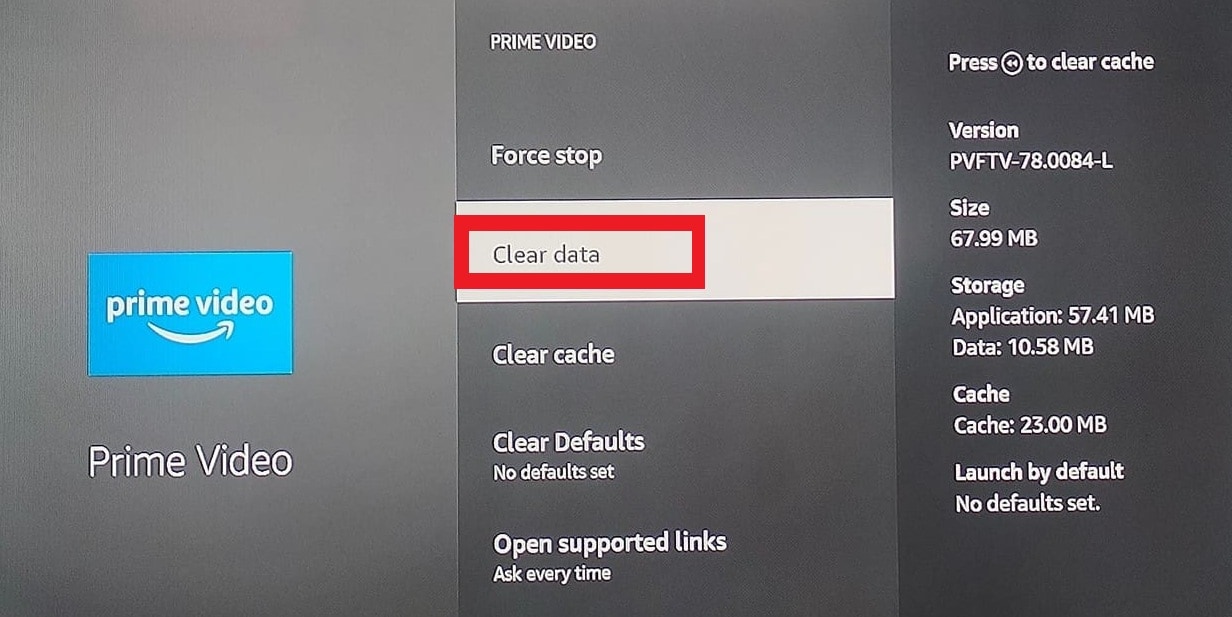
Note: Clearing data will reset the Prime Video app, so you’ll need to log in again.
Here are the steps:
Step 1: Open your Fire TV Stick Settings and find Prime Video.
Step 2: Select Clear Cache to remove temporary files.
Step 3: If it still doesn’t work, choose Clear Data to reset the Prime Video app completely.
Part 3. Advanced Fixes for Persistent Prime Video Buffering
If Prime Video still keeps buffering after trying the quick fixes, these advanced tips can help. They target settings, updates, and app issues that usually cause streaming problems.
1. Lower Streaming Quality For Amazon Videos
Prime Video needs enough internet speed to stream smoothly. Higher video quality requires faster speeds. For example, SD (480p) needs at least 1 Mbps, and HD (720p) needs 5 Mbps. If your connection is slower, the video may keep buffering. Lowering the streaming quality can help fix this.
Streaming in higher quality, like 4K, uses a lot of data. Switching to 1080p can reduce data use by over 75%. On mobile data, high-quality settings can cause glitches, lags, or freezes. Check your internet speed and adjust the streaming quality: low or medium works best on mobile, while high quality is fine on stable Wi-Fi.
Sometimes, buffering can also happen due to Prime Video server issues, bad weather, or many people using the network at the same time.
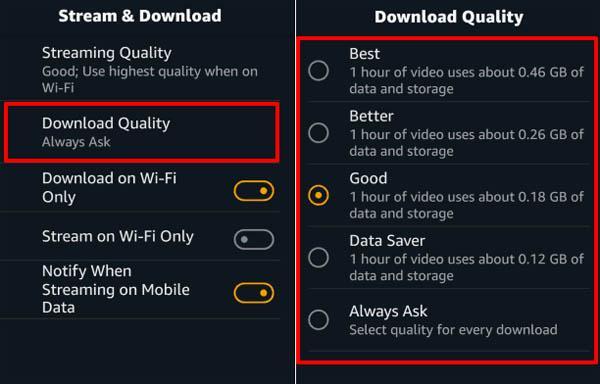
On Mobile:
Step 1: Open the Prime Video app.
Step 2: Go to Settings, Stream & Download and Stream Quality.
Step 3: Select a lower quality: Good, Better, or Best.
On PC:
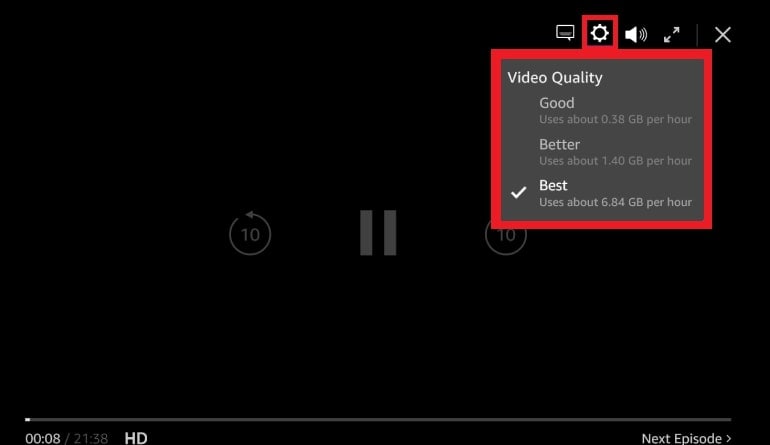
Step 1: Log in to Prime Video in your browser and play a video.
Step 2: Click the gear icon (Options).
Step 3: Under Video Quality, choose a lower setting: Good, Better, or Best/Full HD.
2. Update Your Device (Fire TV) Software Or Firmware
Keeping your Fire TV Stick and remote updated maintains reliable performance and resolves Prime Video streaming problems.
Your Fire TV Stick usually updates automatically when linked to the internet, but you can also check for updates manually. Menu names may vary slightly by model, but the steps are generally the same.
To update your Fire TV Stick:
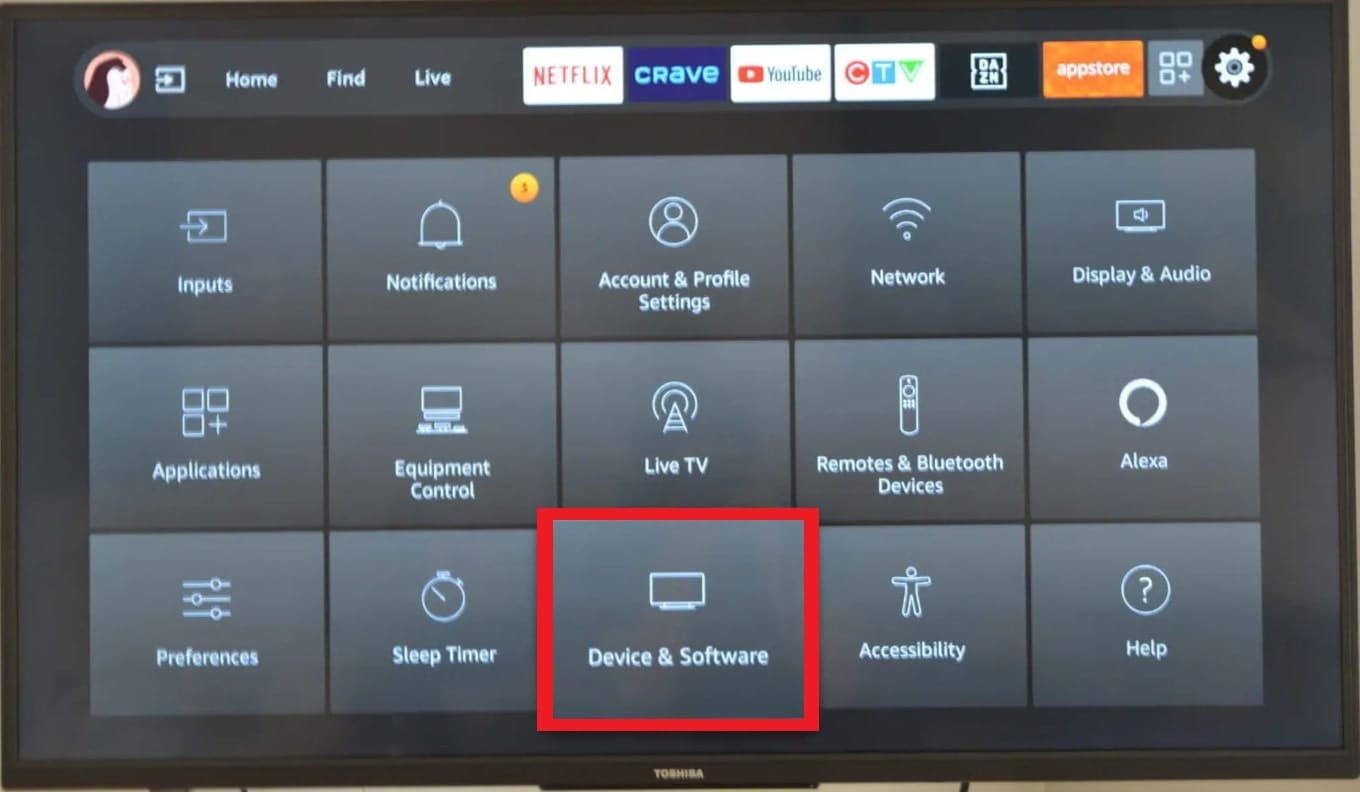
Step 1: From the home screen, open Settings.
Step 2: Select My Fire TV (or Device & Software).
Step 3: Choose About.
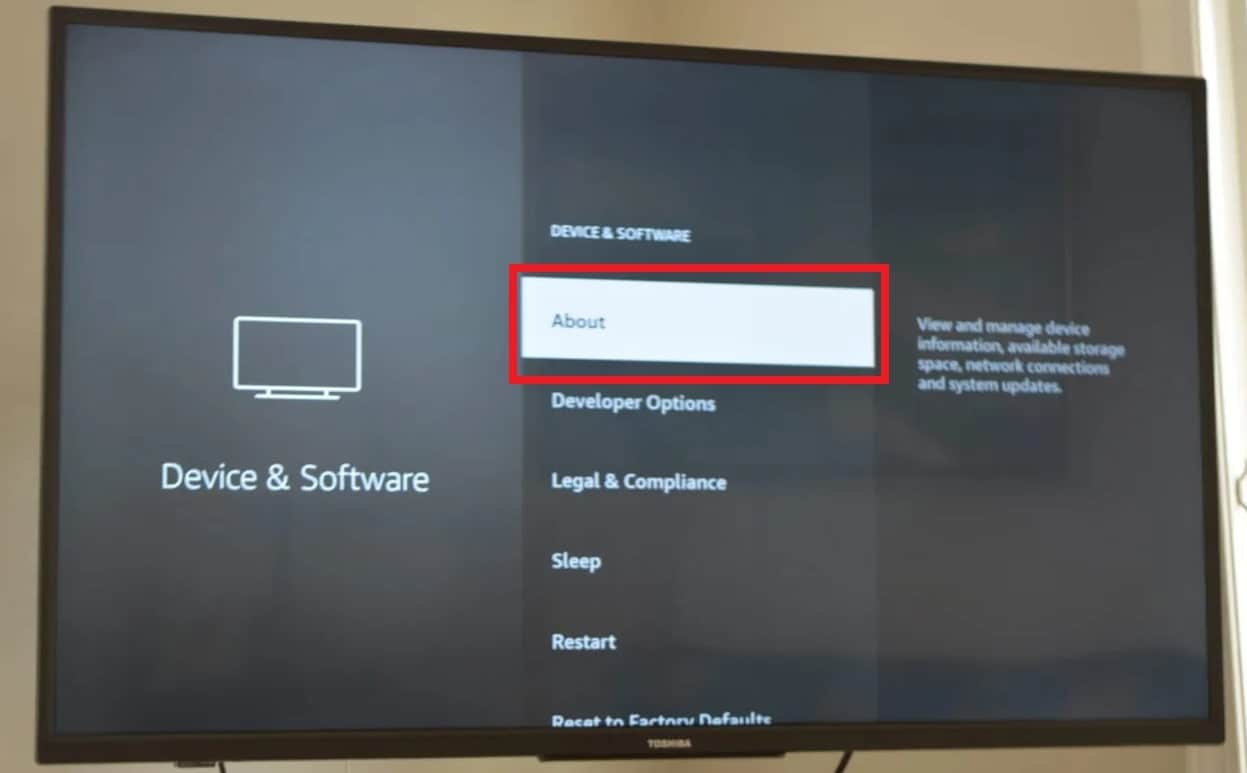
Step 4: Click Check for Updates. If a software update is readily available, select Install Update. The device will download the update and restart to complete the installation.
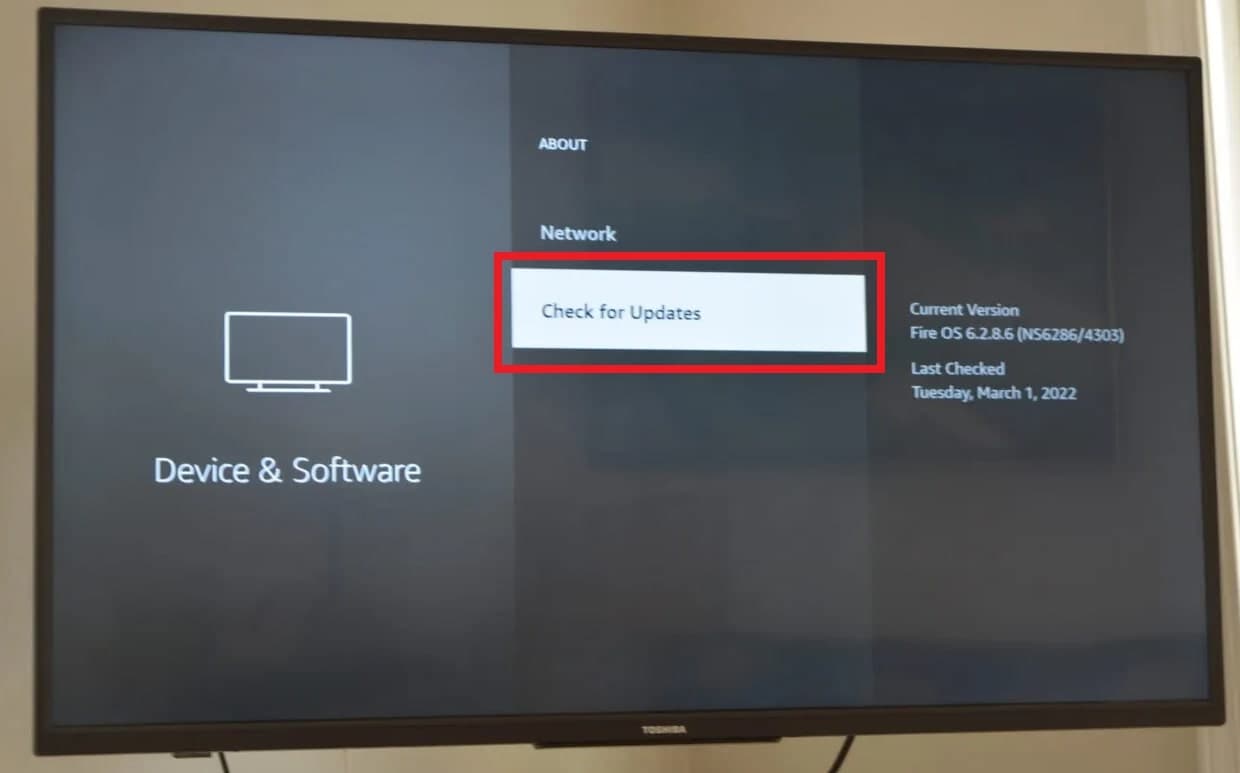
Also, to update your Fire TV Stick remote:
Step 1: Go to Settings and find Remotes & Bluetooth Devices.
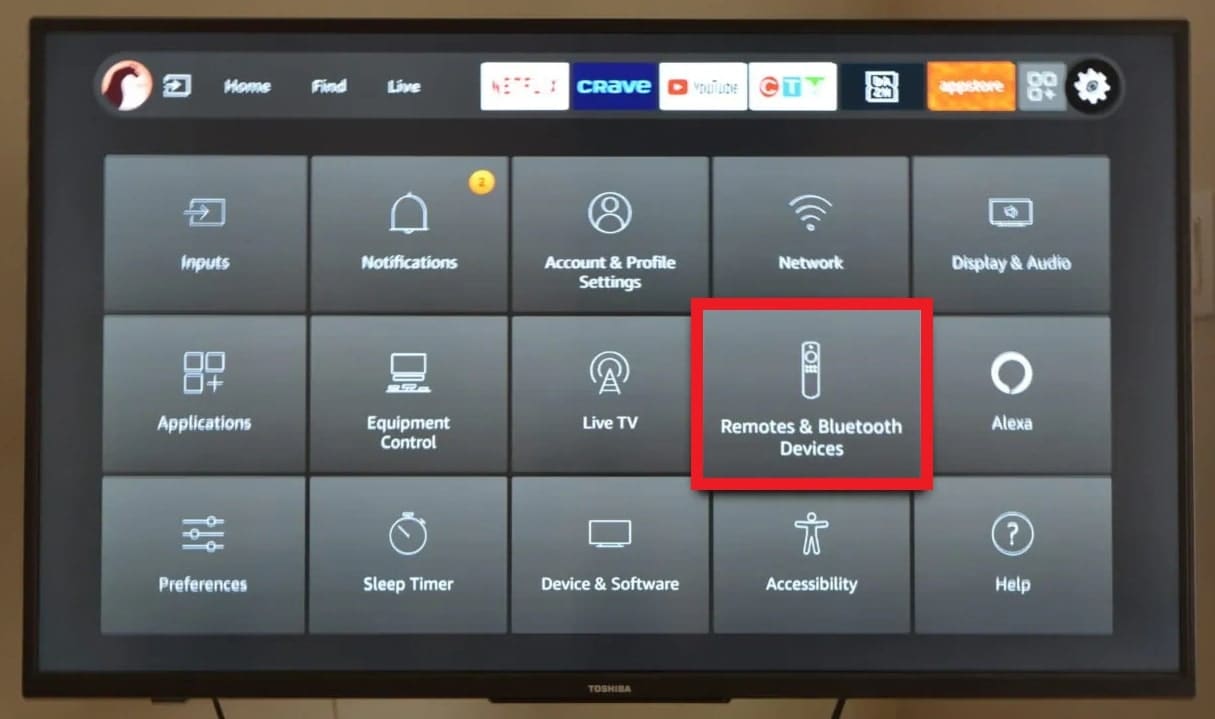
Step 2: Choose Amazon Fire TV Remotes, then select your remote from the list.
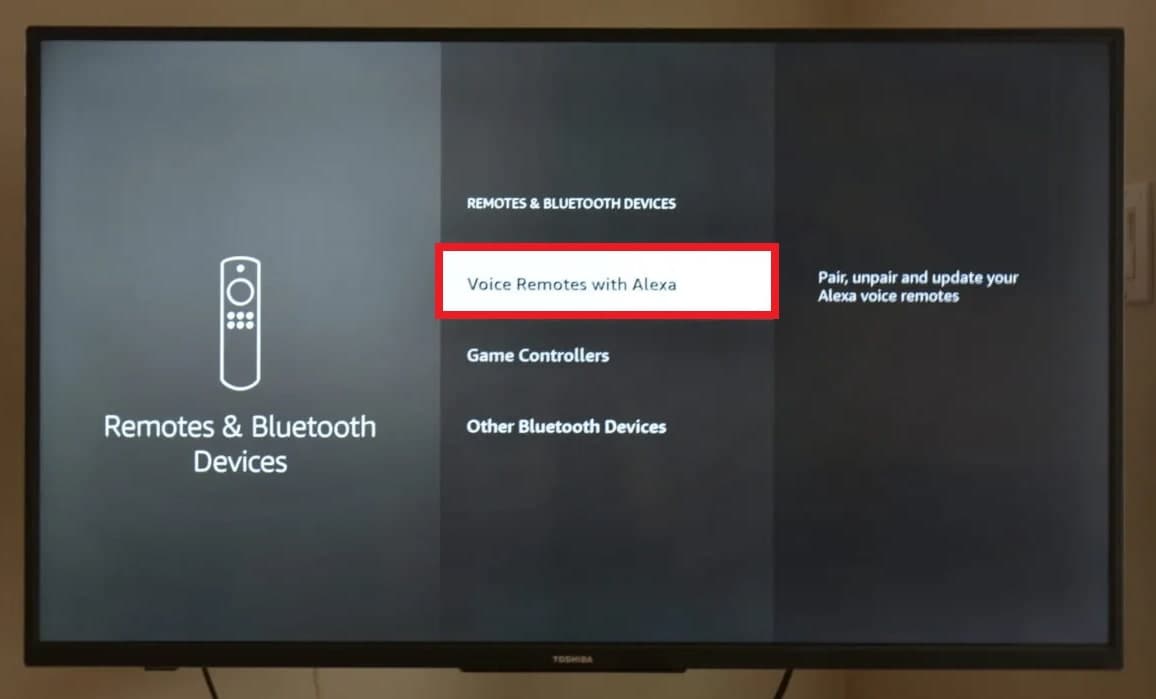
Step 3: If an update is available for your remote, follow the on-screen prompts to install it.
3. Reinstall The Prime Video App
If other solutions fail, uninstalling and reinstalling Prime Video often resolves streaming problems by removing corrupted files or settings. This can address buffering, freezing, or crashes and restore stable app performance.
Tip: Always reinstall from a trusted source. Utilize the official app store for your device:
For Android:
Step 1: Tap and hold the Prime Video icon. Select Uninstall (or go to App Info, then Uninstall).
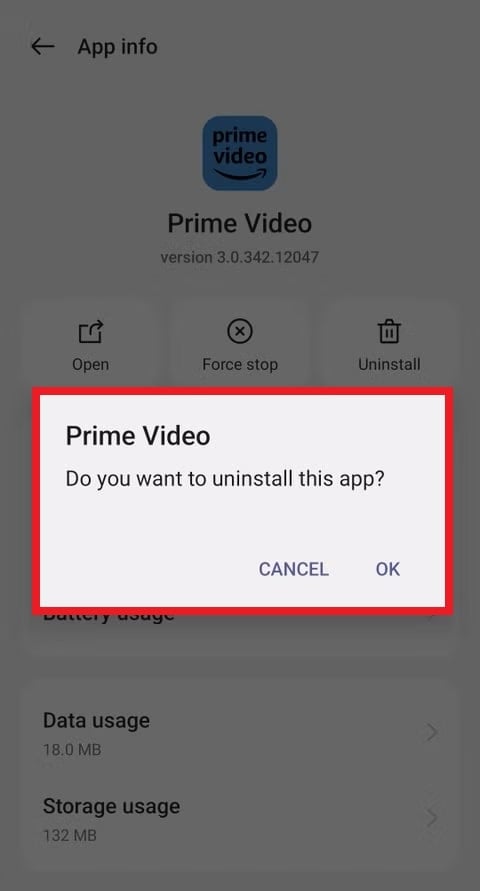
Step 2: Restart your device.
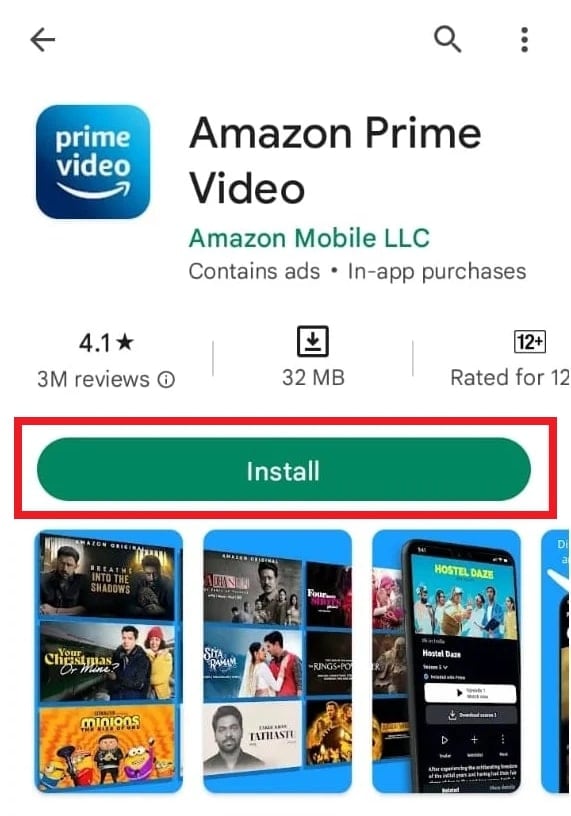
Step 3: Access the Google Play Store, search for Amazon Prime Video, and tap Install.
For iOS:
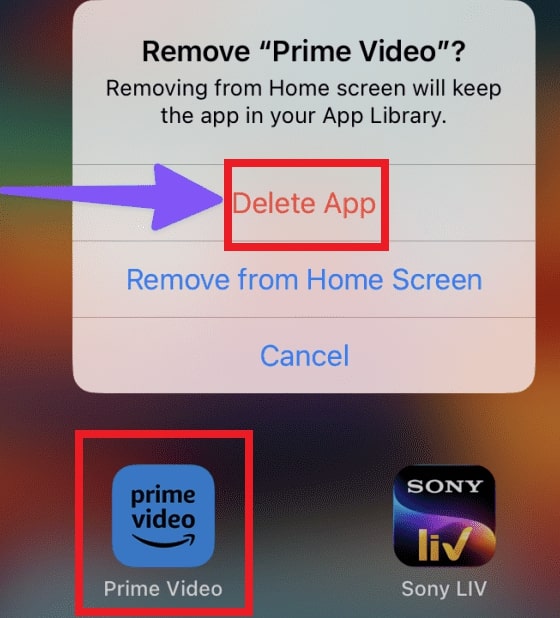
Step 1: Tap and hold the Prime Video icon. Choose Remove App, then tap Delete App.
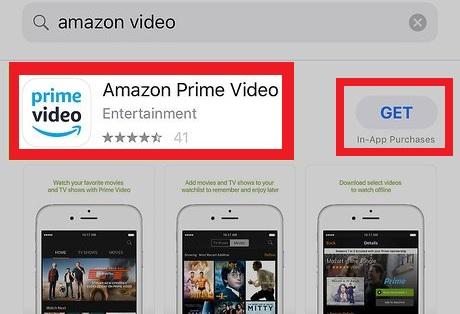
Step 2: Access the App Store, search for Amazon Prime Video, and tap Get (or the cloud icon).
On Windows PC:
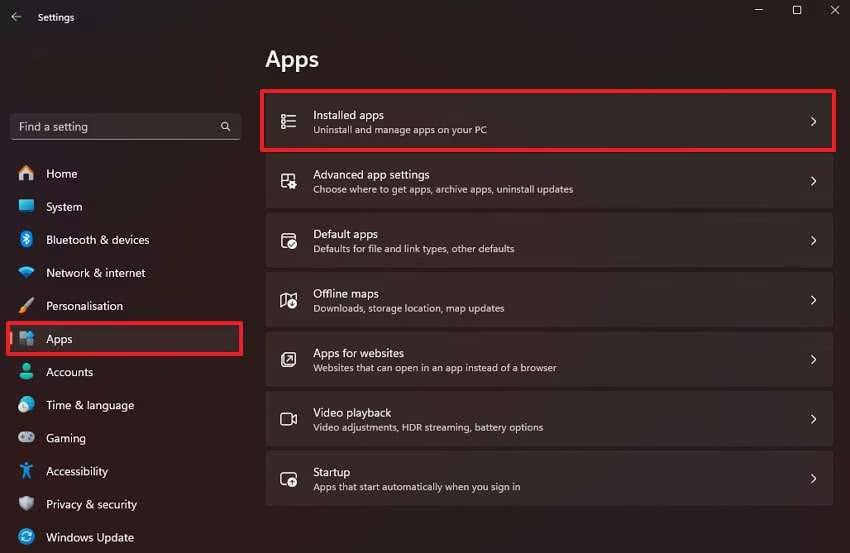
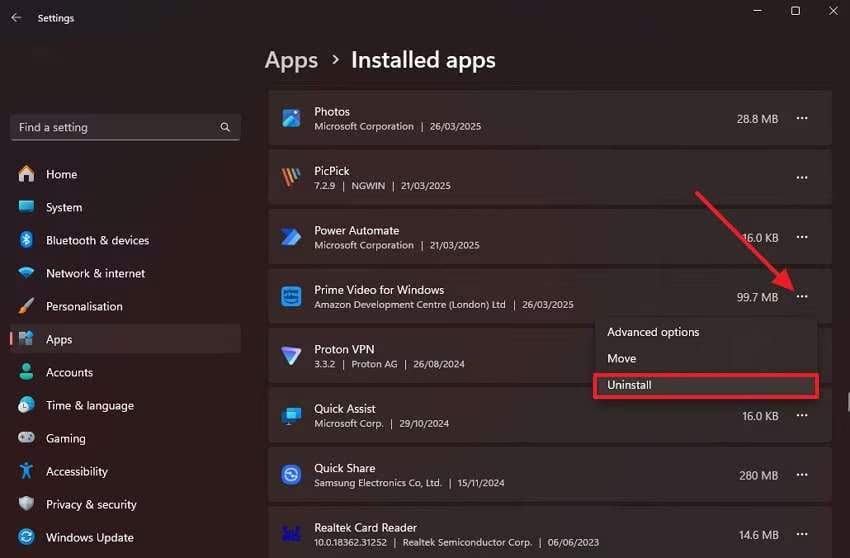
Step 1: Open Settings, go to Apps, and select Installed Apps.
Step 2: Find Prime Video for Windows, click the three dots, choose Uninstall, and confirm.
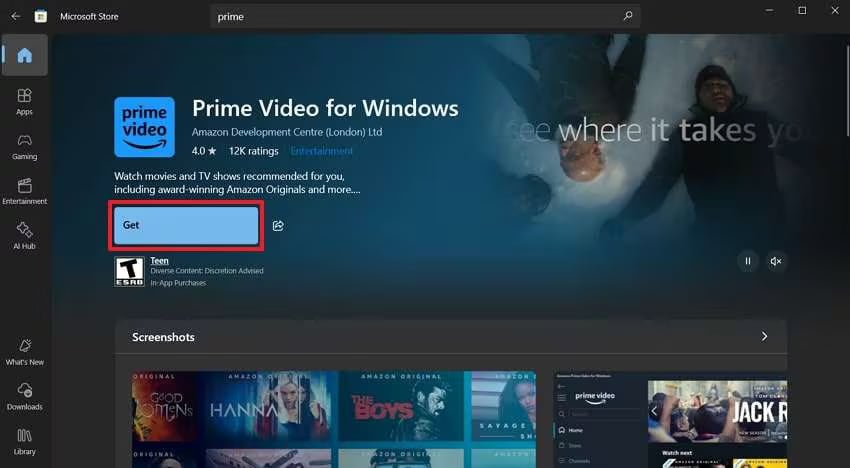
Step 3: Open the Microsoft Store, search for Prime Video, and click Get to reinstall it.
Part 4. Fix Corrupted or Damaged Prime Video Files to Solve Amazon Prime Buffer Issues
When you run into an Amazon Prime buffer problem—especially while watching a downloaded title—the underlying cause may be a corrupted or damaged Prime Video file. In such cases, restarting the app or updating your device usually won’t solve the issue.
If a downloaded episode or movie keeps freezing, refuses to play, or shows visual glitches, the file itself may be compromised and needs repair before it can function normally again.
If you want to attempt repairing a corrupted Prime Video file, Repairit Video Repair is a dedicated tool designed for fixing damaged or unplayable videos from various devices and formats. It offers a straightforward interface and focuses specifically on video restoration, making it a practical option when a damaged file is contributing to persistent Amazon Prime buffer interruptions.
Note: Always verify compatibility and supported features directly from Repairit’s official website to ensure it meets your repair needs.
Key Features of Repairit Video Repair:

-
Supports repairing commonly used video formats such as MP4, MOV, MKV, and others.
-
Works with videos stored on phones, cameras, memory cards, computers, and external drives.
-
Uses intelligent analysis to detect video corruption and restore playable structure.
-
Allows batch repair so multiple files can be processed at once.
-
Offers preview mode to verify repaired videos before saving.
-
Available for Windows, macOS, and also provides an online repair option.
Step-by-Step Guide:
Step 1: Run Repairit and click Add video and start repairing, or tick the Add button to import your damaged Amazon Prime videos.

Step 2: Once added, you’ll see Amazon Prime Video details like file name, size, resolution, and device info. Hit Repair to begin.

Step 3: Double-click to preview, then click Save to choose where to store the fixed Amazon Prime videos. Don’t save it in the same folder where the damaged file was located.

Fix Corrupted or Damaged Prime Video Files
 Security Verified. Over 7,302,189 people have downloaded it.
Part 5. Tips for Preventing Future Prime Video Buffering
- Nobody wants buffering to ruin movie night. The good news is, a few simple habits can keep your Prime Video streaming smooth.
- Make sure your Wi-Fi or wired connection is strong. Limit other devices using the network while you stream.
- Keep the Prime Video app, your device software, and browser up to date to avoid bugs and glitches.
- Close background apps and free up memory to let your device run videos smoothly.
- Download videos when possible. For shows or movies you love, downloading them for offline viewing can skip buffering entirely.
- Restart devices occasionally. A quick restart of your router or device can clear temporary issues before they cause lag.
Conclusion
Amazon Prime buffering can be annoying, but most problems are simple to fix. Slow internet, outdated software, or app issues are usually the cause. By checking your connection, updating your device, clearing app data, or repairing damaged videos, you can get smooth streaming again. Keeping apps updated and restarting your devices once in a while can also help prevent buffering in the future.
FAQs
-
Does using a VPN affect Amazon Prime Video playback?
Yes, it can. VPNs can decelerate your internet speed or cause connection issues, which may make videos buffer or lag. If you notice problems while using a VPN, disable or switch to a faster server to improve playback. -
How can I test my device for Amazon Prime Video performance issues?
You can do a quick check by:Playing videos on other apps like YouTube or Netflix to see if they stream smoothly.Restart your device and test Prime Video again.Checking for app or system updates.If Prime Video still lags while other apps work fine, the problem may be the app or the video itself. -
Is buffering worse during peak hours, and how can I fix it?
Yes, it is. More people using the internet at the same time can slow down your connection. To fix it:Try streaming at a different time if possible.Utilize a great wired Ethernet connection instead of Wi-Fi.Lower the video quality to reduce buffering during busy hours.




