
Gamers and creators rely on stable GPUs for smooth performance every day. However, errors can interrupt games or system performance. One disturbing problem many users report is that the NVIDIA 0xe60000 error appears. It often shows up while launching games or NVIDIA-related services. When this happens, your running apps may either crash or fail to connect.
Such issues confuse users because the cause is not always obvious. Yet, several simple fixes can restore stability without needing advanced technical skills. Hence, this ultimate guide will explain common causes and proven solutions to resolve them.
Table of Contents
Part 1. Understanding NVIDIA 0xe60000: What Triggers This GPU Error
The NVIDIA 0xe60000 error represents a software issue within the NVIDIA application environment. This technical glitch prevents the primary control application from loading your settings. It acts as a digital barrier between your hardware and the operating system. Several common system and software factors can trigger this GPU error. So, let’s explore the major factors that can trigger this problem in detail:
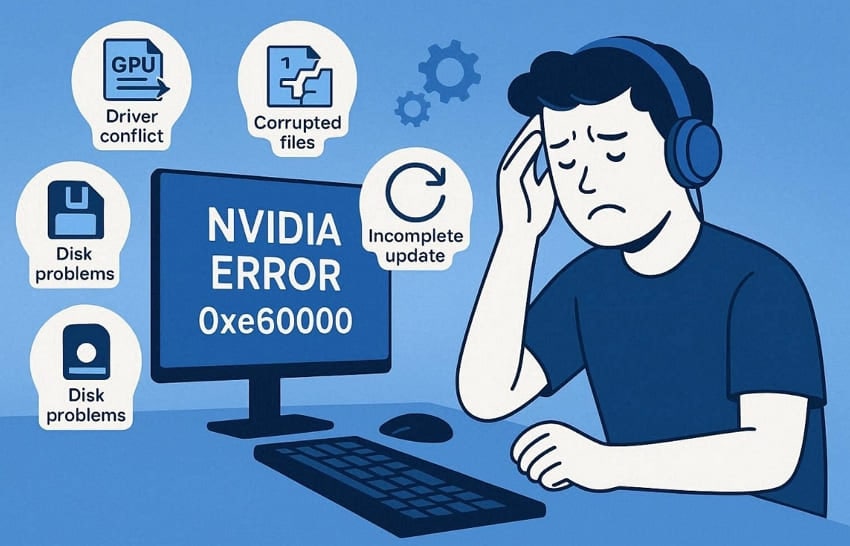
- Driver Conflicts: Outdated graphics drivers cause communication issues within applications. These driver mismatches prevent the software from accessing required GPU services.
- Corrupted Files: A damaged NVIDIA configuration can also interrupt normal communication. Such corrupted files appear after interrupted updates or system shutdowns.
- Background Processes: Multiple background processes conflict while trying to access shared resources. This conflict may stop essential NVIDIA services from launching during startup.
- Incomplete Updates: Interrupted NVIDIA updates sometimes leave partial files inside the directories. These leftover files prevent the application from loading the required components.
- Disk Problems: Low storage space or disk errors may damage temporary service files. When these files fail to load, the NVIDIA application may generate system errors.
Part 2. How to Fix the NVIDIA 0xe60000 Error Efficiently
You can resolve the NVIDIA 0xe60000 error by following several simple solutions. Thus, explore these 7 technical solutions to restore your graphics card software:
Fix 1. Restart PC & NVIDIA App
Performing a full system restart often clears out minor technical software glitches. It refreshes background services and clears minor conflicts affecting NVIDIA applications. This simple step can help resolve the NVIDIA 0xe60000 error caused by stuck processes. Also, rebooting the application ensures that all configuration files load without effort. Thus, let’s look at how to perform this basic restart method in steps:
Restart the NVIDIA App
Step 1. While running the "NVIDIA" app on your device, click the "Close" icon.
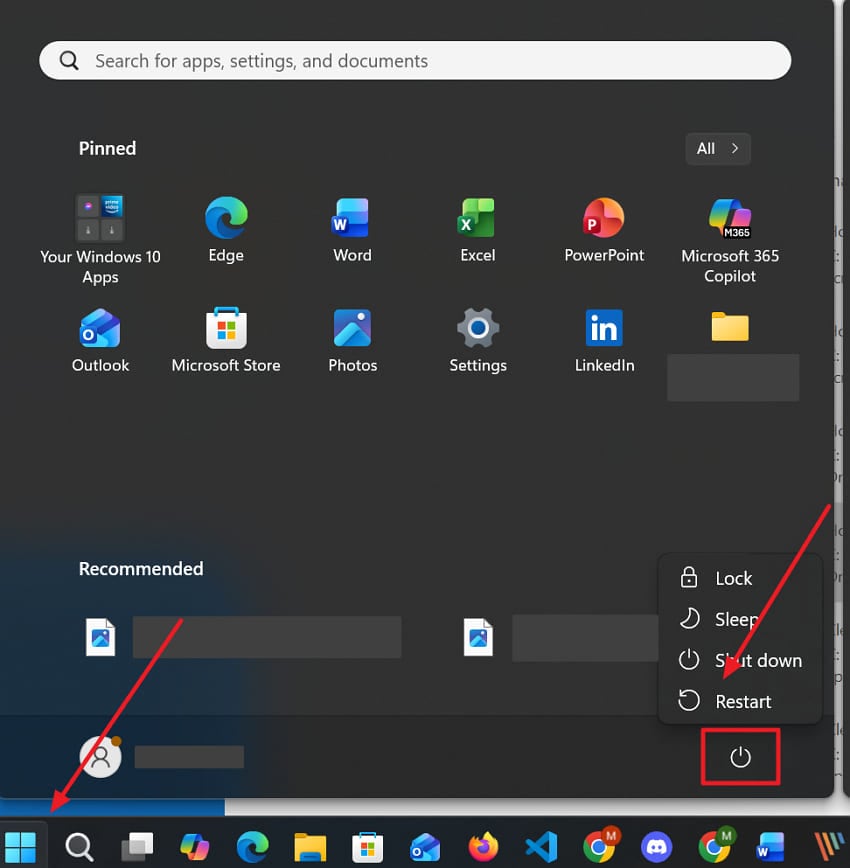
Step 2. After a while, search for the "NVIDIA" app and click the "Run as Administrator" option.
Reboot PC
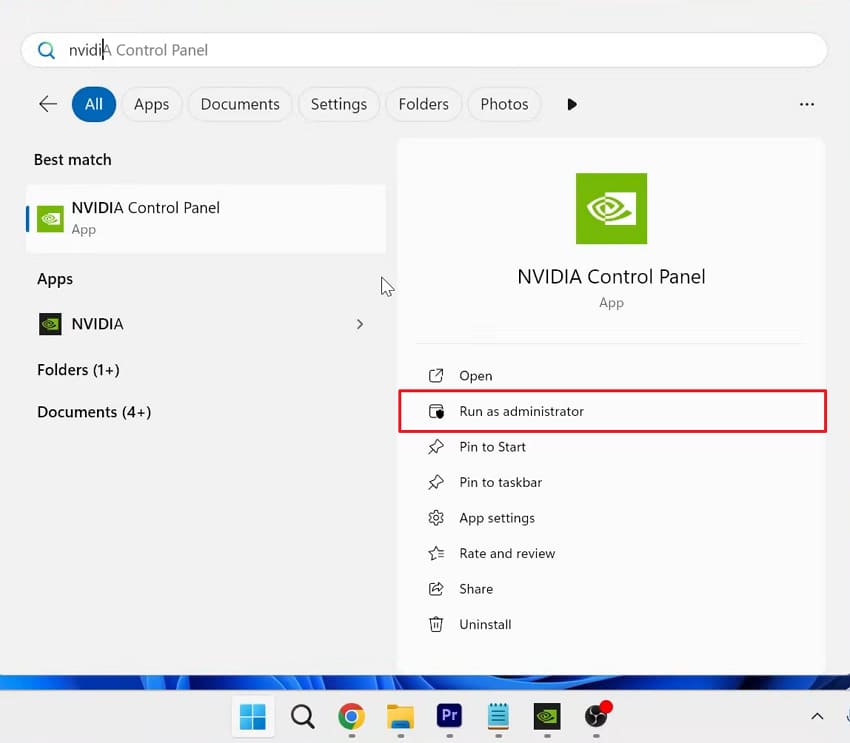
Instruction. As you click the "Start" icon, press the "Power" option and opt for "Restart."
Fix 2. Disable NVIDIA Beta Features
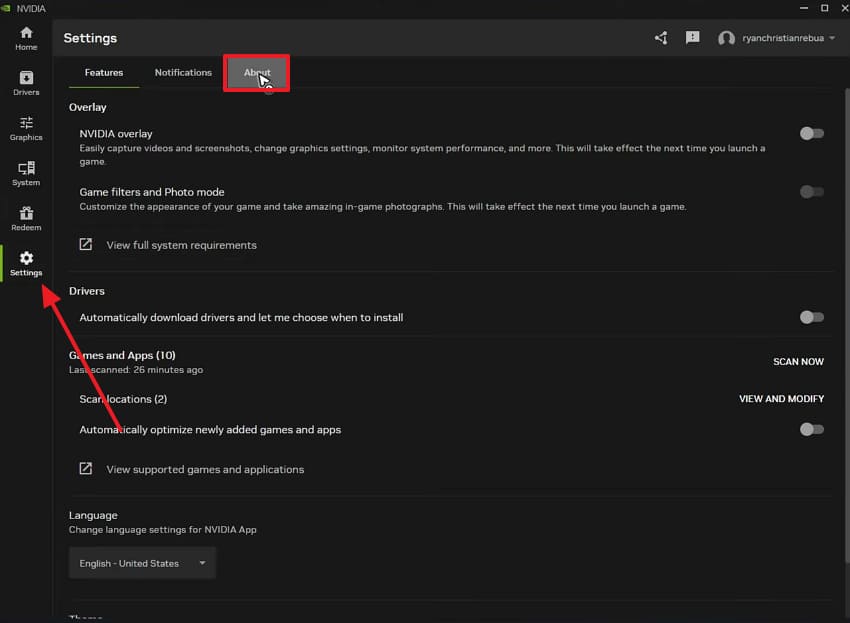
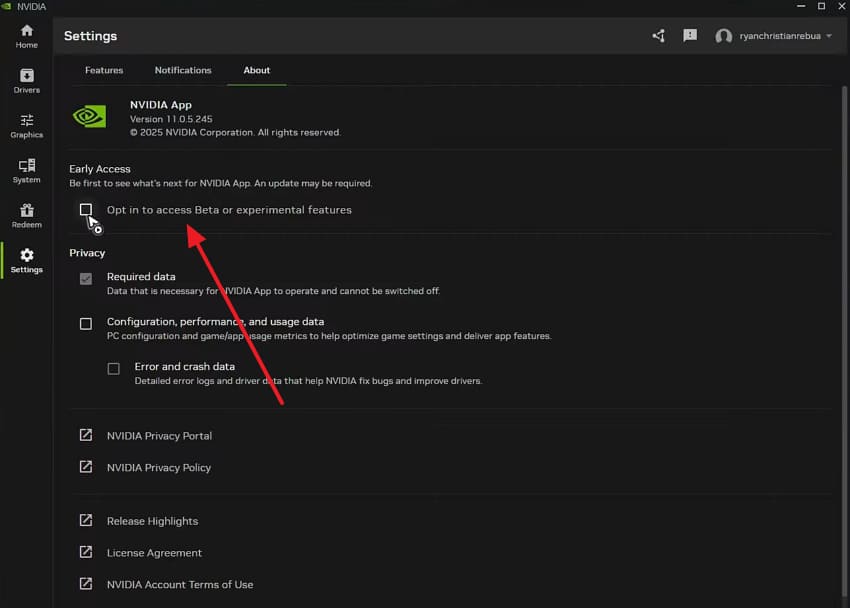
Experimental features cause stability problems for your graphics card software. Disabling these beta settings can resolve the NVIDIA 0xe60000 error very quickly. This solution stops unstable code from interfering with your primary system drivers. Alongside that, it ensures that only fully tested features run on your computer hardware. So, you can restore your app by following these simple technical navigation steps:
Step 1. Upon running your NVIDIA app, head to the "Settings" tab and click "About."
Step 2. After that, uncheck the "Opt‑in to access Beta or experimental features" box. Finally, restart your app and PC to complete the process.
Fix 3. End NVIDIA Processes in Task Manager
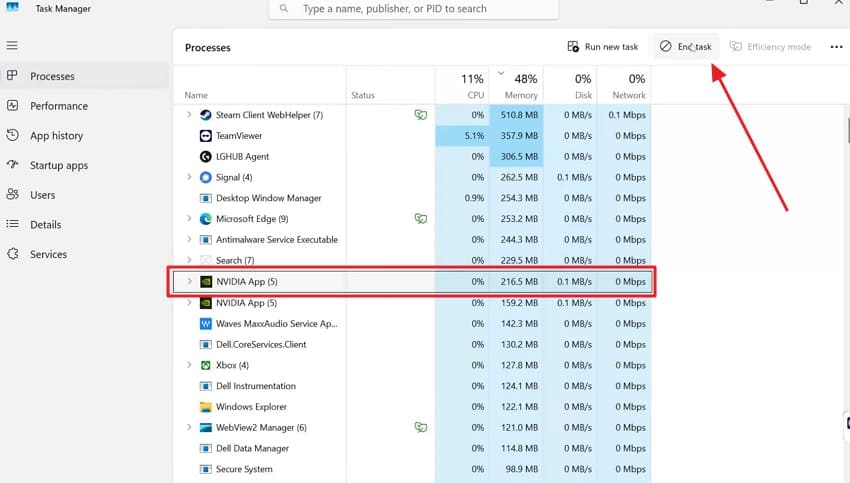
Many times, background services stop responding and prevent the NVIDIA app from working. This situation can trigger the NVIDIA 0xe60000 error while launching games or graphics tools. Ending stuck NVIDIA processes helps remove temporary conflicts affecting system performance. Once stopped, the system can restart these services without previous memory conflicts. So, adhere to these simple directions to clear the running app through this method:
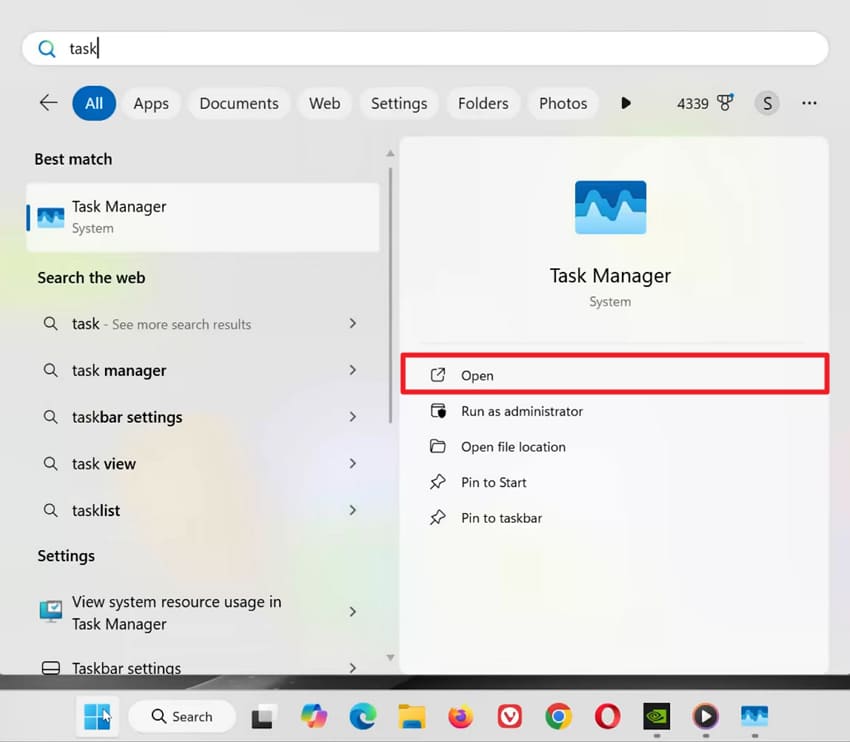
Step 1. To initiate, opt for the "Open" option as you search for "Task Manager."
Step 2. Moving forward, look for the running "NVIDIA App" and click on it. After that, you need to press the "End Task" to force stop this program.
Fix 4. Temporarily Disable Antivirus/Firewall
Disabling such a program can also remove security blocks on NVIDIA components. These programs sometimes flag driver files as threats during updates or launches. This solution clears the interference that often causes the NVIDIA 0xe60000 error without changes. It allows smooth communication between your GPU software and system resources. Therefore, go through the steps given below to disable protection for troubleshooting purposes:
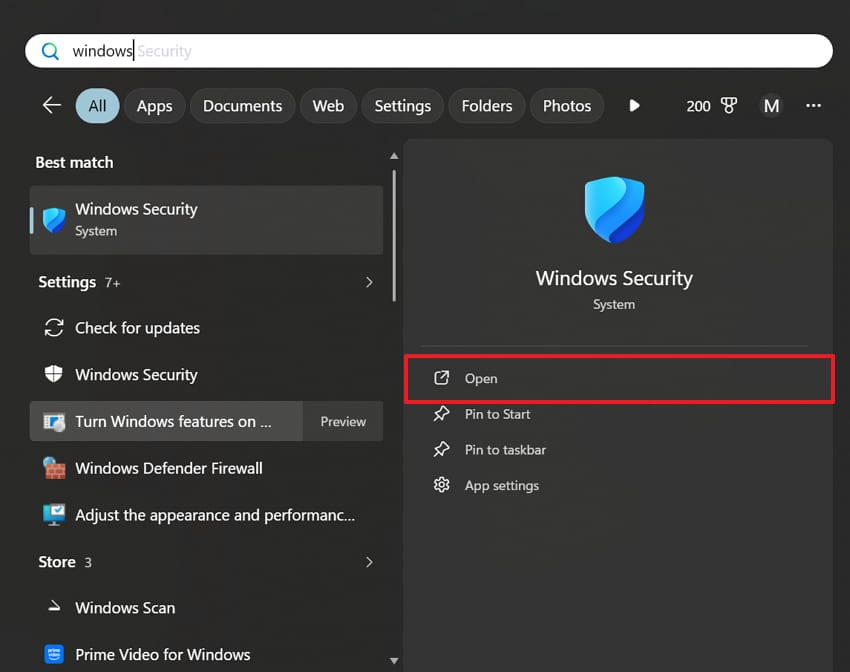
Step 1. Initially, opt for the "Open" option upon searching for "Windows Security."
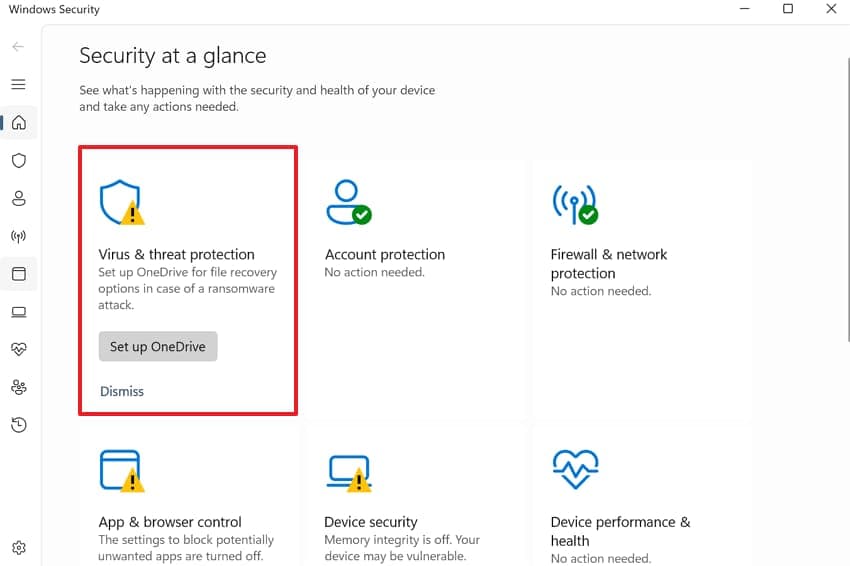
Step 2. Following that, you need to go to the "Virus & Threat Protection" section.
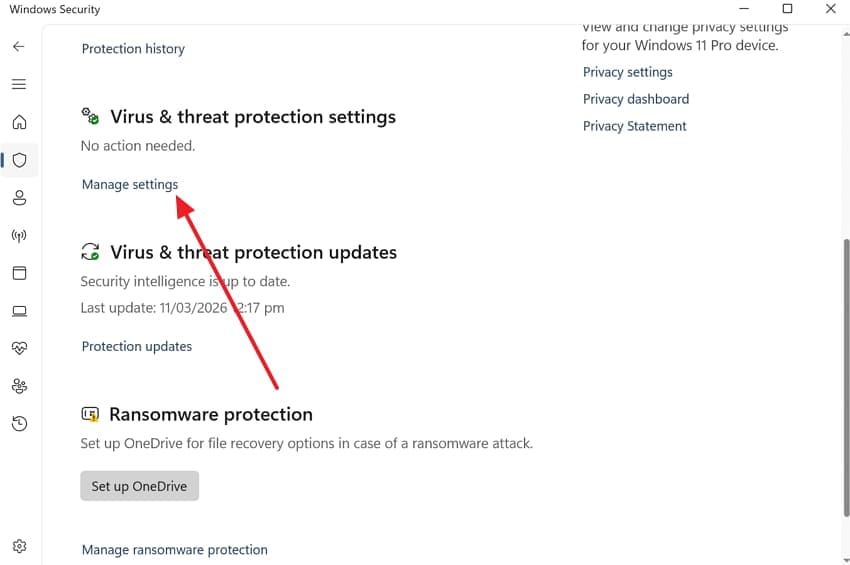
Step 3. Here, scroll down and click the "Manage Settings" option.
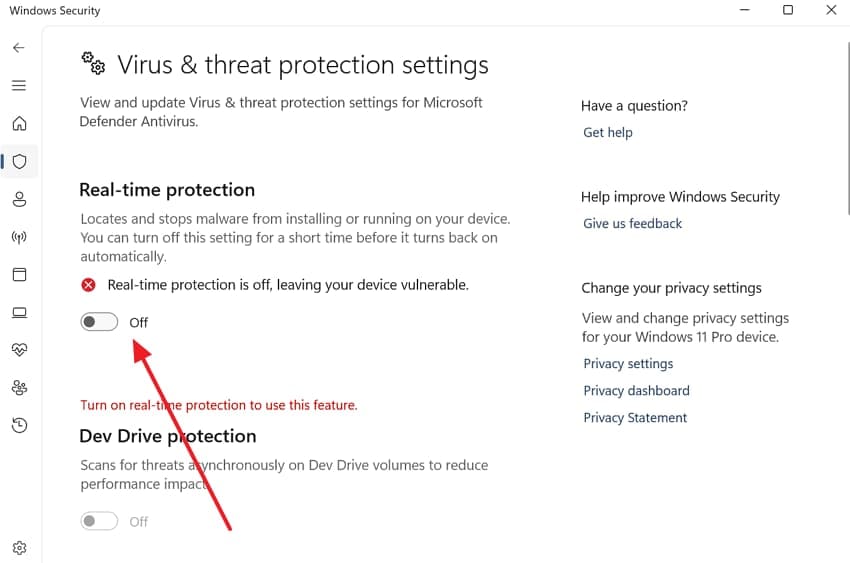
Step 4. As you see the new display, disable the "Real-time Protection" toggle.
Fix 5. Scan and Repair Windows System Files (SFC)
Running the System File Checker repairs many broken operating system components. It scans your entire local drive for any corrupted or missing data files. This advanced feature helps you eliminate the NVIDIA 0xe60000 error message. These integrated Windows tools help maintain overall system stability. So, review these specific commands to scan and repair your system files:
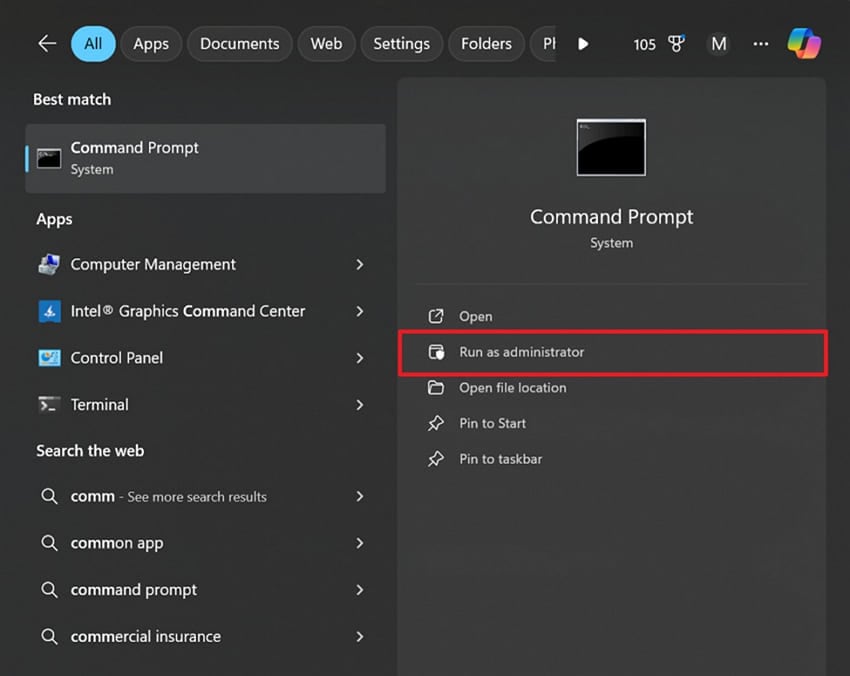
Step 1. Upon typing "Command Prompt" using the "Search" bar, click "Run as Administrator."
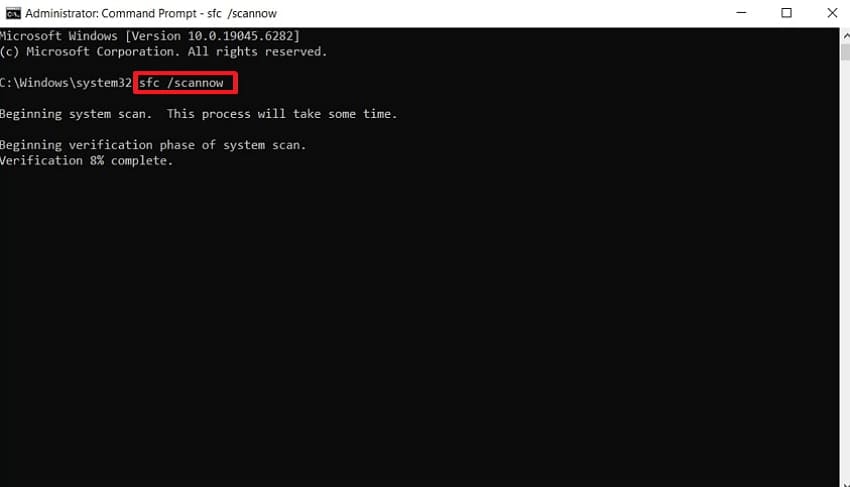
Step 2. Going ahead, run the "sfc /scannow" command to start scanning the task. Once done, just reboot your system to resolve the error.
Fix 6. Delete Leftover NVIDIA Folders
Old NVIDIA folders sometimes remain after updates or incomplete software uninstallations. These leftover files may conflict with new installations and disrupt the app’s performance. Such conflicts can trigger the NVIDIA 0xe60000 error while launching NVIDIA services. So, removing unused folders helps eliminate outdated configuration files and corrupted data. This process allows the system to rebuild fresh directories. Anyhow, follow these precise steps to locate and remove problematic folders:
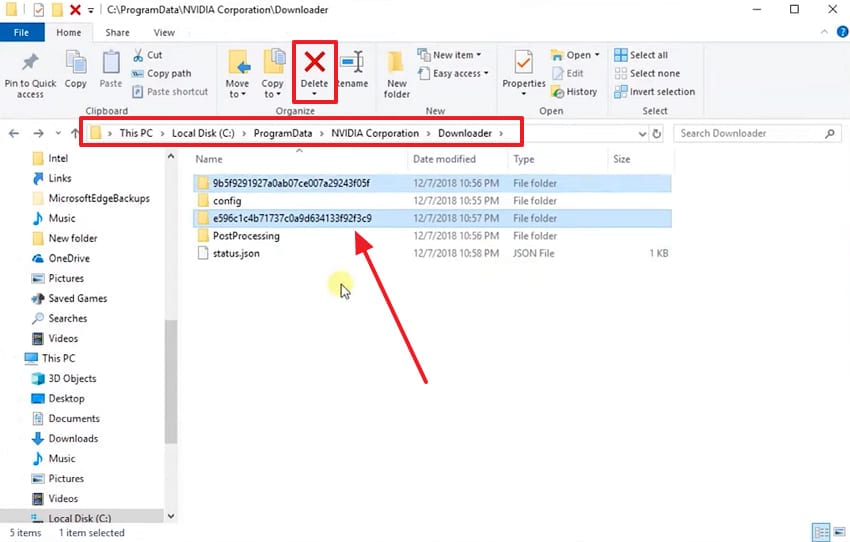
Step 1. Initiate by heading to "C:\ProgramData\NVIDIA Corporation\Downloader" in "File Explorer." After that, select the available random numbers’ folders and click the "Delete" option.
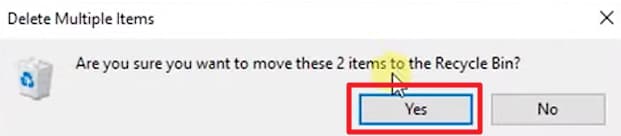
Step 2. Once you see a small prompt display, press "Yes" to delete leftover folders.
Fix 7. Try the Older NVIDIA App Version
Sometimes, the latest NVIDIA app builds conflict with certain Windows environments. These compatibility issues may trigger the 0xe60000 error during installation attempts. Therefore, installing a slightly older NVIDIA app version often restores stable functionality again. This rollback approach lets you bypass newly introduced bugs or unstable interface changes. Thus, take guidance from the following steps to get the stable older version:
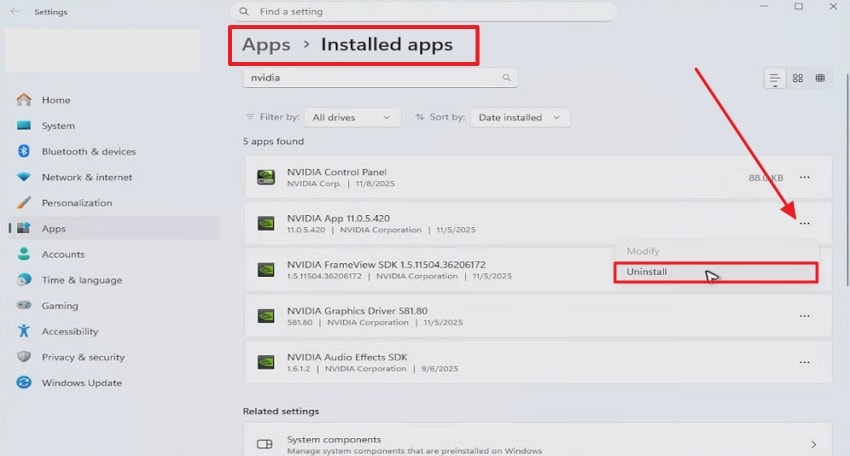
Step 1. As you access the settings, head to the "Apps" tab to choose "Installed Apps." Click the "Three Dots" icon next to the "Nvidia App" and opt for "Uninstall."
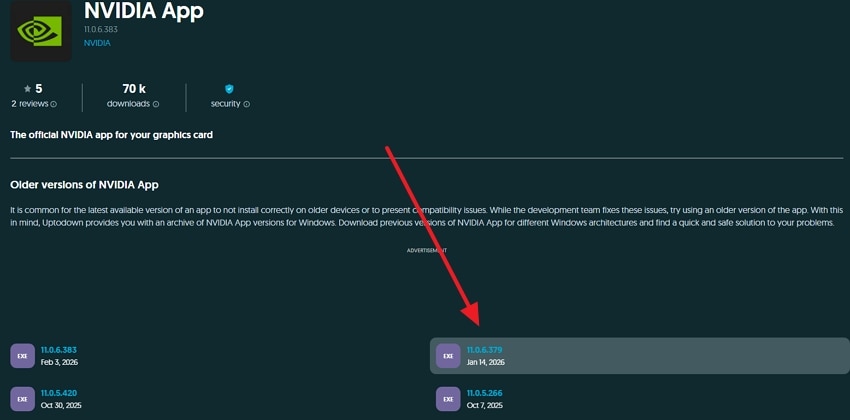
Step 2. SearchforNvidiaAppOlderVersion"andaccessanythird-partysiteslike"https://nvidia-app.en.uptodown.com/windows/versions."Movingforward,chooseanyavailableolderversiononthe"NvidiaApp"andpress"Download."
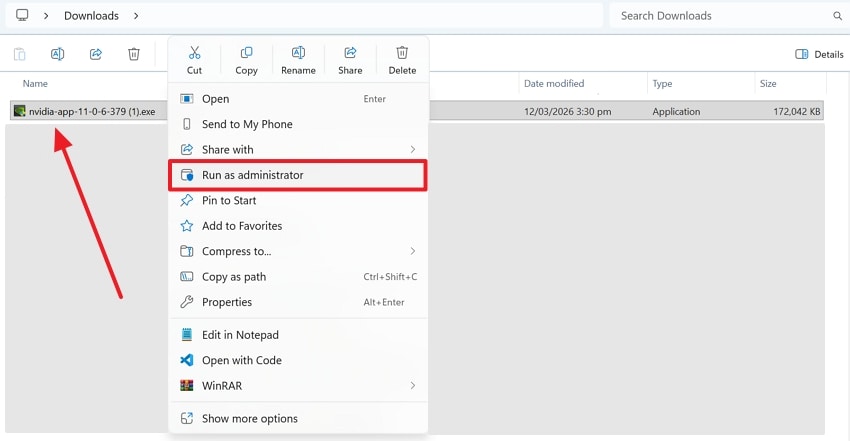
Step 3. Upon downloading it, access the ".exe" file from "File Explorer." Subsequently, right-click on it to select "Run as Administrator" and follow the prompt to complete the installation.
Pro Tip. Repair Corrupted Game or Video Files with Repairit
System errors like the NVIDIA 0xe60000 often lead to severe file corruption issues. When your graphics driver crashes, it might damage your precious video recordings forever. In such cases, you need a professional tool to restore these broken digital files. At this point, users or gamers should use Repairit for all their video restoration needs. It supports over 25 mainstream formats, including MP4 and AVI, reliably.
This dedicated program can even fix damaged videos from any camera source or recording device. Its advanced AI-powered technology repairs corrupted footage with great precision. While repairing, Repairit preserves the original encoding and detail of your repaired files. In addition to this, you can perform batch repairs to fix multiple video files at once. Apart from that, previewing your repaired clips before saving helps you ensure the best quality.
Key Features

-
Advanced Mode: Allows adding sample videos for severely corrupted footage recovery from any source.
-
High Definition: Supports HD and 8K videos to ensure NVIDIA gameplay recordings remain flawless.
-
Gyroscope Repair: Restores motion sensor data from GoPro or sports camera NVIDIA recordings.
Detailed Guide to Repair Corrupted Game or Video Files with Repairit
Repairit makes restoring corrupted game or video files simple and reliable for users. Its AI-powered engine ensures damaged footage regains its original quality and smooth playback. You can follow these simple steps to recover your important digital media:
Step 1. Access the Software to Repair Video Recordings
When you access the program’s "Video Repair" tab, press the "Start" button. After that, import all your corrupted game recordings to the tool.

Step 2. Start Fixing the Corrupted Game Recordings
Upon importing the game recordings into the "Unrepaired Video" tab, press the "Repair" button.

Step 3. Export the Repaired Video Recordings
Once the game recording has shifted to the "Repaired Results" tab, click the "Preview" button. If your videos are fixed without having any further problems, press "Save All."

Repair Corrupted Game or Video Files with Repairit
 Security Verified. Over 7,302,189 people have downloaded it.
Conclusion
In summary, the NVIDIA 0xe60000 error no longer needs to ruin your gaming or work sessions. You now have clear steps to fix driver issues and restore smooth GPU performance. These easy methods work for most users without needing expert computer skills. Besides, you should always test your games after each fix to confirm everything runs. Beyond that, if your recorded game files get damaged, you should try using Repairit.
FAQ
-
Q1. Can a faulty power supply unit cause this specific NVIDIA error to appear?
An unstable power supply might prevent your graphics card from drawing enough startup electricity. When the hardware lacks power, the driver fails to initialize during the booting process. You should check if your cables are firmly connected to the video card. -
Q2. Is it safe to delete the NVIDIA shader cache to resolve performance issues?
It is somehow a very safe way to clear out corrupted temporary data. This process forces the software to rebuild new files, which resolves graphical glitches. Your games might stutter briefly while the system creates these fresh assets once again. -
Q3. How can I recover game clips that became unplayable after a driver crash?
Sudden system failures often severely corrupt the metadata of your active video recordings. Yet, you should use Repairit to fix these broken files and restore your gaming memories. This tool repairs damaged headers and restores the original video quality for you.




