
There are cases when you attempt to start Call of Duty: Black Ops 6 on your device, and the game crashes right after starting. You are not able to start matches or campaigns, and you can see a message that Dev Error 0xD8E46539. This is the issue many players face after an update, driver problems, system file, or software conflicts.
The game cannot be enjoyed without a fix, and that can be irritating. However, the good news is that most causes have clear solutions that are easy to follow. Therefore, this guide provides step-by-step instructions to resolve Call of Duty Black Ops 6 Dev Error 0xD8E46539 on your system.
Table of Contents
Part 1. What is Call Of Duty Black Ops 6 Dev Error 0xD8E46539
Call of Duty Black Ops 6 Dev Error 0xD8E46539 shows that the game tries to load the wrong or damaged files. This often happens when files from other COD games, like Warzone 7, mix with Black Ops 6 data. It is common on PS5, but it can also appear on Xbox and PC. Hence, it means that maps, mode packs, or DLC do not match the game.
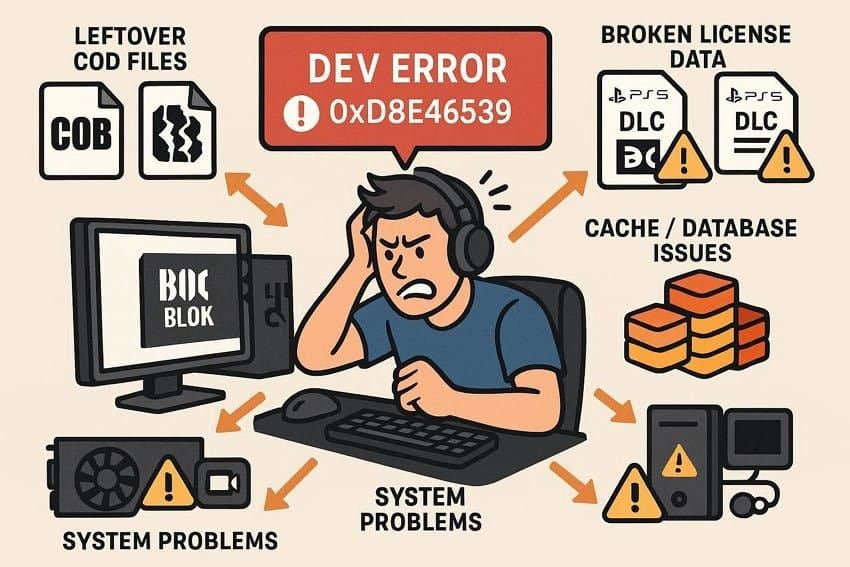
What Causes Call Of Duty Black Ops 6 Dev Error 0xD8E46539
Here are some reasons explained in detail that lead to the Call of Duty Black Ops 6 Dev Error 0xD8E46539:
- Incorrect or Leftover COD Files: Black Ops 6 loads leftover files from other Call of Duty PC installations. These files do not match BO6 data, which forces the game to show Dev Error 0xD8E46539.
- Corrupt or Incomplete BO6 Files: Some Black Ops 6 PC files are damaged, missing, or not fully downloaded on your system. Hence, this breaks the game file verification and causes crashes during start, load, or multiplayer access.
- Launcher or DLC Ownership Issue: The Battle.net or Steam launcher reads the wrong DLC ownership or entitlement data for Black Ops 6. So, the game attempts to load missing content packs, which triggers the error code.
- Shader Cache or Temporary Data Problems: Old shader cache or temporary files do not match the current version of Black Ops 6. For this reason, the game reads outdated asset data and crashes while loading maps or game modes.
- PC System Issues: Outdated GPU drivers or unstable PC settings prevent proper asset loading. Not just that, overlay apps, background software, or high overclock values also cause crashes with this dev error.
Part 2. Solve Call Of Duty Black Ops 6 Dev Error 0xD8E46539 in Easy Steps
To know how you can fix the Call of Duty Black Ops 6 Dev Error 0xD8E46539, try the simple 6 ways given below:
Fix 1: Restart Your PC
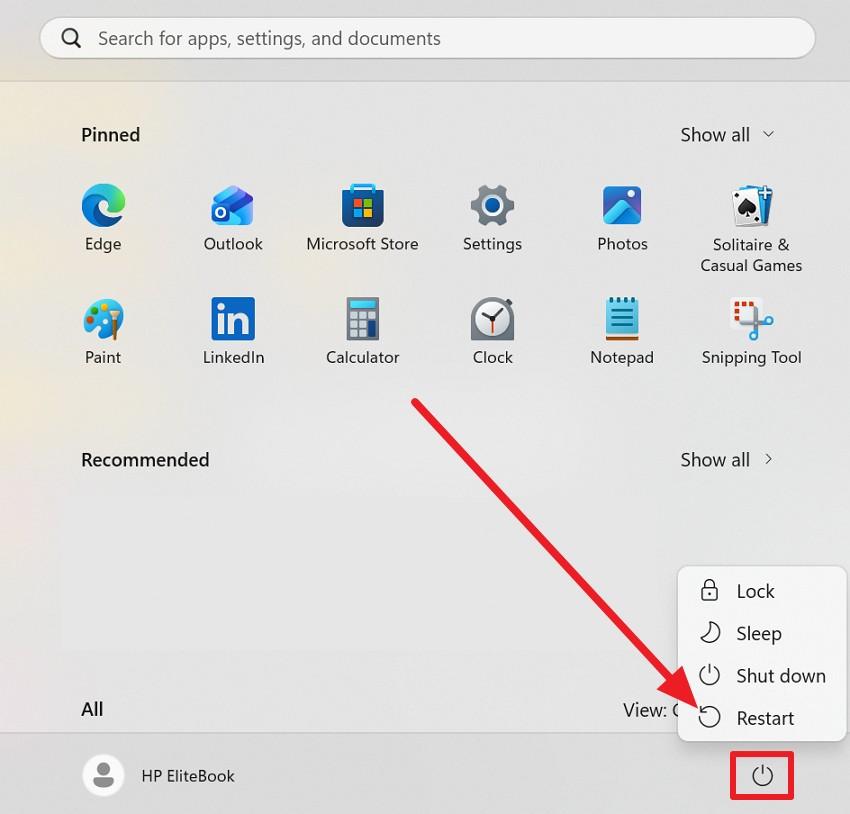
A restart can help fix Call of Duty Black Ops 6 Dev Error 0xD8E46539 because it clears small system bugs and resets everything to a clean state. On PC, it closes hidden launchers, anti-cheat, and overlay apps, whereas on console, it fully shuts down the game instead of quick-resume. Overall, a reboot also refreshes network and account checks, applies pending updates, and helps the system read storage correctly, as guided below:
Instructions: In the Start menu, select the "Power" icon, then choose the "Restart" option.
Fix 2: Disable Background Apps
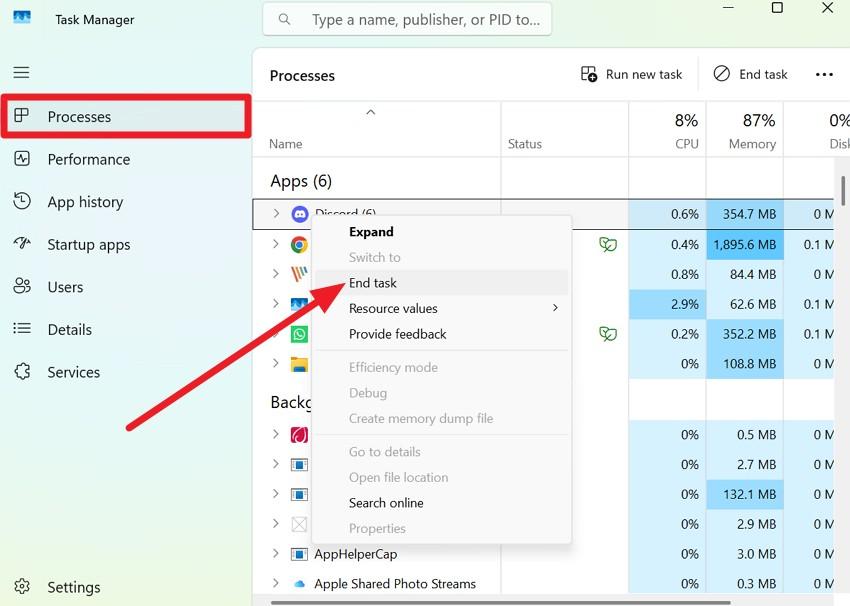
This also resolves the Call of Duty Black Ops 6 Dev Error 0xD8E46539, as many crashes are caused by overlays and heavy tools. Apps like Discord, Steam Overlay, Xbox Game Bar, and MSI Afterburner add extra code on top of the game and can cause conflicts. In addition, Browsers, OBS, RGB apps, and other tools also use CPU, GPU, and RAM, and closing non-essential apps allows the game to run alone, as guided:
Instructions: In the Task Manager under the "Processes" section, right-click the app you want to close and select "End Task."
Fix 3: Clear Cache and Temporary Files
For the Call of Duty Black Ops 6 Dev Error 0xD8E46539 issue, it is recommended to clear the cache. This is important because old data can cause the game to load slowly. When BO6 tries to use this bad data, it can crash or show a dev error. Thus, clearing the cache allows the game to rebuild a fresh shader cache and temporary files, as demonstrated:
On PC (Windows – Battle.net/Steam)
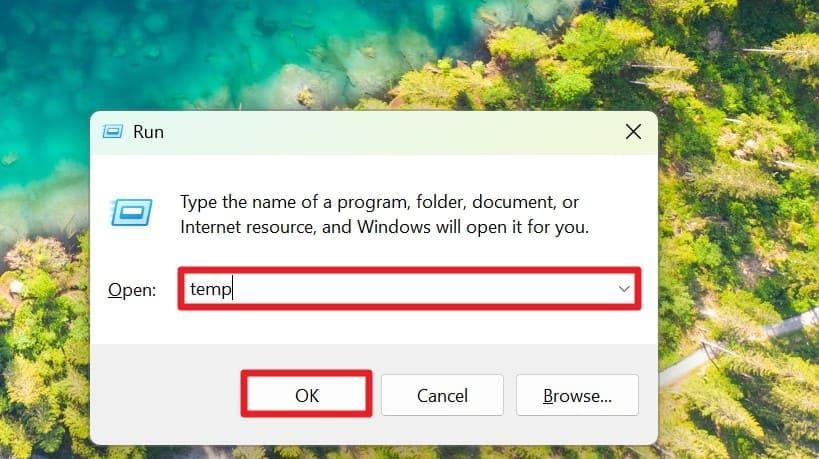
Step 1. Press "Win + R," type "temp" in the given textbox, and press the "Enter" button.
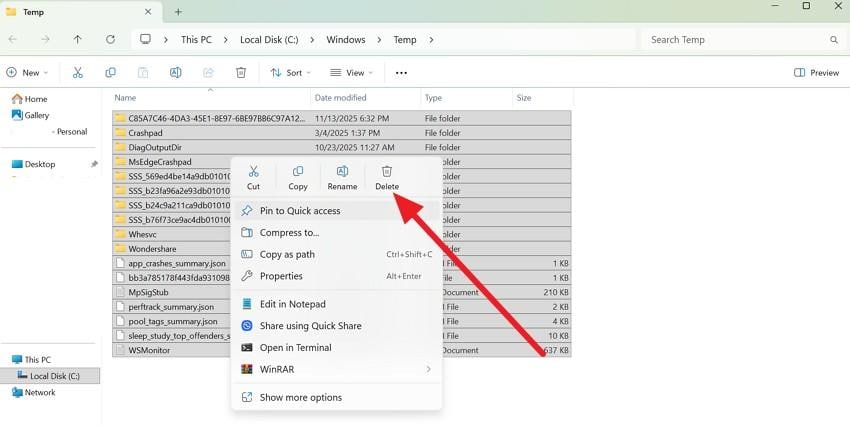
Step 2. Press "Ctrl + A" to choose all files and right-click to select the "Delete" icon.
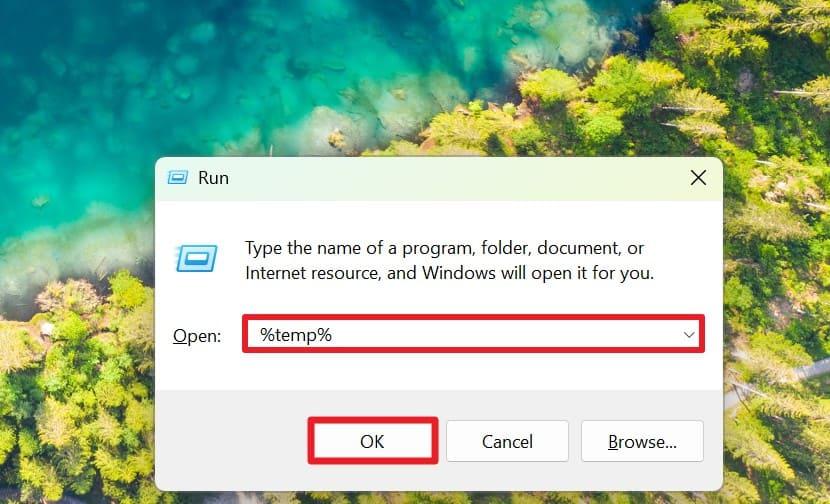
Step 3. After that, press "Win + R" again and press the "Enter" key as you type "%temp%" in the textbox.
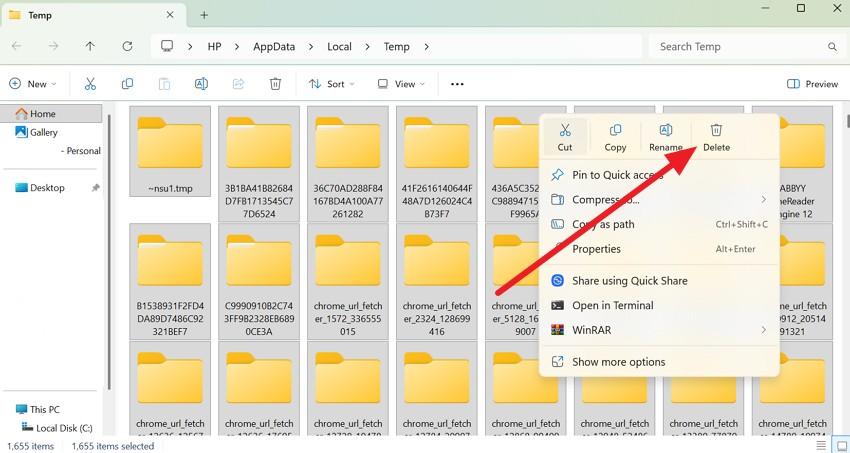
Step 4. There, select all the temp folders, then click the "Delete" icon to remove them.
Clear Steam Download/Cache Data
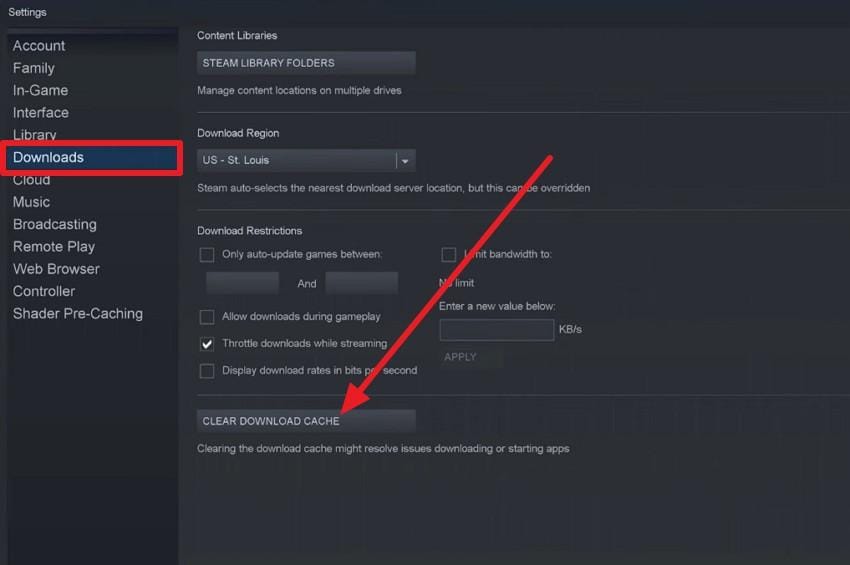
Step 1. Go to the Steam settings and head to the "Downloads" section to pick the "Clear Download Cache" button.
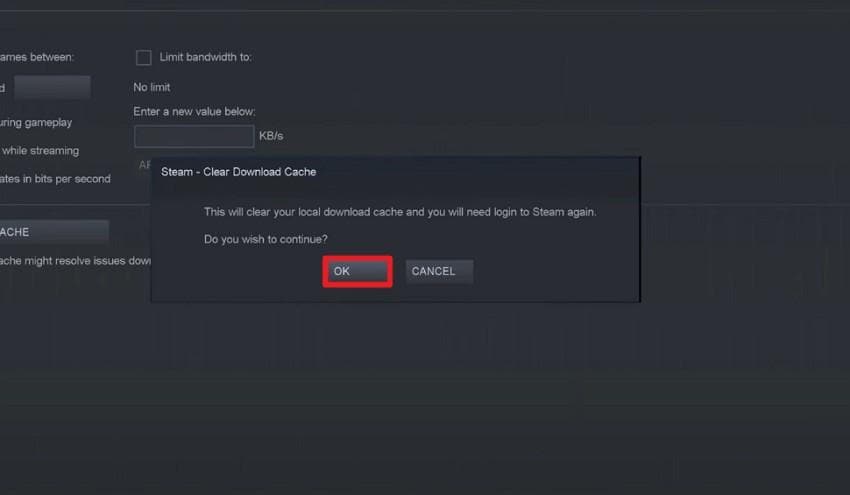
Step 2. After that, press the "Ok" button on the popup menu to confirm the action.
Fix 4: Verify Call of Duty Game Files
This method checks for missing or damaged data and replaces it with clean files to fix Call Of Duty Black Ops 6 Dev Error 0xD8E46539. The launcher scans every game file and compares it with the official version. Hence, if any file is broken, incomplete, or wrong after a crash or failed update, it downloads a fresh copy. Additionally, it fixes mismatched content data after DLC changes or other COD installs, as shown:
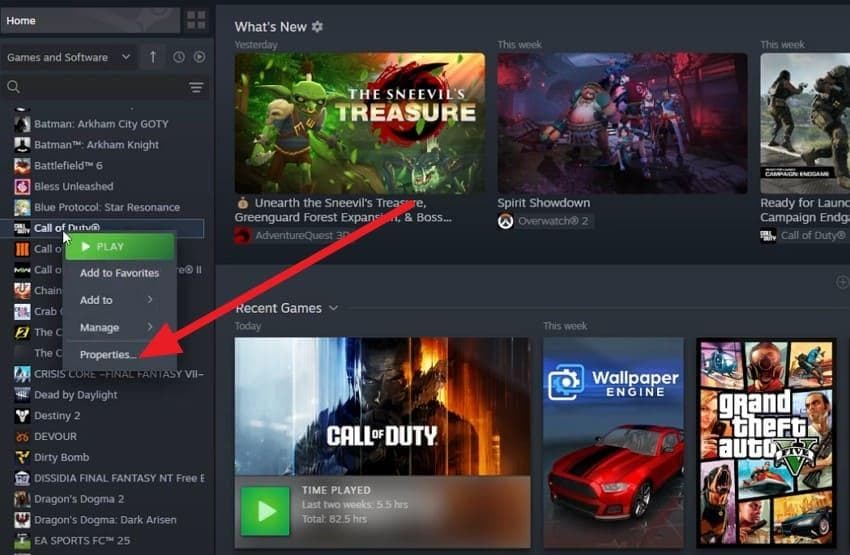
Step 1. In the Library, right-click on the Call of Duty Black Ops 6 game and pick the "Properties" option.
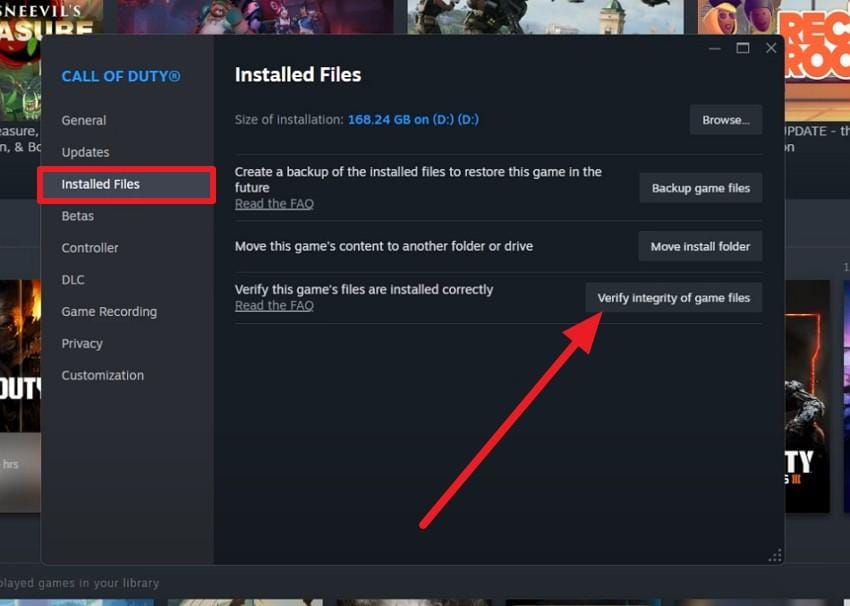
Step 2. Now, go to the "Installed Files" section and press the "Verify Integrity of Game Files" option.
Fix 5: Update Graphics Drivers
If the Call of Duty Black Ops 6 Dev Error 0xD8E46539 error persists, update your GPU drivers. New drivers fix bugs in DirectX, shader handling, and memory that appear in BO6. They add game-specific optimizations, improve performance, and ensure proper rendering of heavy scenes. In addition, it prevents compatibility warnings, improves shader compilation, and reduces graphics glitches. So, detailed guidance on updating the drivers is mentioned ahead for guidance:
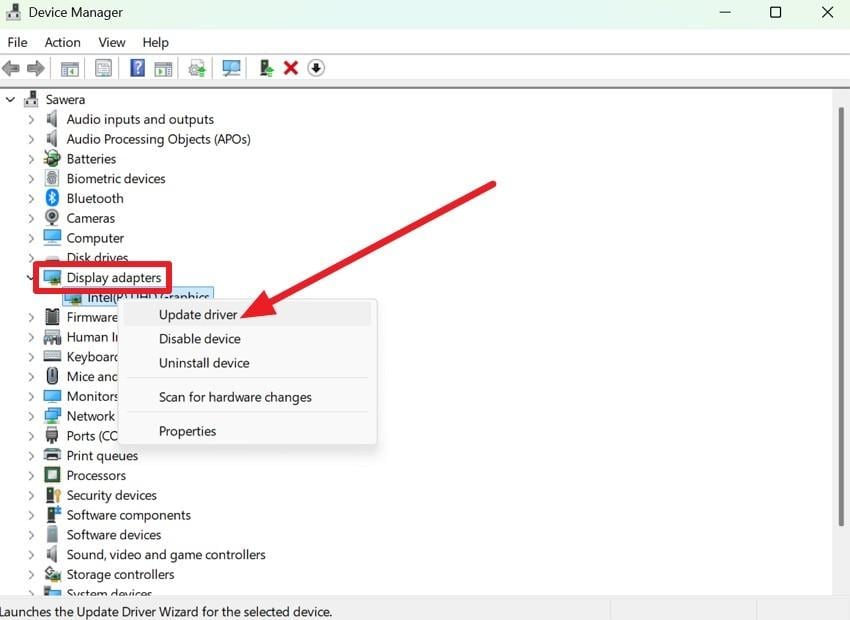
Step 1. In the Device Manager, locate the "Display Adapters" option and right-click on the graphic drivers to choose the "Update Driver" option.
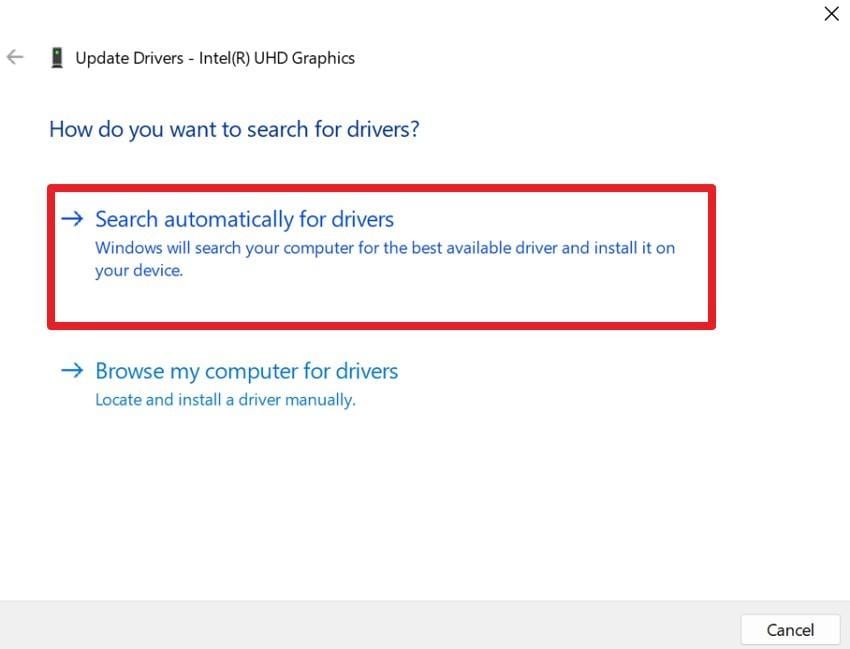
Step 2. When the Update Driver window appears, click the "Show Automatically for Drivers" option.
Fix 6: Reinstall Call of Duty Black Ops 6 Safely
When nothing fixes the Call of Duty Black Ops 6 Dev Error 0xD8E46539, reinstall the game. A full reinstall removes deeply corrupted files, problematic add-ons, and leftover COD content, such as Black Ops 7 or Warzone packs. Furthermore, it resets local settings, profiles, and shader data to their defaults, fixing crashes caused by outdated or misconfigured files. So, here are the detailed steps to reinstall Call of Duty:
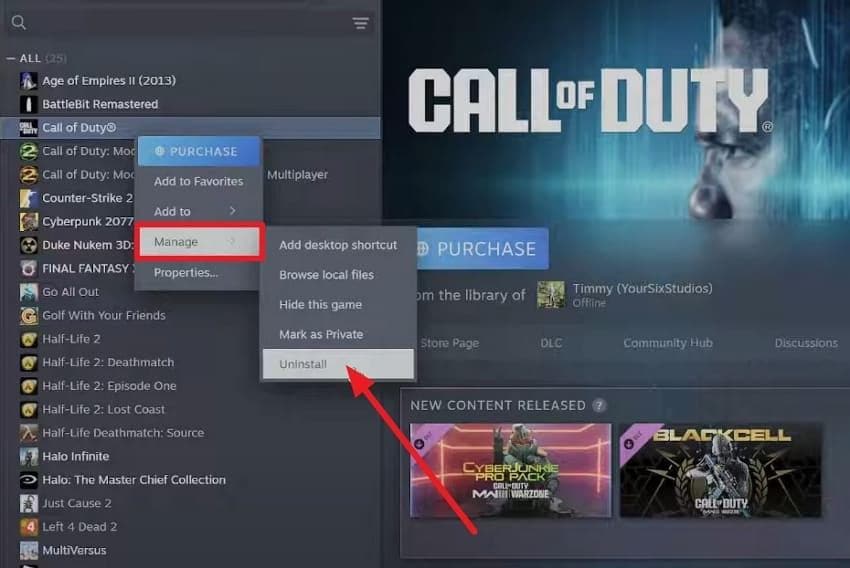
Step 1. In the Library, right-click on the game to pick the "Manage" option and tap on "Uninstall" when the new menu appears.
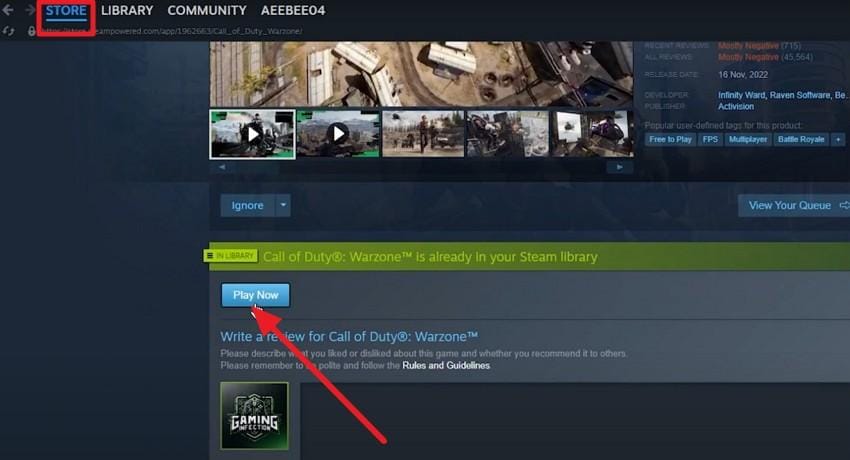
Step 2. Now, go to the "Store" tab and search for Call of Duty: Black Ops 6. Press the "Play Now" button to add the game to your library and reinstall it.
Part 3. Repair Your Corrupt Black Ops 6 Corrupt Game Video Files Efficiently via Repairit
If your Black Ops 6 gameplay recordings are corrupted, use Repairit to fix damaged video files while you troubleshoot the Black Ops 6 Dev Error 0xD8E46539. This tool can also repair corrupted game recordings, such as Black Ops 6 clips, as long as they are in formats like MP4, MOV, MKV, AVI, etc. In addition, the tool supports the Pro file format, including RAW, HDR, LOG footage, and codecs such as DNxHD and DNxHR.
Whether the files or recordings experience issues such as not opening, freezing, no sound, or glitches, Repairit can handle all scenarios. What makes this an ideal repair tool is its ability to batch-repair game files and game recordings, with the option to preview after repair. You can even delete specific files from the queue and pick which results to keep, making big repairs easier.
Key Features

-
Quick Repair: Fixes common problems like files not opening, freezes, no sound, and glitches with a single click, suitable for minor or moderate corruption.
-
Advanced/Professional Repair: Uses a sample video from the same device or format to rebuild badly damaged files by checking structure, headers, and encoding.
-
High‑quality, "Lossless" Repair Focus: It keeps the original resolution, frame rate, color, and codec, restoring files without heavy recompression for professional editing.
Guide to Fix the Damaged Black Ops 6 Video Files via Repairit
If your Black Ops 6 gameplay recordings are damaged, follow this step-by-step Repairit video repair guide to fix corrupted MP4 or MOV game clips easily:
Step 1. Import Your Black Ops 6 Video Files
Go to the "Video Repair" section and choose the "Start" button to continue adding corrupted Black Ops 6 video files to the tool.

Step 2. Add More Files and Continue to Repair on Repairit
Once added, click the "+Add Files(s)" button to batch-repair game files, then click the "Repair" button to commence.

Step 3. Preview the Fixed Game Video Files and Save
Now that the process has ended, preview the Black Ops 6 video files in detail, then press the "Save All" button to download them to the PC.
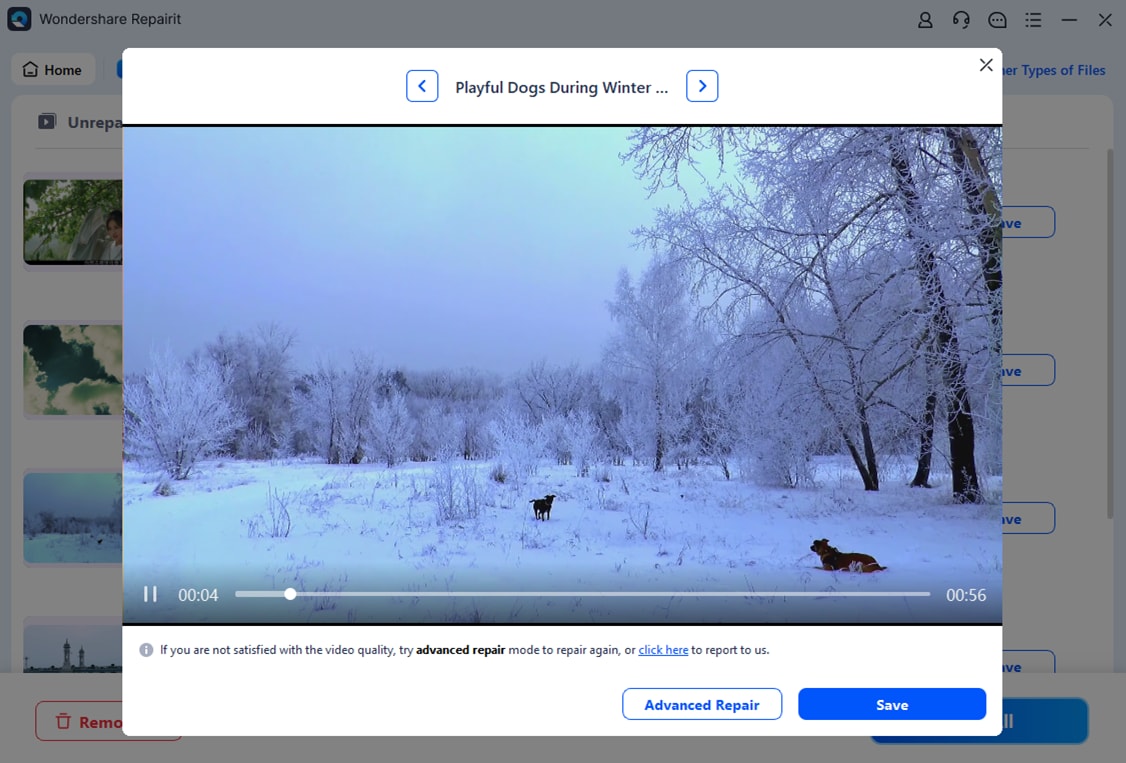
Fix the Damaged Black Ops 6 Video Files via Repairit
 Security Verified. Over 7,302,189 people have downloaded it.
Conclusion
This guide has explored what Call of Duty Black Ops 6 Dev Error 0xD8E46539 is and why it occurs. To address it, six solutions are described clearly with step-by-step guidance for users. If the issue persists due to corrupted game video files, it is recommended to use Repairit to repair or convert files in batches. Additionally, always verify game files and update drivers to prevent the error from appearing again.
Frequently Asked Questions
-
1. Can this Black Ops 6 error cause data loss?
No, the dev error does not delete game progress or saved files. However, it prevents the game from loading correctly until the issue is resolved fully. -
2. Is the Black Ops 6 Dev Error 0xD8E46539 tied to my account or banned status?
No, this error is not related to account bans or restrictions by the system. Instead, it occurs due to file conflicts, corrupted data, or software issues on the device. -
3. Can Black Ops 6 Dev Error 0xD8E46539 happen offline?
Yes, the error can appear even without the internet because local files may be damaged. Moreover, corrupted assets or mismatched game data can trigger a crash in offline modes.




