
While playing, many gamers encounter the MS Gaming Overlay popup error message. The Xbox Game Bar is relatively popular in the gaming community for basic communication. With the gaming overlay showing issues, it gets difficult to maintain in-game communication and ensure a seamless gaming experience.
At this point, many users are left wondering what went wrong with their Windows or related settings. With no idea of how to adjust the gaming overlay, this guide provides various fixes to resolve the stubborn error, with detailed instructions.
Table of Contents
-
- Fix 1. Restart Xbox Services and Gaming Services
- Fix 2. Enable Gaming Features in Windows 11
- Fix 3. Disable Key Binding via Registry Editor and Game Bar
- Fix 4. Check and Fix Corrupted System Files
- Fix 5. Reset or Reinstall Xbox Game Bar/Gaming Overlay App
- Fix 6. Fix Corrupt Files Affecting Gaming Overlay via Repairit
Part 1. Understanding Why Xbox Game Bar Shows an Error
Prior to jumping into fixes, it's essential to understand the underlying reasons for MS gaming overlay errors:
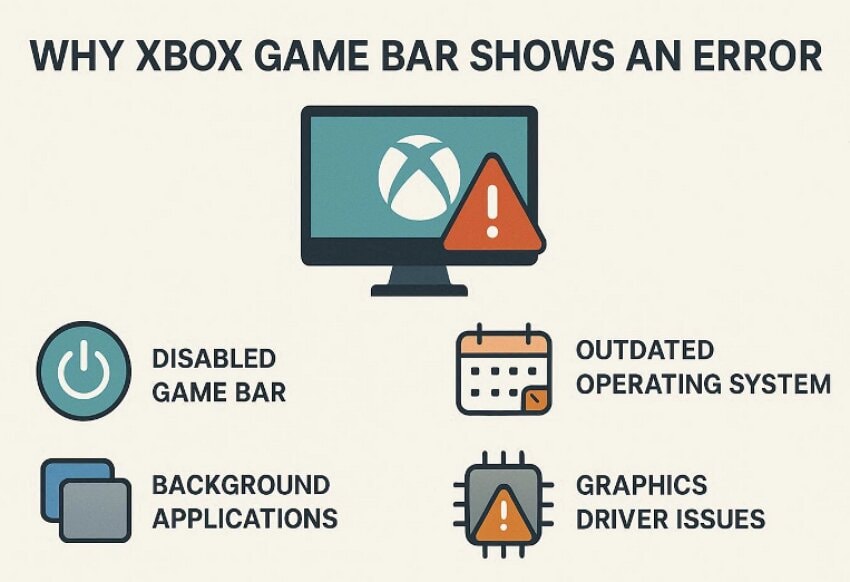
- Game Bar Disabled in Settings: If the Xbox Game Bar is turned off in Windows settings, the overlay cannot launch. It will show errors instead of opening when you press the shortcut.
- Corrupted Xbox Game Bar App: If Game Bar files are damaged, Windows may not be able to launch the overlay. This often results in random error messages or the overlay closing immediately.
- Required Xbox Services Stopped: Xbox Game Bar relies on several background services to run correctly. When these services are stopped or disabled, the overlay can fail to start.
- Damaged Windows System Files: Sometimes, corrupted or missing system files can interfere with Windows gaming features. As a result, the Game Bar might refuse to open and show the "MS Gaming Overlay" error.
- Conflicting Overlay/Recording Software: Other overlays and recording tools may connect to your game before Xbox does. This can cause the Game Bar to flicker, fail to display, or show rendering errors.
Part 2. How to Fix MS Gaming Overlay Issues on Windows PC - 6 Fixes
After understanding the possible cues, let’s walk through the practical fixes to resolve the MS gaming overlay Windows 11 issues:
Fix 1: Restart Xbox Services and Gaming Services
You can initiate troubleshooting by restarting Xbox and gaming services, as it directly refreshes the background components. When these services are stuck, restarting them can instantly clear the blockage without reinstalling apps. It targets the core Xbox and Gaming Services layer, which often causes overlay errors when it misbehaves. After understanding the basis of these services, explore the detailed guide discussed below, explaining how to restart it:
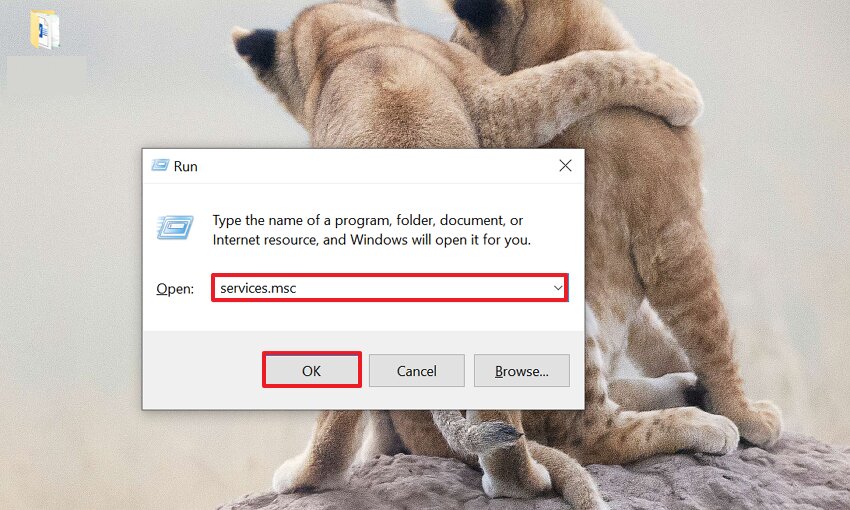
Step 1. Initiate by pressing the "Windows + R" keys on the keyboard, entering the "services.msc" command, and clicking the "OK" button.
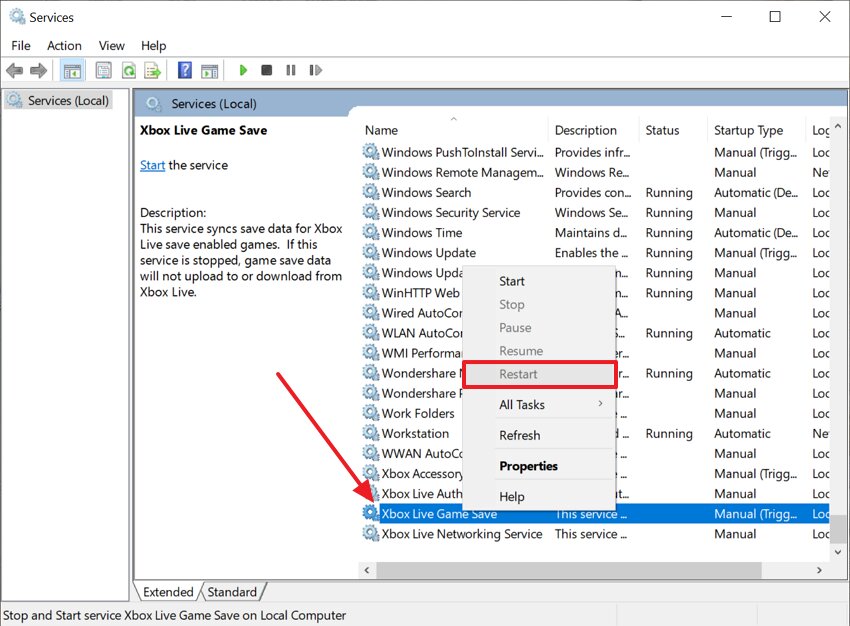
Step 2. Upon entering the interface, scroll down to find the running Xbox services. Then right-click each available service and choose the "Restart" option.
Fix 2: Enable Gaming Features in Windows 11
To fix the "MS gaming overlay popup" issue, you simply need to enable the gaming feature within the settings. This allows the user to open the overlay tools easily with the dedicated controller’s button. This ensures the Xbox Game Bar has permission to record gameplay and run in the background. Furthermore, it enables the Game Mode, which reduces background activity and prioritizes game performance, so explore the following guide below:
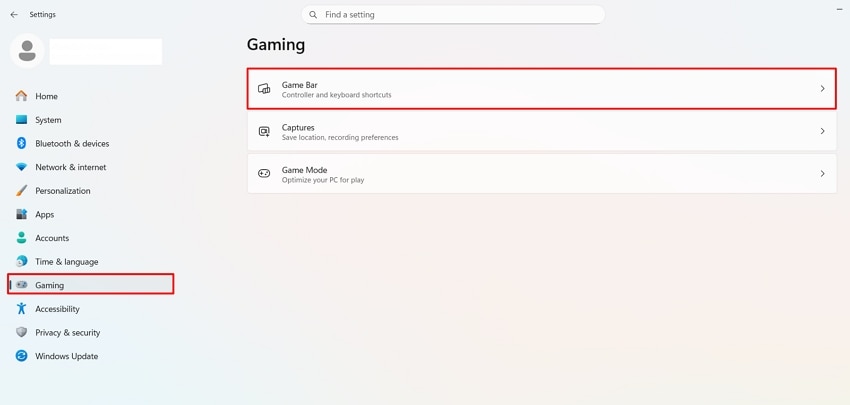
Step 1. Upon entering the Settings interface, click on the "Gaming" option in the sidebar and then choose the "Game Bar" option.
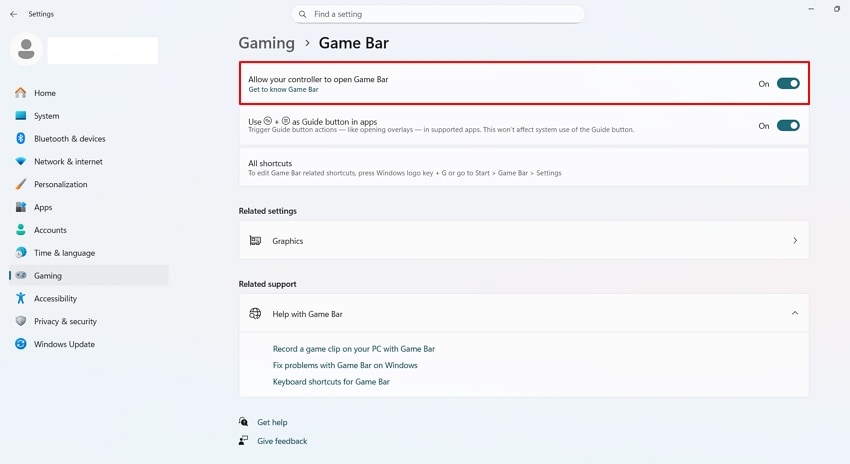
Step 2. Following this, ensure that "Allow your controller to open Game Bar" toggle is enabled.
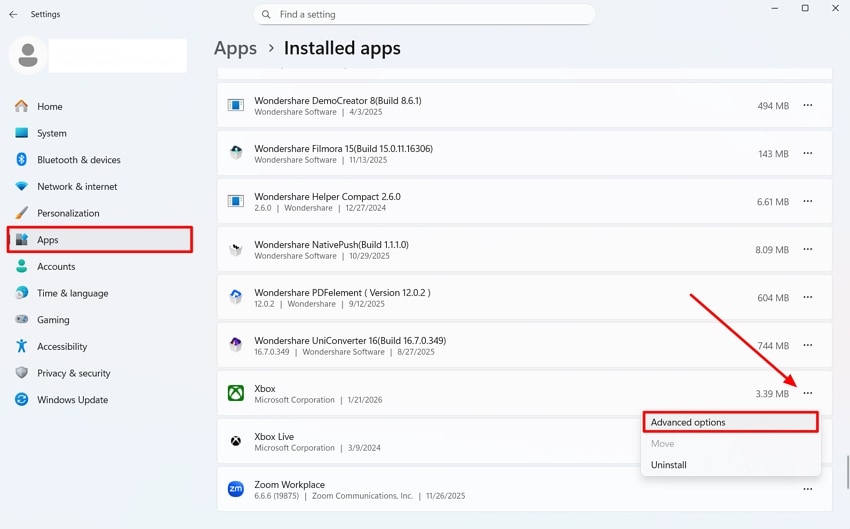
Step 3. Navigate to the "Apps" section from the left and look for the Xbox to select the "Three Dots" option for selecting "Advanced Options."
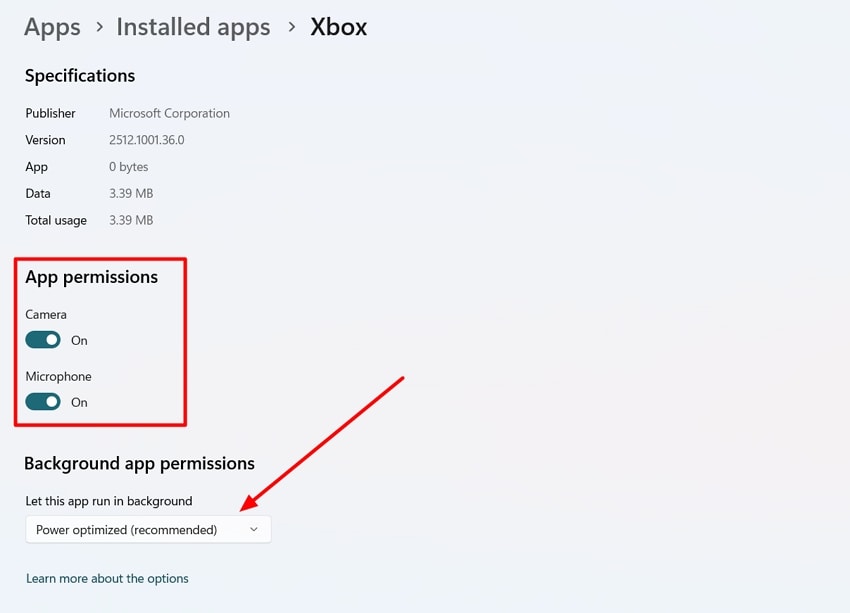
Step 4. Here, enable the "Camera" and "Microphone" options under the "App Permissions" tab. Then, ensure the "Power Optimized (recommended)" option is selected under the "Background Apps Permissions" tab.
Fix 3: Disable Key Binding via Registry Editor and Game Bar
This method is useful when the MS Gaming Overlay keeps popping up or conflicting with other shortcuts. It disables Game Bar keyboard shortcuts that may conflict with other software. Moreover, it can also work if the game settings are toggled off and the Game Bar keeps re‑enabling itself. To fix MS Gaming Overlay errors, follow the given detailed guide:
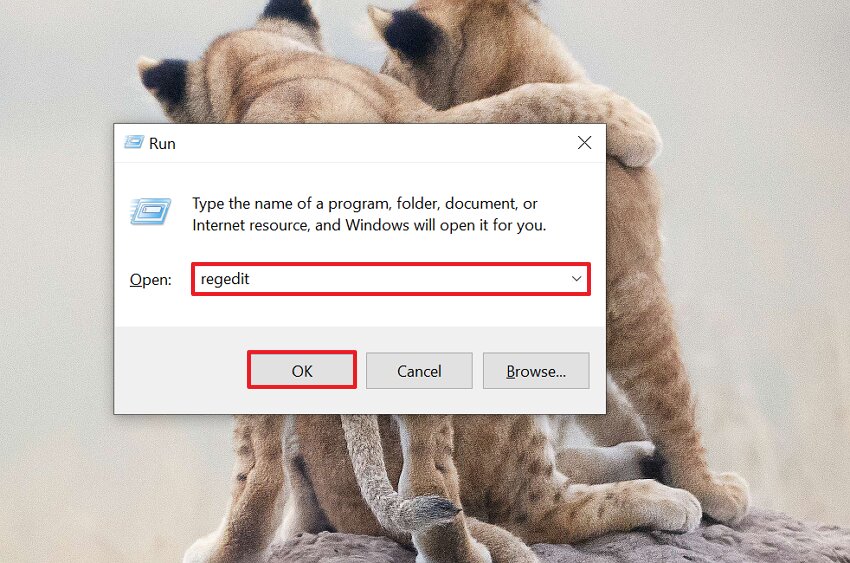
Step 1. Start by pressing "Windows + R" to open the Run dialog. Next, enter the "regedit" command in the "Open" tab and hit the "OK" button.
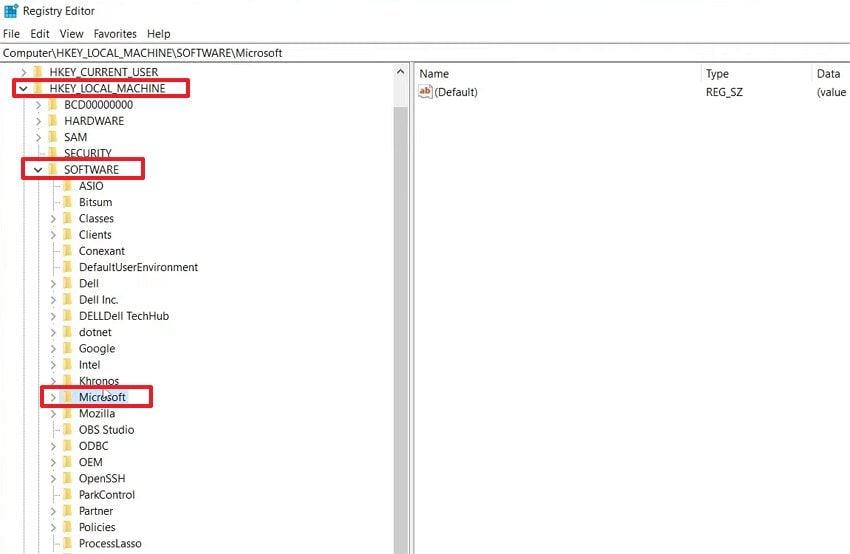
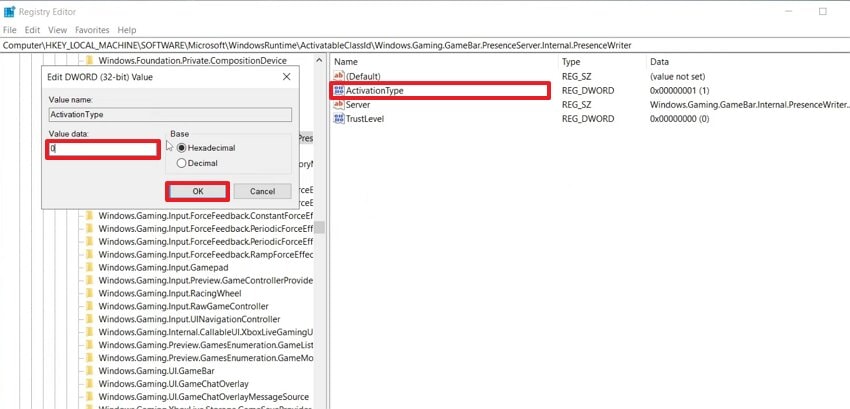
Step 2. As you enter the Registry Editor, expand the "HKEY_LOCAL_MACHINE" option. Afterwards, choose the "Software" option and select the "Microsoft" option.
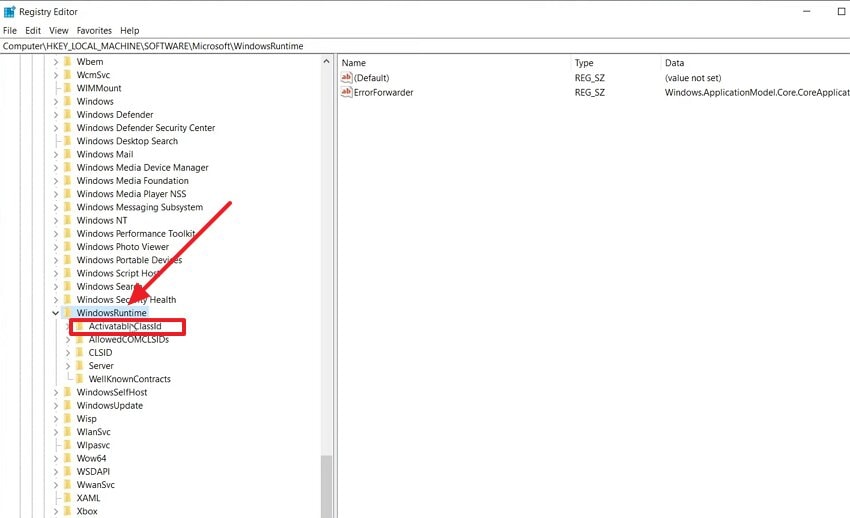
Step 3. Following this, scroll to the end to choose the "Windows Runtime" option and then select the "ActivableClassid" option.
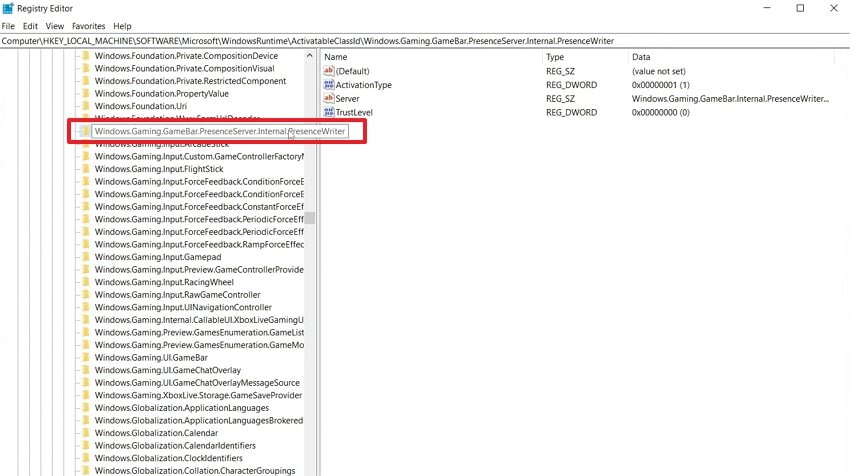
Step 4. Following this, double-click the "Windows Gaming Game Bar.Presence Server" option from the list.
Step 5. Lastly, click on the "Activation Type" option, enter the "0" value in the "Value Data" tab, and hit the "OK" button. Afterwards, restart the computer to apply the new changes to the device settings.
Fix 4: Check and Fix Corrupted System Files
Running SFC and DISM scans is useful if your Windows is damaged and causing the "MS gaming overlay" error. DISM fixes the Windows image, and SFC scans and automatically replaces corrupted or missing system files. Additionally, both commands are supported by Microsoft, making them safe and reliable for serious system issues. Now that you are aware of this method, let's explore it step-by-step to fix this error:
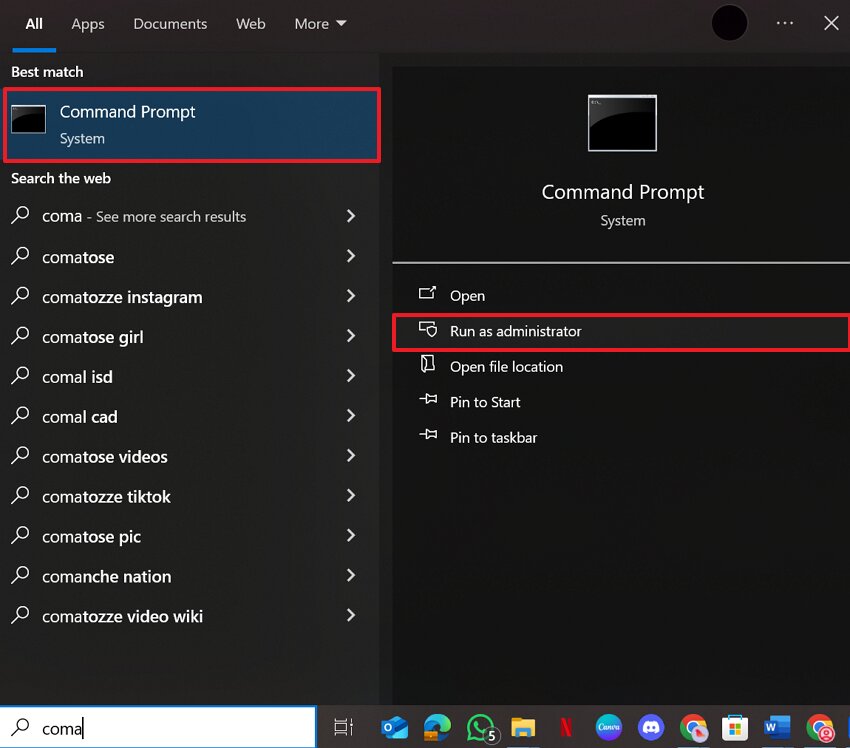
Step 1. First, search for "Command Prompt" in the Windows search bar and click on "Run as Administrator" to open it.
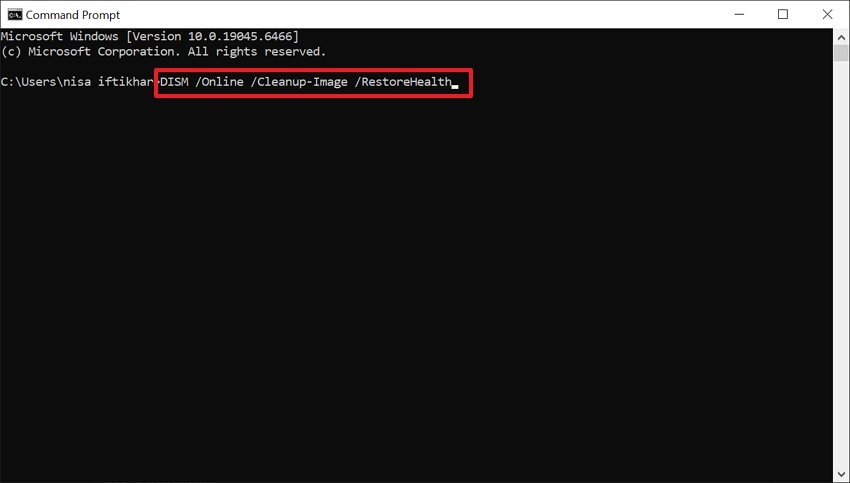
Step 2. Upon entering the interface, insert the "DISM /Online /Cleanup-Image /RestoreHealth" command prompt. Then, wait for 10-20 minutes to complete the cleanup procedure.
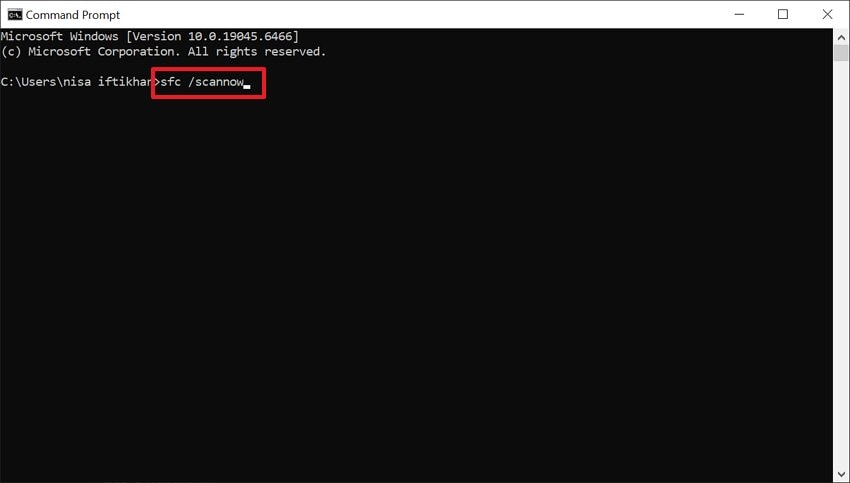
Step 3. After completing the DISM process, enter the "sfc /scannow" command and press the Enter button. This procedure will automatically replace corrupted copies with healthy ones from the system cache.
Fix 5: Reset or Reinstall Xbox Game Bar/Gaming Overlay App
Sometimes, an "MS gaming overlay popup" error message occurs due to game file corruption. To fix this error, users can reset the Xbox game box within the settings interface. It clears the Game Bar’s cache, settings, and temporary data without touching the rest of the games on your Windows. Furthermore, it is completely done in a setting, so let's explore its detailed workflow:
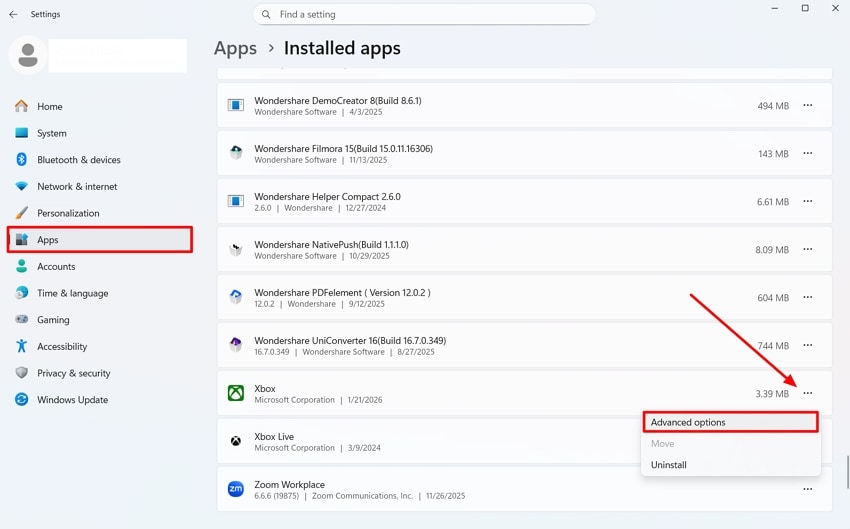
Step 1. Upon entering the Settings interface, click on the "Apps" menu from the left sidebar. Then, choose "Xbox," click the "Three Dots," and select the "Advanced Settings" option in the pop-up.
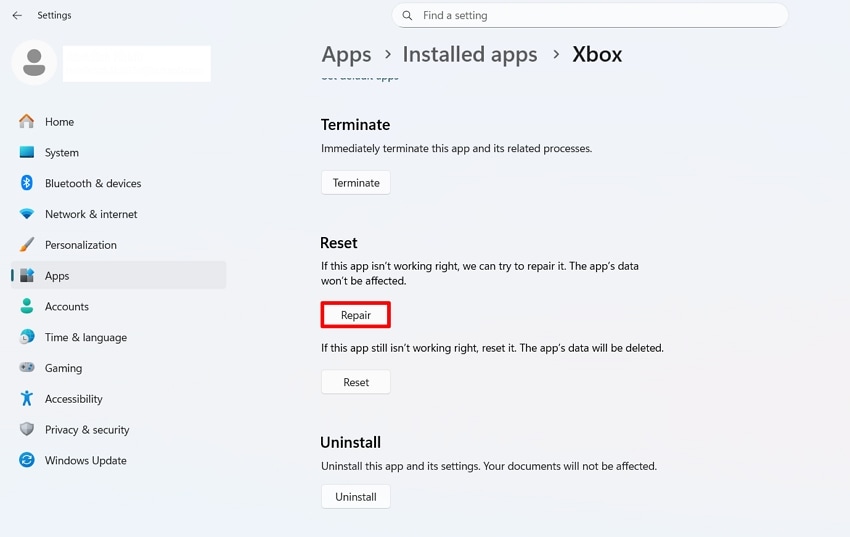
Step 2. Here, scroll down to the end, hit the "Repair" button under the "Reset" tab to start the repairing procedure.
Fix 6: Fix Corrupt Files Affecting Gaming Overlay via Repairit
One day, you try to launch the game, but it shows an "MS Gaming overlay popup" error message. You tried various DIY methods, but nothing works to fix this error. In this situation, we recommend using Repairit, which lets you fix the corrupted game files with maximum accuracy. This tool offers multiple recovery options, including file recovery, image recovery, audio recovery, and video recovery.
Users simply insert the corrupted files within the tool, and it will start the repair procedure. This data repair software also offers advanced features like photo generative fill, AI photo enhancer, and AI video enhancer. Furthermore, it offers a batch processing system to fix multiple files simultaneously.
Key Features

-
Handles Various Errors: Repairit can easily handle corruption scenarios, including game/PC crashes and transfer errors that corrupt Game files.
-
Wide Format Support: This platform is capable of repairing files of various formats, including Docs, Excel, PowerPoint, and Archives.
-
Repair Corrupted Game Recordings: It can also fix corrupted game MP4 and MOV files while ensuring their complete accuracy.
Quick Guide on How to Use the Repairit File Repair Feature
Upon hearing its extensive features, let's dive into a detailed guide to resolve the MS gaming overlay pop-up:
Step 1. Access the File Repair Feature from the Main Interface
With the tool running, click on the "More Type Repair" option from the left sidebar. Then, choose the "Document Repair" option to enter the document repair interface.

Step 2. Start the Repairing Procedure to Fix the Files
Once the corrupted files are imported, click on the "Repair" button to initiate the repair procedure.

Step 3. Preview and Save the Repaired Files
At the end, choose the "Preview" button to review the repaired files and assess accuracy. Afterwards, select the "Save" button to render the repaired files.

Repair Corrupted Files Now
 Security Verified. Over 7,302,189 people have downloaded it.
Conclusion
In summary, users can now easily fix the "MS gaming overlay popup" error message. This article covered 6 efficient methods along with their detailed step-by-step guides. With the right method, you can make sure that the gaming overlay operates perfectly. Furthermore, we recommend using Repairit, which lets you fix unlimited files in a single go, enabling you to save time.
Frequently Asked Questions
-
1. Is editing the registry safe for fixing the MS Gaming Overlay error?
Editing the registry can be effective, but you must be careful while doing it. You should follow the step-by-step instructions and create a backup before changing keys to fix the MS gaming overlay error. -
2. Why do I see "You’ll need a new app to open this MS gaming overlay"?
This error usually means Windows no longer knows which app should handle the link. It normally occurs when related components are removed, corrupted, or misconfigured. -
3. Will disabling the overlay stop the pop-ups without breaking my games?
Yes, turning off Game Bar and its key bindings only disables the overlay features and prompts. It does not prevent your games from launching or running normally.




