
Many PC gamers jump into Black Ops 7 expecting their personalized setup to work flawlessly. Soon, when they realize that their graphics, control, and audio settings won't save, the excitement comes to a halt. This issue doesn't just break immersion; it can directly impact gameplay performance, forcing players to reconfigure preferences every time.
For competitive and casual players alike, these unstable settings can cause inconsistent sensitivity or unexpected crashes. To focus on winning matches, simply go through the guide and get sorted with stepwise guidance on each solution discussed.
Table of Contents
-
- Solution 1. Stop OneDrive from Touching COD Folders
- Solution 2. Allow Local Saves and Fix Config Paths
- Solution 3. Run the Game and Services as Administrator
- Solution 4. Disable Cloud / Cross-Device Settings That Overwrite You
- Solution 5. Check Security and Controlled-Folder-Access
- Solution 6. Repair/Reset the BO7 App (Game Pass)
- Solution 7. Avoid Auto-Optimize Prompts Resetting Graphics
Part 1. What Causes Black Ops 7 Settings to Reset on PC - 5 Reasons
Once you know the actual reason, applying the "fix Black Ops 7 settings not saving" becomes even easier. For your assistance, the section below uncovers the most common causes for this issue, saving you from repeated trial and error:
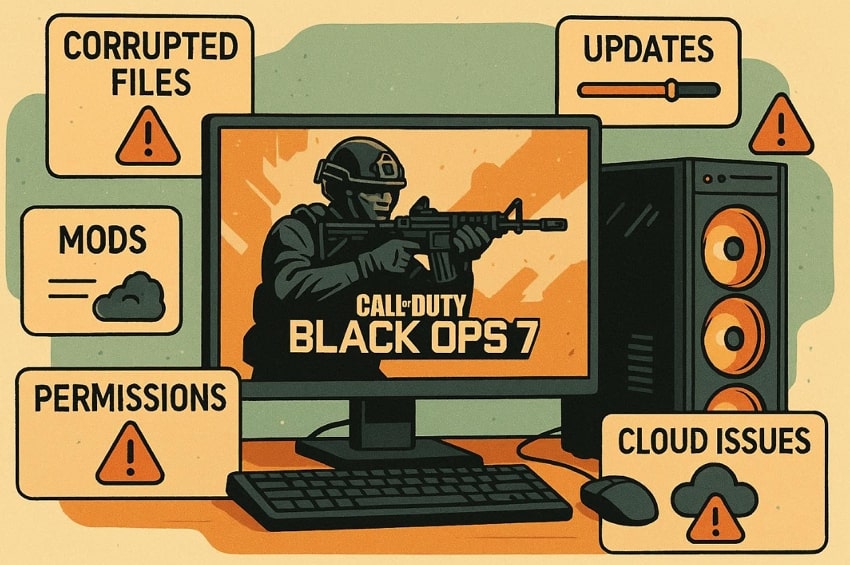
- Config Files are Read-Only or Blocked: The game saves settings in config files located in your Documents or similar folders. When those files or folders are marked "Read-Only" or access is blocked, the game cannot write new settings and loads defaults every time.
- Cloud Sync Apps Overwrite the Config: If OneDrive or another cloud service is syncing your Document folder, it may keep restoring older versions of your settings files. This means that each time you restart the game or the PC, the cloud-stored defaults take precedence and new settings disappear.
- Game Doesn't Have Proper Permissions: When you launch Black Ops 7 without proper file permissions, it can stop it from creating or updating its config folder. Hence, running the game/launcher as administrator once often forces Windows to make the correct folders and lets settings start saving.
- Corrupted or Missing Configuration/Shader Files: Once the player/config files or shader cache become corrupted, the game may fail to read them and revert to safe default settings. Thus, verifying game files and allowing the game to recreate the players folder (deleting or renaming it) can resolve this issue.
- Account/Platform Sync Issues: On Game Pass or Xbox, profile or sync issues can stop local changes from being stored or synced properly. For this, logging out and back in can resolve the setting not sticking across the session.
Part 2. Step-by-Step Guide to Repair Black Ops 7 Settings Not Saving on PC
Remember that a persistent issue like Black Ops 7 settings keeps resetting; PC isn't a regular inconvenience. Considering this, explore these stepwise solutions and focus on the action instead of constantly reconfiguring the game:
Solution 1. Stop OneDrive from Touching COD Folders
When OneDrive automatically syncs your Call of Duty folders, it can unintentionally overwrite your local game settings. This eventually causes settings to reset every time you try to start the game. For this, stop OneDrive from accessing these folders, ensuring your preferences remain exactly as you configured them. Follow the guidelines and learn how to stop OneDrive from syncing your COD folders:
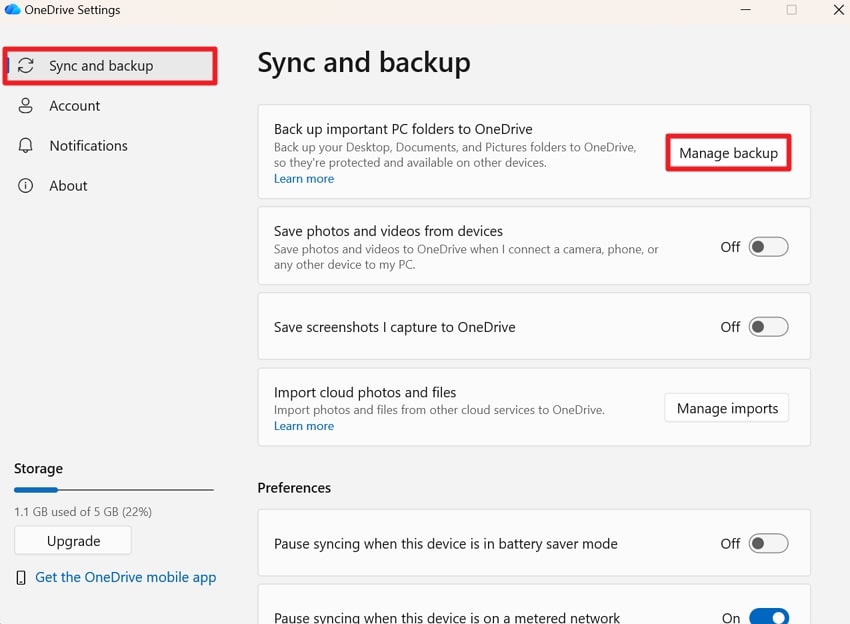
Step 1. Click the OneDrive icon in the taskbar to enter the Settings and go to the "Sync and Backup" tab. After this, press the "Manage Backup" option to stop the backup of COD folders on OneDrive.
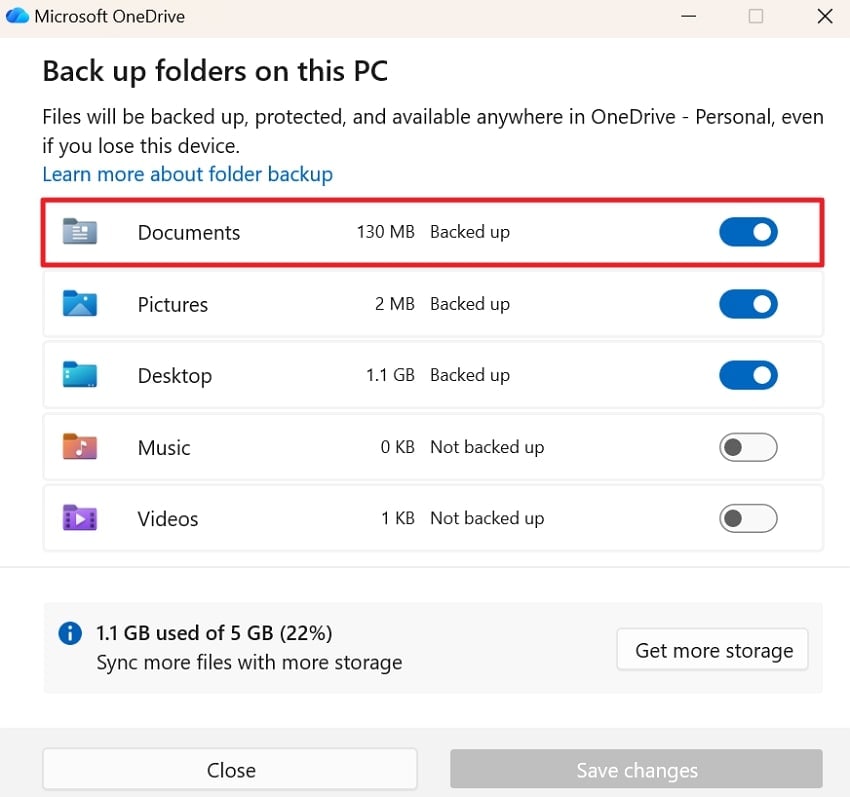
Step 2. Now, toggle off "Documents," tick mark "Stop Backup and Choose Where to Keep Files," and press "OK." Click the "Save Changes" button to not back up COD folders.
Solution 2. Allow Local Saves and Fix Config Paths
At times, Black Ops 7 cannot save your settings because the configuration folder is located on a path the game can't fully access. Now, ensuring your folder is saved on a local drive helps the game store preferences securely. This means your custom graphics, controls, and other settings persist between sessions, improving overall stability. Simply, adhere to the manual and fix configuration paths for your COD folder:
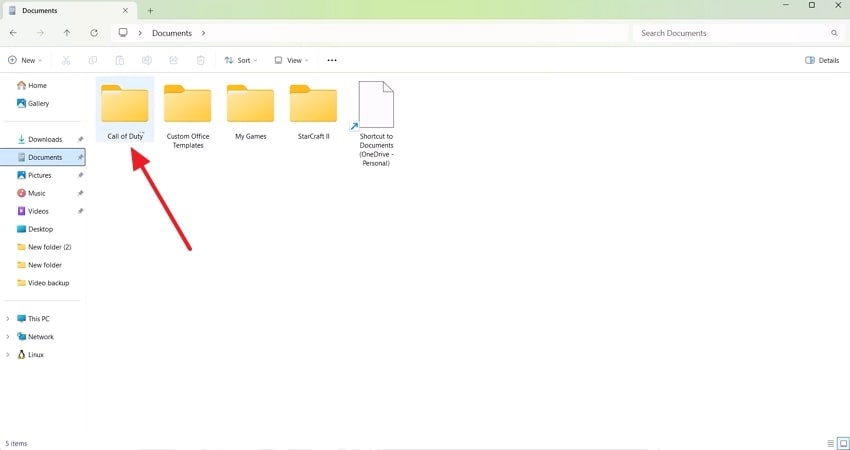
Step 1. Access File Manager, locate the Documents folder, and open the "Call of Duty" folder.
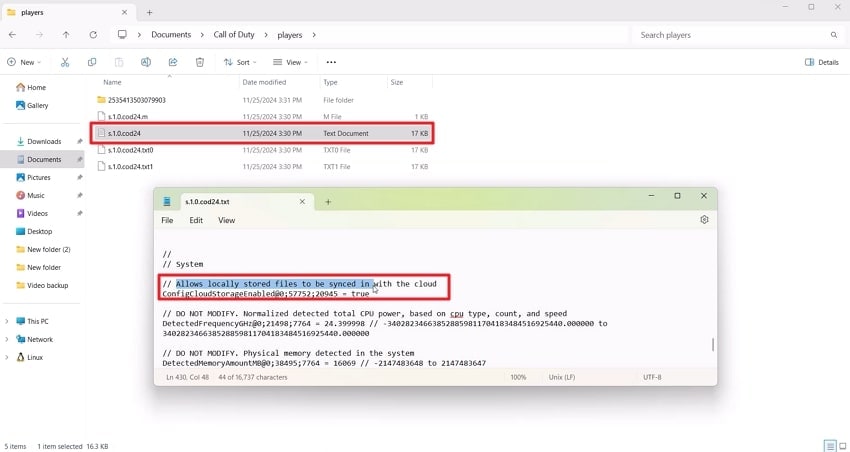
Step 2. Move forward, access the Players folder, then access a specific file in Notepad. Next, locate "Allow Locally Stored Files …" and change the value to fix the config path.
Solution 3. Run the Game and Services as Administrator
Windows often restricts applications from modifying specific files or system settings unless they have proper permissions. When you run Black Ops 7 as an administrator, it ensures the game can fully access and write to its configuration files. To proceed, simply follow the guidelines and fix Black Ops 7 settings not saving issue:
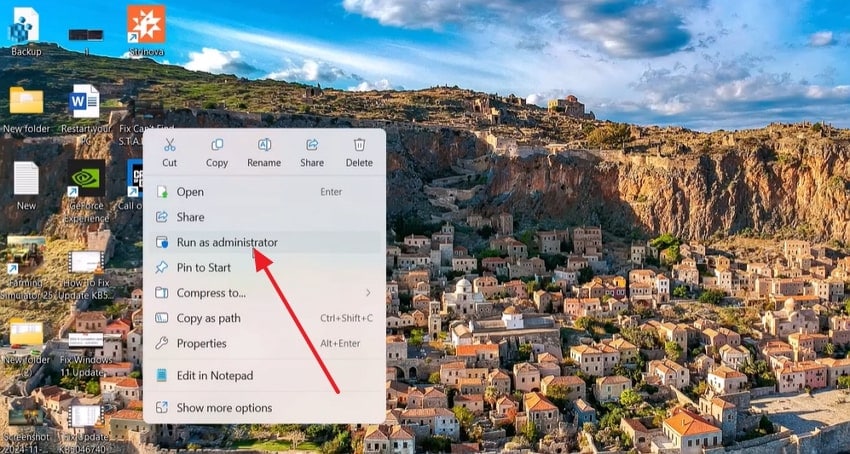
Instructions: First, create a shortcut to your game on the PC, then right-click it and choose the "Run as Administrator" option. Do the same for the Battle.net, Steam, or Xbox launcher if you use one. After this, restart BO7 and update your settings once more.
Solution 4. Disable Cloud / Cross-Device Settings That Overwrite You
In fact, the cloud restores outdated or default configurations every time the game launches, undoing your changes. Disabling cloud or cross-device sync settings ensures that Black Ops 7 relies on your local configuration files. To prevent unwanted rollbacks and keep your customized settings exactly as you want, follow the provided tutorial:
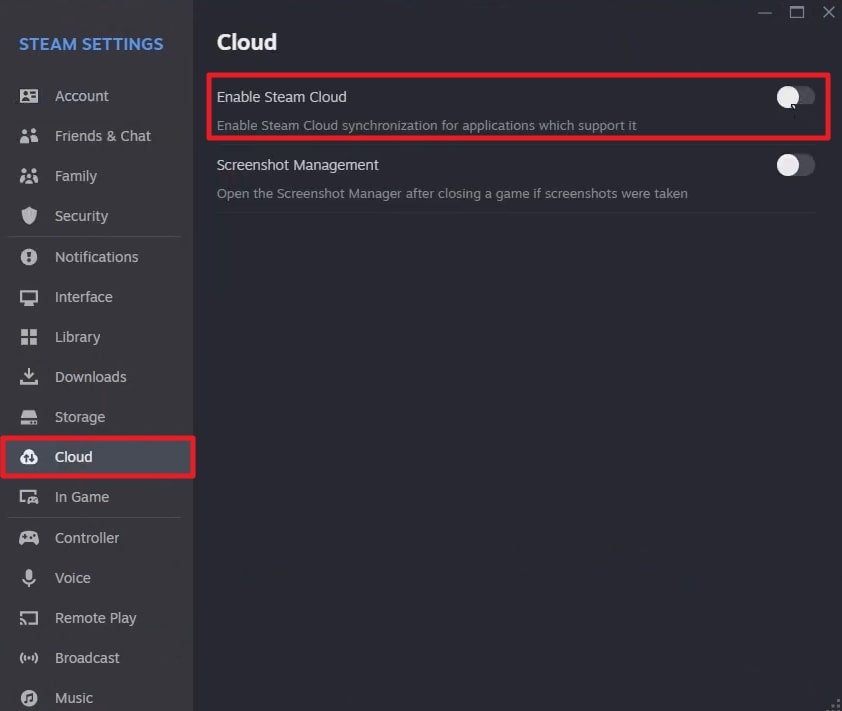
Step 1. Initially, open your game launcher (Steam or Game Pass), access Settings, and press the "Cloud" option. Next, toggle off the "Enable Steam Cloud" to disable cloud syncing for game files.
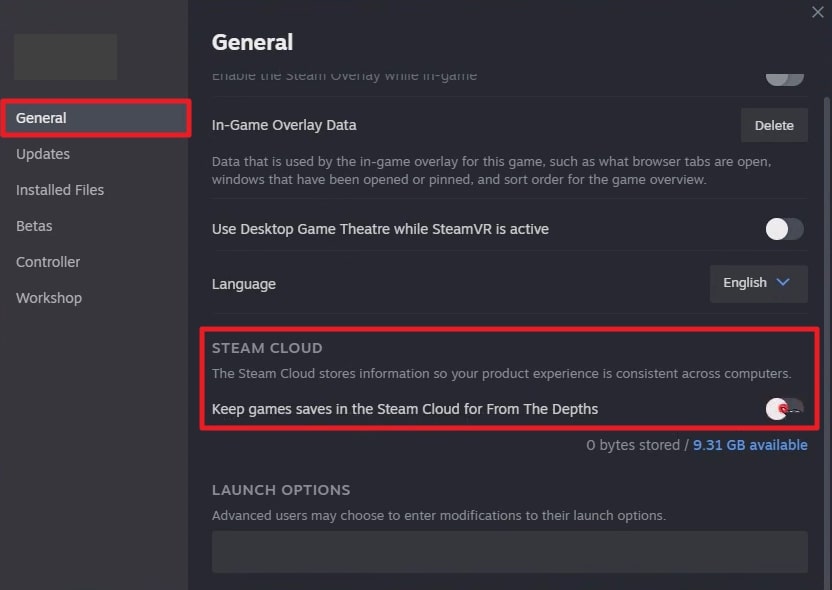
Step 2. Next, locate the BO7 in the game library, right-click it, and select Properties. Proceed ahead, access the "General" section, and disable the setting for BO7 "Steam Cloud."
Solution 5. Check Security and Controlled-Folder-Access
Notably, the Windows security feature can mistakenly block BO7 from modifying its own configuration files. Under these conditions, it is important to allow the game to bypass security restrictions, ensuring it can write and update files properly. To overcome the Block Ops 7 settings keep resetting PC issue, explore this tutorial and check Controlled-Folder Access:
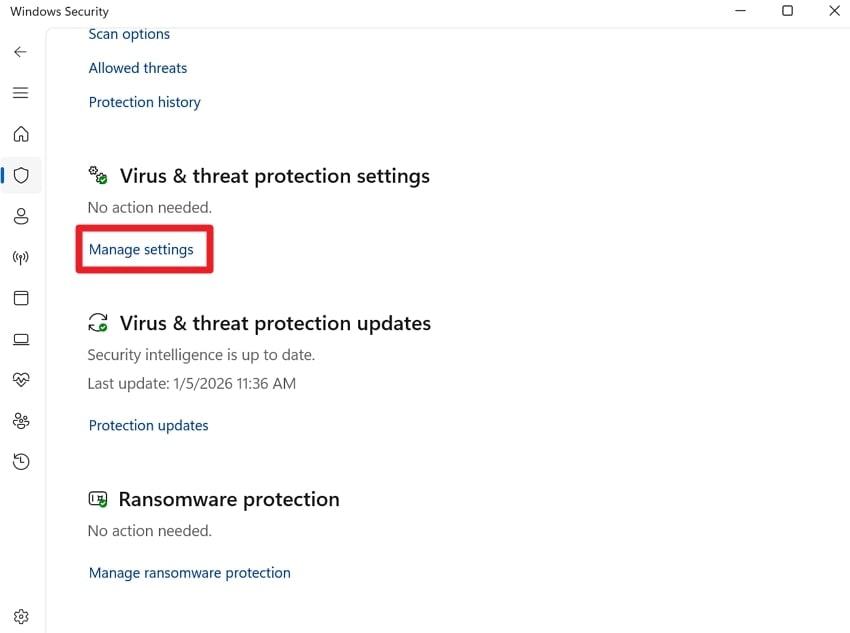
Step 1. Enter your Windows Security settings, choose the "Virus & threat Protection" option, and press "Manage Settings."
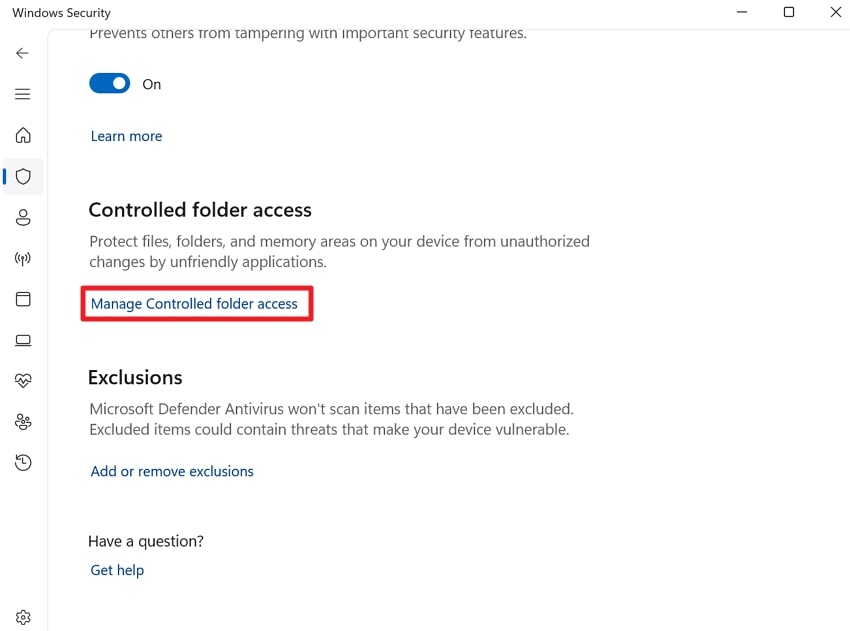
Step 2. Next, scroll down and click the "Manage Controlled Folder Access" option available under Controlled Folder Access.
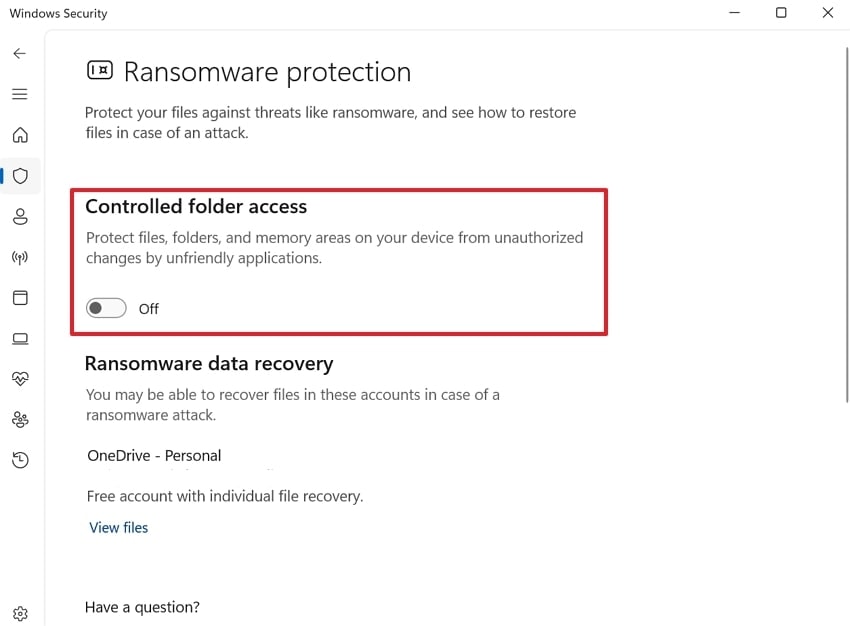
Step 3. Toggle off "Controlled Folder Access," then check your antivirus quarantine to ensure no COD config files are blocked.
Solution 6. Repair/Reset the BO7 App (Game Pass)
Corrupted or missing game files, especially within the configuration components, can prevent Black Ops 7 from storing your preferences. Here, repairing the app scans and fixes these issues without affecting your saved progress. Subsequently, resetting the game restores a clean configuration space, allowing settings to save correctly again. Explore the guided manual, and learn how to repair your BO7 game on Game Pass:
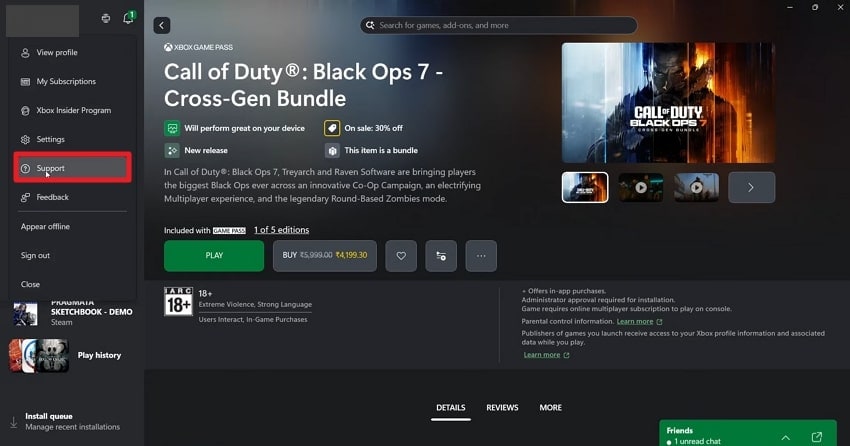
Step 1. To begin, open your Xbox app, click on the Profile icon, then choose the "Support" option.
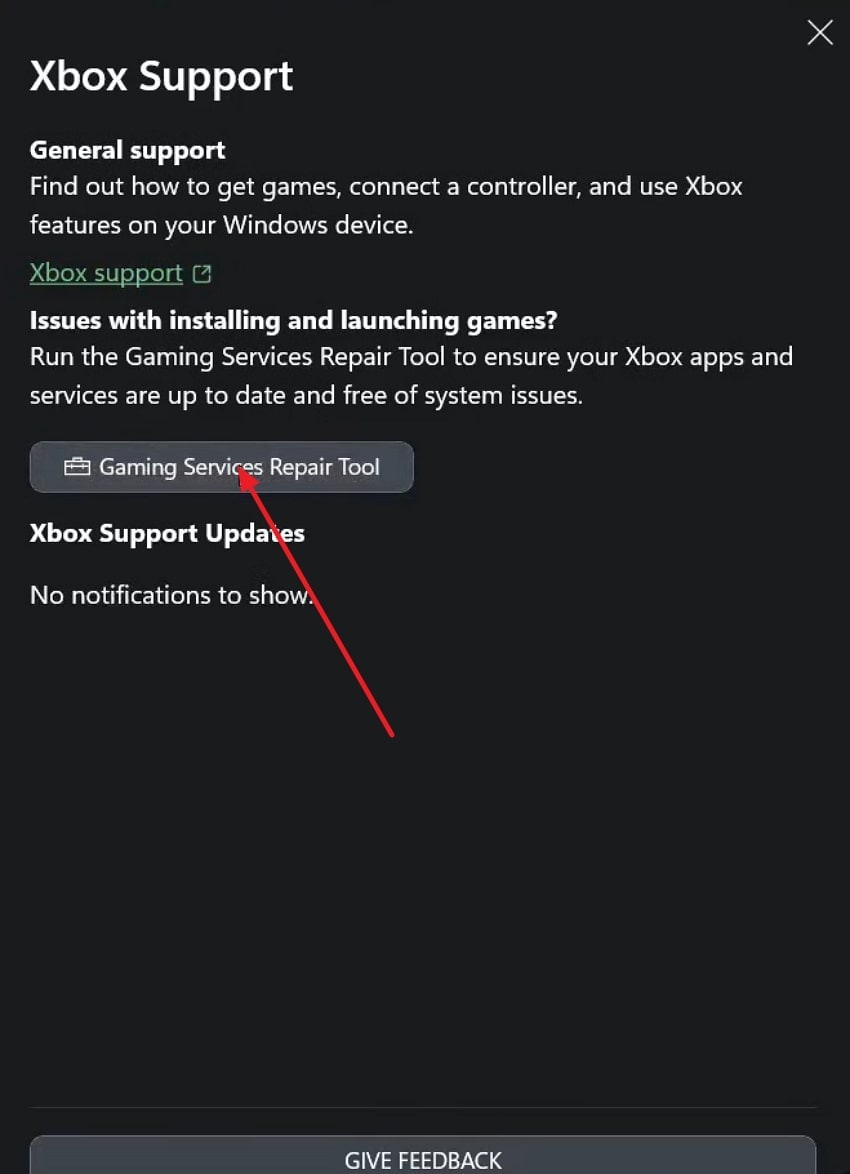
Step 2. After this, press the "Gaming Service Repair Tool" option to "Start Repairing," which might take some time to complete.
Solution 7. Avoid Auto-Optimize Prompts Resetting Graphics
GPU utilities and game launchers often automatically optimize settings based on your hardware. While convenient, these tools can override your manually selected graphics options every time you launch the game. Here, disabling Game Optimization guarantees that your personal performance and visual preferences remain unchanged throughout. For more clarity, follow the provided tutorial and disable optimization prompts for your GPU software:
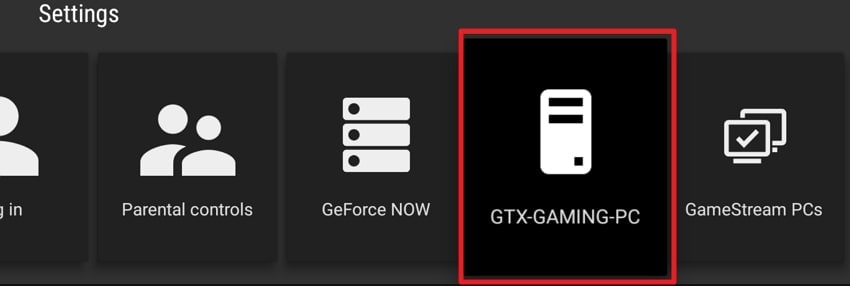
Step 1. Open your GPU software (NVIDIA Control Panel or GeForce Experience), access "Settings," then choose "GTX-Gaming-PC."
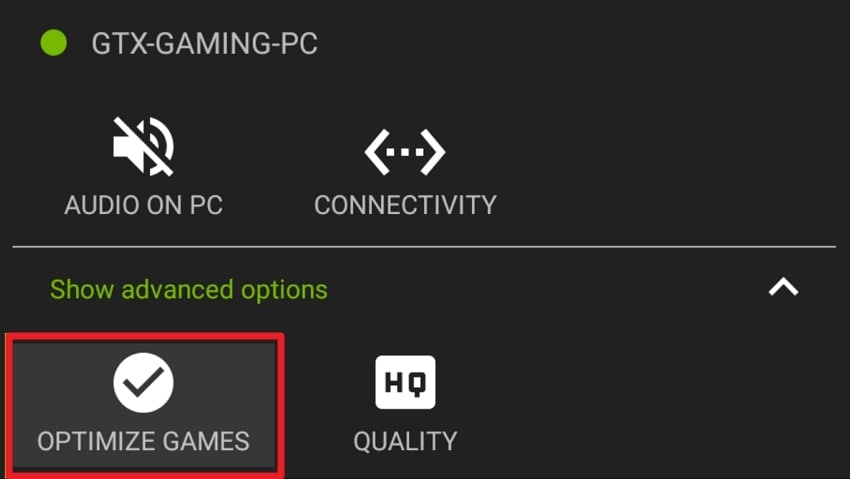
Step 2. After this, select the "Show Advanced Options" option and disable the "Optimize Games" option. Following this, all games will be streamed using their current in-game settings, and users can select individual games for optimized settings.
Pro Gamer Tip: Repair/Enhance Black Ops 7 Game Video Files
Soon, when your recorded Block Ops 7 clip appears choppy, it indicates you need more than a basic playback trick. In this context, only a video repair program like Repairit can serve as a professional guide. Regardless of the video corruption scenario or file size, the program delivers repaired files with ease. More impressively, you can repair multiple pieces of footage simultaneously, in any format, instantly.
Additionally, it supports HD and 8K video on all devices, preserving the original integrity of all content. Users can achieve a 99.5% repair rate on even severely damaged videos of any kind. Whether your videos are damaged due to storage issues, recording failures, or other causes, Repairit has you covered. With its AI-driven enhancement, you can restore clarity and every minor detail in your blurry game recordings.
Key Features

-
Professional Video Repair Mode: This mode supports all RAW formats and advanced video codecs to preserve the original encoding.
-
Advanced Repair Mode: To keep resolution and encoding intact, use this mode and repair severely damaged videos as well.
-
Multiple Format Support: Repairit can repair any video format, from mainstream to pro-level, in a single click.
Simplified Tutorial to Repair Black Ops 7 Videos Using Repairit
Once you have fixed Black Ops 7 settings not saving issue, follow the tutorial and get your files repaired, in case of corruption:
Step 1. Insert all the Broken Black Ops 7 Recordings
After installation completes, access the "Video Repair" tab and press the "Start" button to add your recordings.

Step 2. Start Fixing Your Black Ops 7 Videos
Here, press the "Repair" button and get all of your added Black Ops 7 videos repaired.

Step 3. Export Your Fixed Black Ops 7 Videos
Once the repair action is finished, click the "Preview" button to review, then save the Black Ops 7 videos to your device.

Fix Your Game Video Now
 Security Verified. Over 7,302,189 people have downloaded it.
Conclusion
In conclusion, a Black Ops 7 settings not saving issue can be caused by many factors, including system permissions or cloud synchronization. To address all possible causes, follow the solutions outlined in the article above and maintain consistent performance. If ongoing resets have affected your recorded Black Ops 7 videos or caused broken cutscenes, then Repairit can be used to repair and restore them.
Frequently Asked Questions
-
1. Will reinstalling Black Ops 7 fix settings not saving on PC?
Reinstalling might help, but it should be the last resort in any case to fix Black Ops 7 settings not saving issue. Most of the time, fixing permissions, disabling cloud syncs, and even allowing local saves without reinstalling the game. -
2. Can multiple user accounts on the same PC cause settings to reset?
Yes. If multiple user accounts use the same PC, the game settings may not save correctly. This can happen if the game stores configuration files in a user-specific folder (such as the Documents or AppData directory). -
3. Can crashes or forced shutdowns reset Black Ops 7 settings?
Absolutely, when the game crashes or is closed improperly, it may not get the chance to write settings to disk. Not only this, but repeated crashes can even corrupt configuration files, leading to recurring resets. Over time, this can also cause performance inconsistencies, forcing the game to revert to default settings on every launch.




