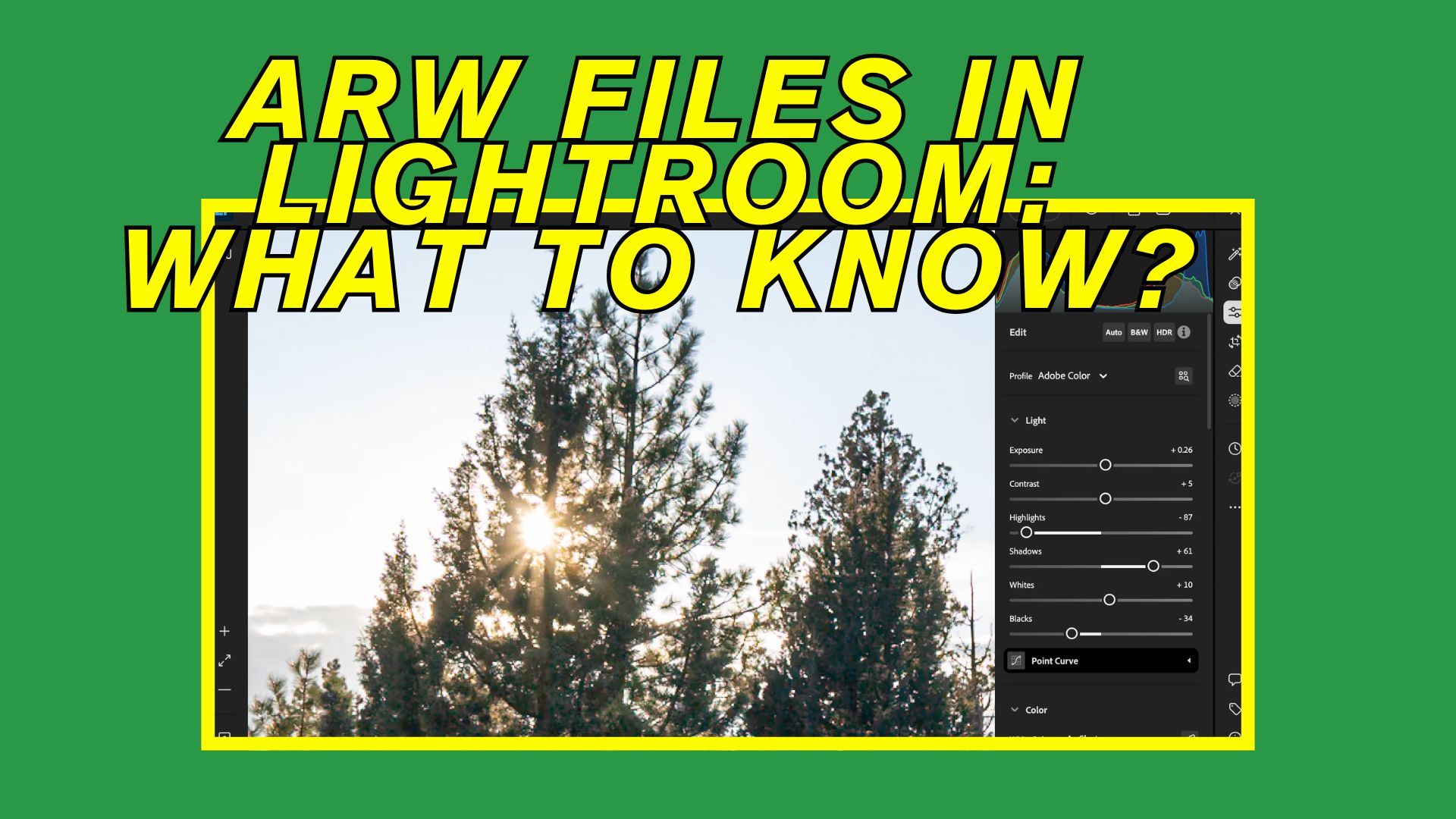
Sony cameras use the ARW format to store RAW image data, and Lightroom is one of the most widely used tools for editing these files. Because ARW files preserve complete sensor information, they allow extensive adjustments that are not possible with compressed formats like JPEG. However, working with ARW in Lightroom is not always seamless. Compatibility limitations, performance slowdowns, import errors, and occasional file corruption can affect the editing workflow.
This review evaluates how ARW files perform in Lightroom, including strengths, weaknesses, compatibility, and practical usability for photographers.
Table of Contents
Part 1. Overview of ARW Format in Lightroom
ARW is Sony’s proprietary RAW image format, designed to capture complete image sensor data without compression. Lightroom supports ARW files and allows photographers to edit them in a non-destructive workflow.
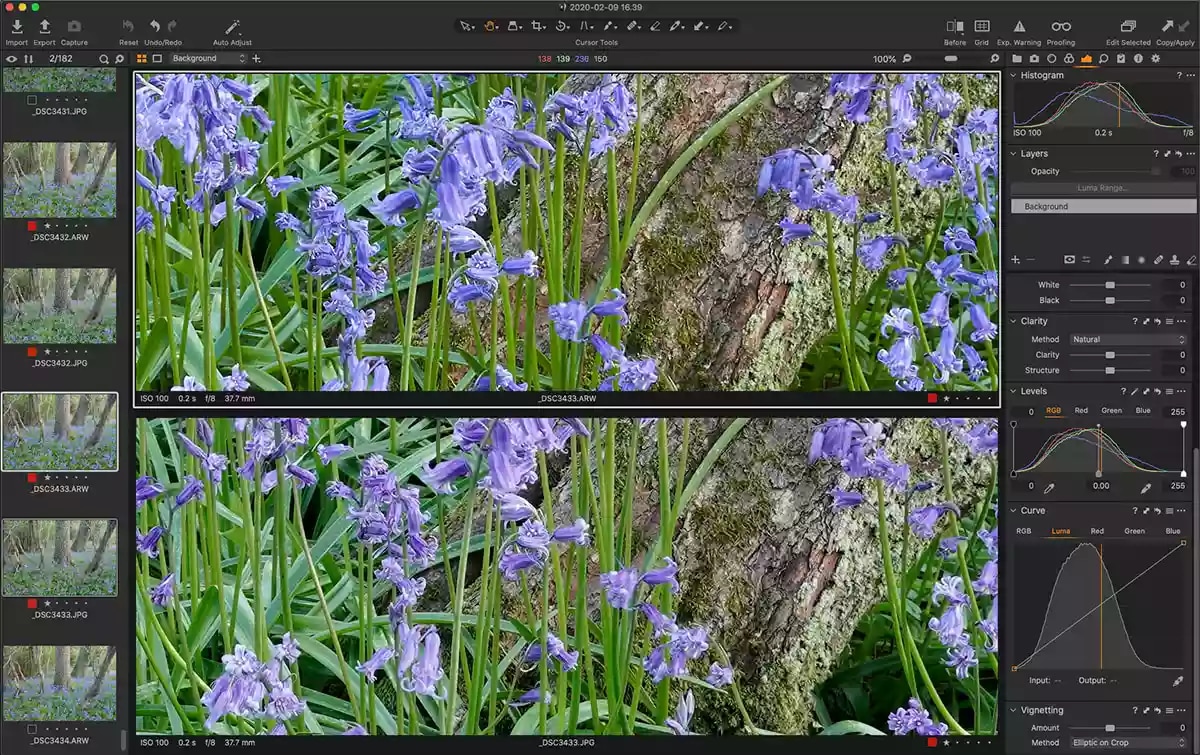
Based on actual usage, ARW files provide several advantages when used in Lightroom:
- Maximum image editing flexibility - ARW files retain full dynamic range, allowing recovery of shadows and highlights without introducing major image artifacts. This makes them ideal for professional editing workflows where precise adjustments are required.
- Non-destructive editing workflow - Lightroom edits do not alter the original ARW file, instead storing adjustments as metadata instructions. This allows photographers to revert to the original image anytime without quality loss.
- Higher color depth and tonal accuracy - ARW files contain significantly more color information than JPEG files. This improves color grading precision and reduces banding during heavy edits.
However, ARW files also introduce challenges, particularly related to performance and compatibility.
Part 2. ARW File Compatibility with Lightroom Versions
Compatibility between ARW files and Lightroom depends heavily on the Lightroom version and the specific Sony camera model used.
From a compatibility standpoint, Lightroom performs well with supported cameras but shows limitations in certain situations:
- Full compatibility with supported Sony camera models - When Lightroom includes support for a camera model, ARW files import and edit normally. Editing tools, previews, and export functions work reliably.
- Compatibility issues with newer Sony cameras - New Sony camera models may produce ARW files that older Lightroom versions cannot read. This results in import errors or unsupported format warnings.
- Dependency on Camera RAW updates - Lightroom relies on Adobe Camera RAW to decode ARW files. If Camera RAW is outdated, Lightroom cannot properly interpret newer ARW structures.
- Cloud vs Classic performance differences - Lightroom Classic generally provides better performance with large ARW files compared to the Lightroom cloud version. This is especially noticeable with high-resolution Sony cameras.
Overall, compatibility is reliable when Lightroom remains updated.
Part 3. Editing Performance and Image Quality Review
Editing performance is one of the most important factors when working with ARW files. Based on real-world workflow experience, Lightroom delivers excellent image quality, but performance varies depending on hardware.
Key performance observations include:
- Excellent editing precision - Exposure adjustments, white balance corrections, and color grading work extremely well. Image quality remains intact even after heavy editing.
- Slower preview rendering compared to JPEG - Because ARW files contain more data, Lightroom takes longer to generate previews. This delay becomes more noticeable with high-resolution cameras like the Sony A7R series.
- Increased system resource usage - Editing ARW files requires more RAM and CPU power. Systems with lower specifications may experience slow performance.
- High-quality export results - Exported images retain excellent detail and dynamic range. Lightroom maintains professional-grade output quality.
In terms of editing quality, Lightroom handles ARW files exceptionally well.
Part 4. Workflow Efficiency When Using ARW Files
Workflow efficiency is a key consideration when working with Sony ARW files, especially for photographers handling large batches of RAW images. While ARW provides maximum editing flexibility, it also impacts storage, processing speed, and system performance. Evaluating both strengths and constraints helps determine whether ARW fits a specific editing workflow.
Workflow Strengths
- Seamless Import and Catalog Integration - ARW files integrate smoothly into Lightroom’s catalog system without requiring file conversion before editing. Organizational tools such as collections, ratings, and keyword tagging function normally, allowing photographers to manage RAW files just as efficiently as other supported formats.
- Full Editing Control Without File Duplication - Lightroom applies non-destructive editing to ARW files, meaning adjustments are saved as metadata rather than altering the original file. This prevents unnecessary duplication and preserves the integrity of the original RAW data throughout the editing process.
- Flexible and Reliable Export Options - ARW files can be exported into formats such as JPEG, TIFF, or PSD, depending on output requirements. Lightroom also allows control over resolution, compression level, and color space during export, making it suitable for both web publishing and print production.
Workflow Limitations
- Higher Storage Requirements - ARW files are significantly larger than JPEG files because they contain uncompressed or minimally compressed sensor data. Over time, this increases storage demands and may require external drives or structured backup systems.
- Performance Impact During Batch Processing - Editing or exporting large volumes of ARW files can slow down systems with limited RAM or processing power. Preview rendering and batch exports may take longer compared to compressed formats, particularly on older hardware.
Part 5. Repair Corrupted ARW Files When Lightroom Cannot Read Them
If Lightroom cannot open ARW files, file corruption may be the cause rather than software incompatibility. Corruption typically occurs due to interrupted file transfers, storage errors, or damaged memory cards.
In such cases, repair tools like Repairit Photo Repair can help rebuild damaged file structures so Lightroom may recognize and open the file again.
This approach may help when:
- ARW files cannot be opened in any program - This indicates internal file structure damage rather than compatibility issues.
- File previews are missing or broken - Repairing the file may restore image visibility.
- File transfers were interrupted - Repair tools may reconstruct missing file data.
Step 1: Launch Repairit Photo Repair and click “Add” to import your corrupted .ARW (Sony RAW) image file that cannot be opened in Lightroom..
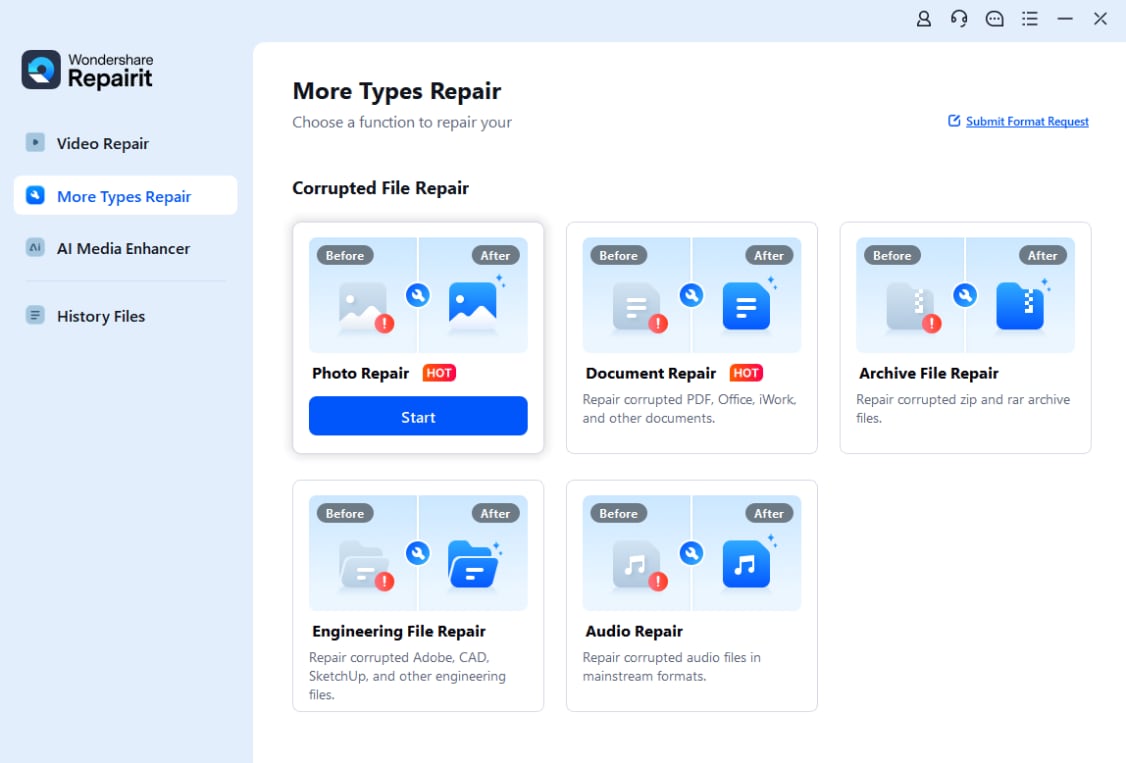
Step 2: Click the “Repair” button to let Repairit scan and fix the damaged ARW photo. The tool will automatically restore corrupted RAW image data and repair file structure issues.

Step 3: After the repair process is complete, preview the restored ARW image to ensure it displays correctly. Then save the repaired ARW file to a new location. You should now be able to open the repaired ARW photo in Lightroom without errors.

Part 6. Is Lightroom Reliable for an ARW File?
Lightroom remains one of the best tools available for editing Sony ARW files. It delivers excellent editing flexibility, professional-level image quality, and reliable workflow integration.
However, performance depends on software version, hardware capability, and file condition. Compatibility problems may occur with newer cameras, and large ARW files require powerful systems.
Overall assessment:
- Editing quality: Excellent
- Compatibility: Very good (with updates)
- Performance: Good to excellent (hardware dependent)
- Reliability: High
For most photographers, Lightroom provides a dependable and professional solution for working with ARW files.
Conclusion
Sony ARW files work reliably in Adobe Lightroom, providing full access to RAW editing features such as exposure recovery, color grading, and non-destructive adjustments. This compatibility allows photographers to maintain maximum image quality while applying professional-level edits and exporting to standard formats like JPEG or TIFF.
However, performance and compatibility depend heavily on using an updated Lightroom version that supports your specific Sony camera model. Older versions may fail to import newer ARW files, and corrupted ARW files may appear unreadable or fail to load entirely.
When used under proper conditions, Lightroom remains one of the most stable and efficient platforms for managing and editing Sony ARW files. In cases where files cannot be opened due to corruption or damage, specialized repair tools may help restore file accessibility before editing.
FAQs
-
Does Lightroom support ARW files?
Yes, Adobe Lightroom fully supports Sony .ARW (Alpha Raw) files, provided you are using a relatively modern version. If your version is too old to recognize a newer camera's RAW files, you will need to update Lightroom or use the free Adobe DNG Converter to convert the files before importing. -
Why are ARW files not opening in Lightroom?
ARW files often won't open in Lightroom because the software version is too old to support newer Sony camera models, or the files are already in the catalog, causing them to be skipped. Solutions include updating Lightroom/Camera Raw, converting files to via Adobe DNG Converter, or checking import settings. -
Is ARW better than JPEG in Lightroom?
Yes, ARW (Sony Raw) files are significantly better than JPEG in Lightroom for editing due to their uncompressed nature, which retains all sensor data, higher dynamic range, and superior color flexibility. While JPEGs are "baked-in" and limited in adjustment, ARW allows you to recover shadows/highlights, change white balance, and edit non-destructively. -
Should I convert ARW to DNG?
Converting Sony ARW files to Adobe DNG is generally recommended for long-term archiving, better third-party software compatibility, and saving 15–20% in storage space without losing image quality. It is best for users deeply integrated into Adobe Lightroom/Photoshop, while native ARW is better if you rely on proprietary Sony software. -
Can corrupted ARW files be repaired?
Yes, corrupted Sony ARW files can often be repaired or recovered, depending on the severity of the corruption. Common solutions include using specialized photo repair software like , the official Sony ARW Recovery Tool, or command-line utilities like ExifTool to extract embedded JPEG previews.