If you use Sony cameras, you have likely encountered the Sony ARW file, which is Sony’s proprietary RAW image format. This format captures uncompressed image data directly from the camera sensor, preserving maximum detail, dynamic range, and editing flexibility.
Unlike JPEG images, which are compressed and processed in-camera, ARW files retain original exposure, color, and tonal information. This makes them essential for professional photographers and advanced users who want complete control during editing.
Table of Contents
Part 1. What Are Sony ARW Files?
Sony ARW files are the native RAW image files produced by Sony cameras, including the α series (Alpha). ARW stands for Sony Alpha RAW, storing uncompressed sensor data plus embedded metadata such as camera settings, lens information, exposure, and white balance.
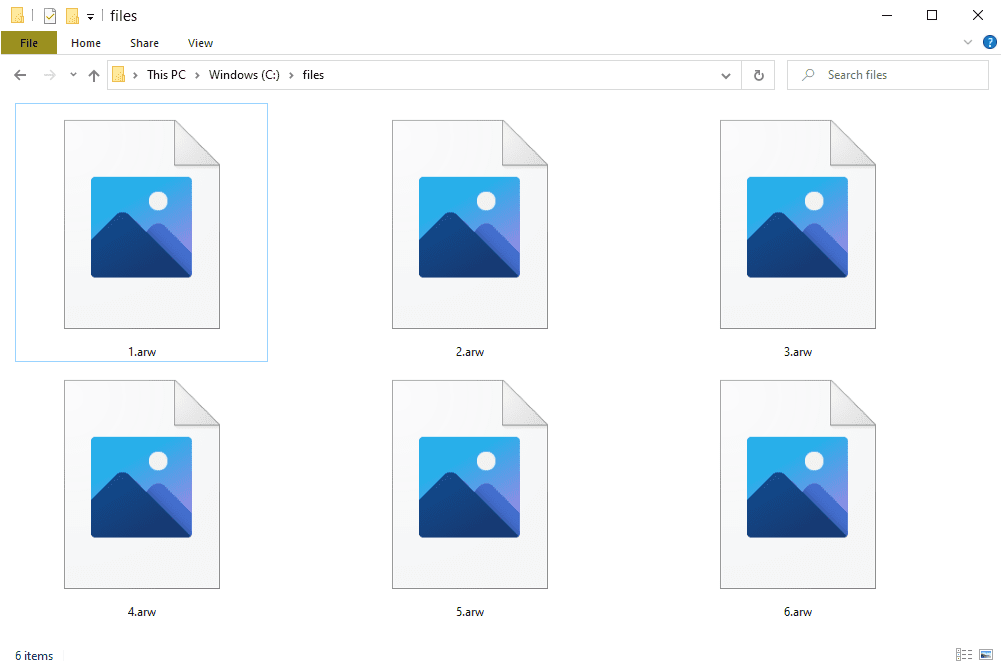
Key characteristics of Sony ARW:
- High Image Quality: ARW files preserve the full dynamic range, color accuracy, and fine detail captured by the camera. This ensures that images maintain professional-grade fidelity even under demanding conditions.
- Flexible Editing: They allow extensive adjustments in post-processing, such as exposure, white balance, and tone. These edits can be made without degrading the original image quality.
- Large File Sizes: Depending on resolution and sensor type, ARW files typically range from 20MB to 80MB or more. This makes them storage-intensive but valuable for retaining maximum detail.
- Non-Destructive Workflow: Any changes made during editing do not overwrite the original data. Instead, the file acts as a master copy that can be re-edited multiple times.
ARW files are critical for professional photographers and enthusiasts who need precise control over image output and post-processing capabilities.
You may also be interested: Which Image Format is Better - RAW vs. JPEG vs. DNG
Part 2. Technical Structure of ARW and Its Advantages
Technically, an ARW file stores raw sensor data in a Bayer or X-Trans pattern (depending on camera model) along with metadata in EXIF format. This allows software to interpret color, tone, and exposure accurately while preserving all captured information.
Benefits include:
- Maximum Editing Flexibility – White balance, exposure, contrast, and highlights can be fine-tuned after capture.
- High Dynamic Range – ARW captures subtle details in shadows and highlights that JPEG compression typically discards.
- Lossless Data Storage – Since the file is uncompressed, repeated edits and conversions do not degrade quality.
- Professional Workflow Compatibility – Supported by major editing software such as Adobe Photoshop, Lightroom, Capture One, and Sony’s Imaging Edge.
For photographers, this means ARW files are ideal for professional retouching, commercial work, and archival purposes.
Part 3. How to Convert Sony ARW to JPG or Other Formats
Sony ARW files are powerful for editing, but they can be difficult to share or open on all devices. Converting them to JPG makes the images easier to upload, view, and distribute across different platforms.
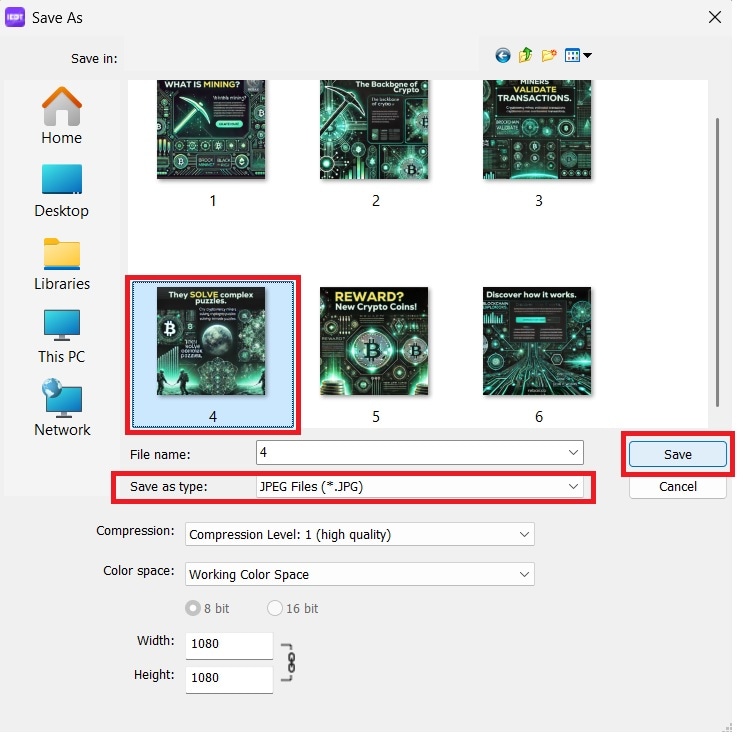
Method 1. Using Sony Imaging Edge
Sony Imaging Edge provides the most accurate conversion because it uses Sony’s official RAW processing engine. This ensures color accuracy, white balance, and camera-specific settings are preserved better than most third-party tools.
Step 1. Open Imaging Edge and load the ARW file. Click Save As.
Step 2. Select JPEG format. Save the converted image.
Method 2. Using Adobe Lightroom
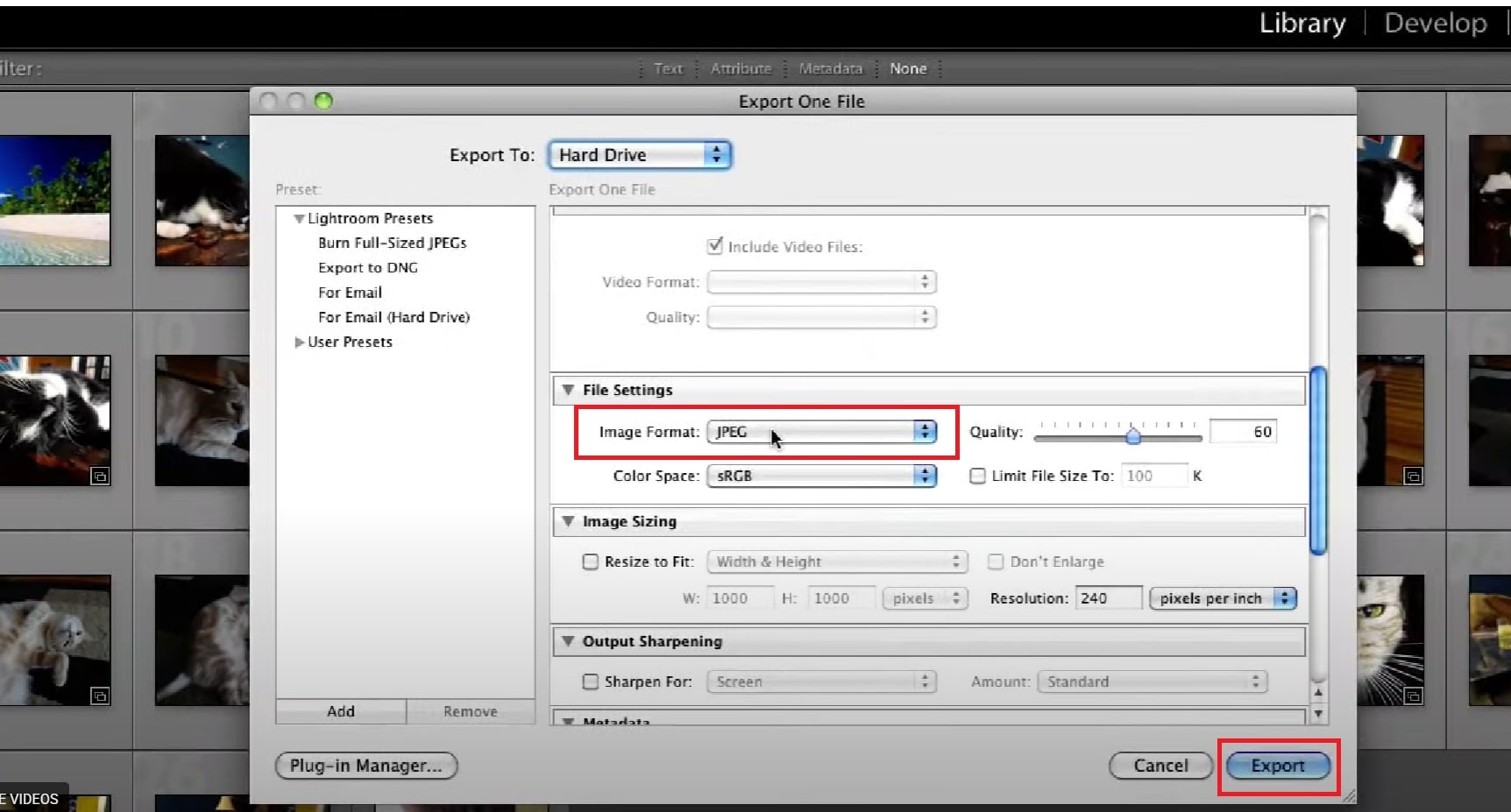
Lightroom offers more control over image quality, compression level, and color space during conversion. This makes it ideal for photographers who want to optimize images for web, print, or social media while maintaining visual quality.
Step 1. Select a photo (ARW File). Under File, click Export.
Step 2. Choose JPEG or PNG. Save the output.
Method 3. Using Online Sony ARW to JPG Converters
Online converters allow quick conversion without installing software. However, image quality and metadata may be reduced because the file is compressed and processed remotely instead of using the original RAW processing engine.
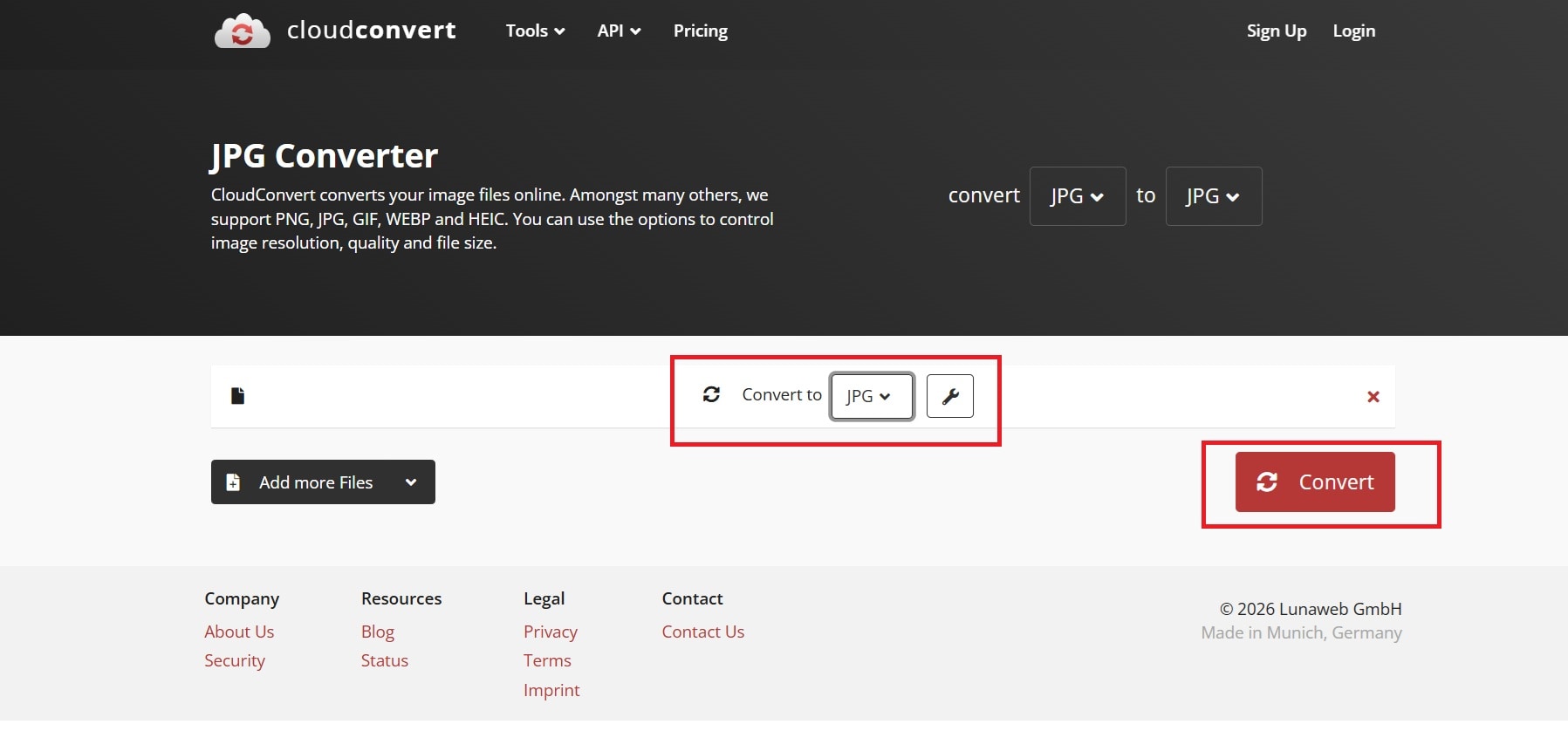
Step 1. Visit a trusted Sony ARW to JPG converter website, such as CloudConvert. Upload your ARW file and select JPG as the output format.
Step 2. Click Convert, then download the converted JPG file once the process is complete. Save it to your computer and verify that the image displays correctly.
Tip: Always back up your original ARW files before conversion to avoid accidental data loss or degradation.
Part 4. ARW Conversion Tools: Pros, Cons, and Comparison
Selecting the right tool depends on whether the priority is editing flexibility, image quality, or speed. Professionals often combine Sony Imaging Edge for RAW preservation with Lightroom for creative edits before exporting JPEGs.
| Tool | Pros | Cons | Best Use |
| Sony Imaging Edge | Official software preserves all metadata and supports batch conversion, ensuring fidelity to the original ARW files. It’s optimized for Sony cameras and provides consistent workflow integration. | Limited creative editing options compared to professional editing suites, focusing mostly on conversion and basic adjustments. | Ideal for photographers who want to maintain full RAW quality before performing edits in other software. |
| Adobe Lightroom / Photoshop | Offers format flexibility and non-destructive workflow while allowing export to multiple formats without losing image quality. It also supports batch editing and sophisticated color grading. | Requires a subscription, and the learning curve can be steep for beginners unfamiliar with RAW editing. | Perfect for photographers focused on creative adjustments, retouching, and high-quality output. |
| Online Converters | Quick and easy for converting ARW to JPEG or other formats for sharing, with minimal software setup required. | Often reduces image quality and strips metadata, limiting post-processing options. | Suitable for casual sharing, previews, or situations where high fidelity is not critical. |
Part 5. Common Issues When Working with ARW Files
Photographers often face challenges when handling ARW files, especially during editing and storage. These issues can affect workflow efficiency and require specific solutions to maintain image quality:
- Large File Sizes – ARW files are uncompressed and contain full sensor data, which results in very large file sizes compared to JPEGs. This can slow down imports, consume more storage, and make file management more demanding for photographers.
- Software Compatibility – Not all image editors fully support every ARW variant, especially if the camera model is newer. Using unsupported software may prevent opening, editing, or exporting files correctly.
- Corrupted Files – Files can become unreadable due to interrupted transfers, disk errors, or power outages during writing. A corrupted ARW file may fail to open or show distorted previews in editing software.
- Metadata Loss During Conversion – Some converters, particularly online tools, strip important EXIF and camera metadata. This can affect color profiles, exposure information, and other embedded details critical for post-processing.
Part 6. Repairing Corrupted ARW Files
Sony ARW files can become corrupted due to interrupted transfers, SD card errors, improper ejection, or storage device failures. When this happens, standard software like Adobe Lightroom or camera utilities may fail to open the file, display only a preview, or show error messages.
Because ARW is a proprietary RAW format containing complex image and metadata structures, repairing the file structure is often necessary before the image becomes accessible again.
File software like Repairit Photo Repair can rebuild damaged file structures and restore accessibility. This tool is primarily designed to recover certain media file structures affected by transfer errors, storage corruption, or incomplete writes.

-
Repair damaged photos with all levels of corruption, such as grainy photos, dark photos, pixelated photos, faded photos, etc.
-
Repair images of diverse formats, such as JPG, JPEG, PNG, CR3, CR2, NEF, NRW, etc.
-
Repair critically damaged or corrupted photos available on SD cards, phones, cameras, USB flash drives, and more.
-
Repairit has a quick and advanced repairing mode. You can use either depending on the level of corruption the photos has undergone.
-
The "AI Image Upscaler" feature can enlarge the repaired photos to 2X, 4X, and 8X.
-
Intelligently restore old/scatched photo and colorize black and white photos with various AI effects.
-
No limit to the number and size of the repairable photos compared with the online version of Repairit.
-
Support Windows 11/10/8/7/Vista, Windows Server 2003/2008/2012/2016/2019/2022, and macOS 10.12~macOS 14.
Step 1: Add the corrupted Sony ARW files.
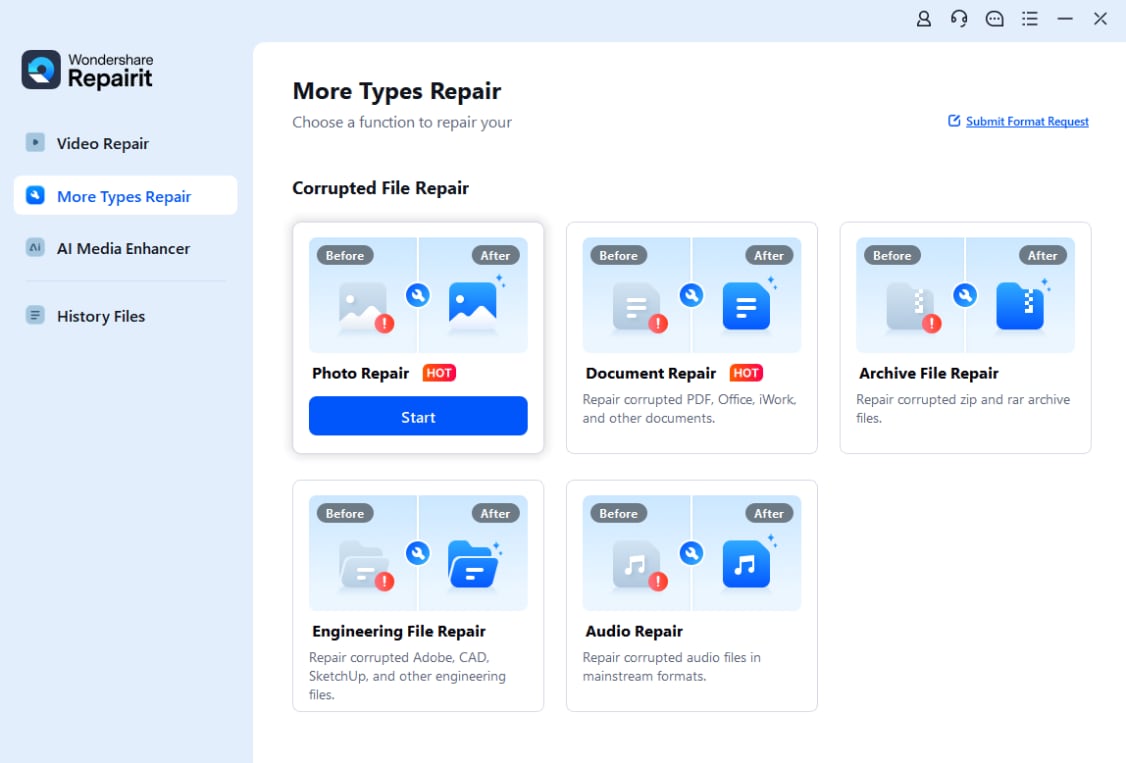
Step 2: Start the repair process.

Step 3: Preview and save the repaired arw image files in a new location.

⚠️ Note: This process repairs file structure corruption but does not resolve physical hardware damage, such as a failing memory card or camera malfunction.
Conclusion
Sony ARW files preserve full sensor data, allowing higher image quality and more flexible editing than standard formats. This makes them ideal for photographers who need precise control over exposure, color, and detail.
However, ARW files require compatible software and proper handling to work correctly. Using reliable converters ensures smooth editing and consistent results. If files become corrupted, repair tools may help restore access and recover important image data.
FAQs
-
What is a Sony ARW file?
A Sony ARW (Alpha Raw) file is a proprietary RAW image format used by Sony Alpha digital cameras, acting as a "digital negative" that contains unprocessed, high-quality data directly from the image sensor. These large, uncompressed files allow photographers to edit white balance, color, and exposure without quality loss.. -
How do I convert Sony ARW to JPG?
Convert Sony ARW files to JPG using free online converters (FreeConvert, CloudConvert, Evoto) for quick results, or desktop software like Sony Imaging Edge, Adobe Lightroom, or Photoshop for batch processing and higher quality control. Simply upload or open your ARW files, select JPG as the output format, and save. -
What is the best Sony RAW converter?
Capture One Pro is widely considered the best RAW converter for Sony cameras due to its superior handling of Sony’s color science and dynamic range. For versatility, Adobe Lightroom/Camera Raw is the industry standard for editing and AI masking, while Sony’s free Imaging Edge Desktop is ideal for accurate, native color conversion. -
Why can't I open Sony ARW files?
Sony ARW files usually won't open because your software (Lightroom, Photoshop, macOS Preview) is outdated and does not support the specific, new Sony camera model, or you are trying to open a newer compressed RAW format. To fix this, update your software to the latest version, convert files to DNG using Adobe DNG Converter, or use Sony Imaging Edge. -
Are Sony ARW files better than JPEG?
Yes, Sony ARW (RAW) files are technically superior to JPEG in image quality, offering significantly higher dynamic range, 12-14 bit color depth, and maximum detail retention, allowing extensive post-processing without degradation. While JPEGs are pre-processed, smaller, and ready to share, ARW files are better for editing, recovering shadows/highlights, and professional results.